


New article
Recently updated
Getting Started with Setting up Users

Who is this article for?Users setting up other users.
System Administrators can configure administration options.
Setting up users in Please Review involves creating user profiles, assigning access levels, and defining roles through the user management interface, ensuring that individuals have the appropriate permissions for their tasks within the system.
Note that depending on the workgroup management settings you may need to enter a username, in this process, or it may automatically use the email address as the username. It is recommended to use the email address as the username as this has to be unique on our system. However, you can create your own usernames for users if your settings allow this and you so choose.
1. Setting up Users
1.1. Video
1.2. Steps
- Expand the navigation bar.
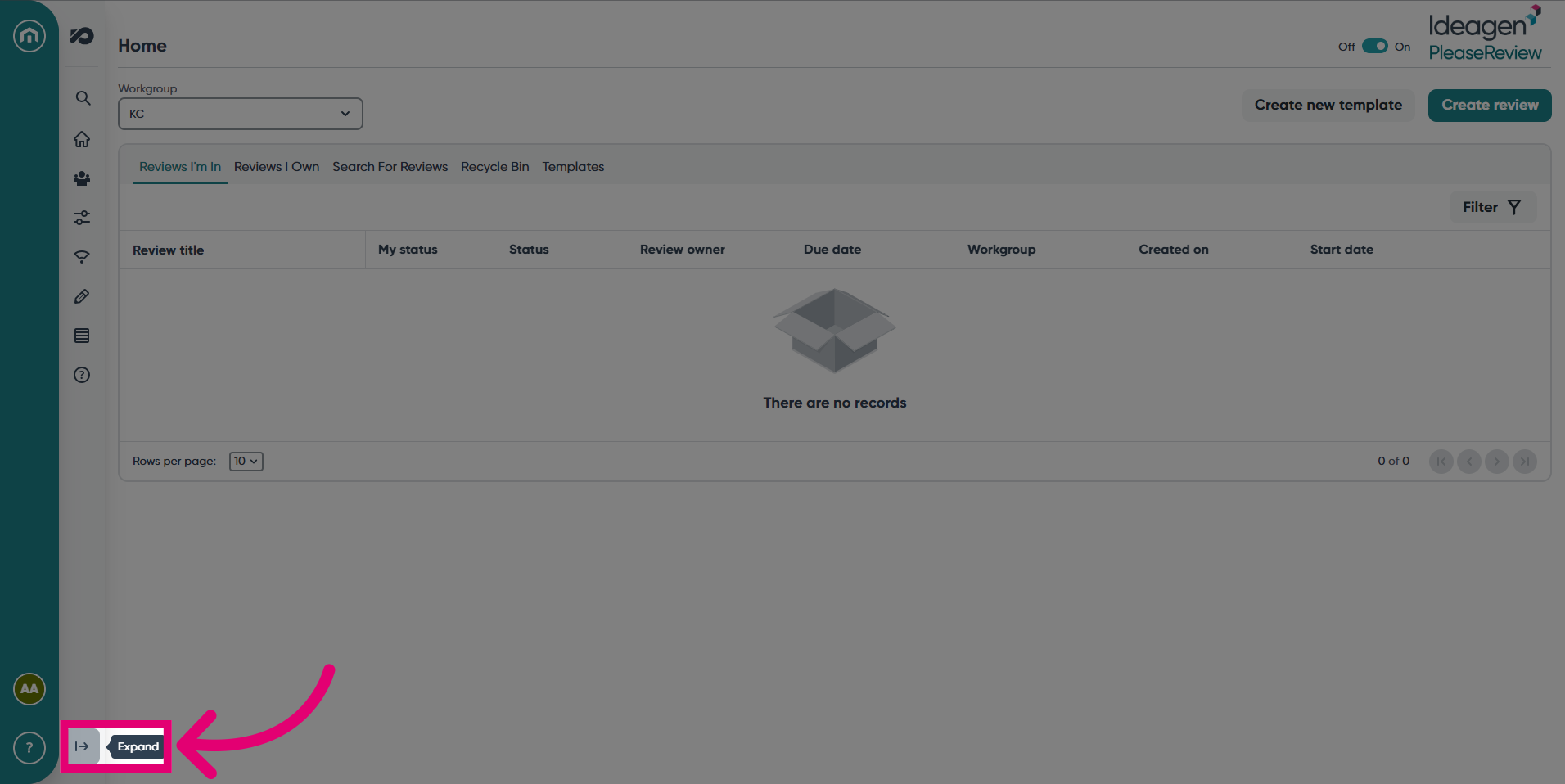
- Click on the Admin tab.
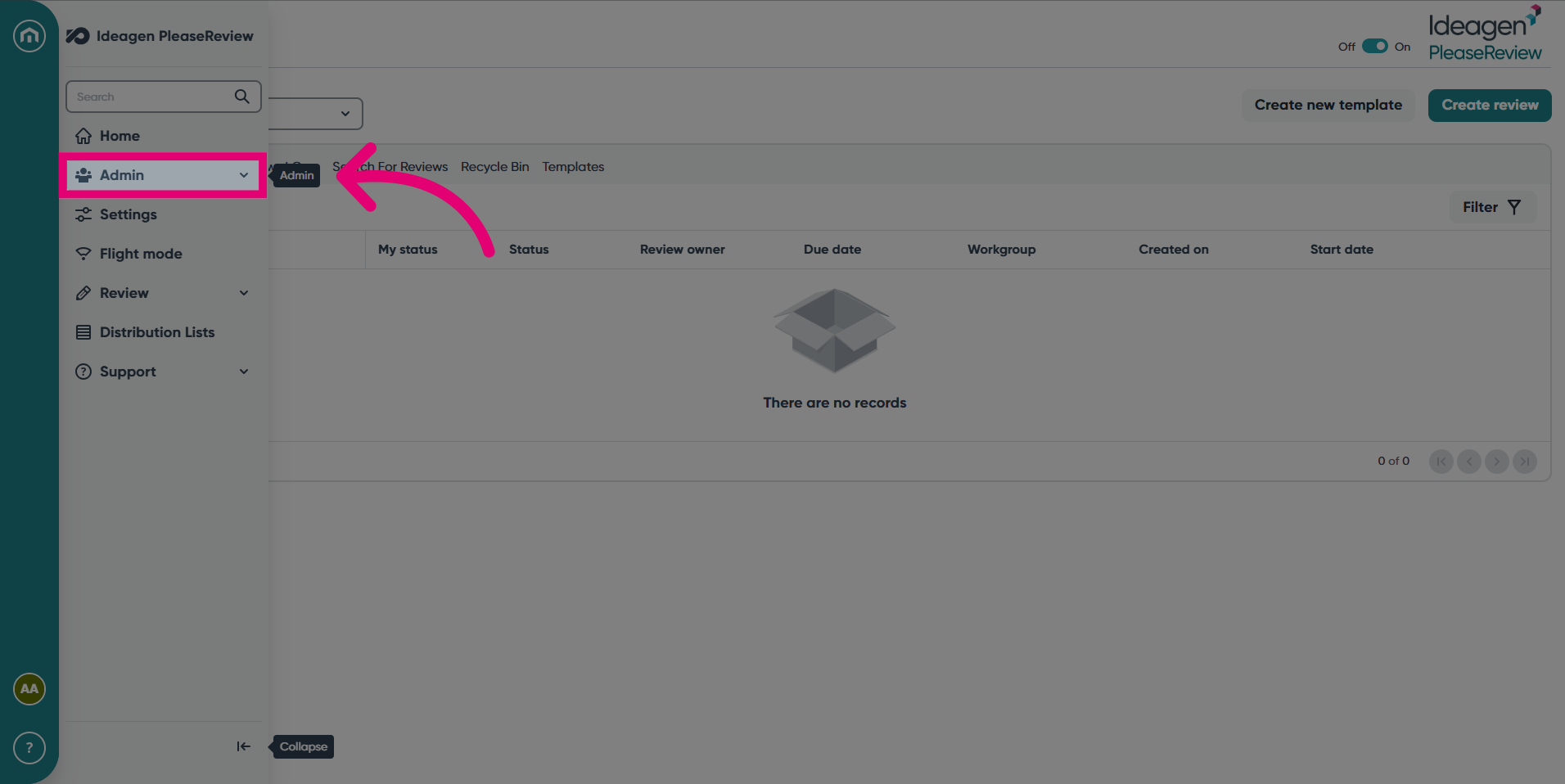
- Next, select Users.
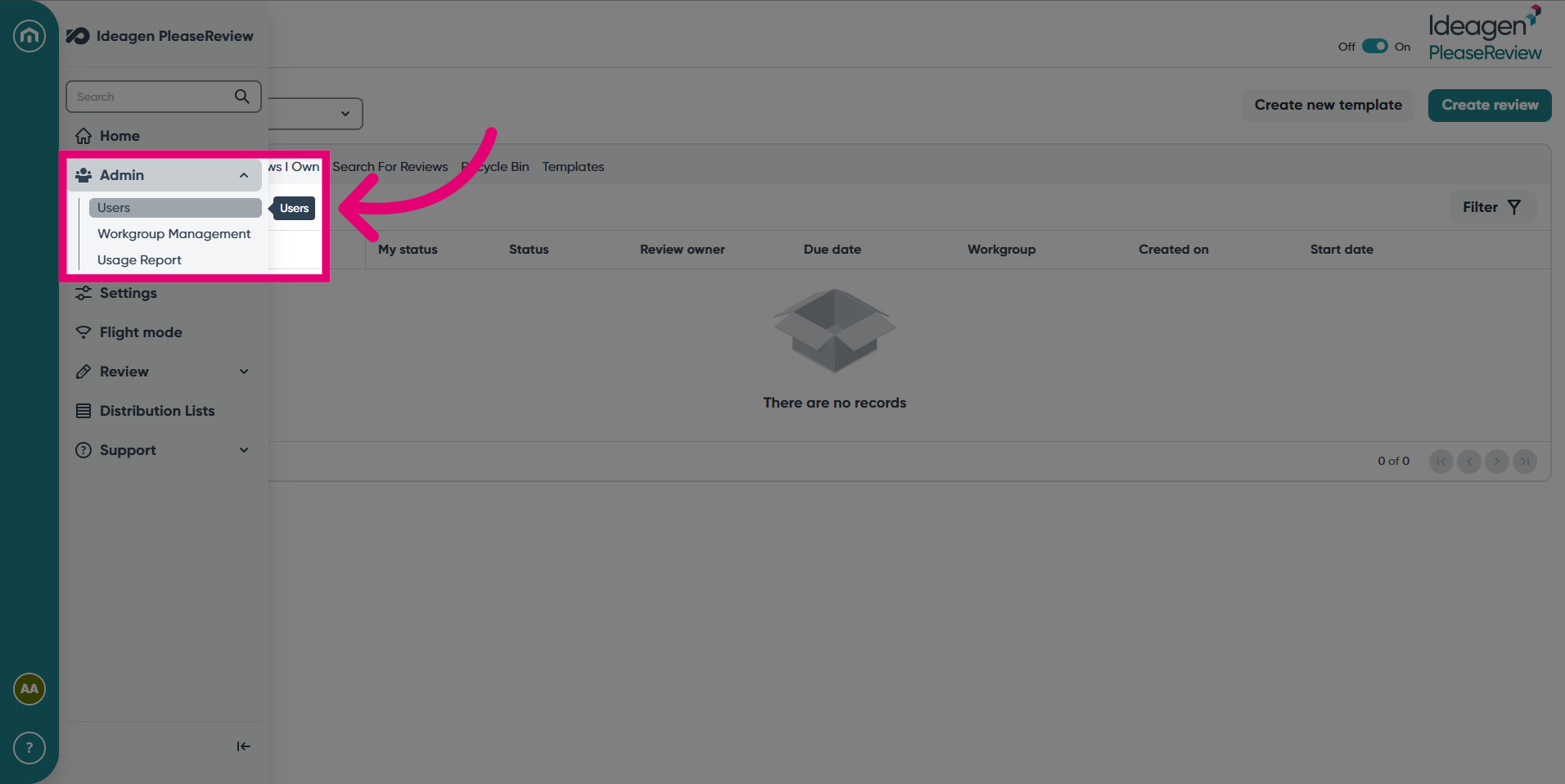
- In the User Administration screen, you can find and add new users. Lets start with Find user.
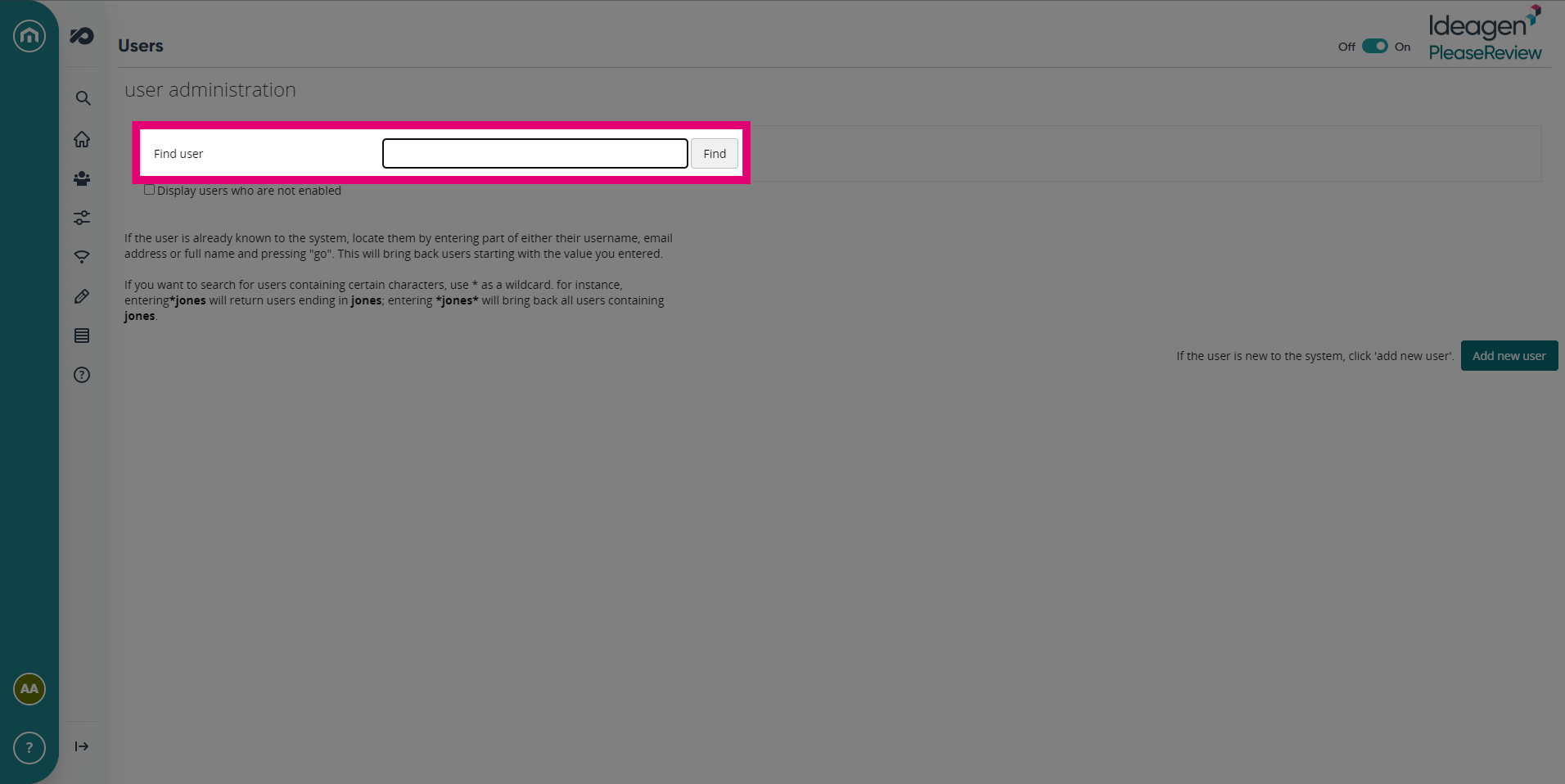
- Enter a name into the designated field. Additionally, you can display users who are not enabled by checking the tickbox.
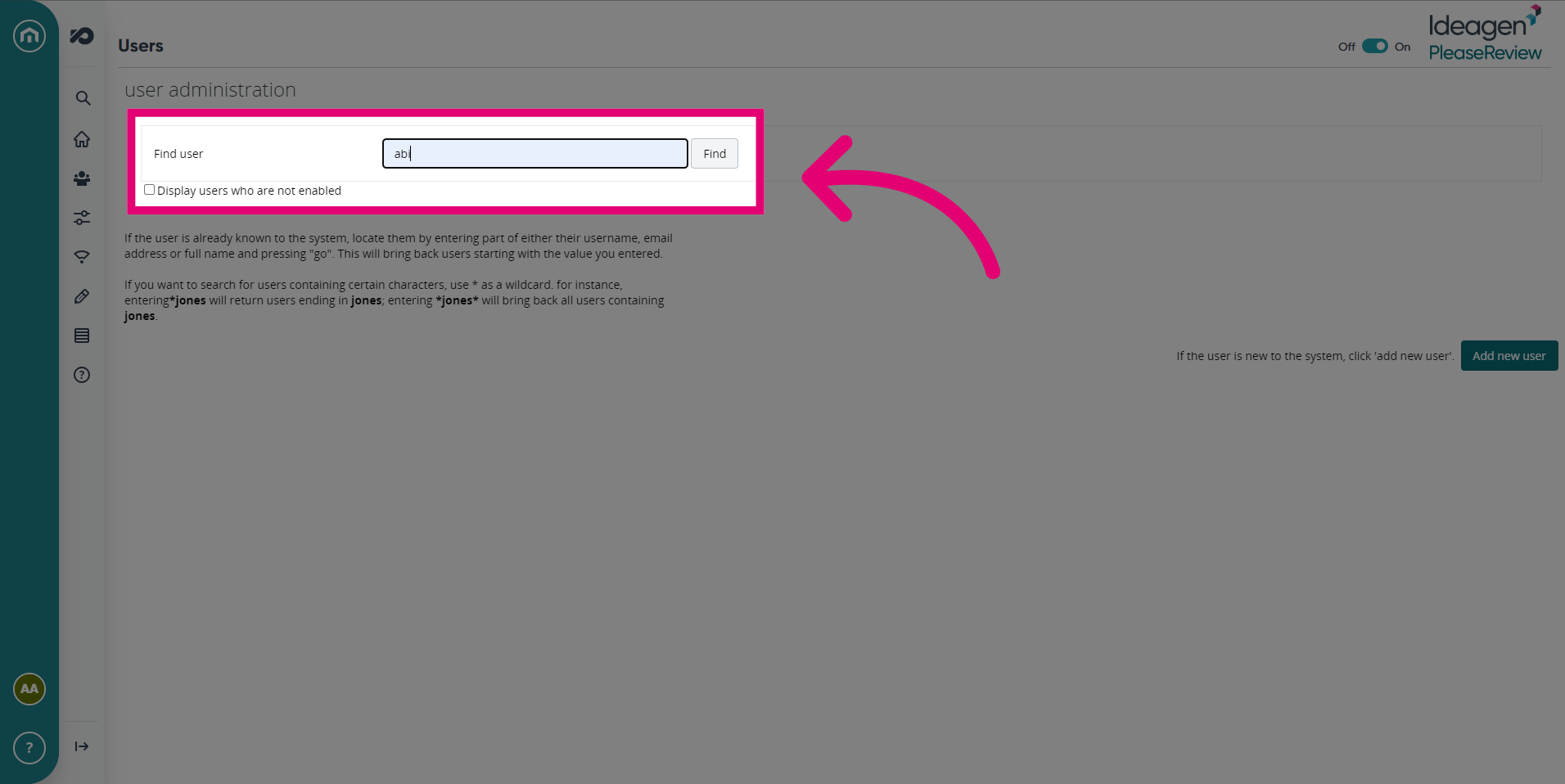
- Click Find.
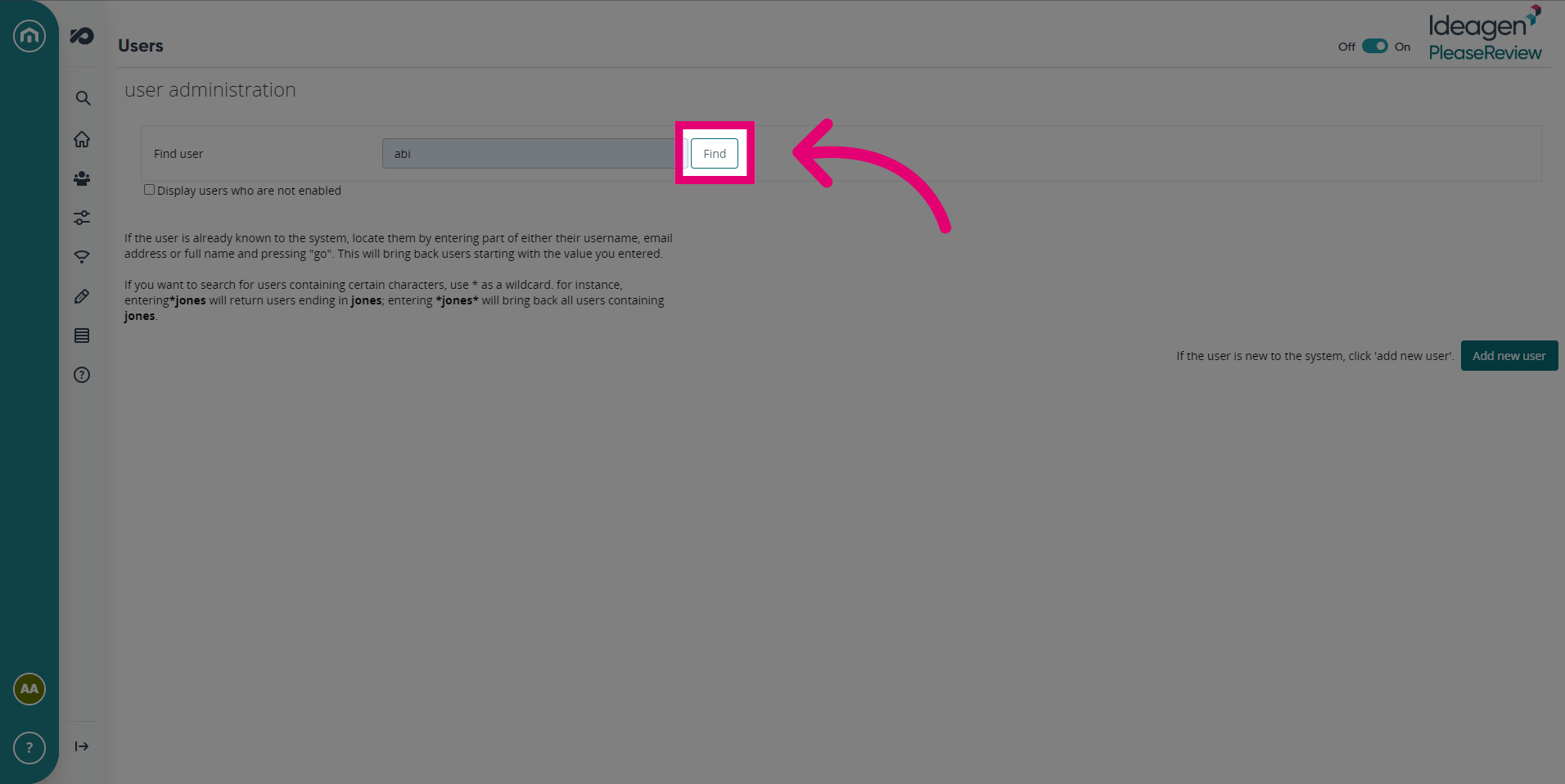
- If the user is in the system, it should appear in the list below. To view or edit the users details, click Select.
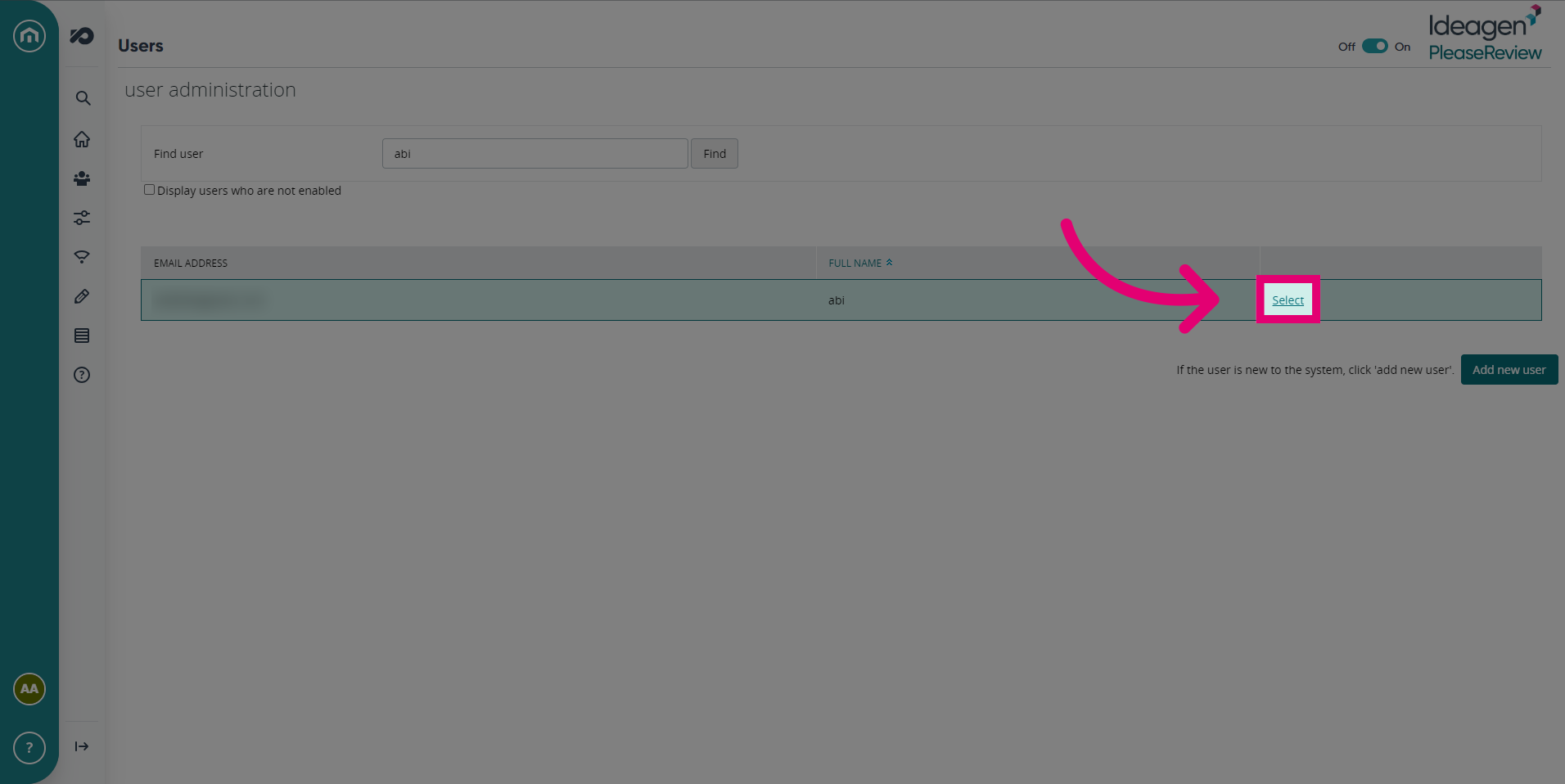
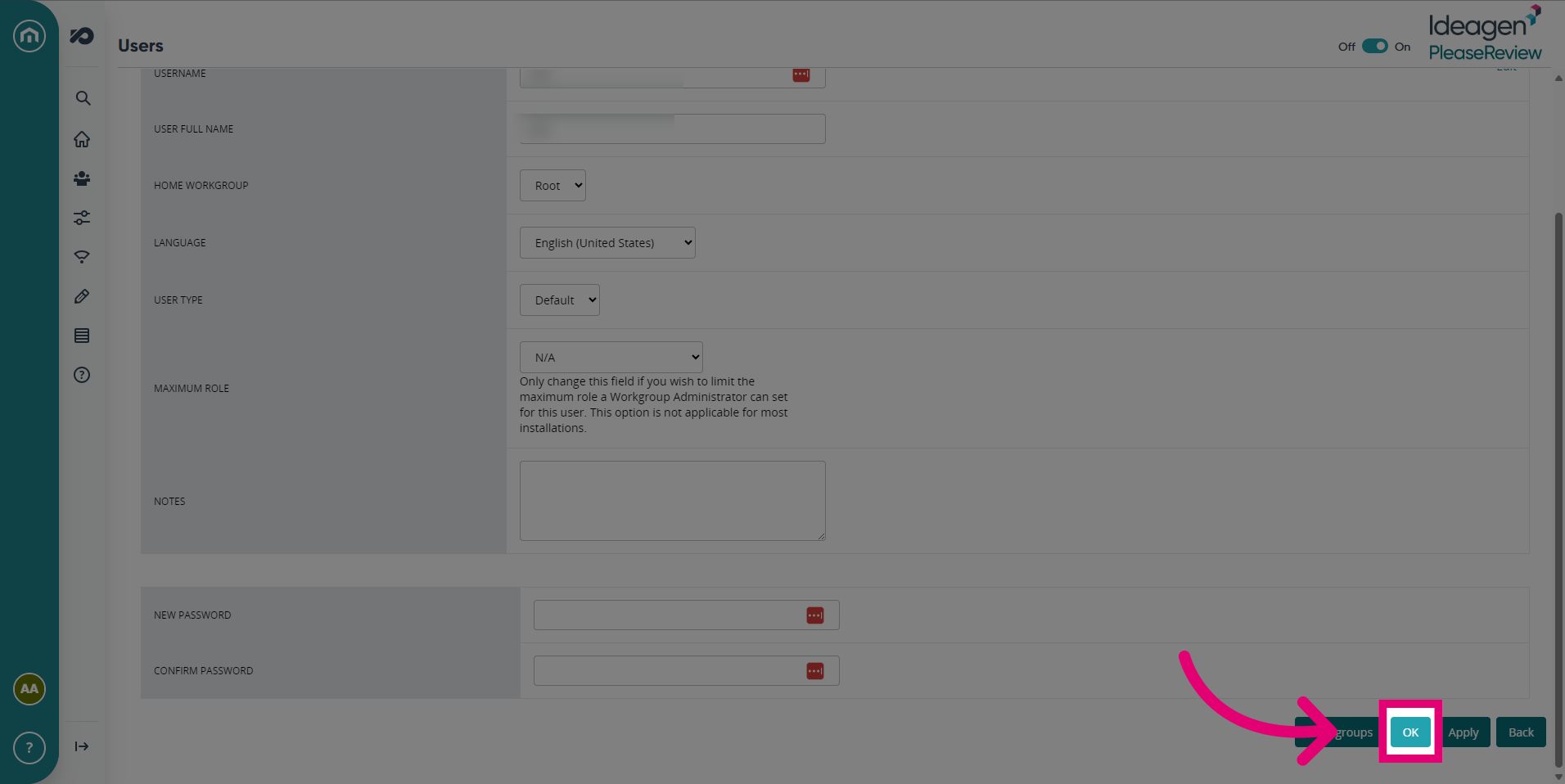
- Dependent on your permissions, you will be able to edit user details in this screen and reset user passwords.
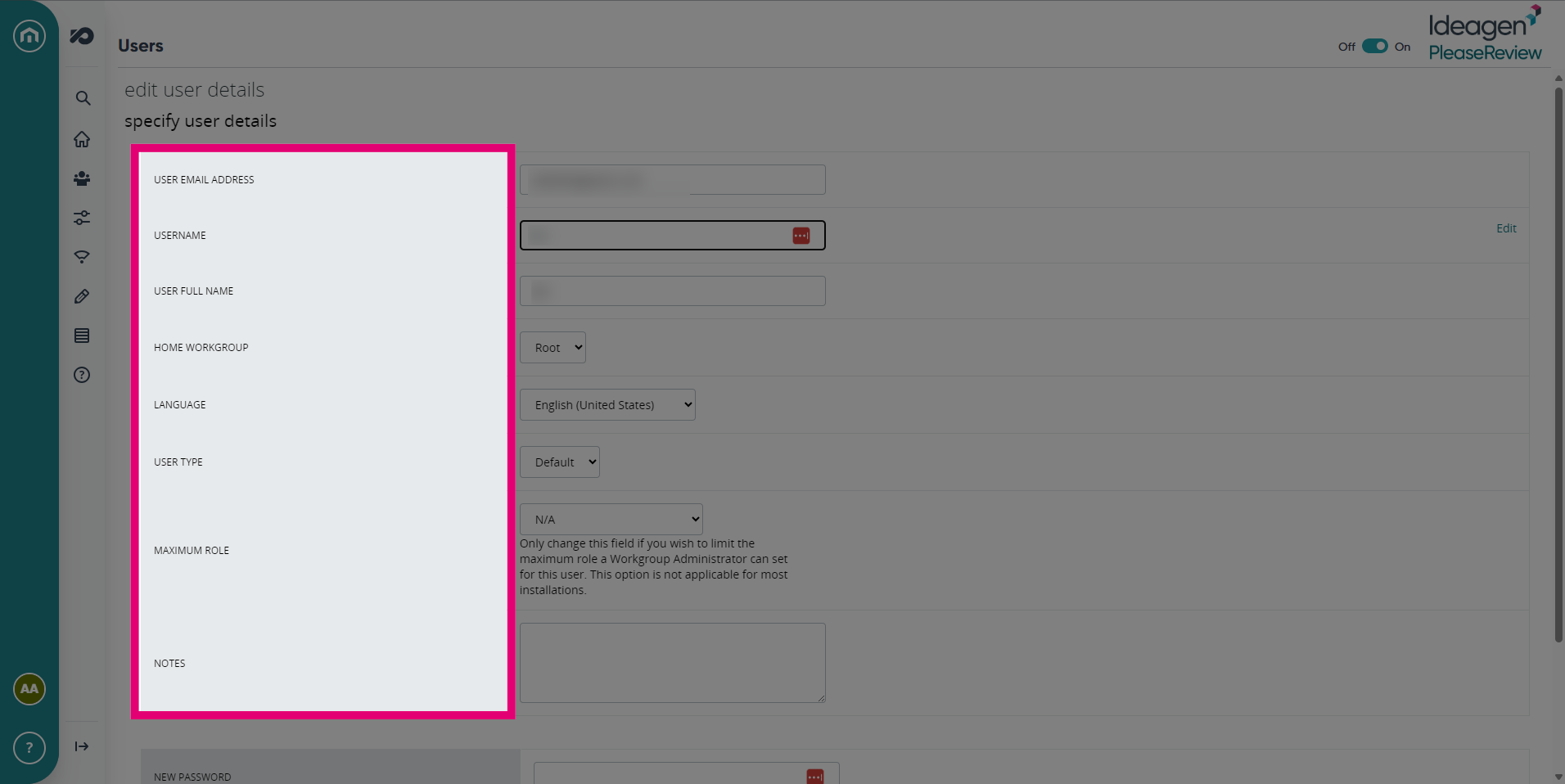
- Confirm any changes you've made by clicking Apply, then to return to the Home screen, click OK.
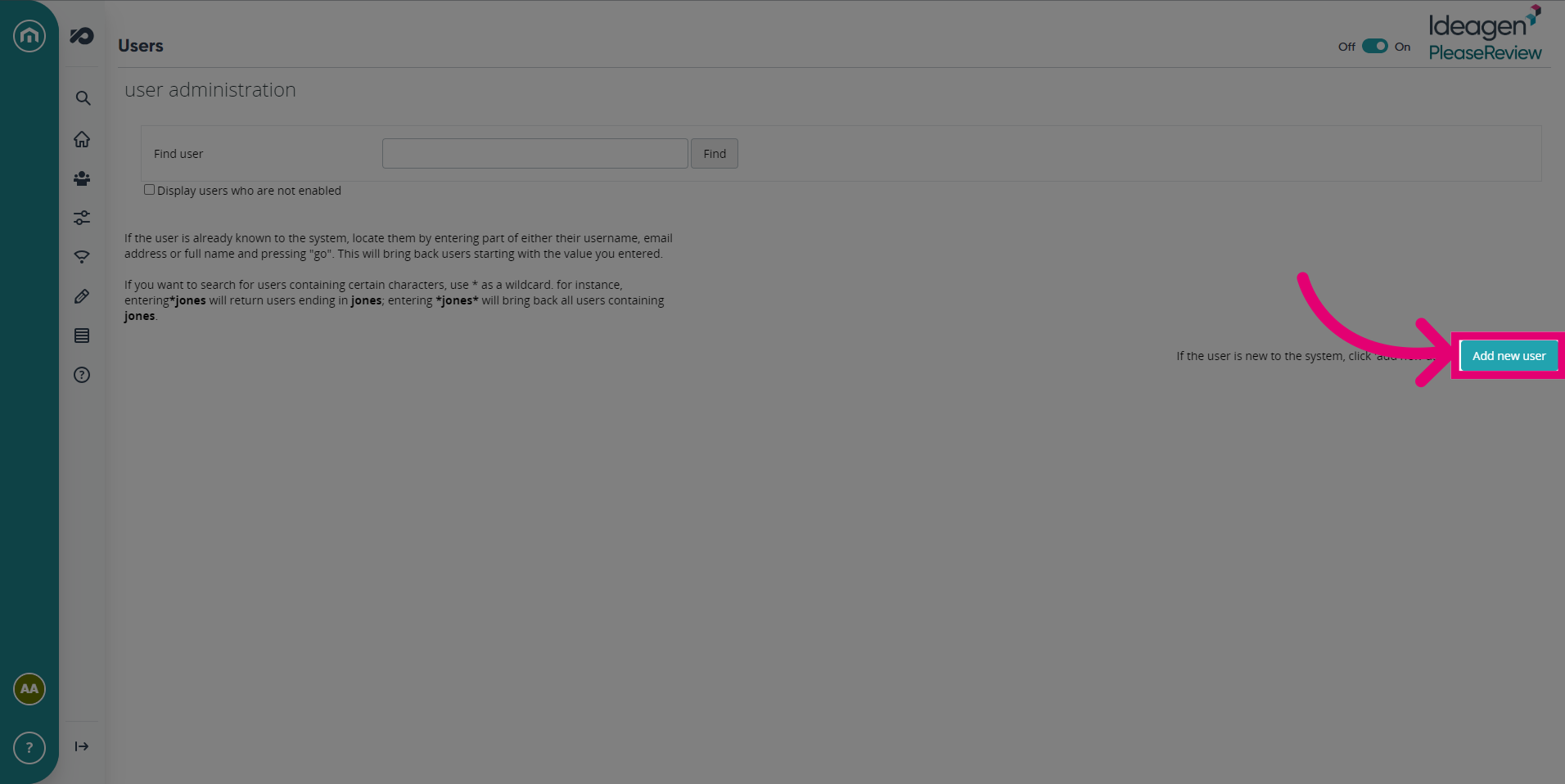
- The second option in this screen is to Add a new user.
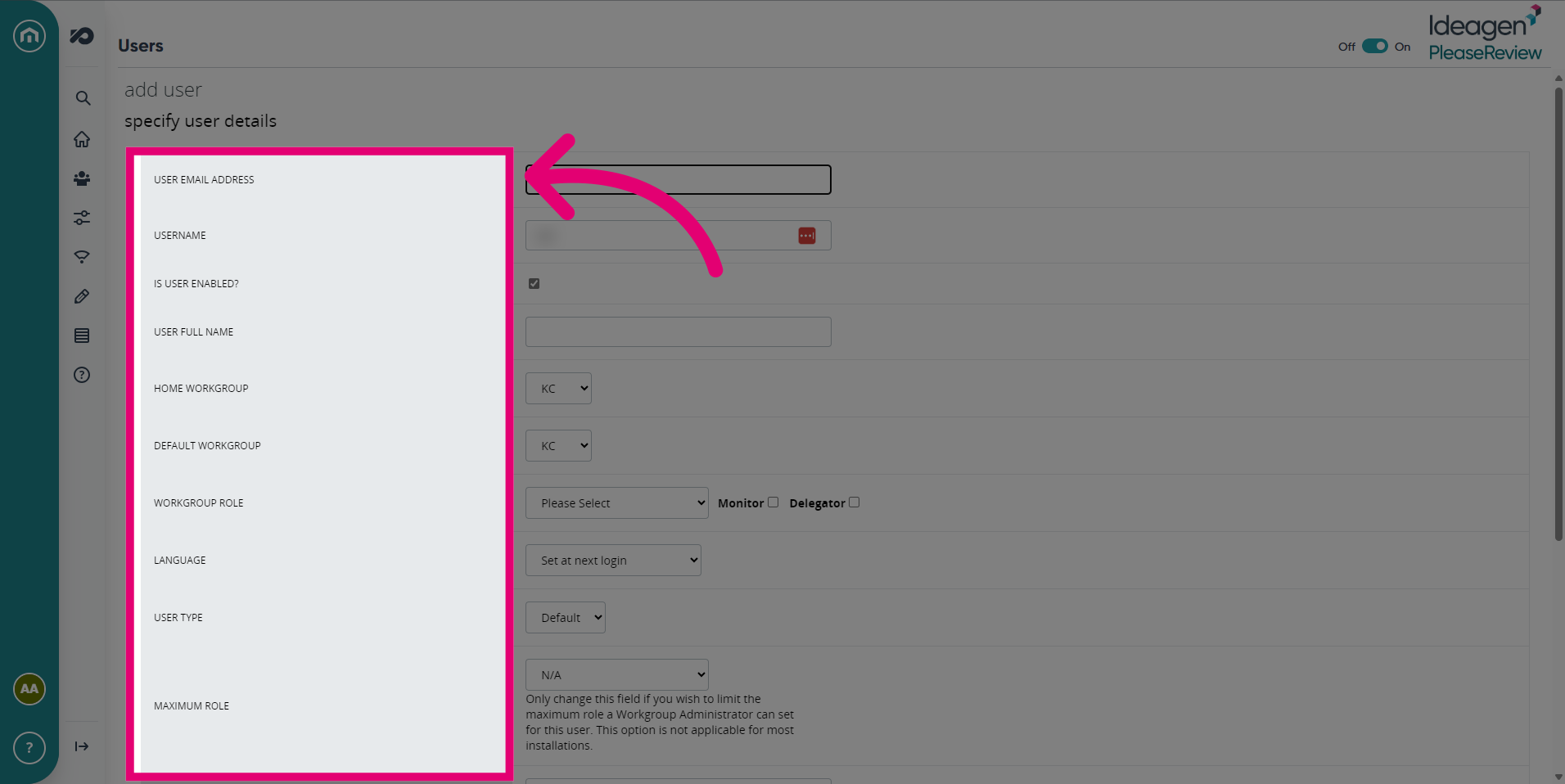
- Specify the new users details including Username, Workgroup, User Type and Role.
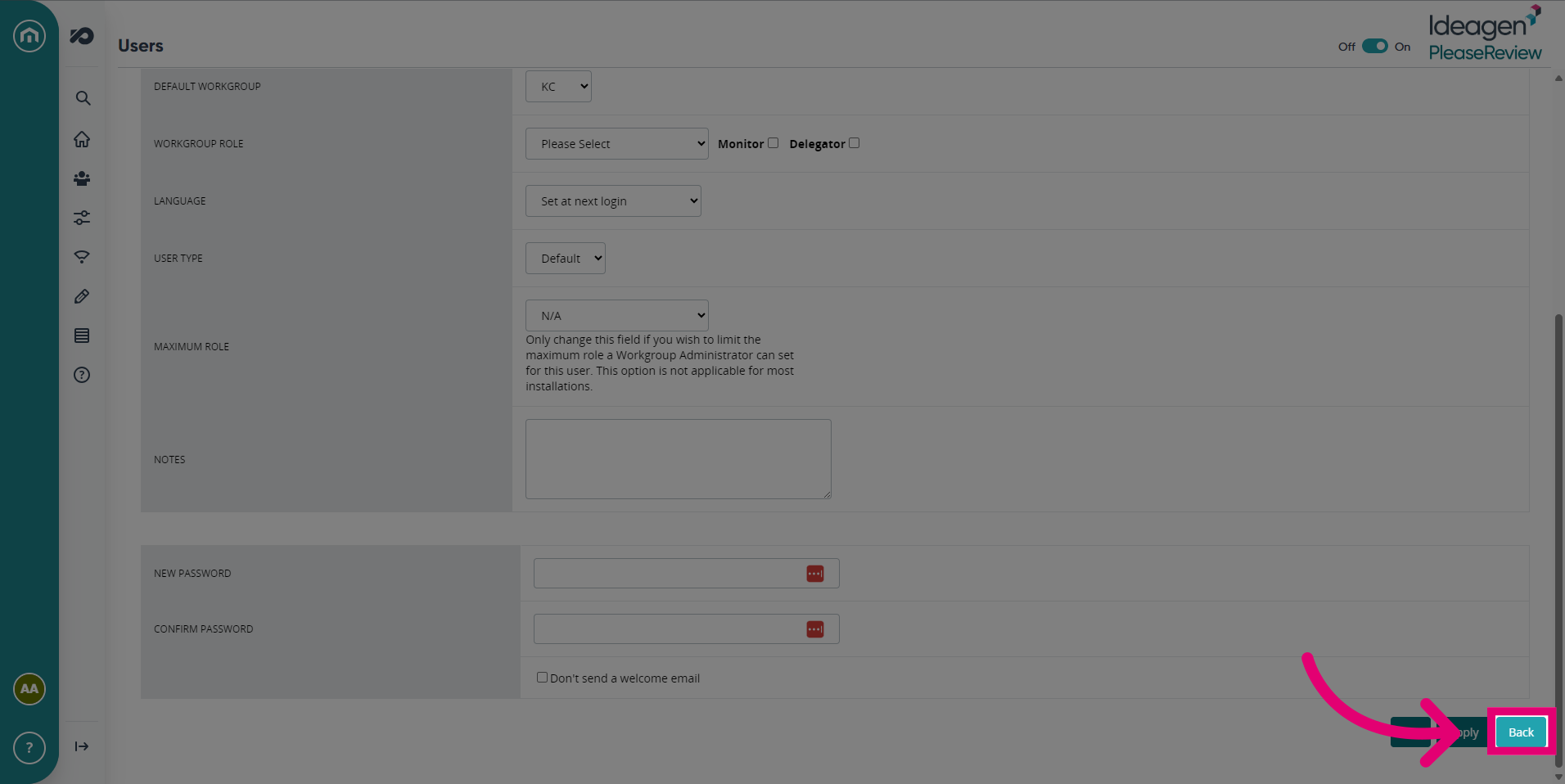
- Click Apply once you've entered all the required details about the new user. To return to the Home screen, click Back.
Tip: Want to know more? See How to Add and Delete Users for more information.
Setting up Users
- Sign into Please Review using the System Administrator login details.
- Select the ‘Admin’ tab in the top left hand side of the home screen, then select ‘Members’ as shown below:
- All current members of the Workgroup will be displayed. The evaluation owner will automatically be listed as a member.
- Select ‘Add User’:
- In the user administration screen, select ‘Add new user’:
- Enter the user’s details and select their workgroup role from the drop down list:
- Finally, click ‘OK’ to create the new user.
- The user email address will be their Please Review username and must be unique.
- At the bottom of the screen, you can set the user’s Please Review login password. When left blank, the user is sent an automated email inviting them to set their own password.
Note: If the ‘Don’t send a welcome email’ checkbox is selected, the user will not receive the automated email.