


New article
Recently updated
Configuring Logged on Users and File Management

Who is this article for?Users looking for logged on users & file management.
System Administrators can access log files.
Logged-on users in Please Review refer to individuals currently active within the system, participating in document reviews and collaborations. Log file management involves the systematic handling and analysis of system-generated log files, which provide valuable insights into user activities, system performance, and potential issues, aiding administrators in maintaining a secure and optimized Please Review environment.
1. Configuring Logged on Users and Log File Management
1.1. Video
1.2. Steps
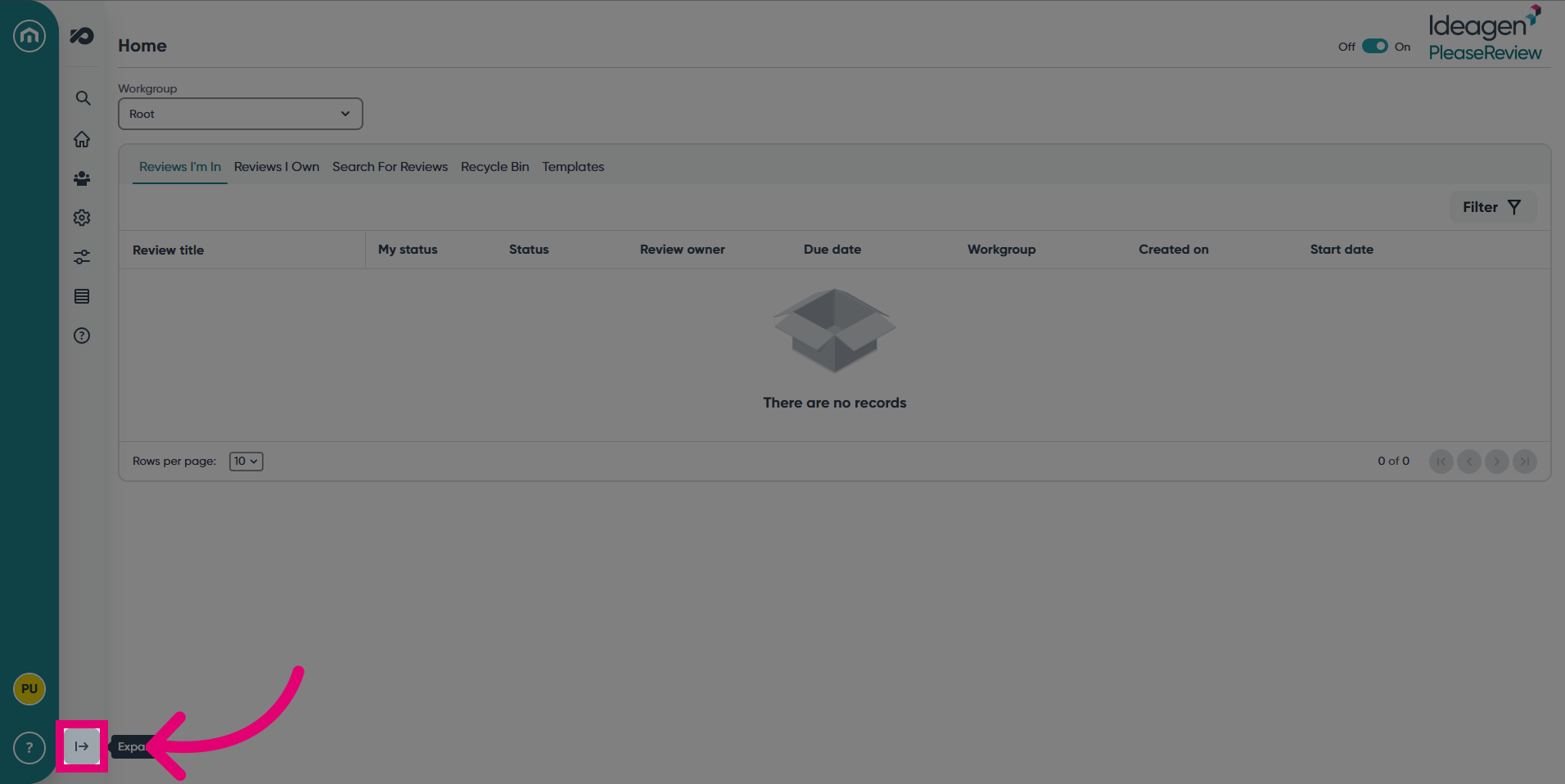
- Expand the navigation bar.
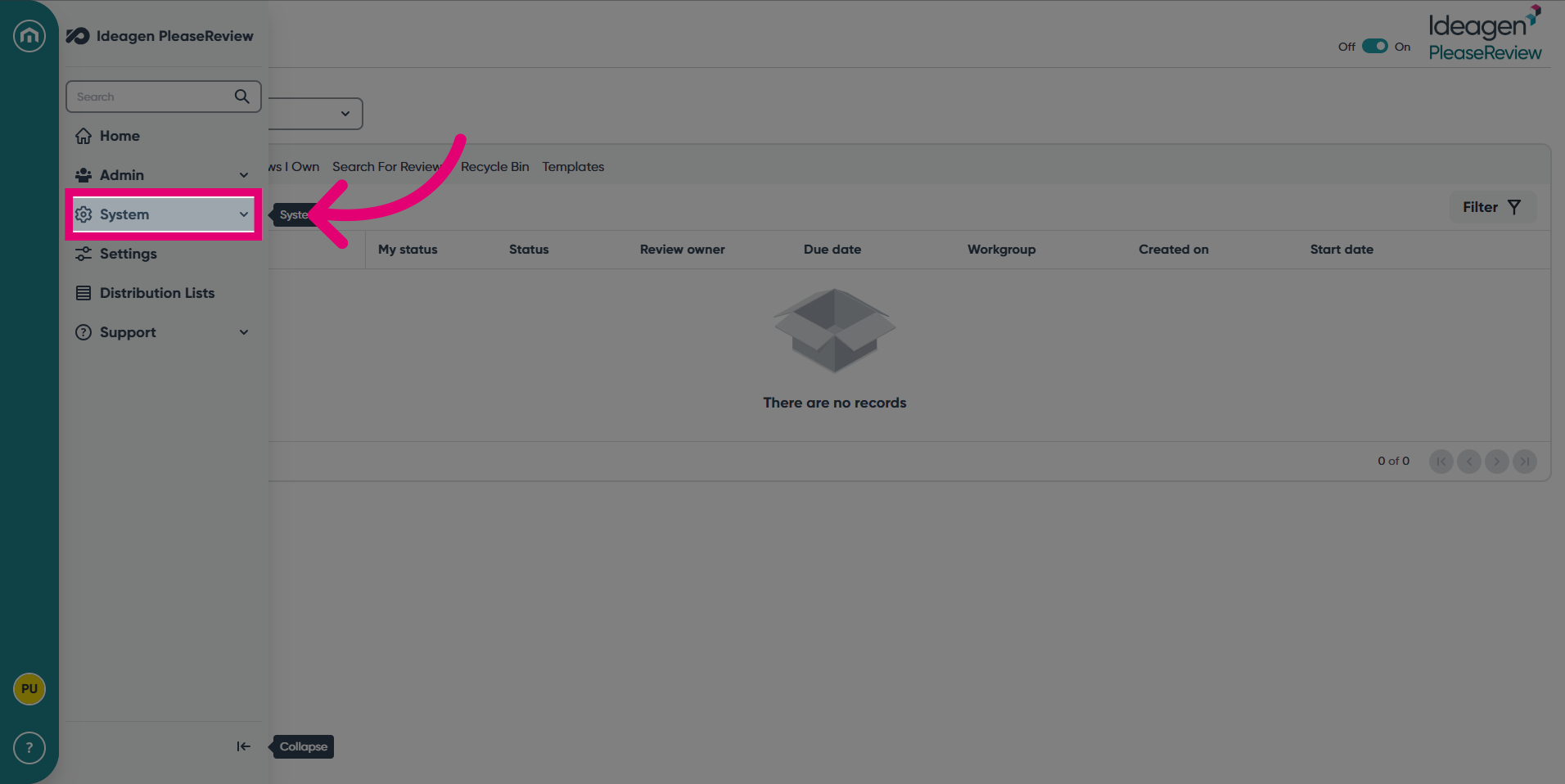
- Select the System tab.
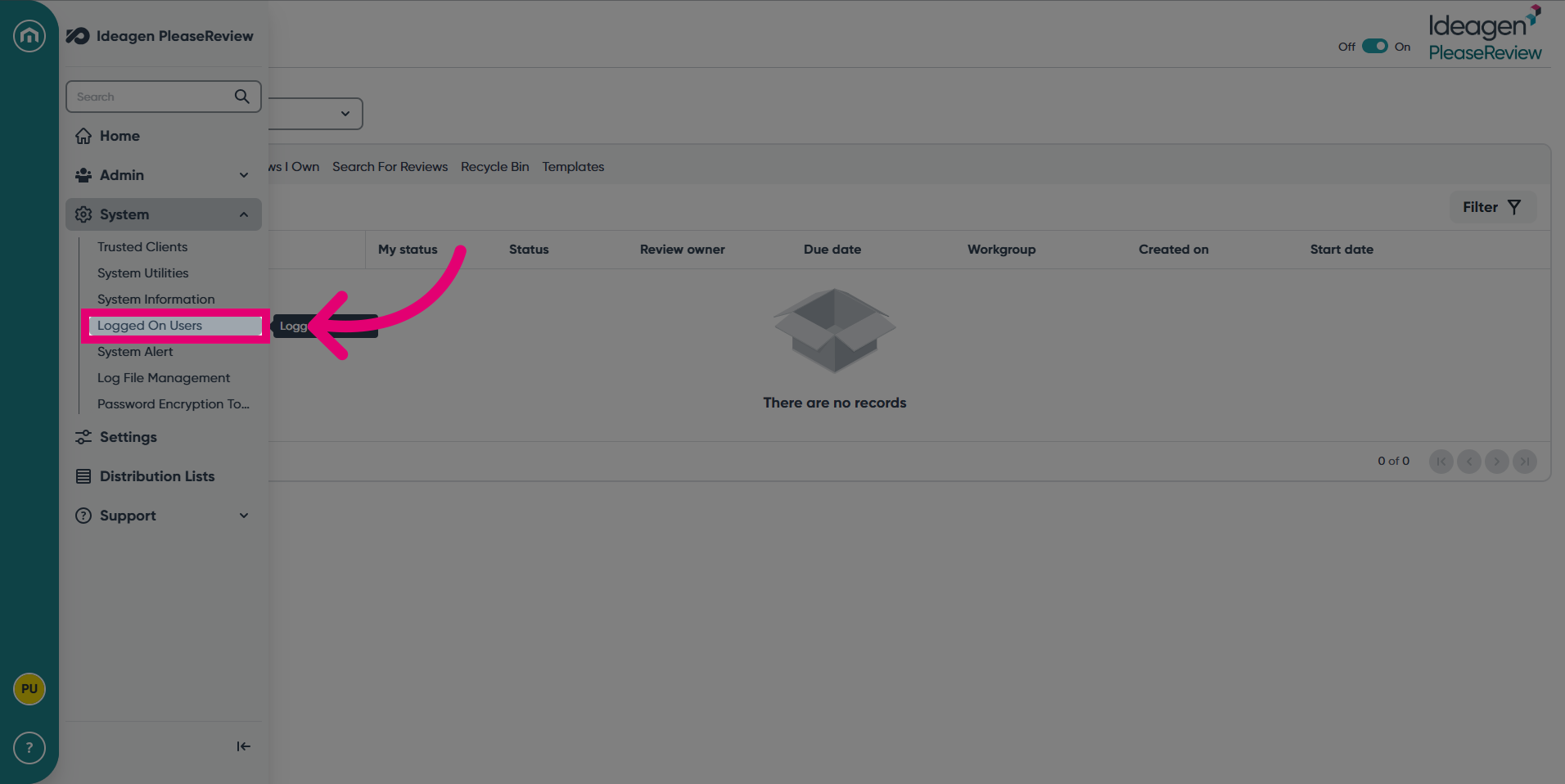
- Next, click on Logged On Users.
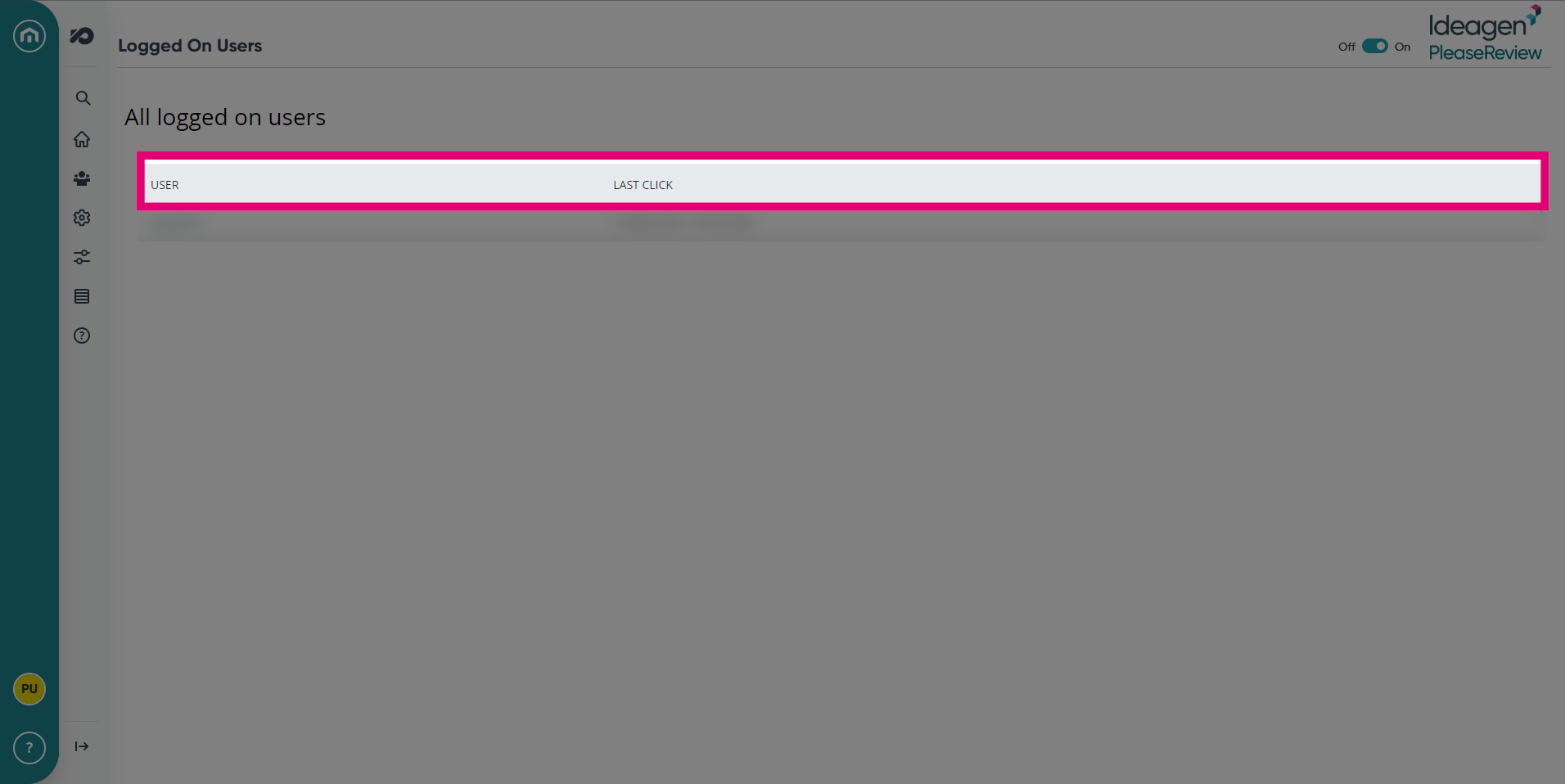
- This screen will show a list of all the logged on users and their last click.
- Next, to view log files, expand then navigation bar, click the System drop down, then click Log File Management.
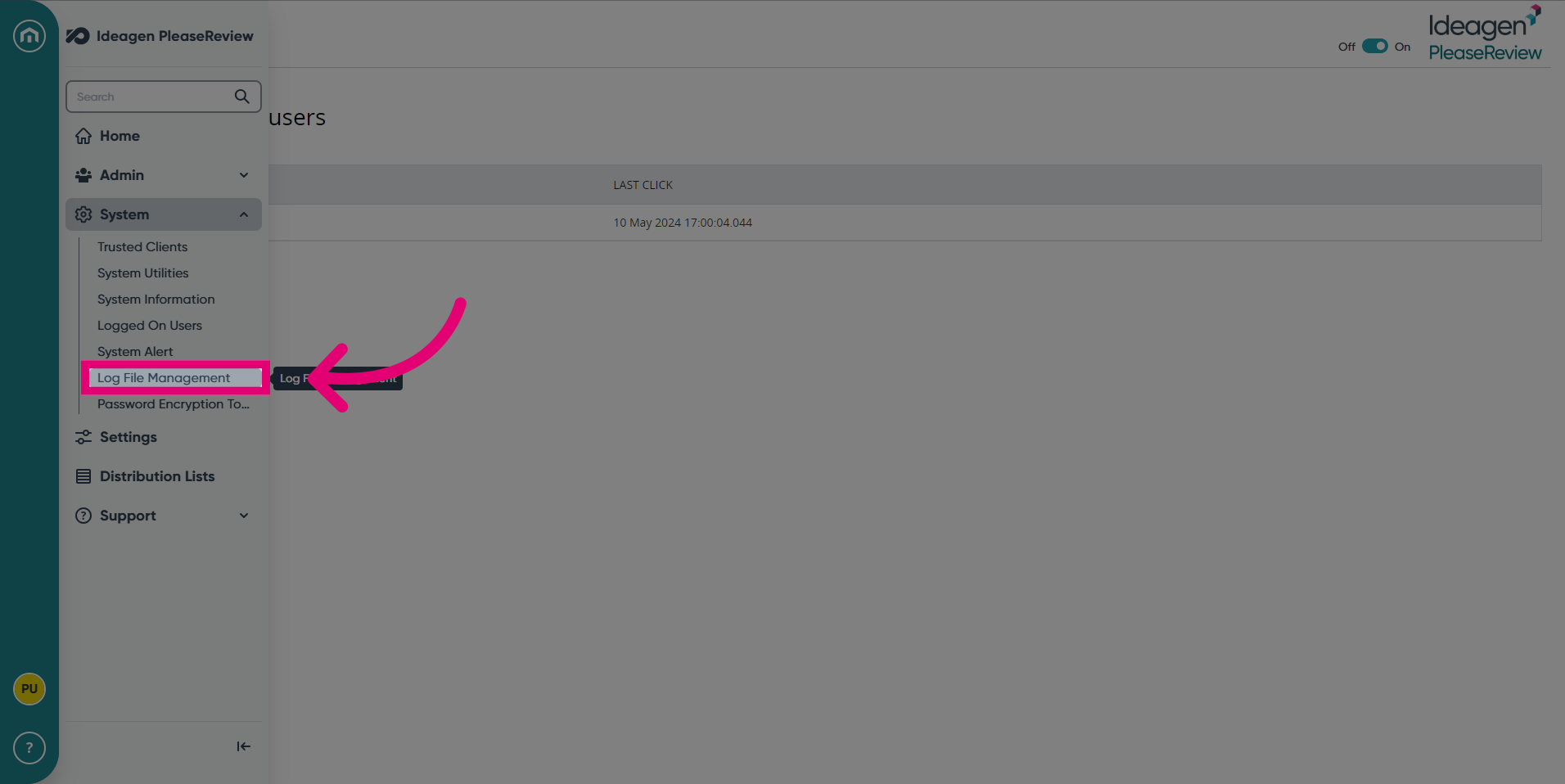
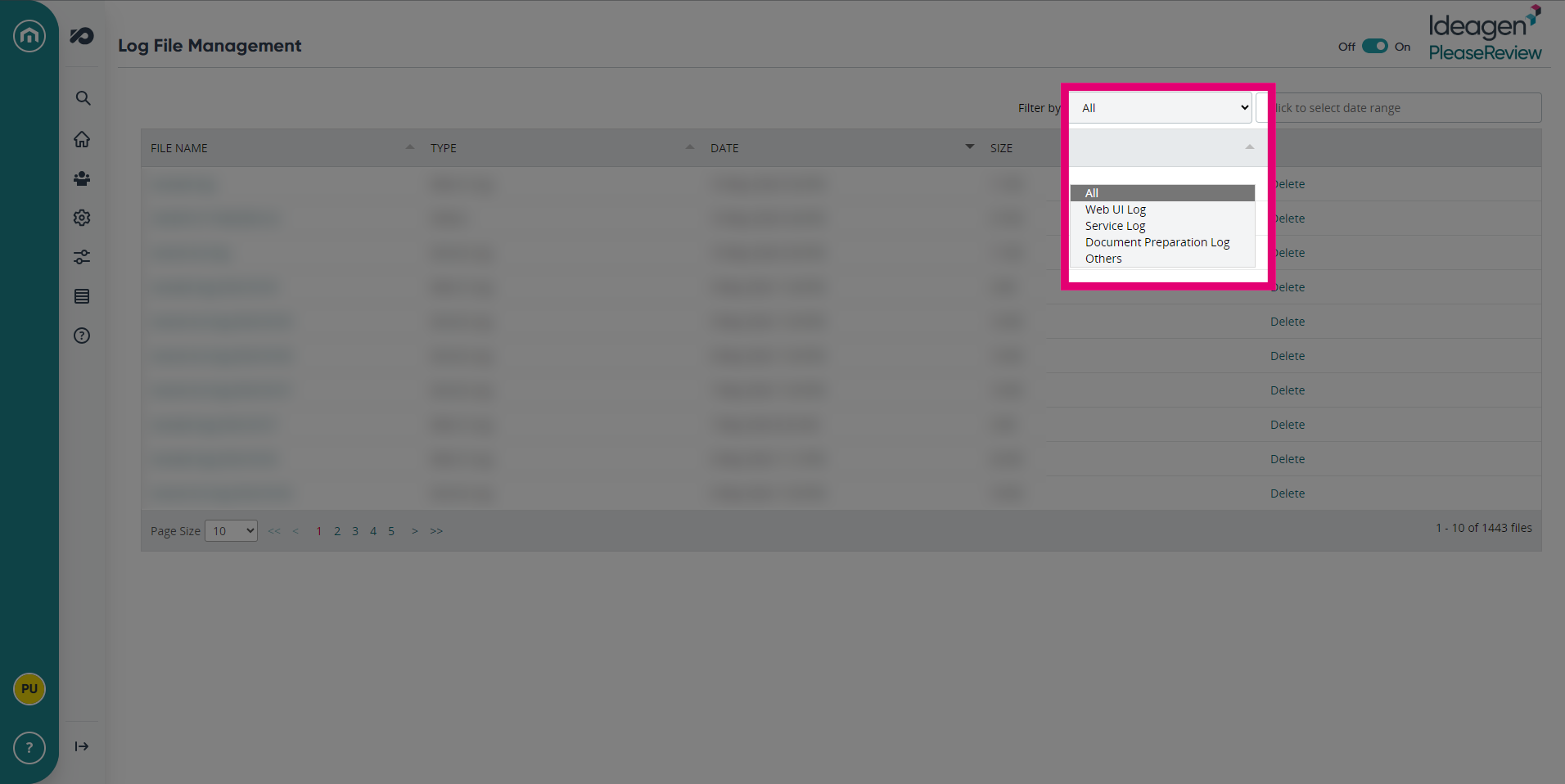
- In this screen, scroll through the list of Log files. You can filter by logs through the drop-down on the right hand side.
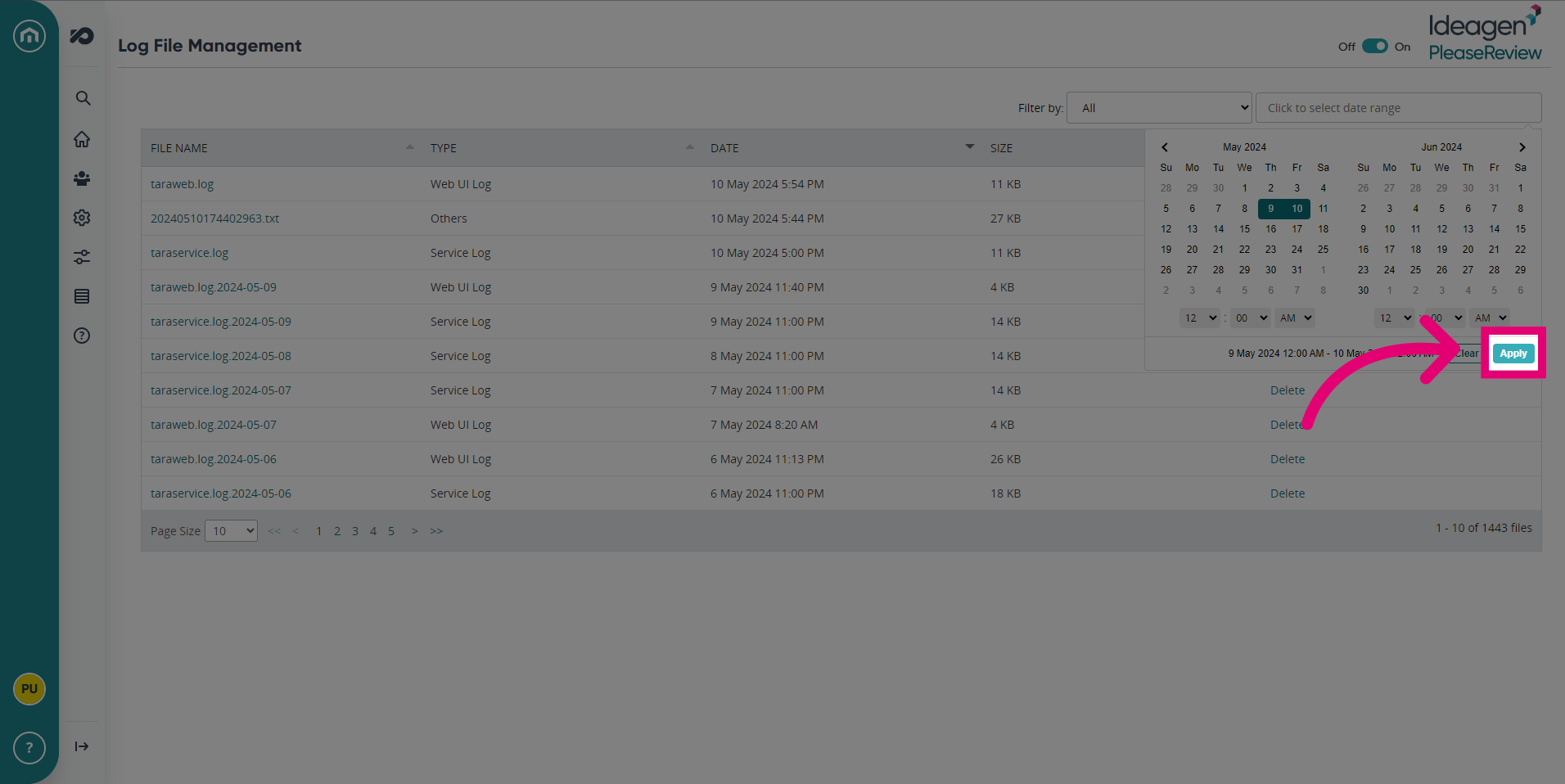
- You can also filter by date range. Click Apply once you've selected the correct dates.
1. Logged On Users
- The logged on users screen provides a list of all currently logged on users and the date and time of their last click.
- Click on username link to see more information on the user, including the ability to Kill session, which will terminate the session in question and log the user off:
2. Log File Management
Please Review allows the System Administrator to easily access log files from within the Please Review interface. This will allow System Administrators to troubleshoot issues that may crop up more easily without having to request help from Please Review support or the IT team that maintains the server.
- The Log File Management screen will display your server hostname (top-left) and a list of all the log files currently available in the system.
- The File Name, Type, Date and Size are all available for each file.
- You can sort the files by any of these categories simply by clicking the column header.
Note: It is also possible to filter these by a range of dates, by the type of log it is or both.
The types are:
- Web UI Log
- Service Log
- Document Preparation Log
- Others (typically errors where an Oops page is displayed)
- You can also determine the number of results that show by changing the Page Size at the bottom-left of the table.
- To download the log, you simply click on the File Name link.
- If for any reason it is required that a log file be deleted, then you can click the Delete link at the right hand side.