


New article
Recently updated
Creating a new Review

Who is this article for?Authors creating reviews.
Review Creation is available only to those with author permissions.
The following article explains how to create a new review within the Please Review product. This article does not explain multi-phase reviews or uploading review documentation.
1. Creating a new Review
1.1. Video
1.2. Steps
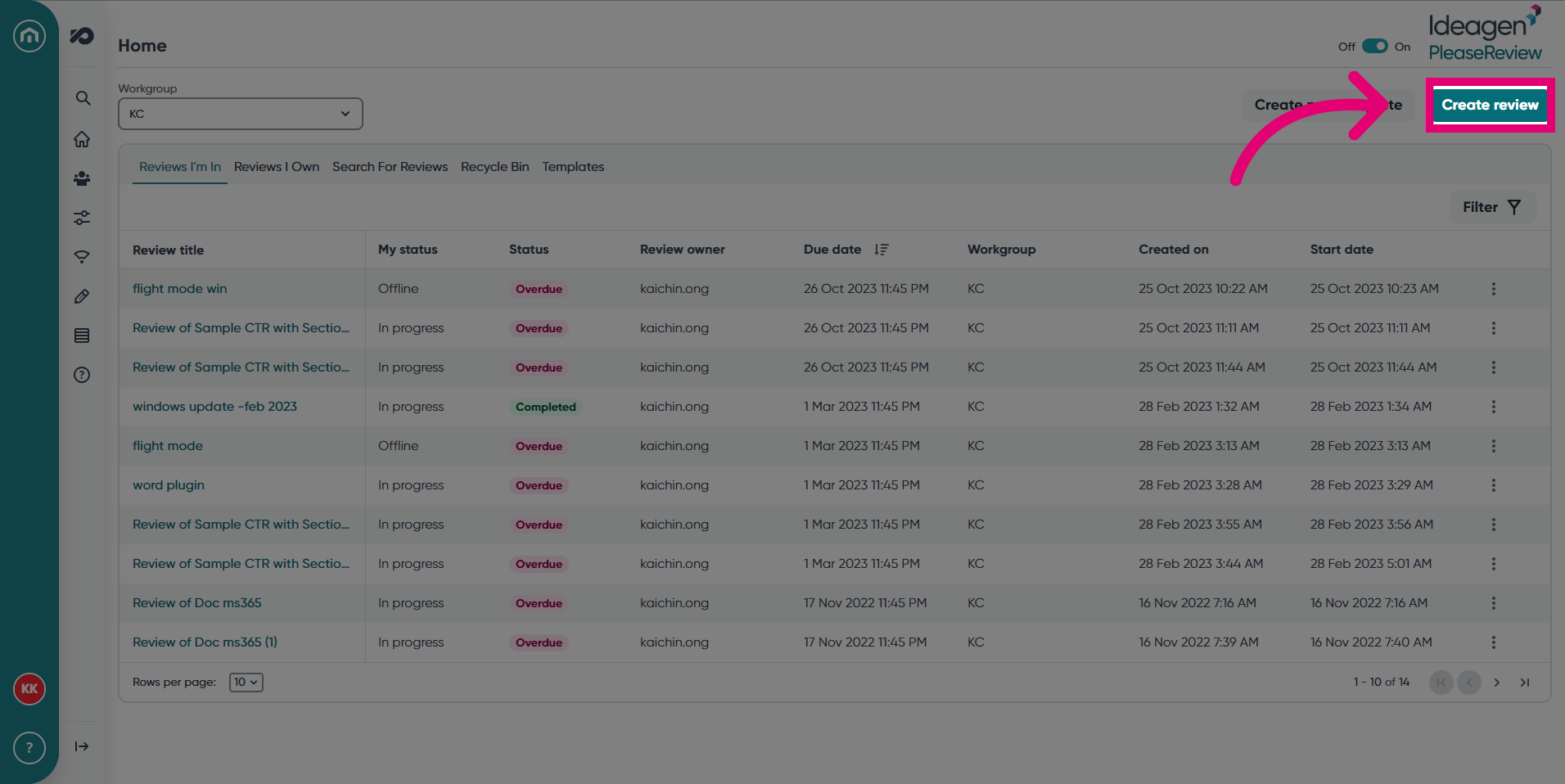
- In the review screen, click Create review.
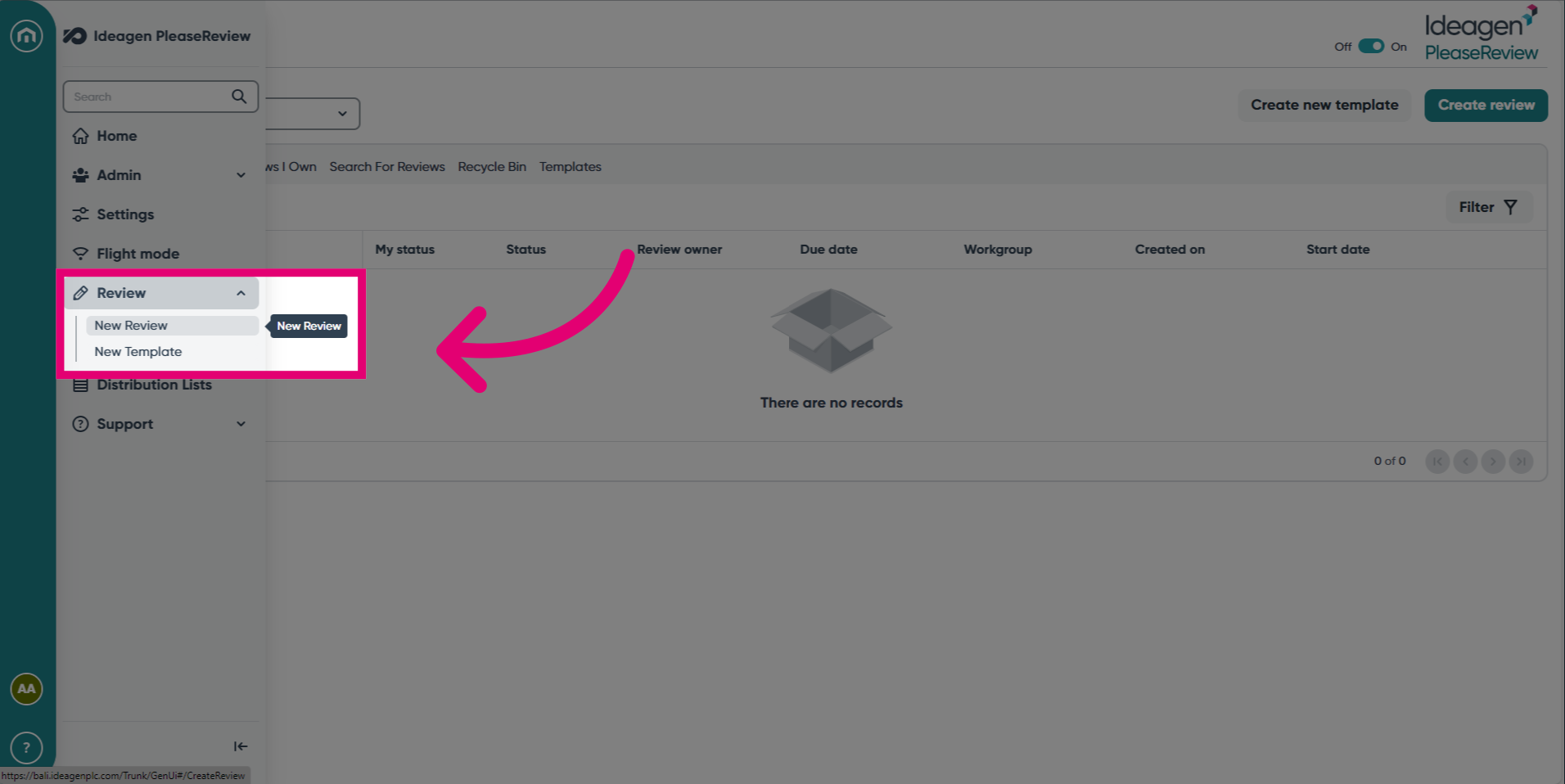
- Alternatively, expand the navigation bar, select the Review drop-down, then click New Review.
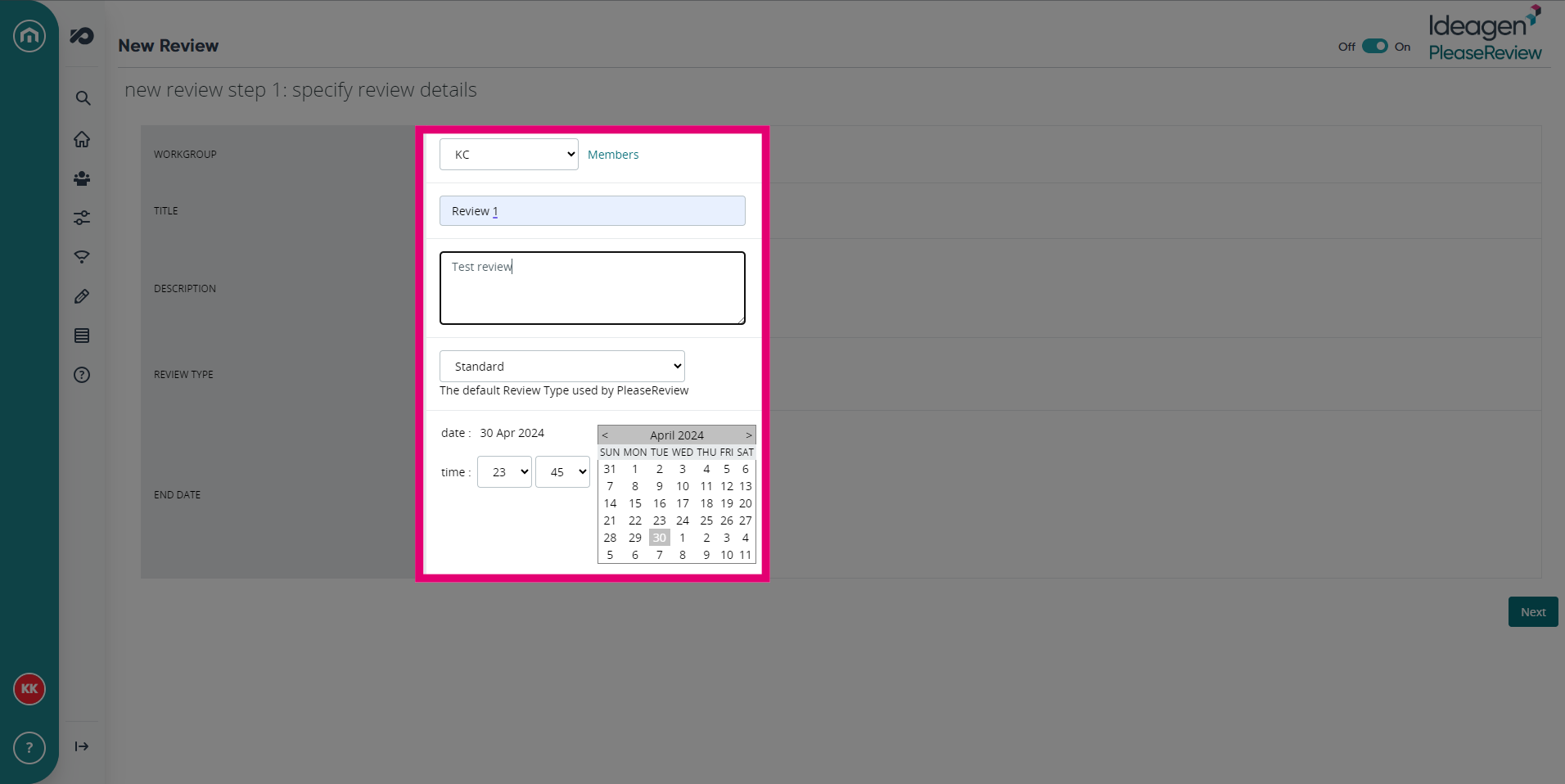
- Input the Review details including Workgroup, Title, Description, Review Type and End Date.
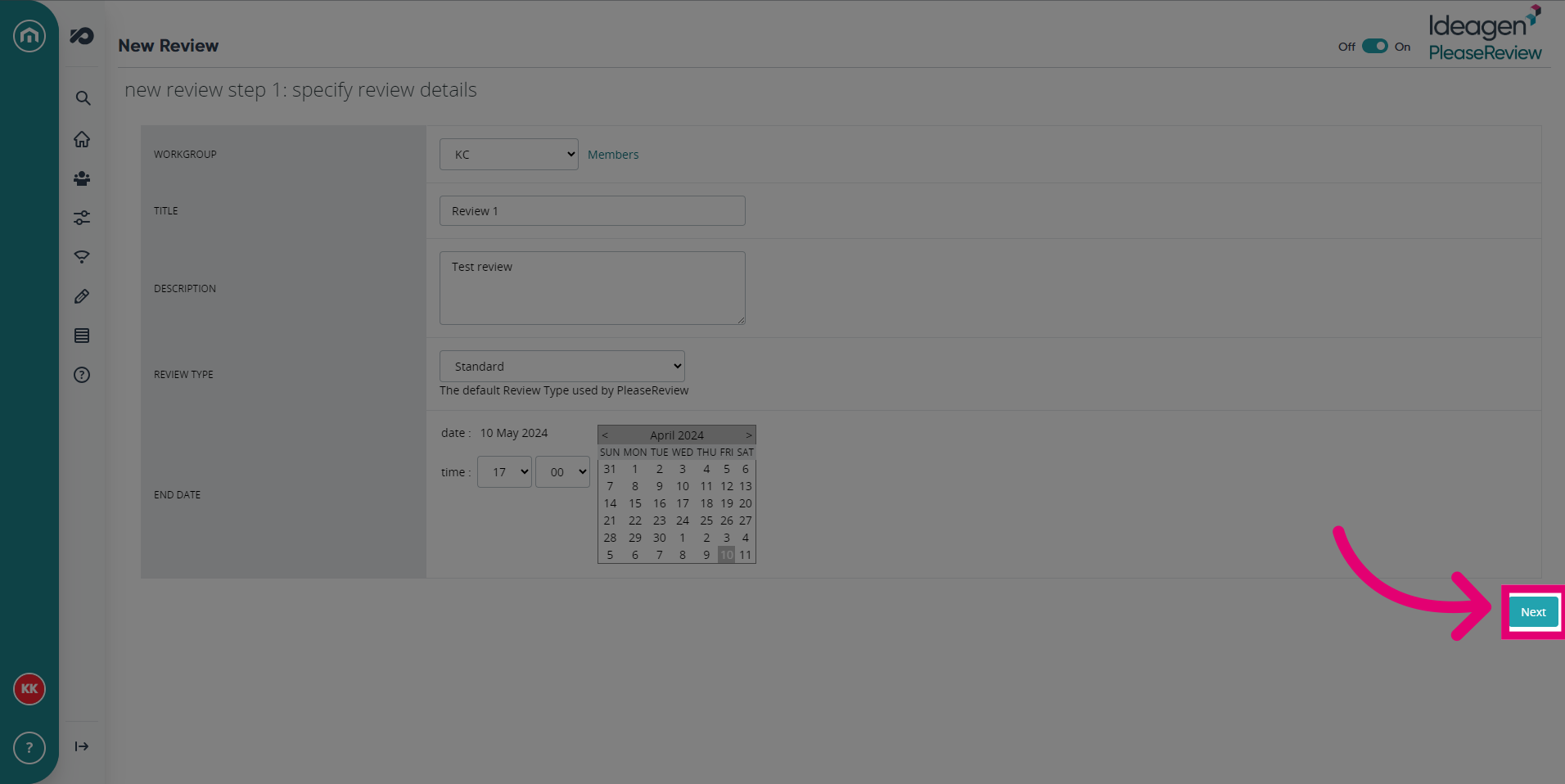
- Click Next to move to the next step.
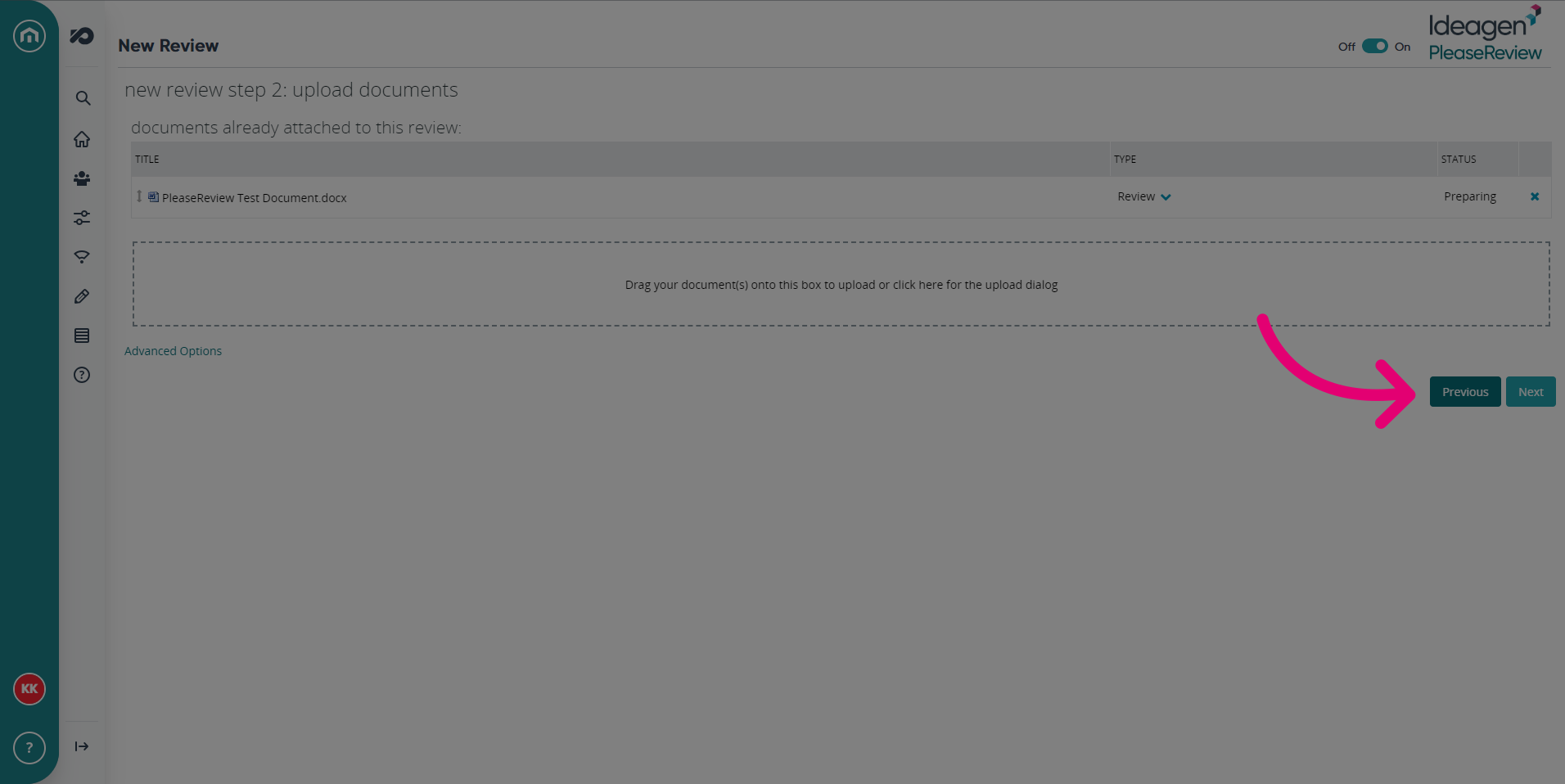
- Upload documents by dragging them to the box or clicking for the upload dialog.
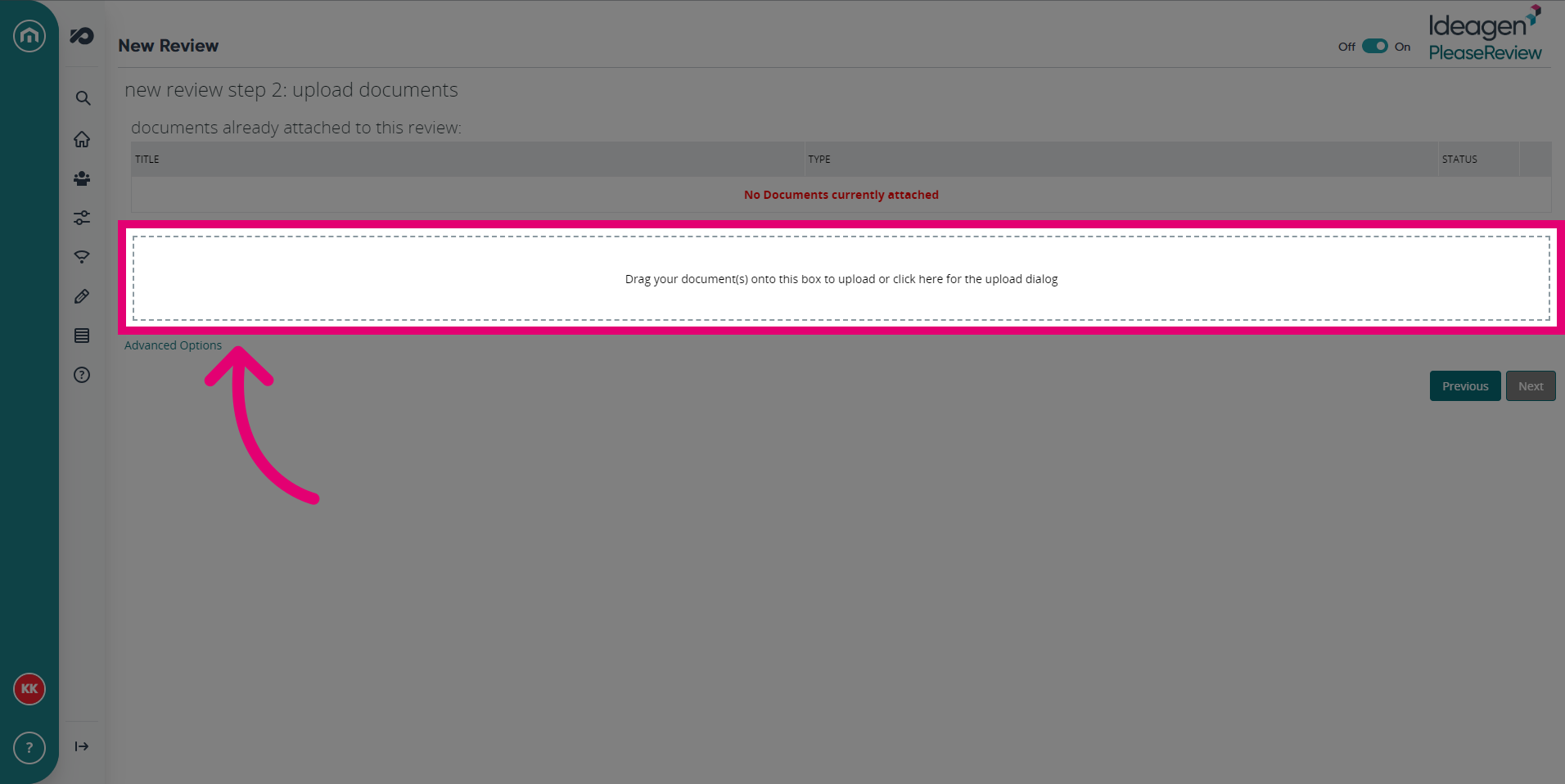
- Click Next.
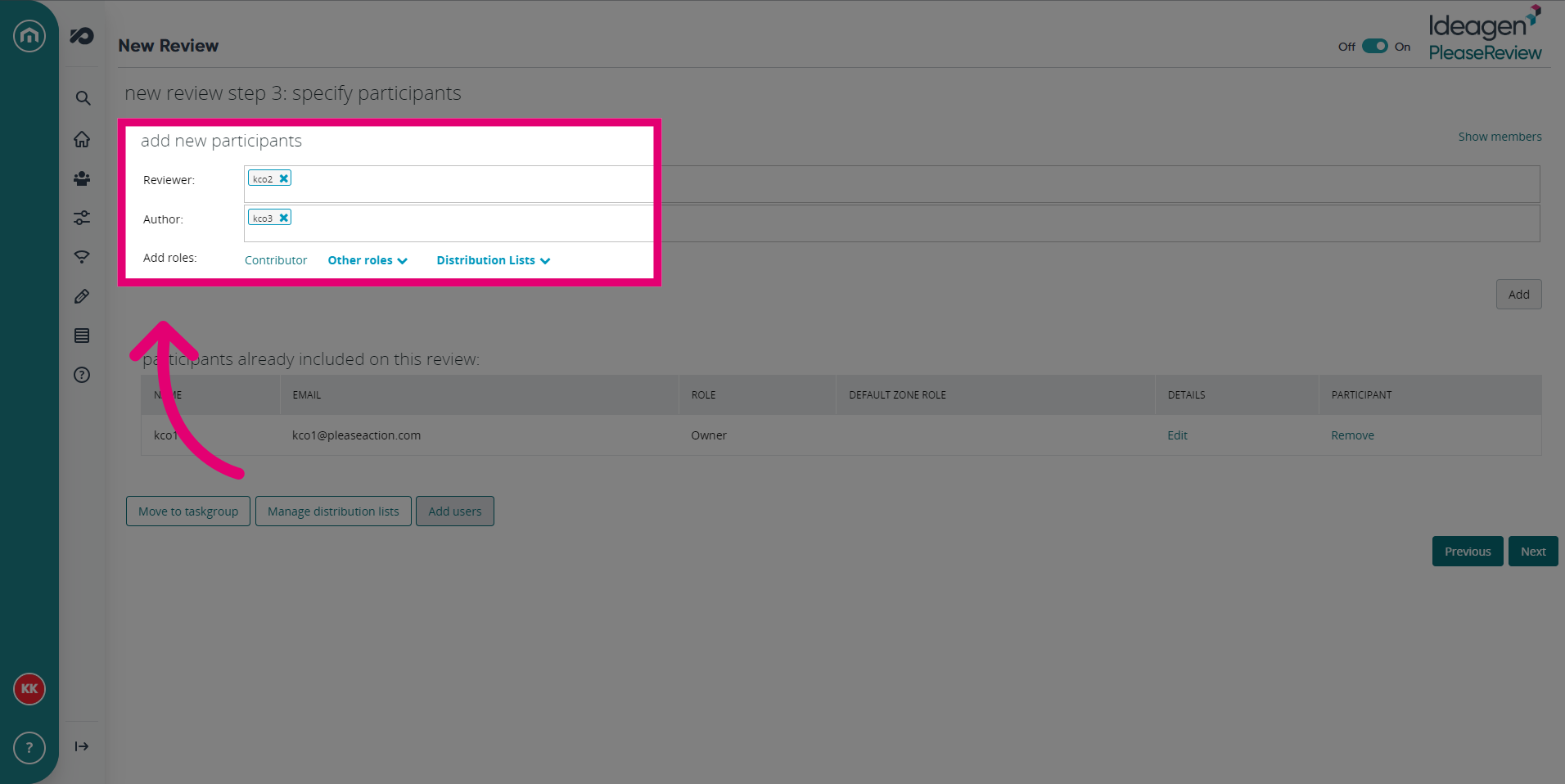
- Add new participants to your Review. There are additional options such as Other Roles and Distribution Lists in this screen.
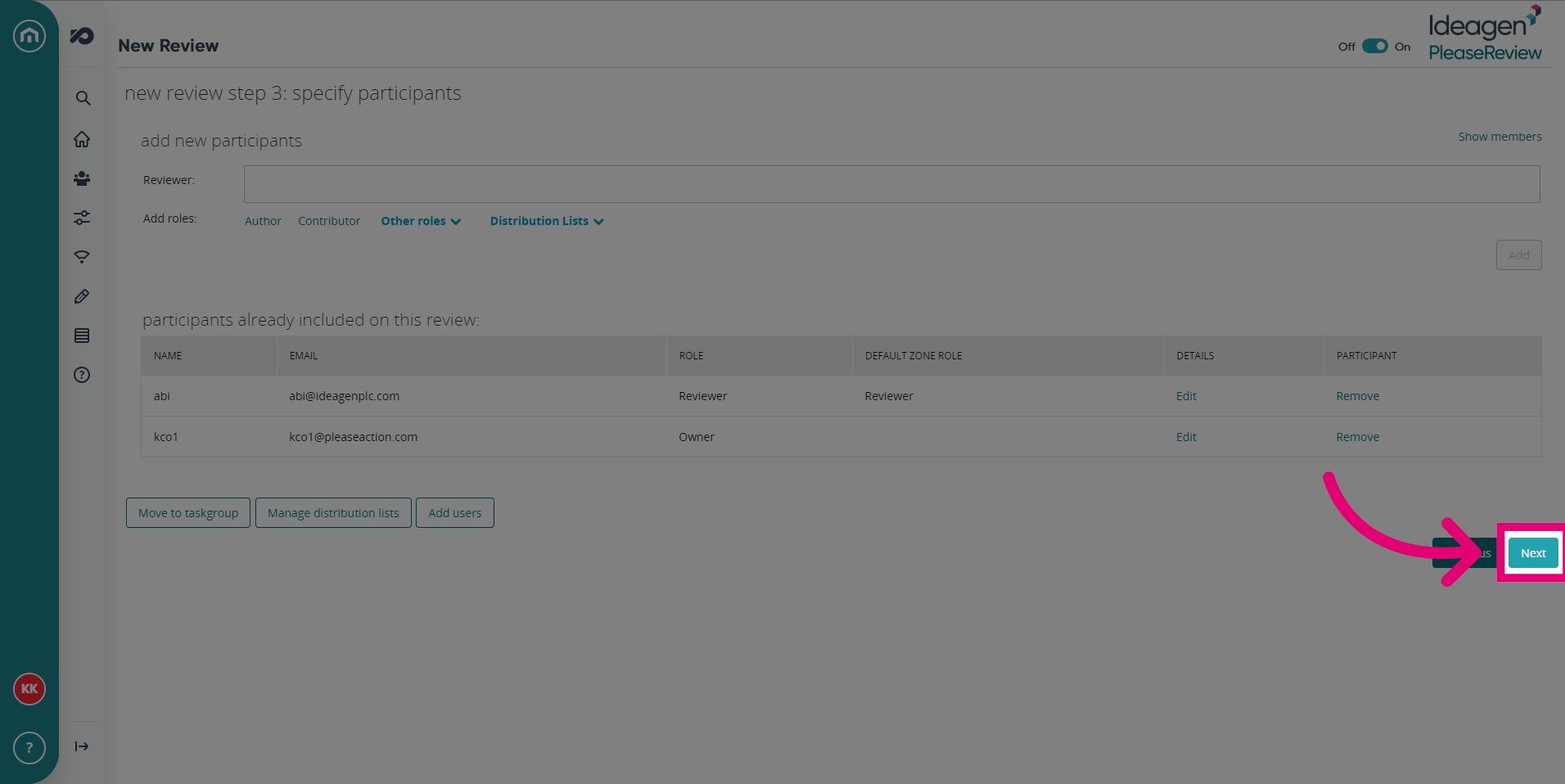
- Click Next once you've completed this step.
- You can adjust any Review Options in this screen, including email and subteam settings.
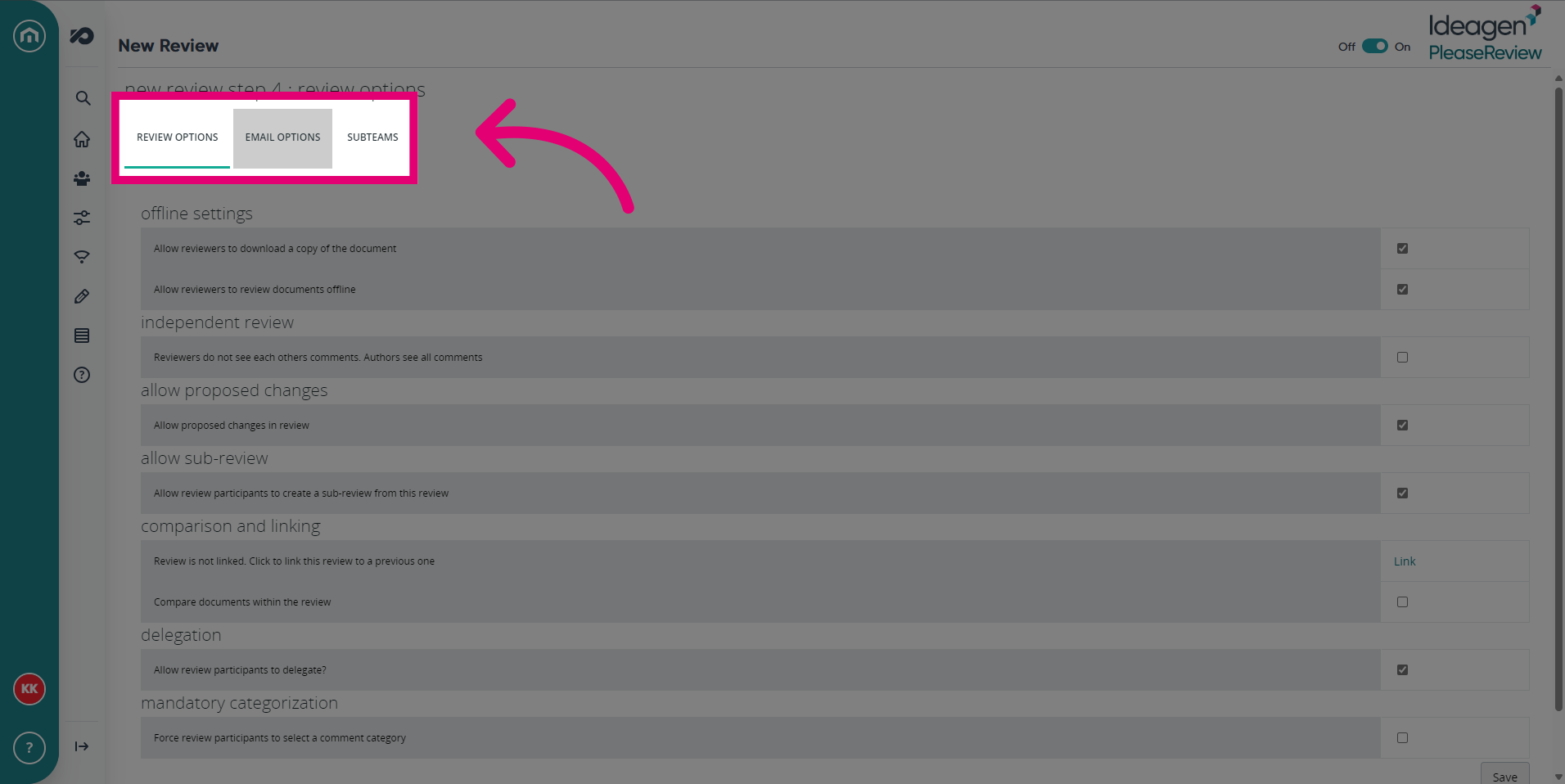
- Click Next.
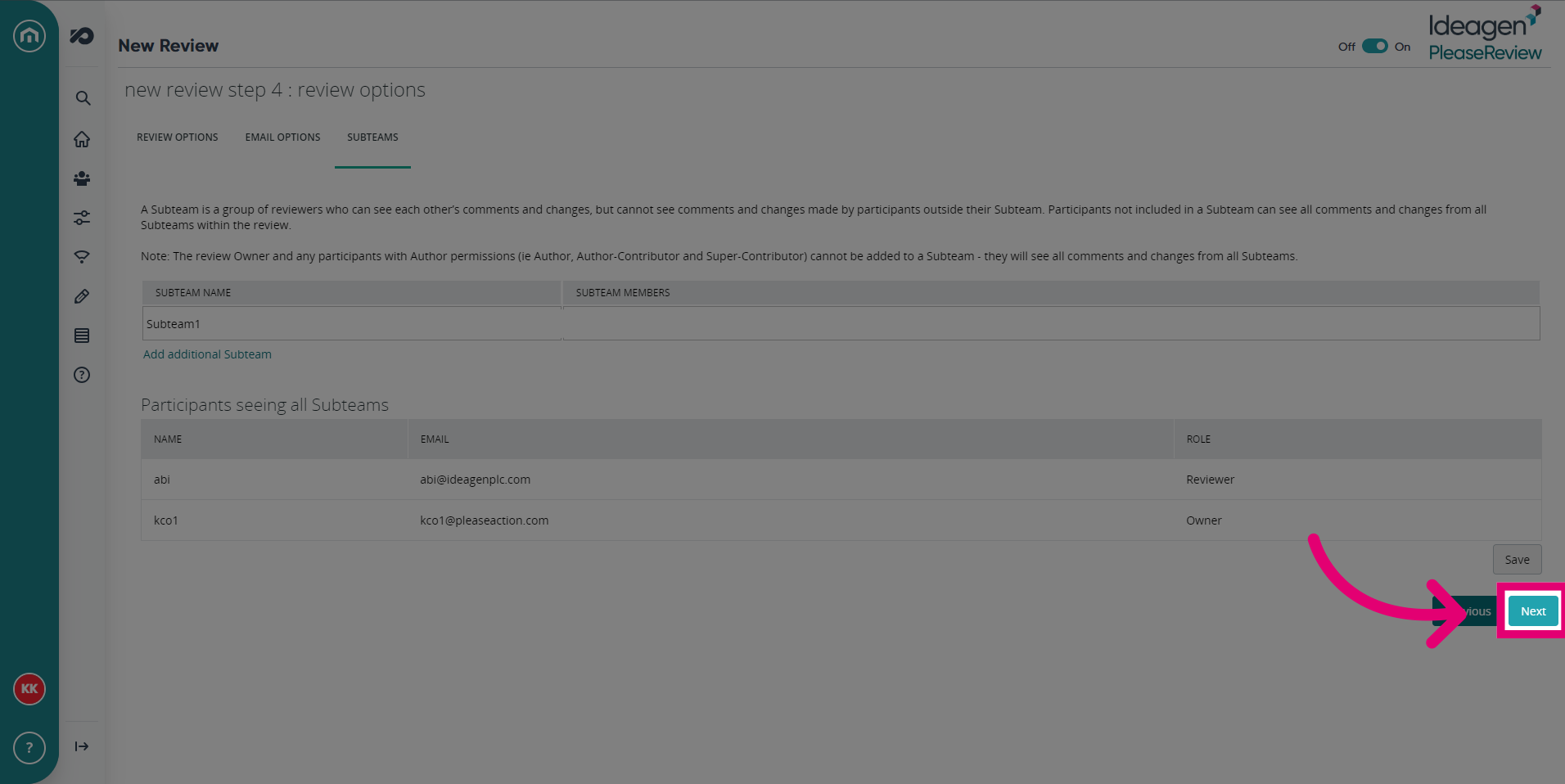
- Verify the details of the Review in this screen, then click Start Review.
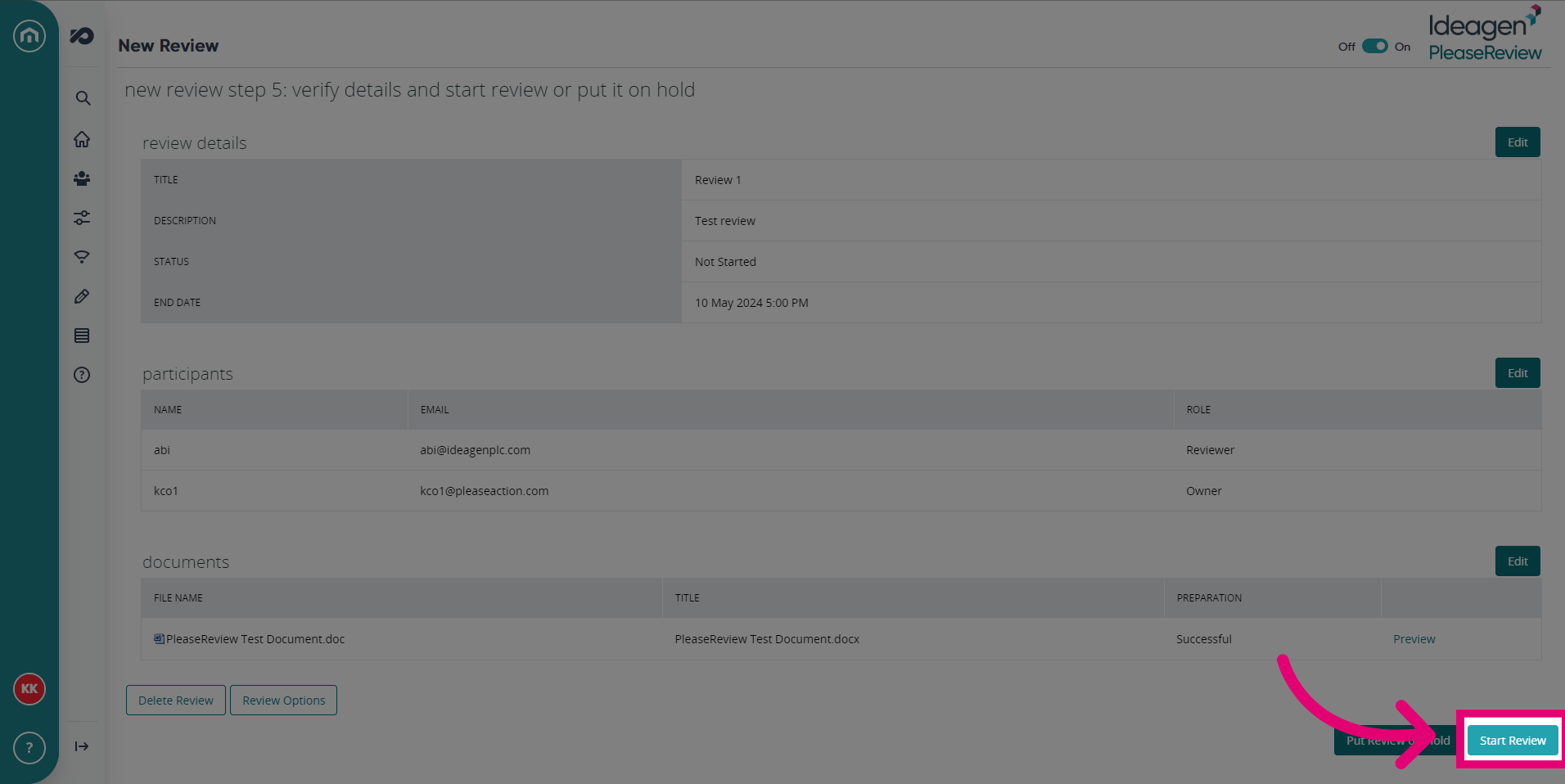
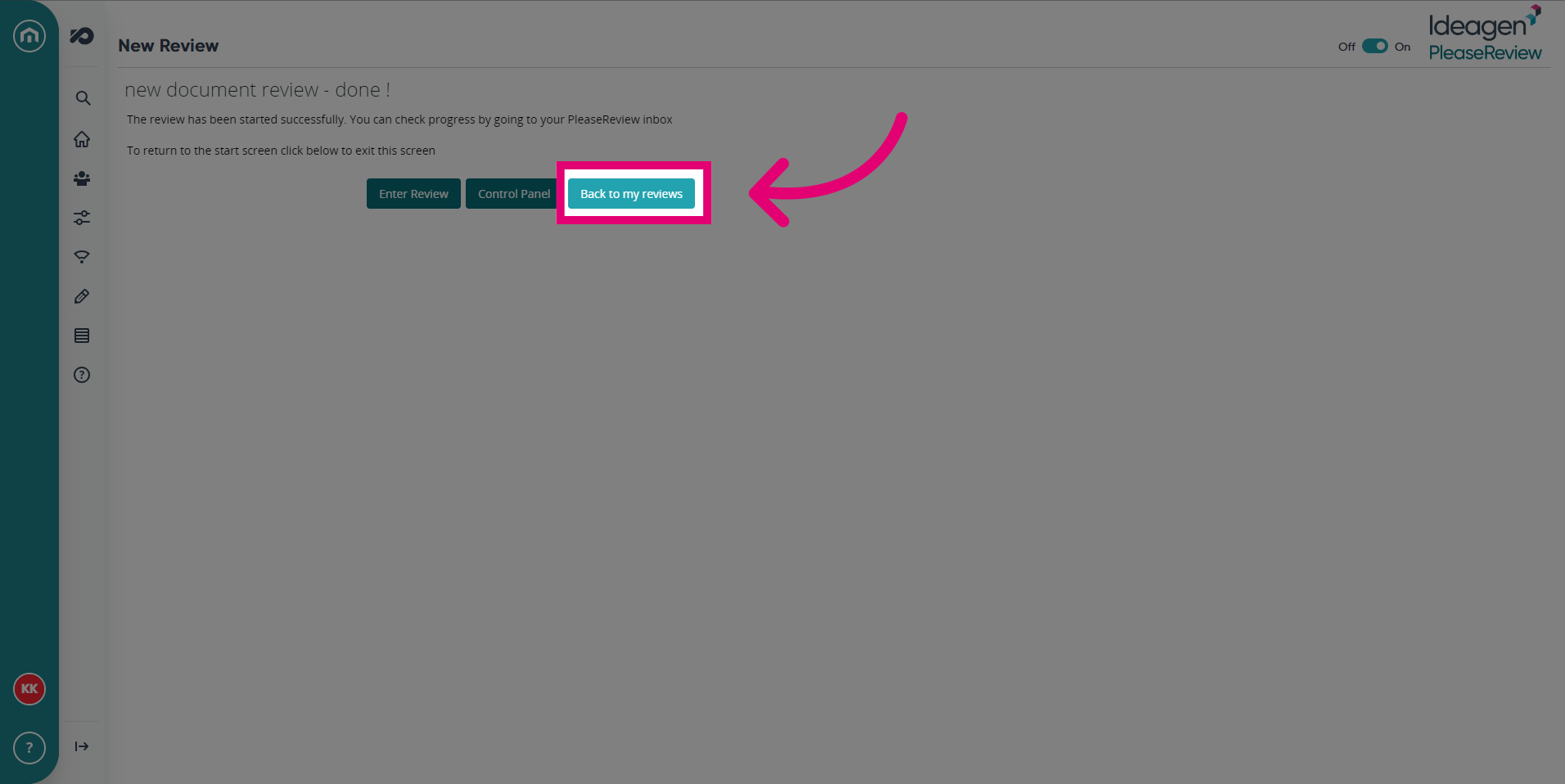
- To return to the Review screen, click Back to my reviews.
1. Creating a Review
Reviews can be created using the Please Review web interface or the Word plugin. Continue to this article for details on creating a review using the Please Review Word Plugin.
Review creation is available only to those users with Author permissions.
- To create a new review, log in to Please Review.
- Select New Review and follow the 5-step wizard.
- If you don’t see the link New review, then you don’t have the privileges to create reviews.
Looking to integrate a third-party system? Please see External System Integration for more details on managing integration with systems like include Documentum Veeva Vault, Qumas DocCompliance, OpenText Content Server, MasterControl or Microsoft SharePoint.
2. Specify Review Details
- Enter a Review Title, this is mandatory must be unique.
- Set the review End Date, this must be in the future.
- Write a Description for the review, this is an optional field, but will appear in the email invitation to participants.
- Selecting a Review Type is mandatory. Hovering over a review type will display a description of the review type behaviour.
- The process described hereafter relates to the Standard review type.
- The Workgroup selector (if available) allows you to select a Workgroup other than the one you are in. If enabled, the Members link displays the members of the selected Workgroup in a separate window.
3. Review Types
The purpose of the review type functionality is to provide standard review templates. This means that review Owners use default settings when creating a new review, associated with the chosen review type.
Note: The System or Workgroup Administrator control review types, they are not user defined.
Review types may be made universally available or attached to specific Workgroups.
The review type field is mandatory. All available review types for a Workgroup will be available at the beginning of the new review set-up wizard. By default, there are three review types available:
| Review Type | Description |
|---|---|
| Standard (default) |
Will create a standard, single phase, review using default settings. Note - This is the only review type available when creating a review using the Word Plugin. |
| Multi-phase | Will create a multi-phase review (see Multi-Phase Reviews). |
| Additional Review Types | The System or Workgroup Administrator may create additional Review Types. |
It is possible to have a hierarchy of nested review types. The entries in the drop-down box will be indented with an arrow to denote the hierarchy levels.
Note: Review types may be set up which either permit, or do not permit, the review Owner to override the parameters preset by the review type. Therefore, it is possible to set up templates in which the review Owner can override all, some, or none of the review parameters.
Further Reading