New article
Recently updated
Accepting a transfer ownership request

Who is this article for?Users who want to learn to accept a transfer ownership request.
No elevated permissions are required.
This guide will walk you through the process of accepting a transfer ownership request within Veeva centric integration. By following these steps, you will learn how to accept the ownership request, and confirm the acceptance of the transfer ownership.
See Rejecting a transfer ownership request for the next steps of the process.
1. Accepting a transfer ownership request
1.1. Video
1.2. Steps
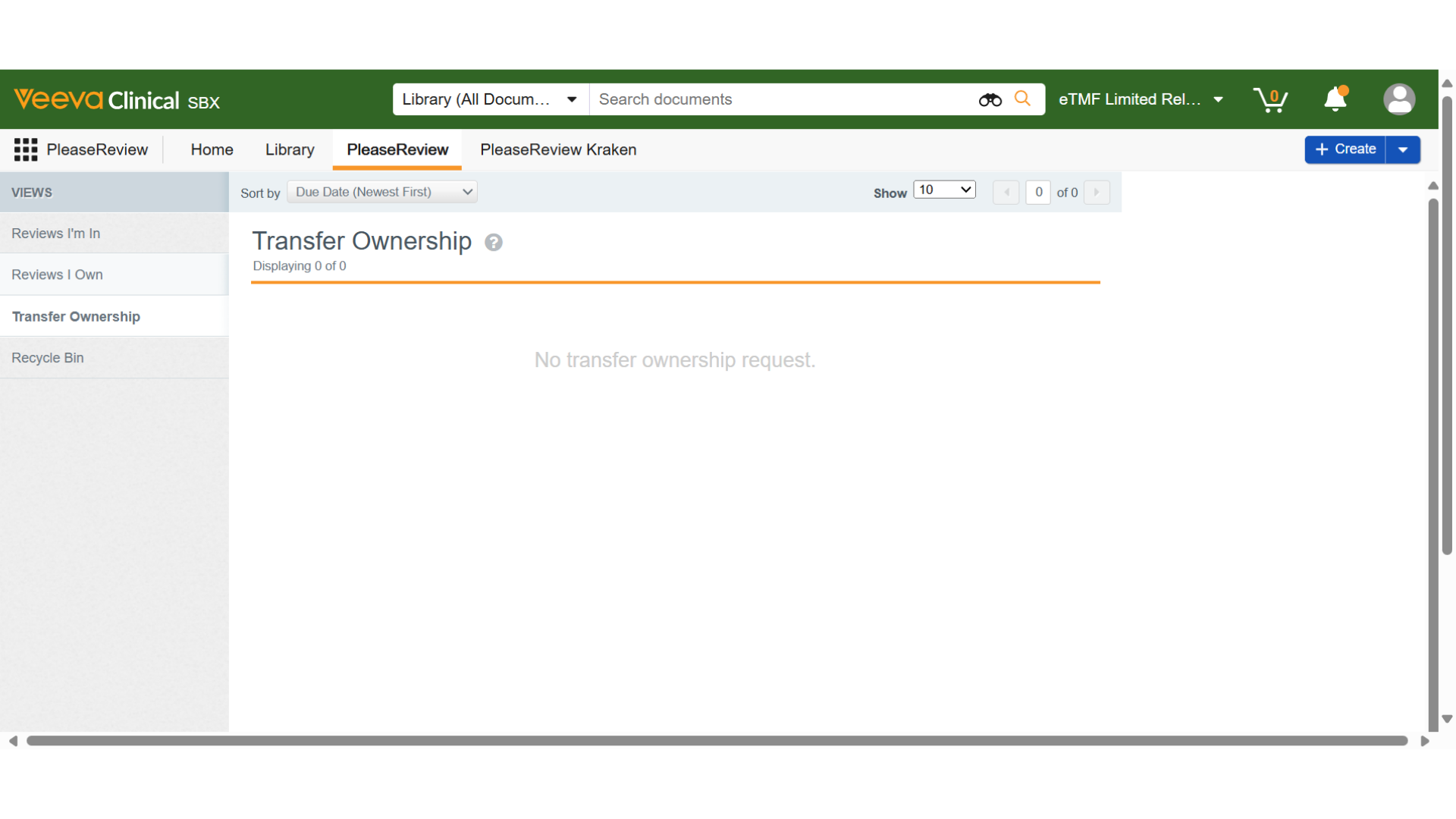
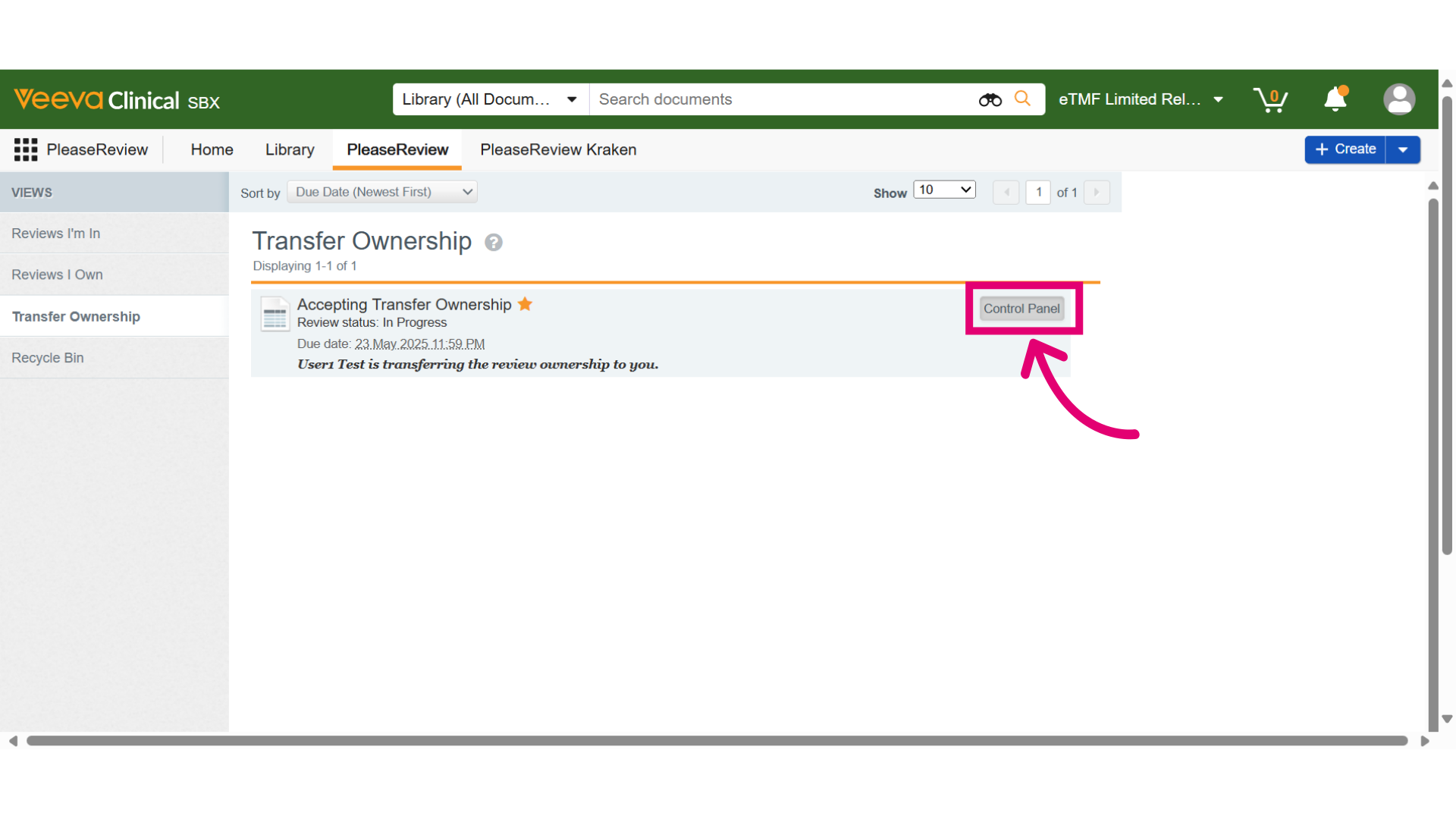
- When a review Owner requests to transfer ownership to another user in the Workgroup, the new review Owner will receive an email notification. You can follow the link in the email to access the Transfer Ownership view or go through the Veeva Vault UI. Find the review in the Transfer Ownership Inbox and click the Control Panel button.
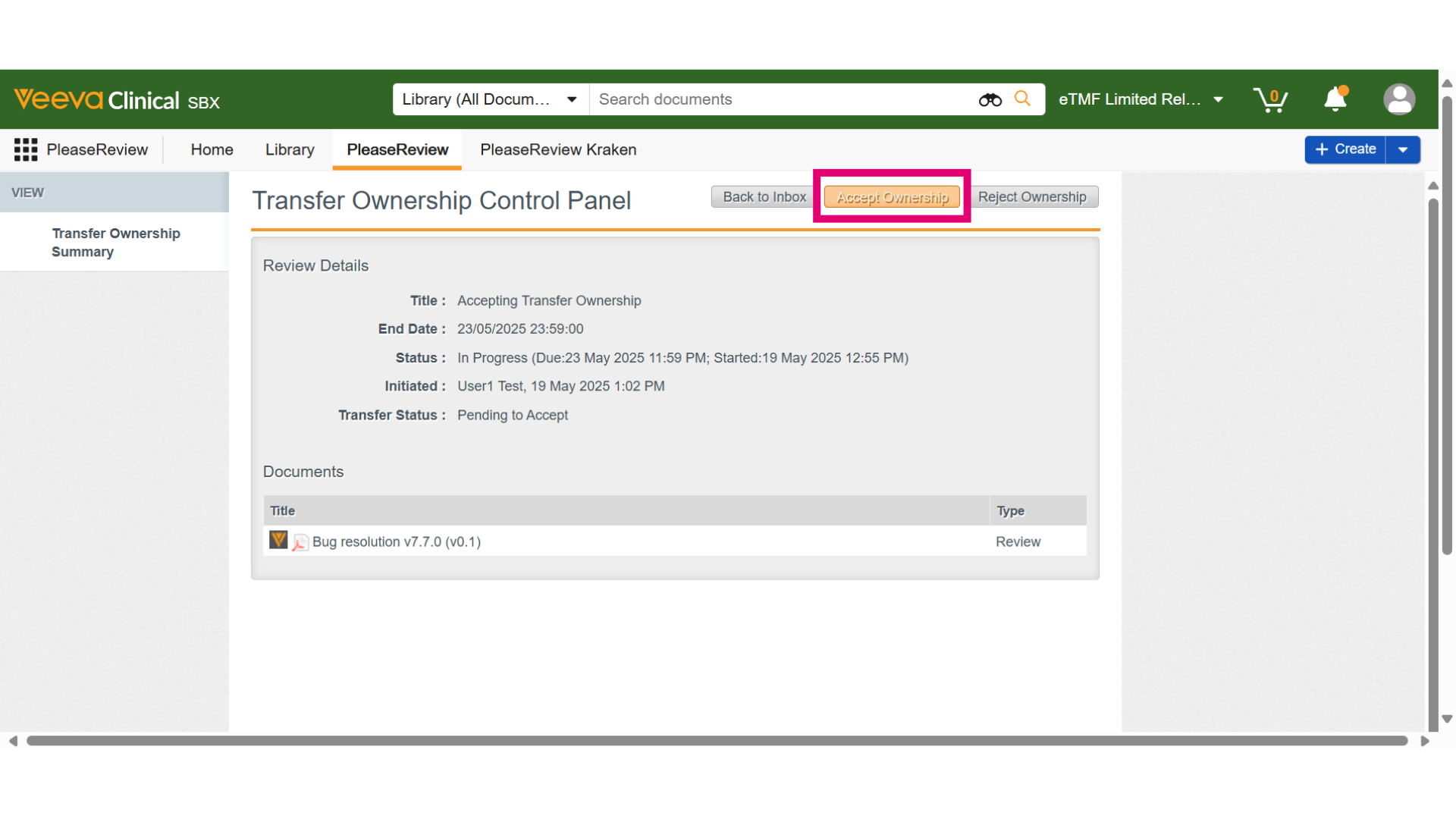
- In Transfer Ownership Control Panel screen, click on Accept Ownership.
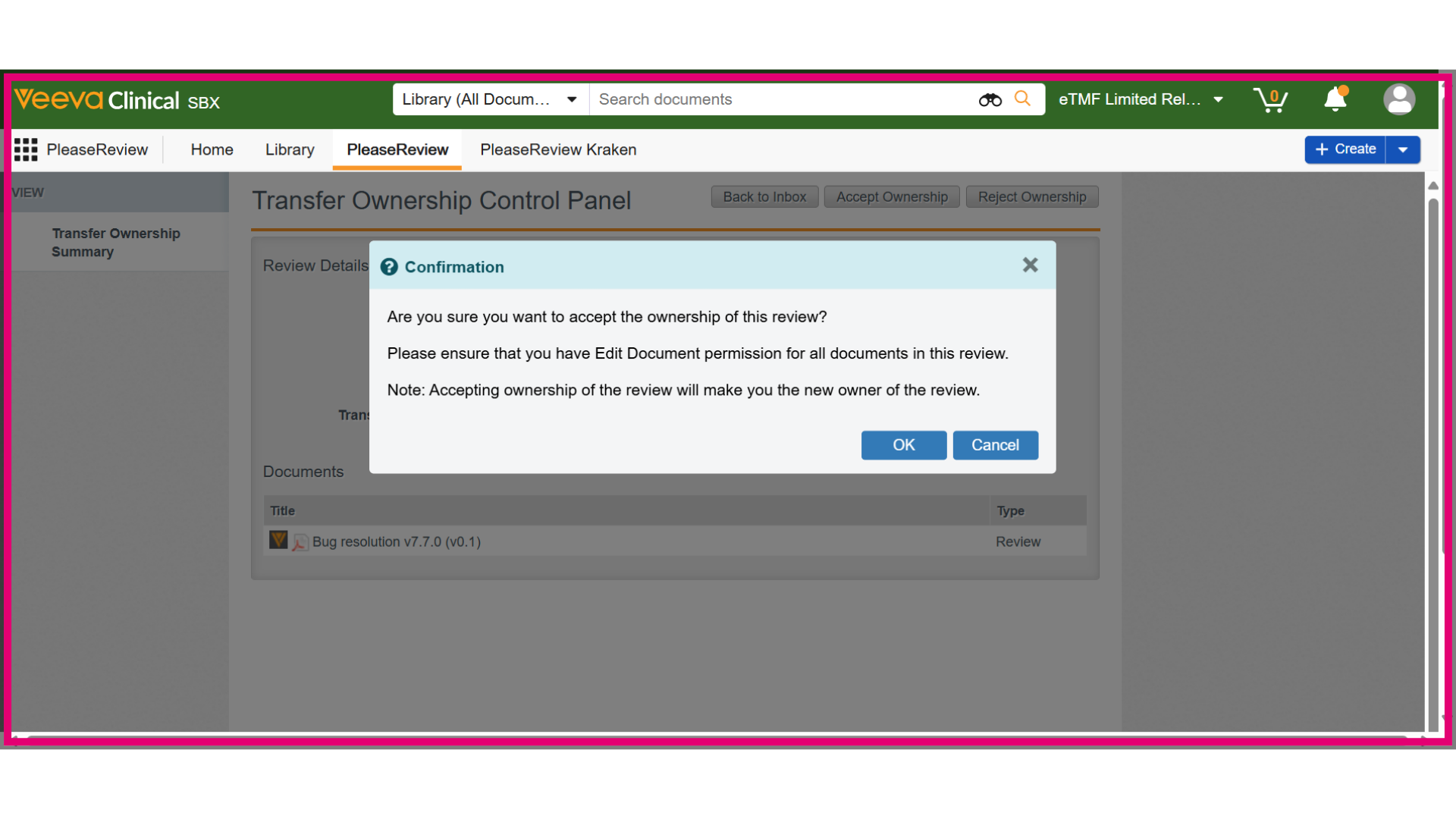
- A confirmation dialog box opens asking to confirm acceptance of the transfer ownership request. Click on OK button to proceed.
- An info dialog appears to show the status of the accept action. Clicking OK takes you to the Transfer Ownership view.
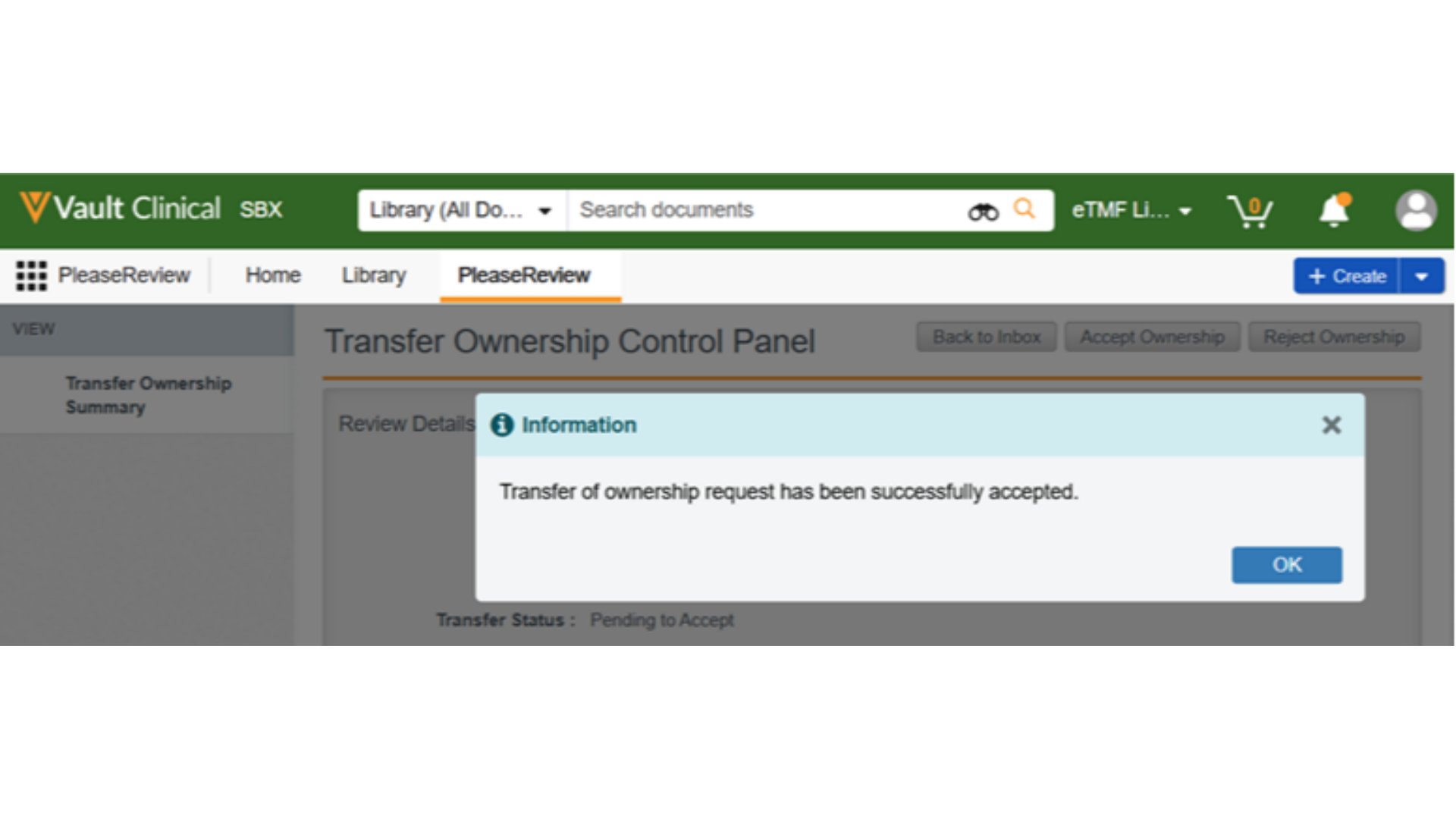
- The review is no longer listed in Transfer Ownership Inbox. You can find the review in Review I Own Inbox.