New article
Recently updated
Creating reviews using the Ideagen Quality Management Professional–Please Review embedded UI integration

Who is this article for?
Users who want to learn to create reviews using the Ideagen Quality Management Professional–Please Review embedded UI integration.
Author permissions are required.
This article demonstrates how to create reviews with the Ideagen Quality Management Professional–Please Review embedded UI integration.
You'll see how to navigate, create, and complete draft reviews efficiently.
Creating and managing reviews in the embedded UI integration
Log into the system.
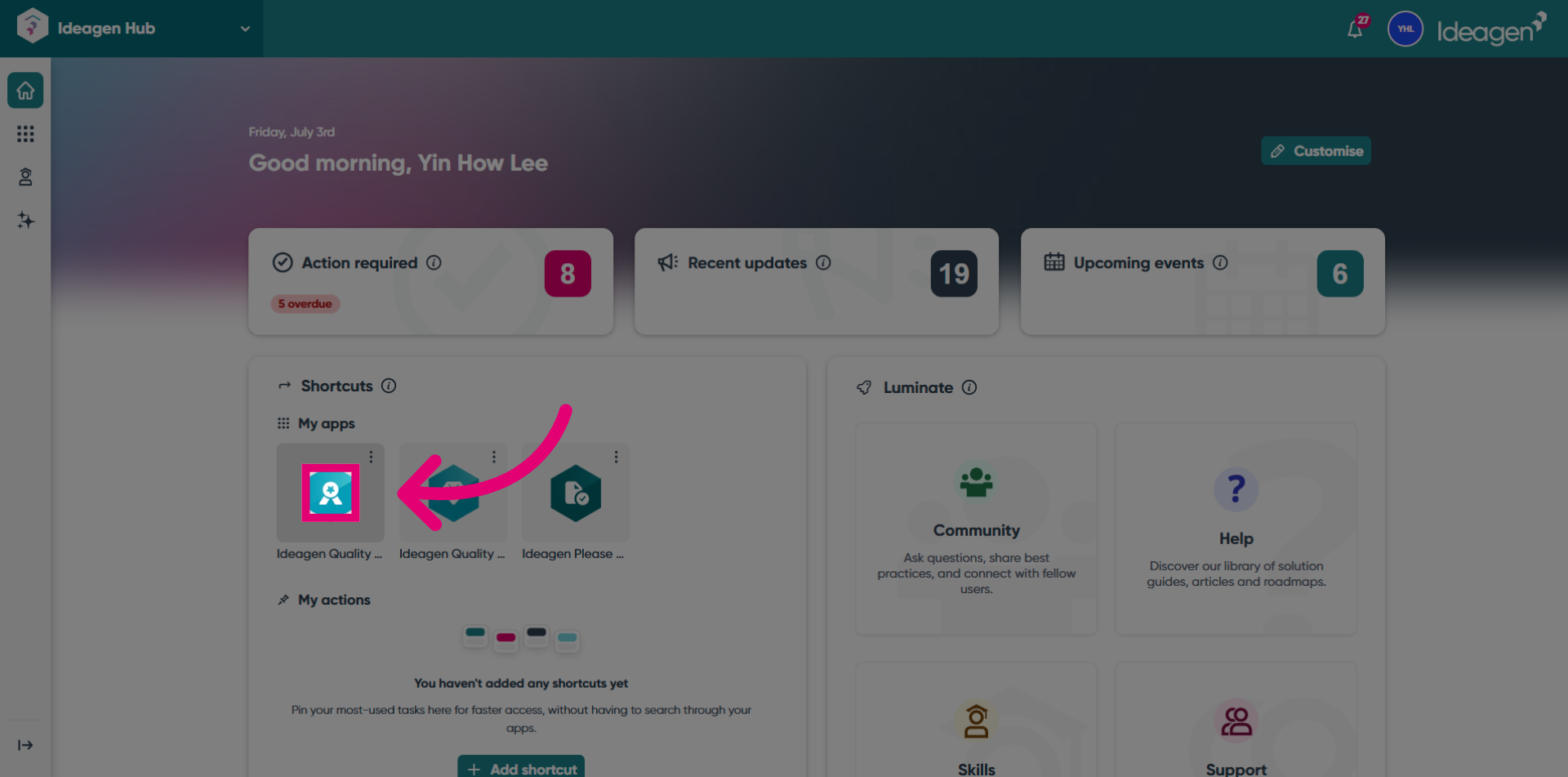
Click the Open button to launch the instance.
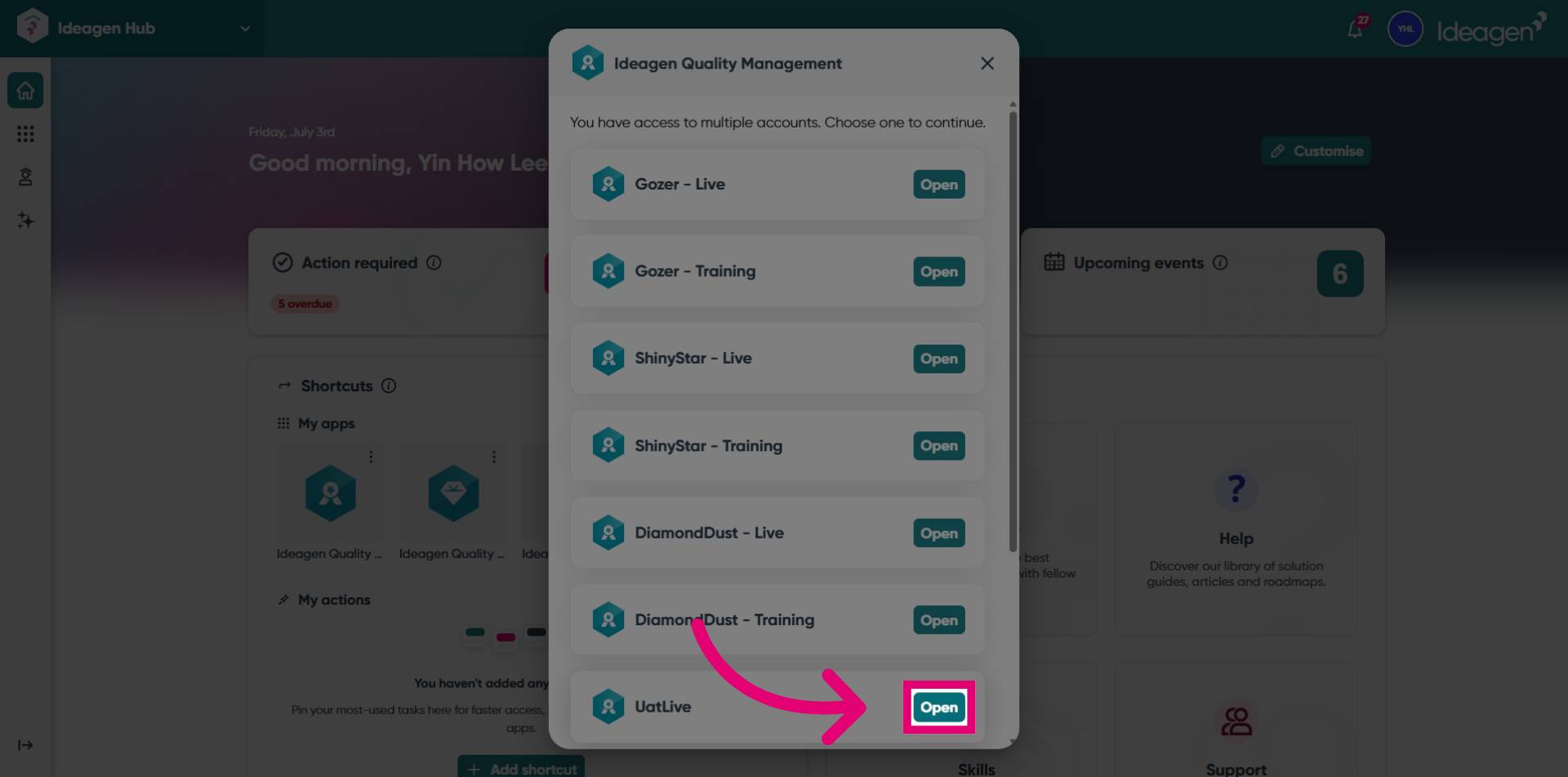
View the Ideagen Quality Management Professional landing page.
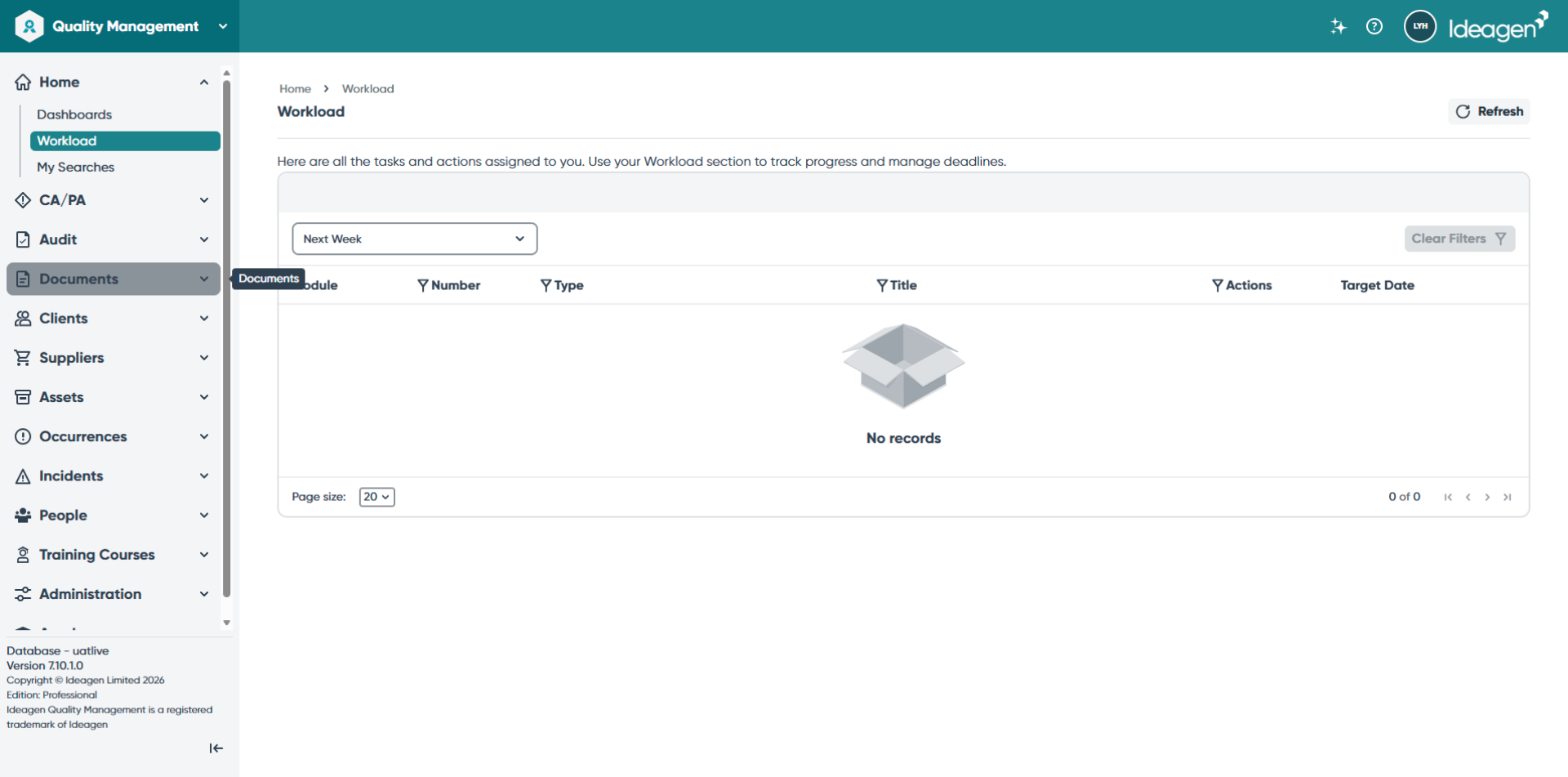
Click the Documents button to view all available documents in the system.
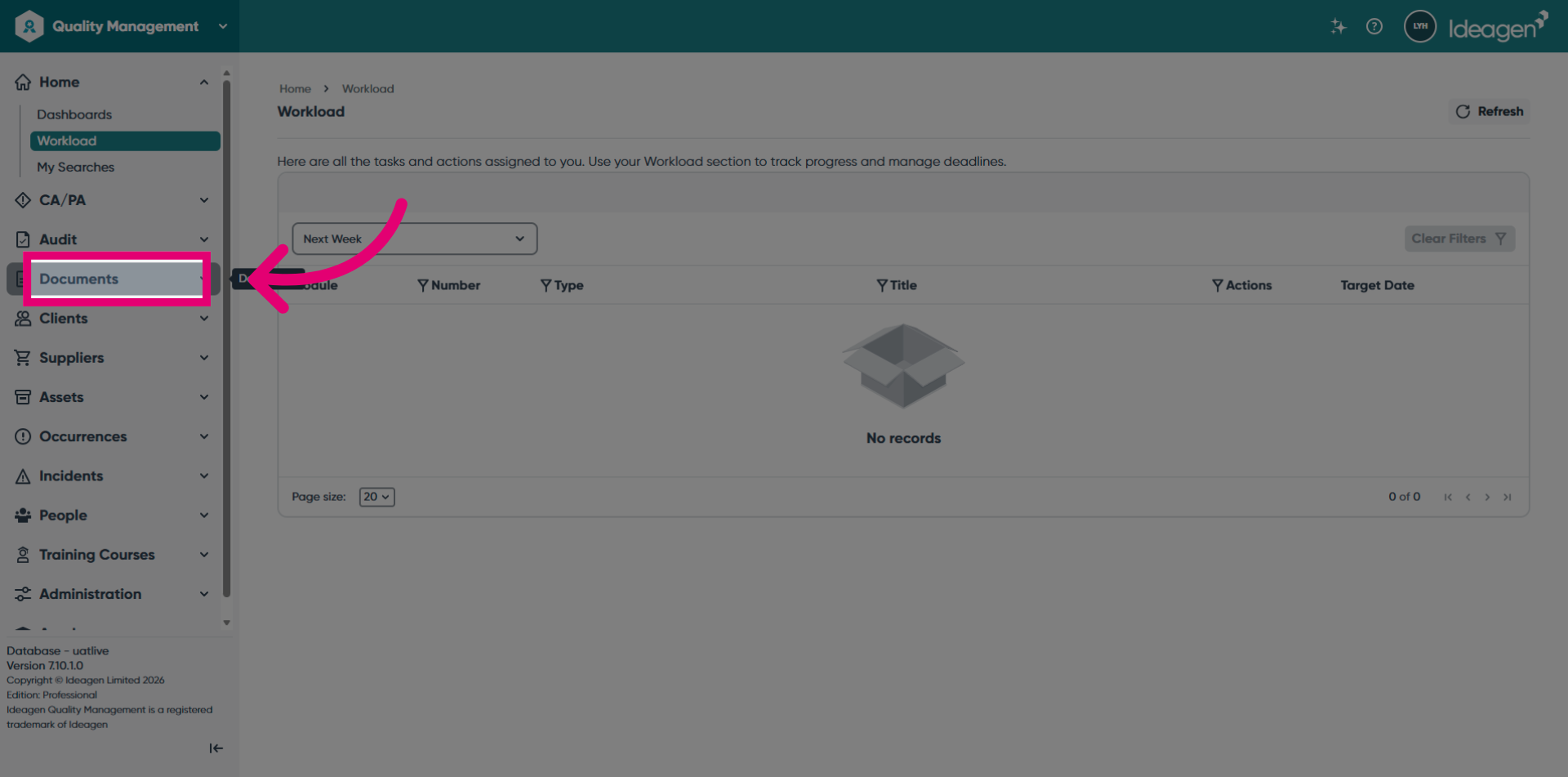
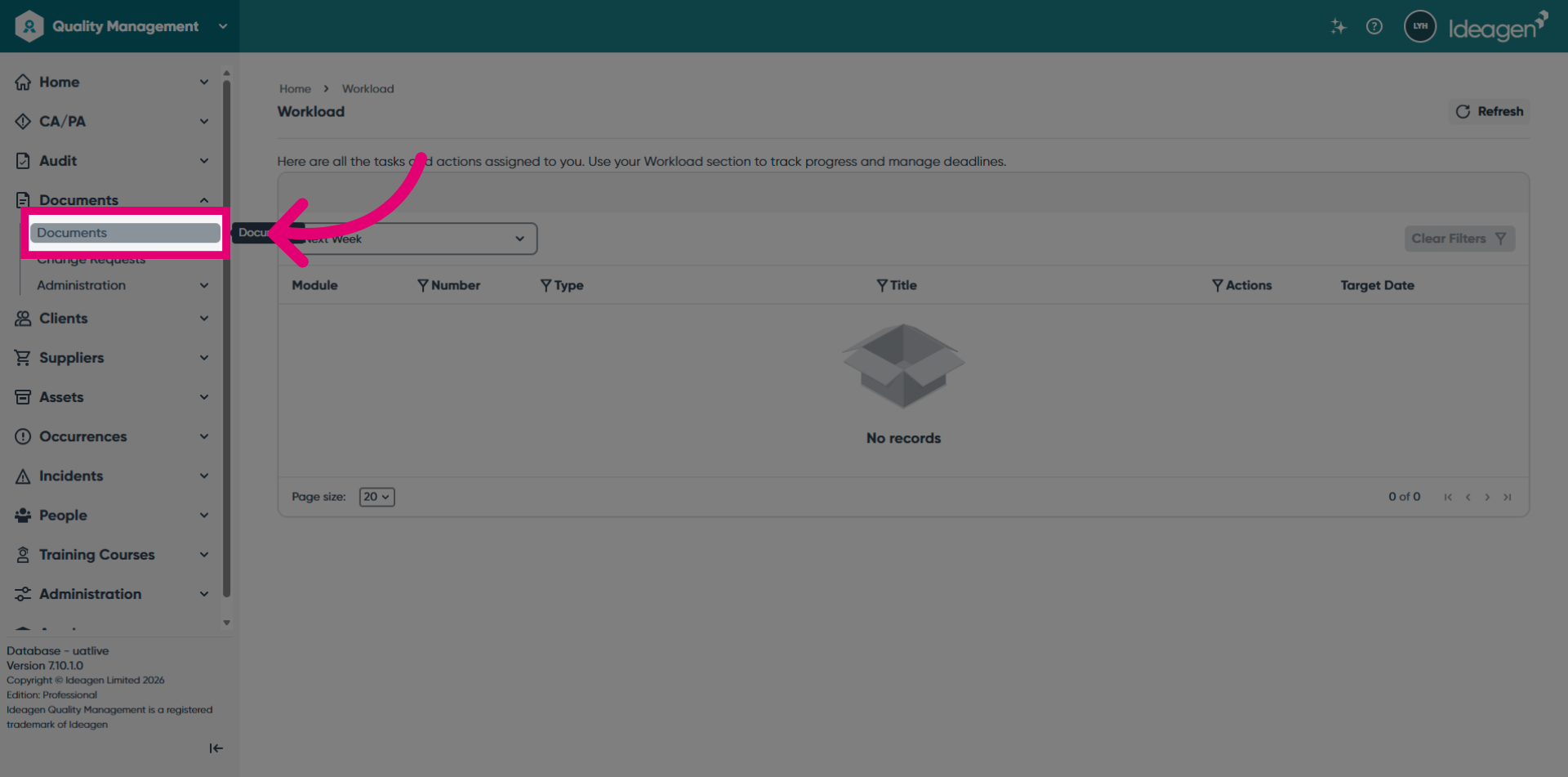
Click the Documents button again to access the list of documents in the system.
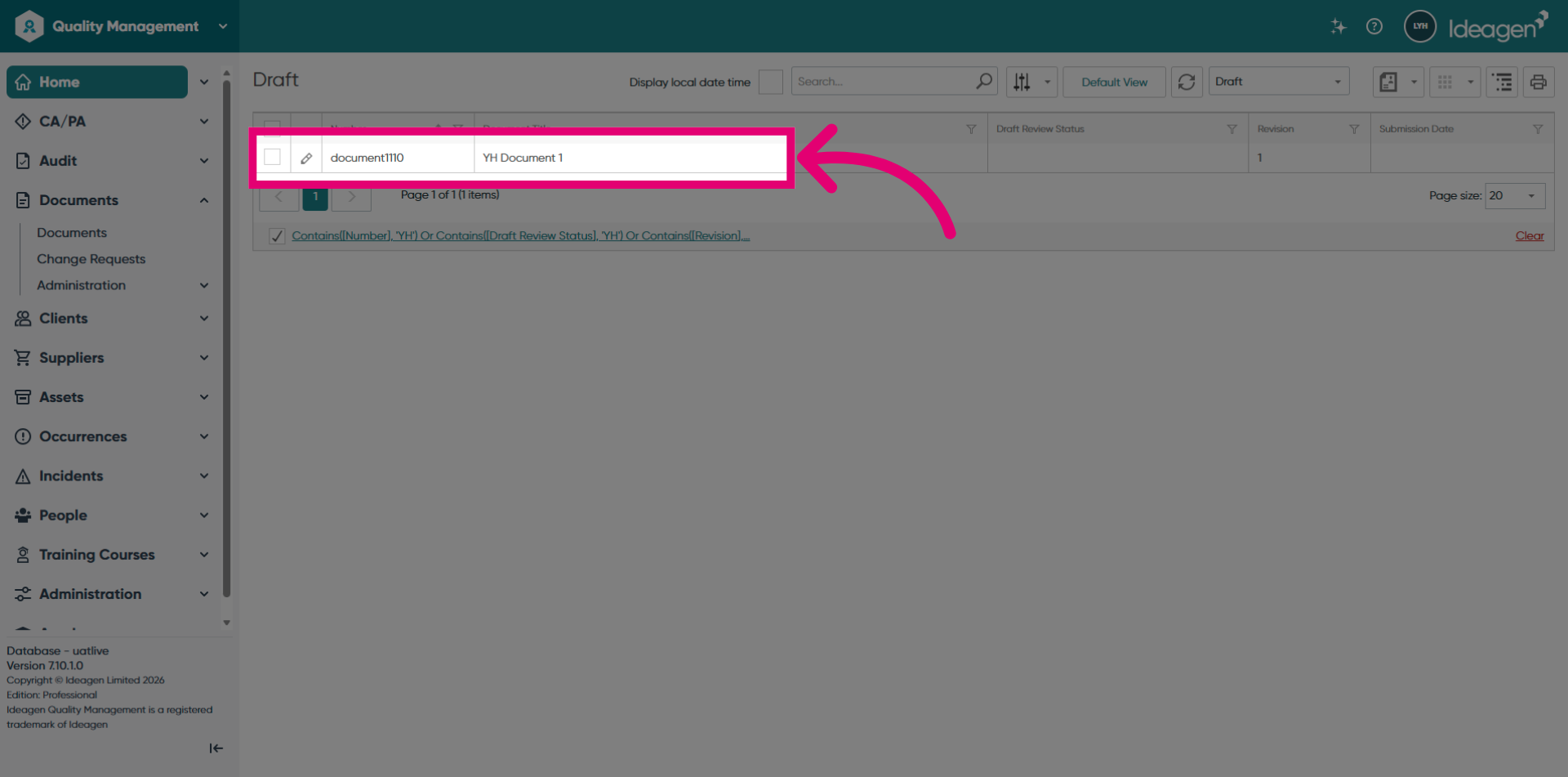
Click YH Document 1 to prepare for review creation.
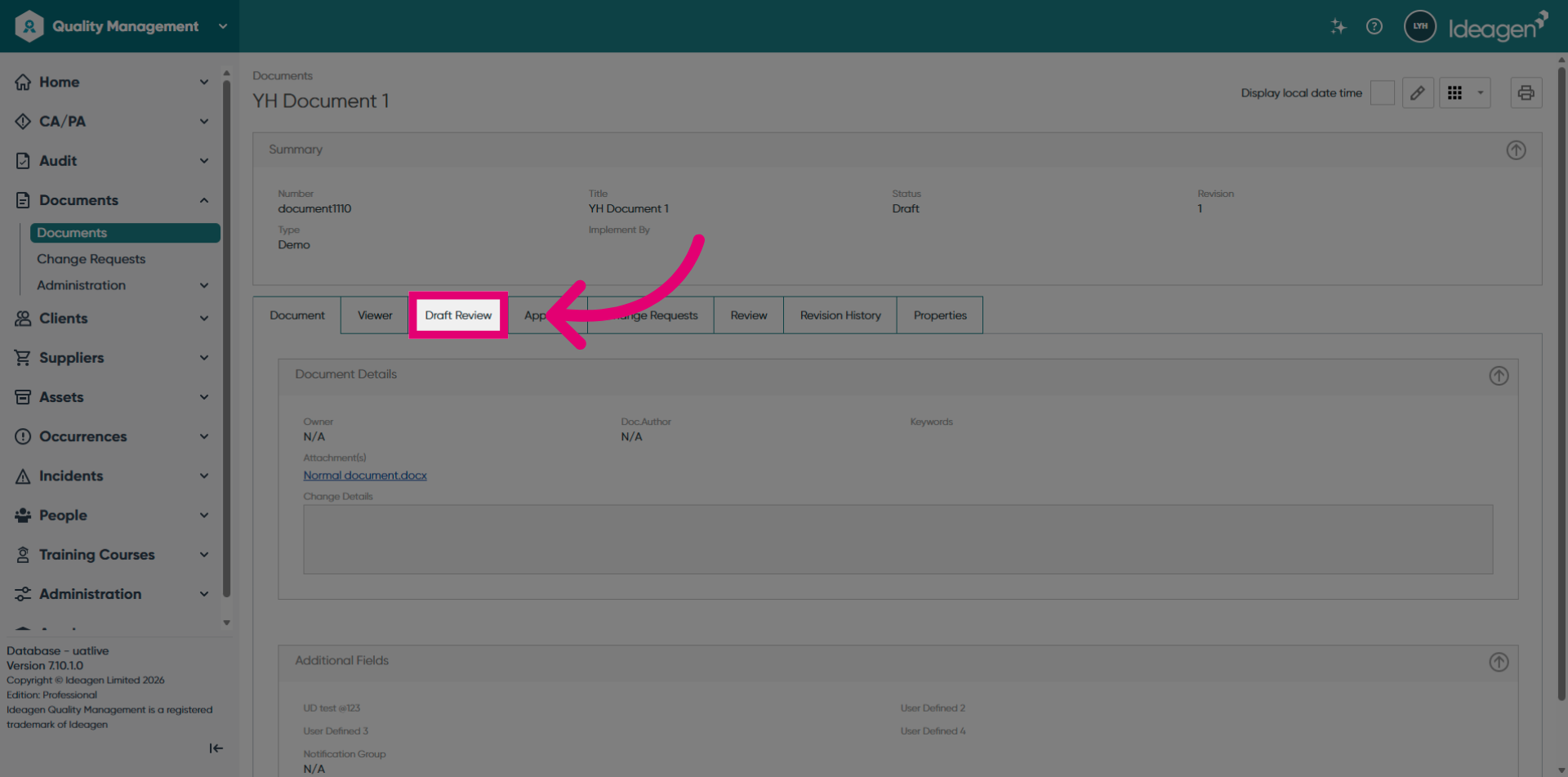
Click the Draft Review button for review creation setup.
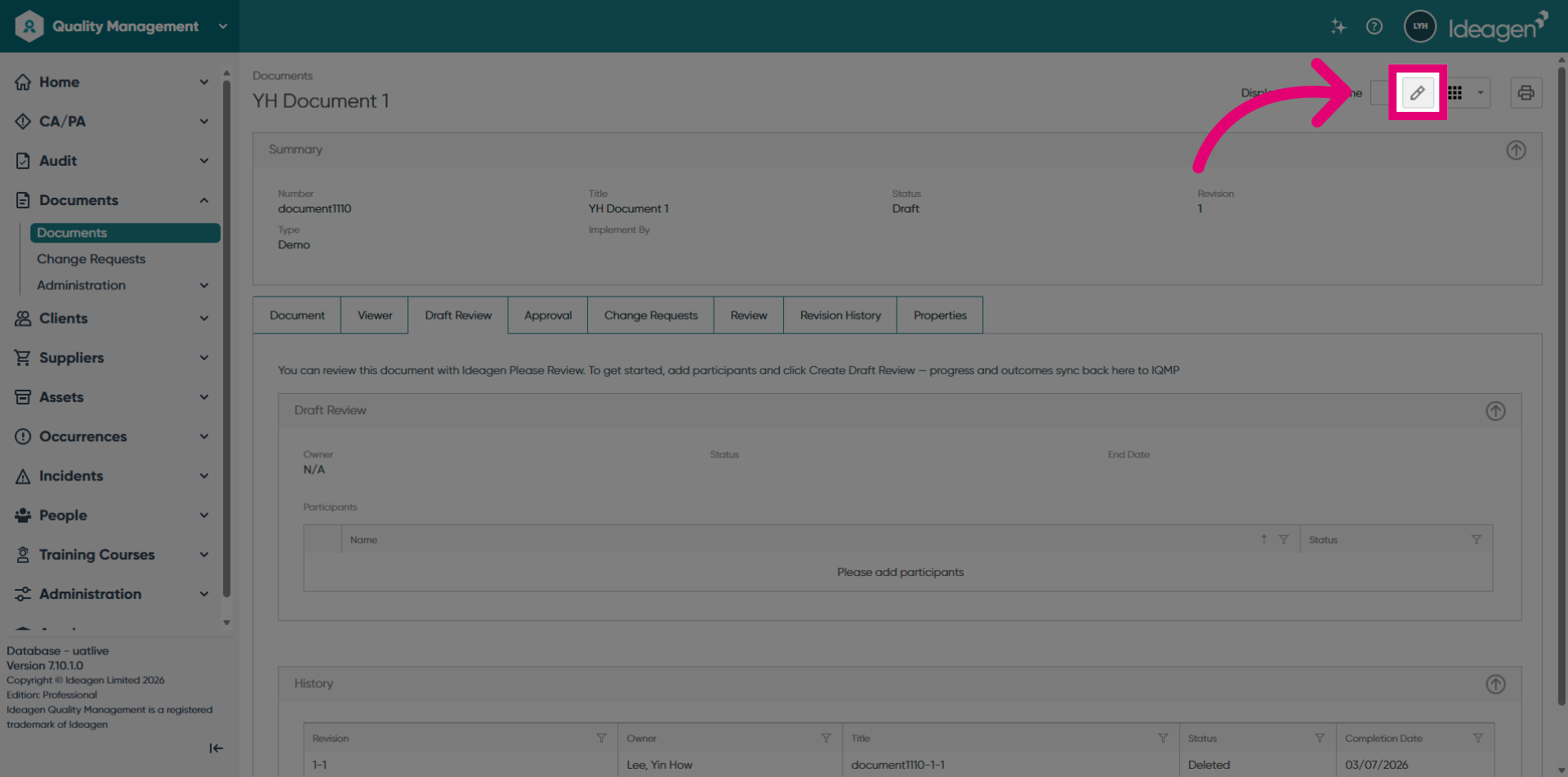
Click the pencil icon to switch into Edit mode.
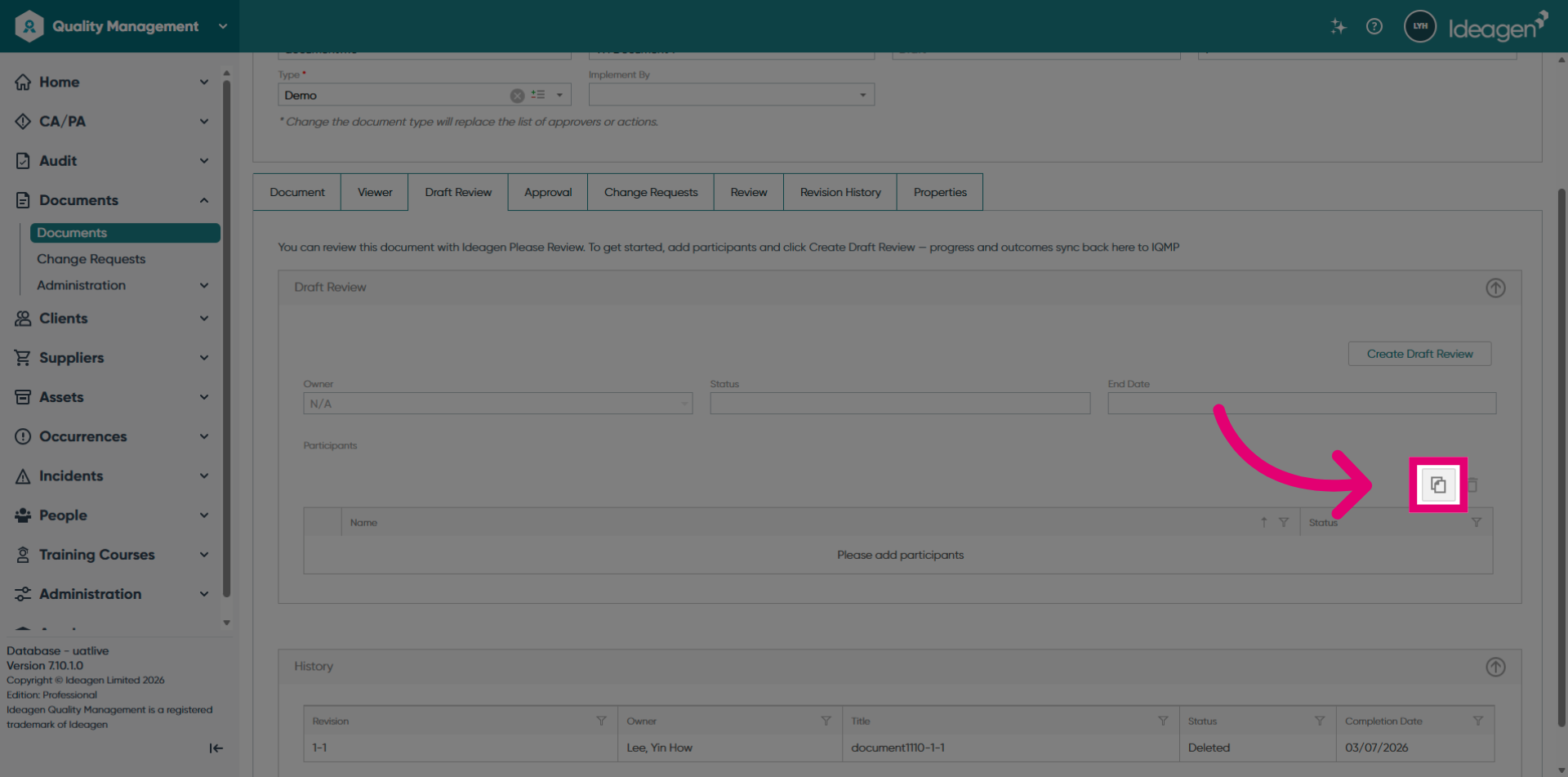
Click here to setup participants for review creation.
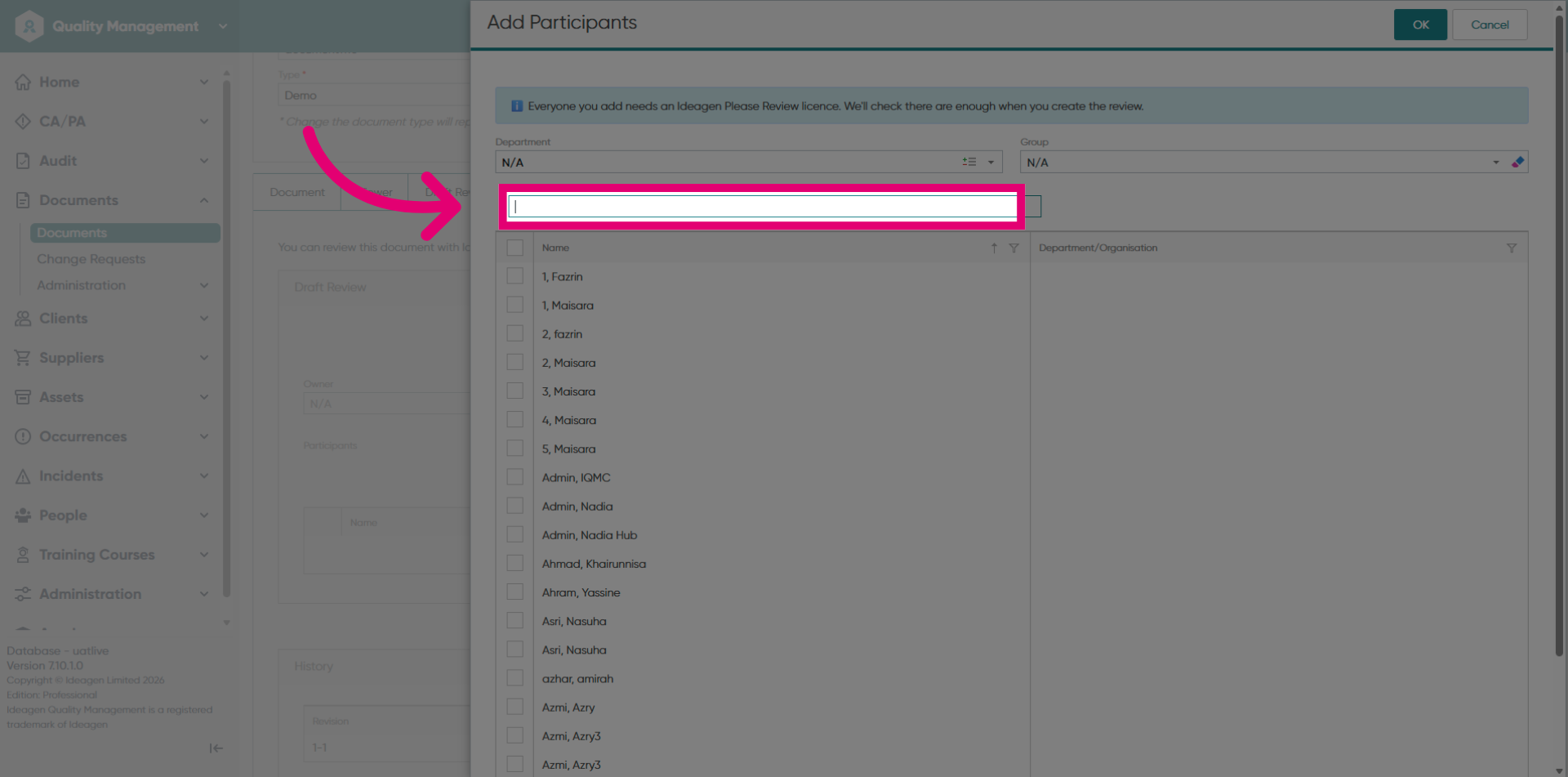
Type in the search bar to search for the users.
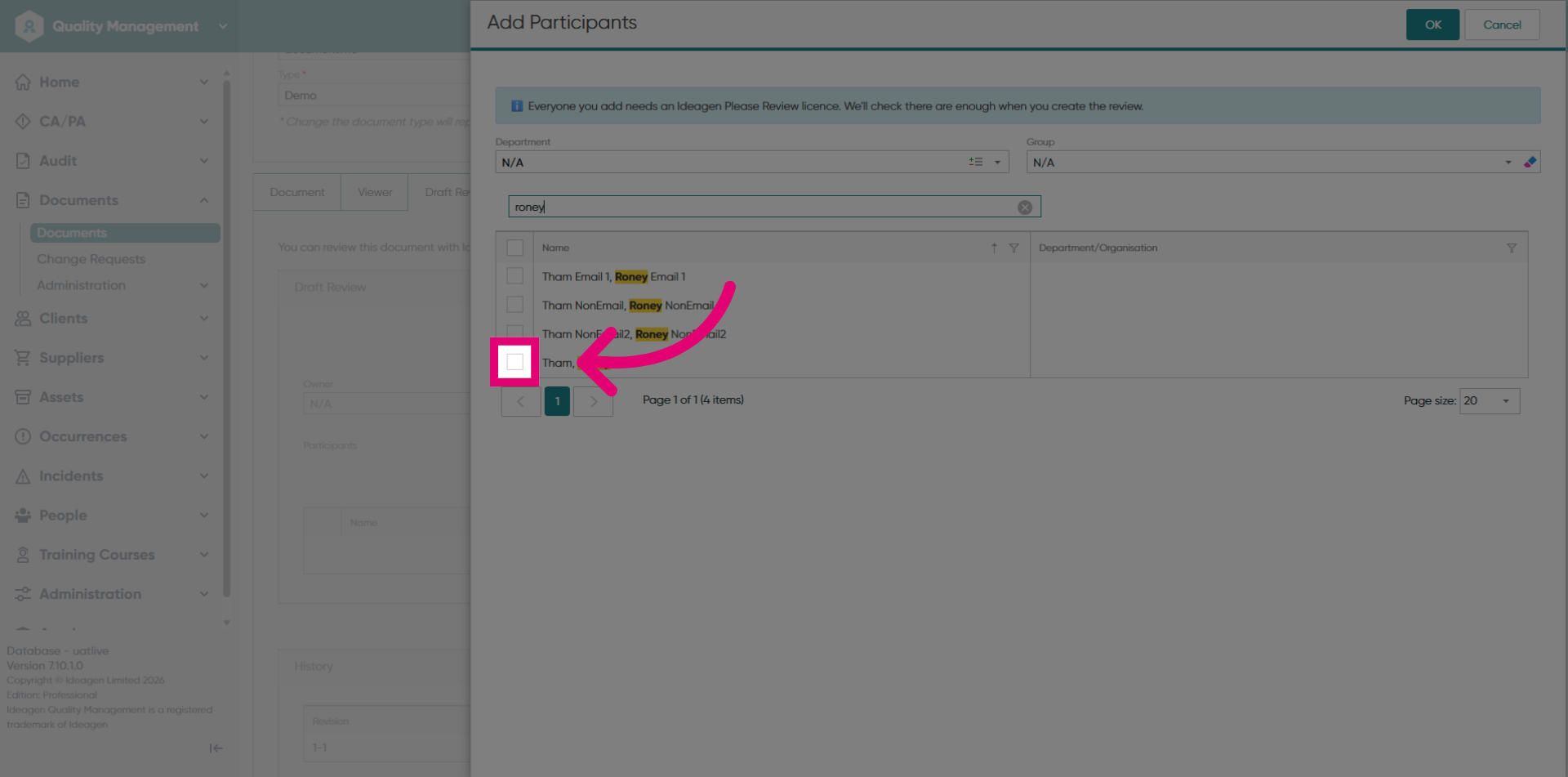
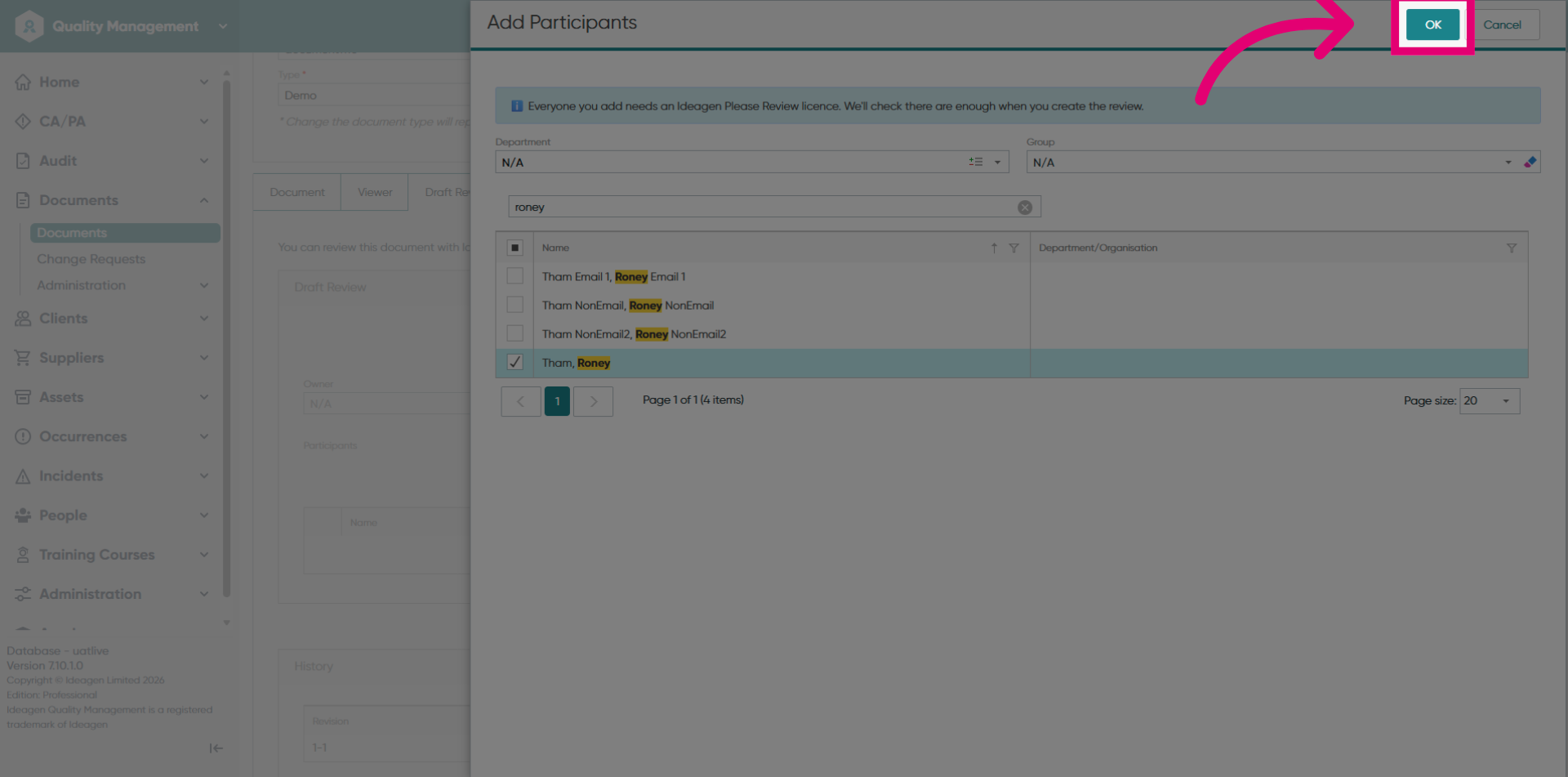
Select a user for the review.
Click the OK button to save the selected users.
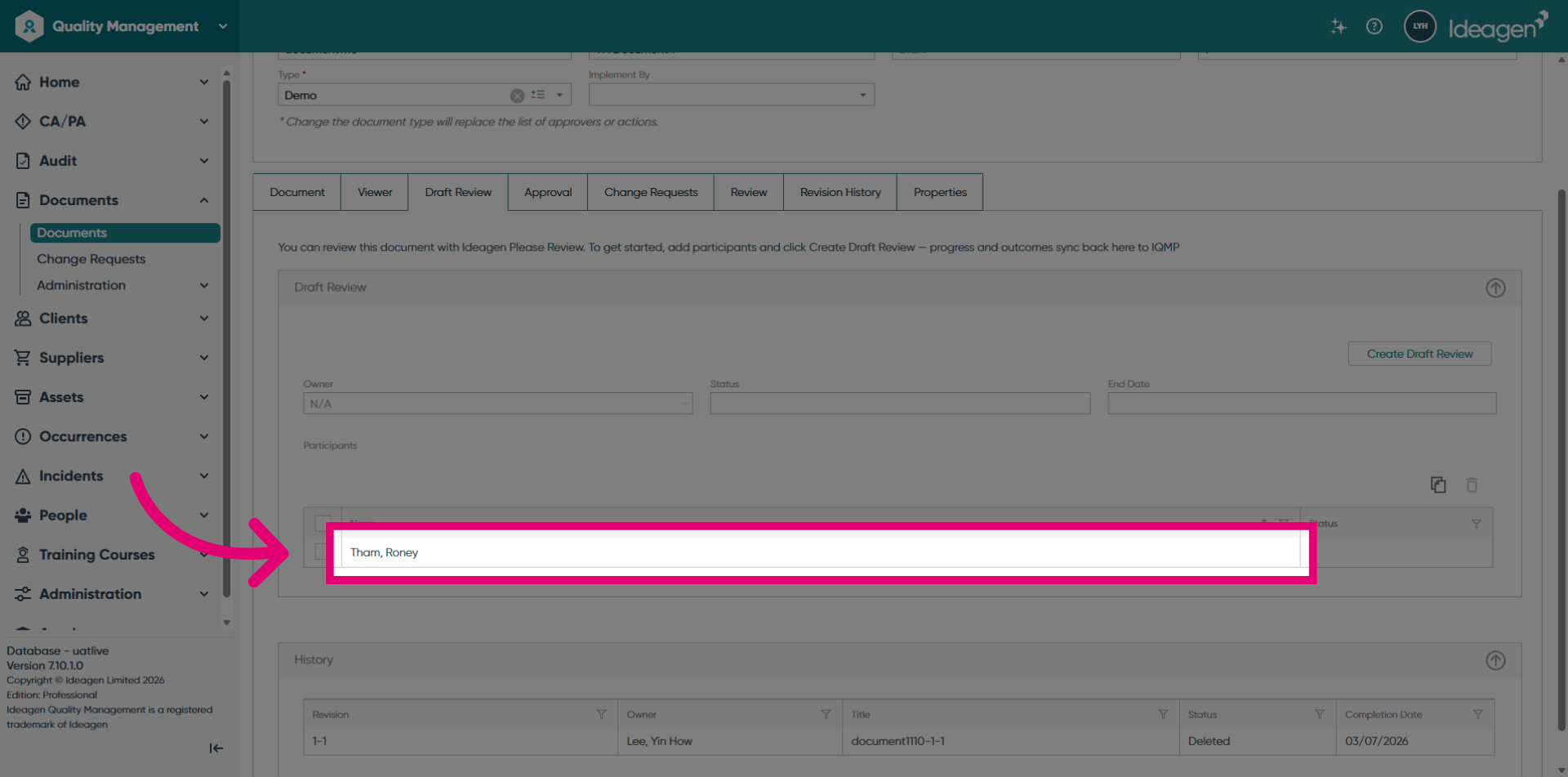
Verify that the reviewer has been added. As you can see, Tham, Roney has been added.
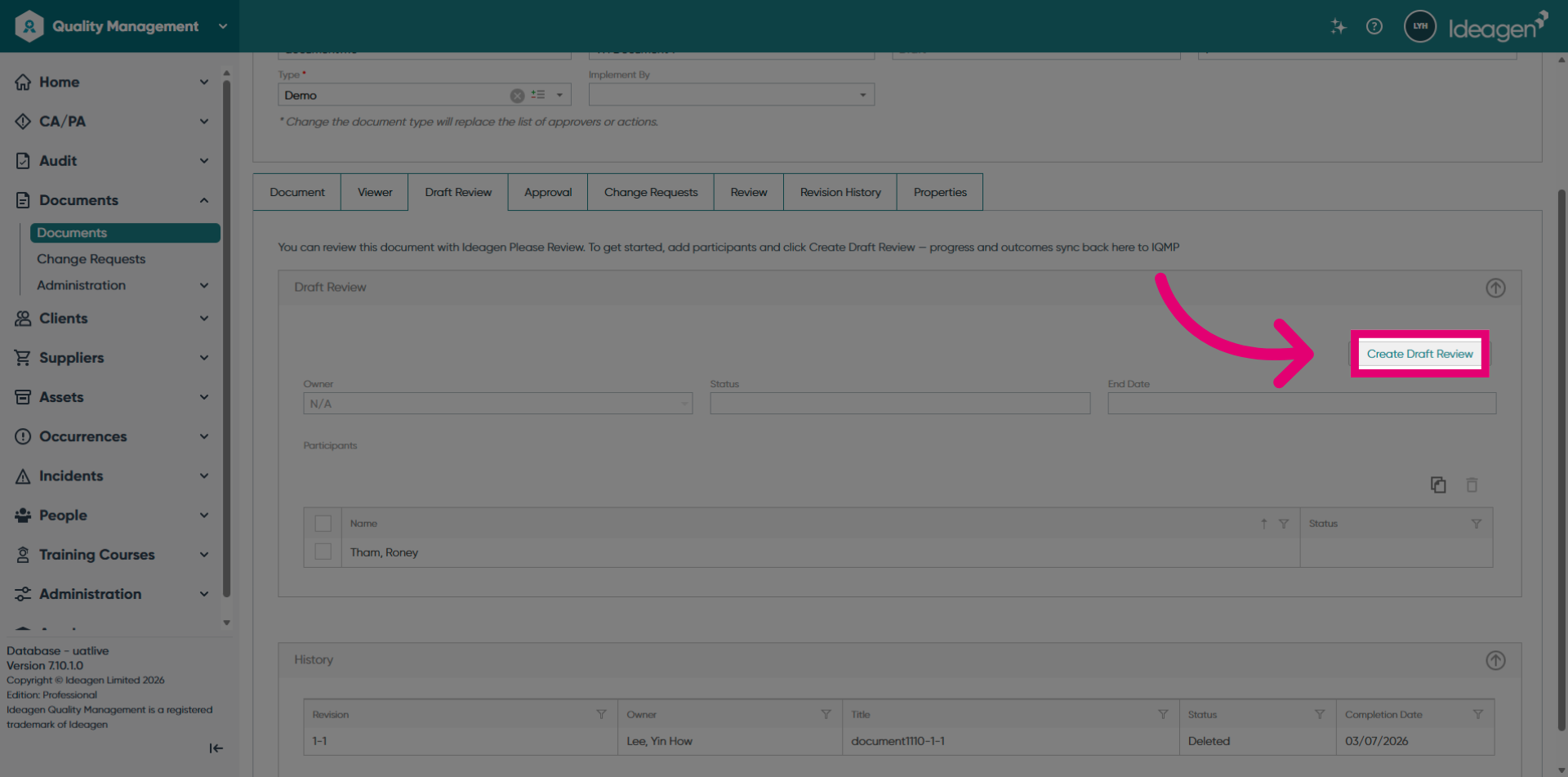
Click the Create Draft Review button to create a new review in Please Review.
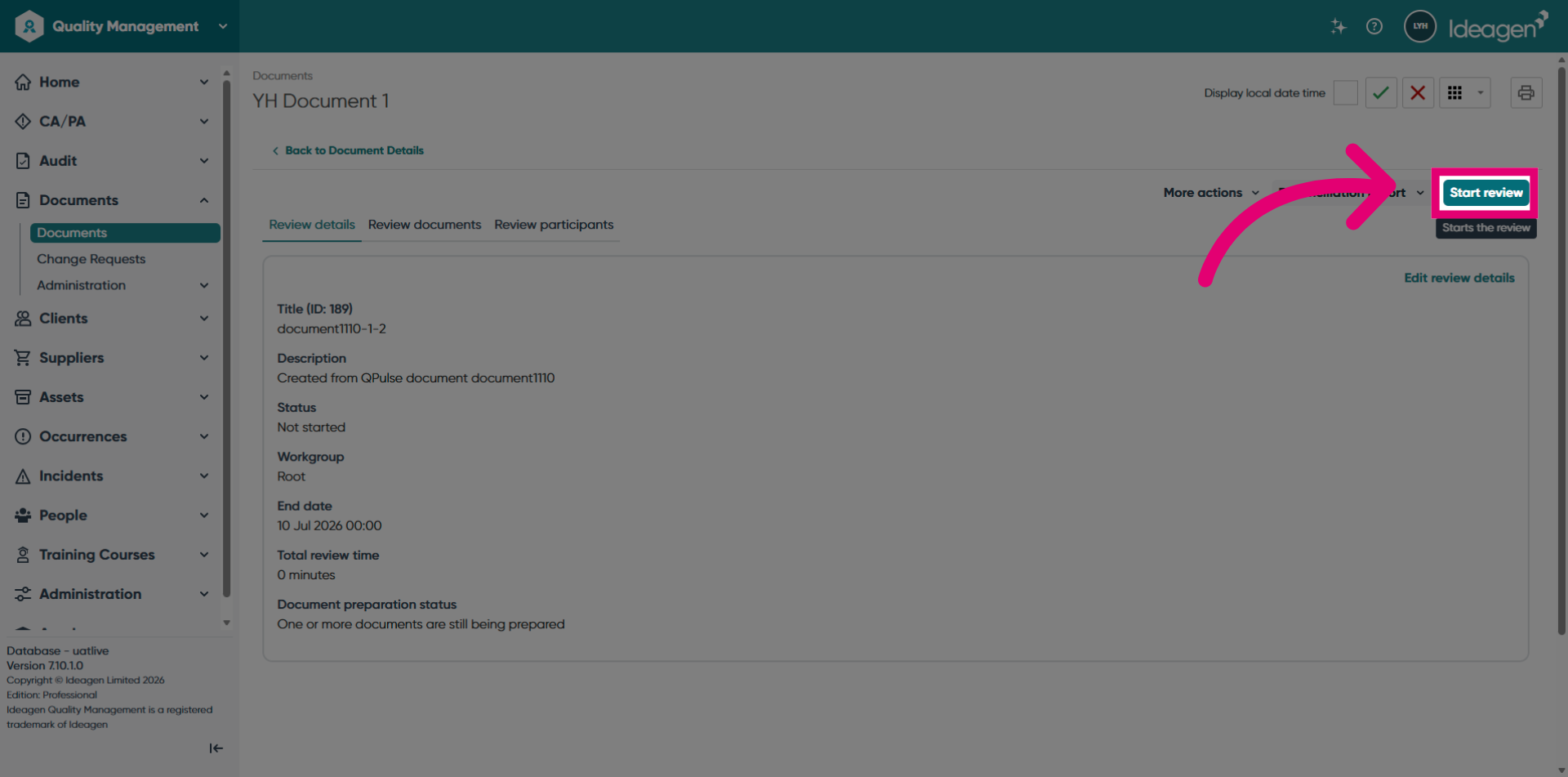
Click the Start review button to set the review status to In Progress, so that the reviewers can begin reviewing the document.
Click the Enter Review button to access Please Review Inside Review.
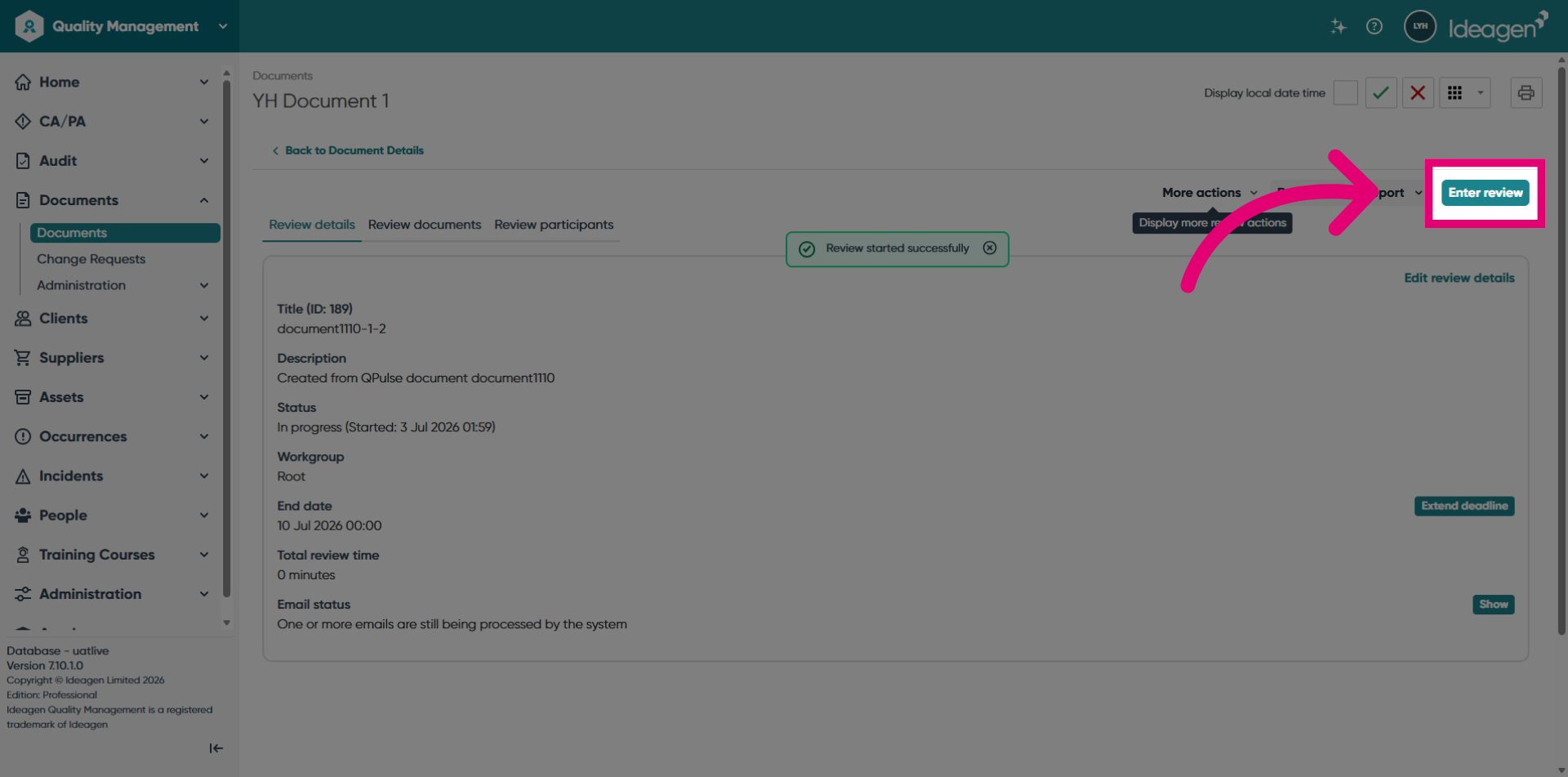
Once the reviewing activity is completed, click the Review closeout button.
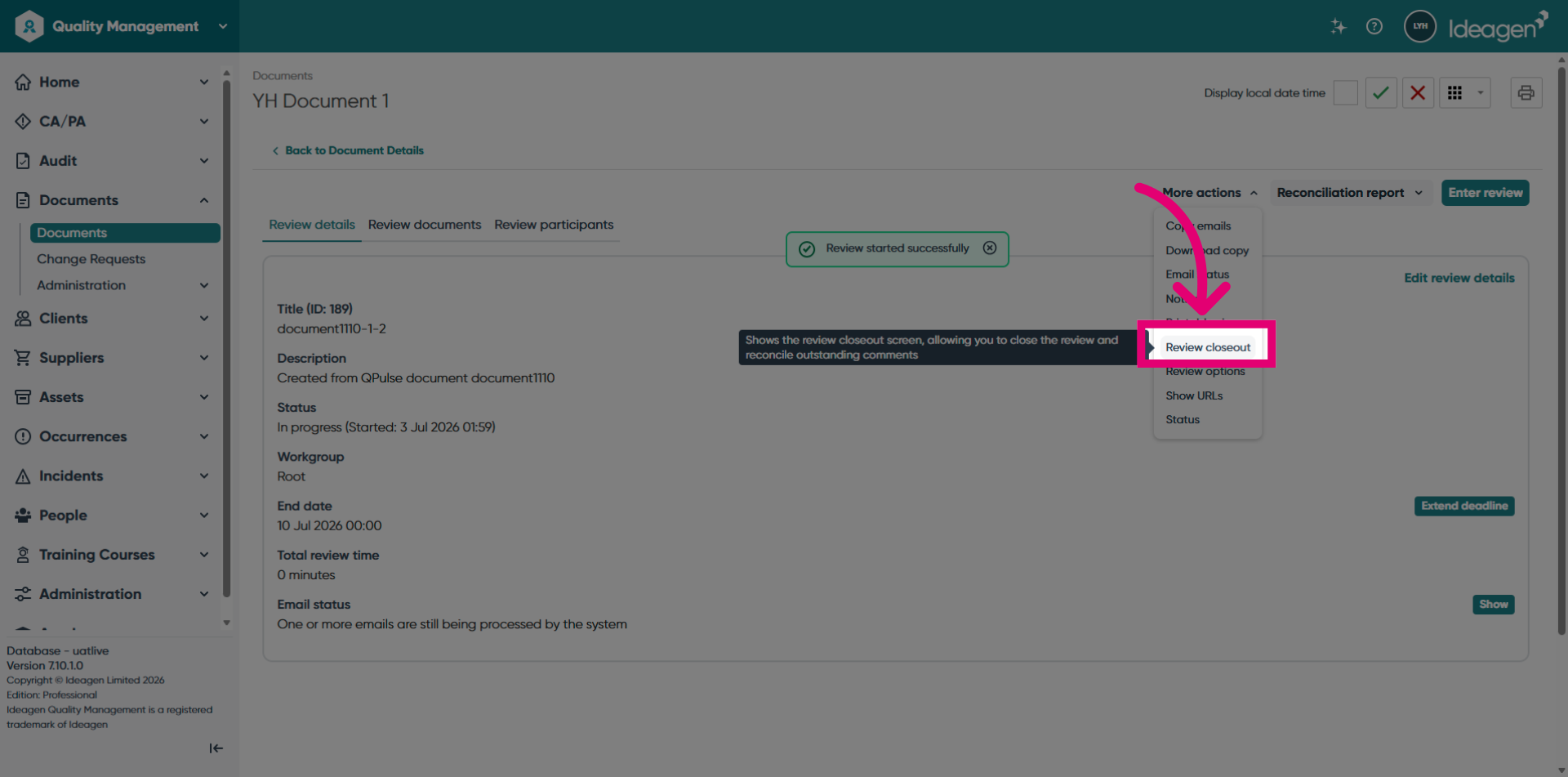
Click the Close review button to set the review status to Completed and save a record in the History section in Ideagen Quality Management Professional.
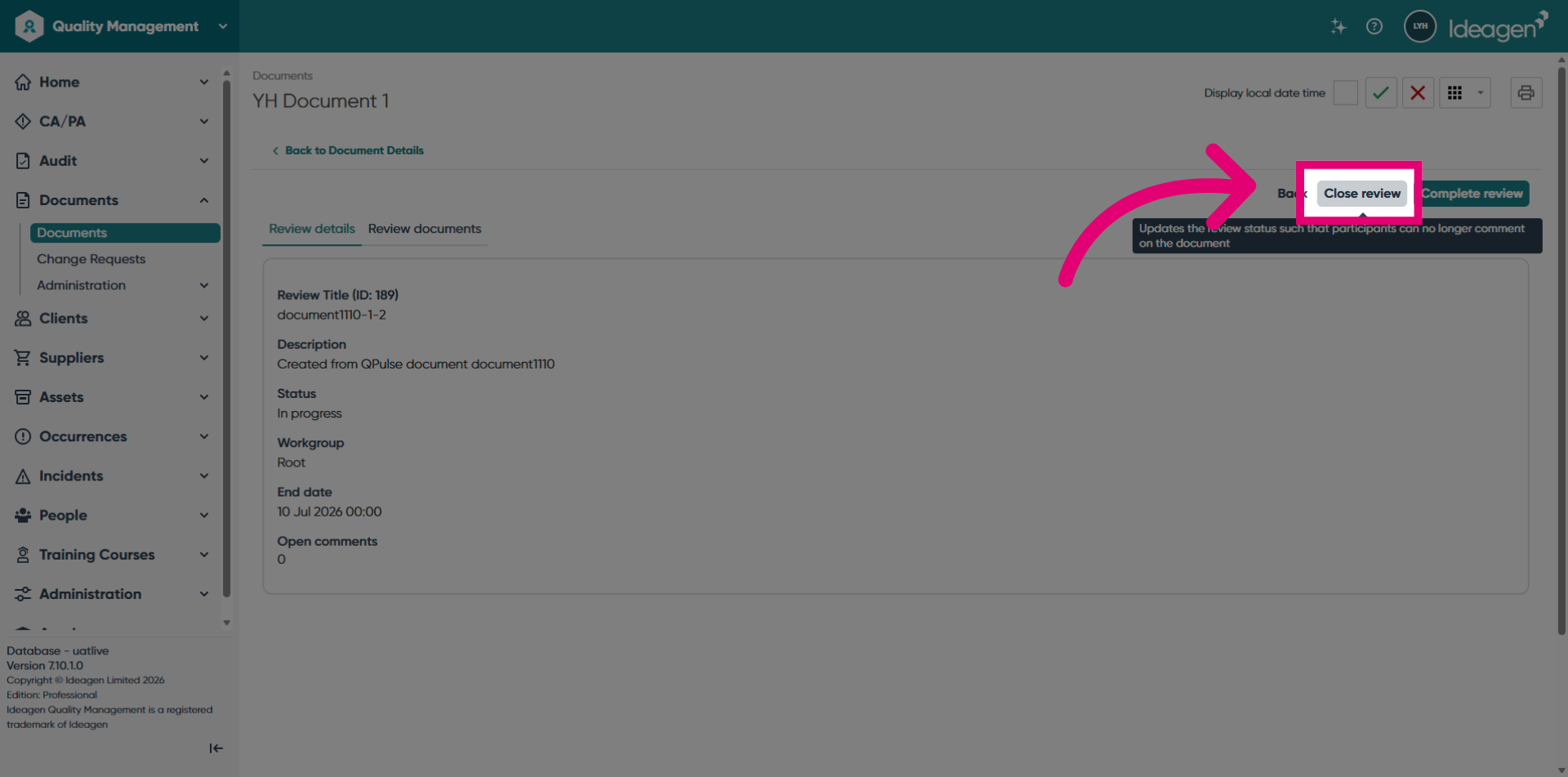
Click the Confirm button to proceed.
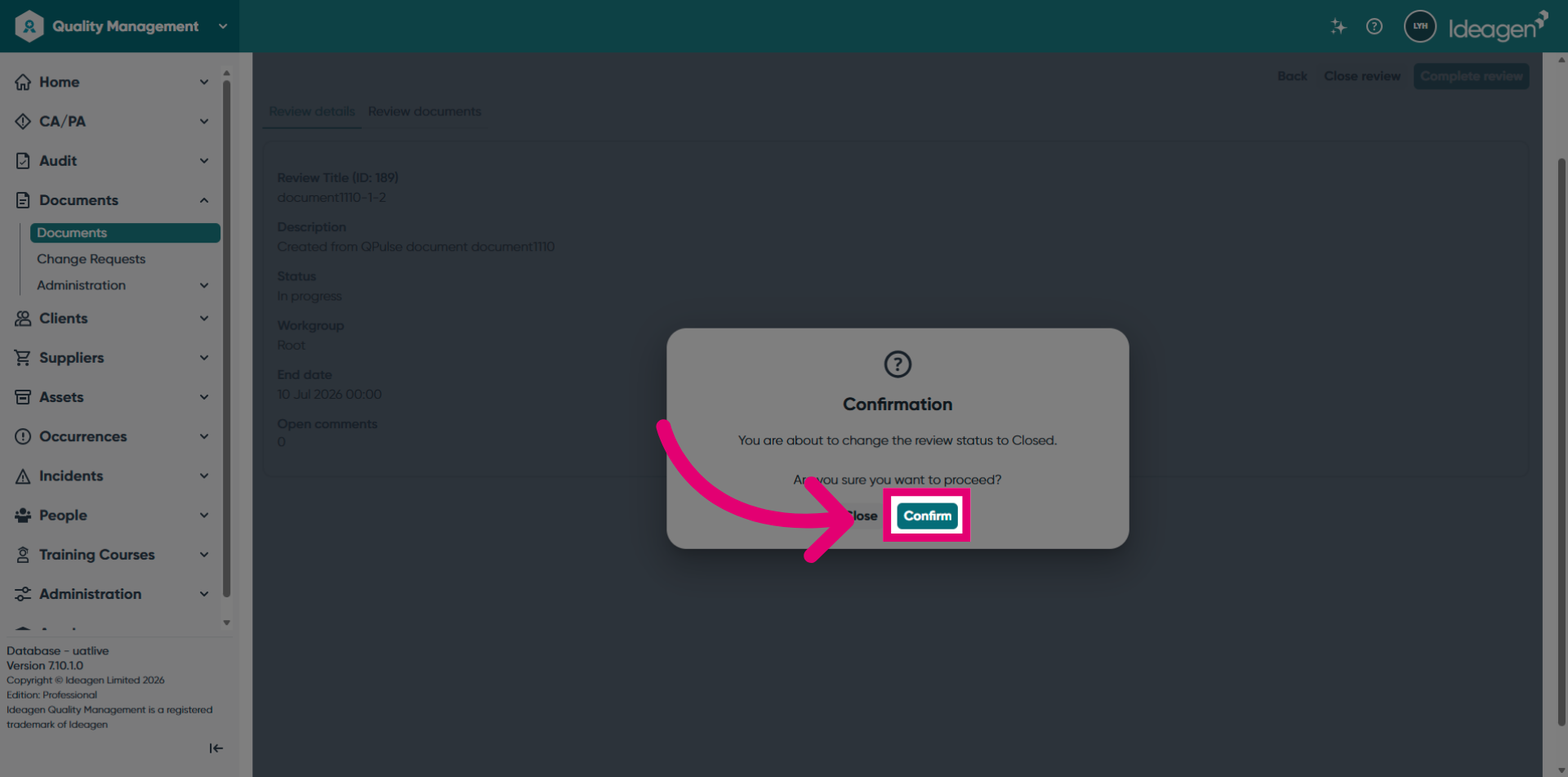
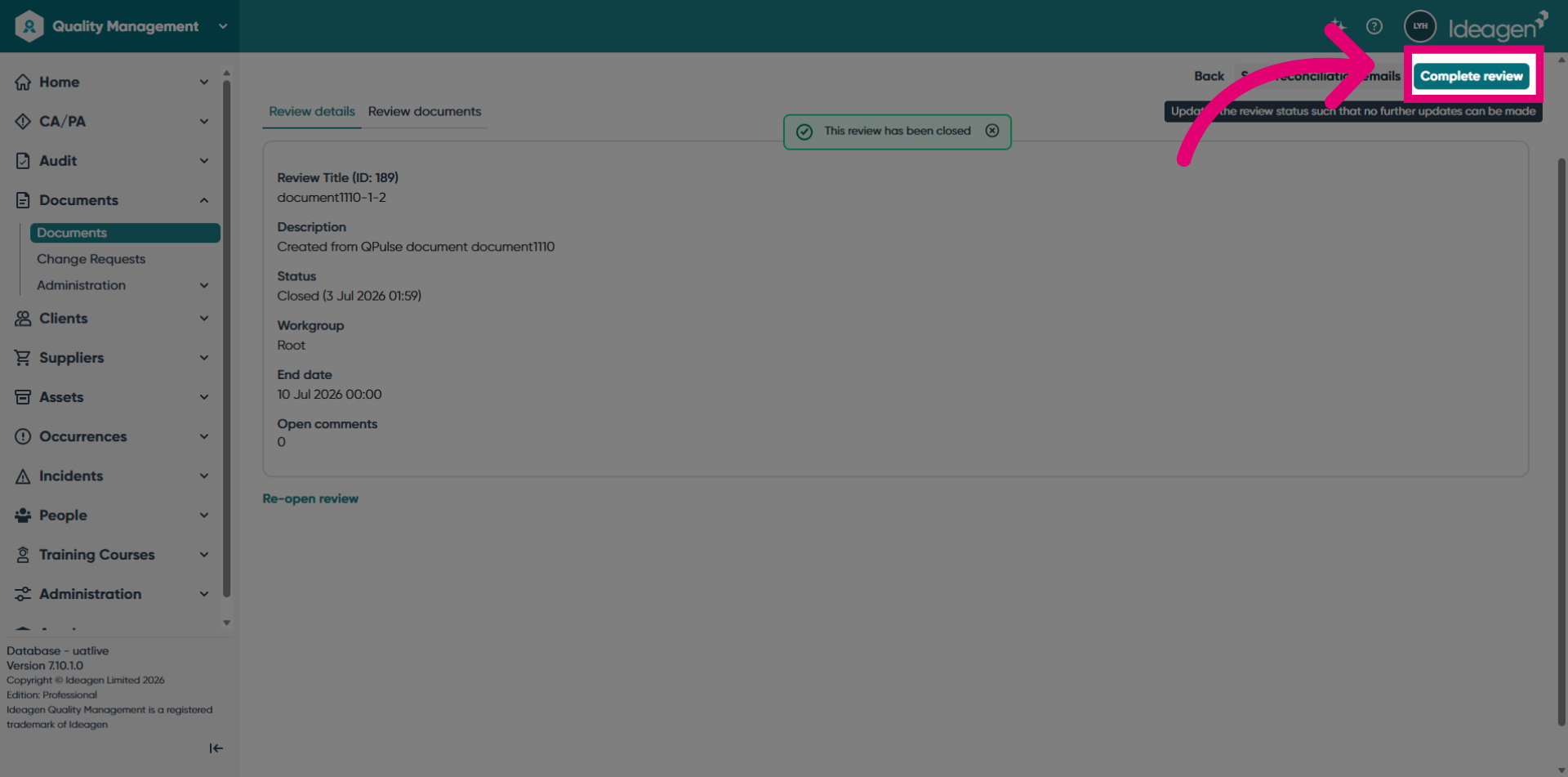
Click the Complete review button to finalize the reviewing activity. No one can make changes to the review or reopen the review.
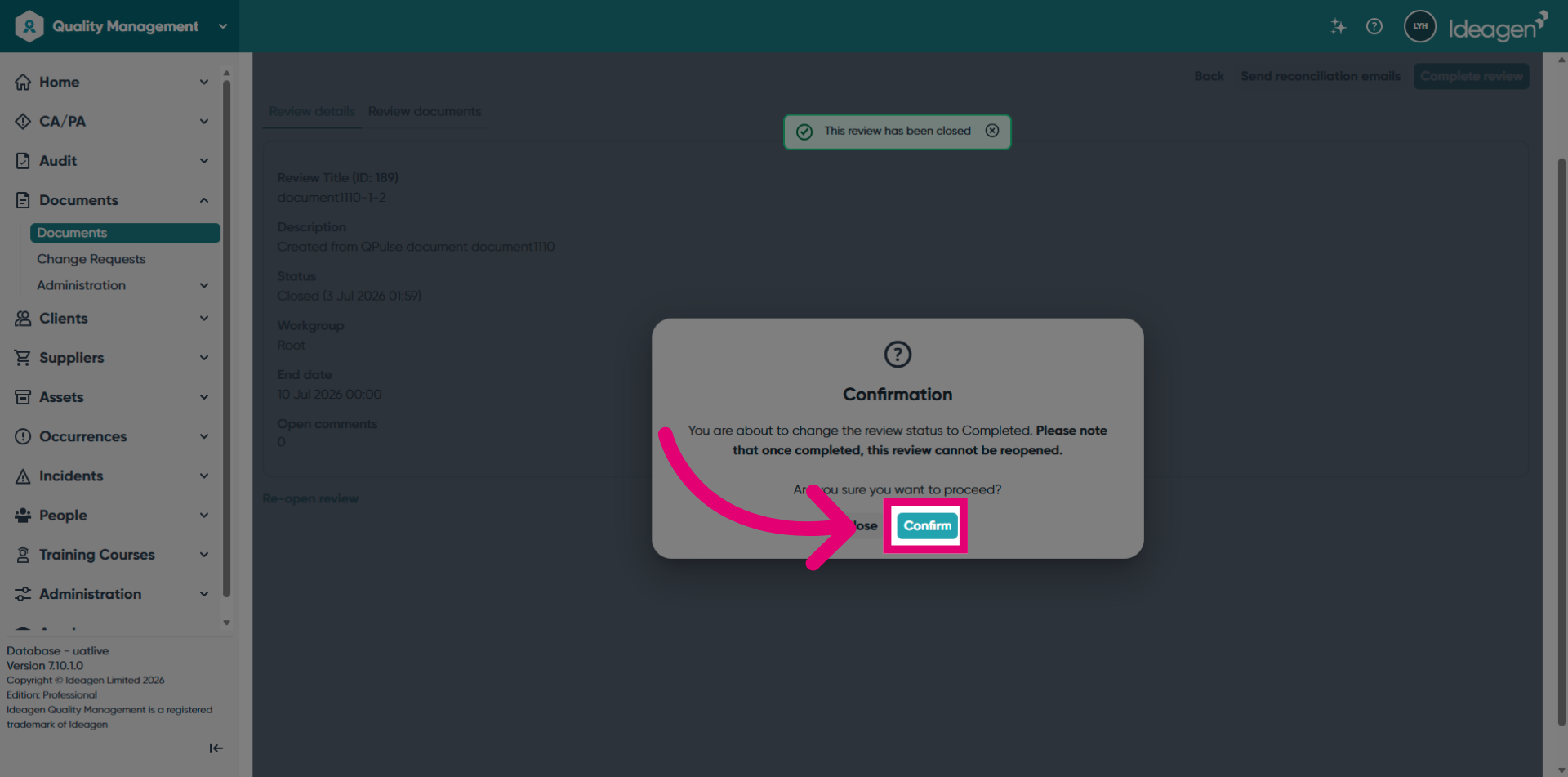
Click the Confirm button to proceed.
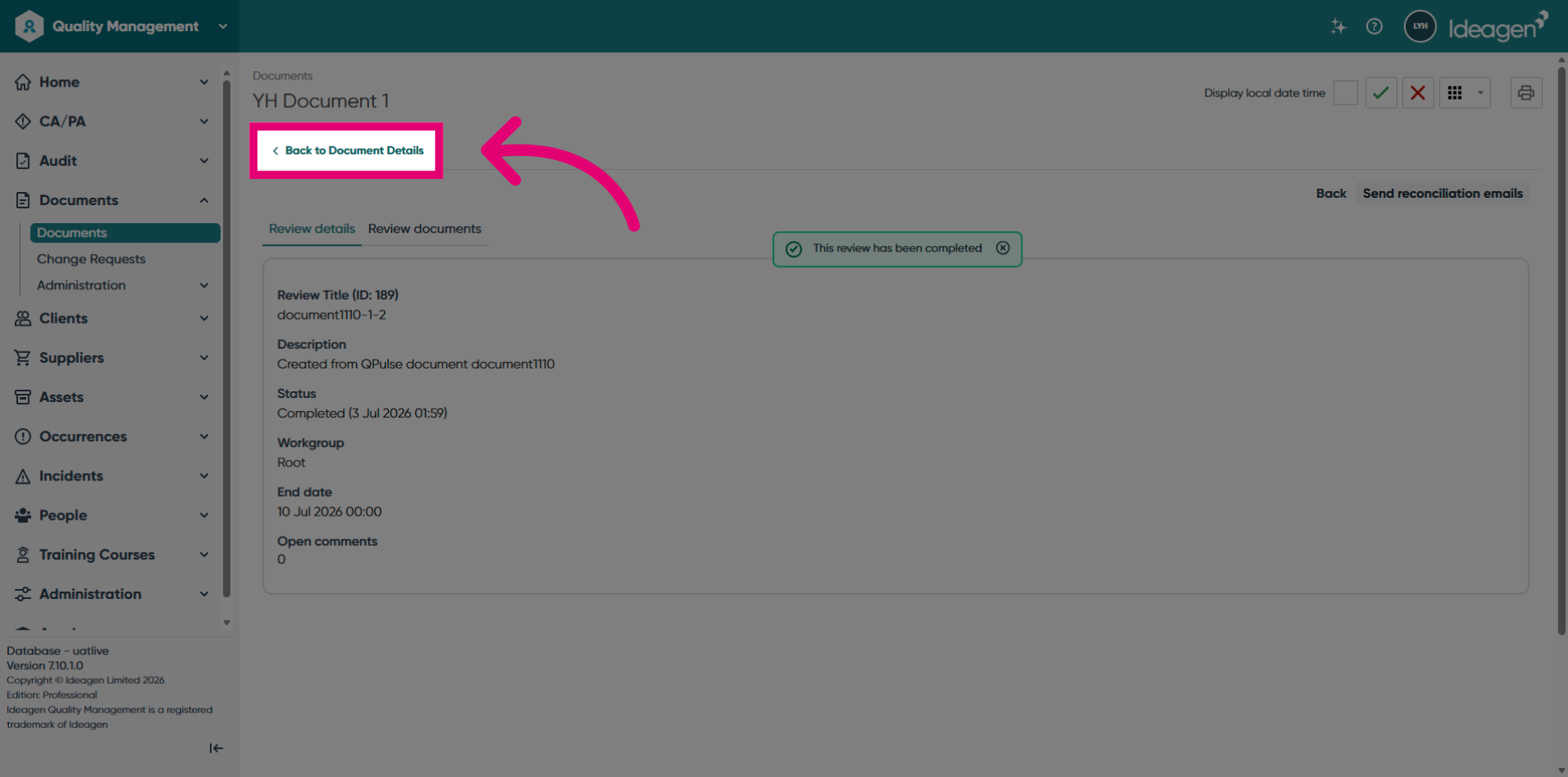
Click the Back to Document Details button to return to the document draft review tab.
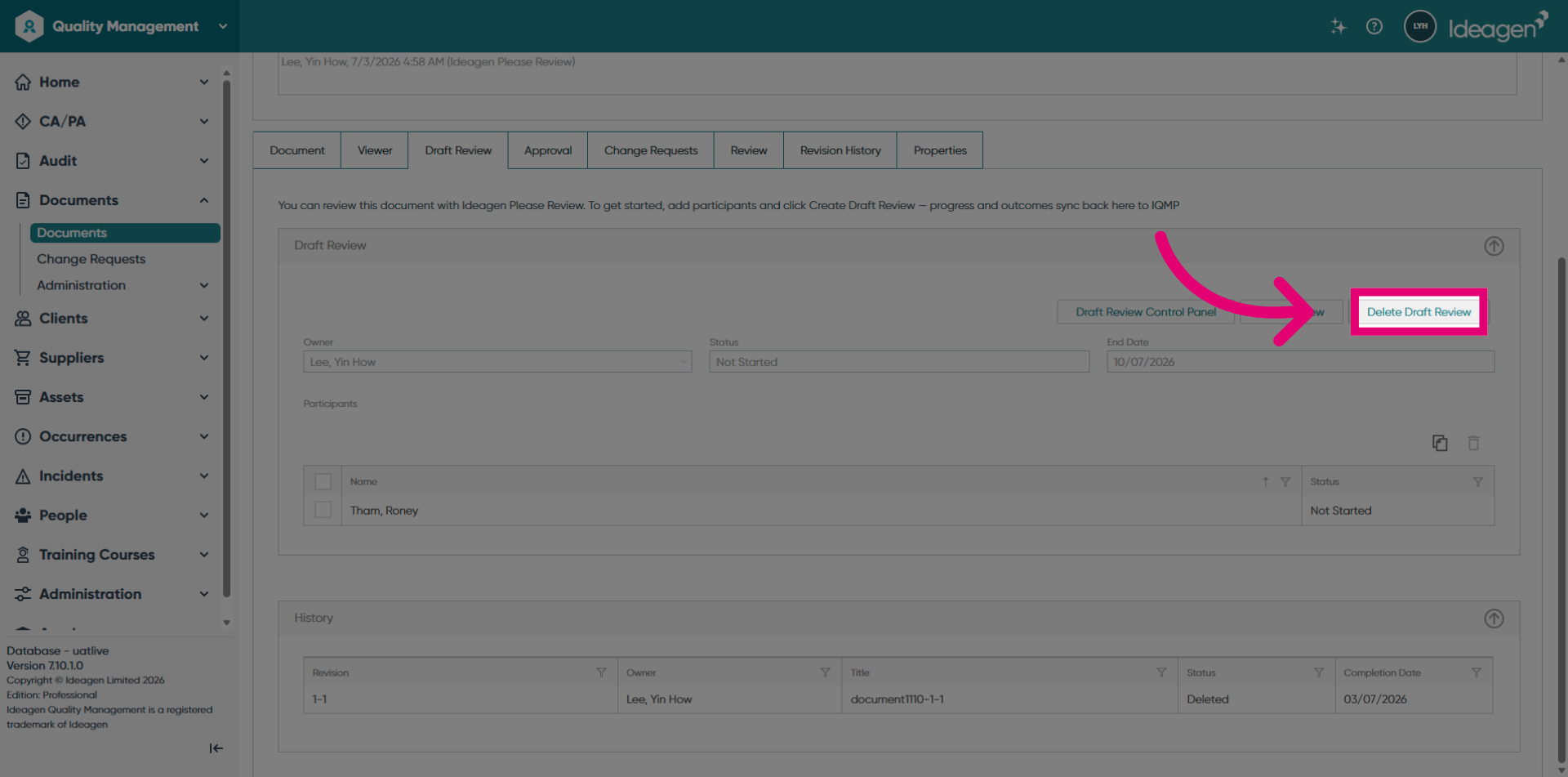
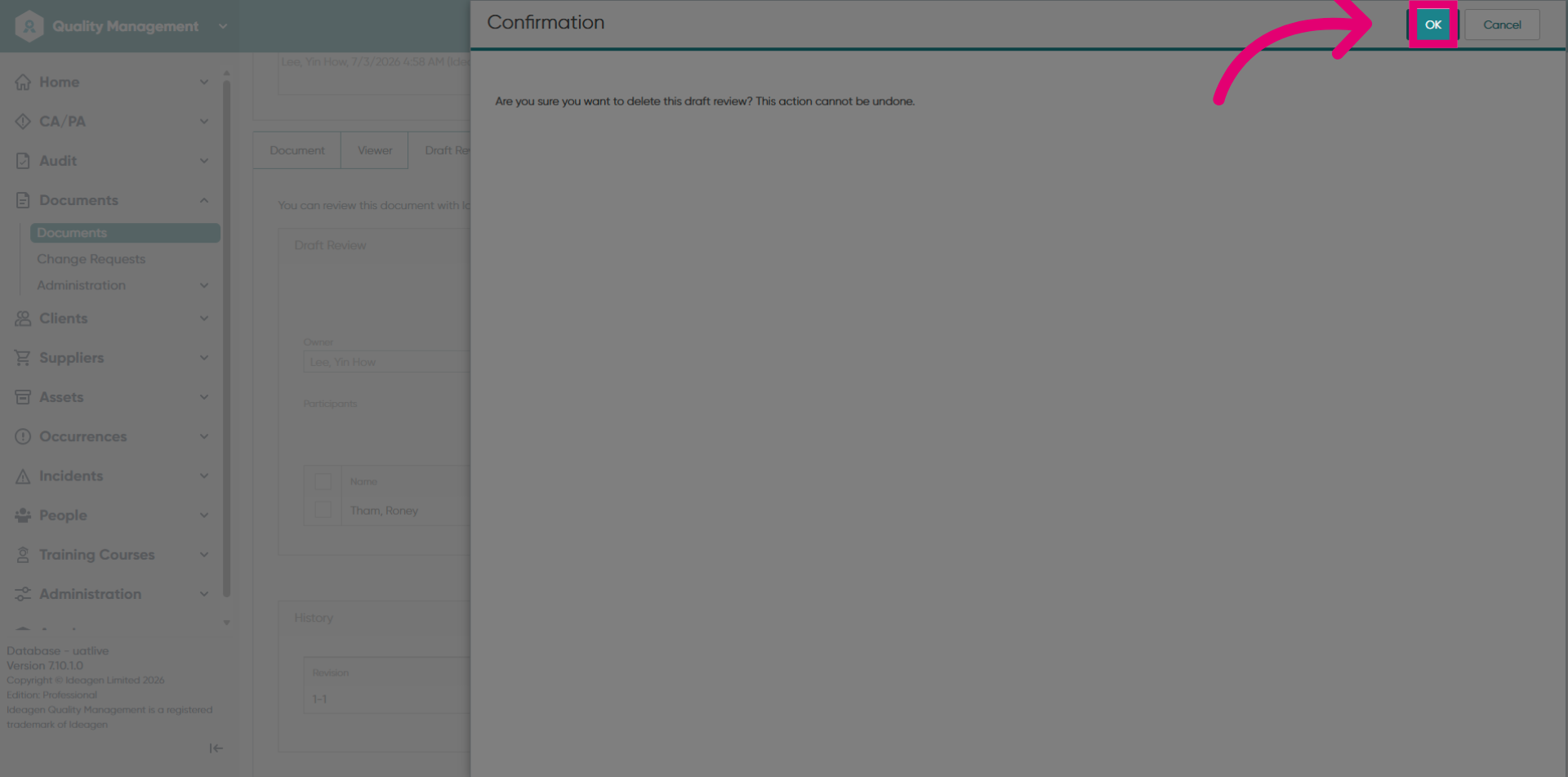
Click the Delete Draft Review button to unlock the document and complete the review cycle.
Click the OK button to proceed.
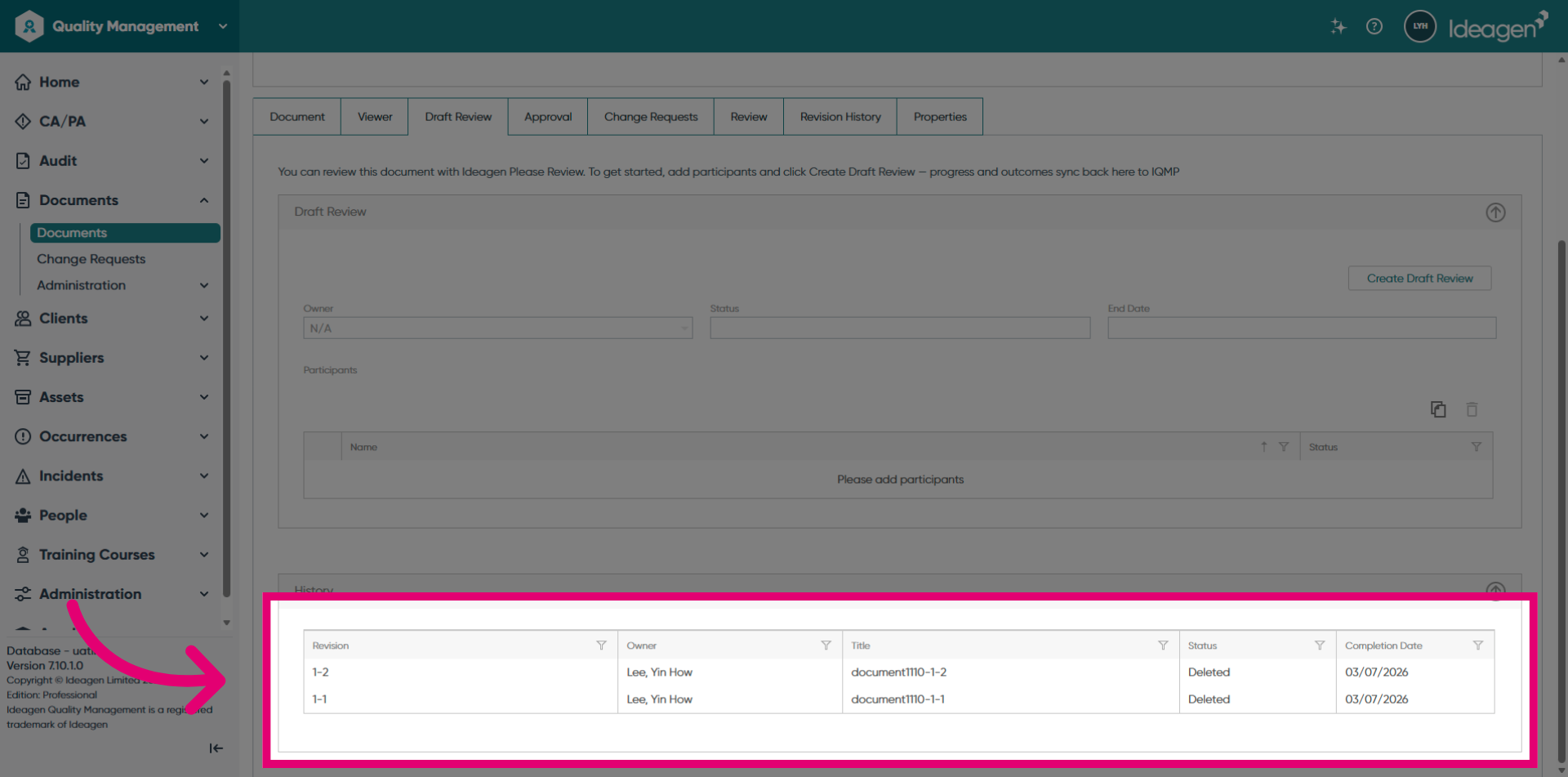
View the History section where a record of the review created via this document is available.