


New article
Recently updated
Navigating the Home Screen

Who is this article for?Please Review users navigating the home screen.
System Administrators will assign users with login credentials.
See the following guide for instructions on how to navigate the Please Review home screen. It also includes an explanation on system alerts, top menu icons and review menu settings.
1. Navigating the Home screen
1.1. Video
1.2. Steps
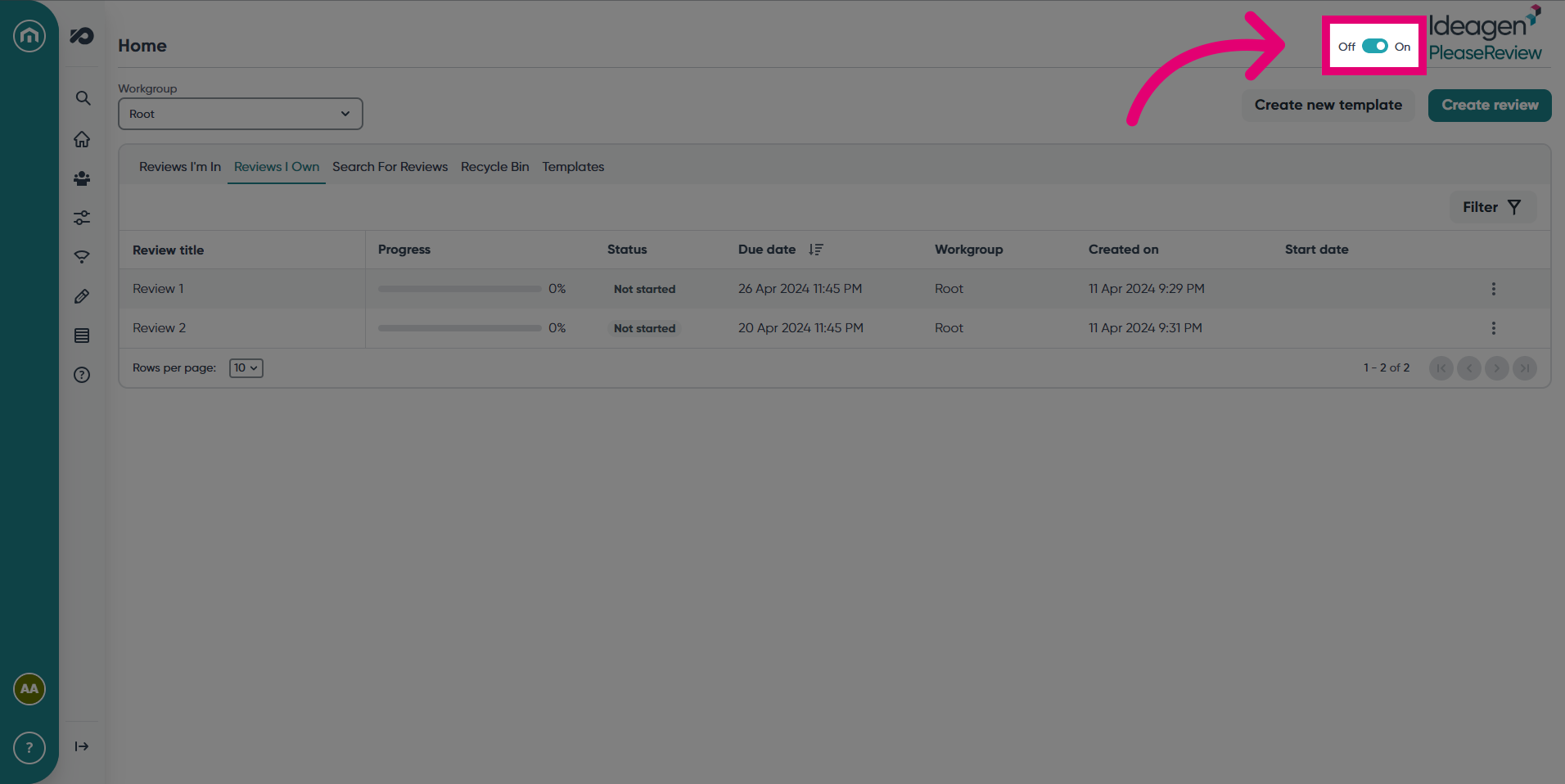
- To revert back to the legacy version of Please Review (for versions 7.6 and lower) click the toggle to Off. To come back to the new Please Review, switch the toggle back to On.
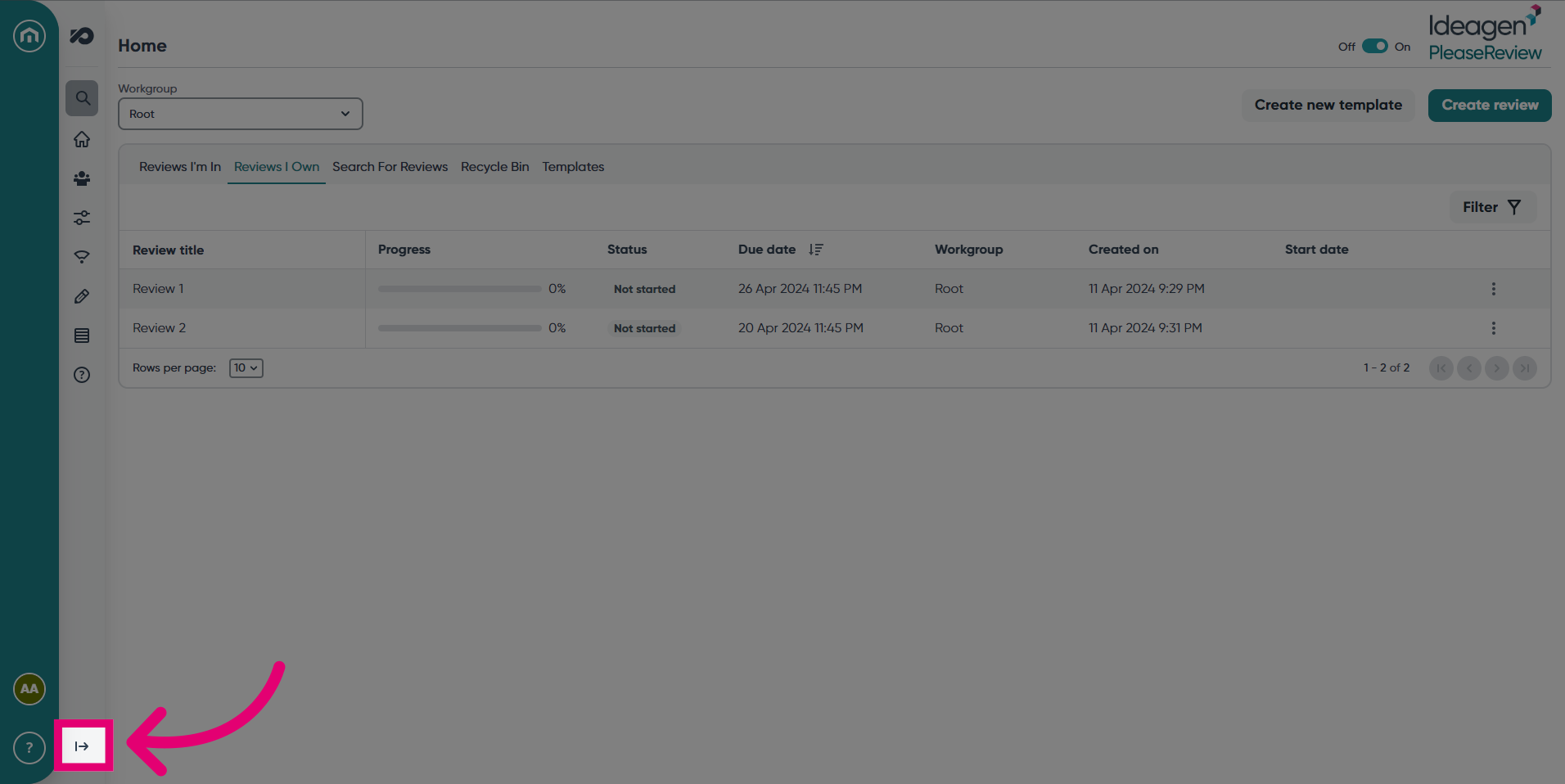
- Expand the navigation bar for more options.
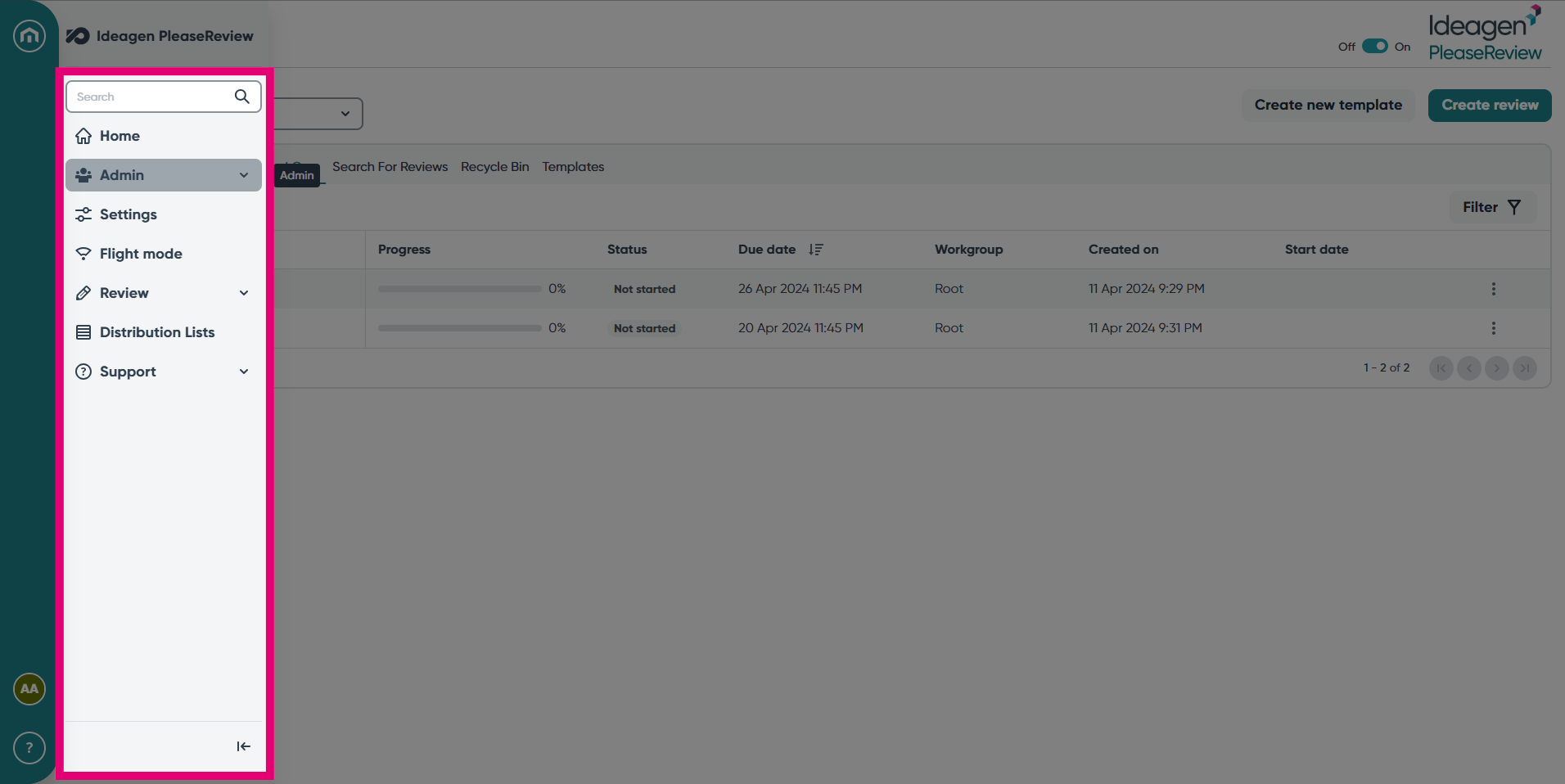
- Choose from Admin, Settings, Flight Mode, Review, Distribution Lists and Support in this menu. To return back to the Home screen, click Home. Please note, Flight mode will not appear in the new UI.
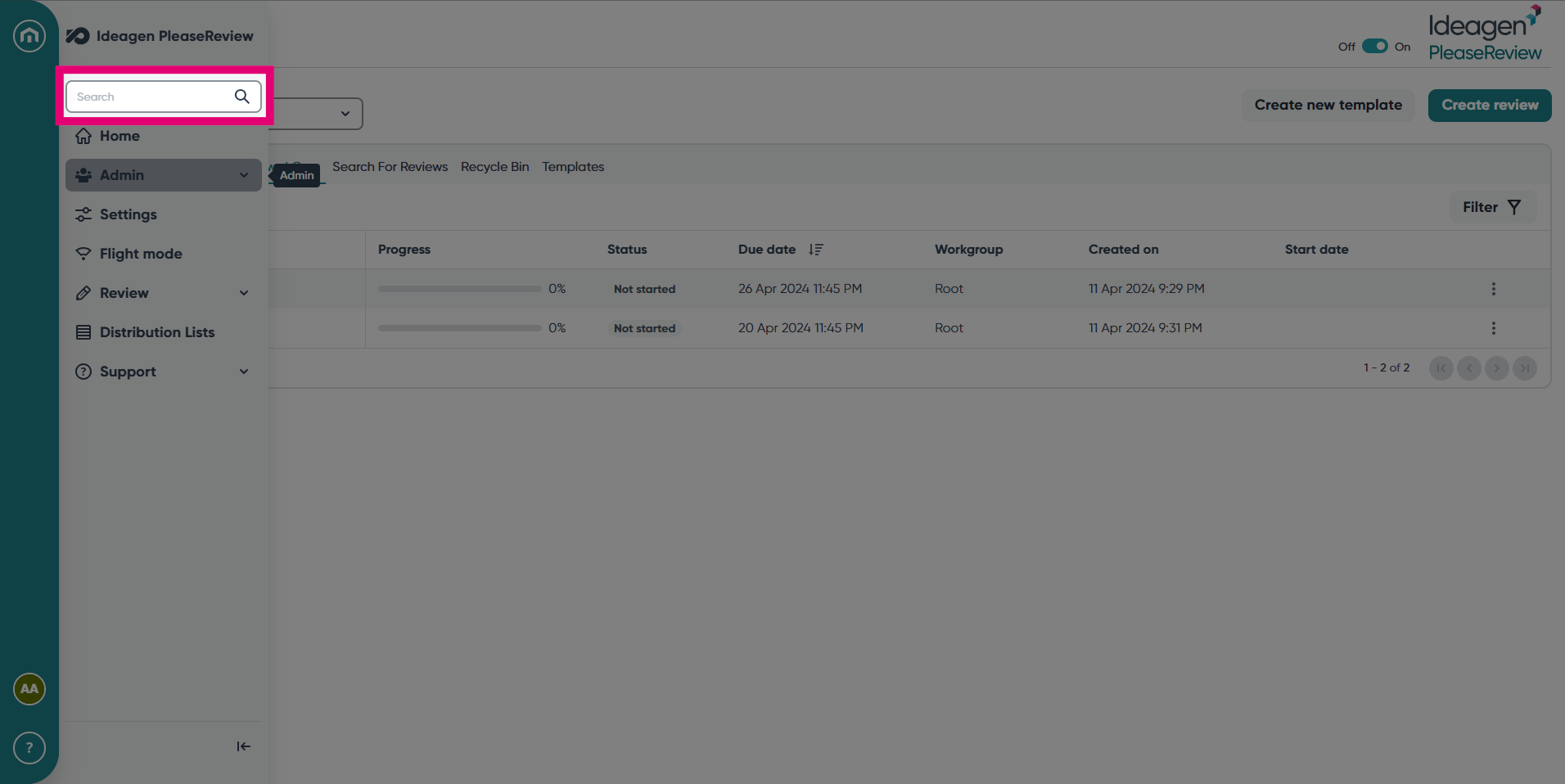
- Use the search bar to refine your search.
- Collapse the navigation bar using the arrow icon.
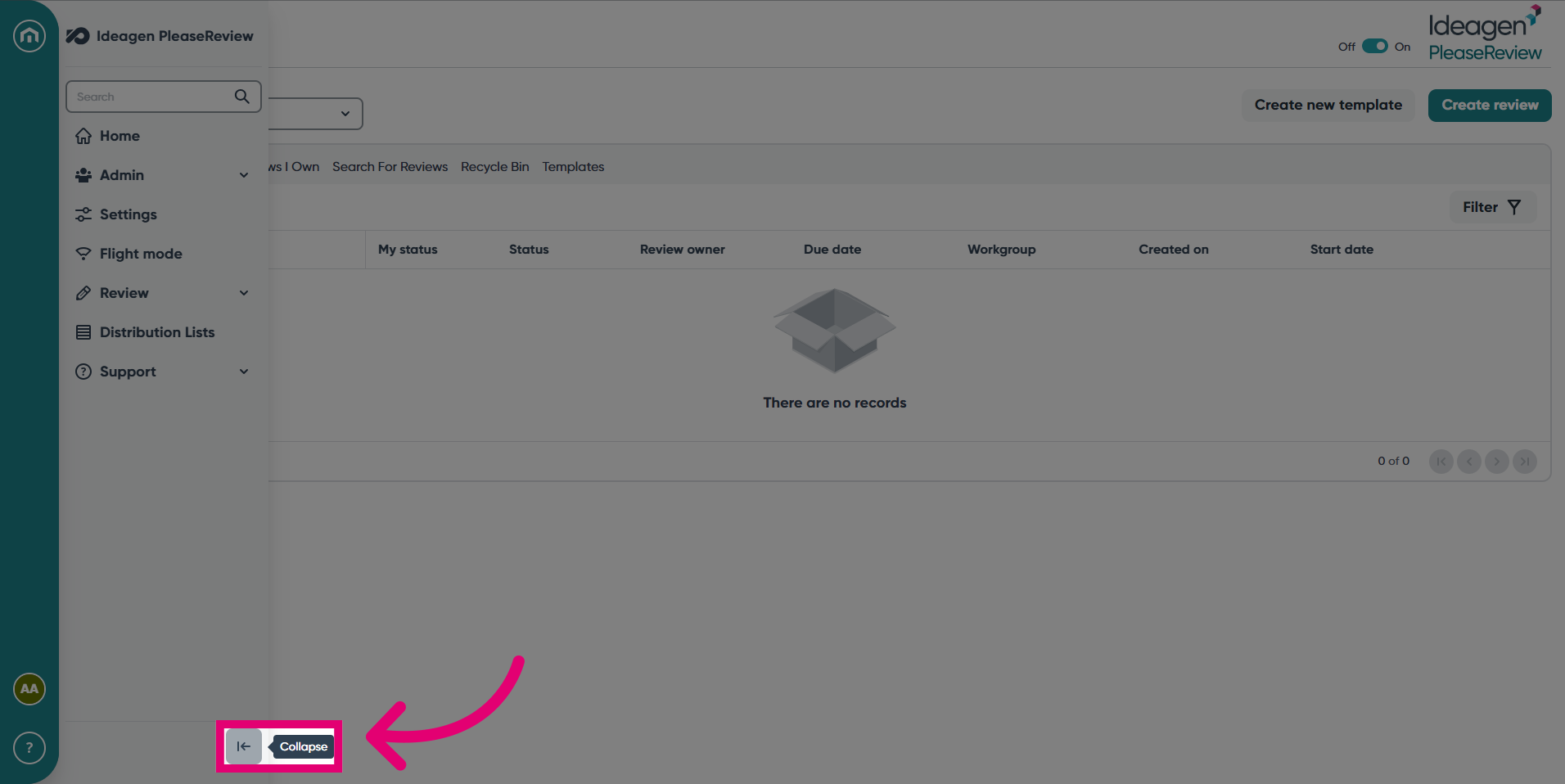
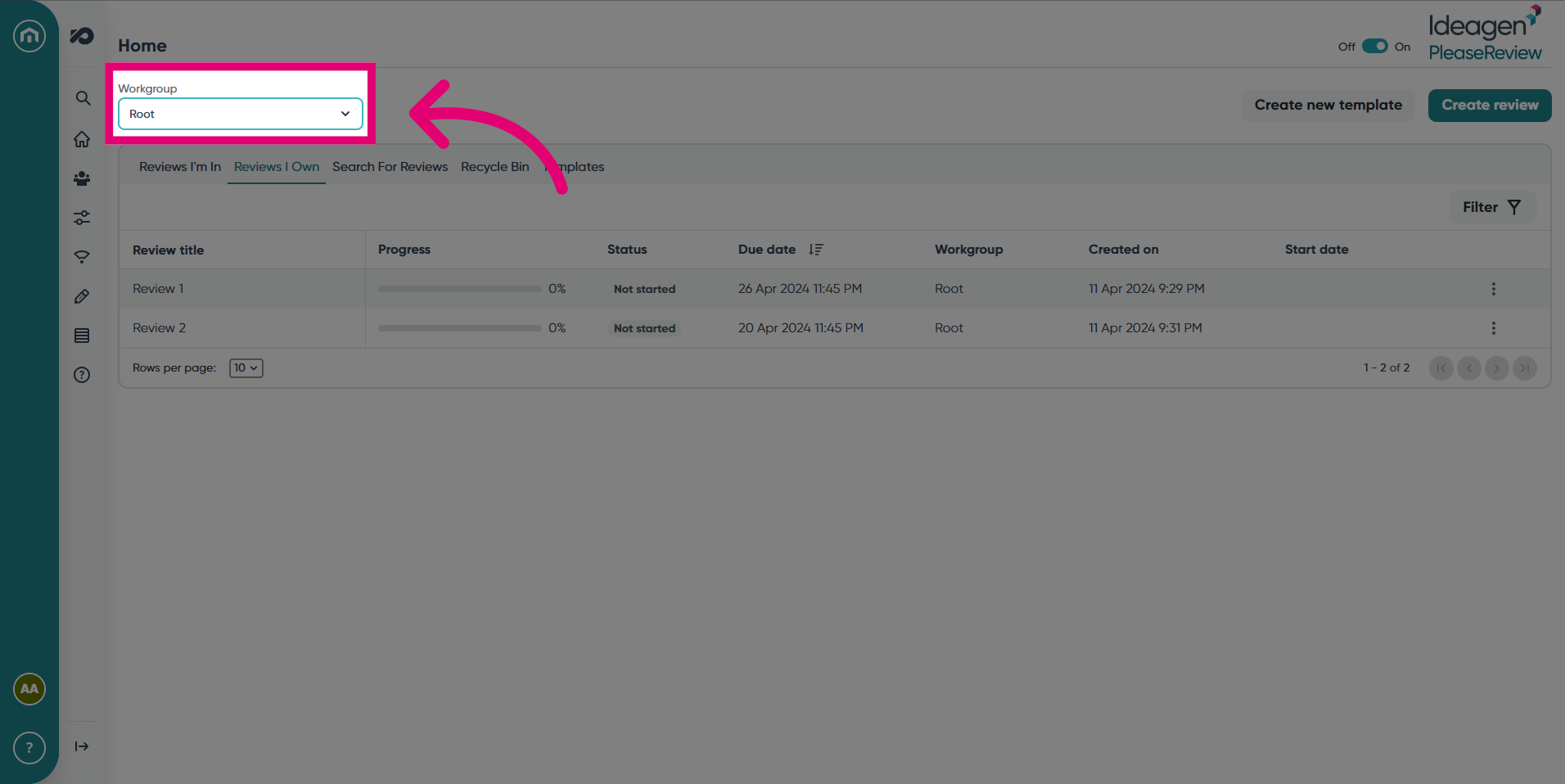
- In the Home screen, click the Workgroup drop down to seamlessly filter your view. To revert, click Root.
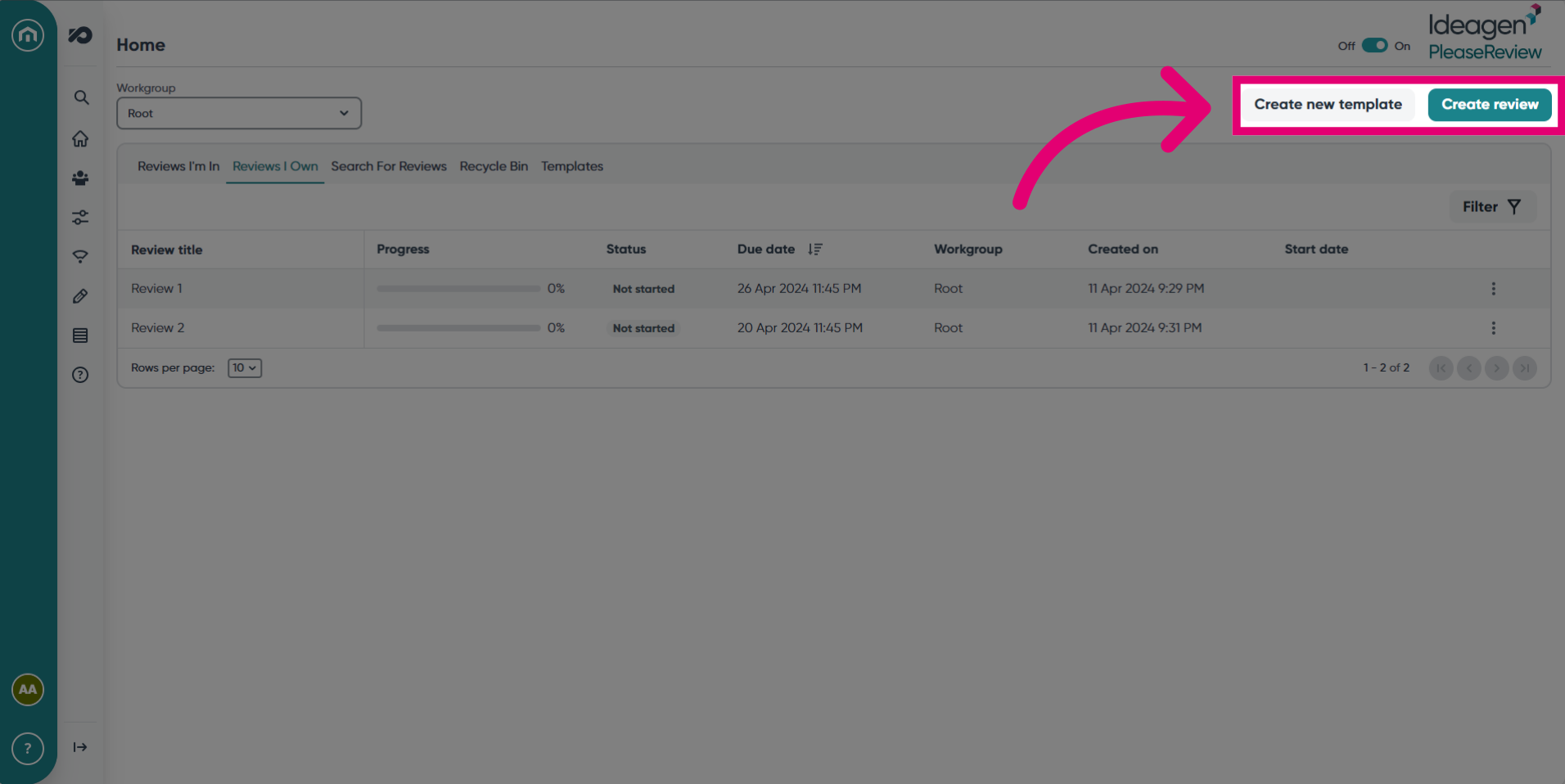
- To quickly create a new review or template, click Create new template or Create review on the right hand side.
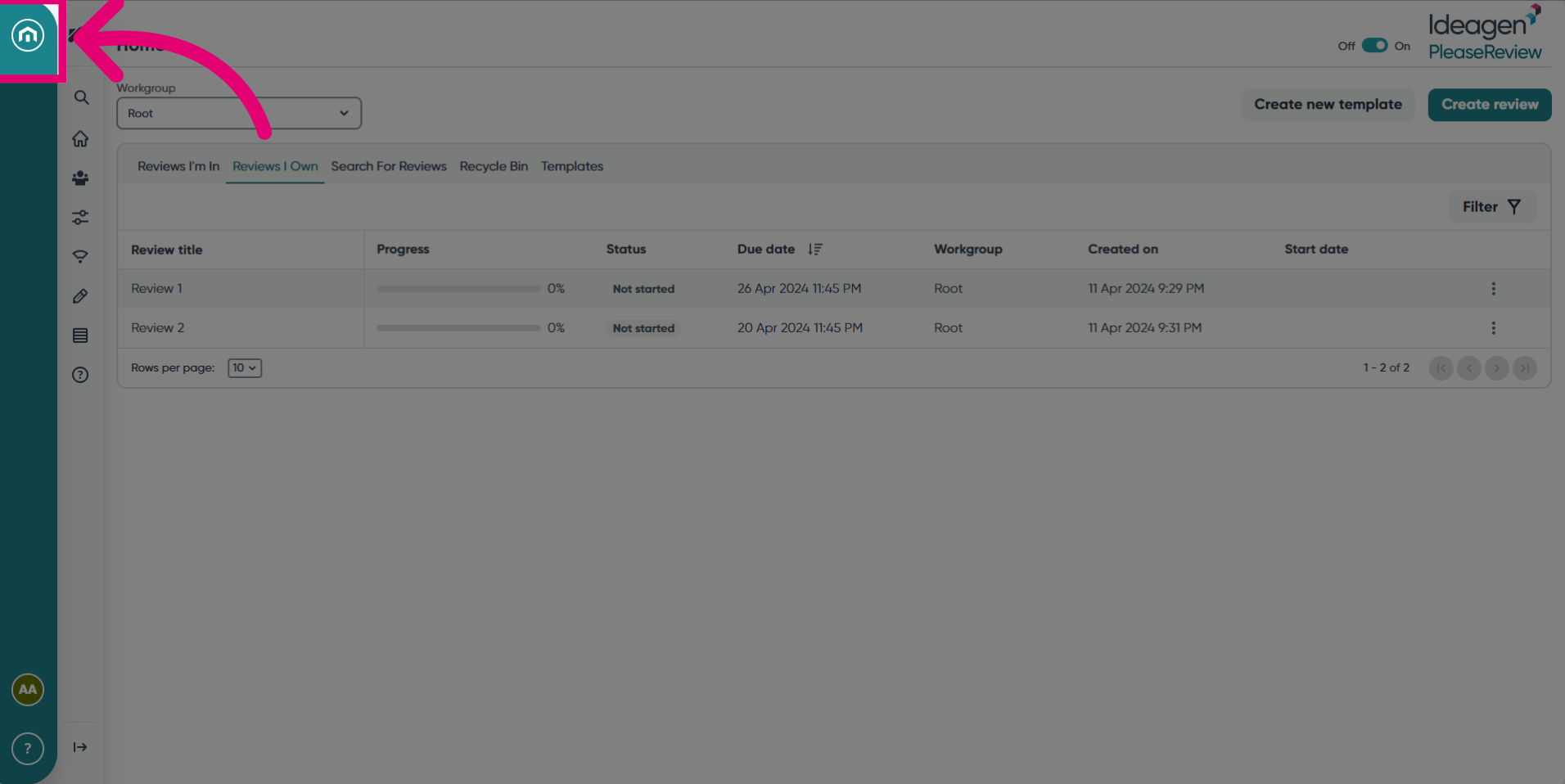
- Click the button in the top left corner to go back to Ideagen Home.
- Click the buttons in the bottom left corner to get Support or to logout of Please Review.
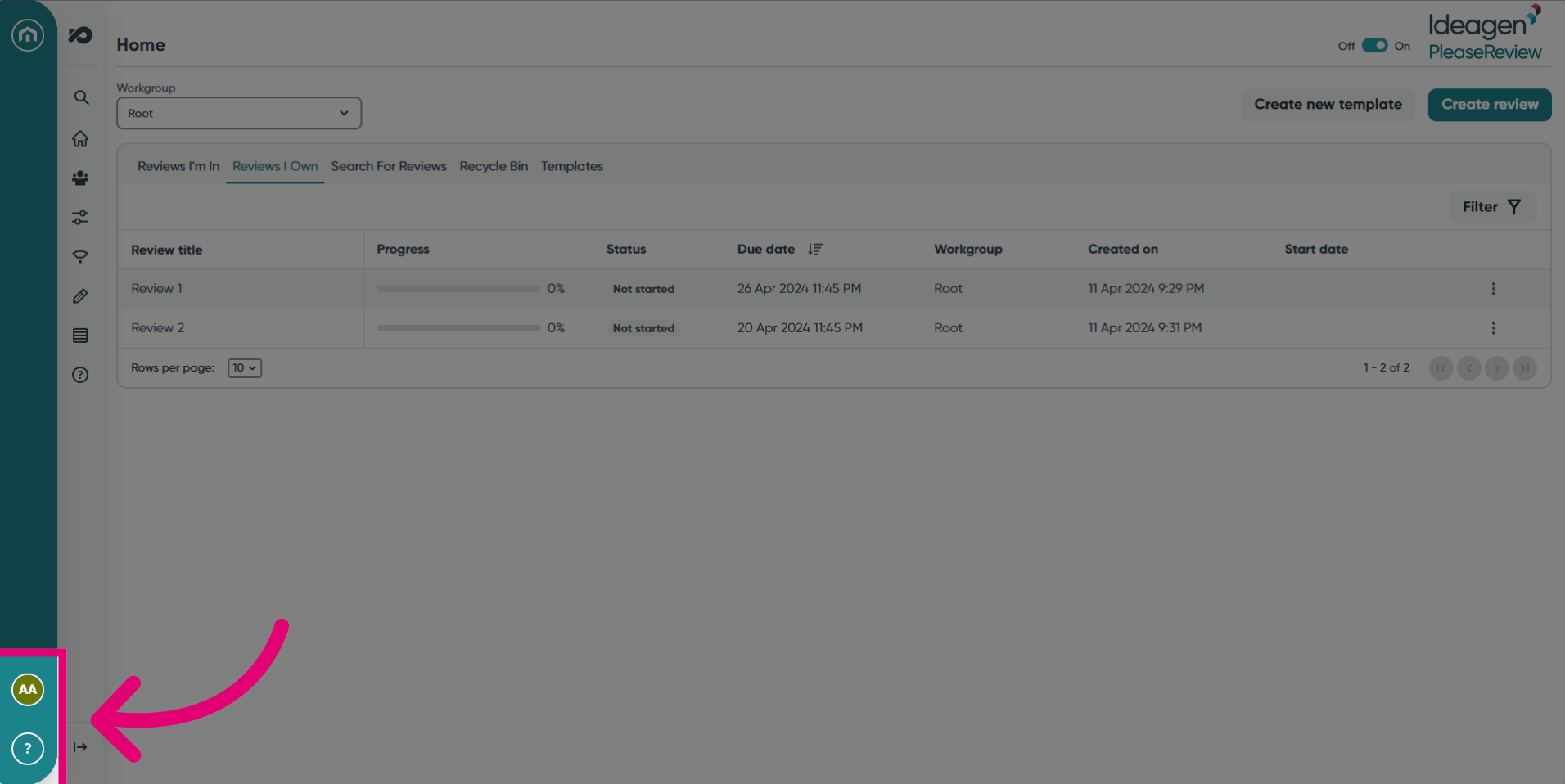
- Navigating the Please Review Home Screen
- Left Hand Menu
- Top Menu
- User Settings
- User Details
- System Alerts
- Further Reading
1. Navigating the Please Review Home Screen
- Once you have logged into Please Review, you will automatically be taken to the Please Review home screen:
- The home screen will show in the top left-hand corner, 'Admin' and 'Reviews', these are explained in greater detail in other articles.
-
The main body of the Please Review home screen displays all your reviews:
- The ‘Reviews I’m in’ tab - a listing of all reviews to which you have been invited to participate.
- The ‘Reviews I own’ tab - a listing of all reviews you have created (only users with an Author workgroup role will see this tab).
2. Left Hand Menu
The left-hand menu provides a list of action links. The links available to you will depend on your Workgroup role:
|
Workgroup role |
Left hand menu |
Actions available |
|
|---|---|---|---|
| Reviewer |
|
my reviews | View details of reviews / enter review |
| flight mode | Offline review option | ||
| Review Owner |
|
new review | Create a new review |
| new template | Create a new review template | ||
| my reviews | View details of reviews / enter review | ||
| flight mode | Offline review option | ||
| manage lists | Create / edit personal and shared distribution lists | ||
3. Top Menu
The top menu provides quick access icons and identifies the user logged in and accessing the Workgroups selected:
| Icon | Actions Available |
|---|---|
| User Settings - access to review preferences, default navigation and default view preferences. | |
| Help - access to the user manual, training movies and other support materials. | |
| Ideagen Home - access to Ideagen central website where all Ideagen customers can launch Ideagen products for which their organisation has licenses. | |
| Log Out - When you exit Please Review it will return you to Ideagen home (If you’re on 7.4 or later). | |
| If you are in multiple Workgroups or Taskgroups, there will be a drop-down list showing all groups you are a part of. |
4. User Settings
The user settings icon on the Top Menu of the home screen allows you to change your personal preferences:
| User Setting | Description |
|---|---|
| Automatic Refresh |
When selected (if available) the comments and changes on the document under review will automatically be refreshed at the interval specified or when you add a comment or proposed change. Note: The default refresh time is the minimum. You can specify a slower refresh time but not a faster one. |
| Give Reason? | This option is only relevant to Authors. Never - Authors can accept/close comments with one click. Close only - Authors are only prompted for reasons when closing comments and changes. Always - Authors are always prompted for reasons when accepting or closing comments and changes. |
| Highlight Paragraph | Replaces comment icons with paragraph highlighting for Microsoft Word and plain text documents (classic interface only). |
| Location of Comments Panel | This can be a pop-up window or a pane to the left or right of the document (classic interface only). |
| Default View | Normal - displays the entire document without headers or footers. Layout - displays the document one section at a time with headers and footers. |
| Show Tracked Changes in Document View |
It also displays the mark-up of open proposed changes (accepted changes will always be shown regardless of any comment filters selected). |
| Default Navigation | The default view navigation. |
| Legacy PDF Review | If available, defines the method of commenting on a PDF in the classic review interface. |
| >Inline Editing and Paragraph Toolbar Settings | If available, enable inline editing for proposed changes. |
| Show Page Borders for Word documents | Displays the outline of the pages and page breaks in the browser (classic interface only). |
5. User Details
Your user details can be accessed by clicking on the 'Profile' tab in the user settings window:
Note: when using single sign-on you will not be able to change your password.
6. System Alerts
The System Administrator can issue system alerts. This is typically to advise or remind users that the system will be re-started at a certain time (for example, due to enhancements or a change of system configuration settings). A system alert will generate a pop-up window and will also appear in the Please Review banner at the top of the screen.
7. Further Reading