


New article
Recently updated
Logging in to Please Review

Who is this article for?Users who want to learn how to log in to Please Review.
System Administrators will assign users with login credentials.
The following article explains how to get started by logging into Please Review! Make sure you have login credentials given to you by your System administrator before following these steps.
1. Logging in to Please Review
1.1 Video
1.2 Steps
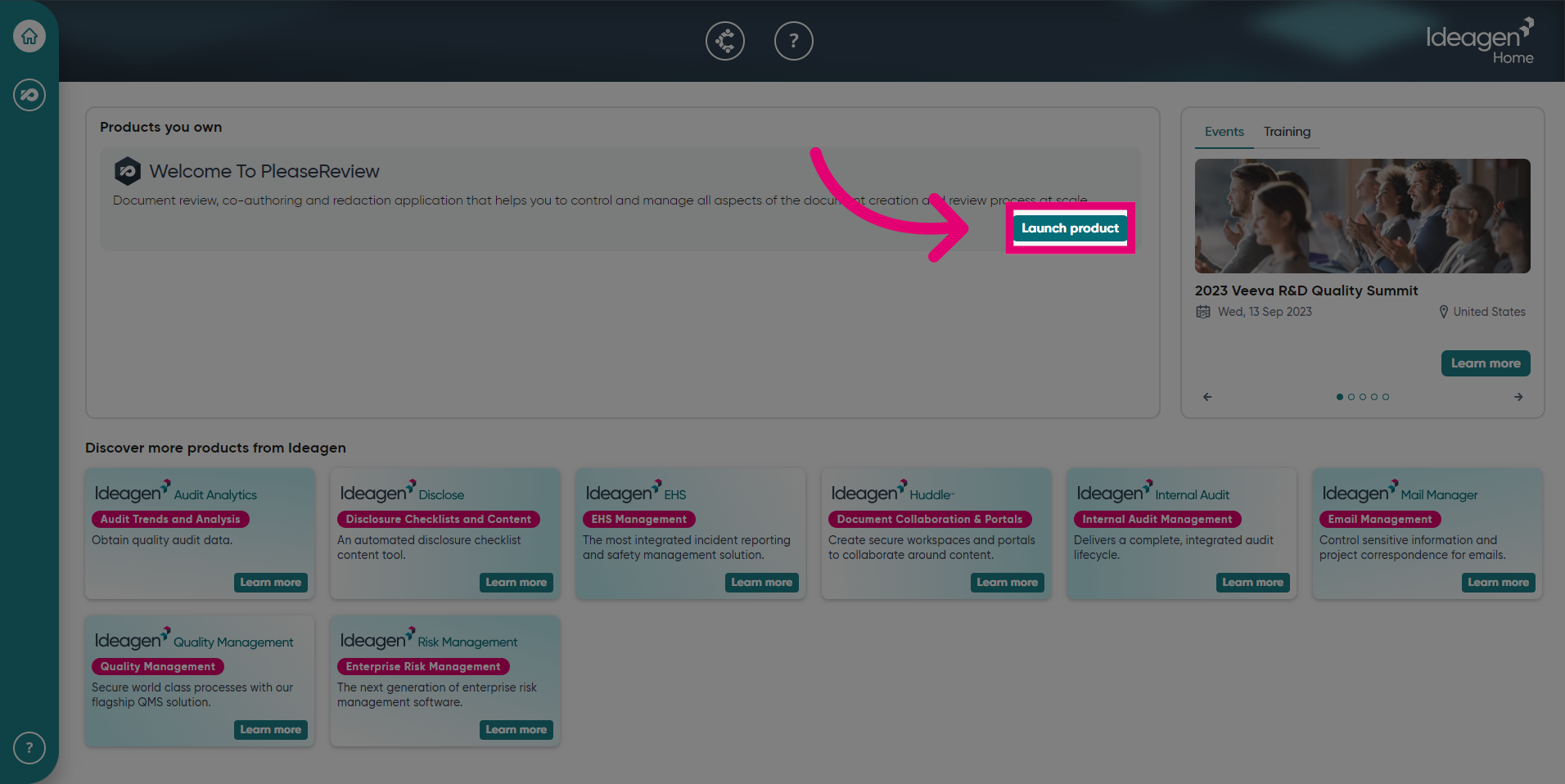
- In Ideagen Home under the Please Review product, click Launch product.
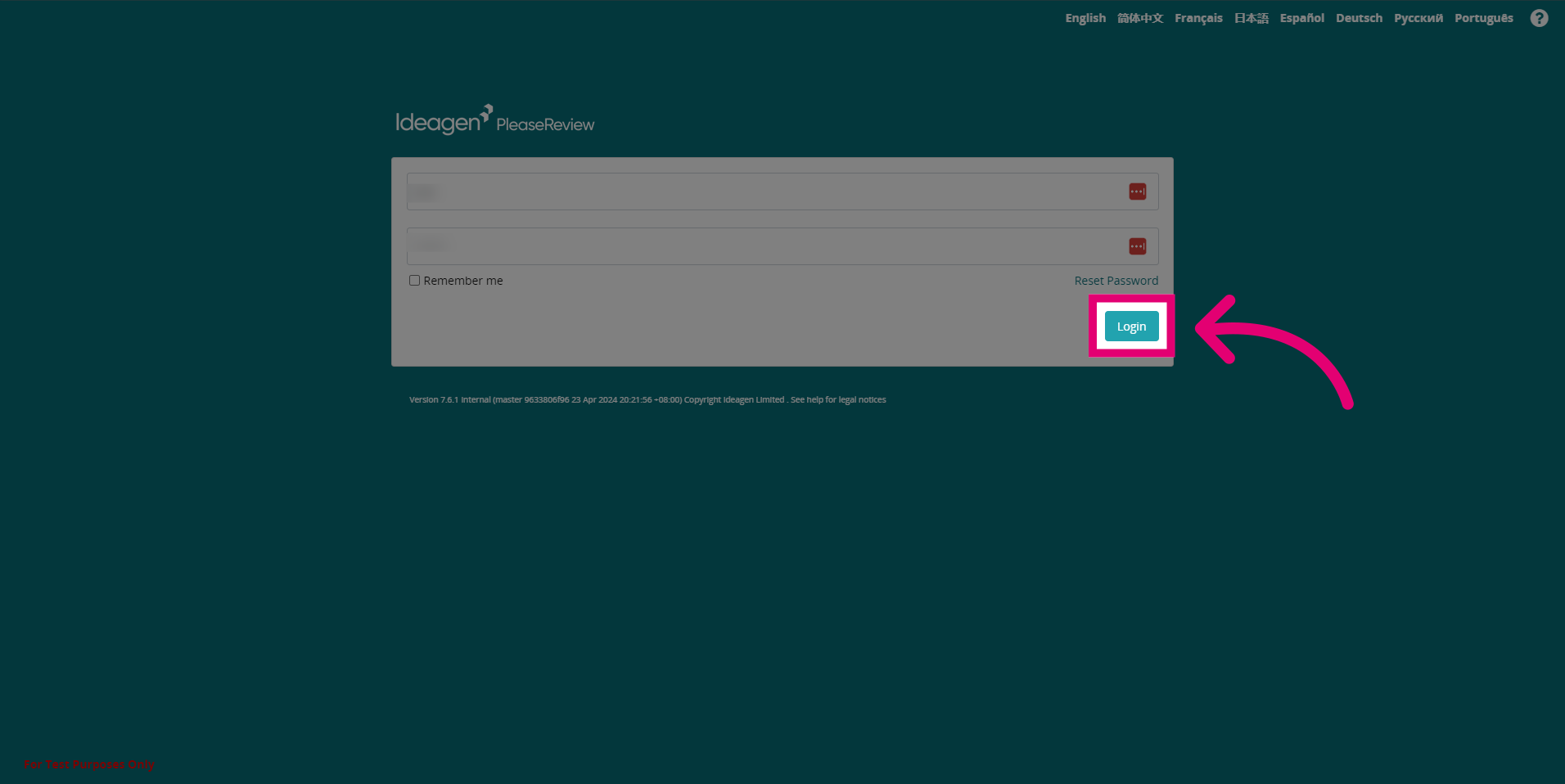
- Fill in your login details, then press Login.
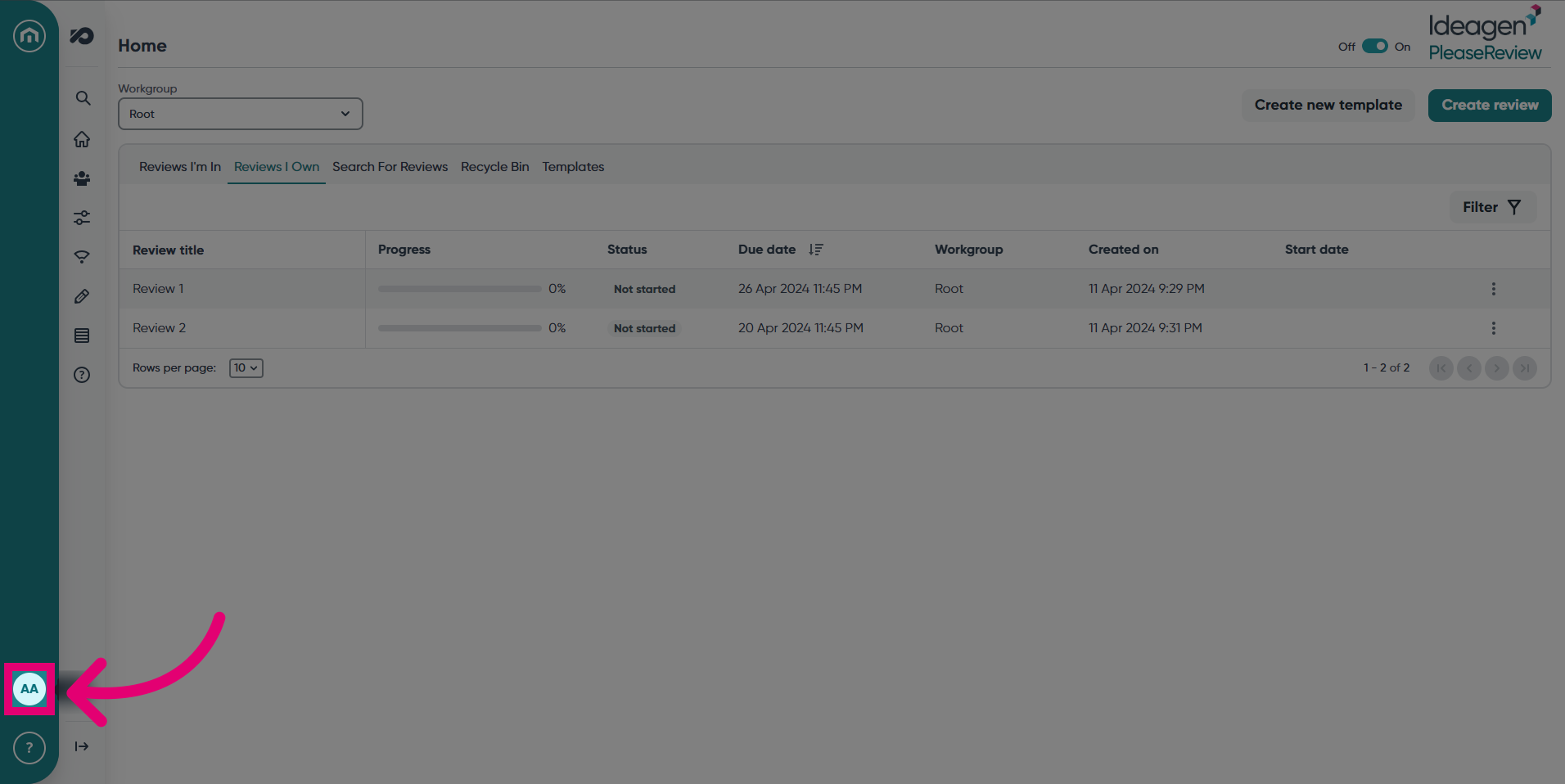
- To log out of Please Review, click on your initials in the Home bar.
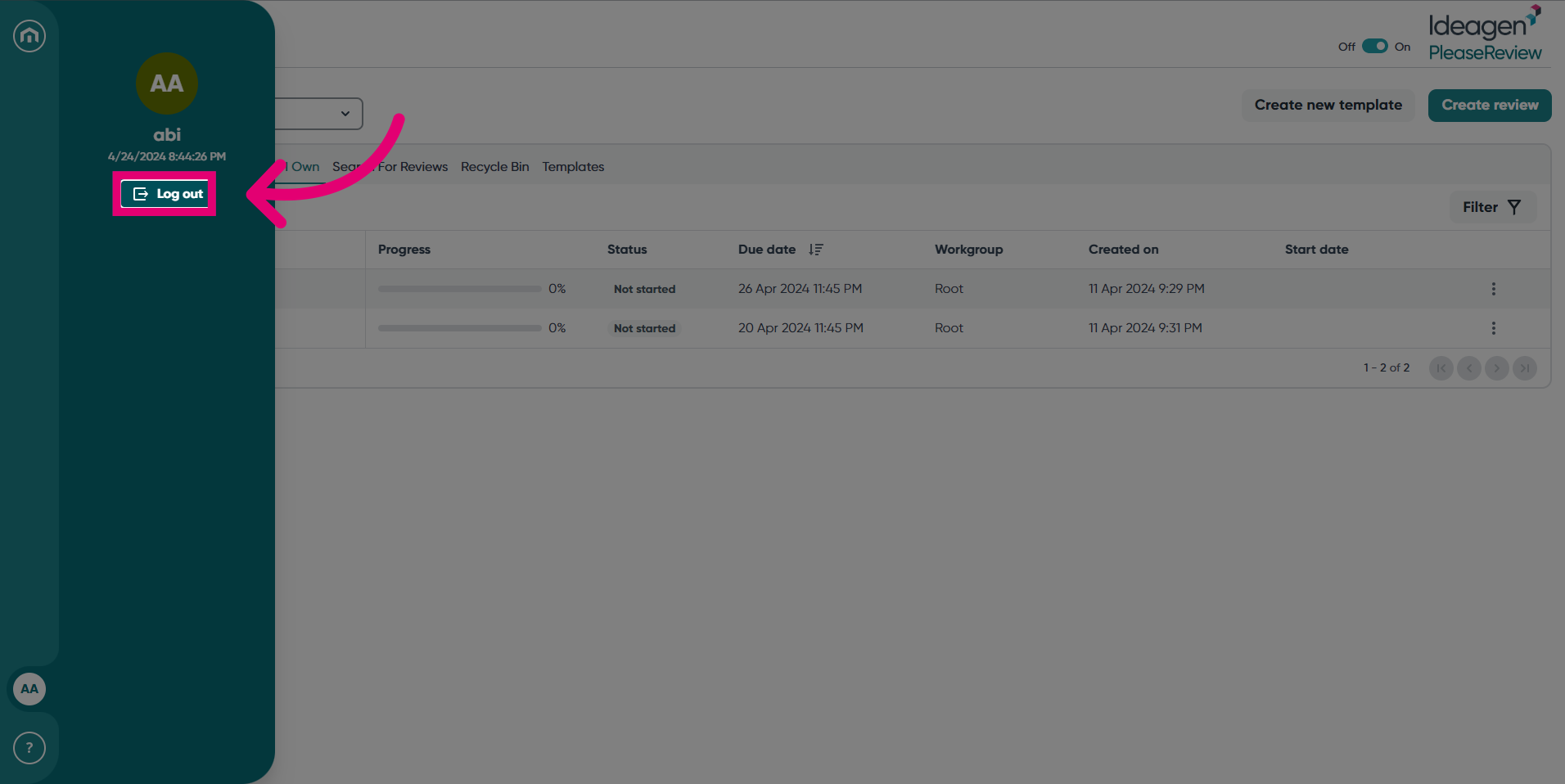
- Click Log out.
2. Further reading
1. Logging in to Please Review
Your Please Review username and password will be assigned by your Please Review System Administrator. If you are using a native Please Review environment, you will receive a welcome email confirming your credentials.
- Launch Ideagen Home and under "Welcome to Please Review", select Launch Product.
Note: If you are accessing a Please Review environment that is authenticated via single sign-on, then your credentials are likely to be your corporate credentials. If your user is configured to use a different login method, then you will need to select the correct one. If unsure, please speak to the admin users responsible for this Please Review environment.
- Enter your login credentials, then click Login.
Terms and Conditions: Tick the checkbox and click on the Accept button to proceed.
The Please Review login screen has a few extra functions to be aware of:
-
Remember Me: Checking this box will mean that in future you will automatically be logged into Please Review when you access it from the same user profile on the same computer. You can clear the setting by selecting Logout from the top menu followed by Clear My Details.
- Reset Password: If you have forgotten your password, select this link. You will be prompted for your email address. This will automatically generate an email to you which contains a link to reset your password.
Important: If Reset Password is disabled on your installation and a user has forgotten their password, they will need to contact the System Administrator for it to be reset.
If the System Administrator has forgotten their password, and Reset Password is disabled, they will need to log in to the system directly via the Admin Application.
Also note: If you are using an external authentication system, you would need to reset the password with that system and not in Please Review so, by default, there is no option for this on the login screen.
2. Logging out of Please Review
- To log out, select the log out button.
- A pop up will appear to confirm you wish to log out. Select OK to proceed.
3. Further reading