


New article
Recently updated
Using License and Usage Reports

Who is this article for?Please Review Users using license reports.
Please Review Administrators can view license reporting.
License reports in Please Review provide administrators with comprehensive insights into user activity and system utilisation. These reports offer valuable data on license allocation, user participation, and document review metrics, enabling effective management and optimisation of the collaborative review platform.
1. Using License and Usage Reports
1.1. Video
1.2. Steps
- Expand the navigation bar.
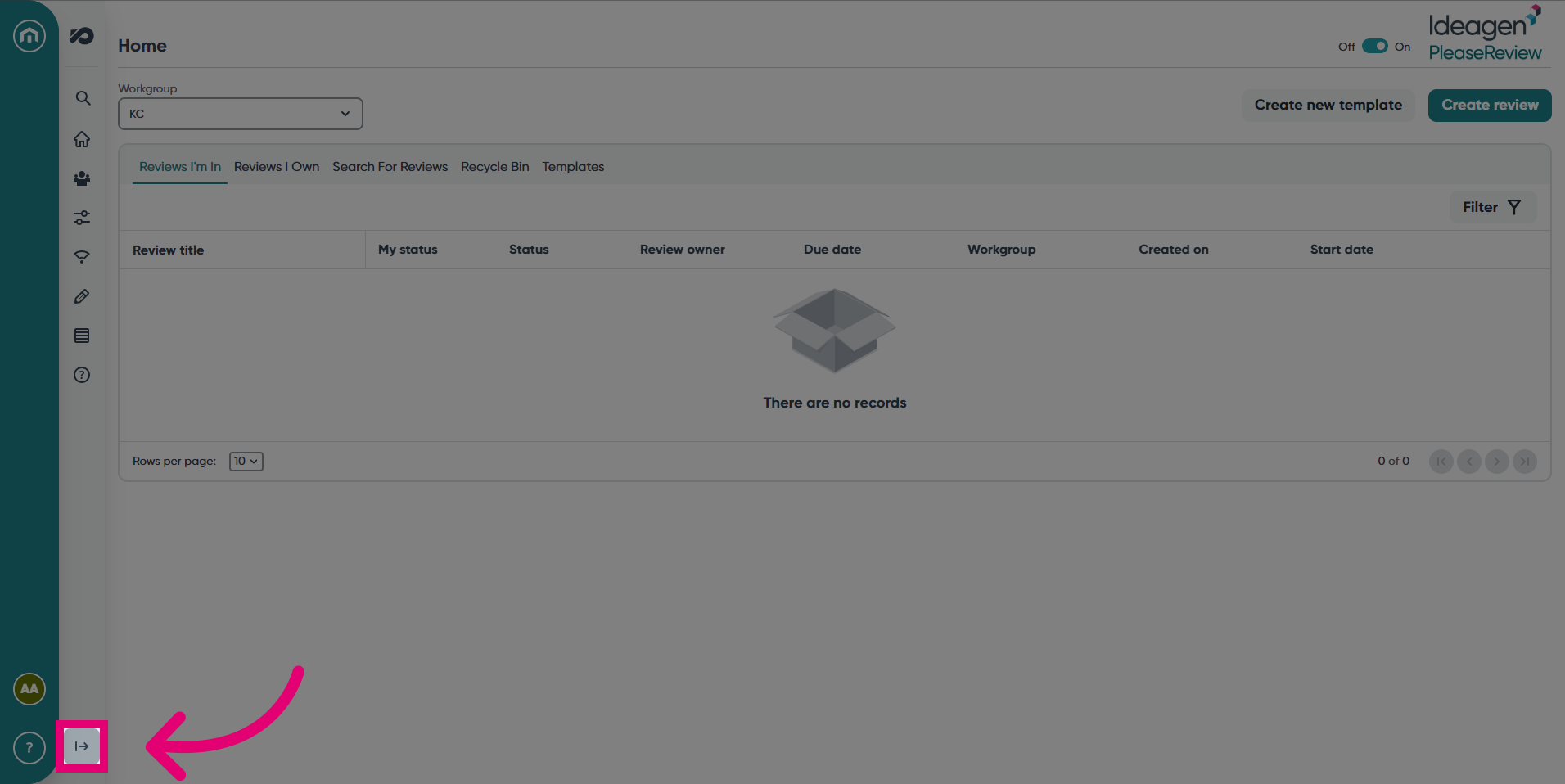
- Select the Admin tab.
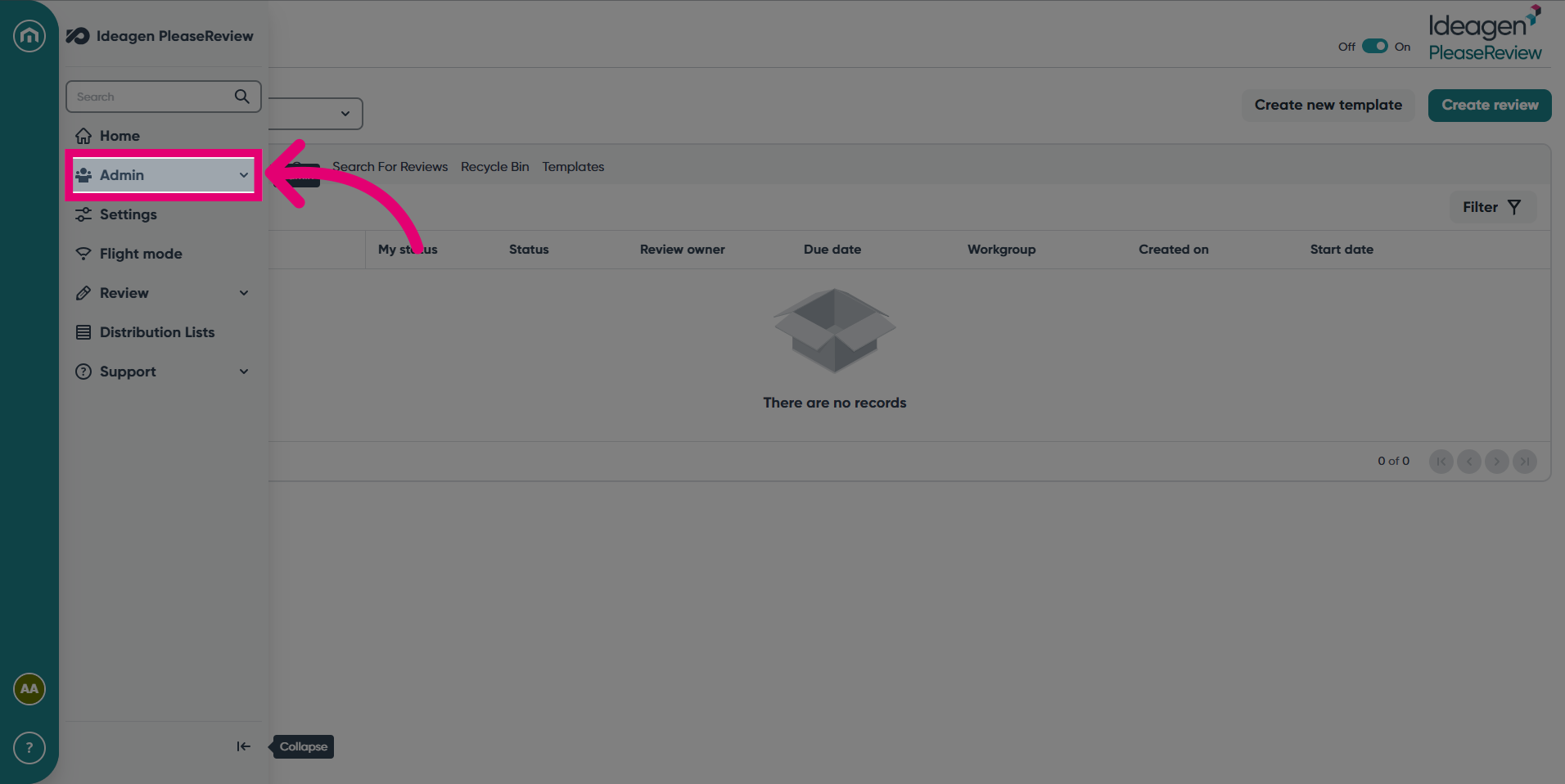
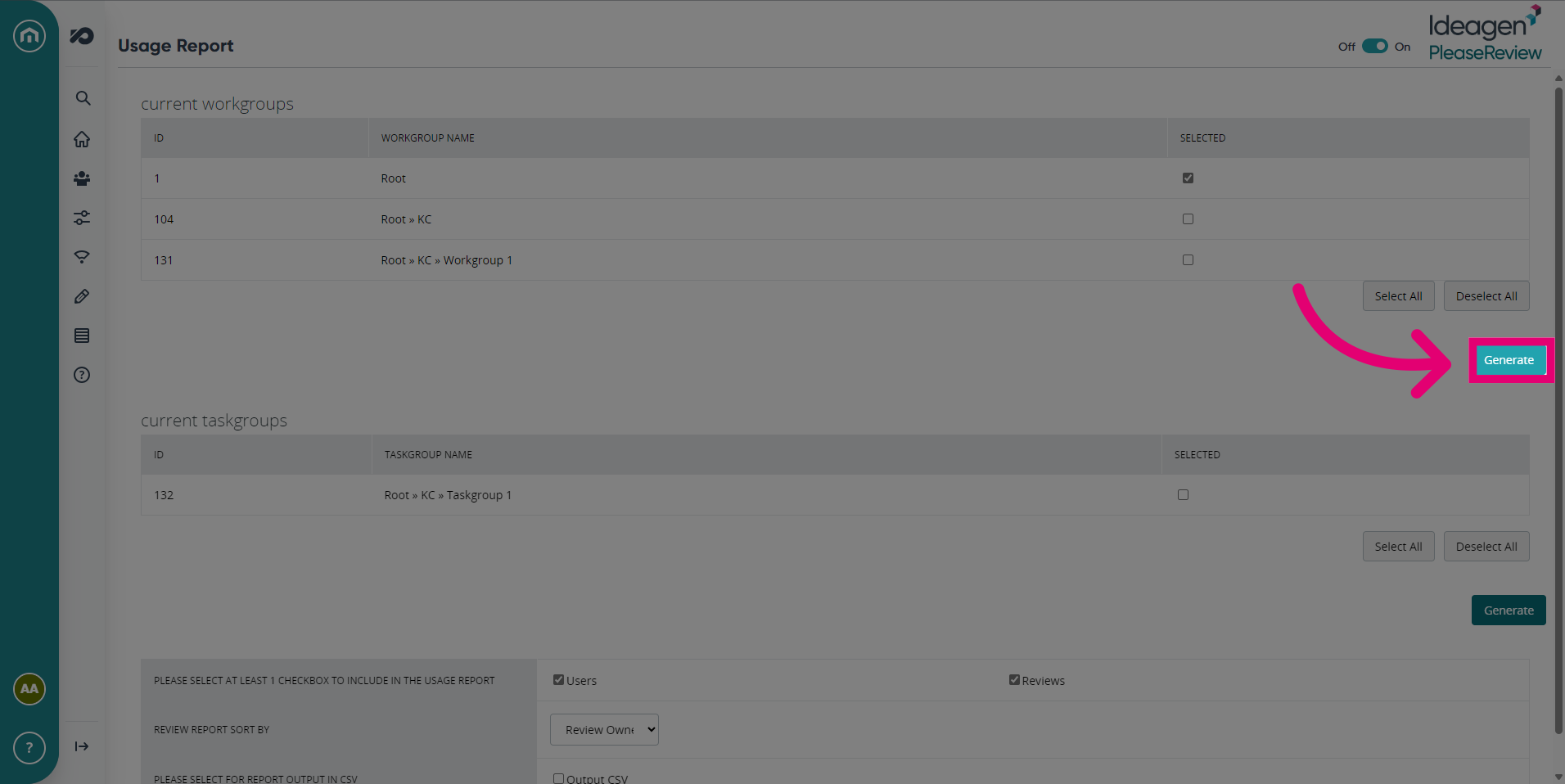
- Click Usage Report from the menu.
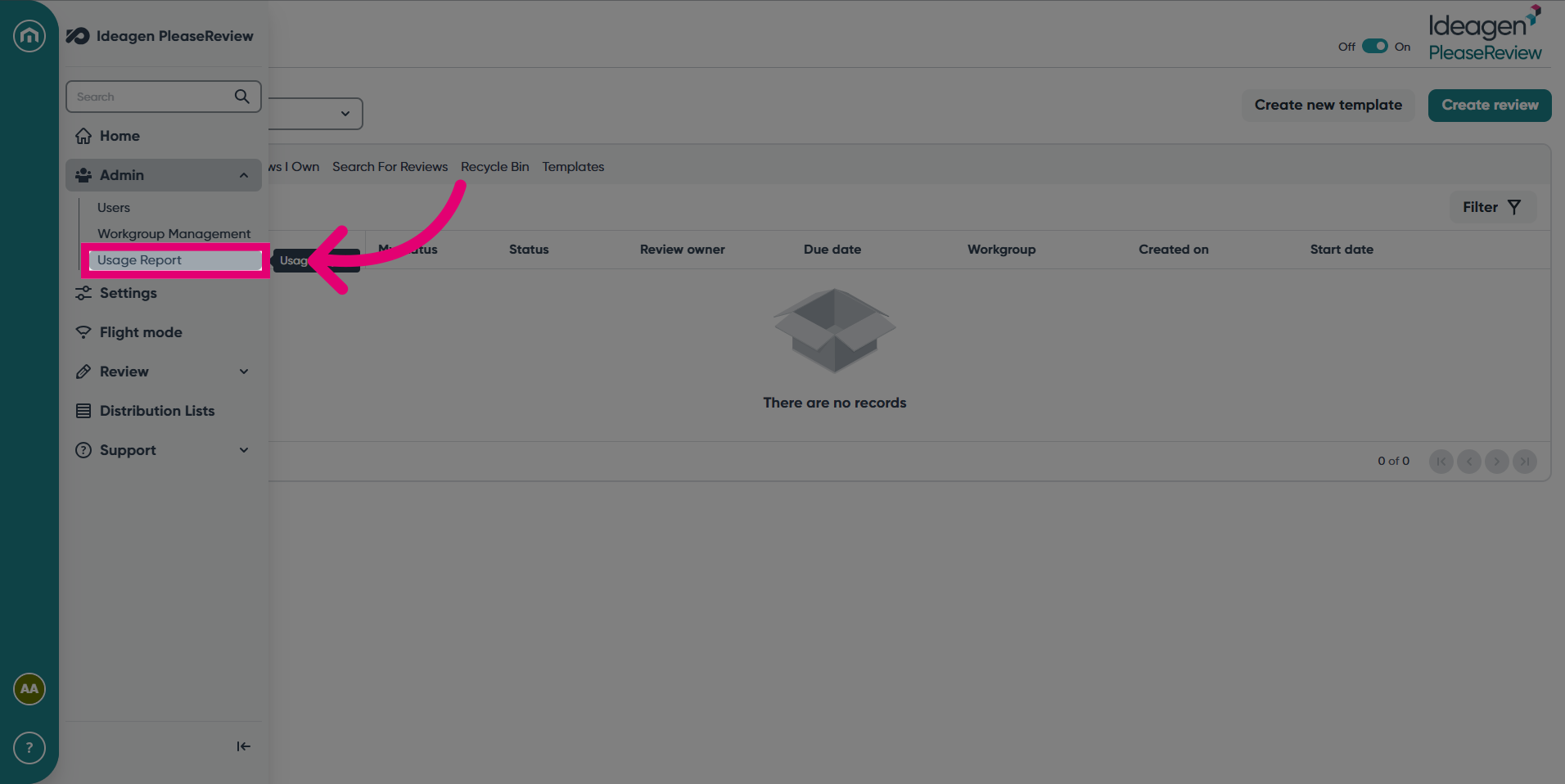
- There are two types of report to generate, Workgroup and Taskgroups. Tick the Workgroup or Taskgroup name you would like to generate a report on. Additionally, you can Select All or Deselect All.
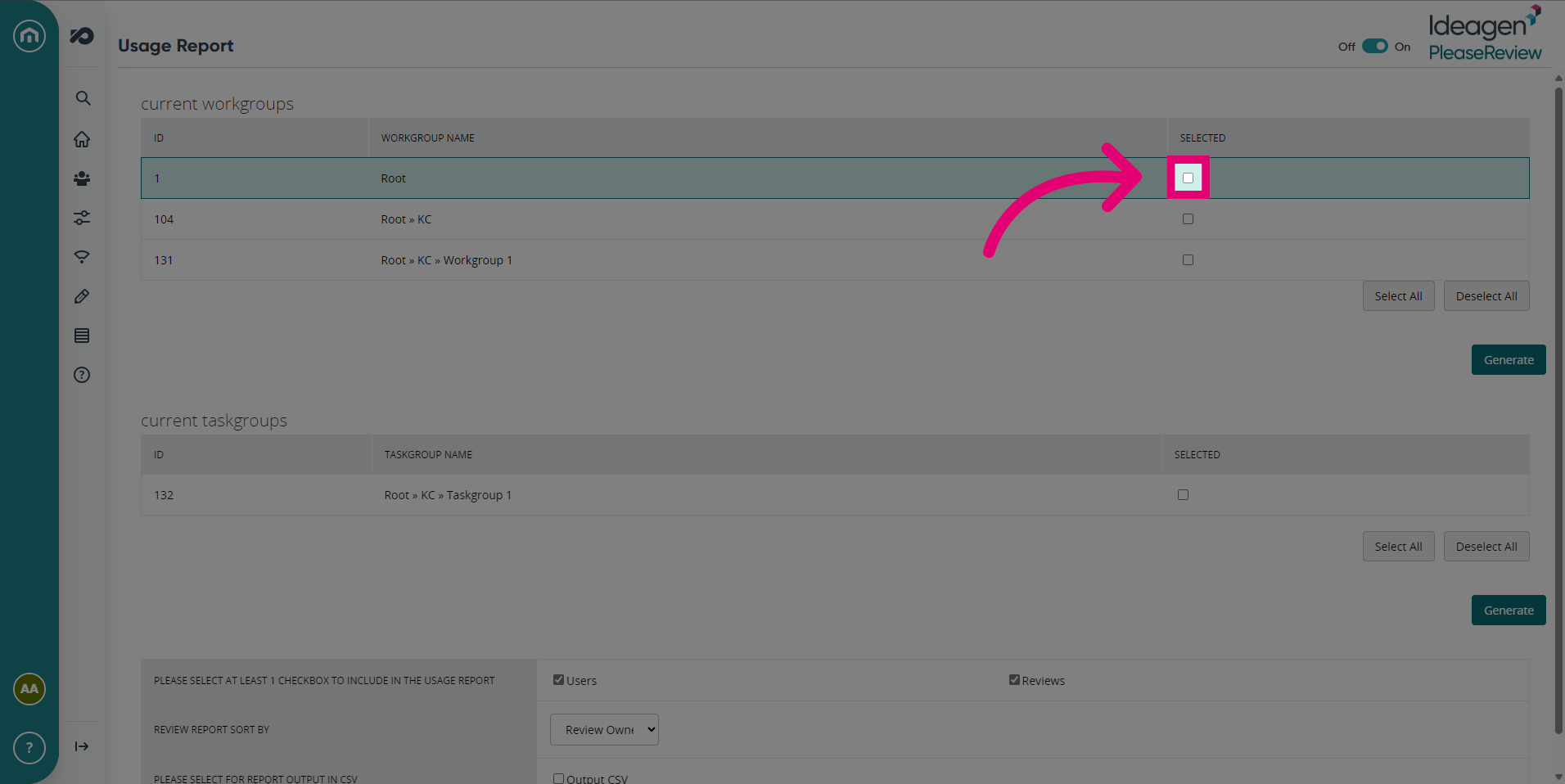
- Click Generate.
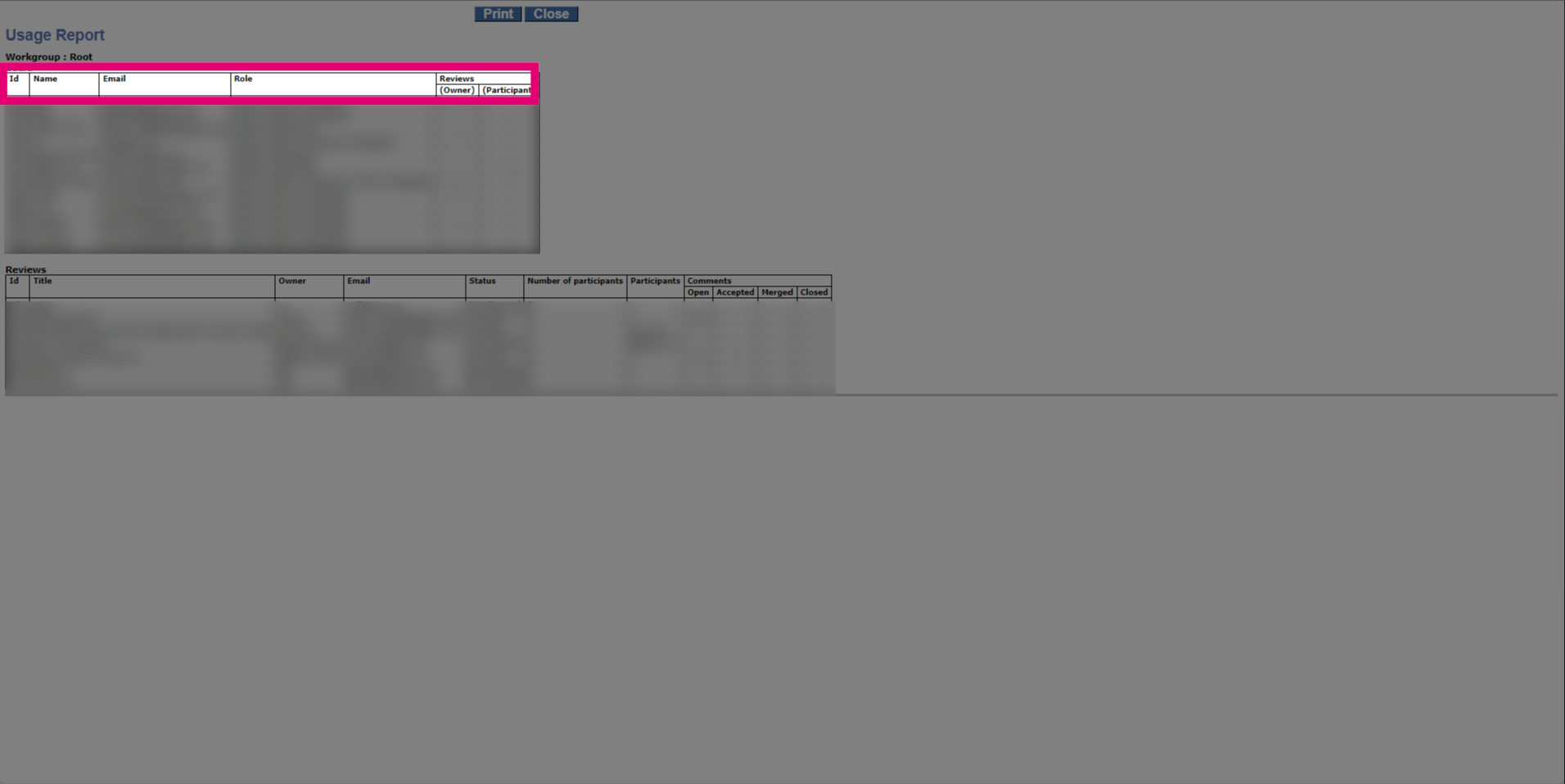
- A Usage Report will be generated in a new window.
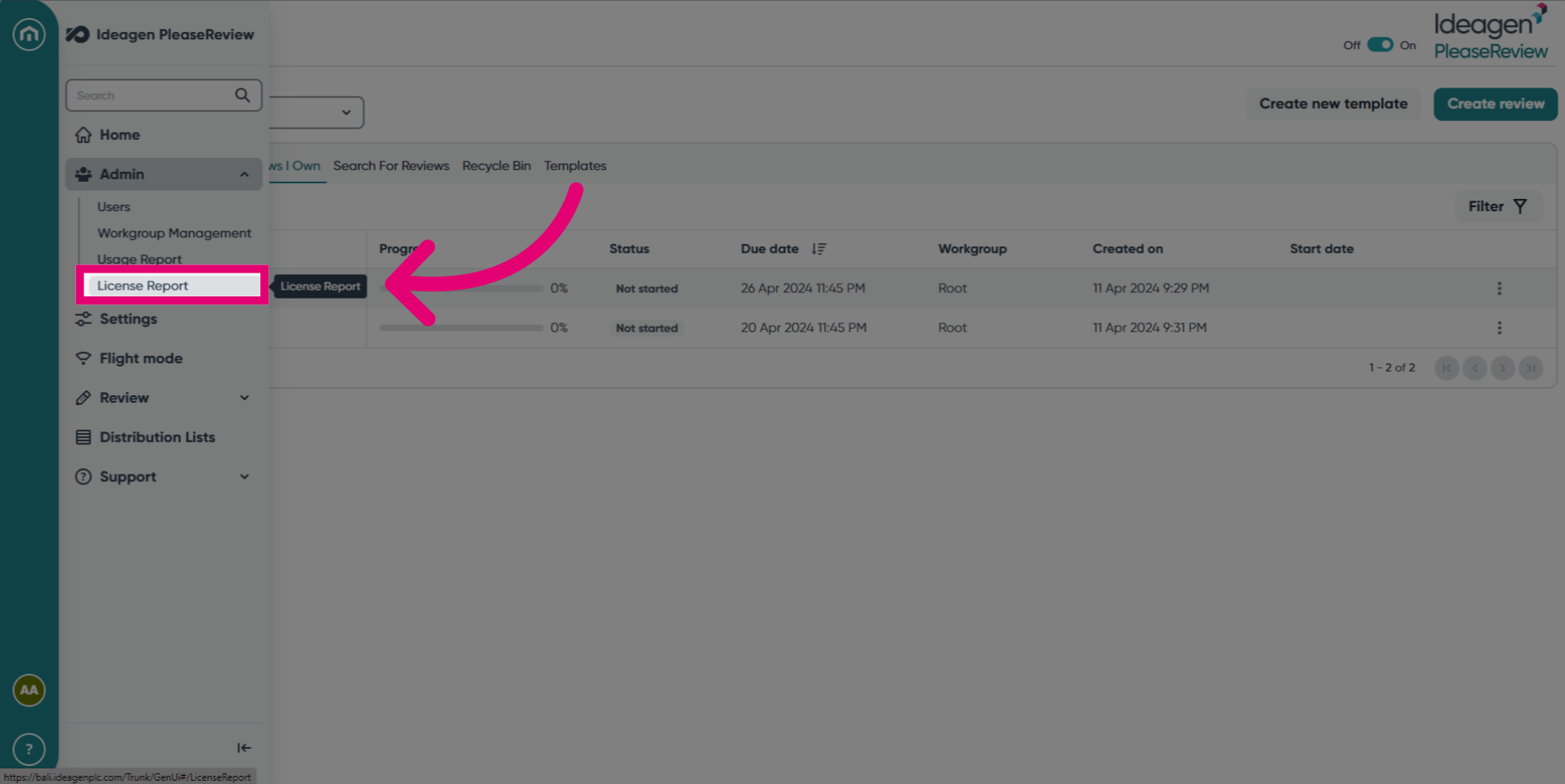
- Next, to create a License Report, expand the navigation bar. Under Admin, select License Report.
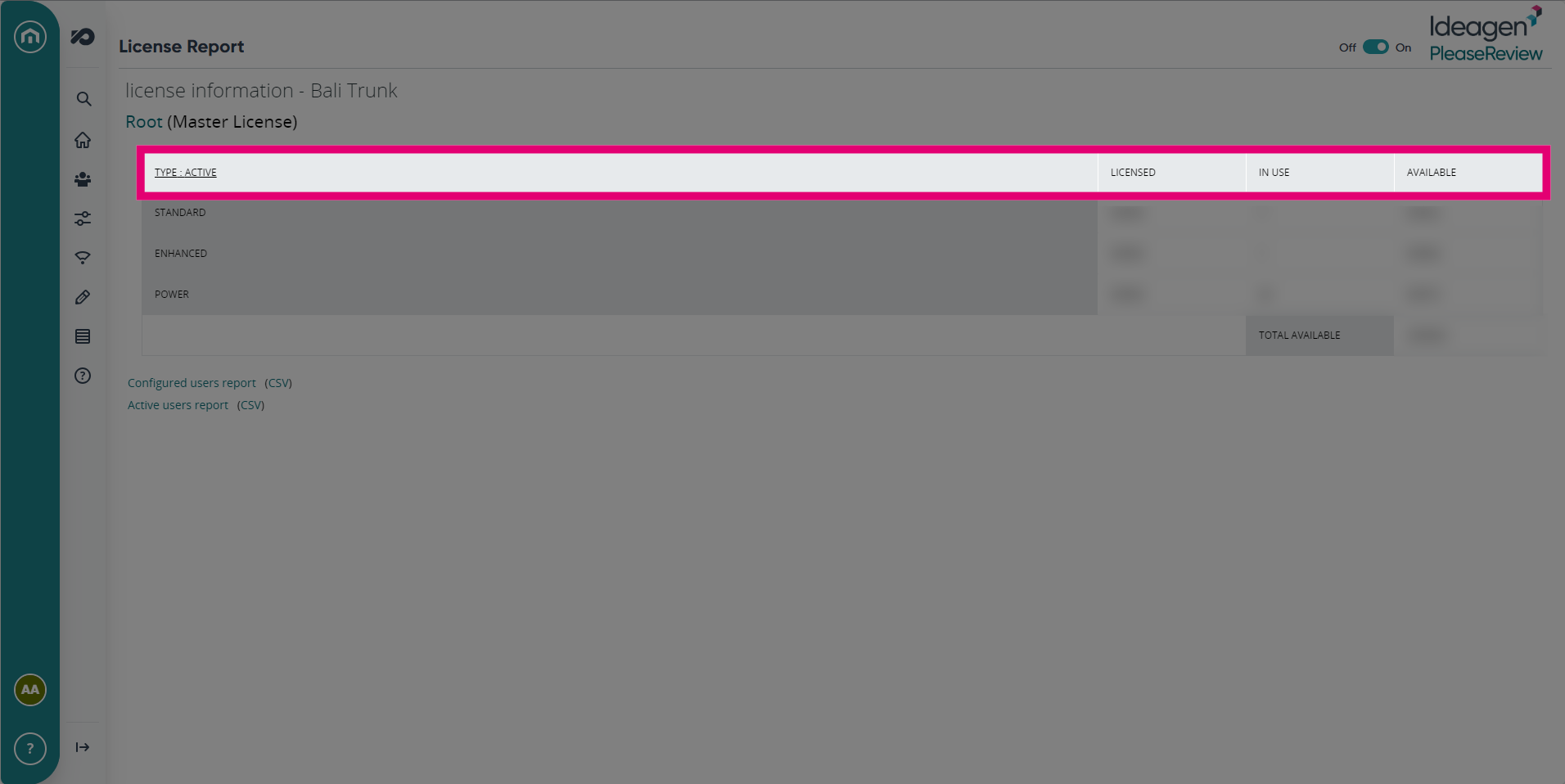
- In this screen, a License Report will be generated. It shows the number of licenses In Use and Available. You can also download the reports as a CSV.
License Report
The ‘license report’ link takes you to the ‘license information’ page which provides the ability to create
detailed reports.
If the system contains sub-licenses, the license screen and reports pertain to the currently selected workgroup (in the drop-down list to the top right-hand side of the window).
Any user with workgroup admin privilege on the workgroup to which the license is attached can see the license screen and reports for that workgroup.
If the currently selected workgroup has a master license (i.e. is the root workgroup), the license information screen will show several tables of information:
- At the top, the counts for the master license.
- Underneath, the total counts for all sub-licenses.
- Below that, a table of counts for each individual sub-license.
The table below shows the columns that appear in the license information interface:
| Column | Description |
|---|---|
| Licensed | This column is used to show how many of each user type there are in total on your license. |
| In Use | This column is used to show how many licenses of each type are being used by the system. If you'd like more information on how these are allocated. |
| Available | This shows how many licenses are still available for use in the system. |
| Overflow Scenario | Sometimes the license report will not look as simple as the one above. This occurs when a user is set as a role that'd use a standard license (a reviewer) but can no longer use a 'Standard' license from the pool as they've all been allocated. This will then use a 'Power' license in place of the 'Standard'. This can become problematic if you were to up the number of 'Power' users on the system as they'd take priority over the 'Standard' user, thus, preventing the 'Standard' user from being able to use the system correctly. |
Configured Users Report
The ‘CSV’ option provides a .csv file of Configured User Reports.
- Configured Users Report: the configured users report (opened by clicking on the ‘Configured users report’ link) lists all users and their roles in each workgroup.
Note: Users with the role of Delegator will be listed under the Contributor column.
- The configured users report allows you to see a breakdown of the users which are currently set up within the system.
- It is possible to export the above report into a comma-separated value file. This is then openable in Excel, allowing you to add to or edit the report.
- The report shows each user by their full name and outlines what type of license they would use per-workgroup.
Important: This does not show the type of license they are currently using, just the type they would use when they are named in a review. This is based on the roles they've been given (reviewer, author, etc.).
Active Users Report:
Active Users Report: if the system has an ‘active user license’ the active users report will be available, (opened by clicking on the ‘Active users report’ link) listing all active users and their participation in reviews.
This report allows you to see a breakdown of the number of reviews that users are in.
- The number which appears under the 'Active' column refers to reviews which are 'In Progress'.
- The number which appears under the 'Other' column refers to reviews which are 'Not Started' or 'Closed'.
- It is possible to export the above report into a comma-separated value file. This is then openable in Excel, allowing you to add to or edit the report.
Note: That a closed review is different from a 'Completed' review. To free up the license, the review will need to be 'Completed'.
Usage Report
The usage report under ‘Admin’ on the left-hand menu, allows the generation of reports to track the usage of Please Review.
- Select the workgroup(s) of interest, select to report on either ‘Users’ and or ‘Reviews’.
- Decide how to sort the report from the options given (select the ‘Output CSV’ check box if required).
- Then click ‘Generate’.
- The report will be generated.