New article
Recently updated
Using a Multi Workgroup in the Veeva Integration

Who is this article for?
Users wanting to create a new review with a lifecycle that supports multi-doc workflow and multi workgroup.
Author role is required.
This article showcases how to use a Multi Workgroup in the Veeva Integration.
1. Setting Multi Workgroup reviews
To set up multi workgroup reviews:
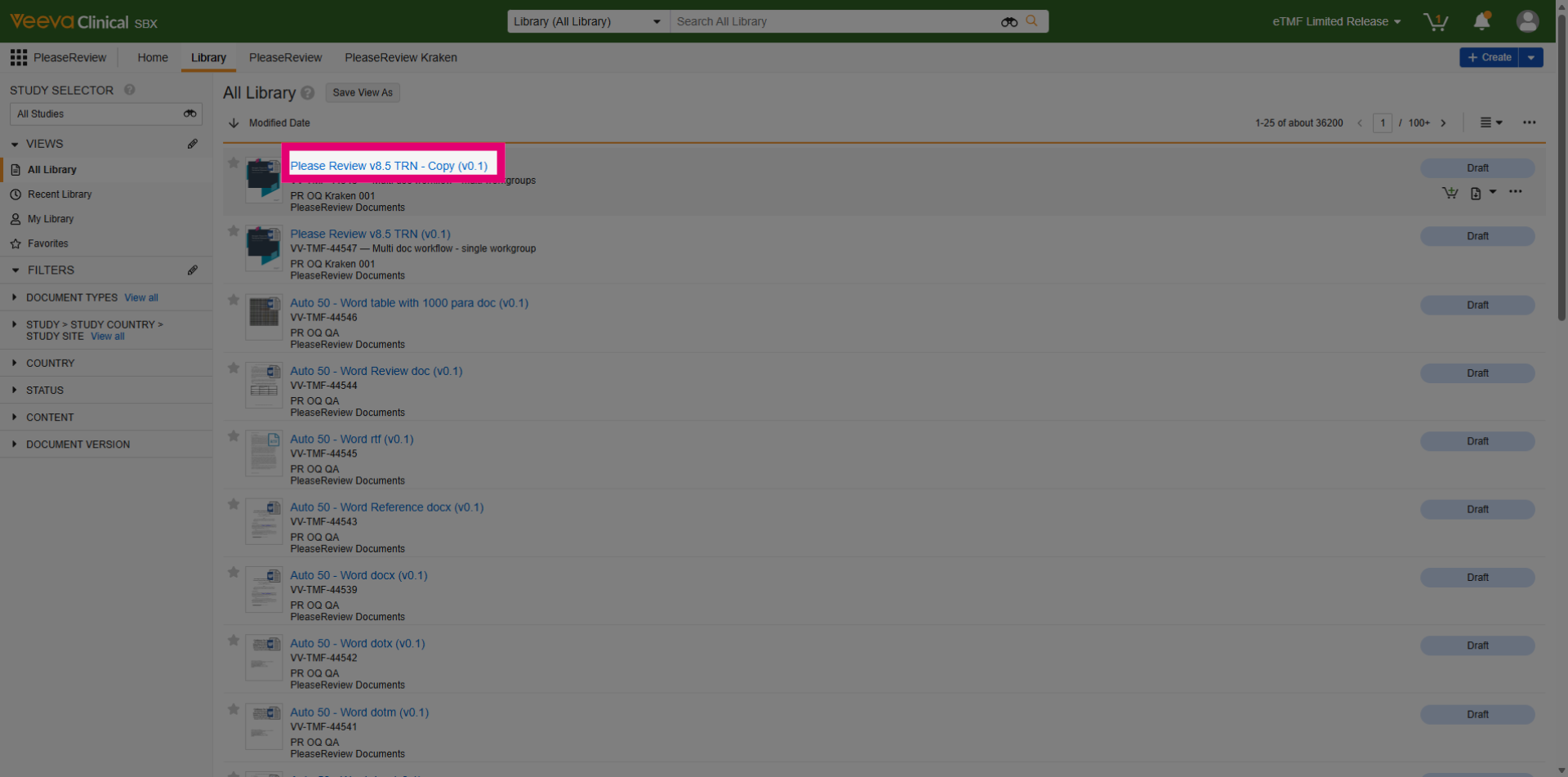
- Go to Veeva Vault.
- Access the Multi Workgroup Workflow. This document's lifecycle supports multi document workflow and multiple workgroup.
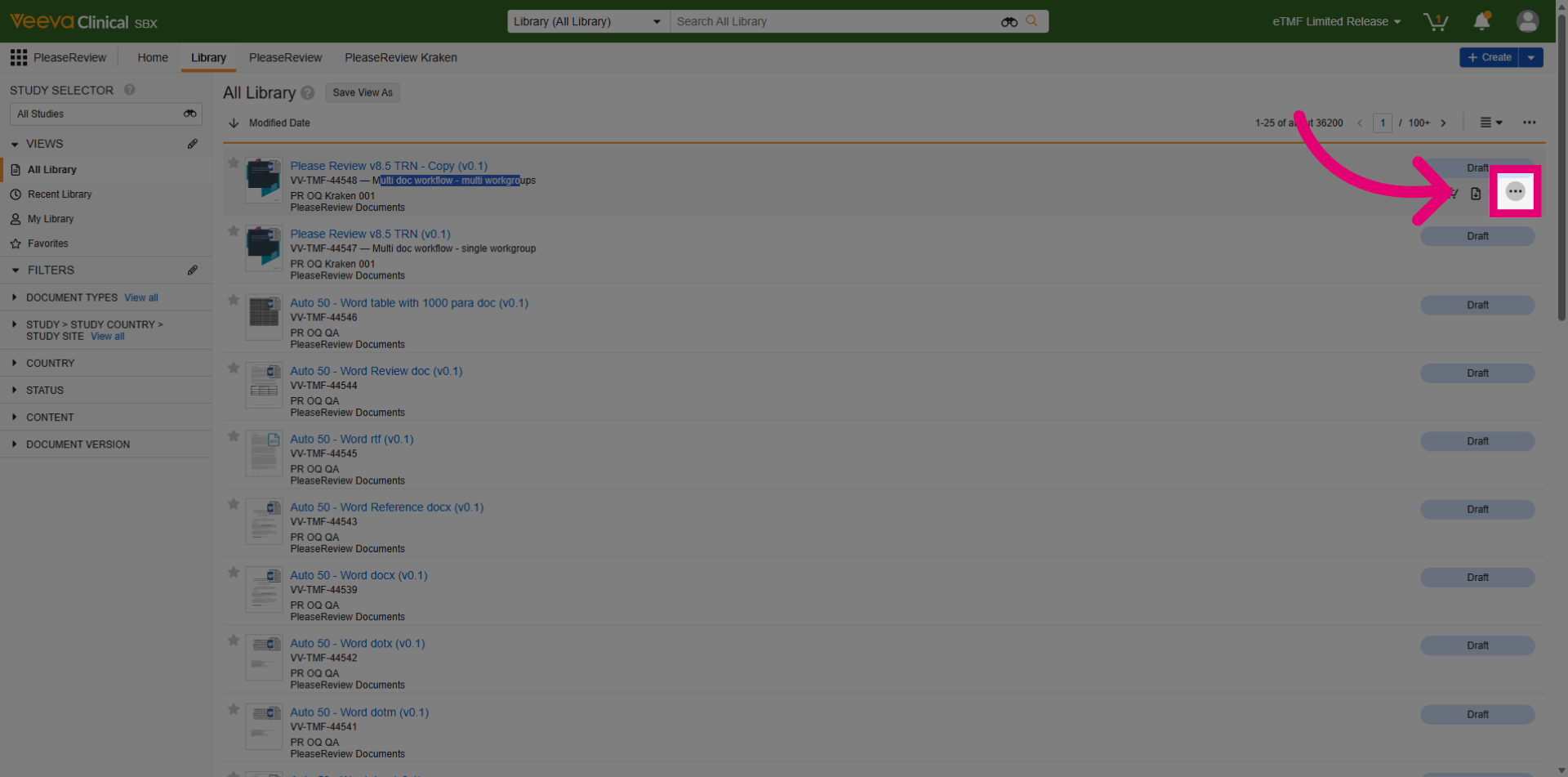
- Open the Actions menu in the Library Interface.
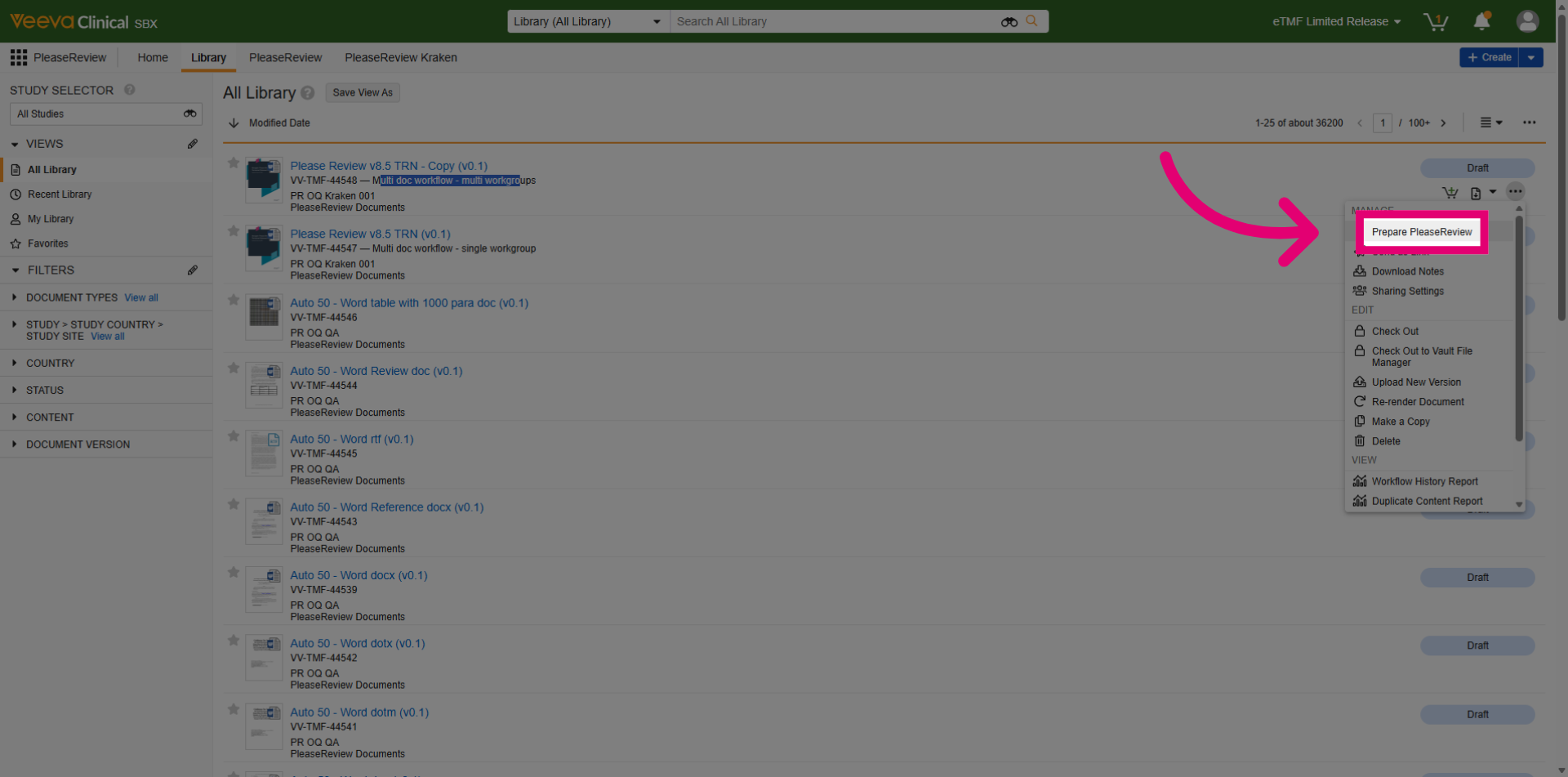
- Select Prepare Ideagen Please Review.
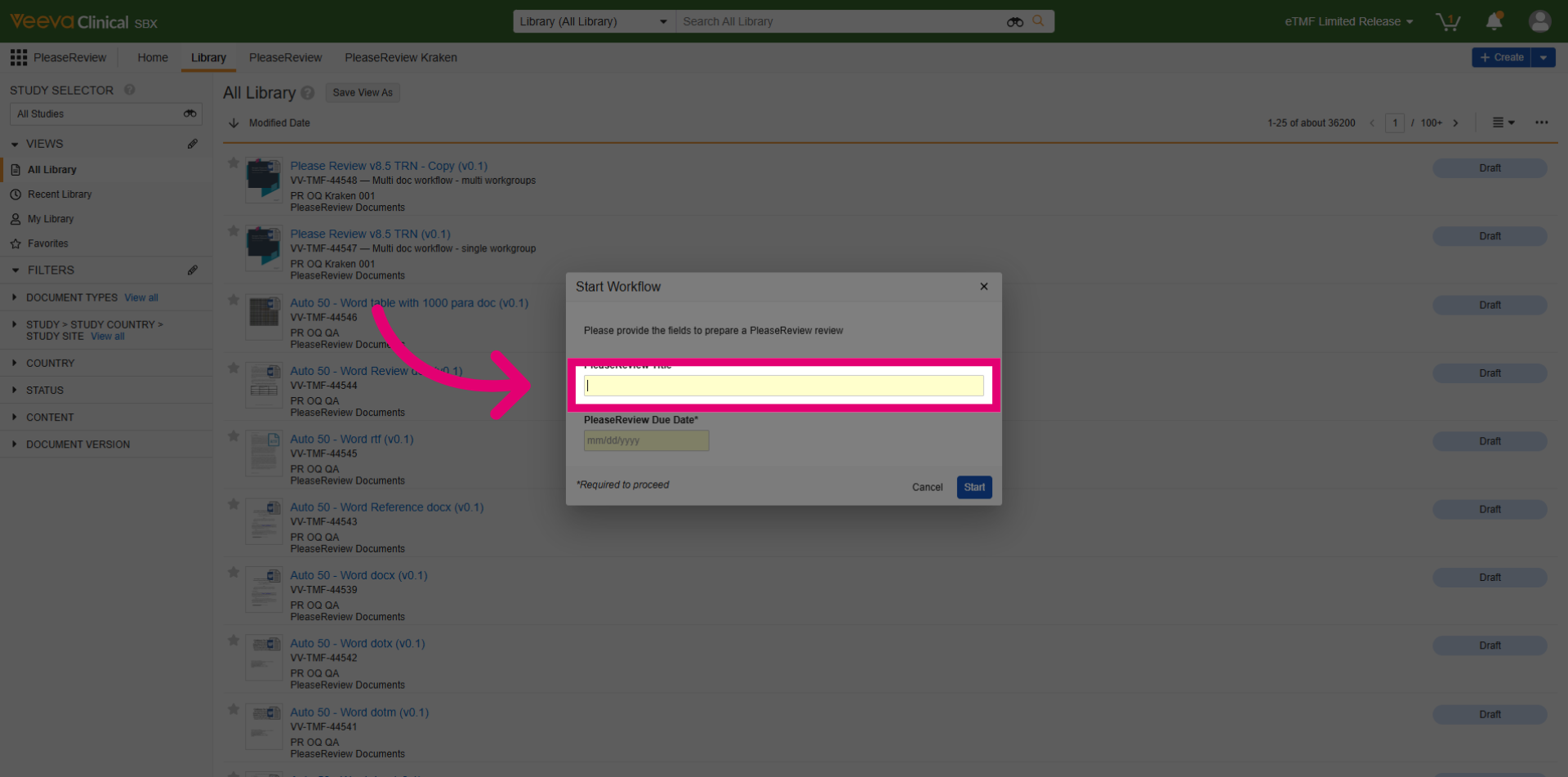
- Enter a Review Title.
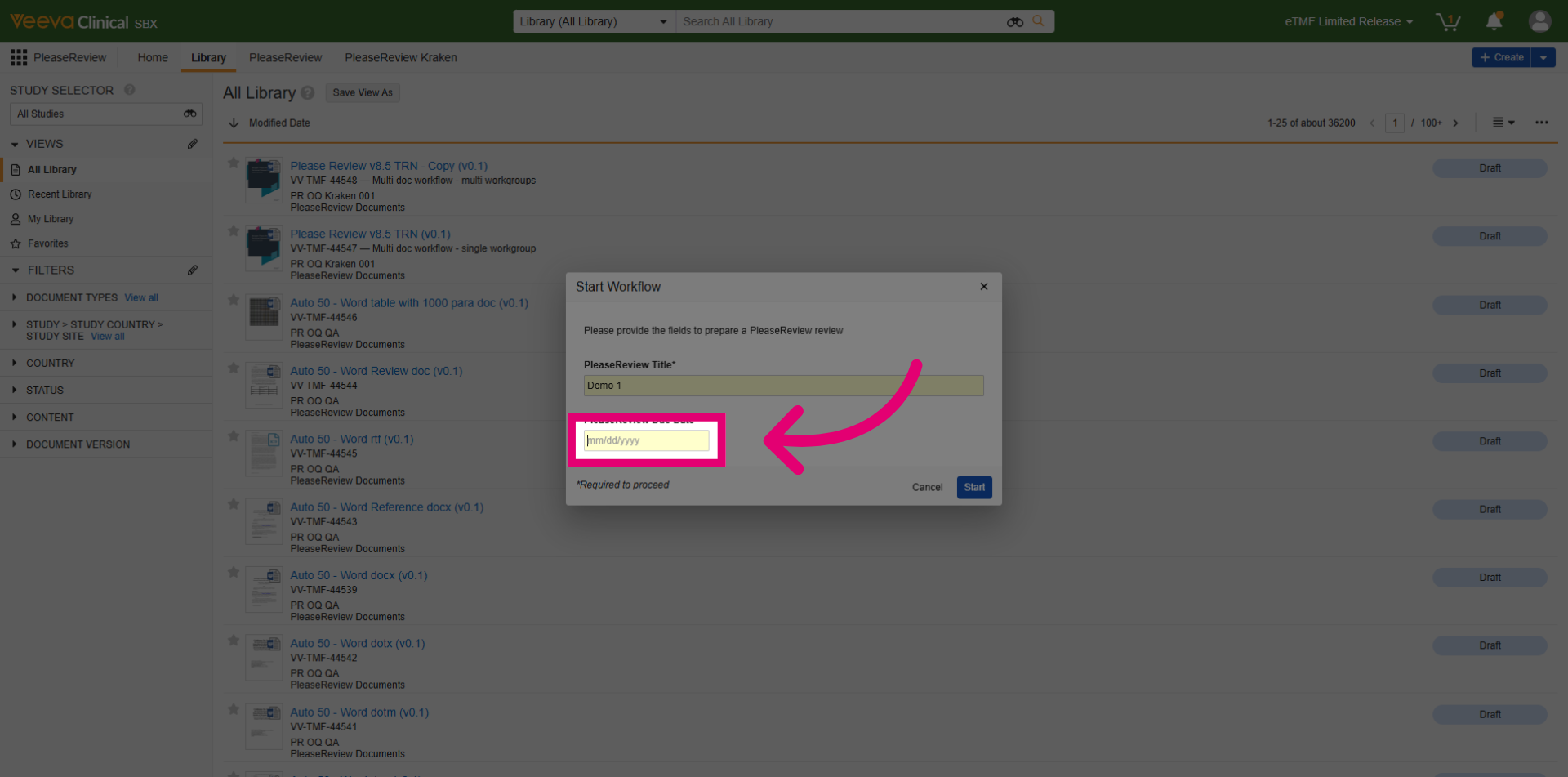
- Set a Due Date for the review.
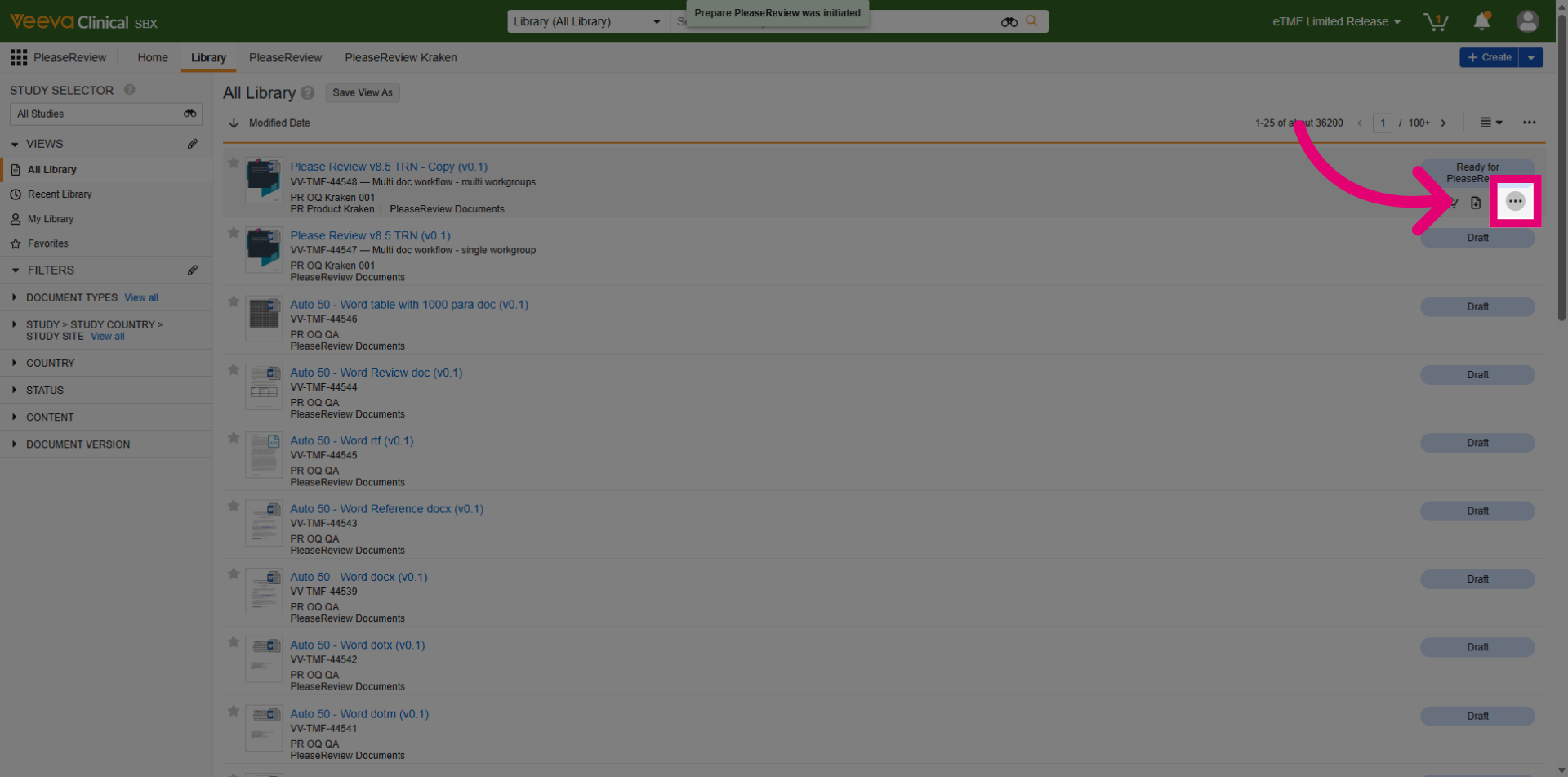
- Click Start to continue and initiate the review.
- Open the Actions menu again.
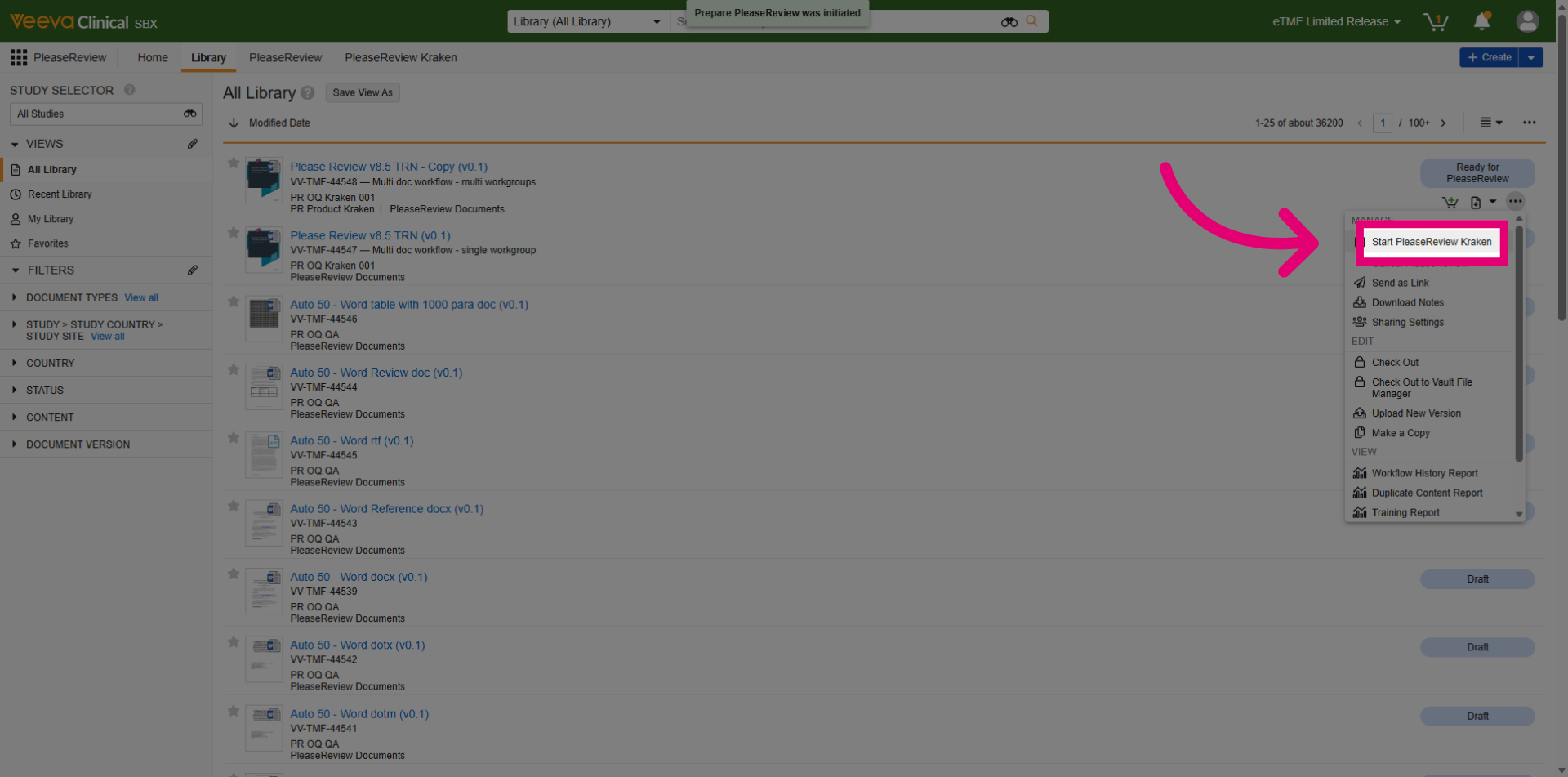
- Select the review title from the dropdown.
This will open Ideagen Please Review.
- Select a Workgroup to create the review in.
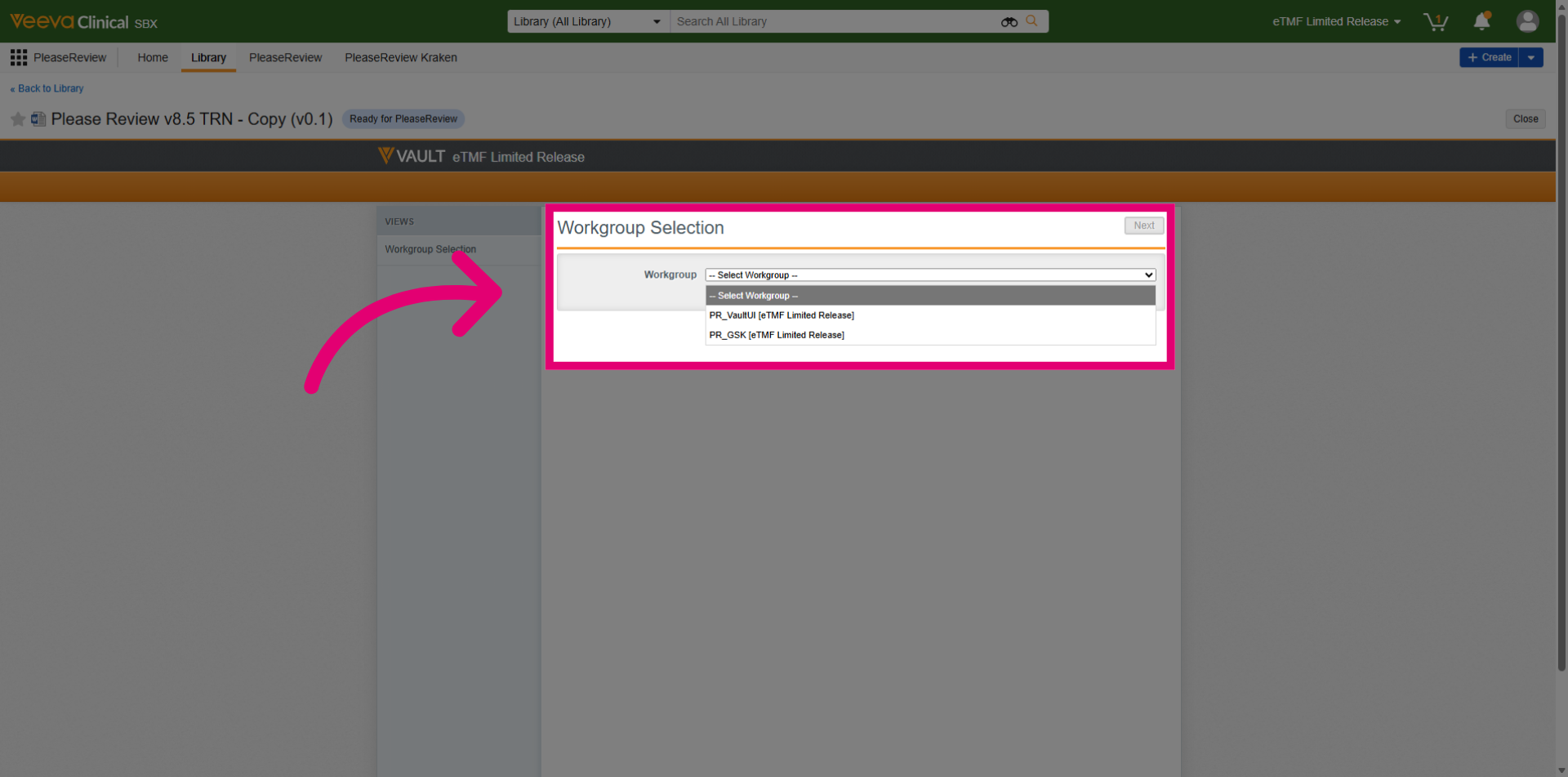
- Click Next.
- Add a Workgroup name.
- Click Start Review to begin the review process.
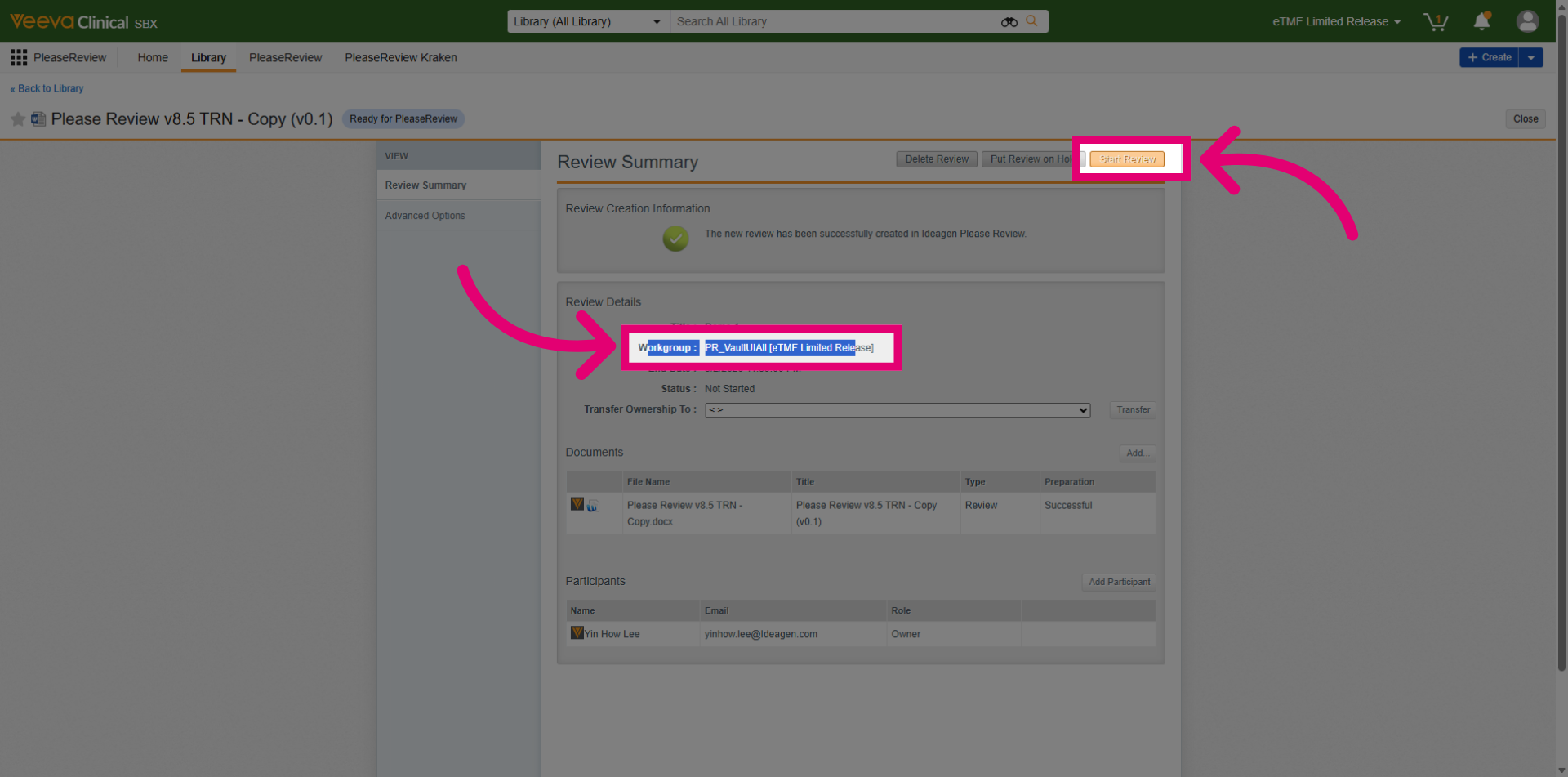
The newly created review is now available in the Inbox.
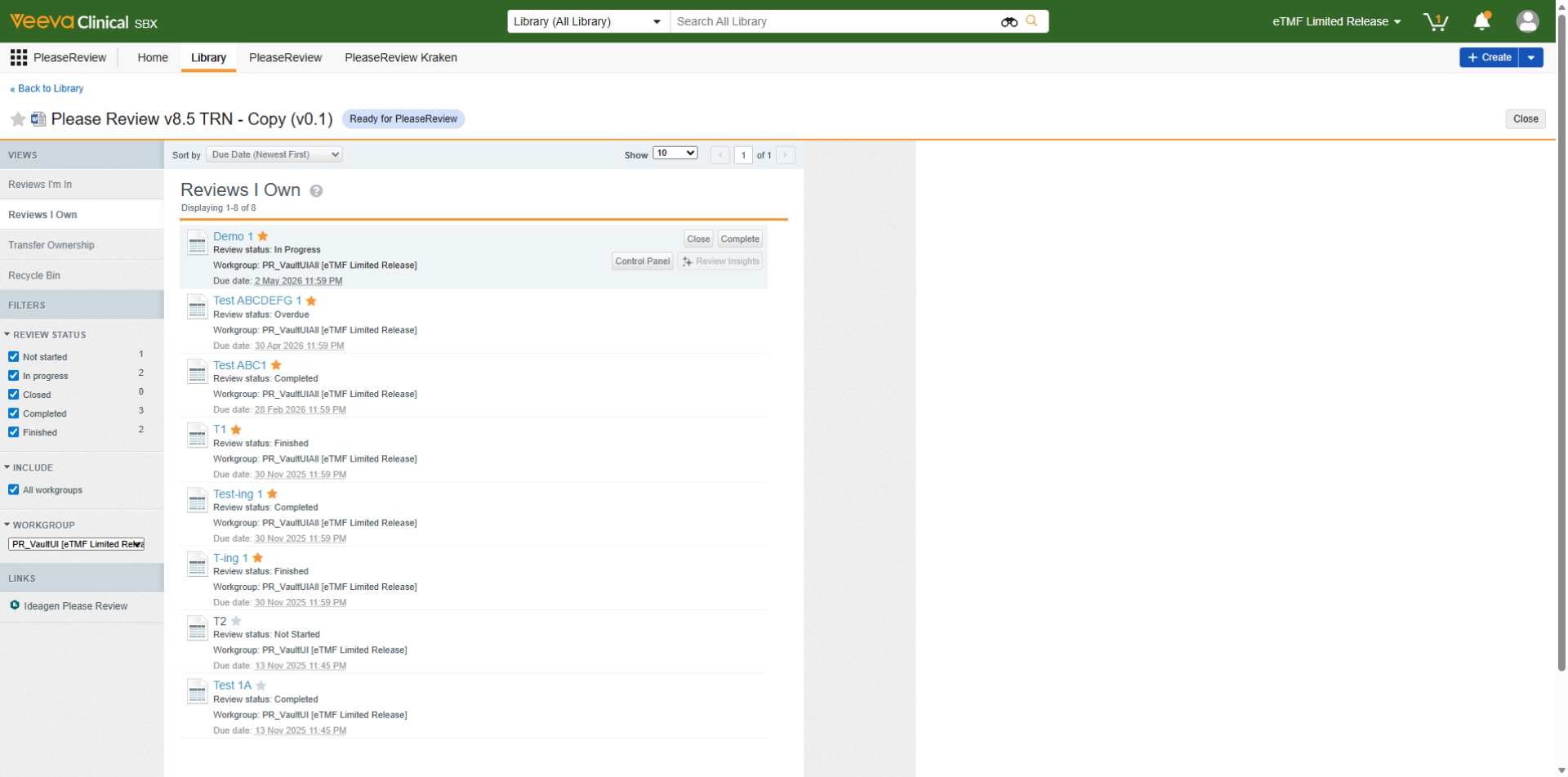
2. Navigating Multi Workgroup reviews
The workgroup name will be visible across the following views:
- Reviews I'm In
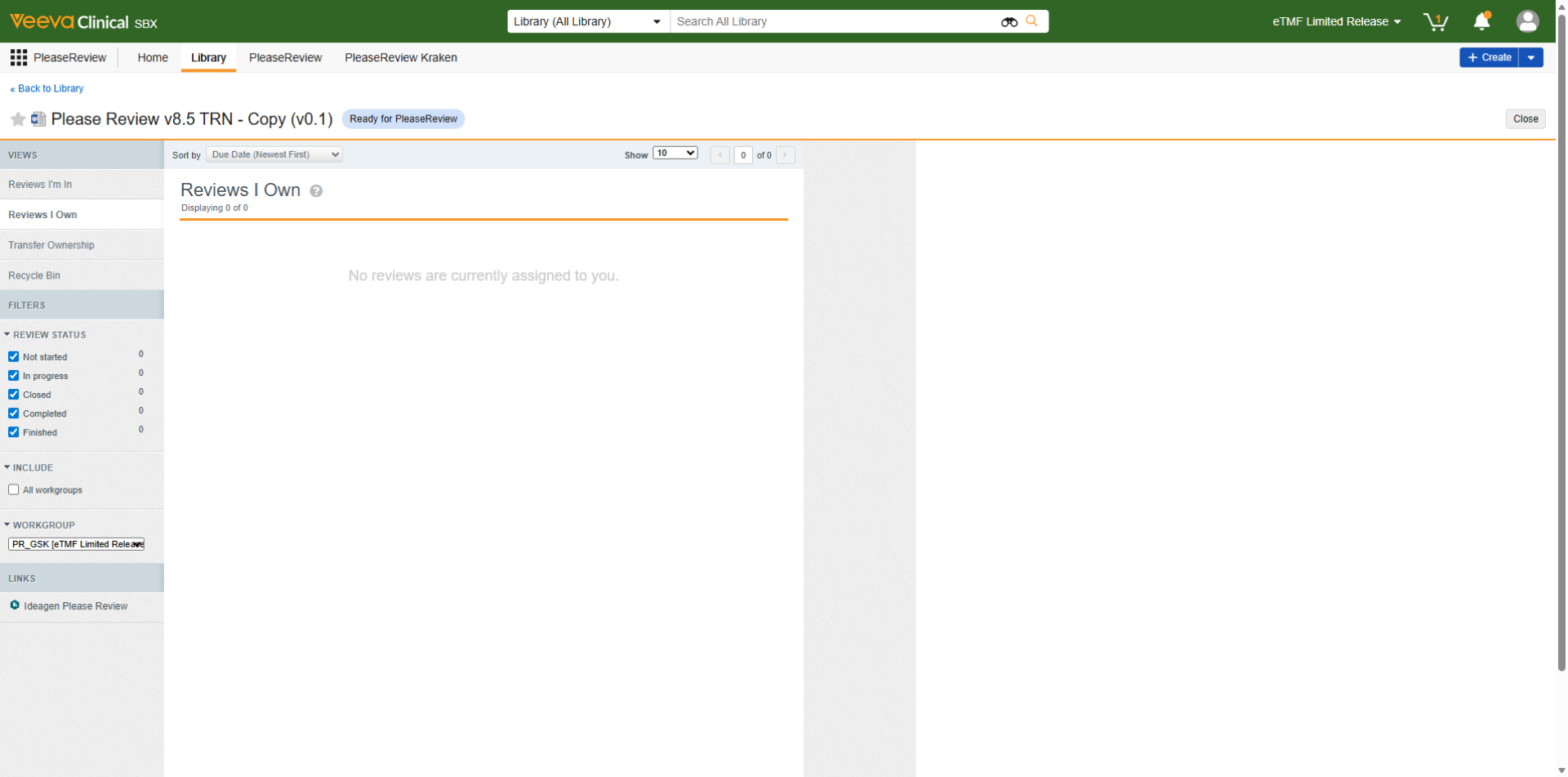
- Reviews I Own
- Transfer Ownership
- Recycle Bin
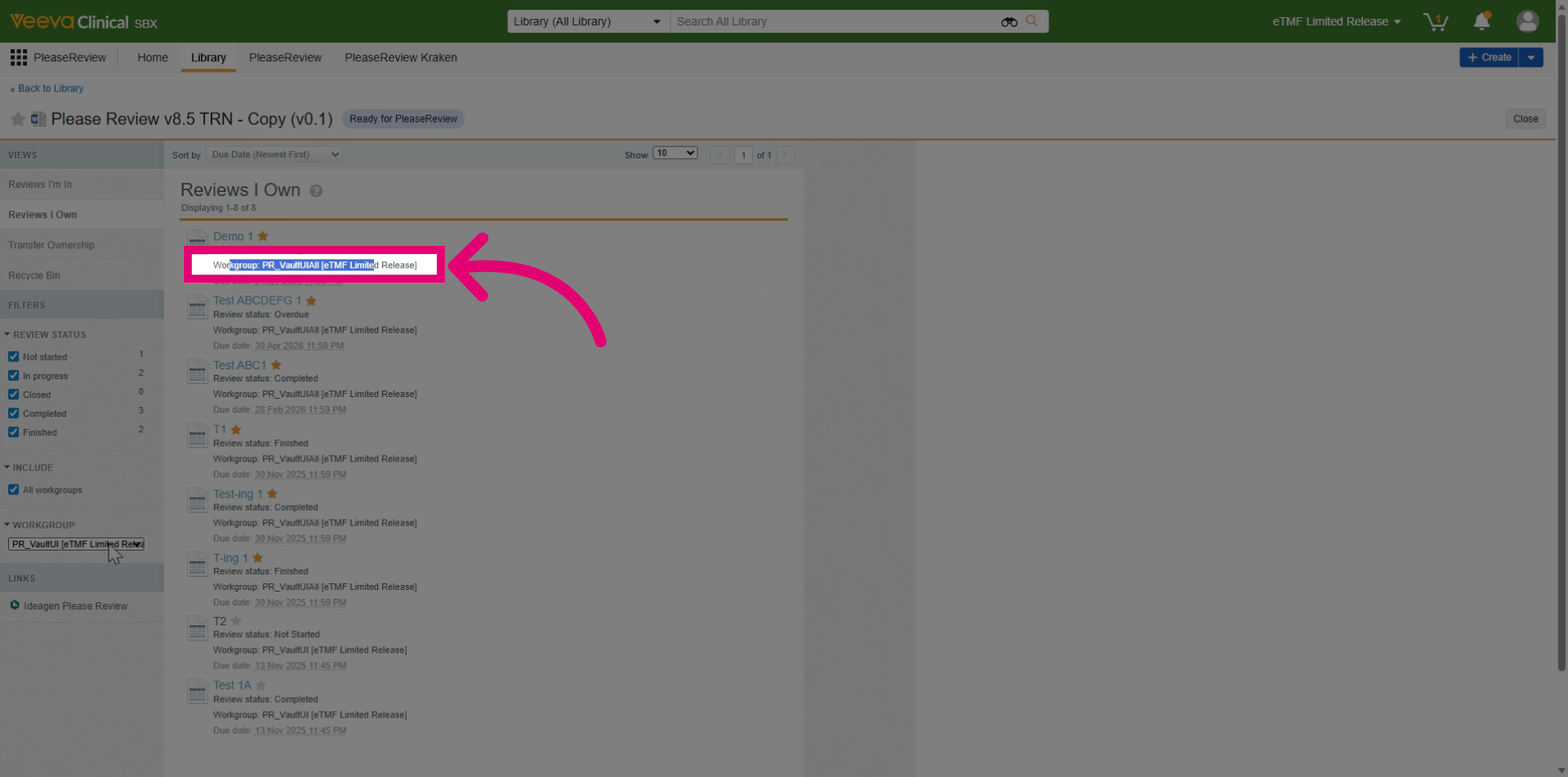
A new workgroup filter will also be available in Filters for selecting specific workgroups.
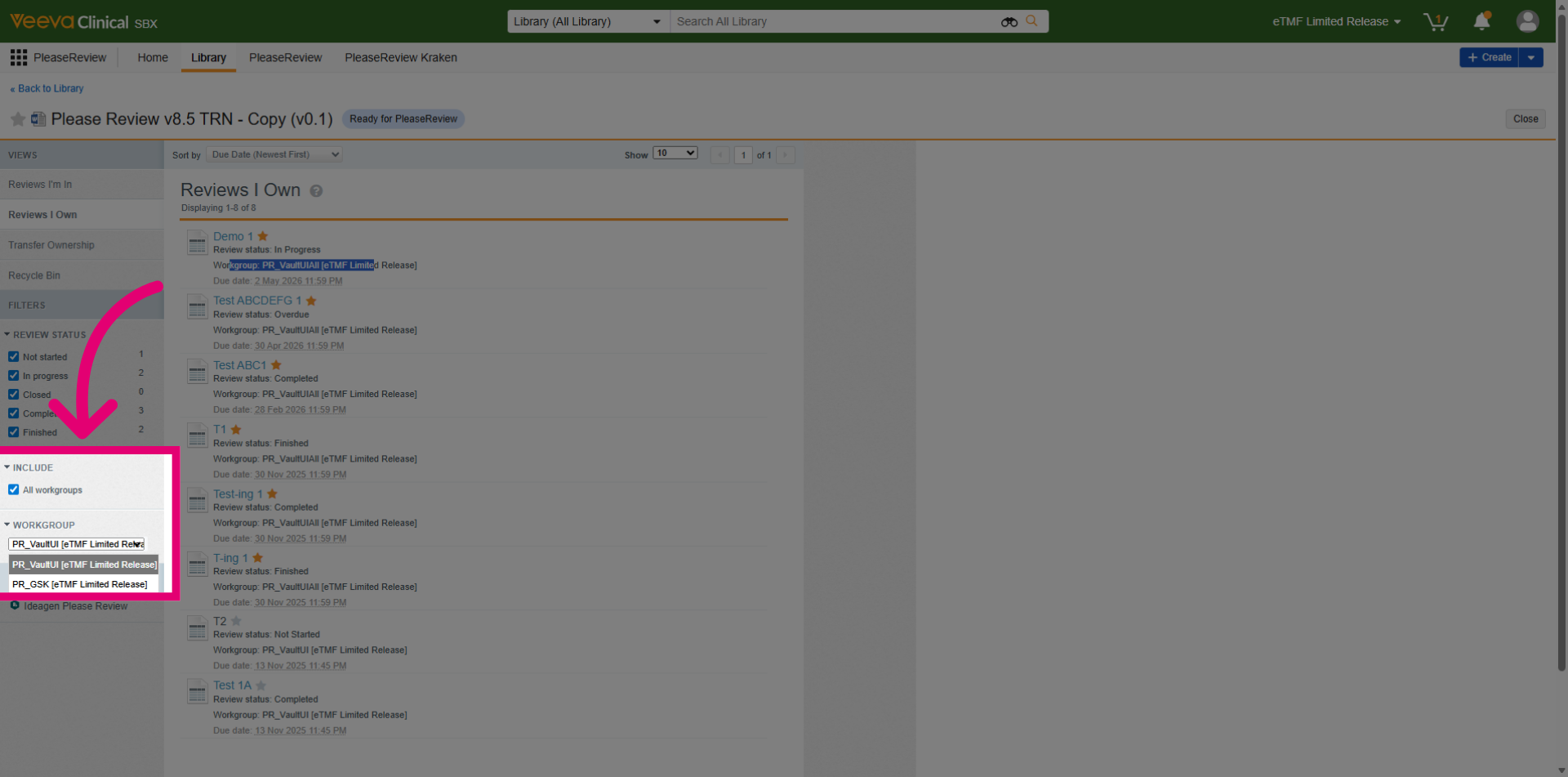
You can untick All Workgroups to show only reviews from the selected workgroup.
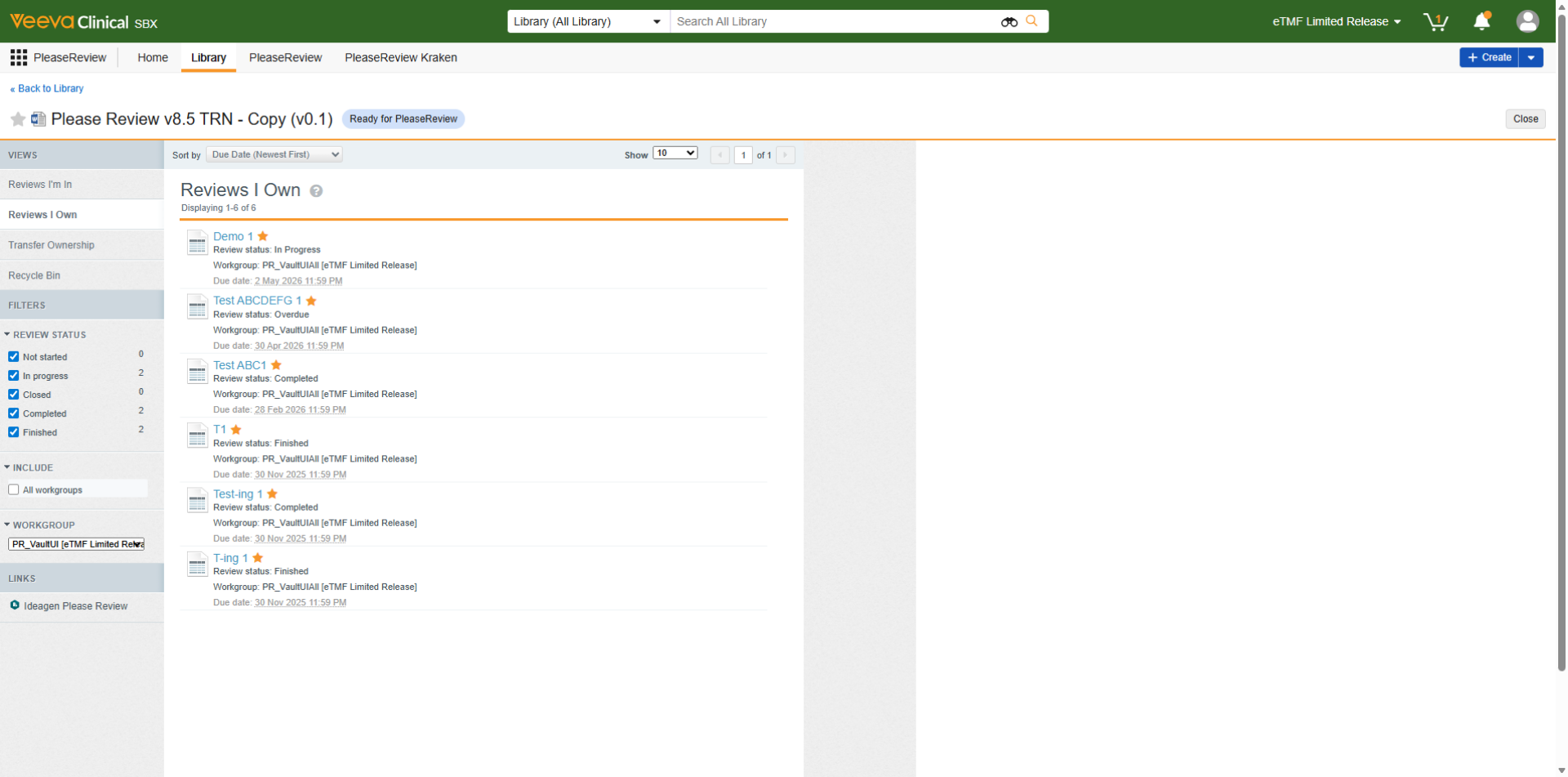
With this option unticked, switching to a workgroup with no owned reviews shows an empty list.