New article
Recently updated
Using the Streamline Review Wizard

Who is this article for?
Users who want to learn to use the Streamline Review Wizard.
No elevated permissions are required.
This article demonstrates how to use the Streamline Review Wizard to create and manage document reviews.
You will learn how to create a new review, upload documents, manage participants, and edit review settings after creation.
1. Using the Streamline Review Wizard
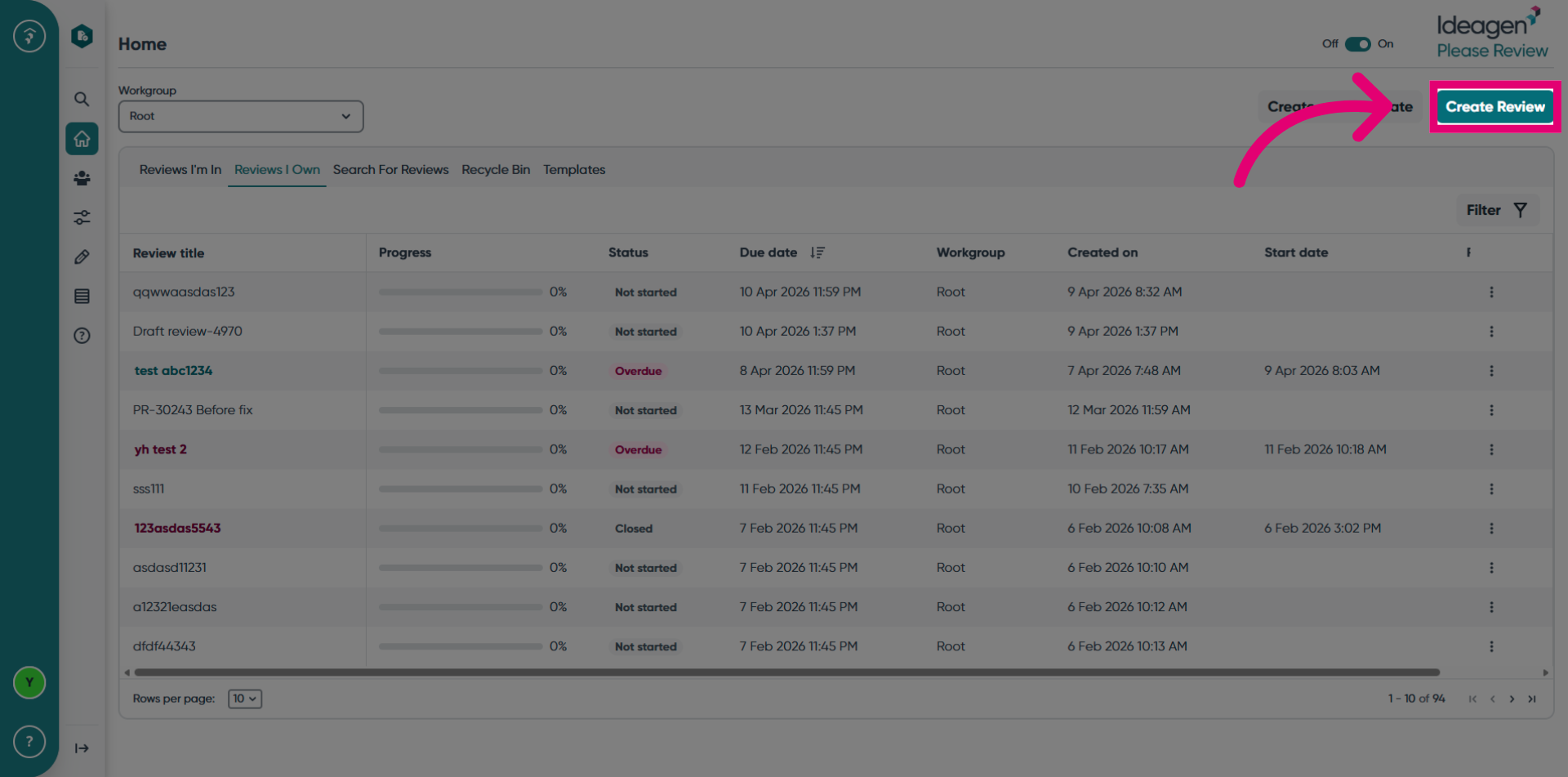
Click the Create Review button to start the new review creation process.
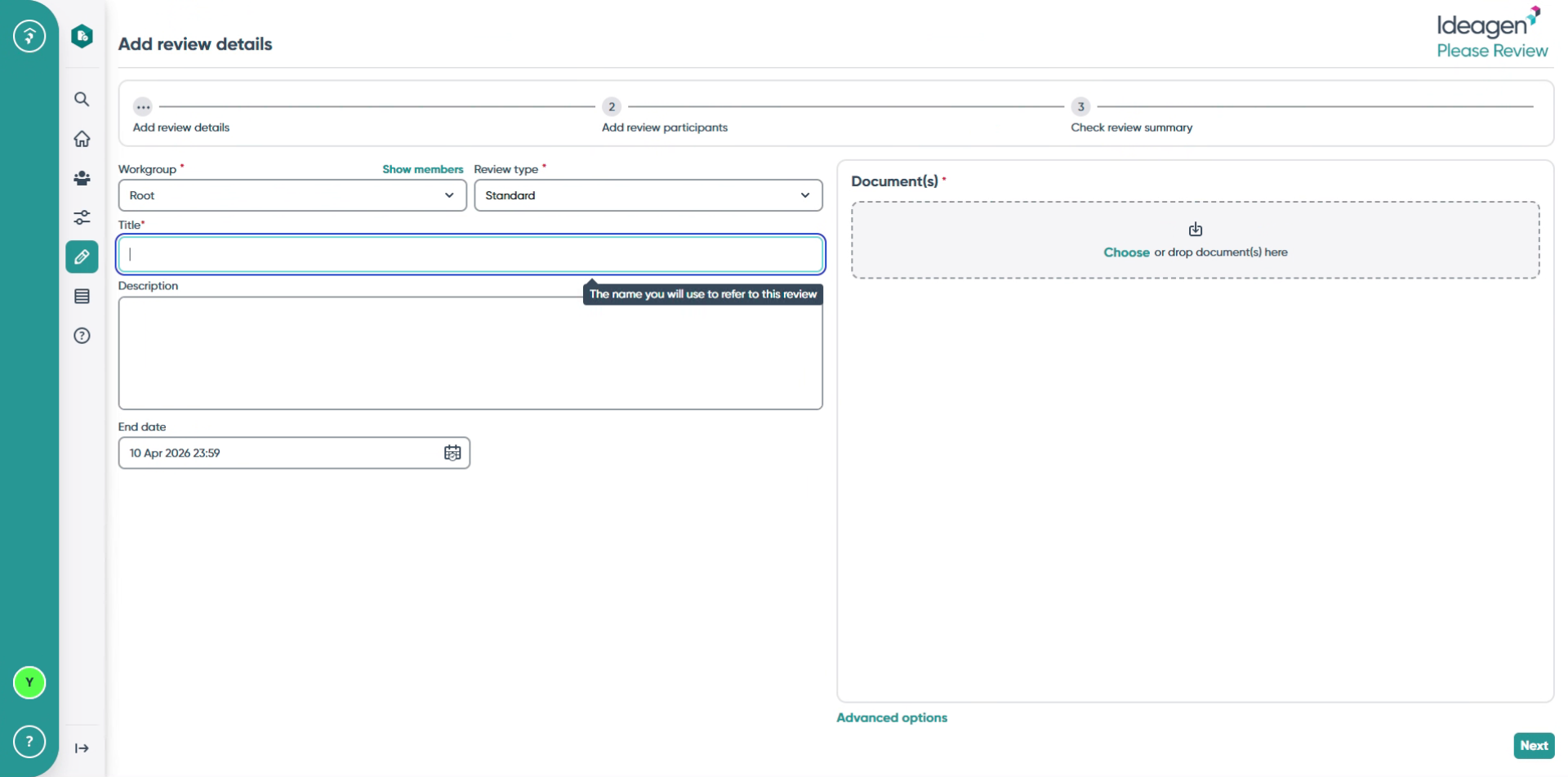
Enter the review title in the provided field.
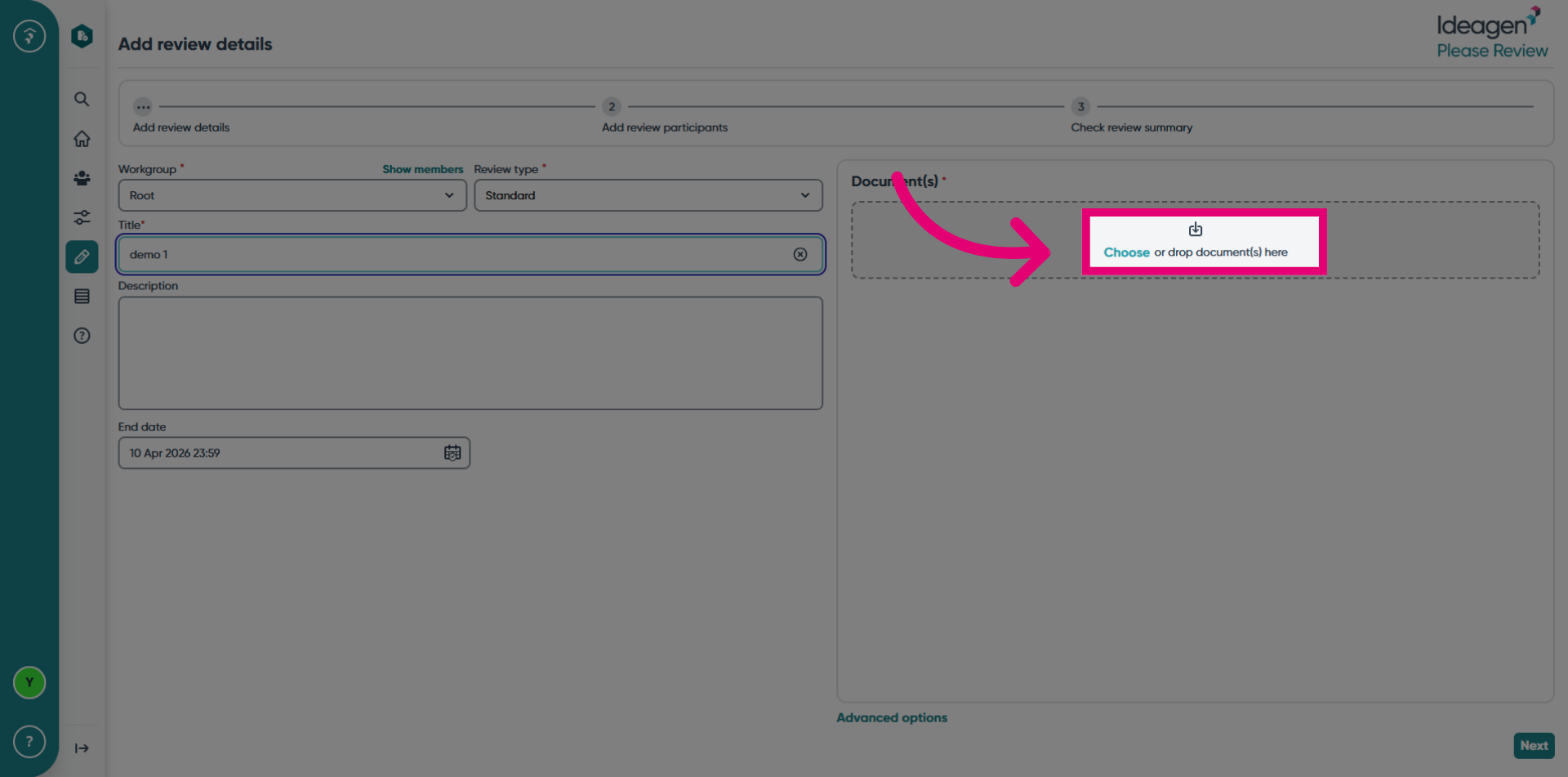
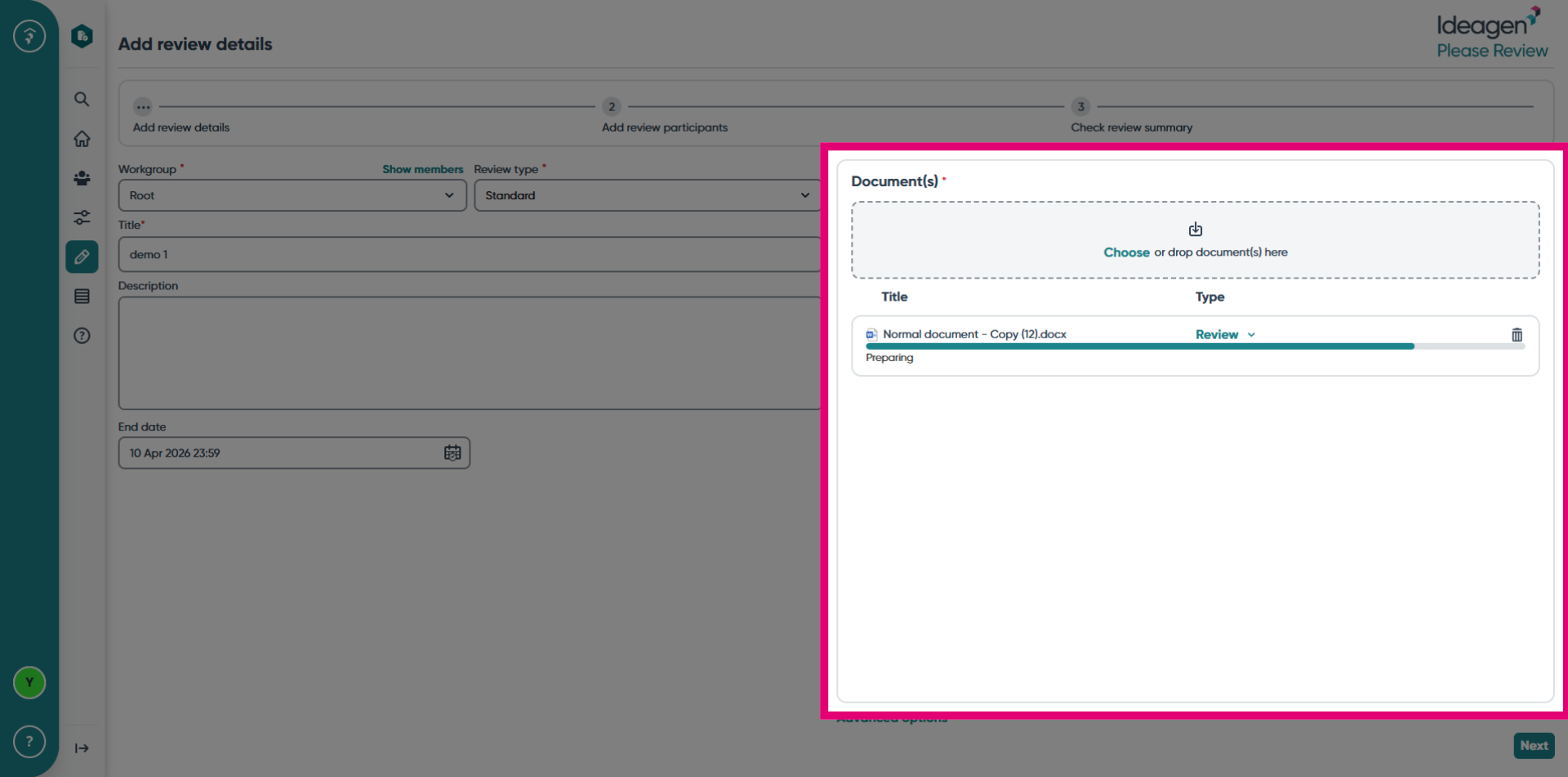
Click the Choose button to upload documents to the review, or drag and drop them into the upload zone.
Wait while the document uploads to the review.
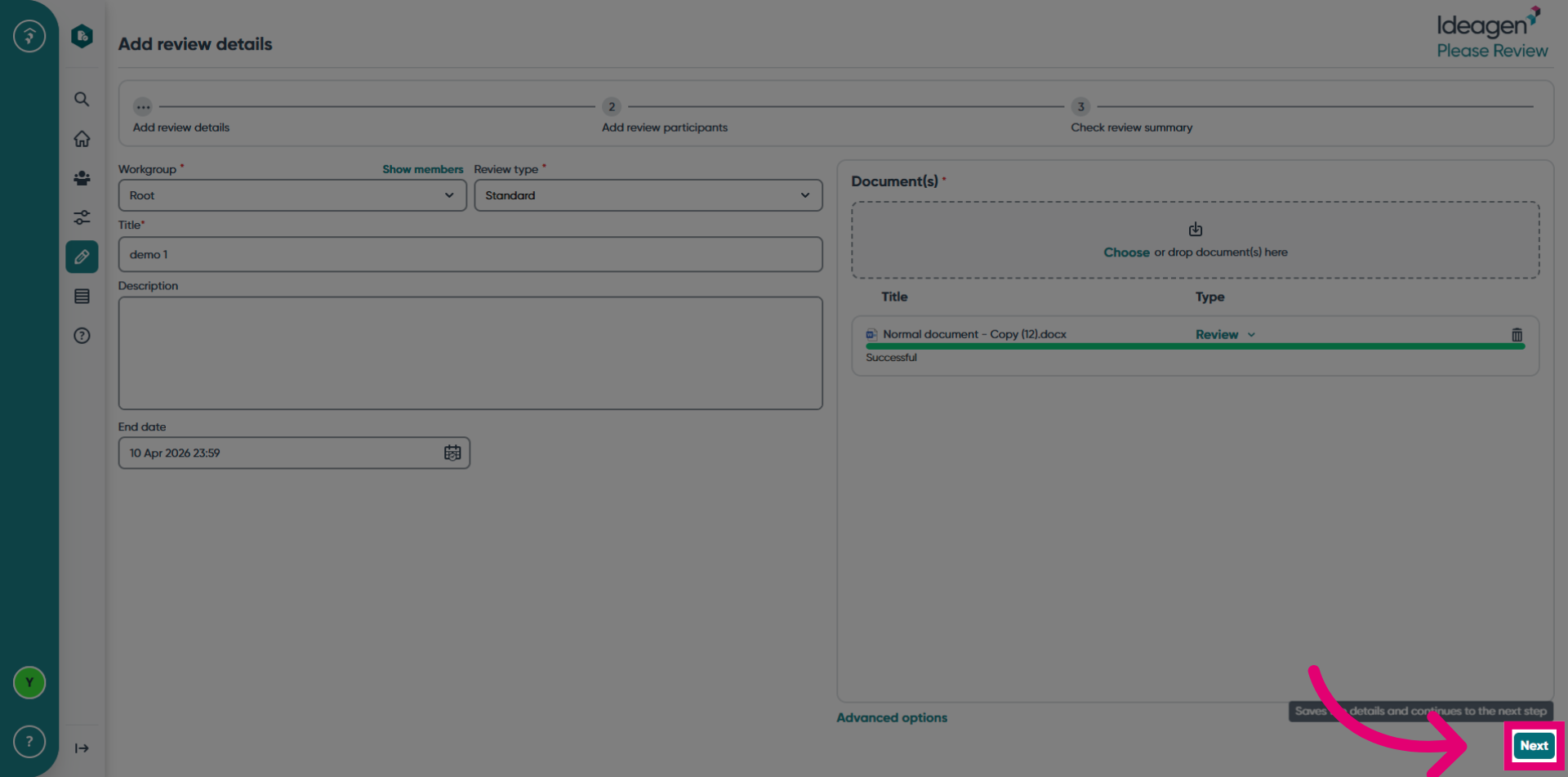
Click the Next button to continue to the participant management step.
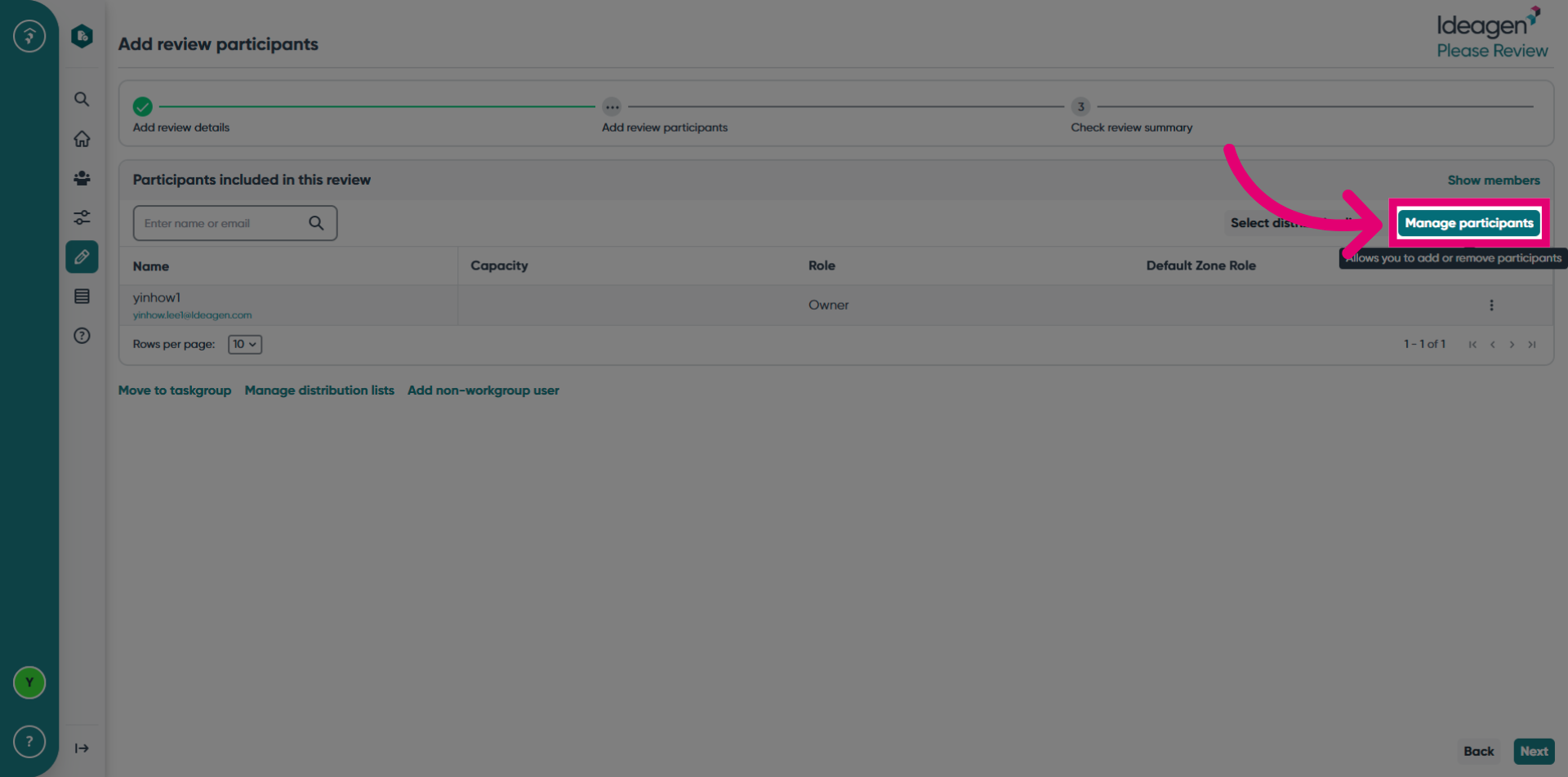
Click the Manage Participants button to add or remove participants from the review, or to change a participant's role.
Select a role to add a participant to.
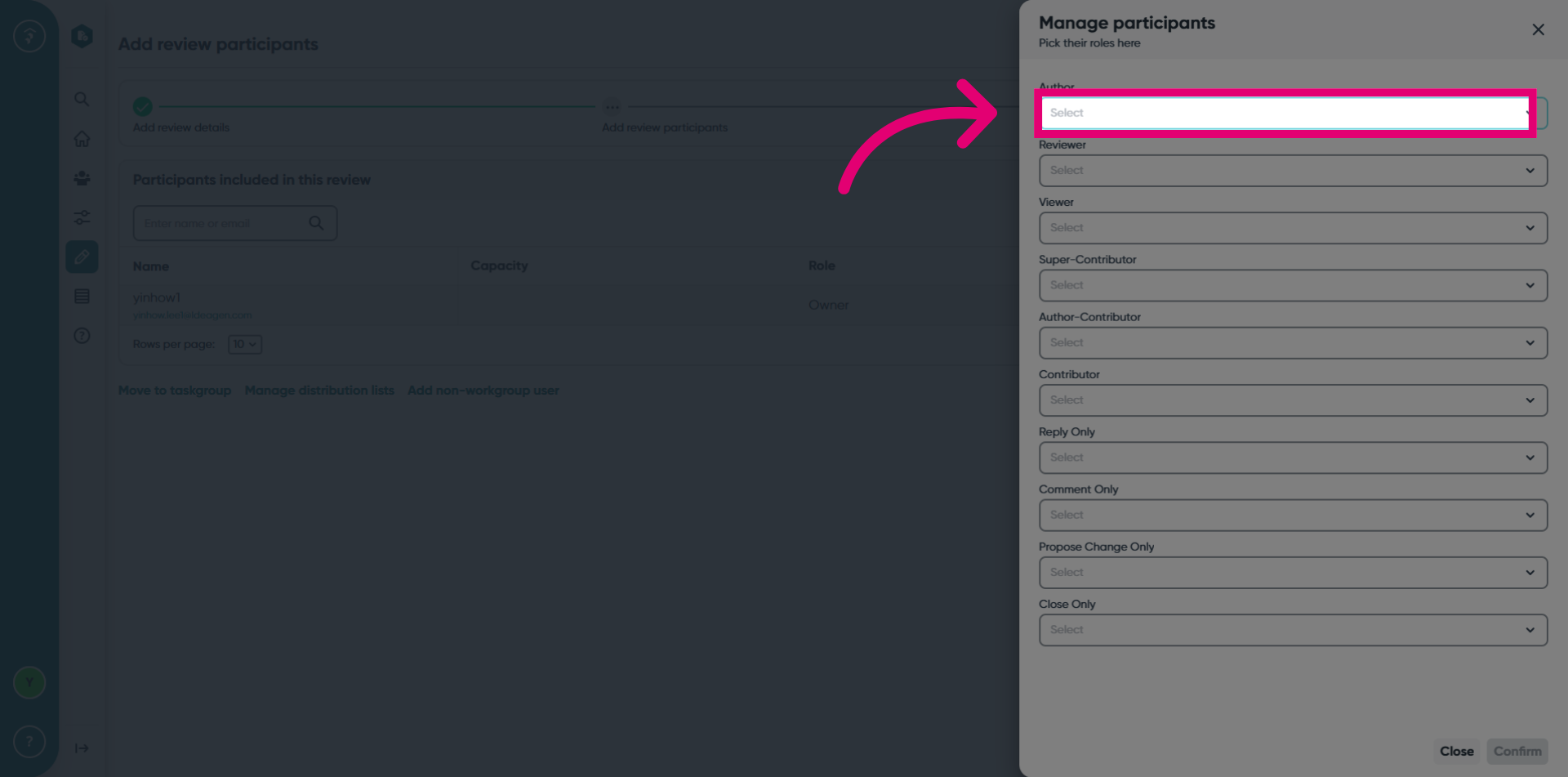
Select a user from the dropdown list. Follow this same process for any other roles you'd like to add participants to.
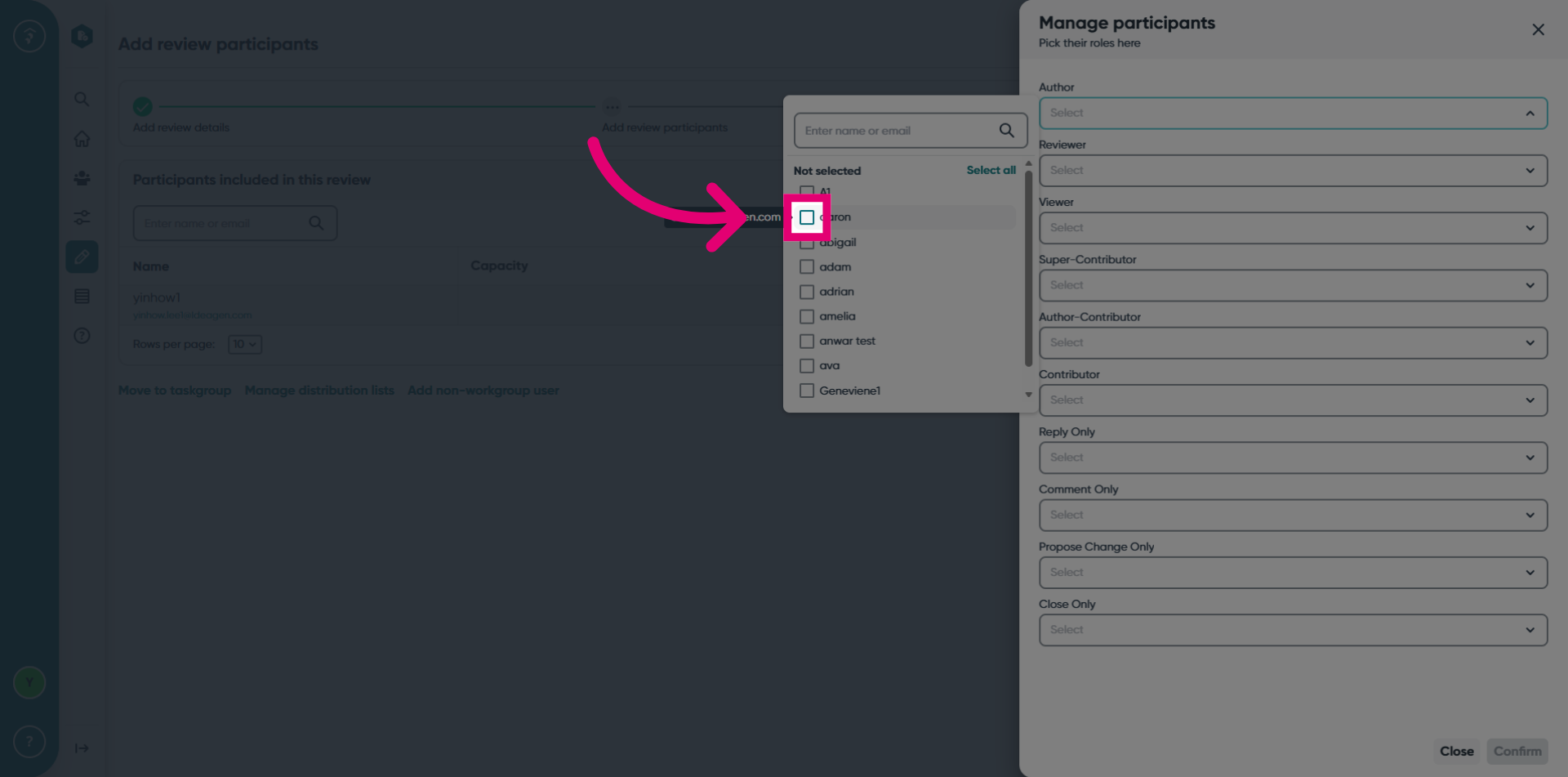
Click the Confirm button to save your participant selections and changes.
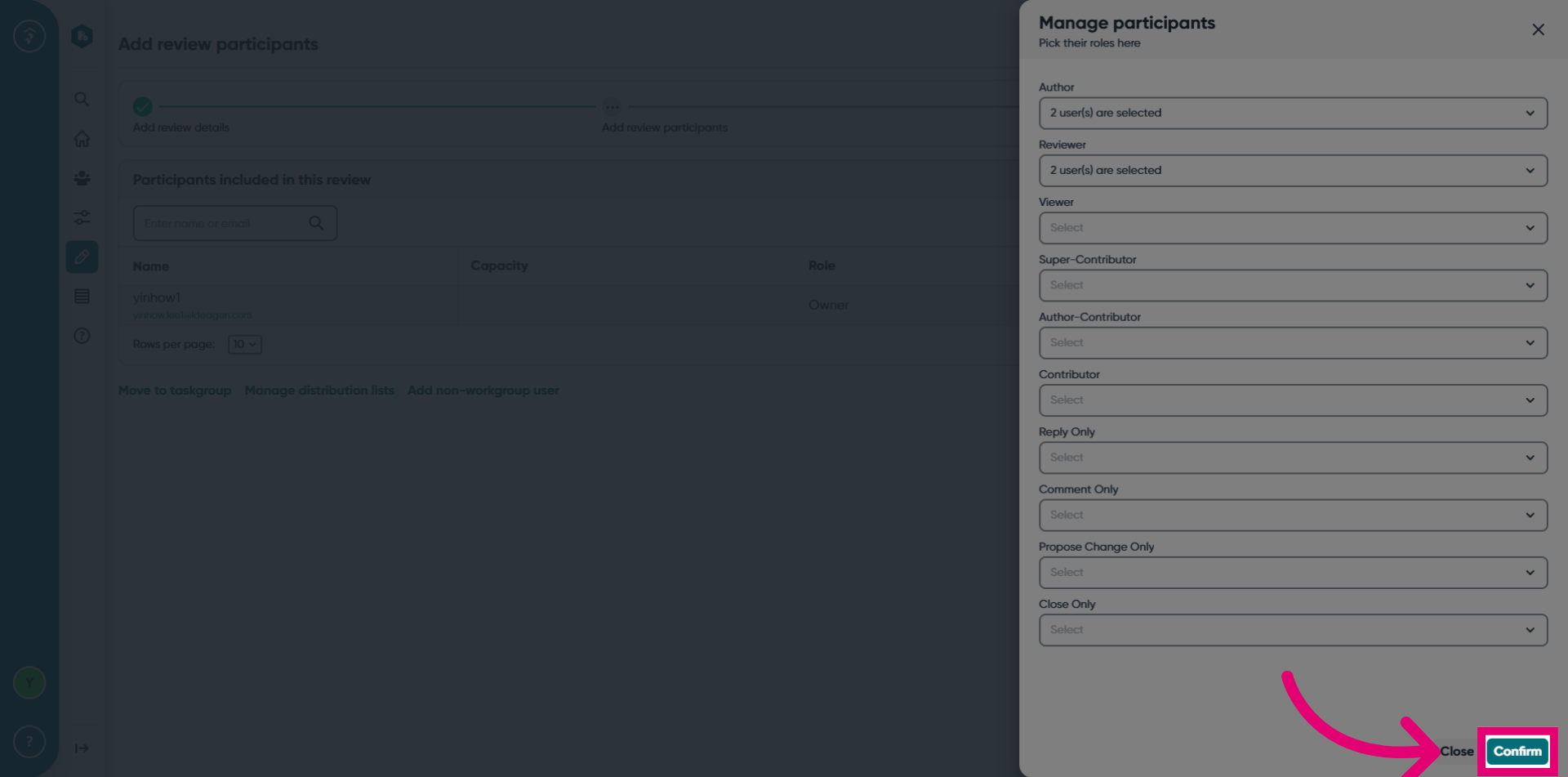
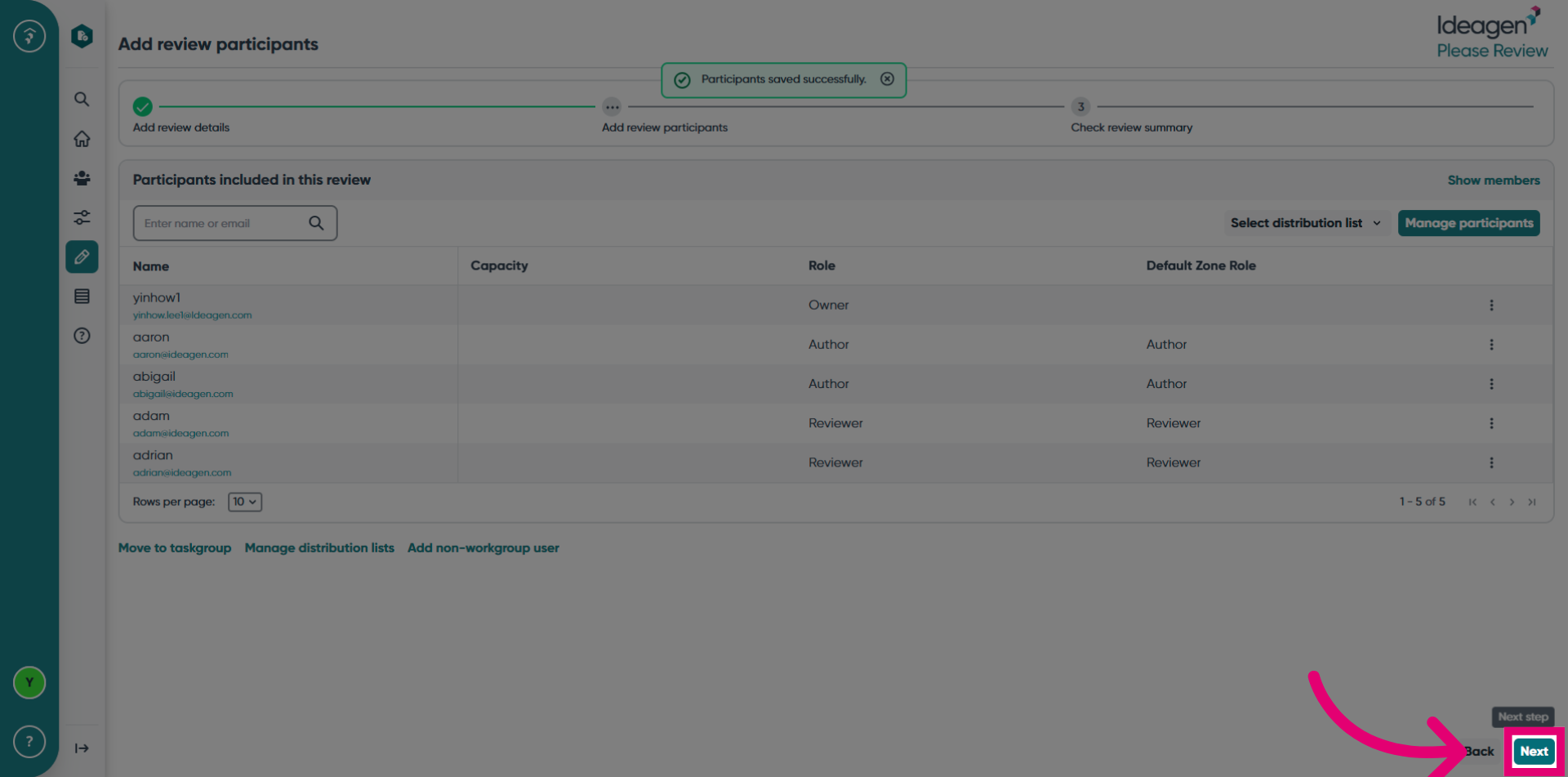
Click the Next button to advance to the review summary.
Review the details, documents, and participants before starting the review.
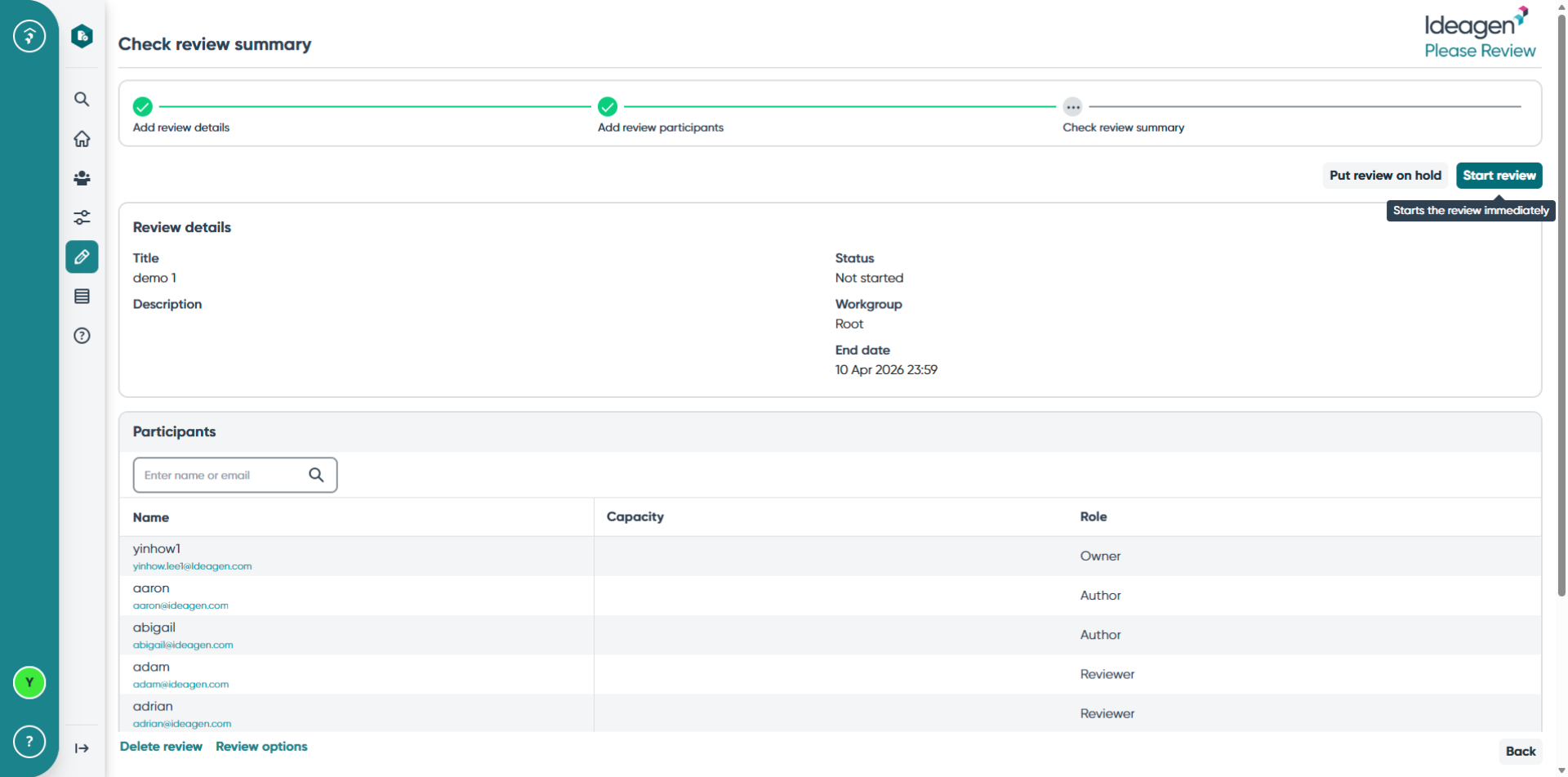
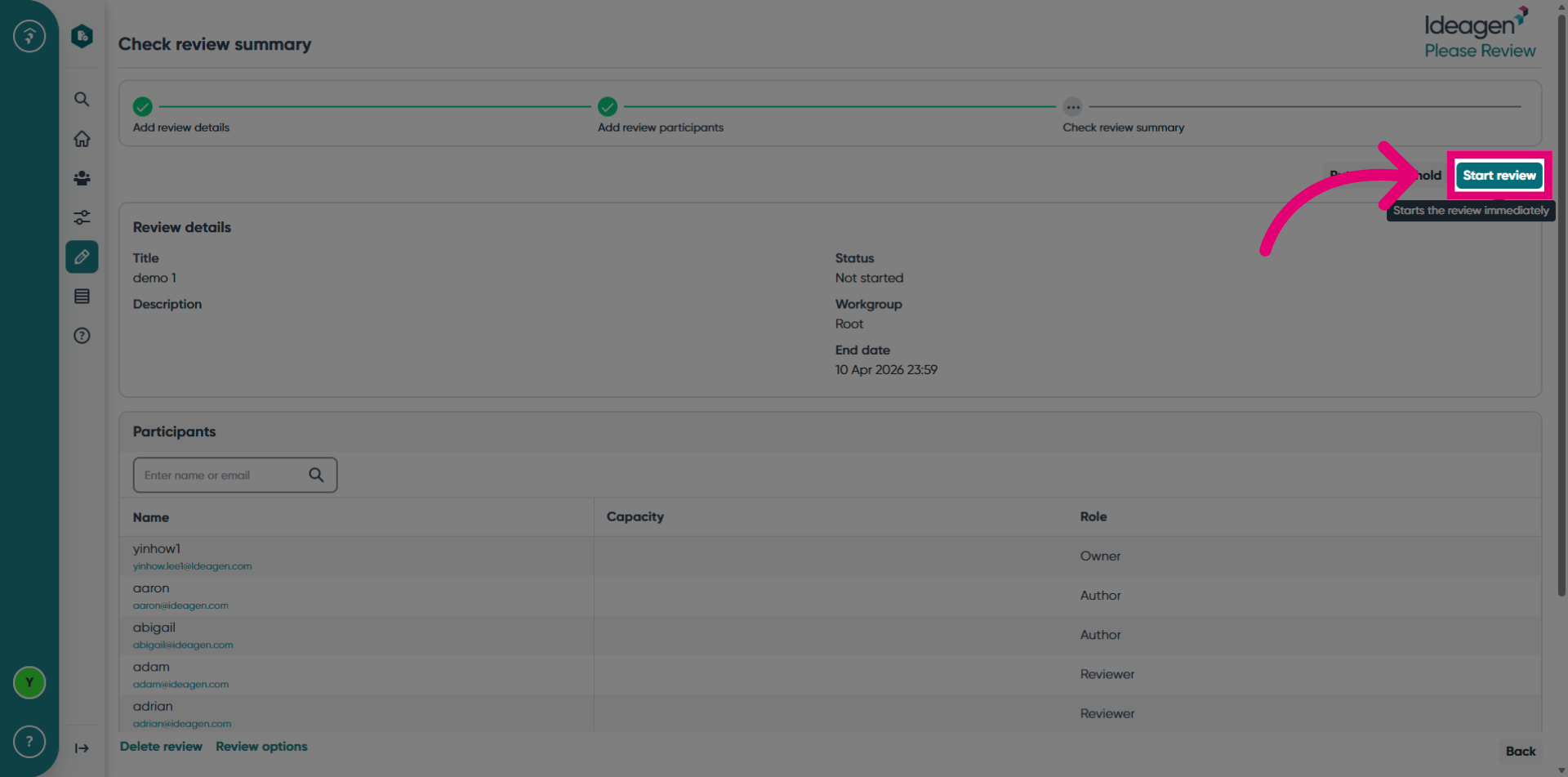
Click the Start Review button so that participants can begin reviewing the documents.
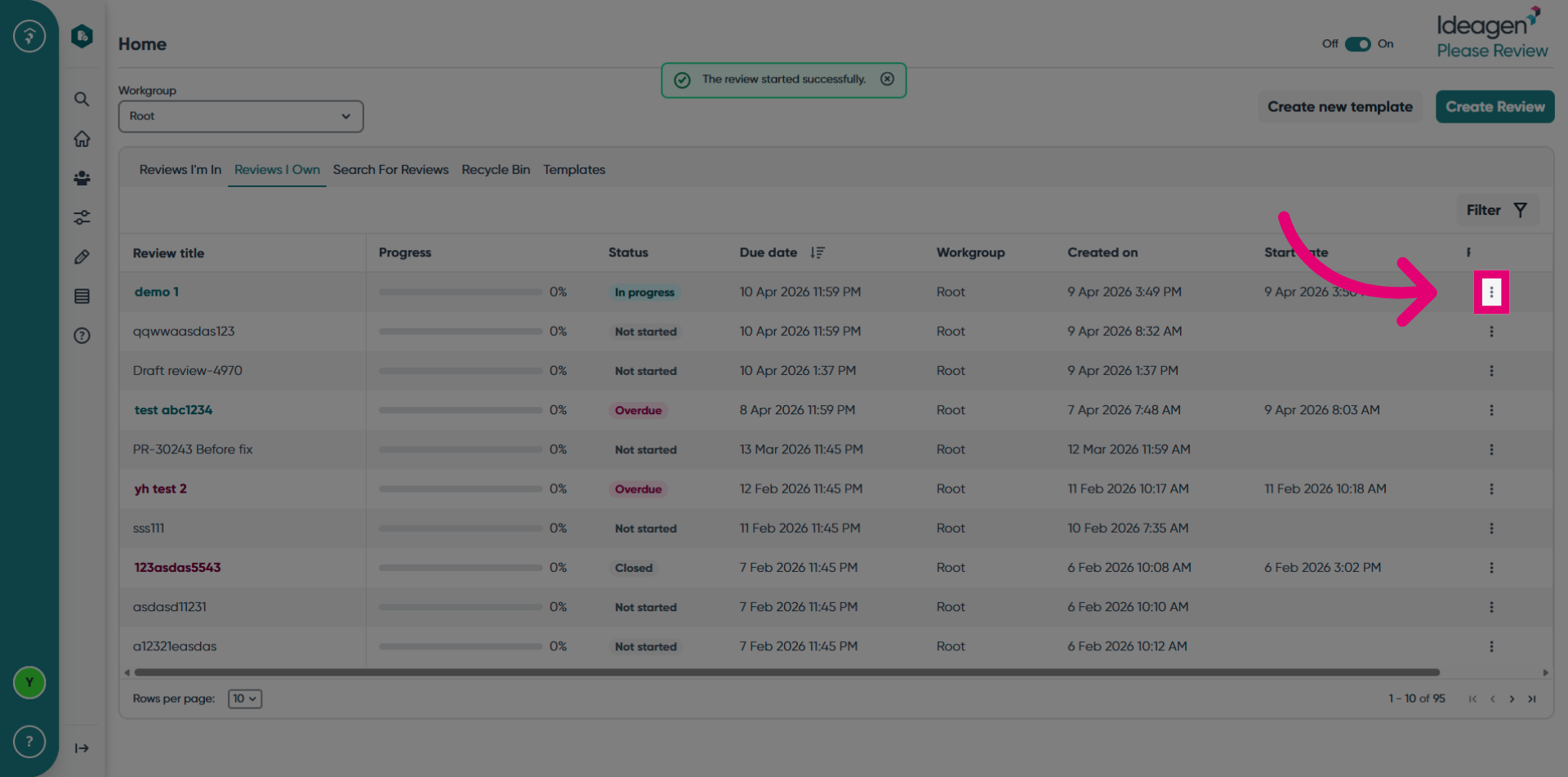
Click the three dots to access more options for the review.
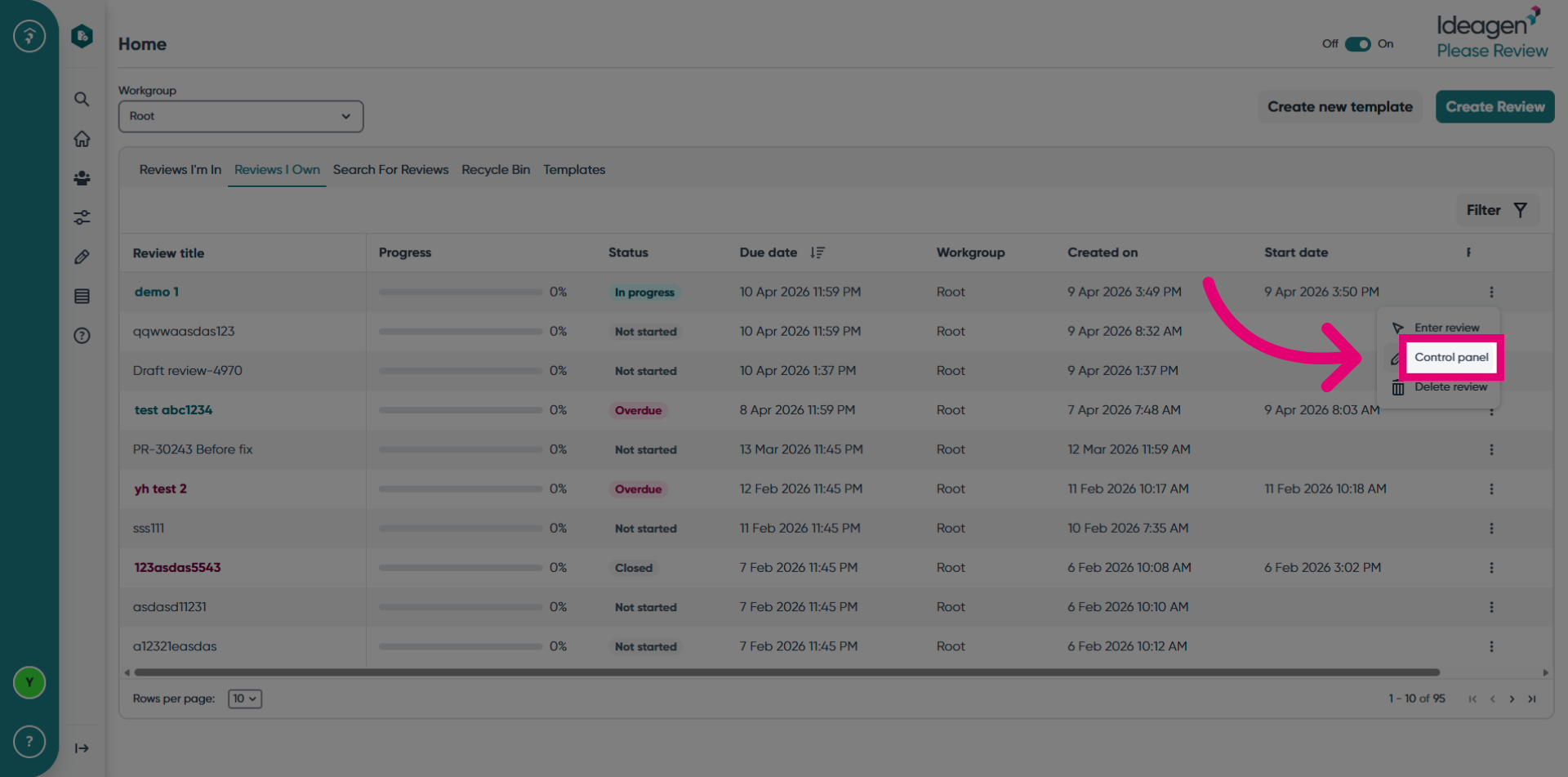
Click the Control Panel option to navigate to the Review Control Panel, where you can edit the details, documents, or participants.
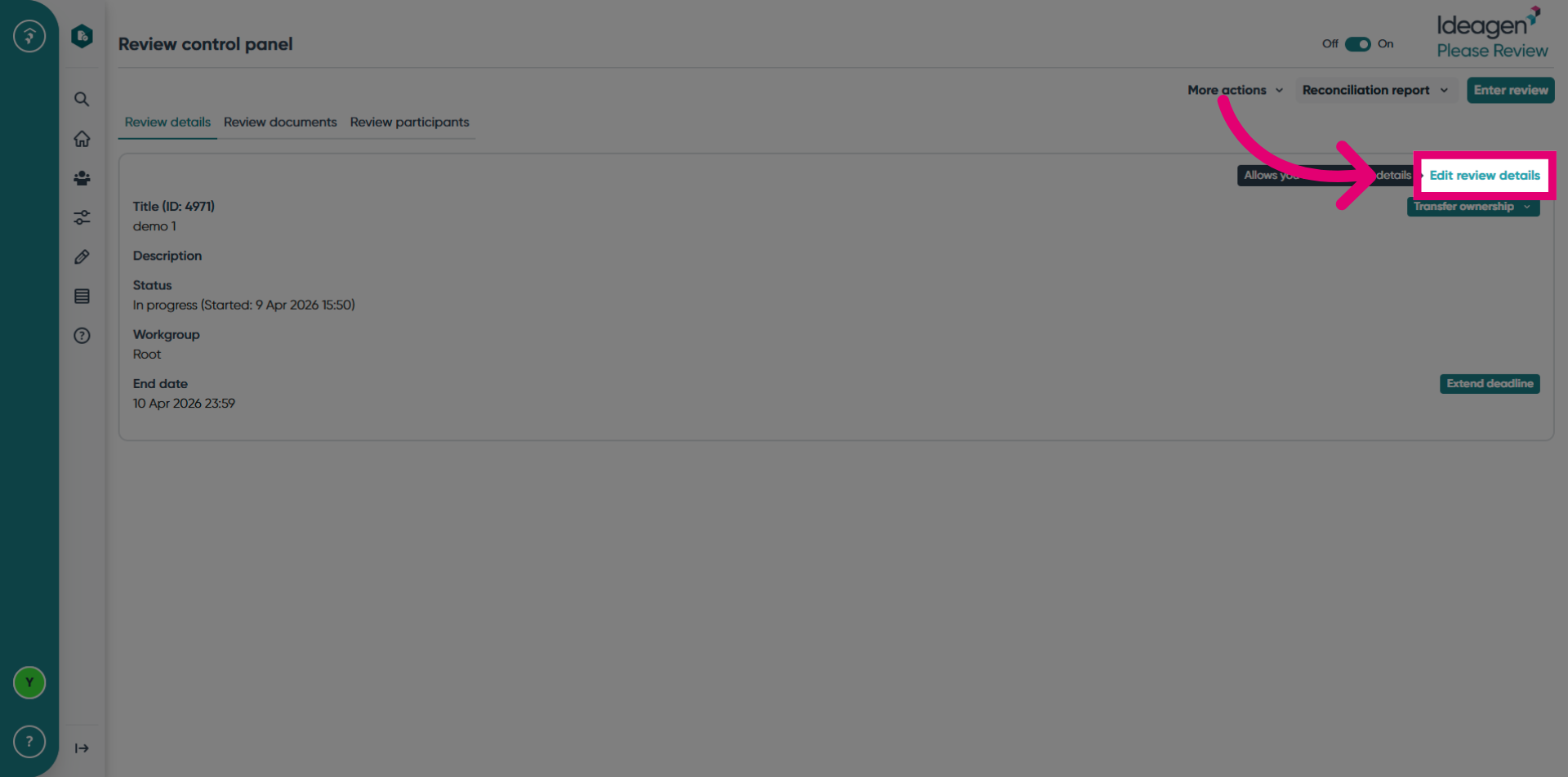
Click the Edit Review Details button to modify the review information.
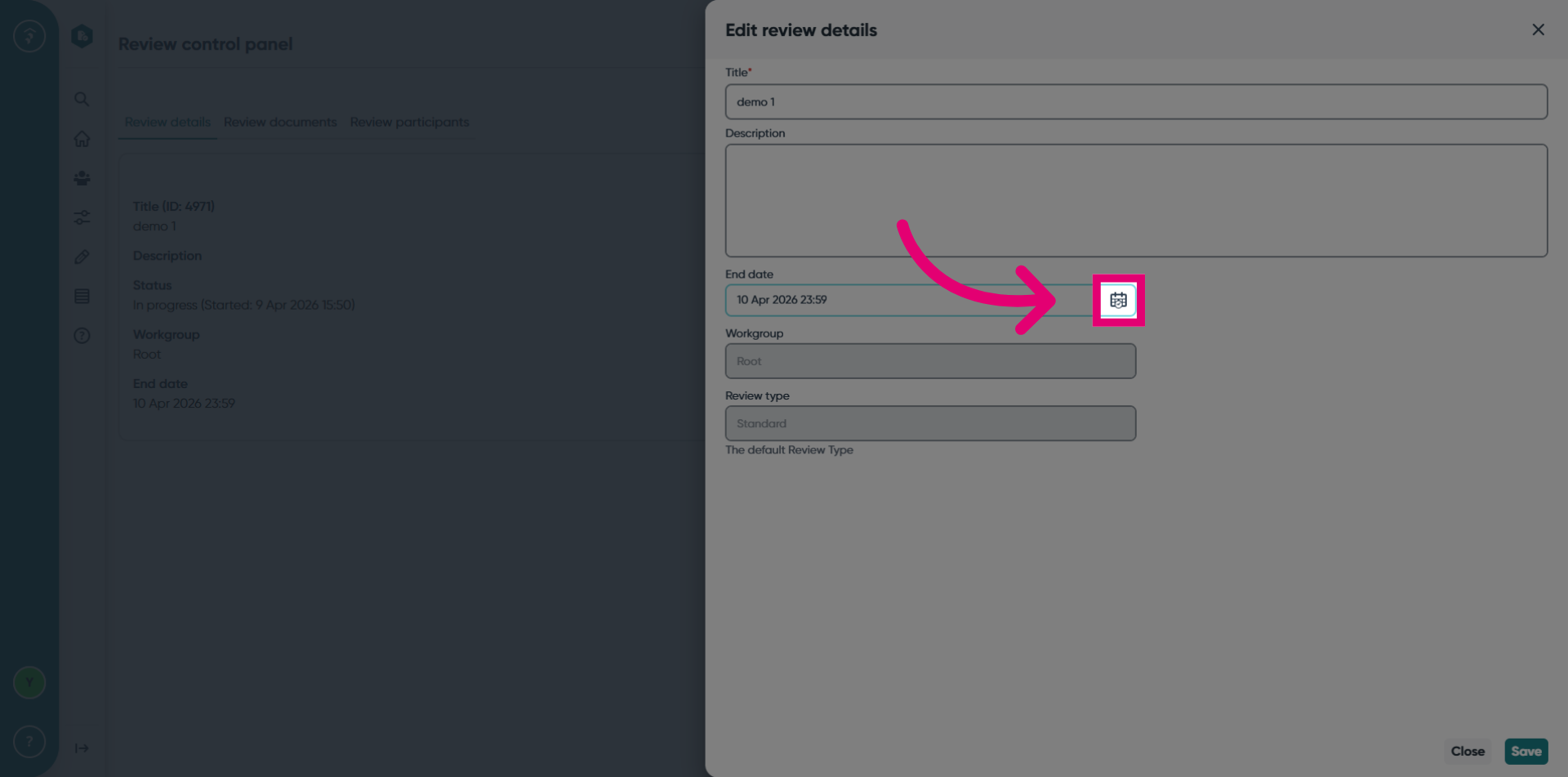
Adjust the review due date as needed.
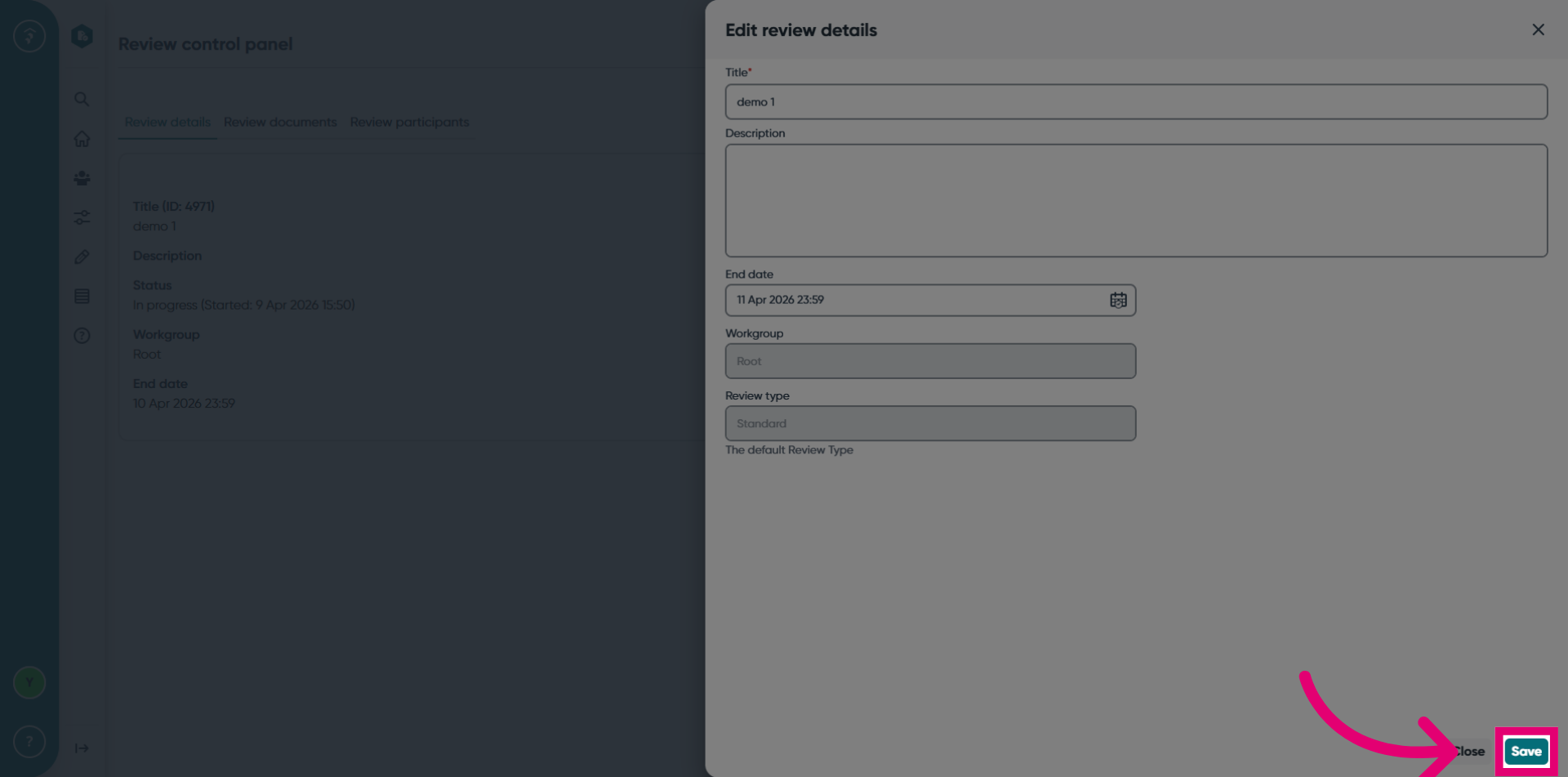
Click the Save button to save your changes.
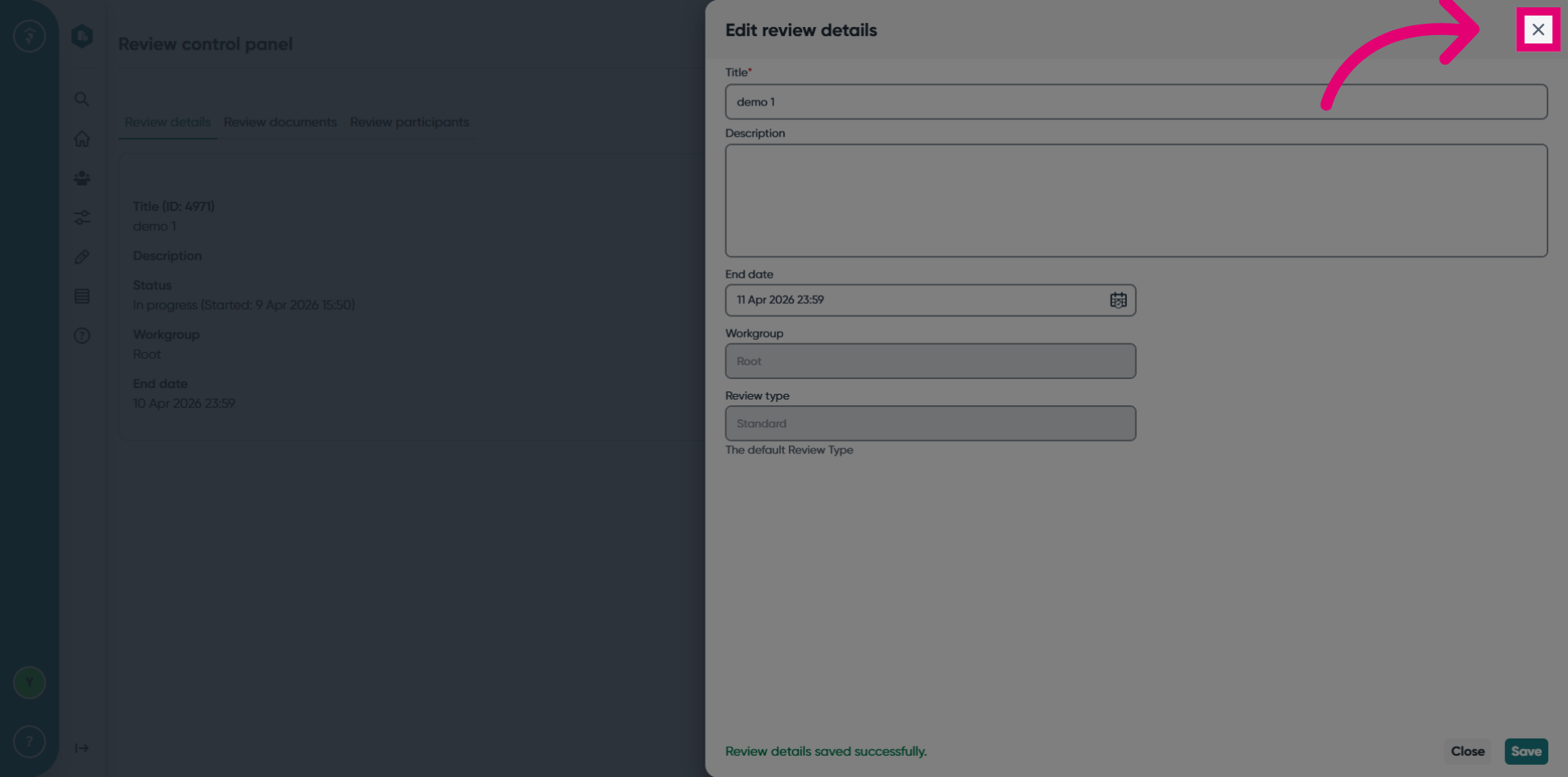
Click the X button to close the edit window.
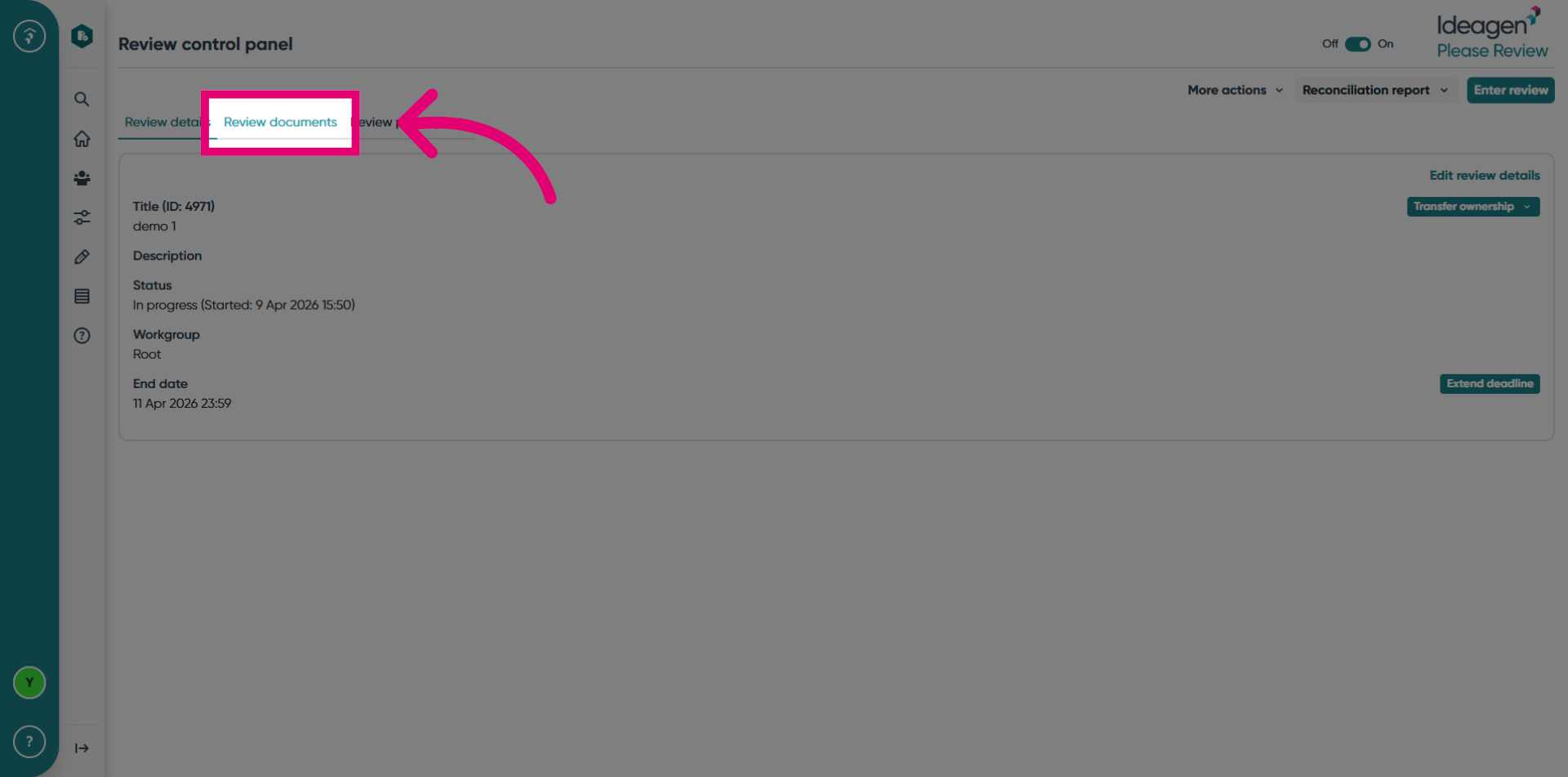
Click the Review Documents tab to view the documents in this review.
Click the Edit Review Documents button to add or remove documents from the review.
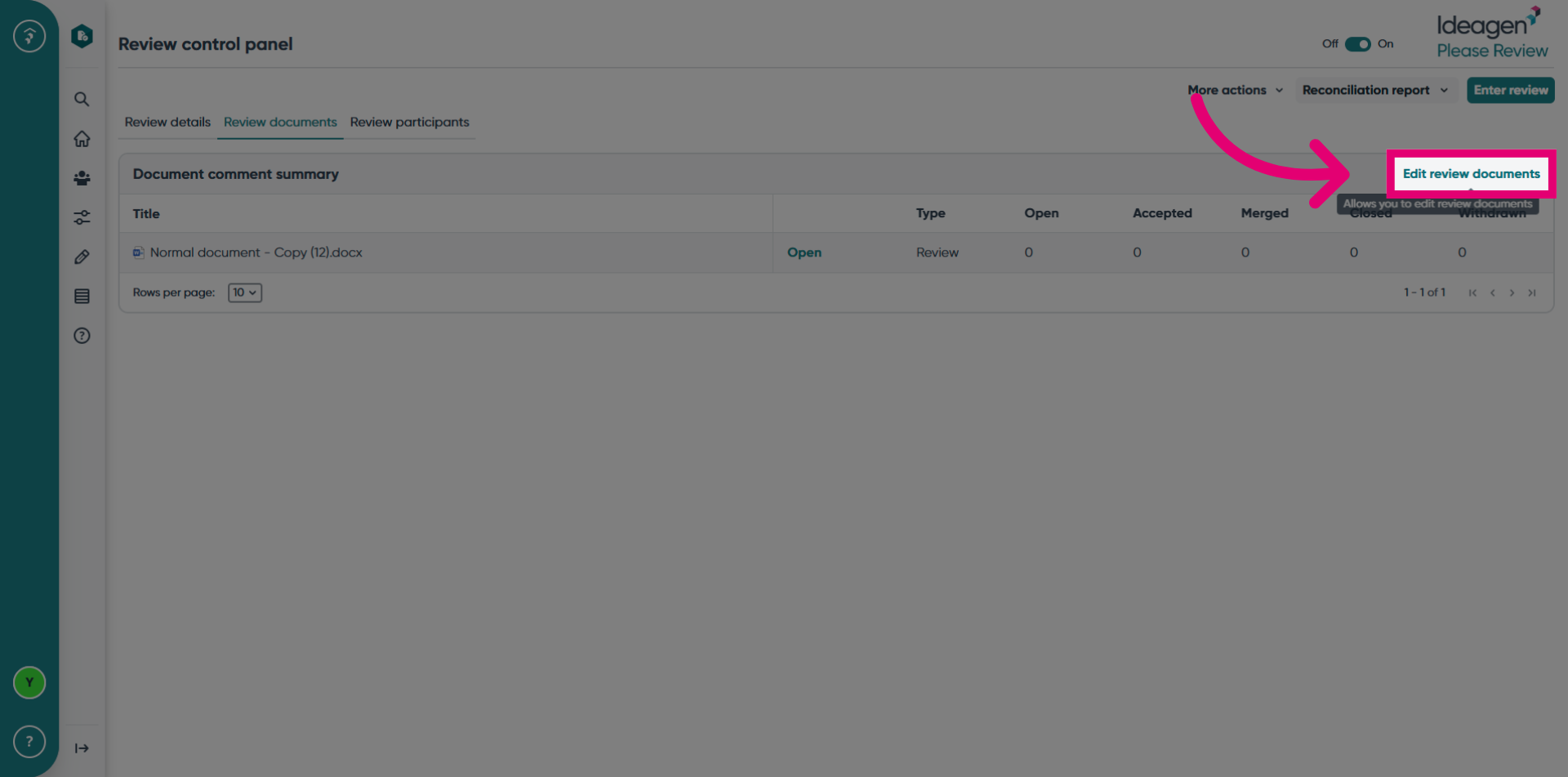
Upload a document by choosing one or dragging and dropping into the upload zone.
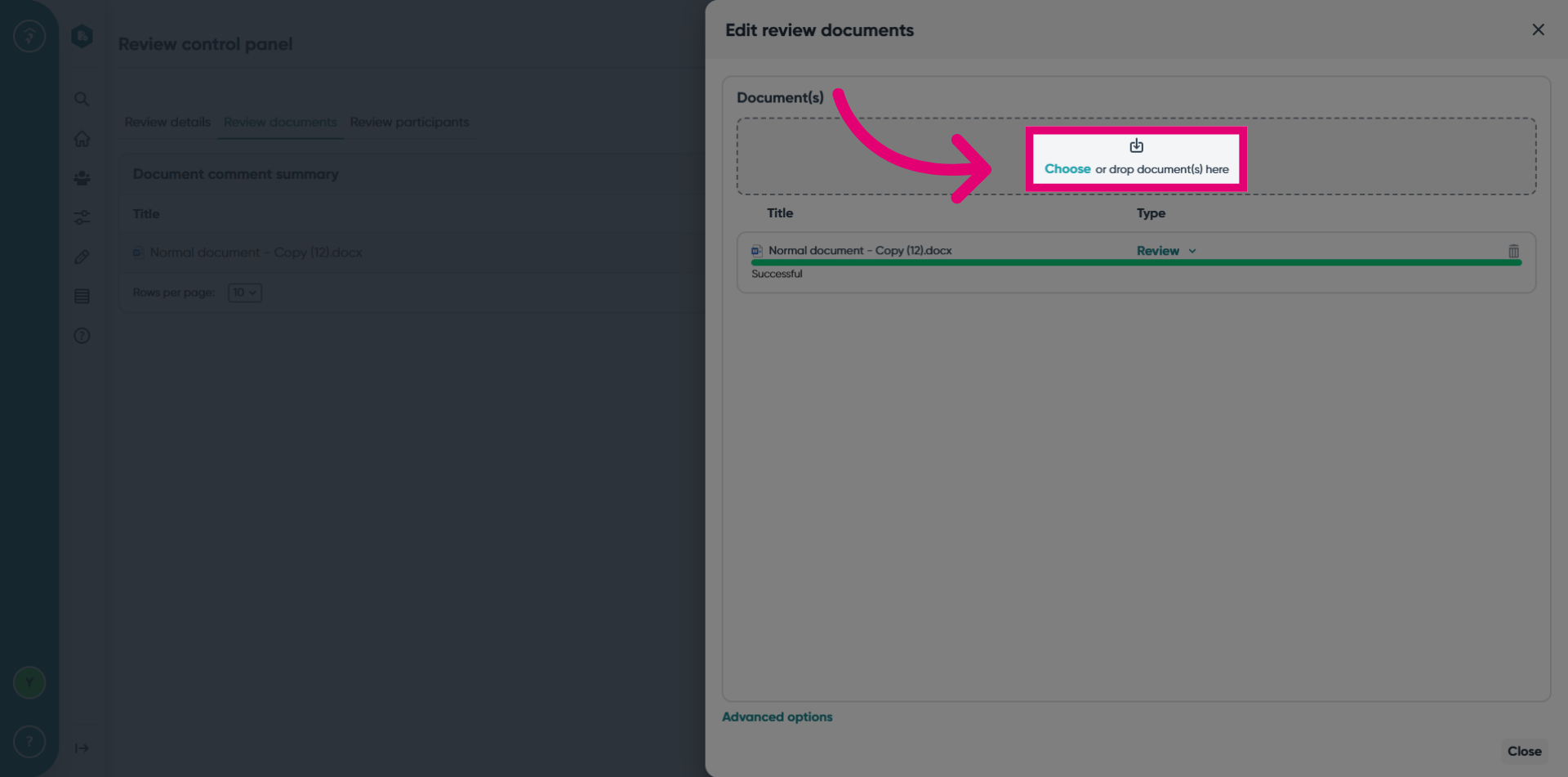
Click the Close button to close the document editor drawer after the document is prepared successfully.
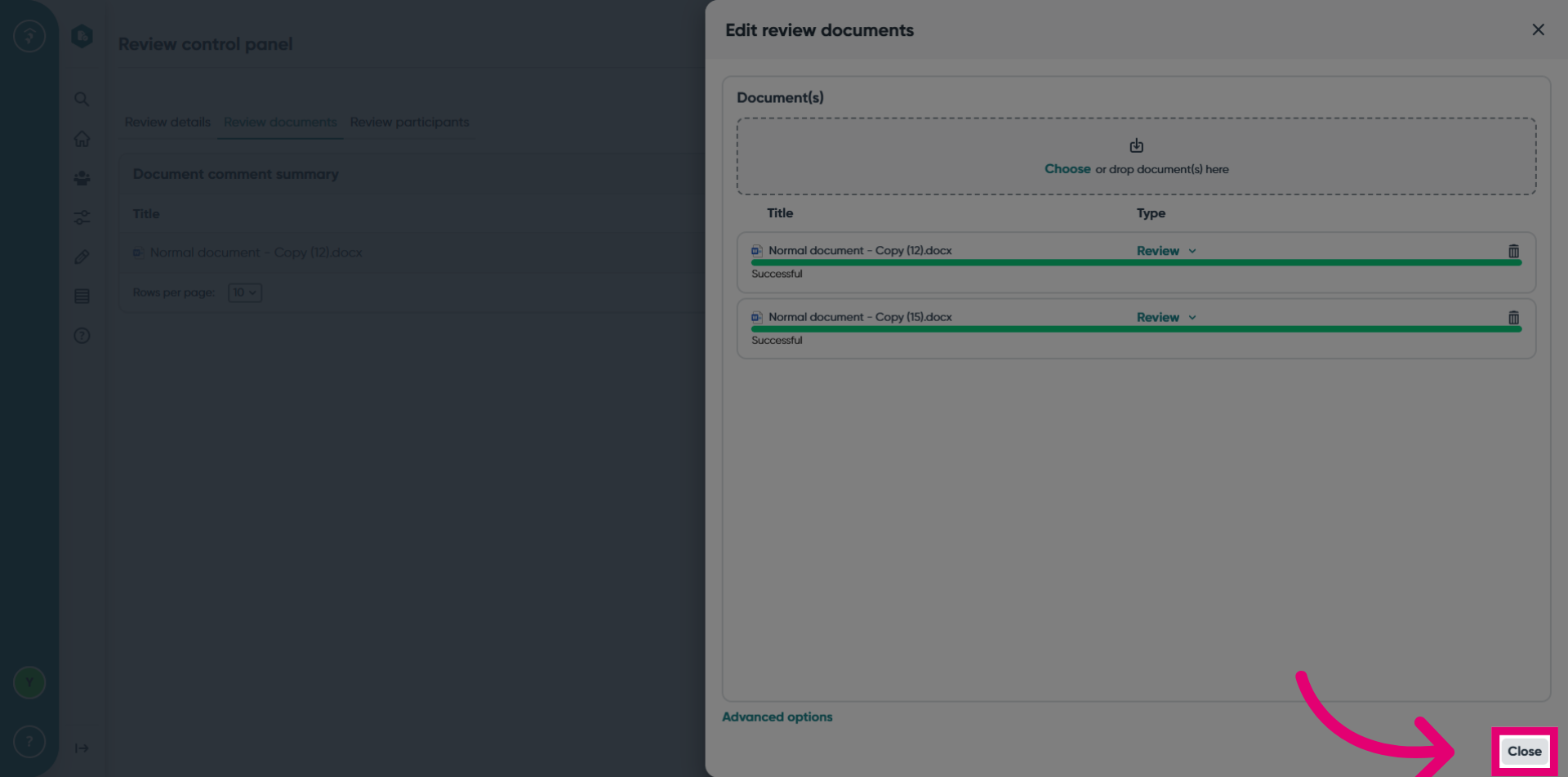
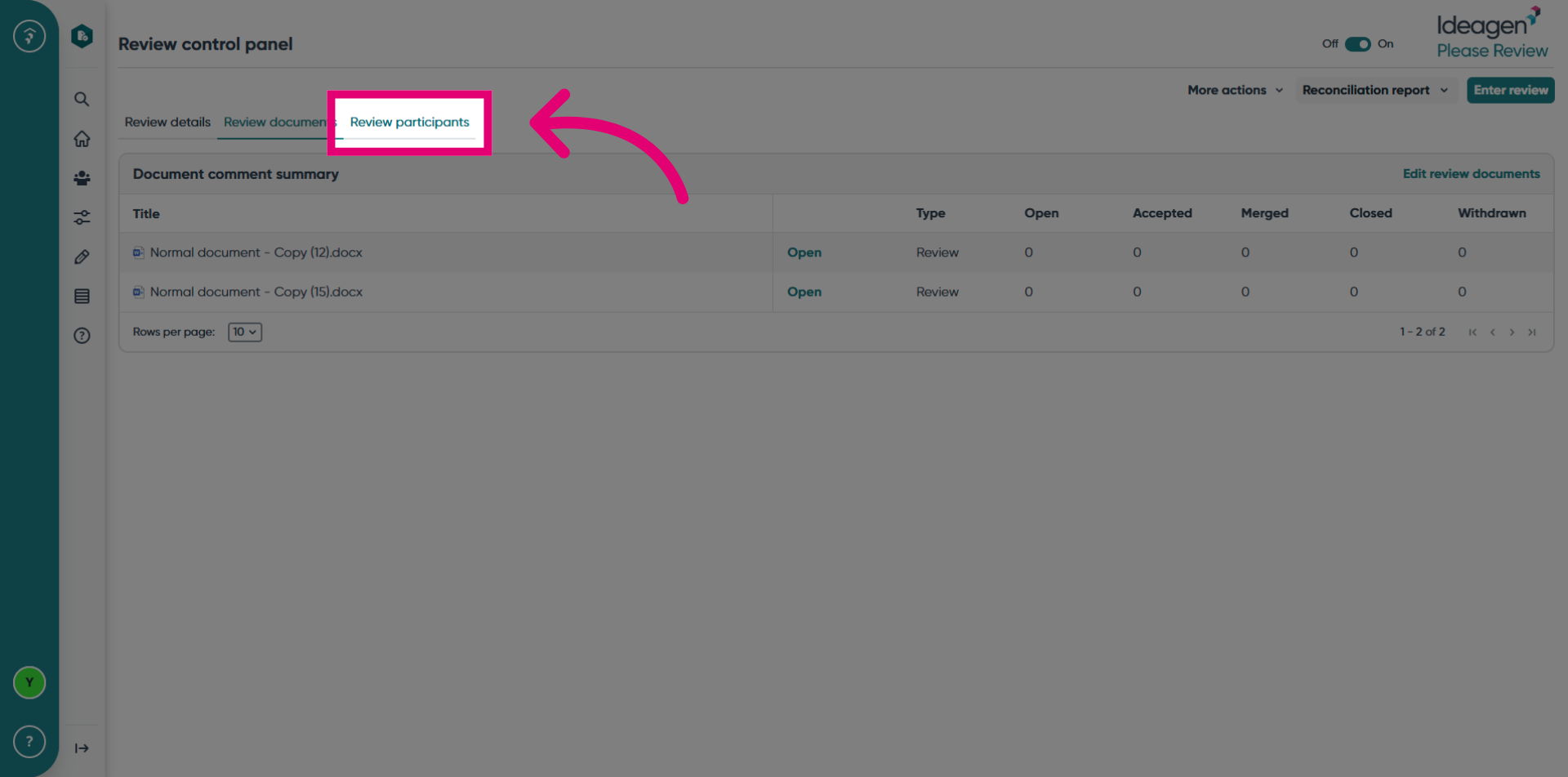
Select the Review participants tab if you need to review the participants in the review.