New article
Recently updated
Using the Hub Integration: Hub notifications

Who is this article for?
Users who want to learn about using Hub notifications.
No elevated permissions are required.
This demo showcases using Hub notifications.
1. Using Hub notifications
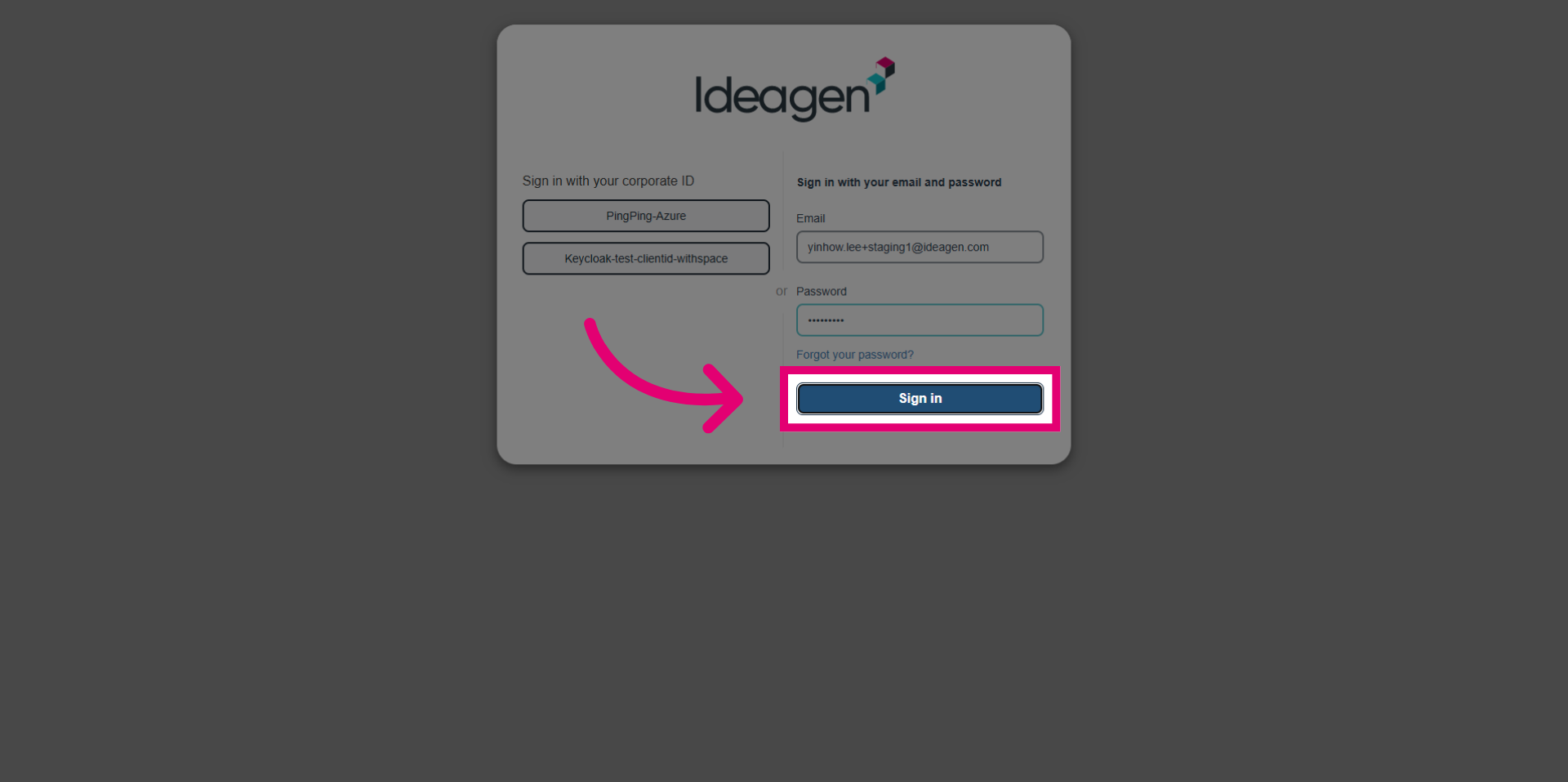
- Go to Hub login screen.
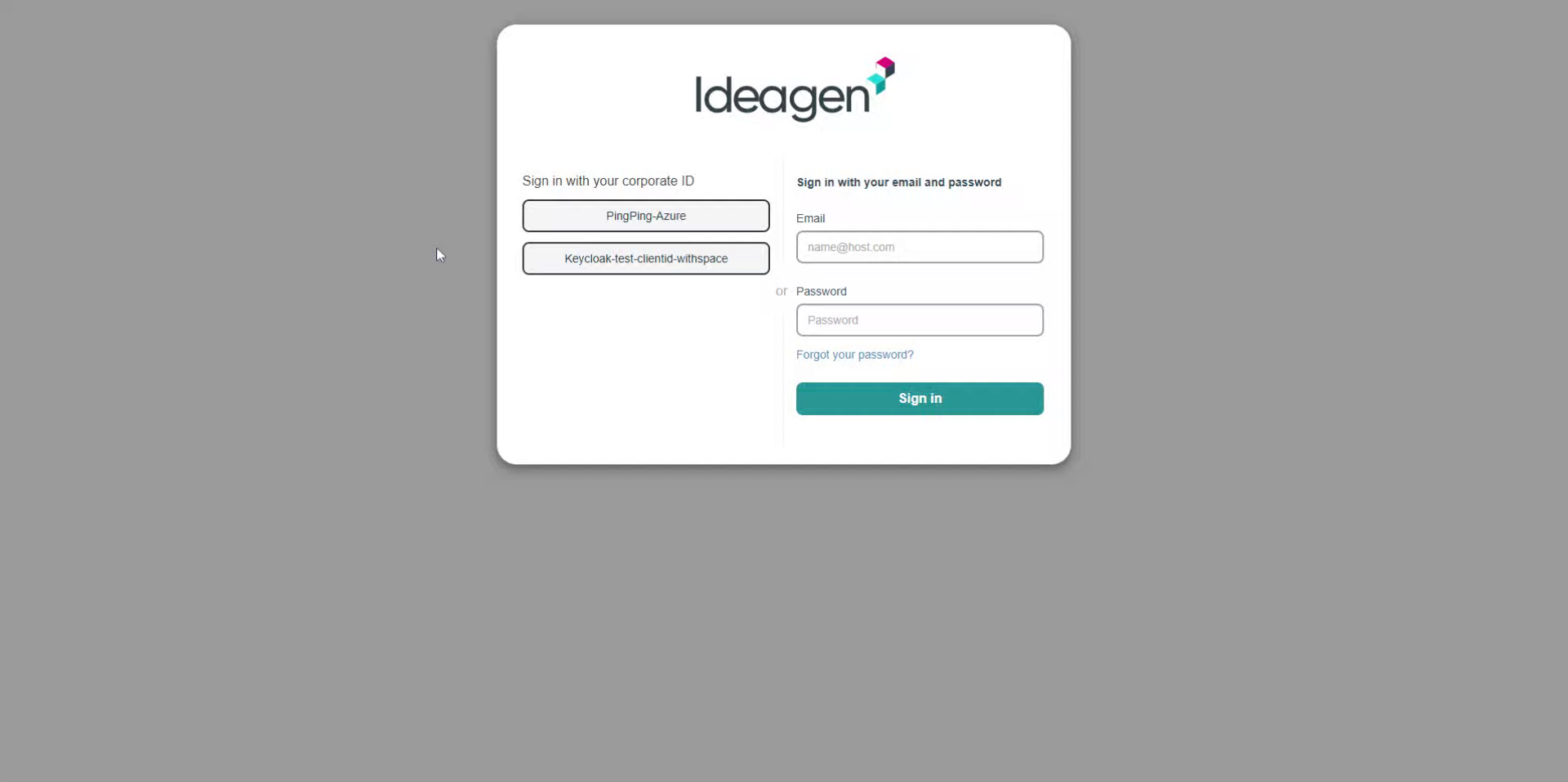
- Enter your email address to identify your user account securely.
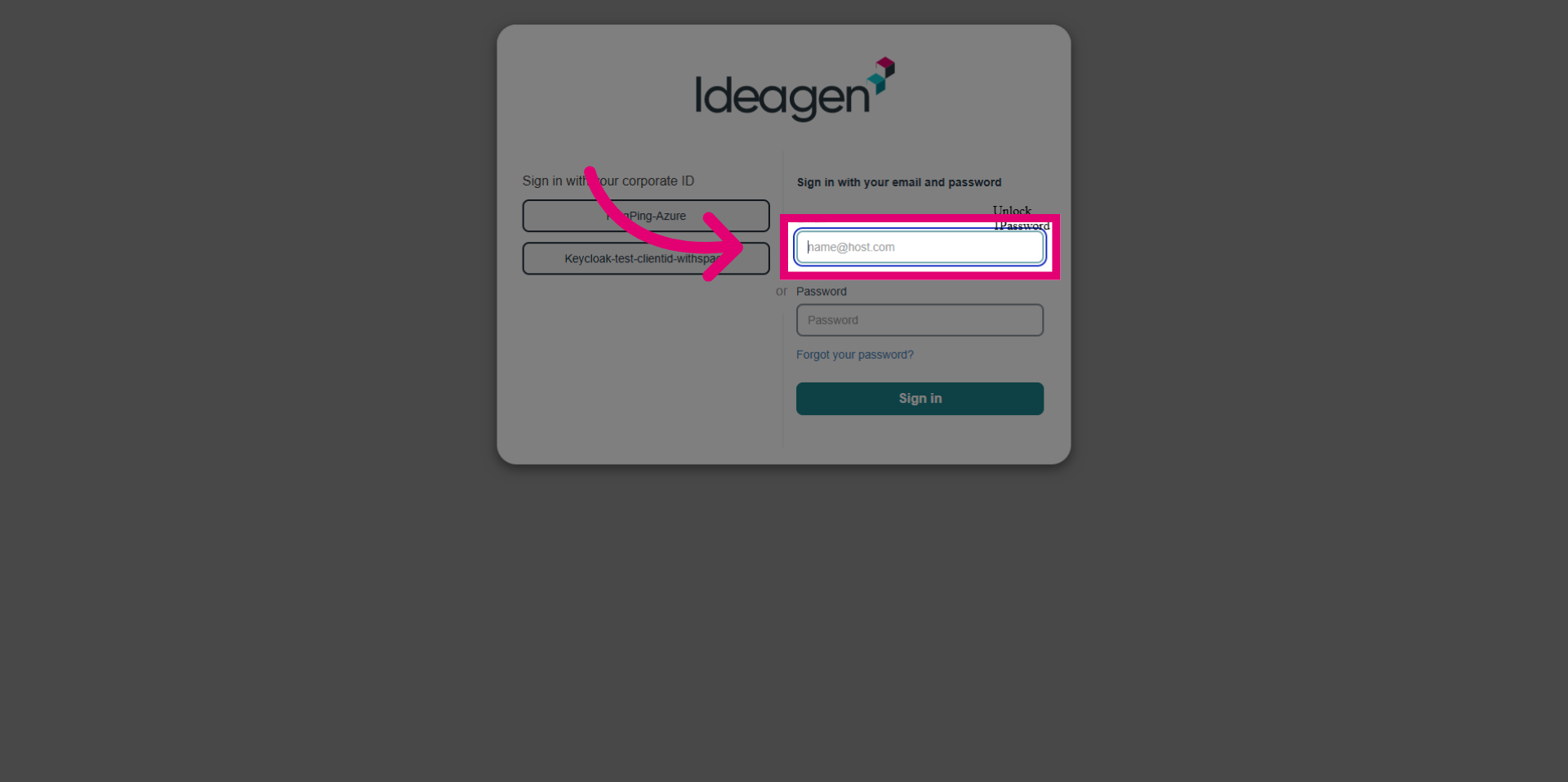
- Enter your password to authenticate your access.
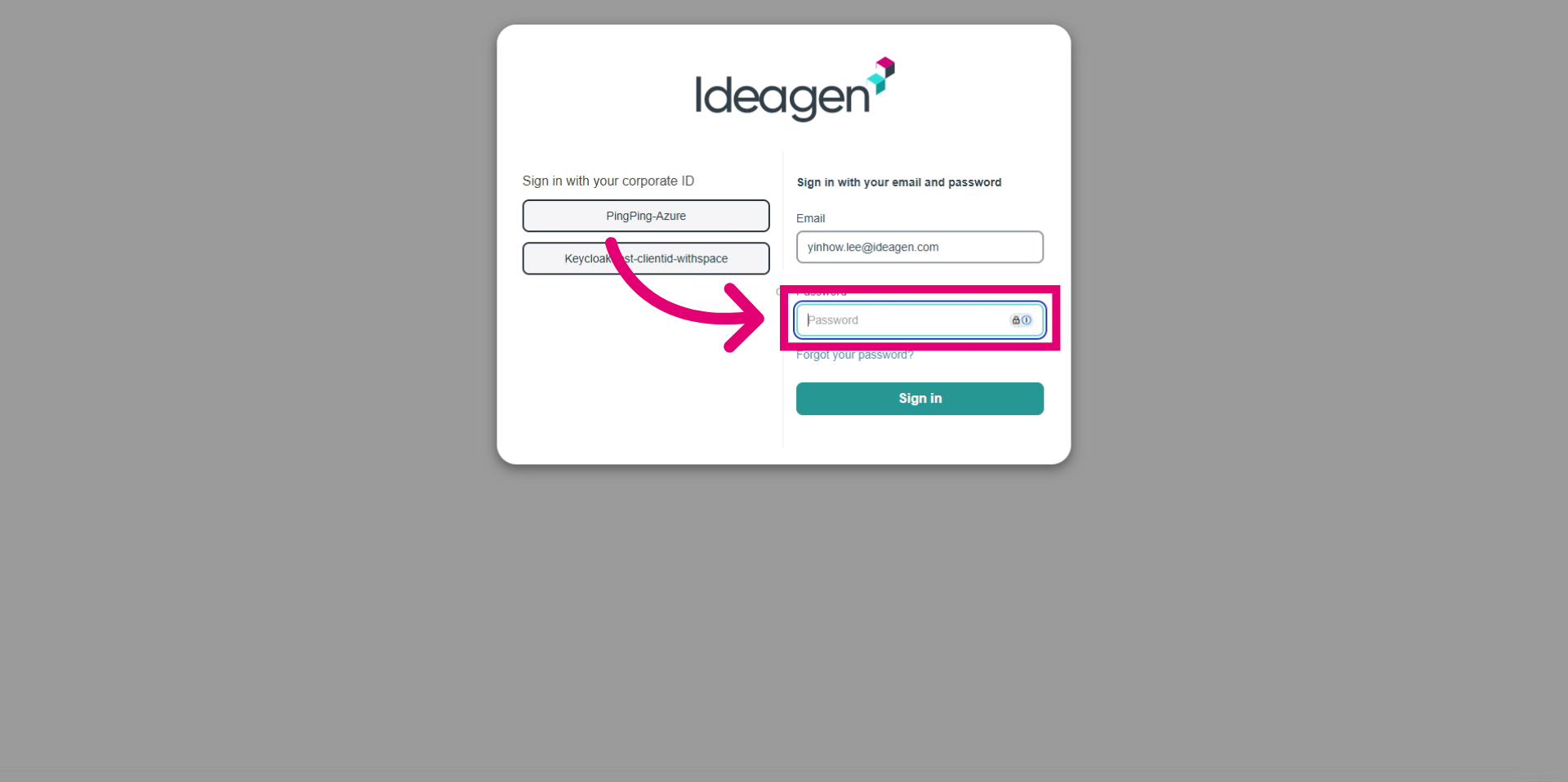
- Click the Sign in button to log in and access your account.
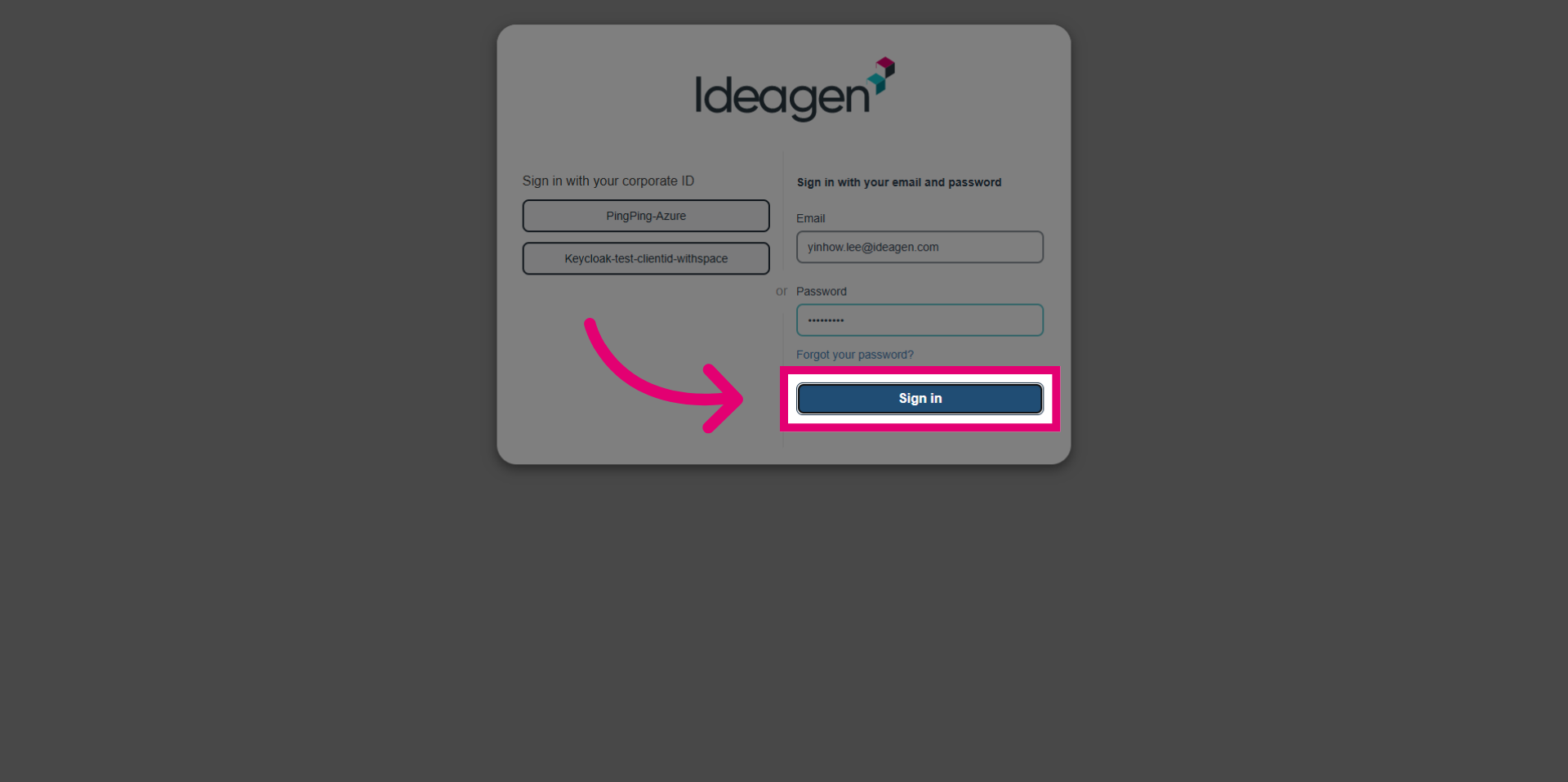
- Click the Ideagen Please Review option to access the instances.
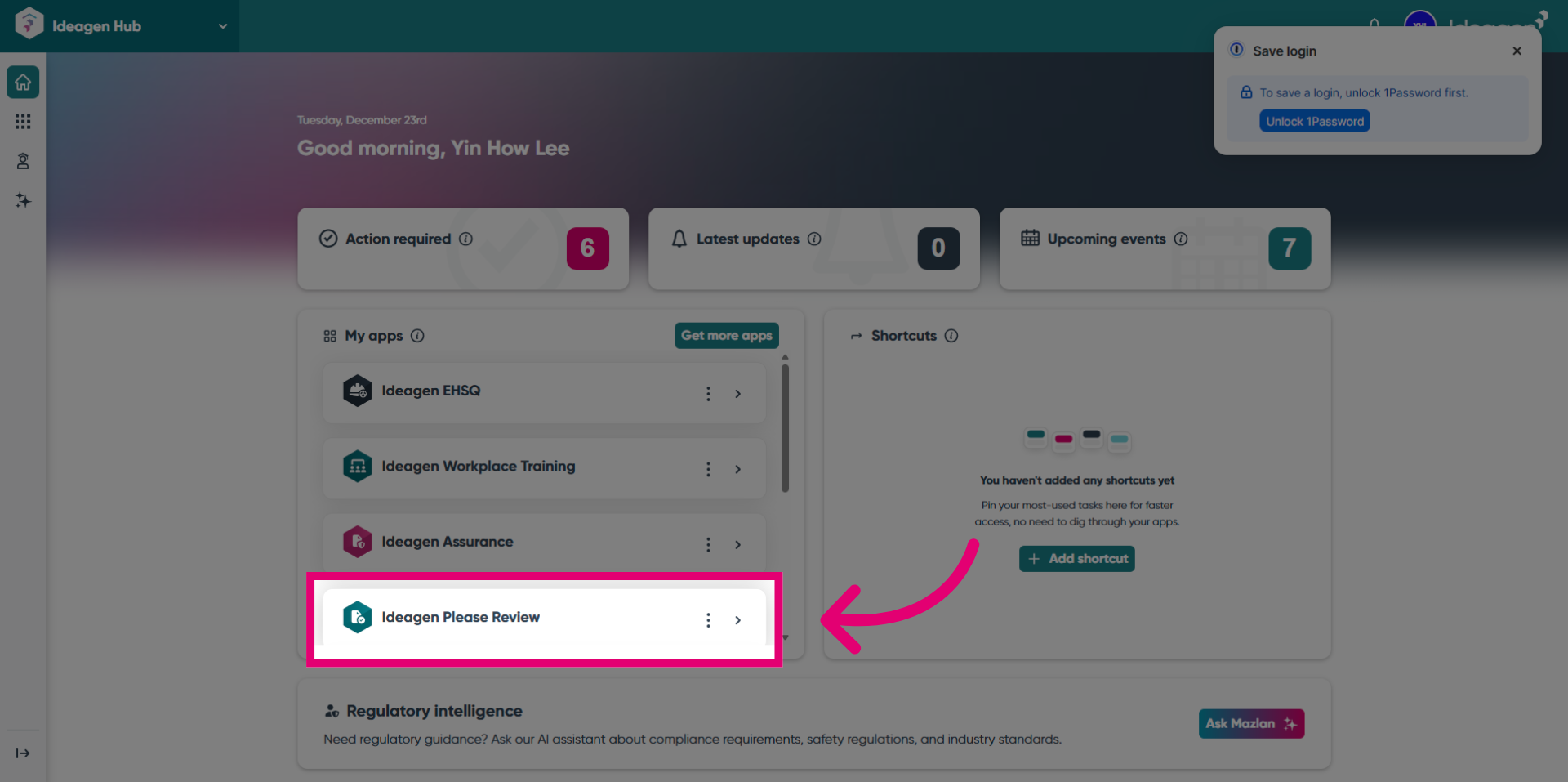
- Click the Open button for Staging 1 to access the instance.
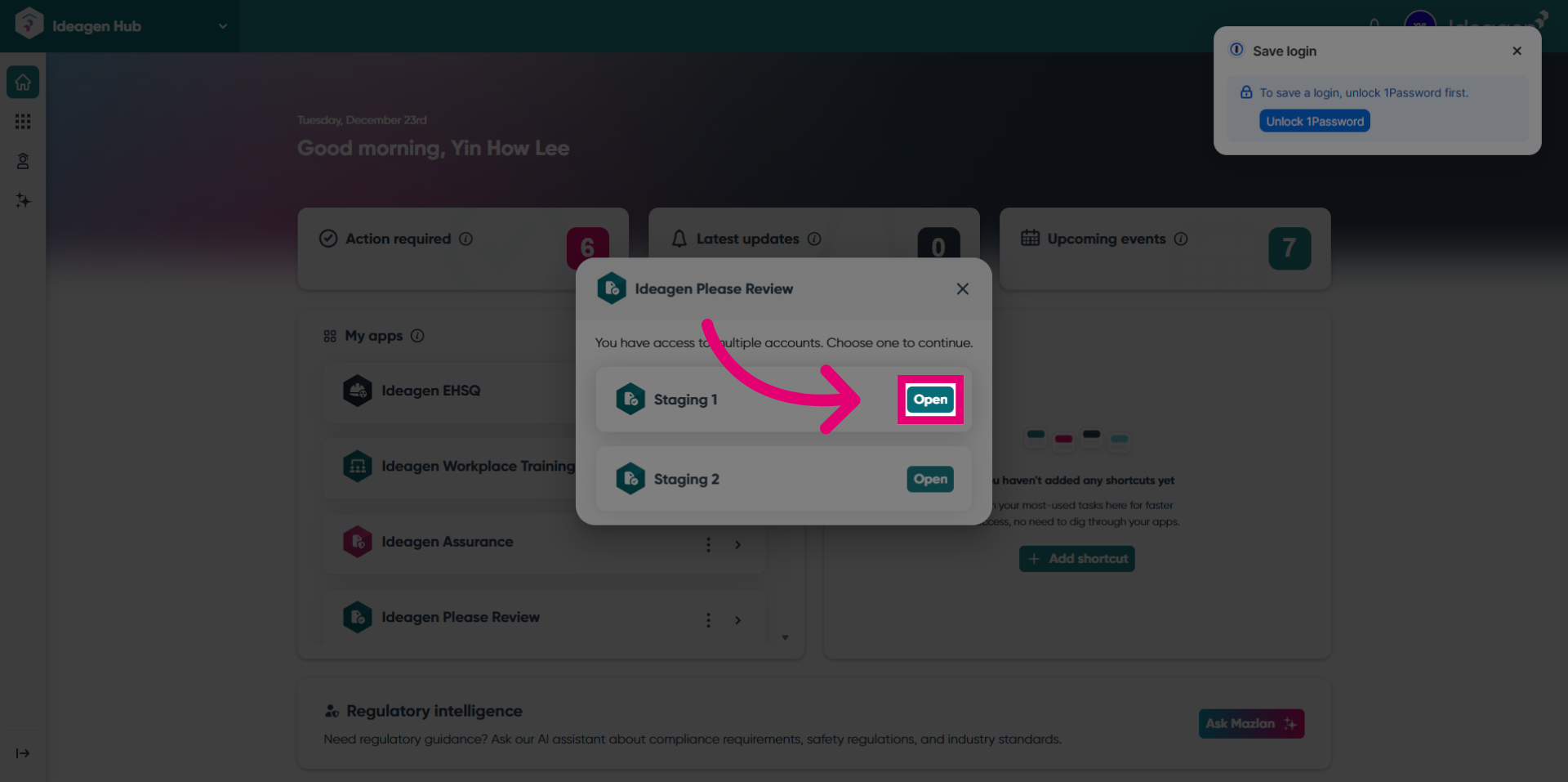
- You are redirected to Please Review.
- Click the New review button to begin the review creation process.
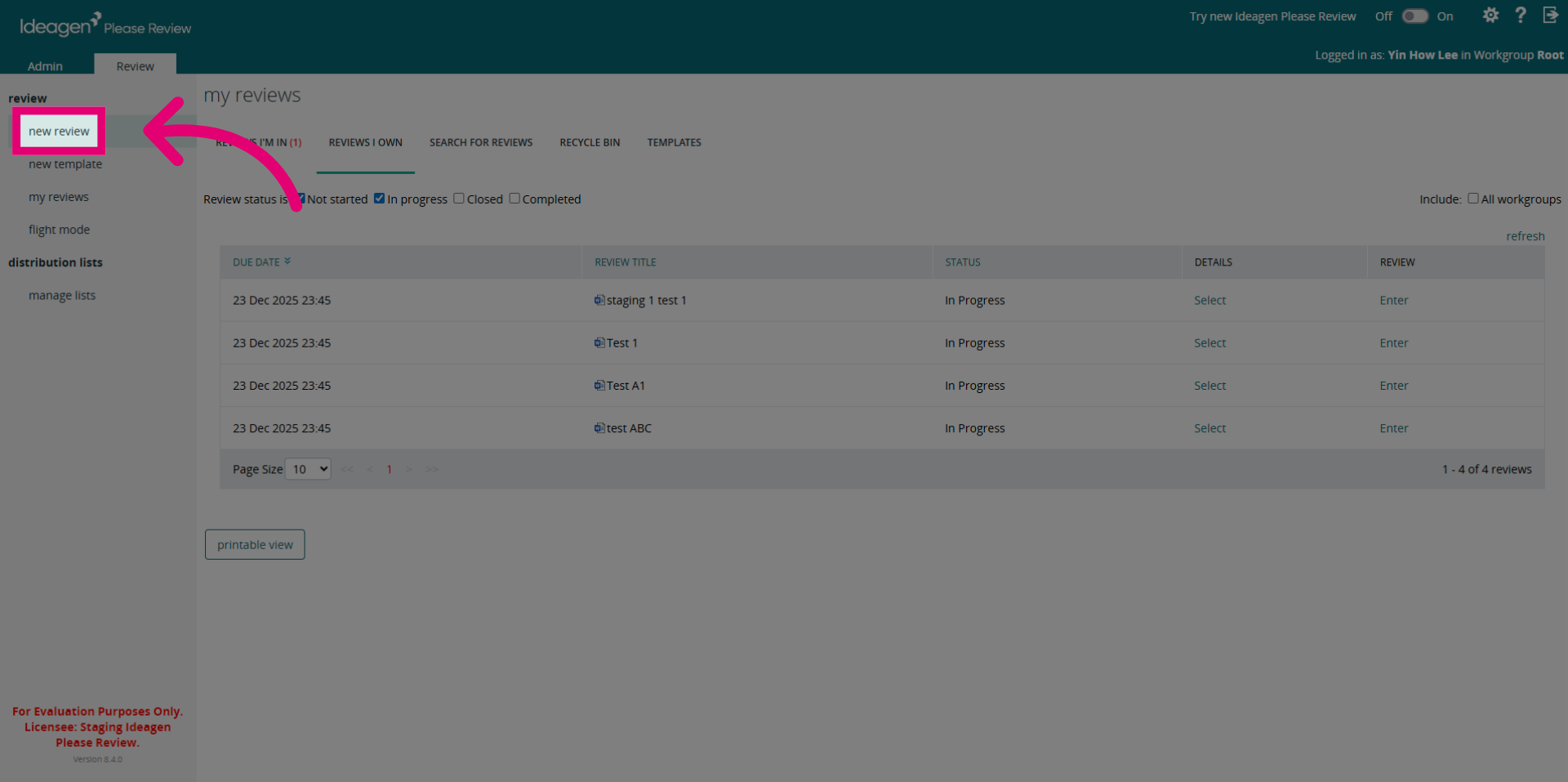
- Enter the review title.
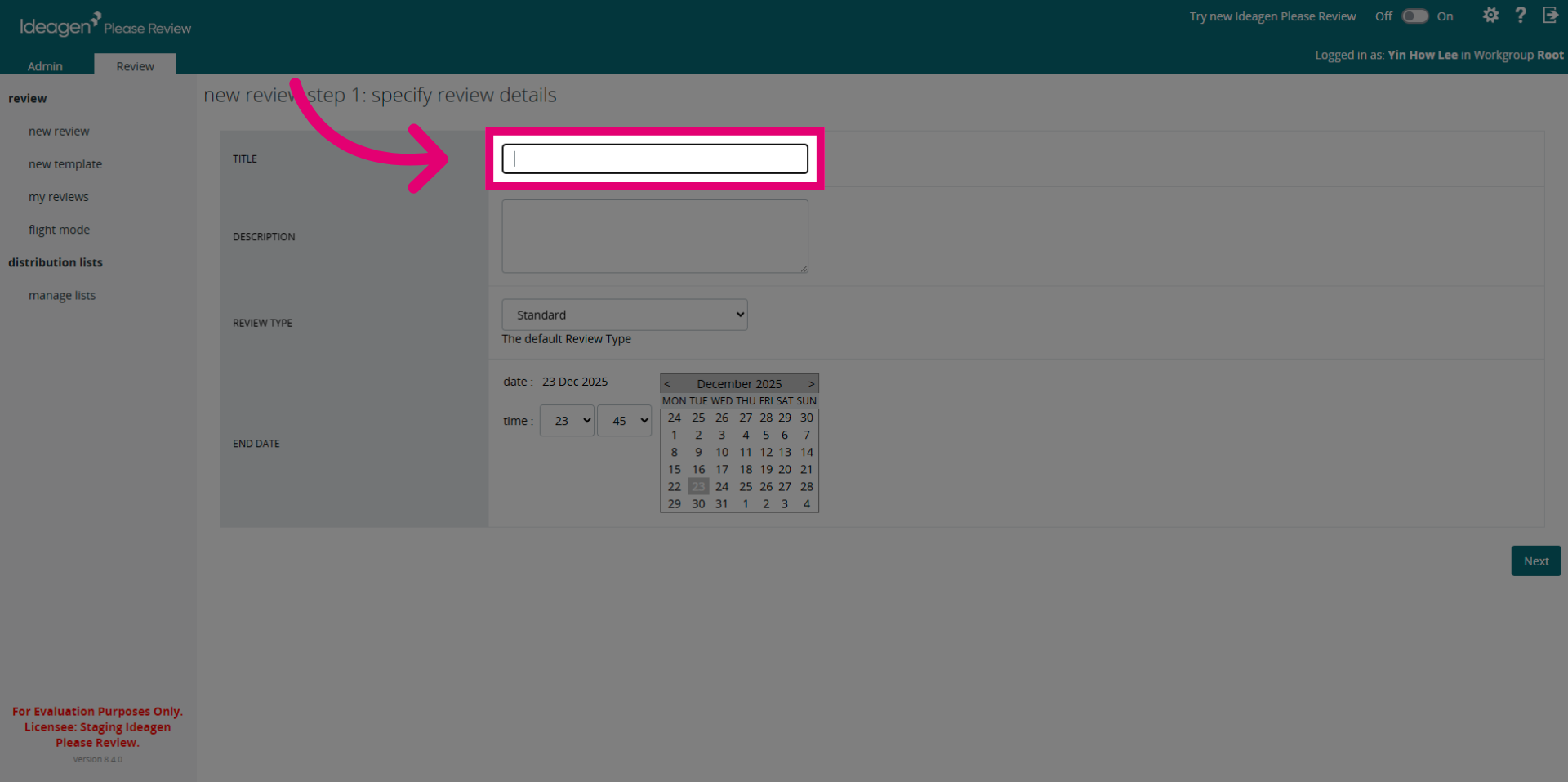
- Click Next to continue with the review creation process.
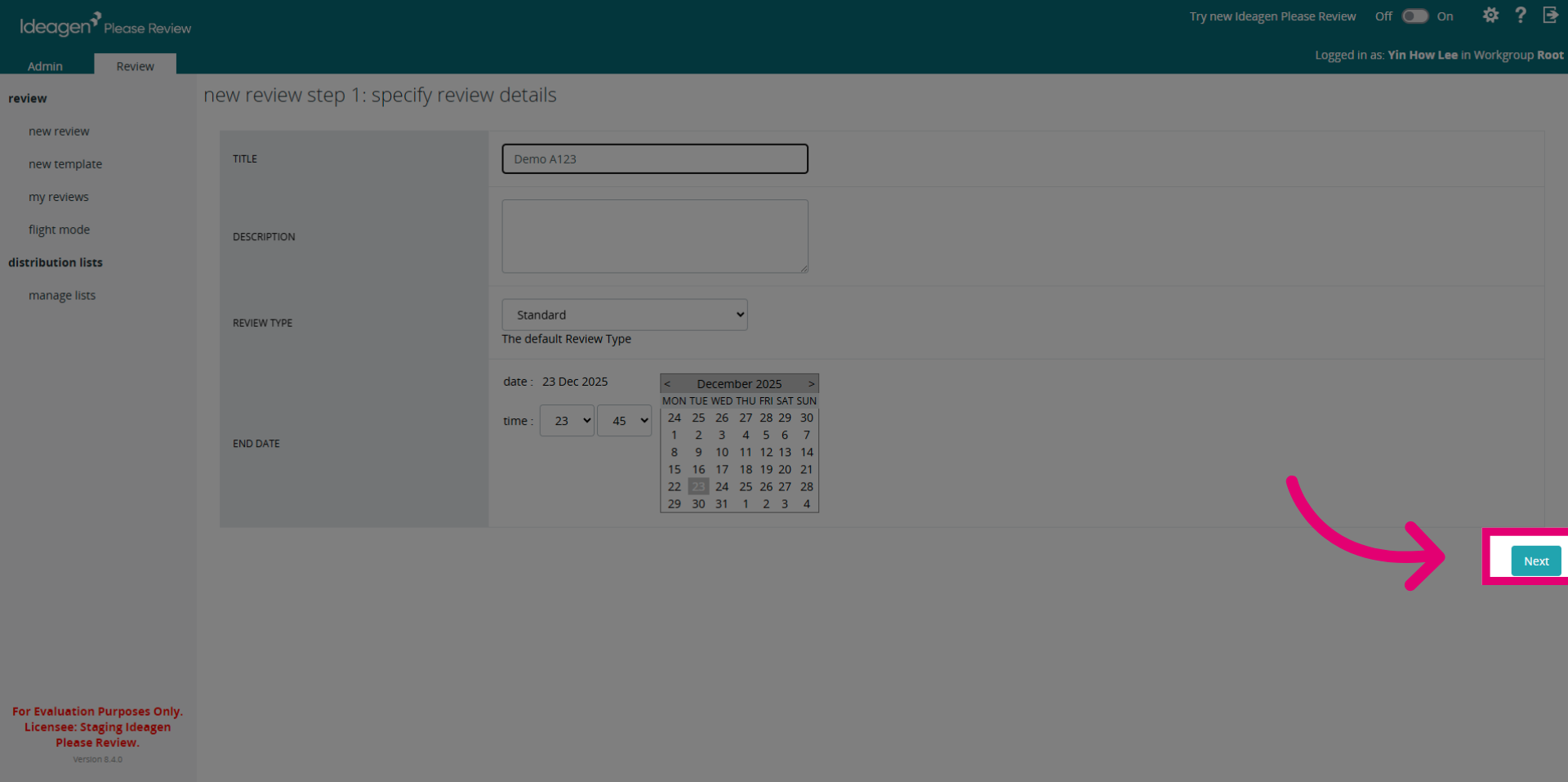
- Upload a document to the review.
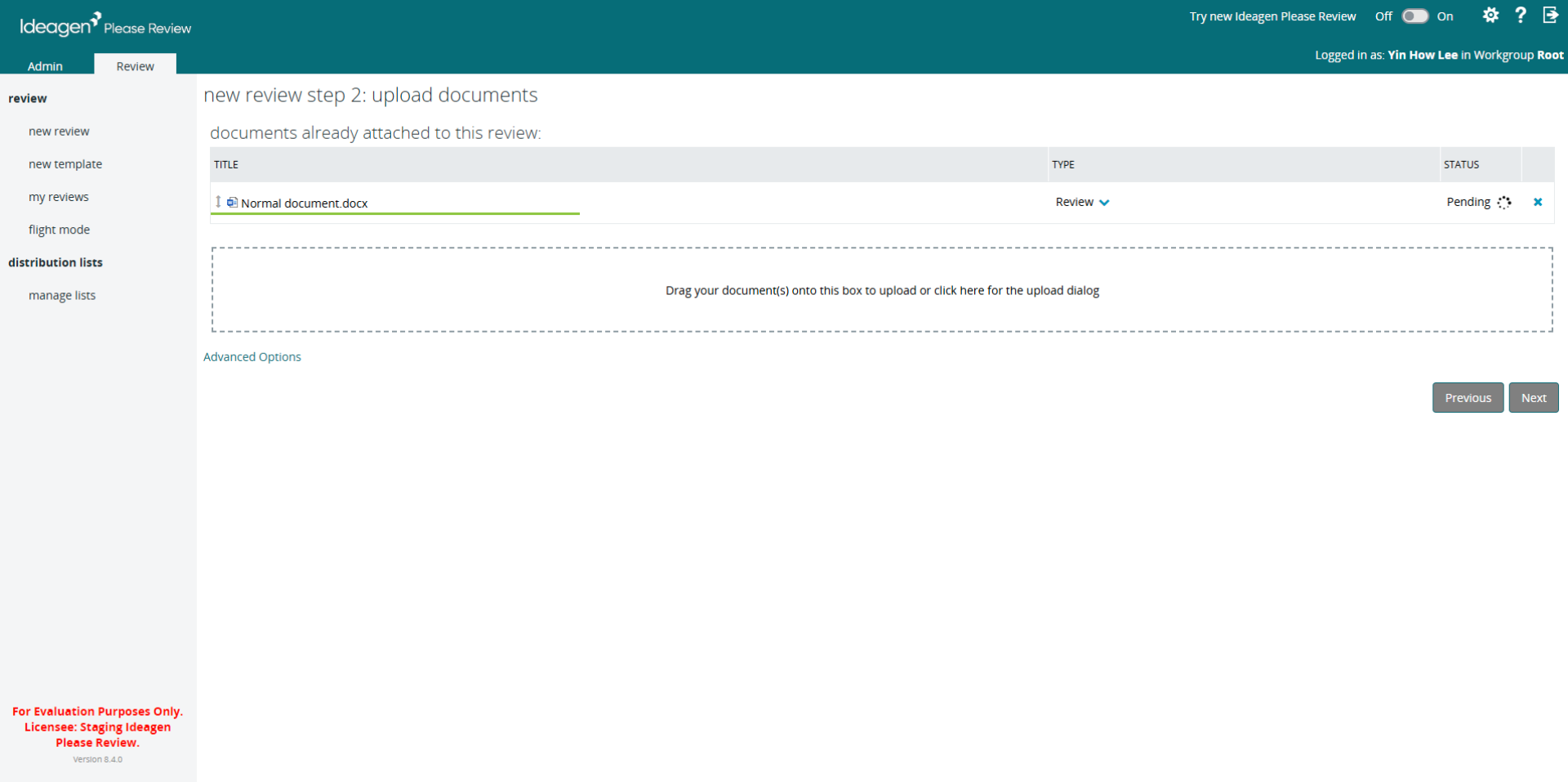
- Click Next to move forward, after uploading your documents.
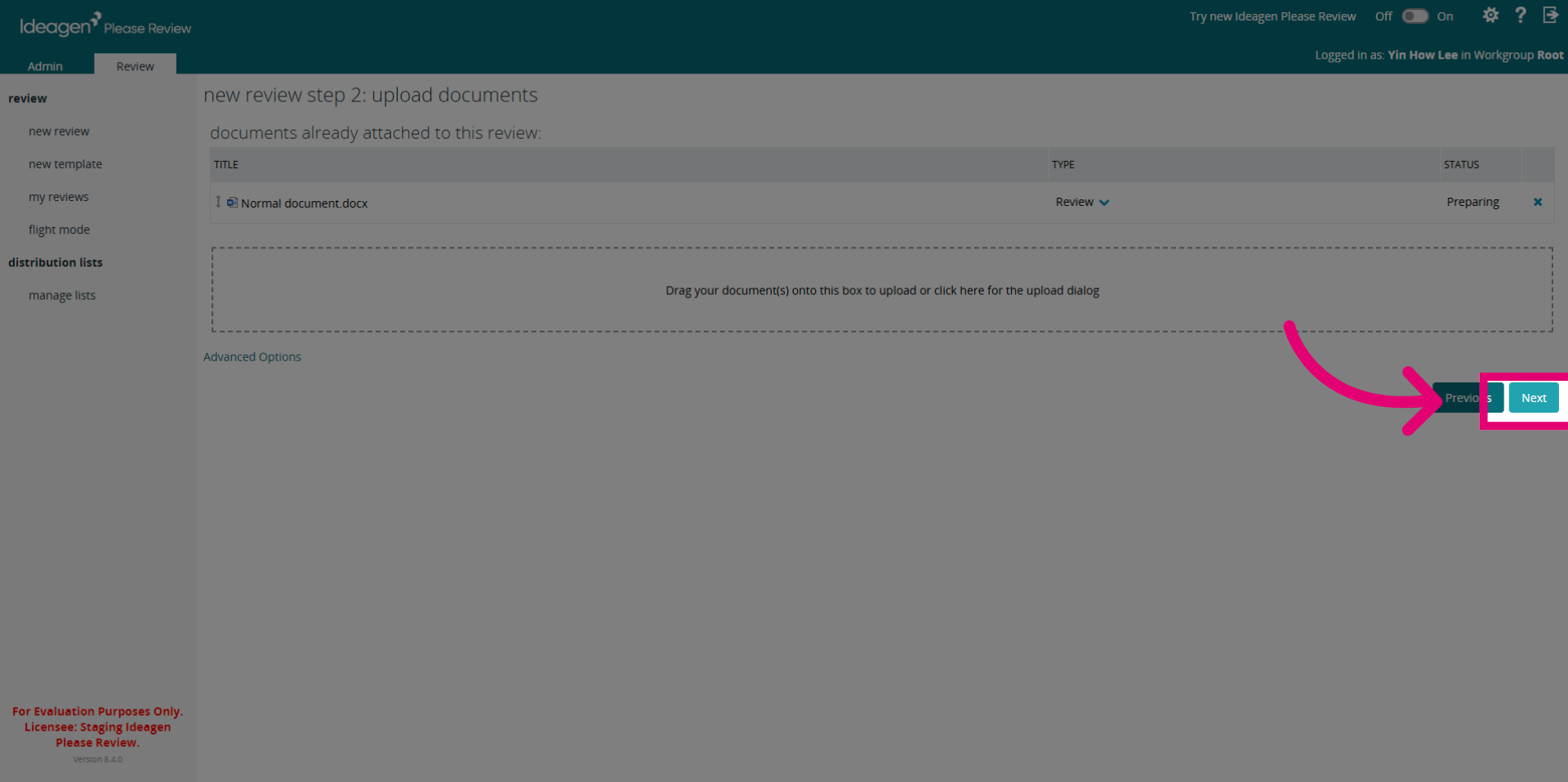
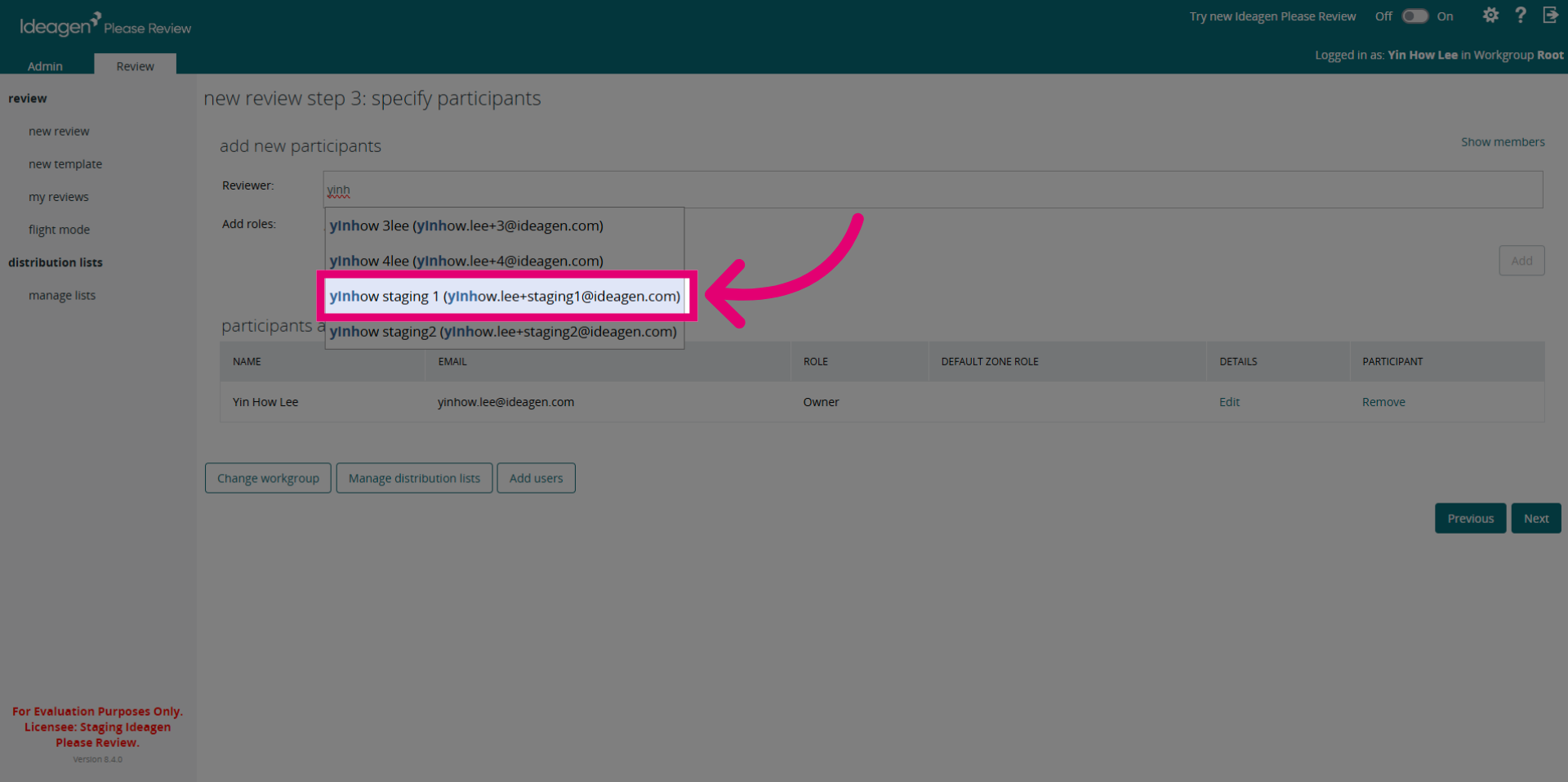
- Select participants who will be involved in the review.
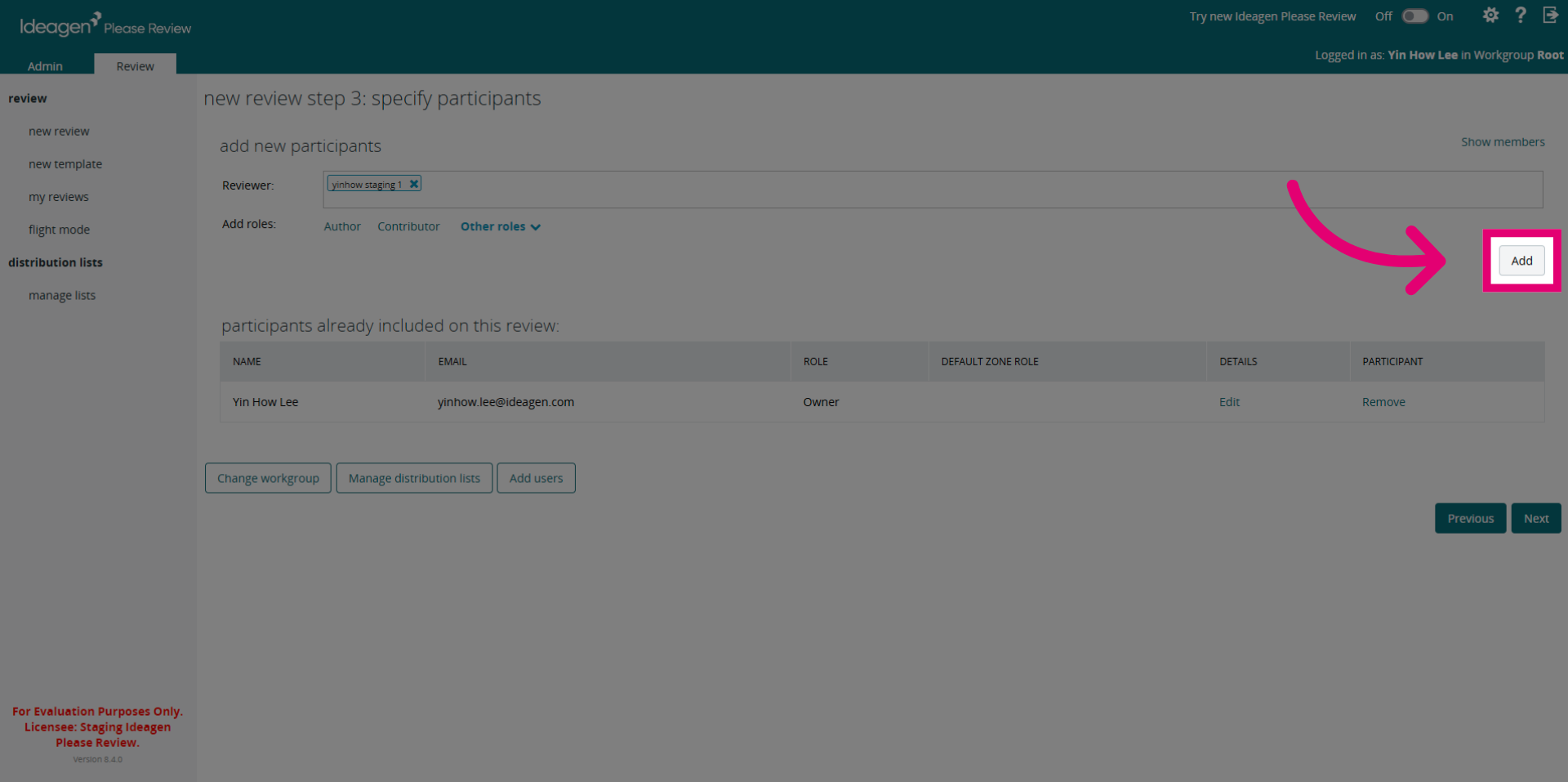
- Click Add to include them into the review.
- Click Next to continue setting up the review.
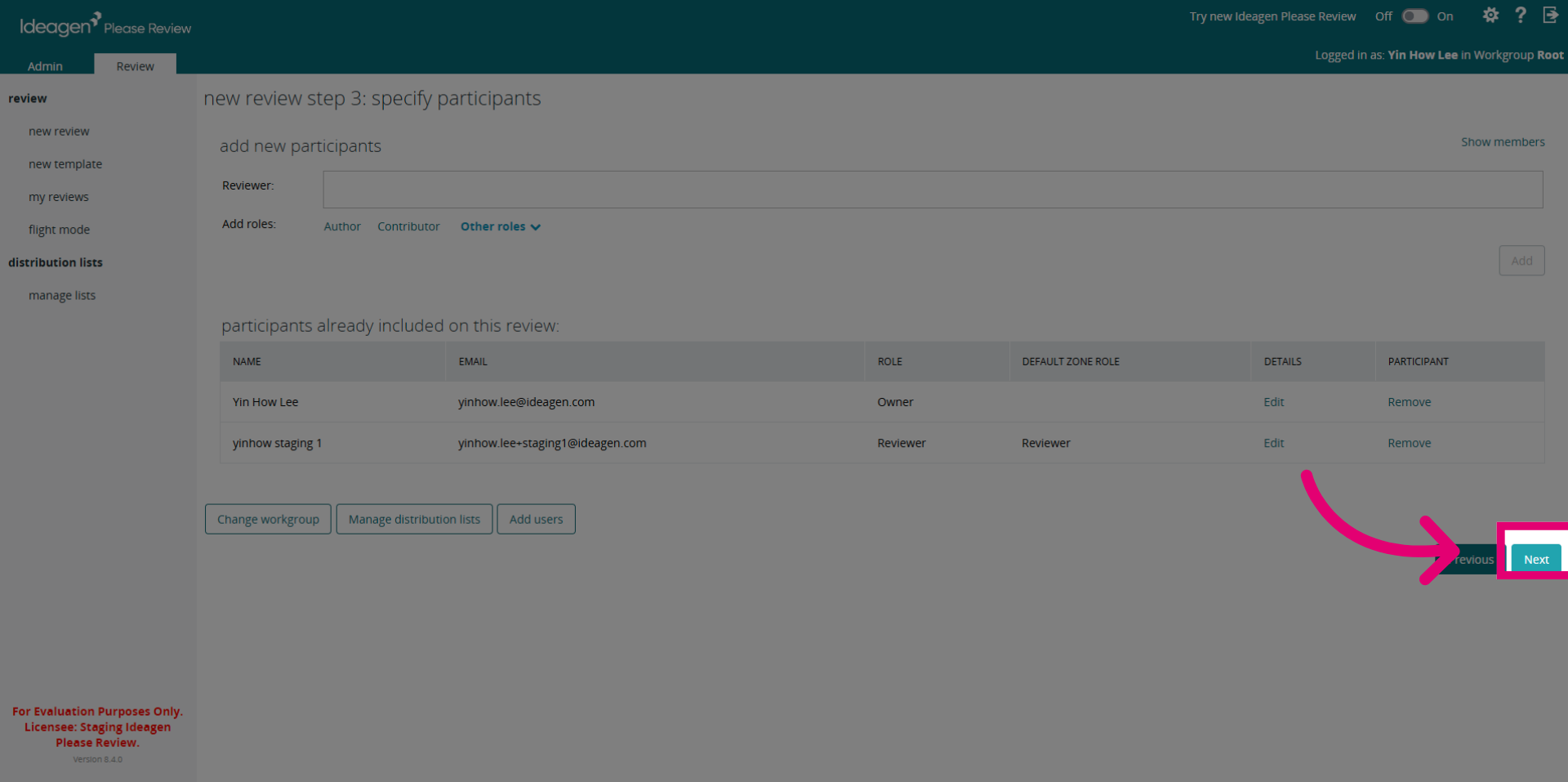
- Click Next to finalize the review setup before starting.
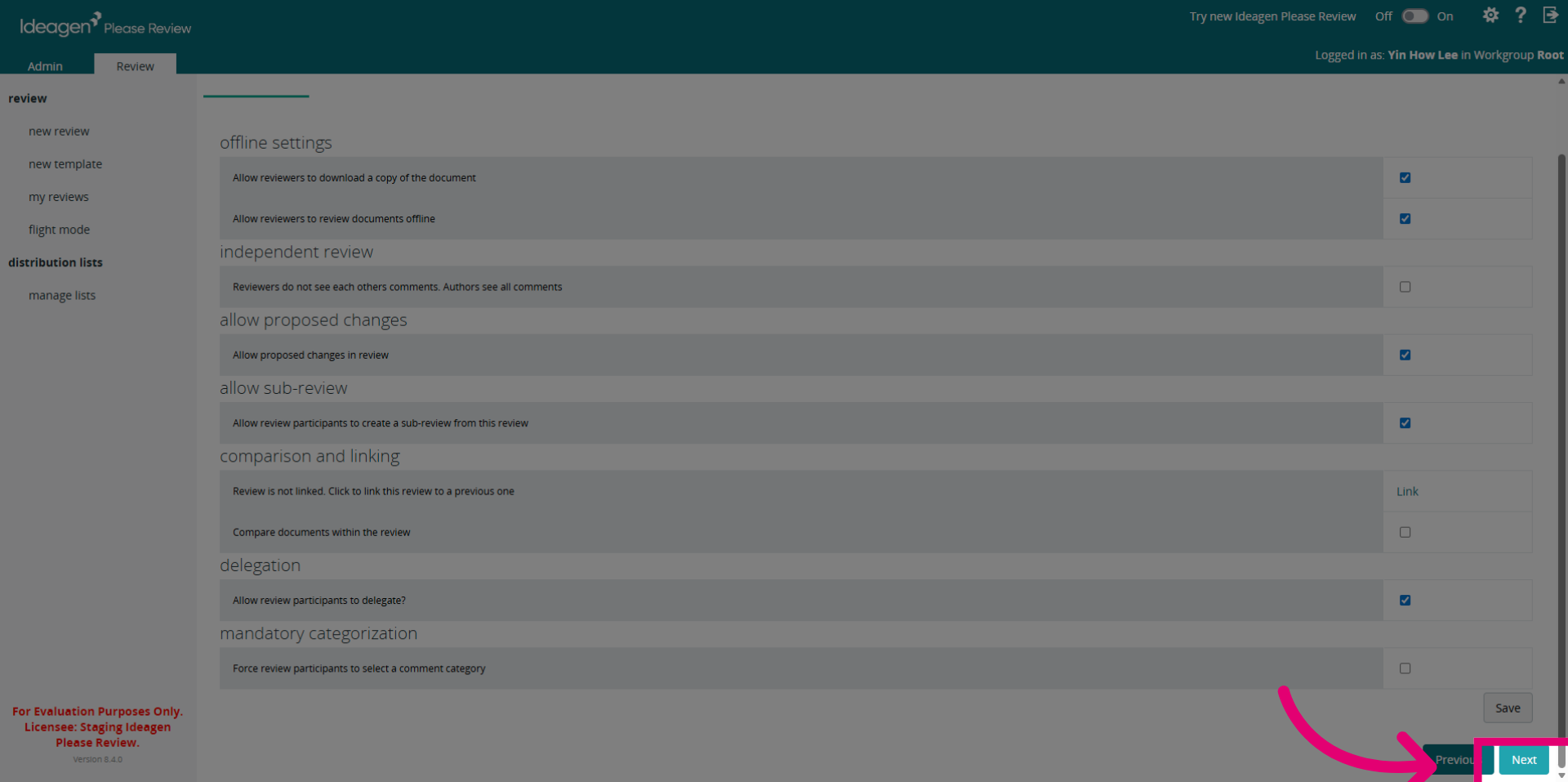
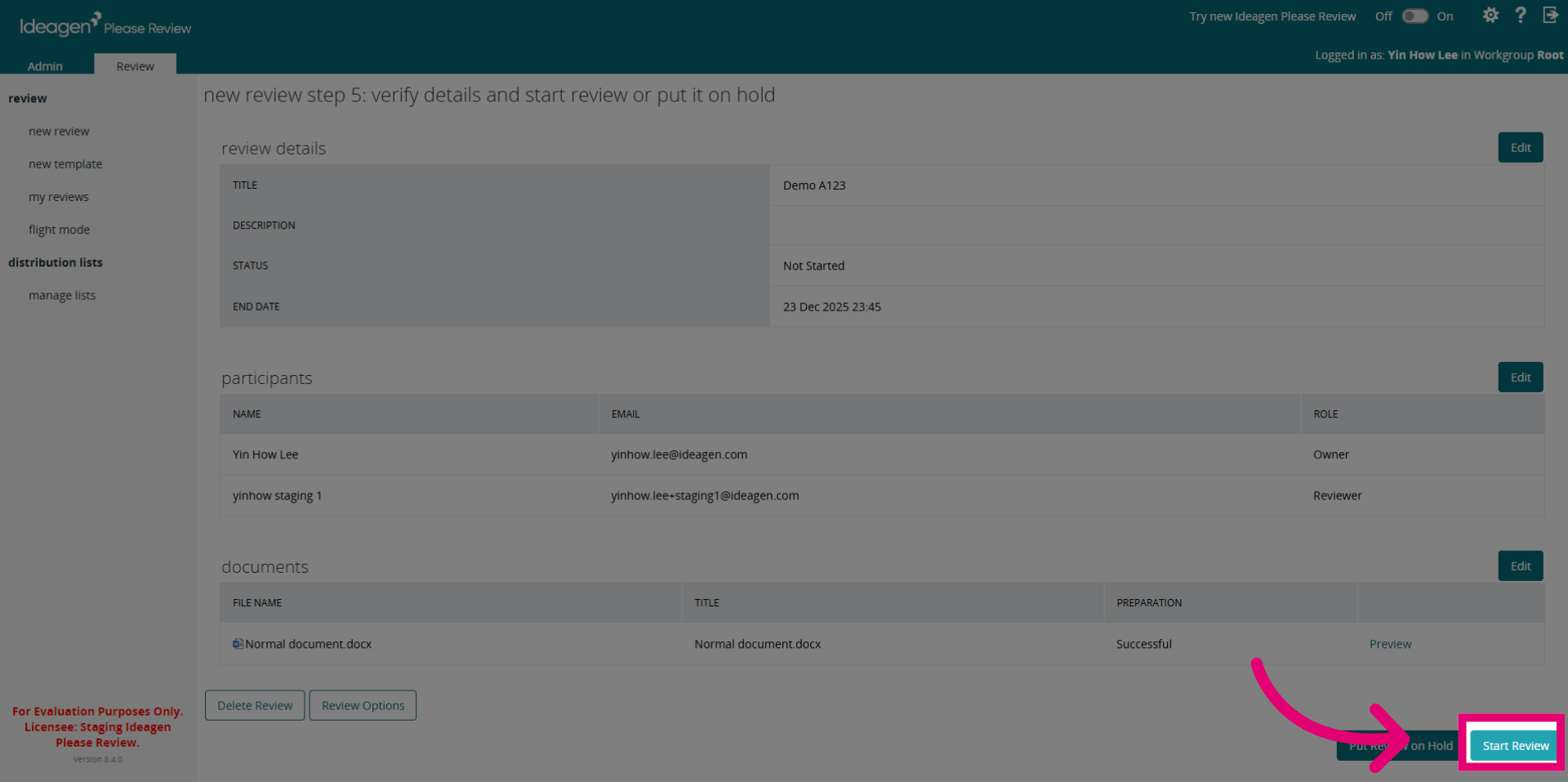
- Click Start Review to complete the process.
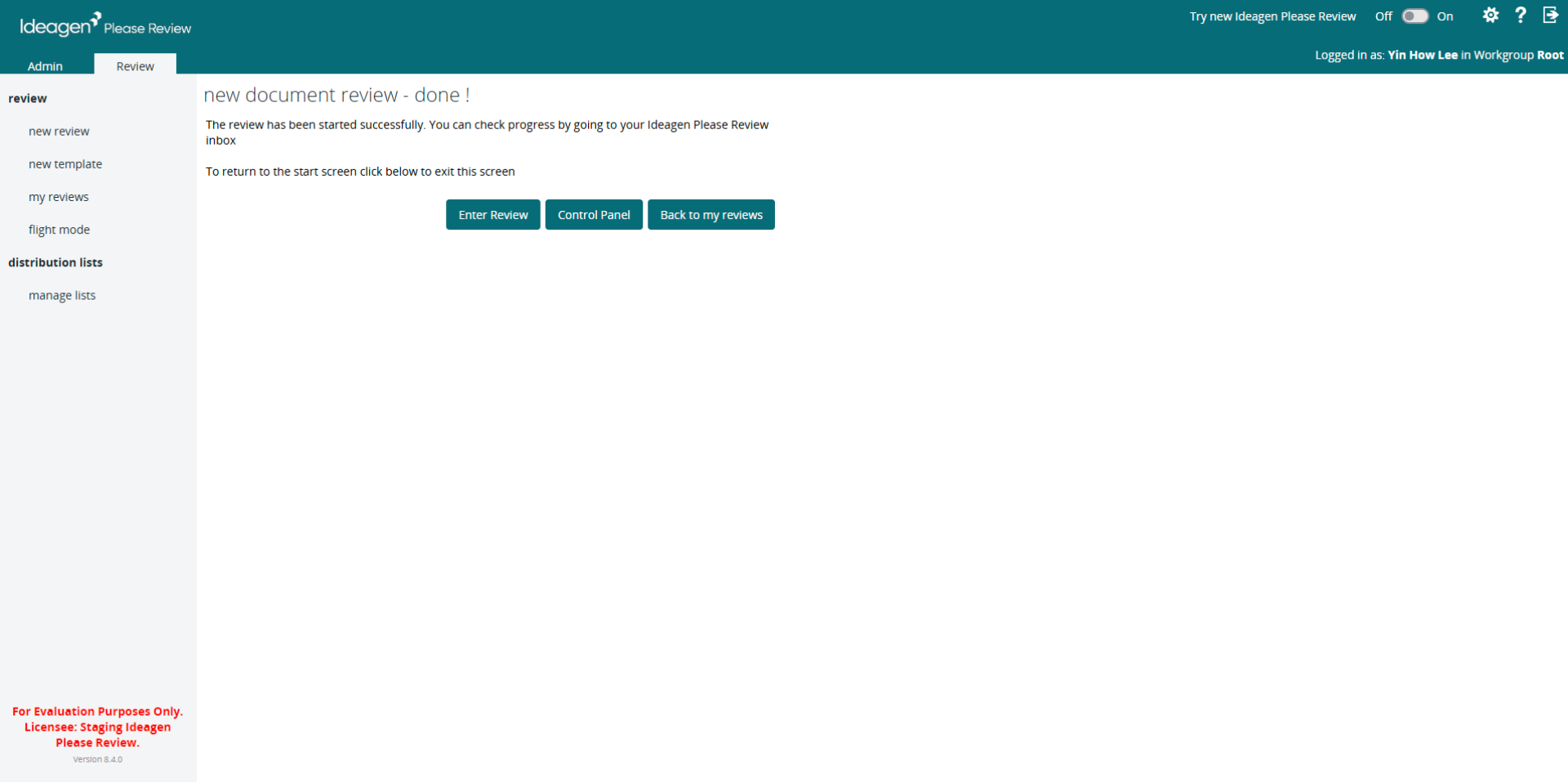
- The review has been started successfully. You can start reviewing the documents.
- Switch back to Hub.
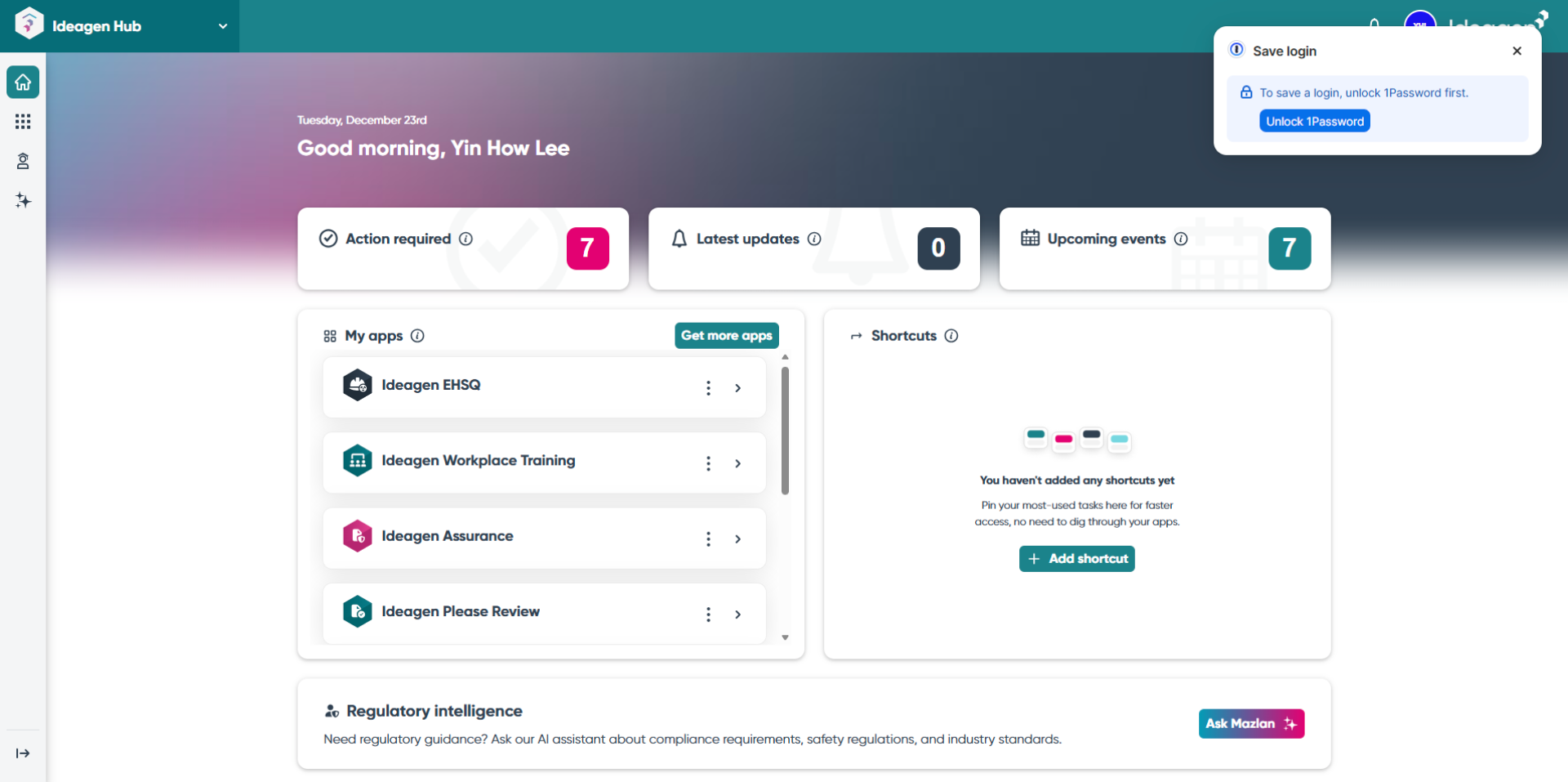
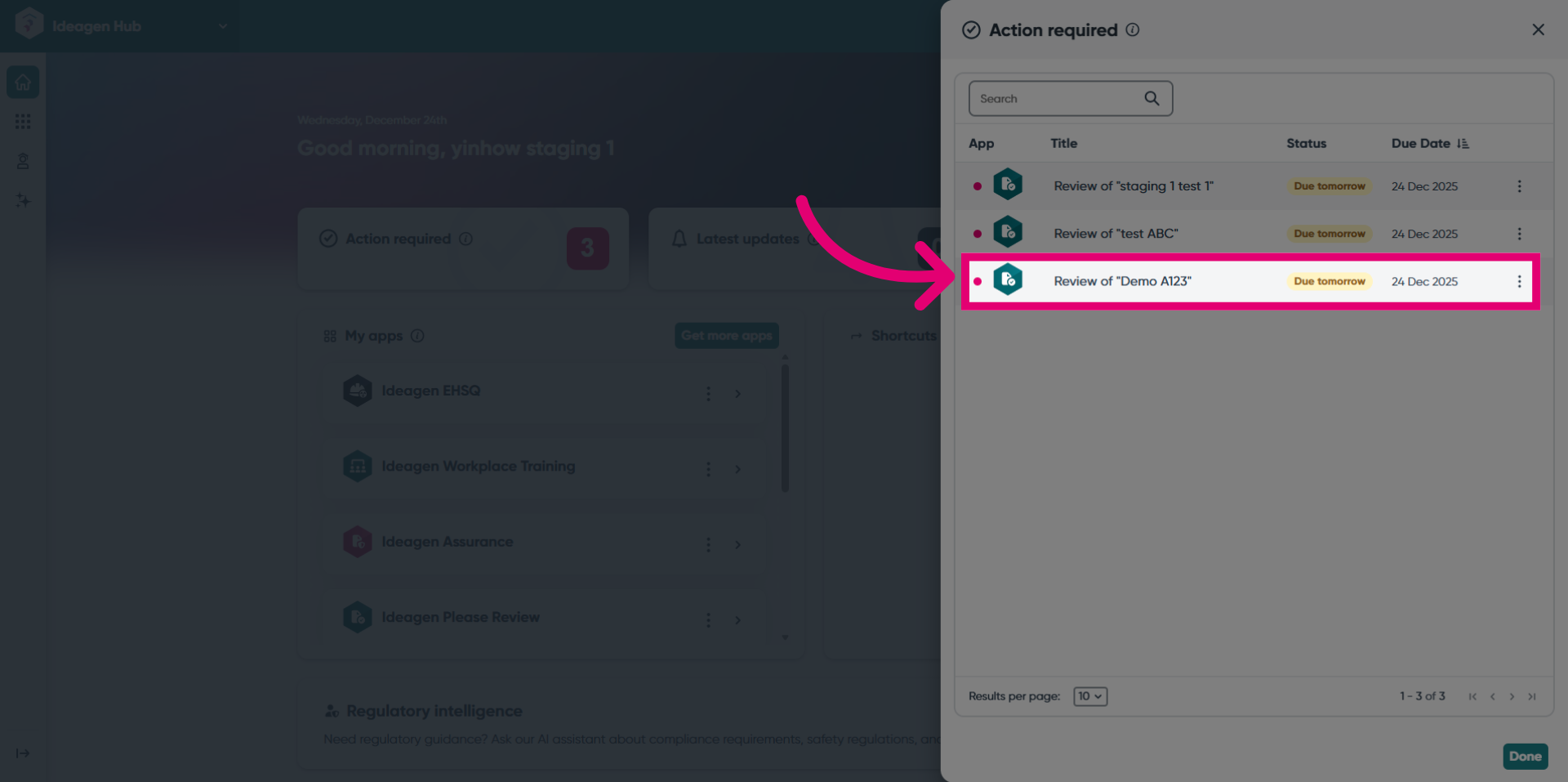
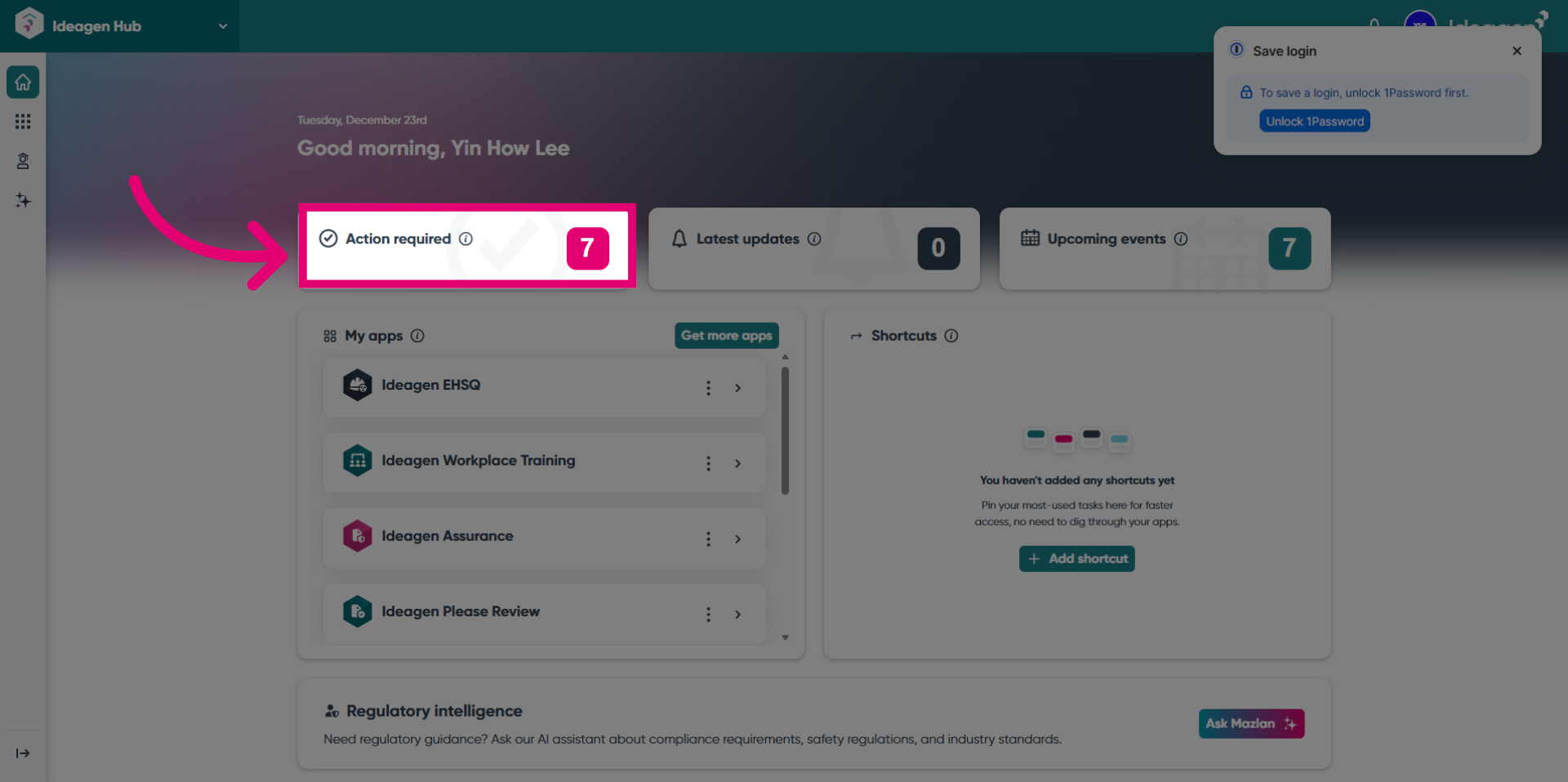
- Click Action Required to view the notifications.
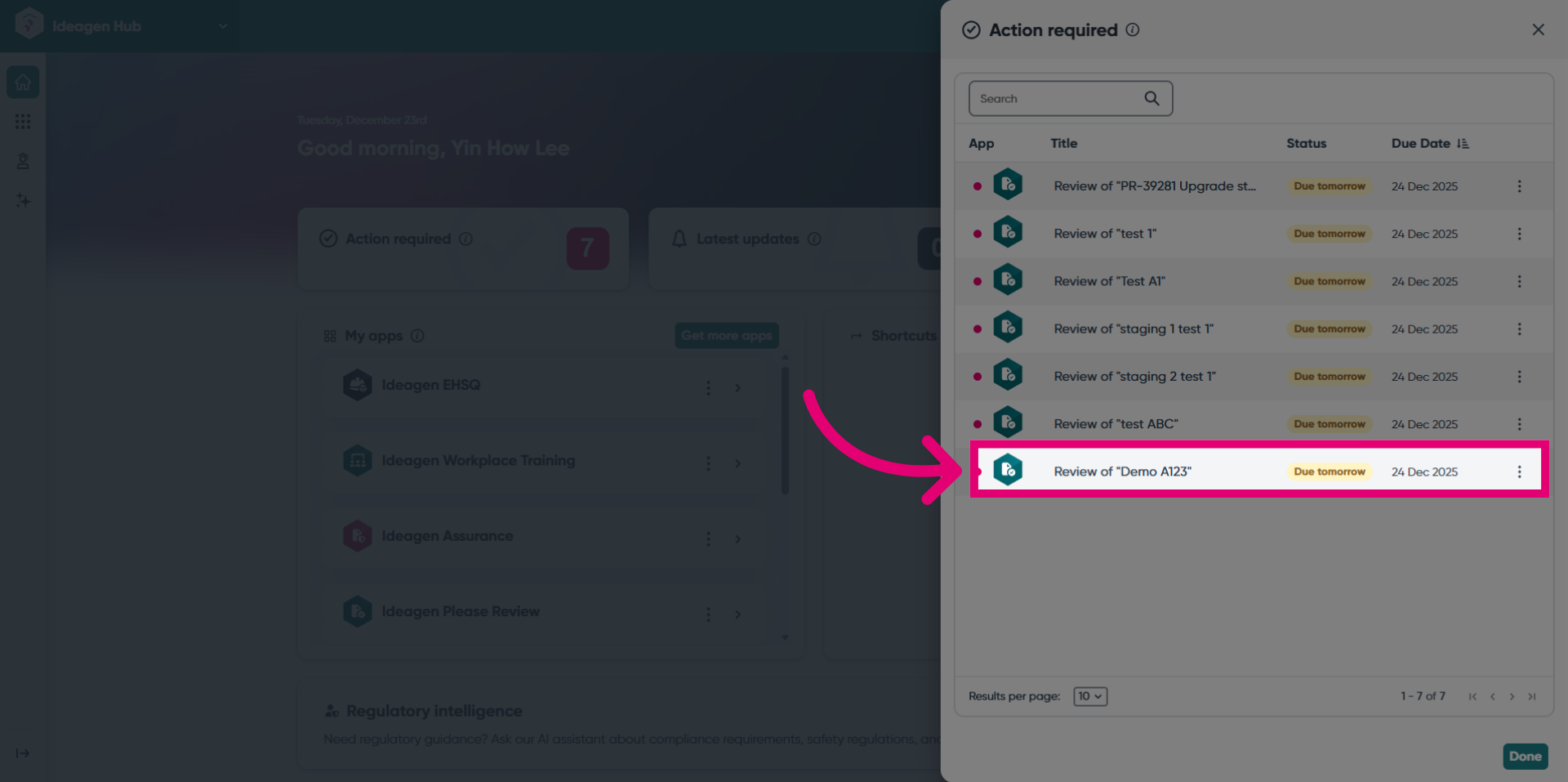
- A notification for the newly created review was received.
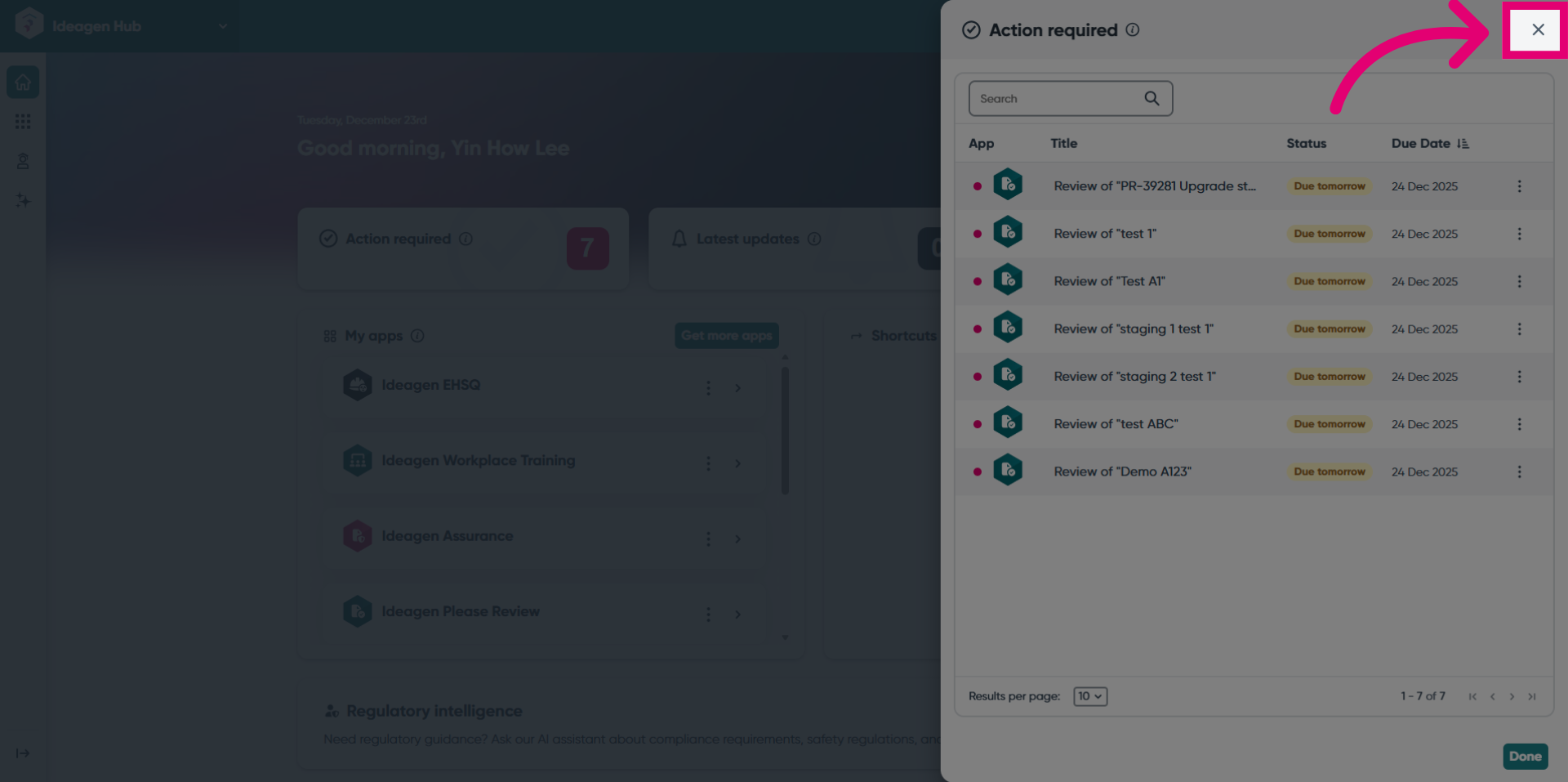
- Click here to close the drawer.
- Click the User Profile button.
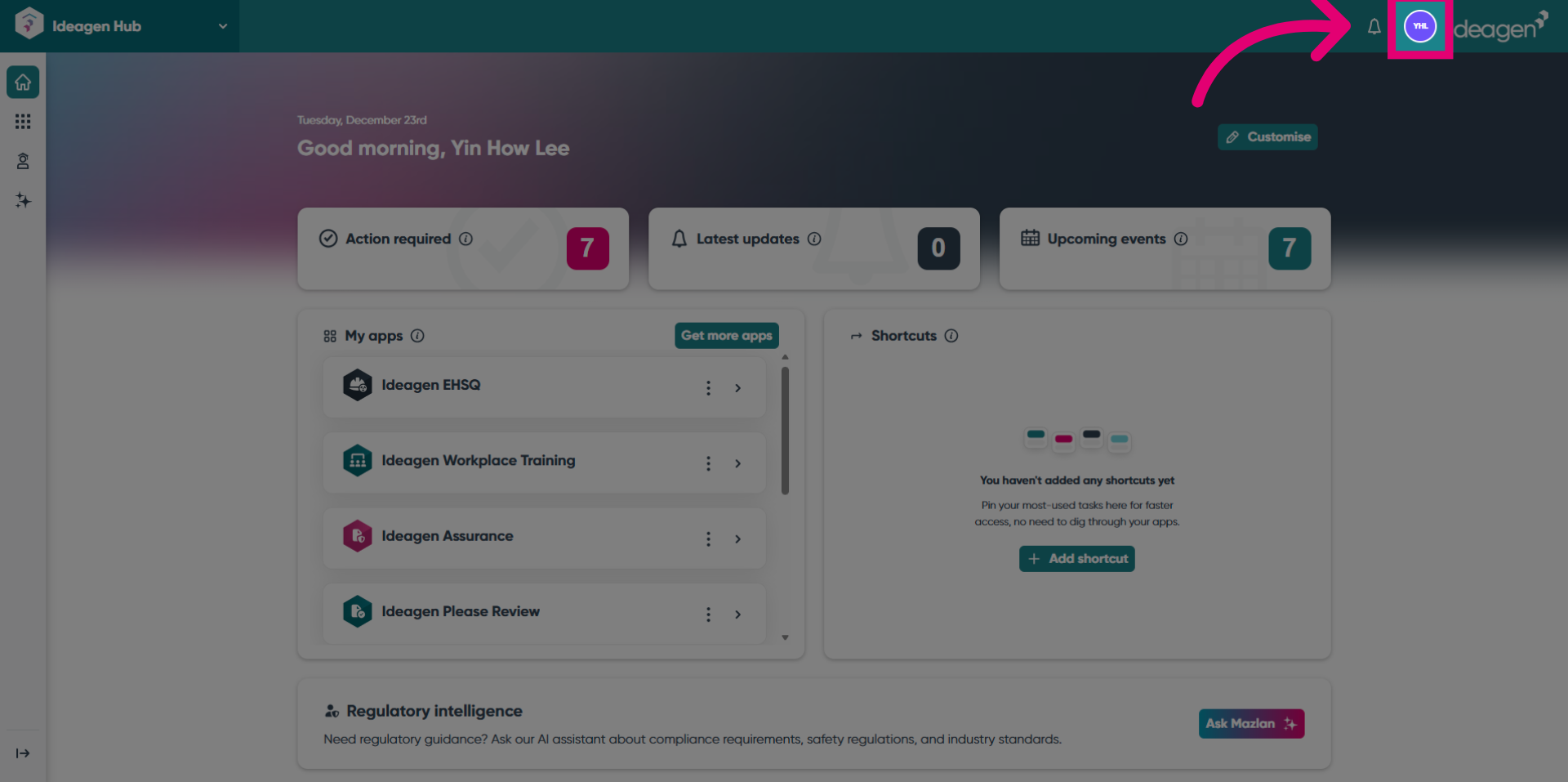
- Let's switch to the participant account by logging out from Hub.
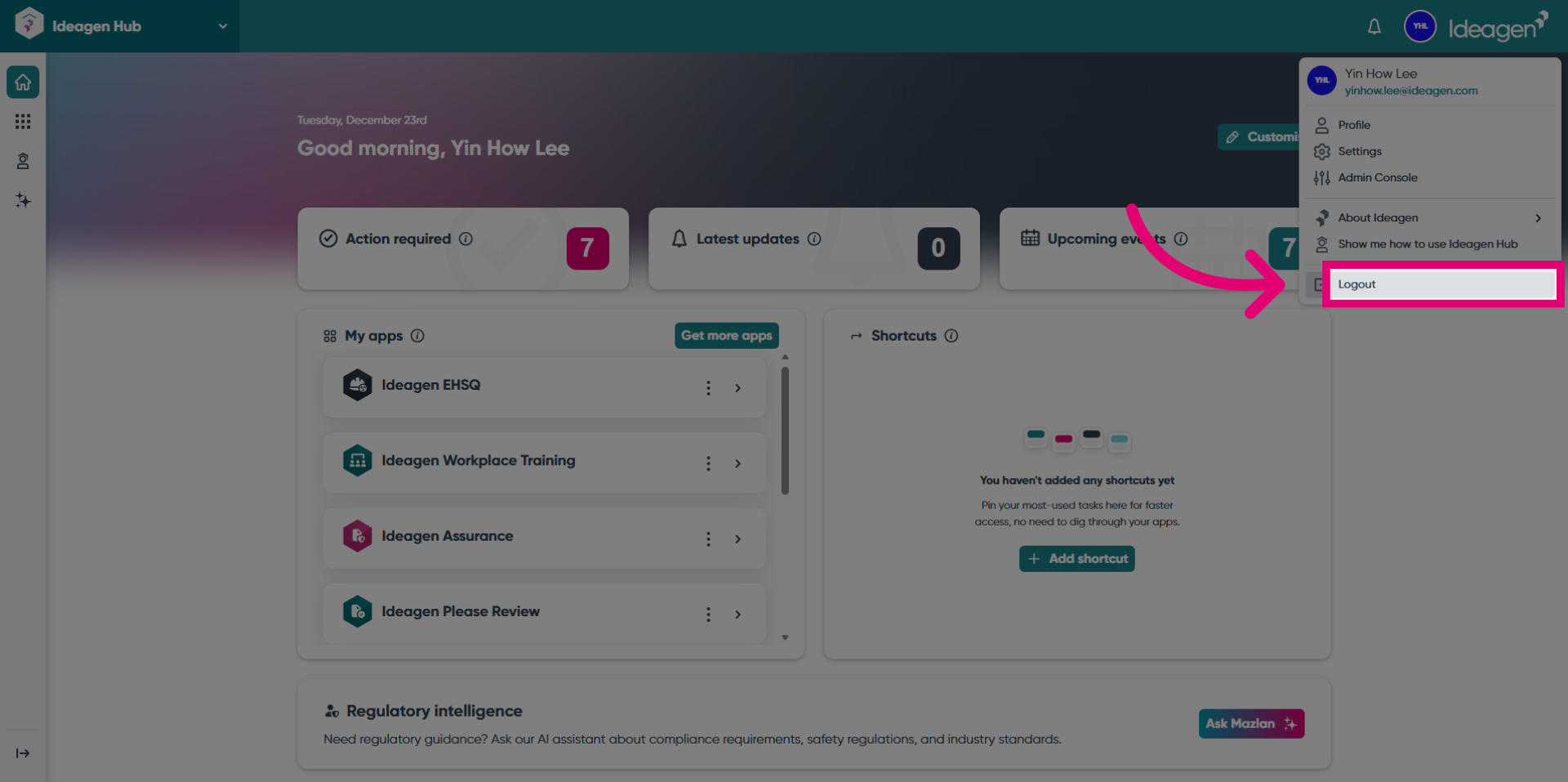
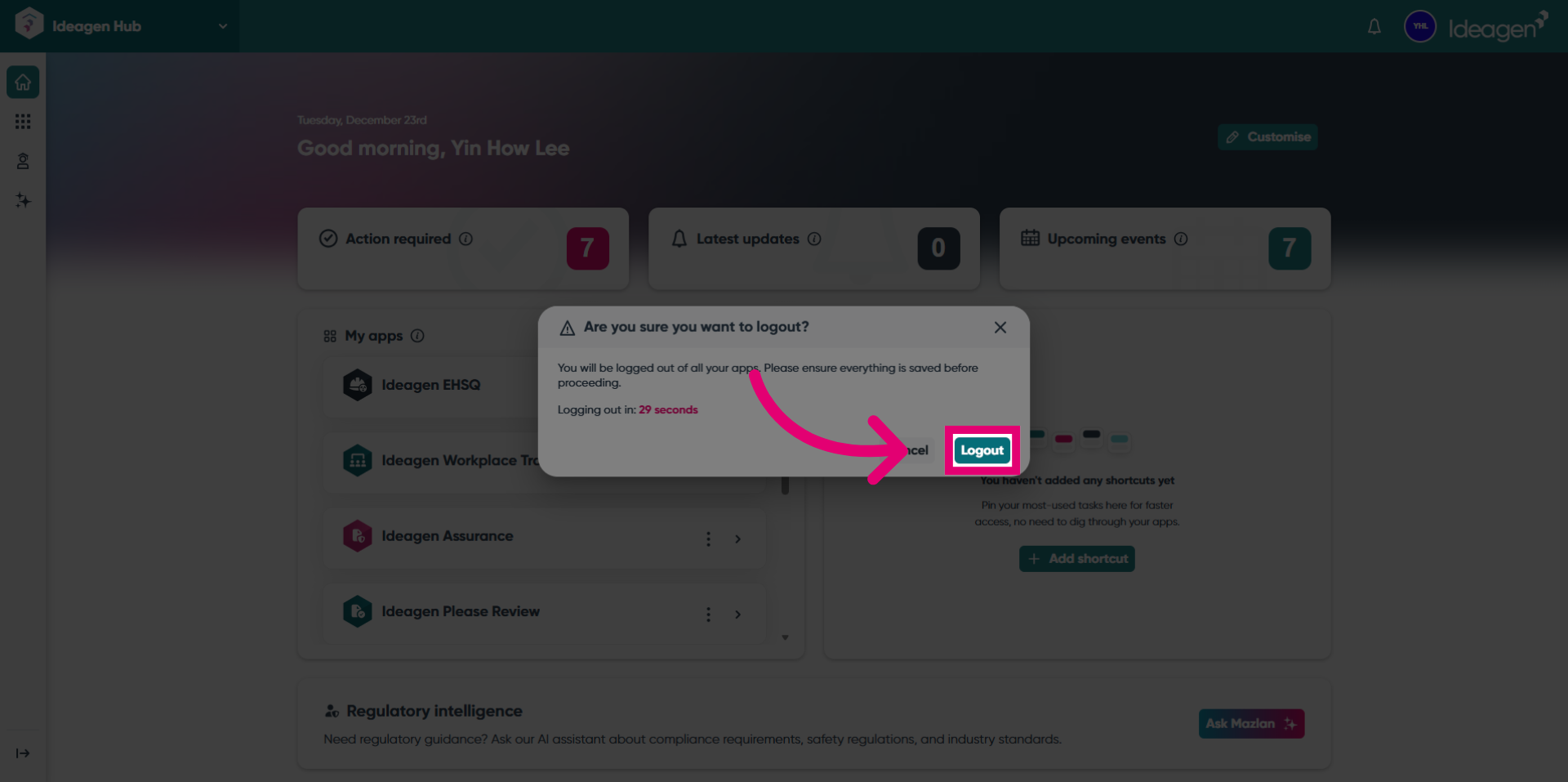
- Click Logout again to complete the sign-out process securely.
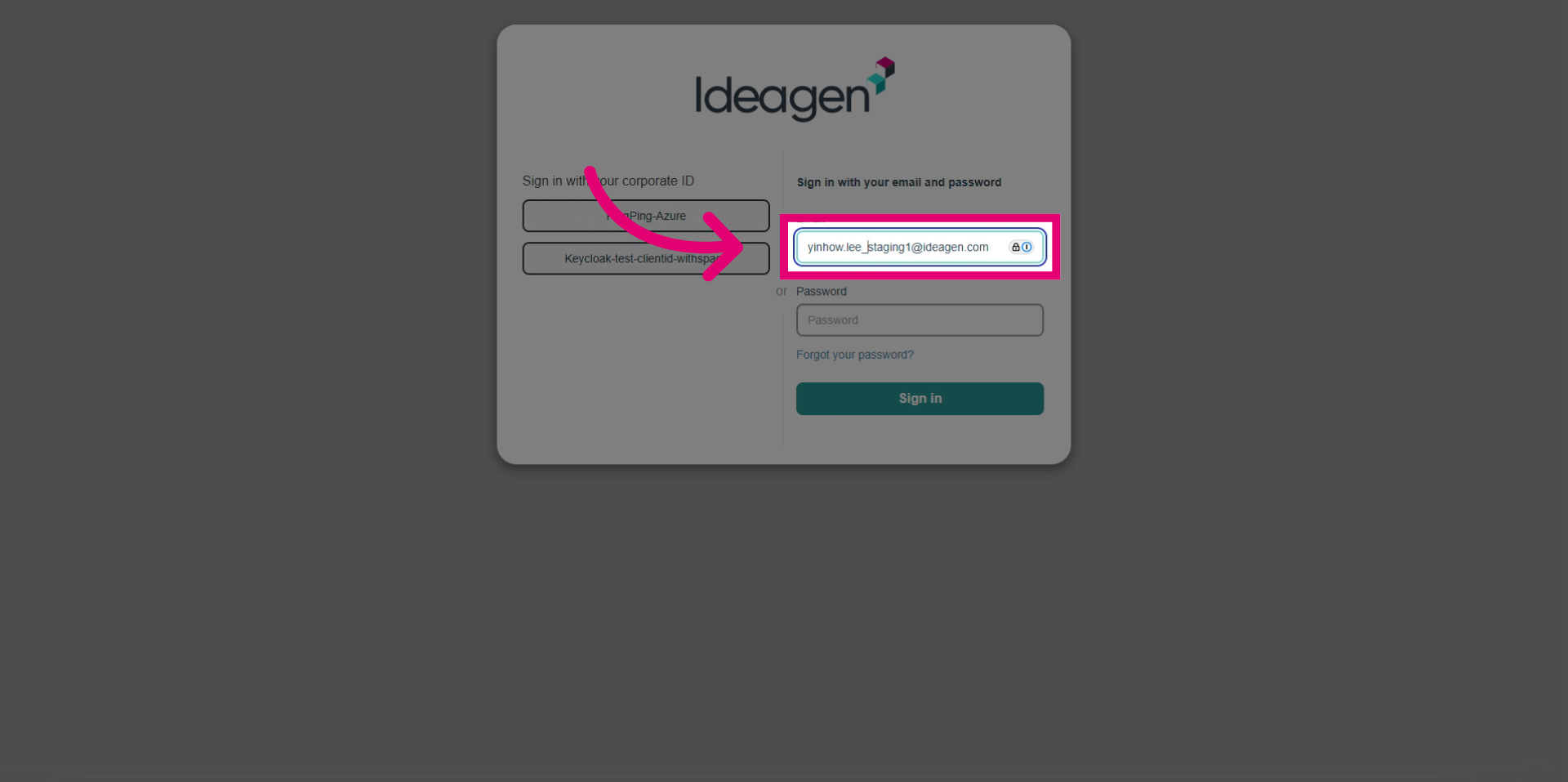
- Enter your email address to identify your user account securely.
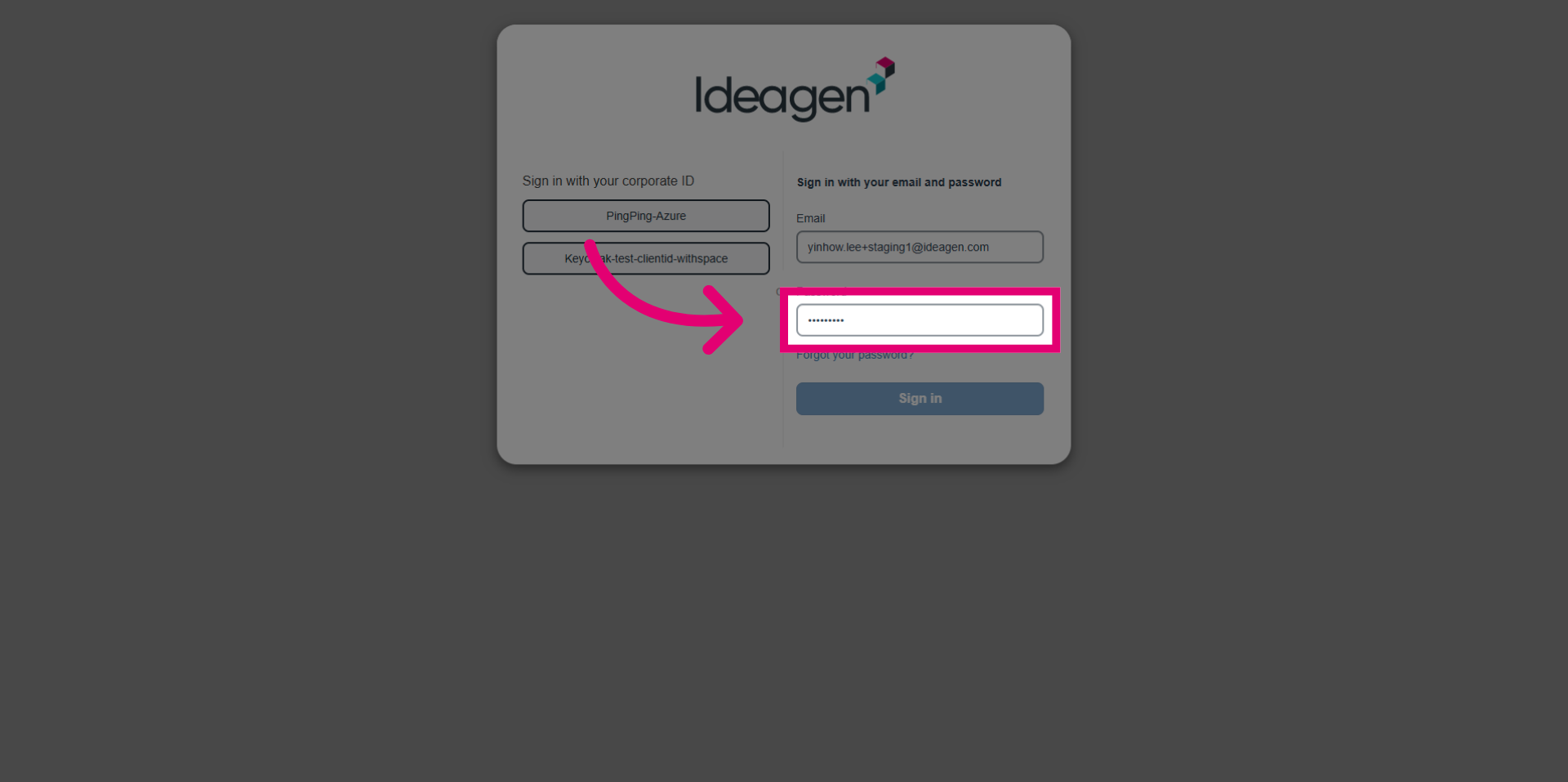
- Enter your password to authenticate your access.
- Click the Sign in button to log in and access your account.
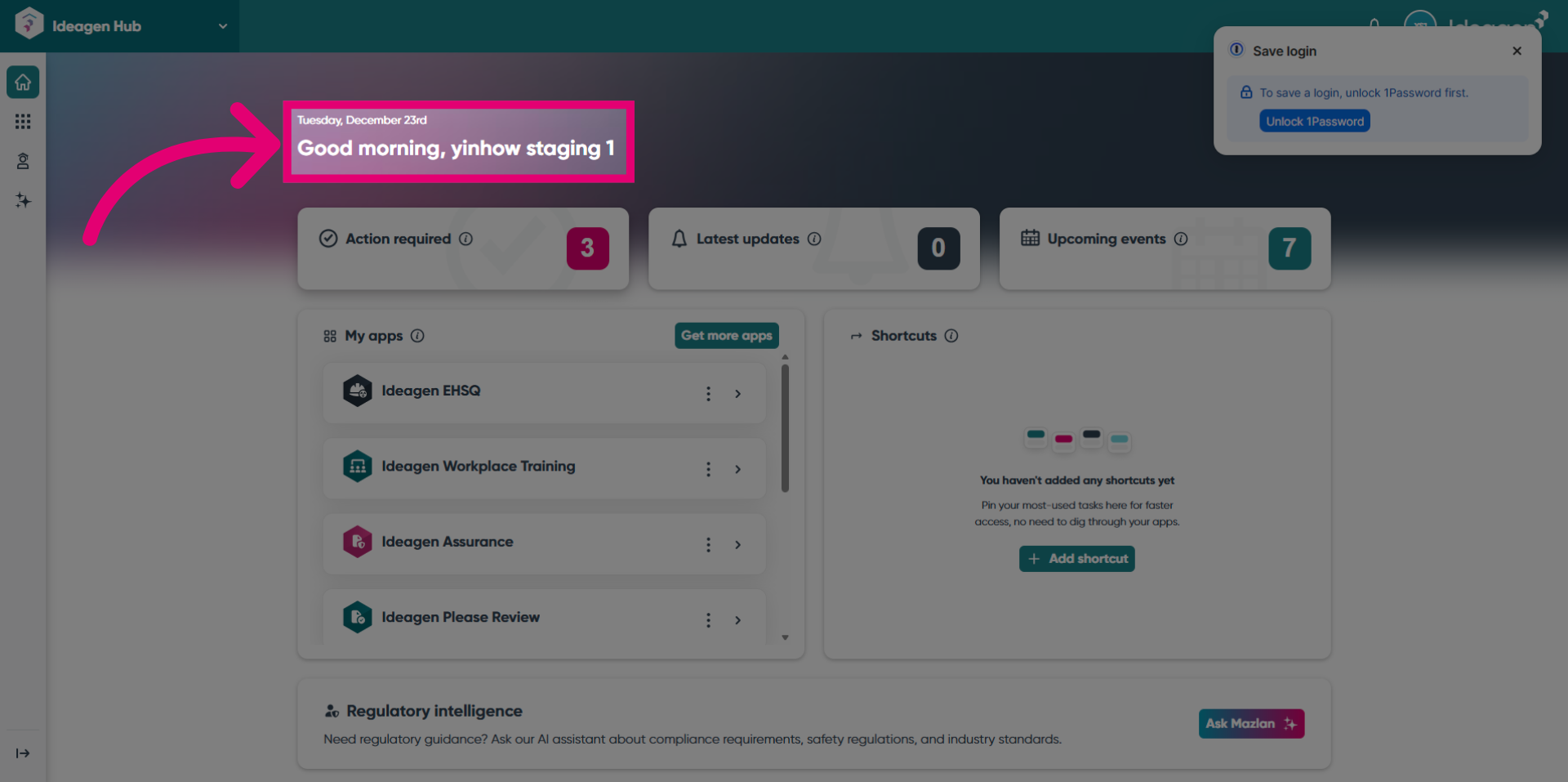
- Logged in as the participant.
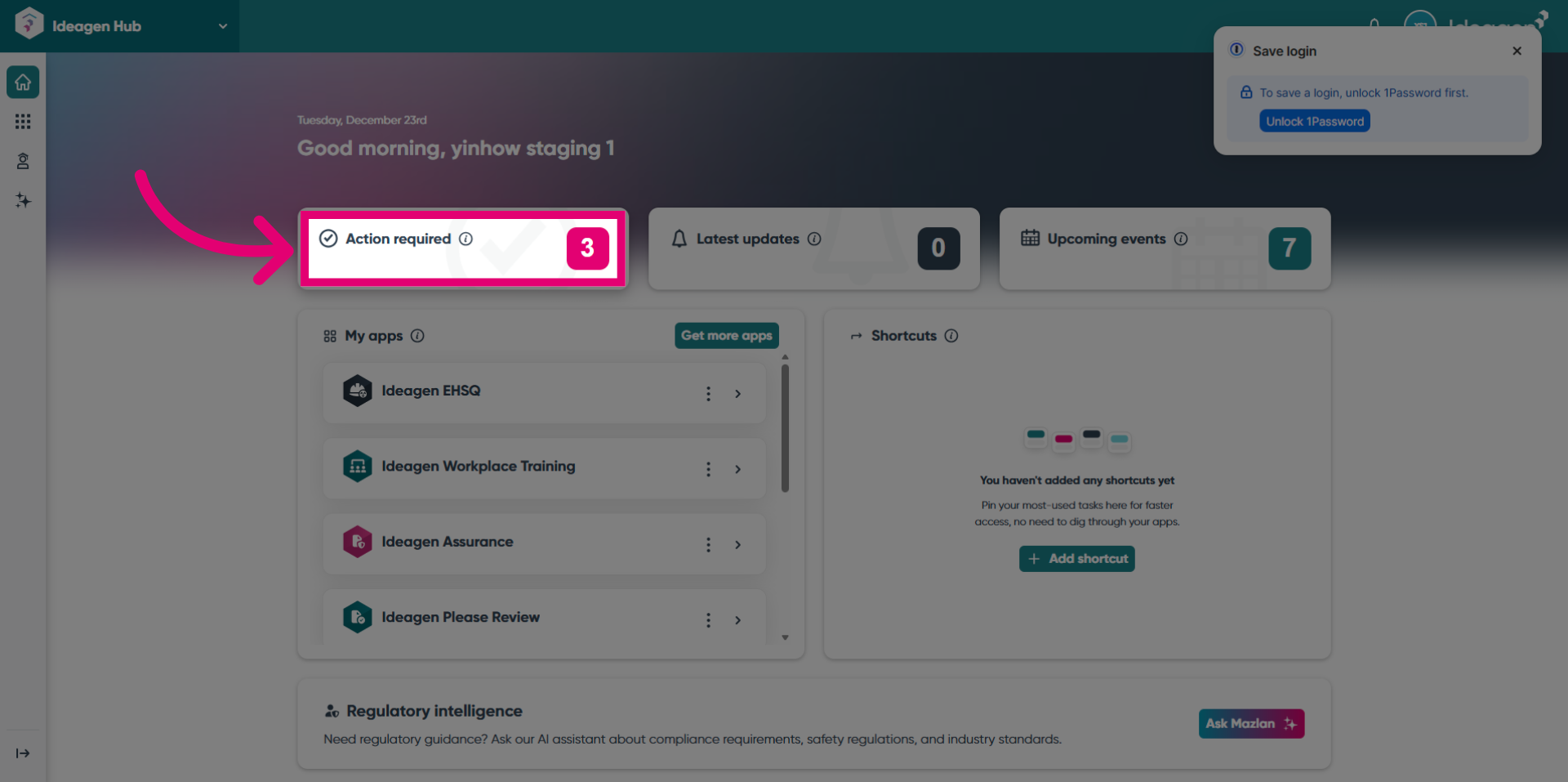
- Click here to view the notifications.
- A notification for the newly created review was received.