New article
Recently updated
Using the MS Word online integration

Who is this article for?
Users who want to understand about the MS online integration.
No elevated permissions are required.
This article explains the MS Word online integration. MS Word for Web allows editing of complex document formats, including tables, figures, and rich text with easy Zone editing in the browser, featuring automatic saves and one-click publishing to update reviews directly in Please Review.
1. Word online integration
1.1. Video
1.2. Steps
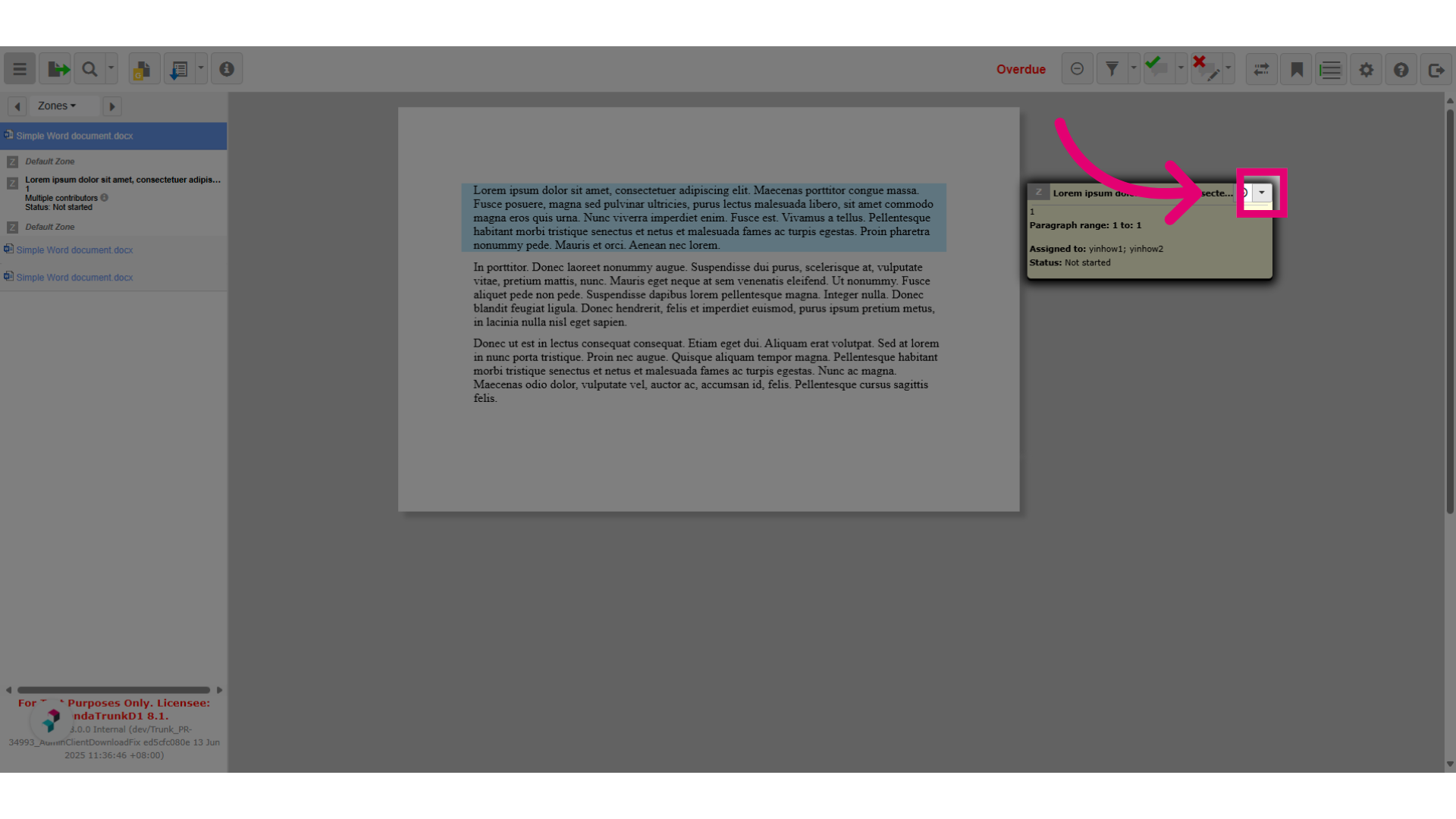
- Click on the dropdown menu to find the Edit in Word option.
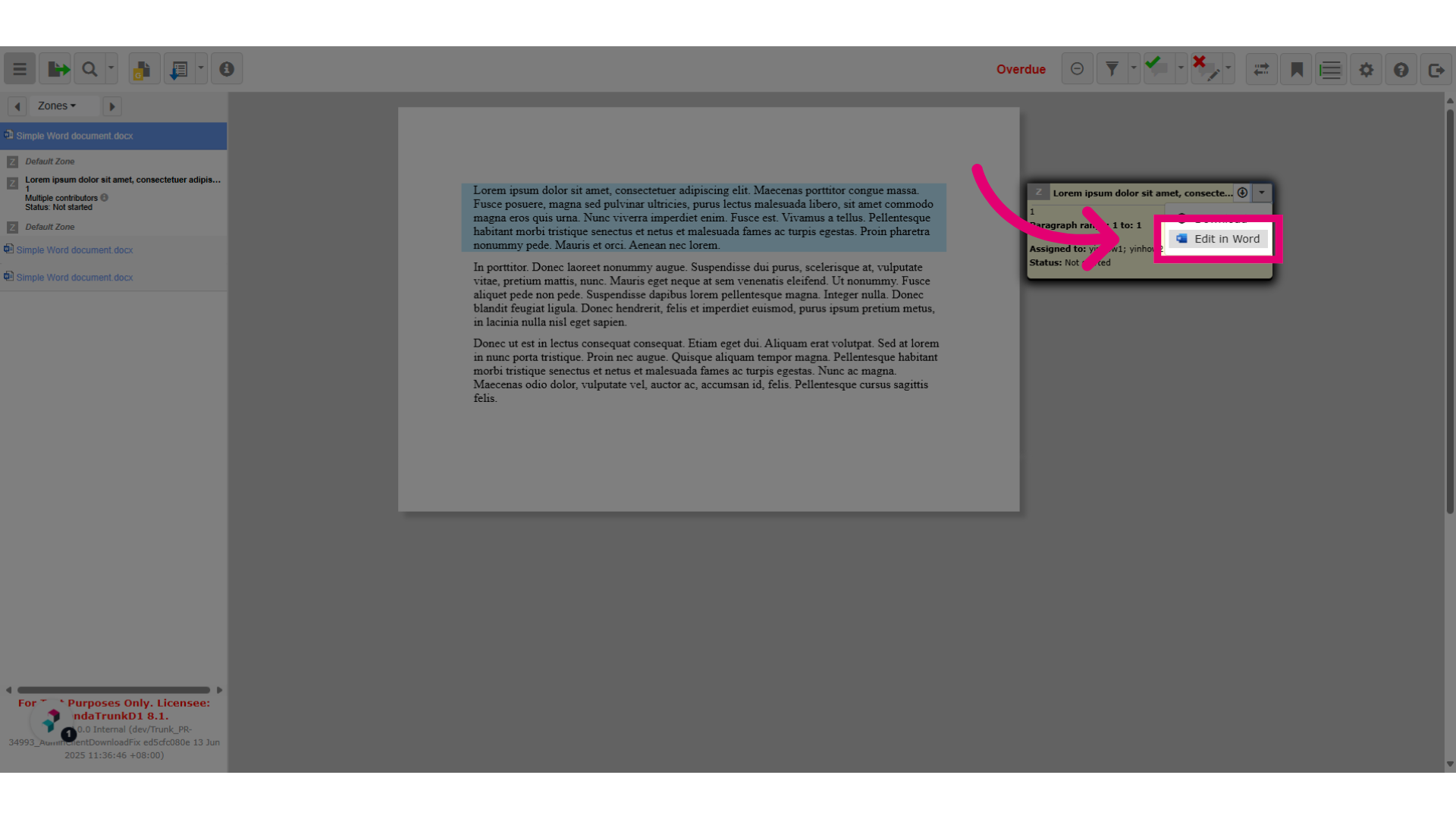
- Click on Edit in Word to edit the zone directly in Word Online.
- The zone is now opened in Word Online.
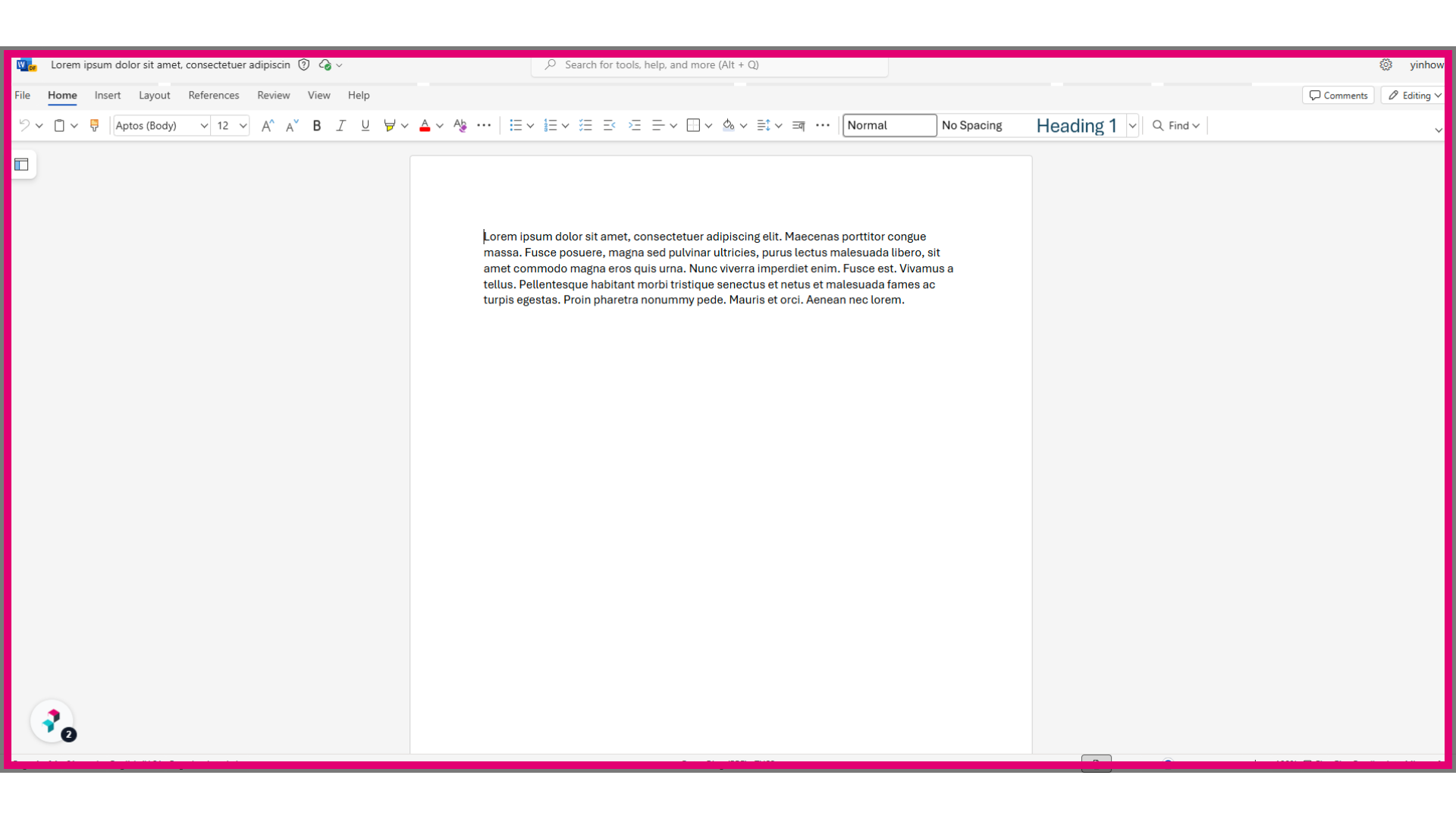
- Navigate to the designated area where you want to insert the table.
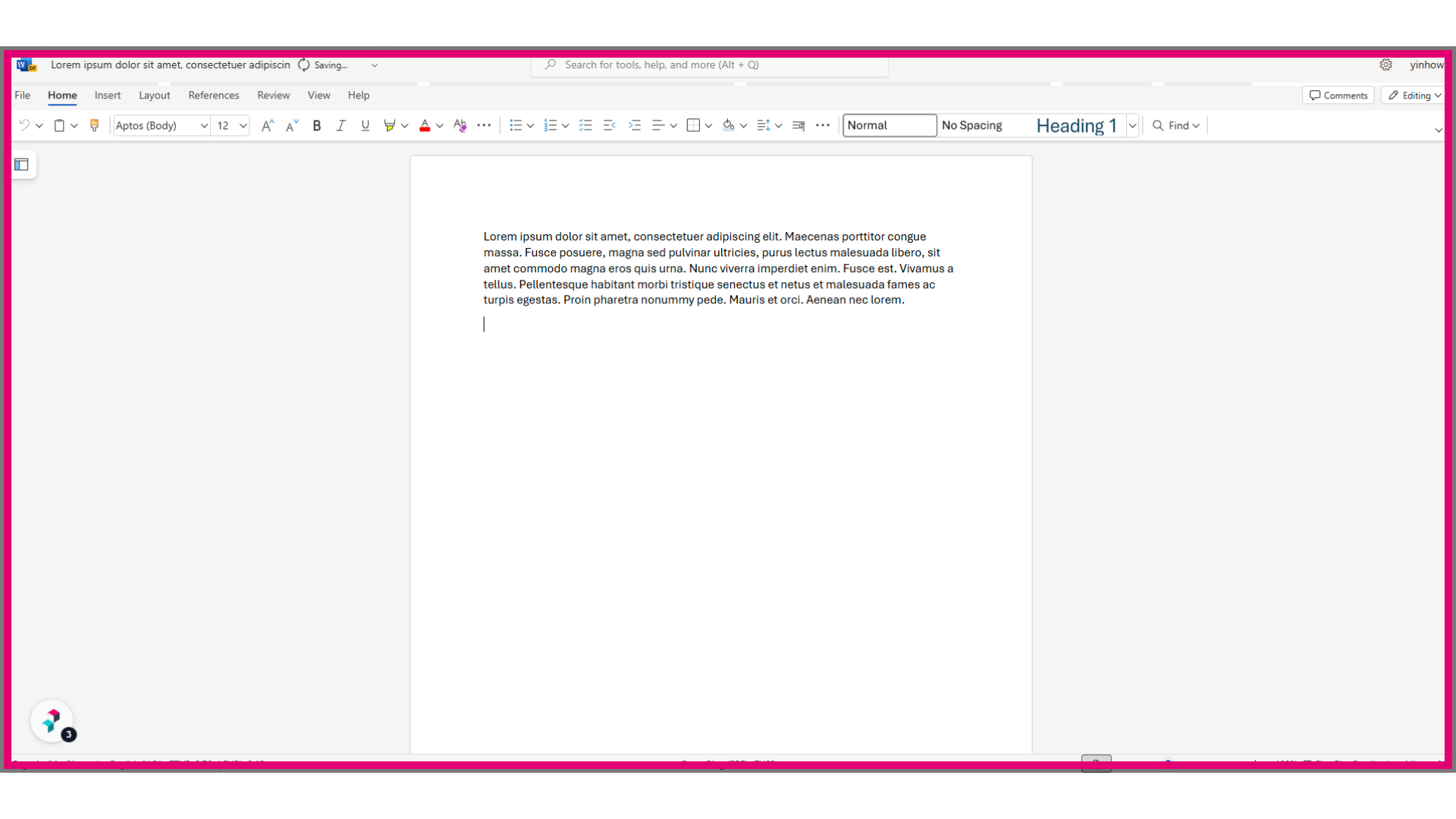
- Next, insert a new table below the paragraph.
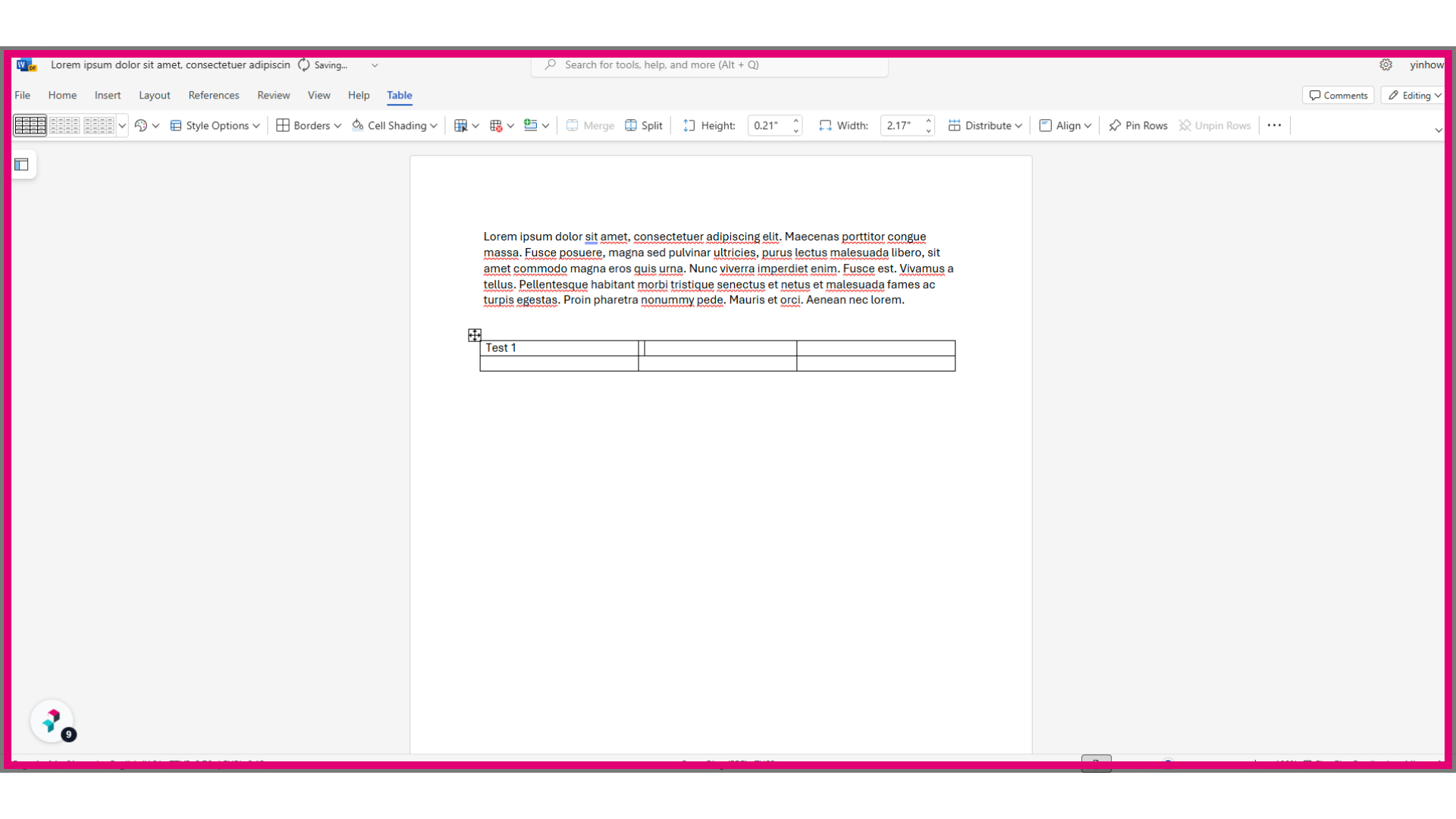
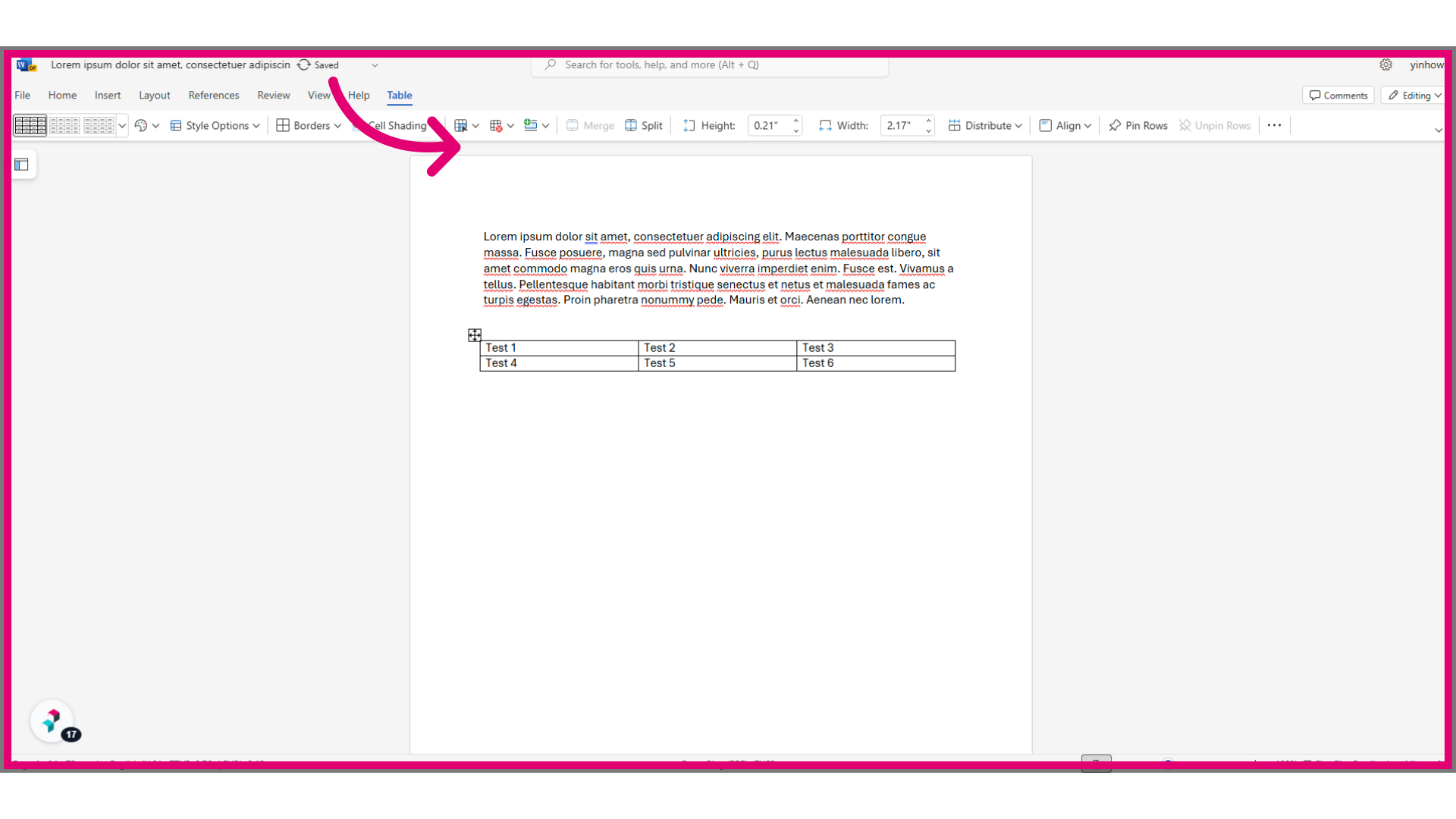
- Fill out the table.
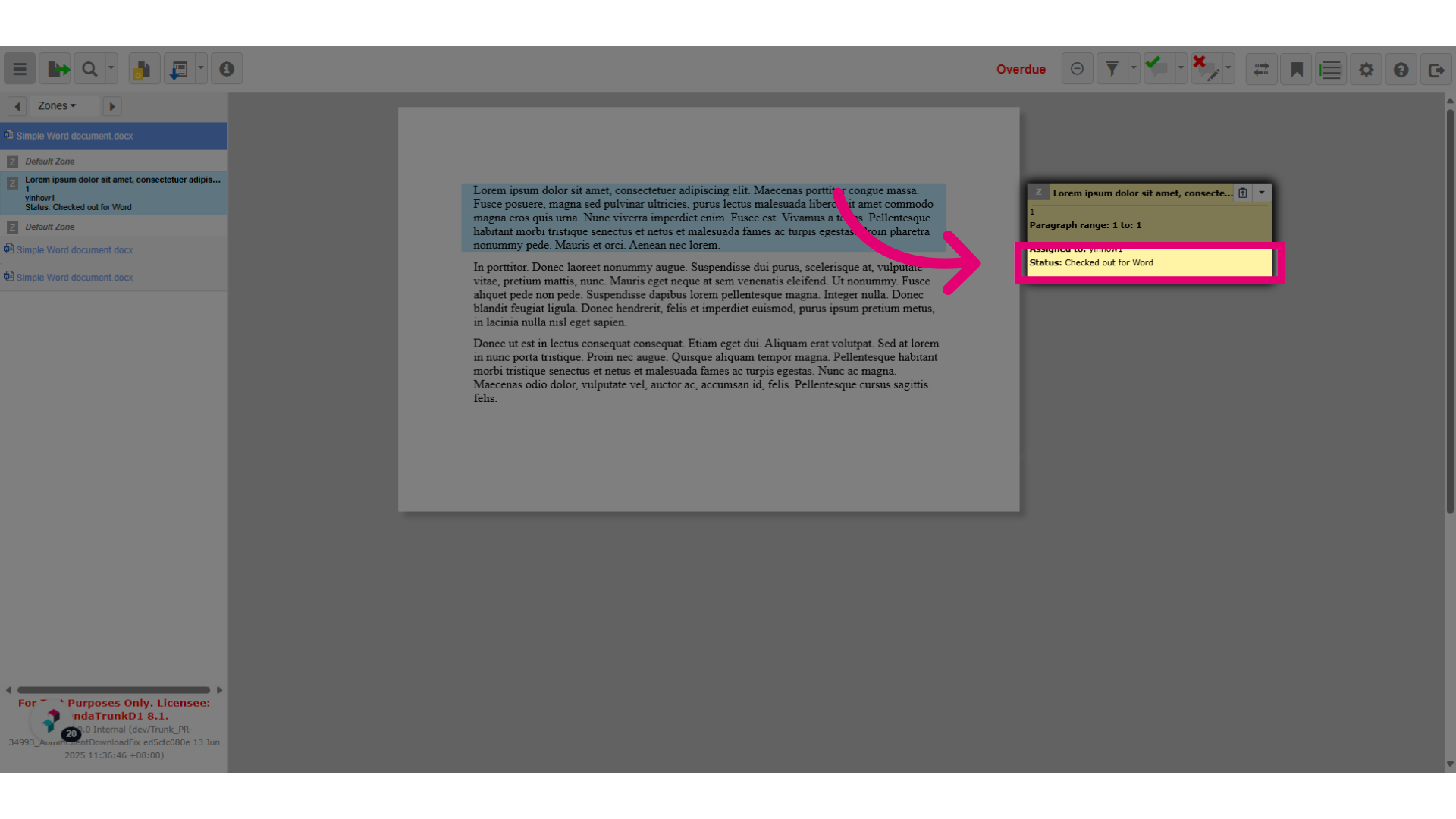
- After opening the zone in Word Online, you'll see that the zone status changes to Checked out for Word.
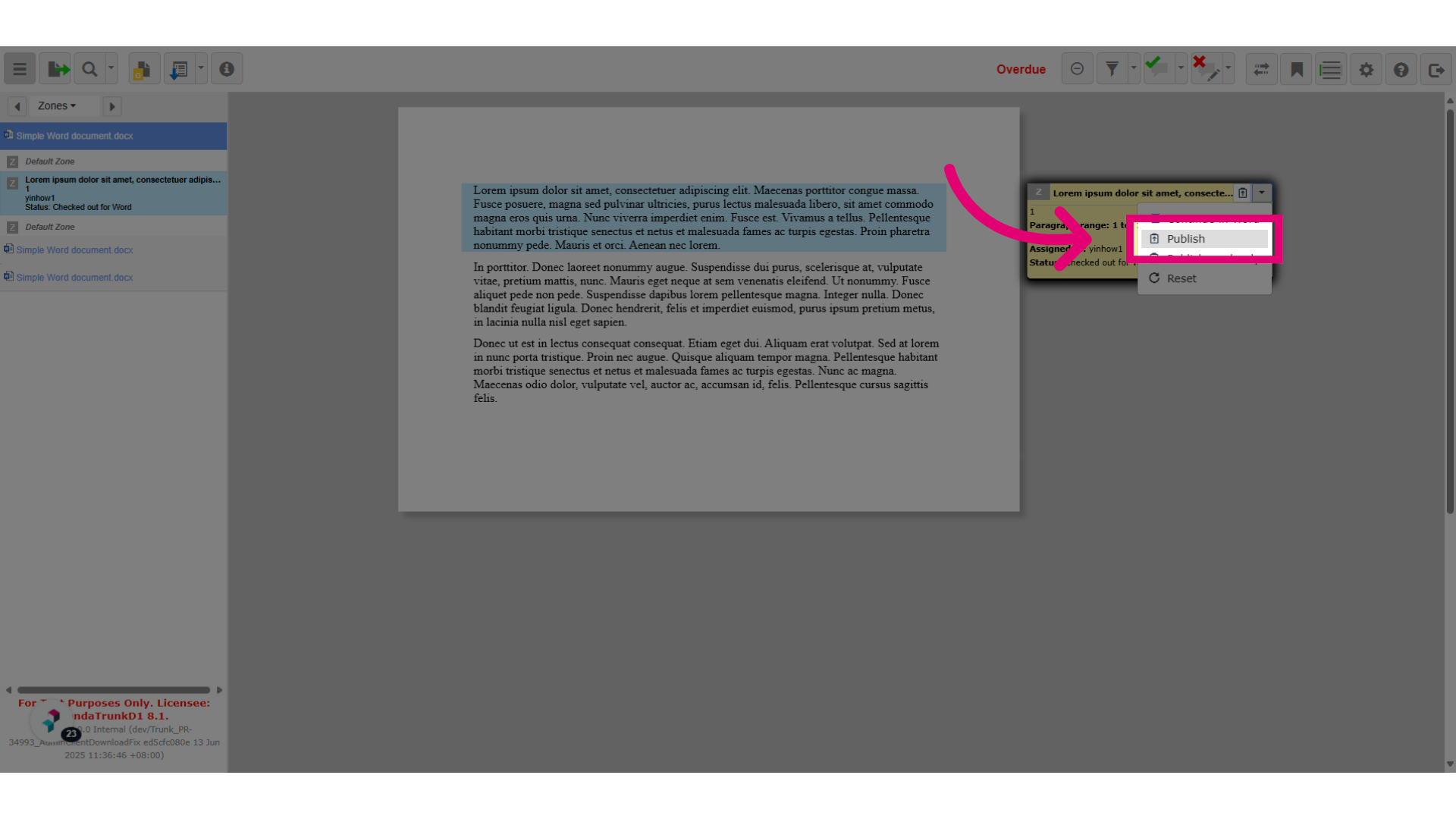
- Click on the dropdown menu to find the Publish option, which allows you to publish the changes from Word Online to Please Review.
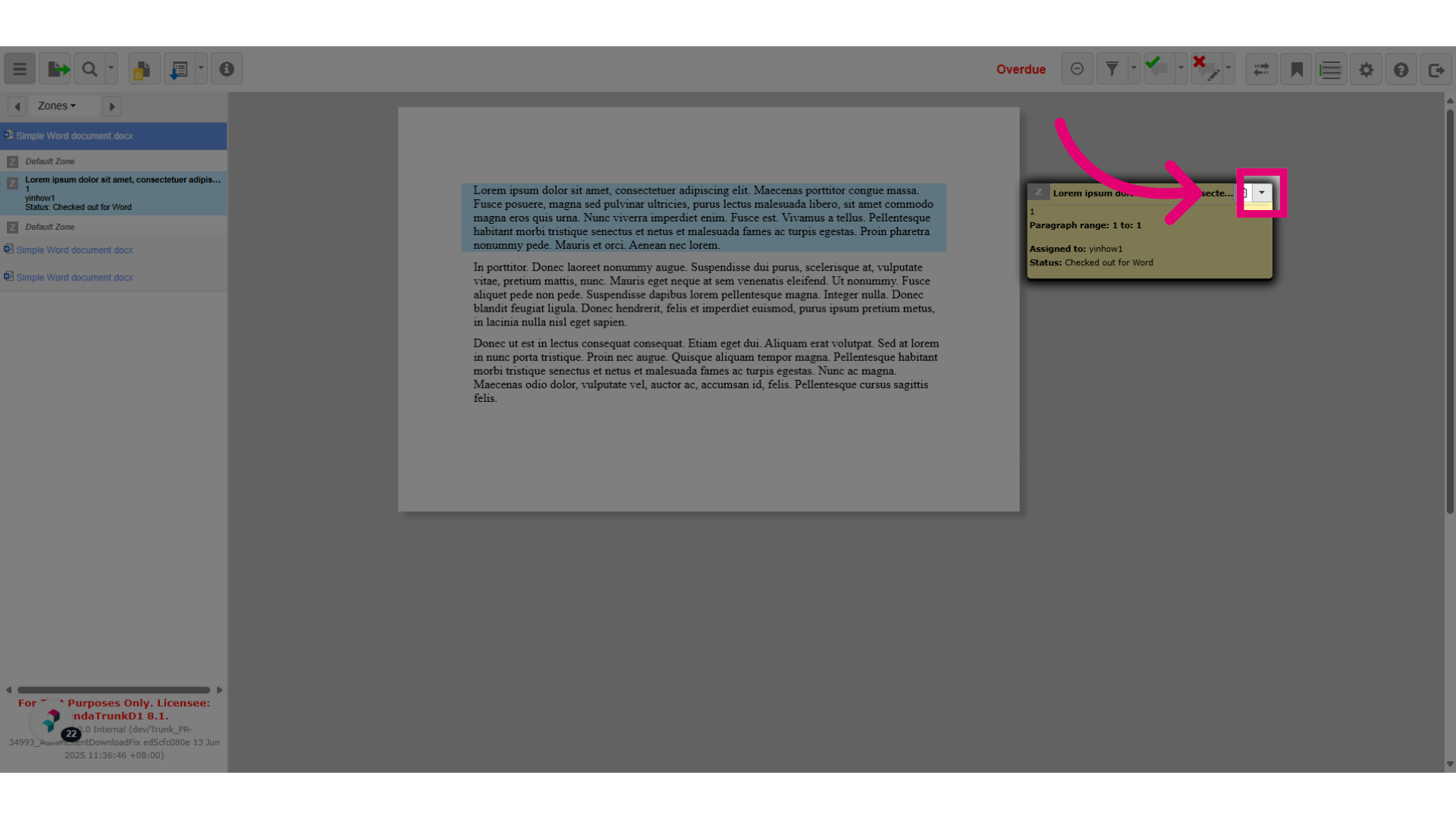
- Click Publish.
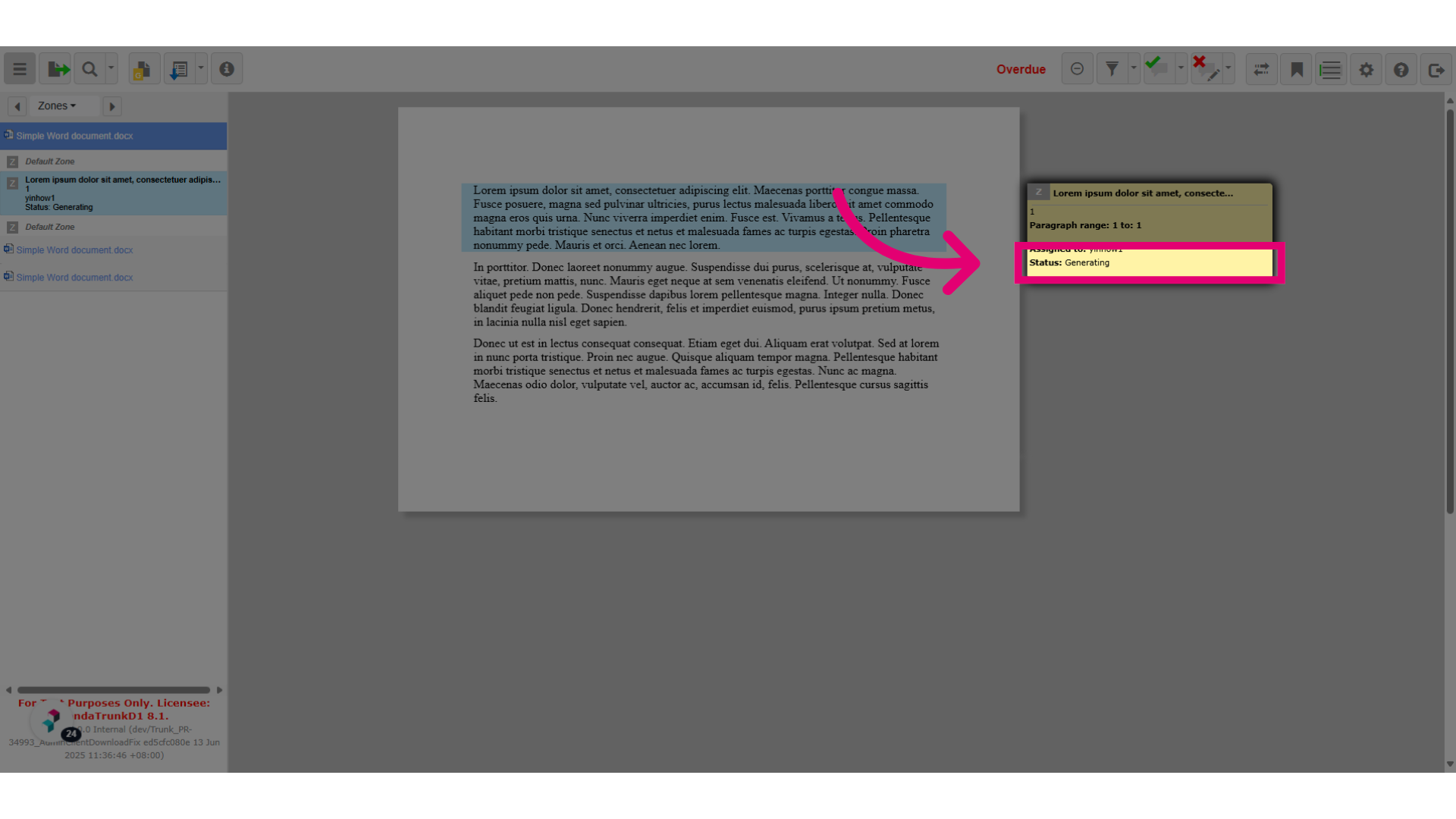
- The zone status is Generating.
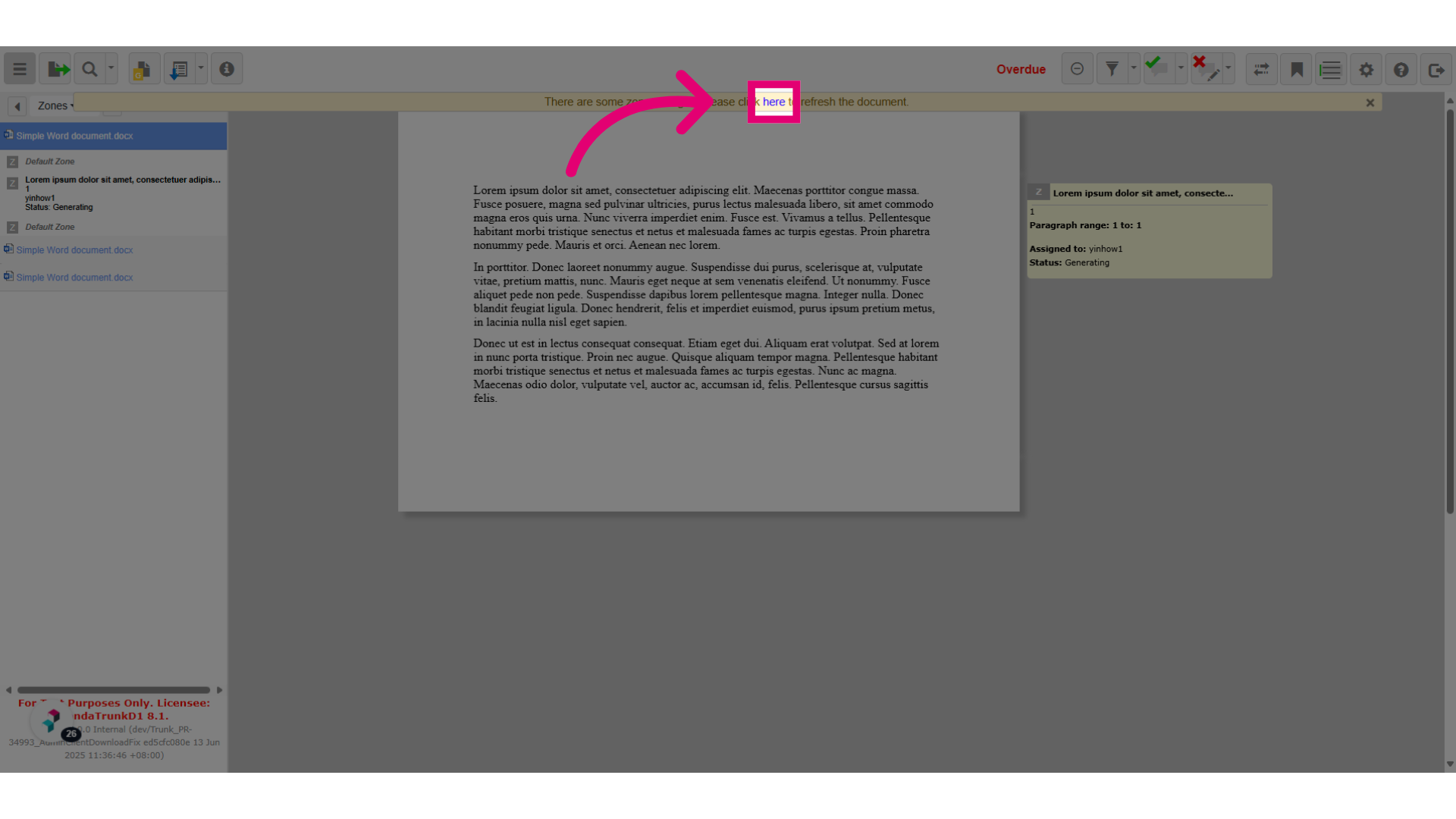
- Click the here link in the banner to refresh the document with the latest changes.
- The zone status is Published.
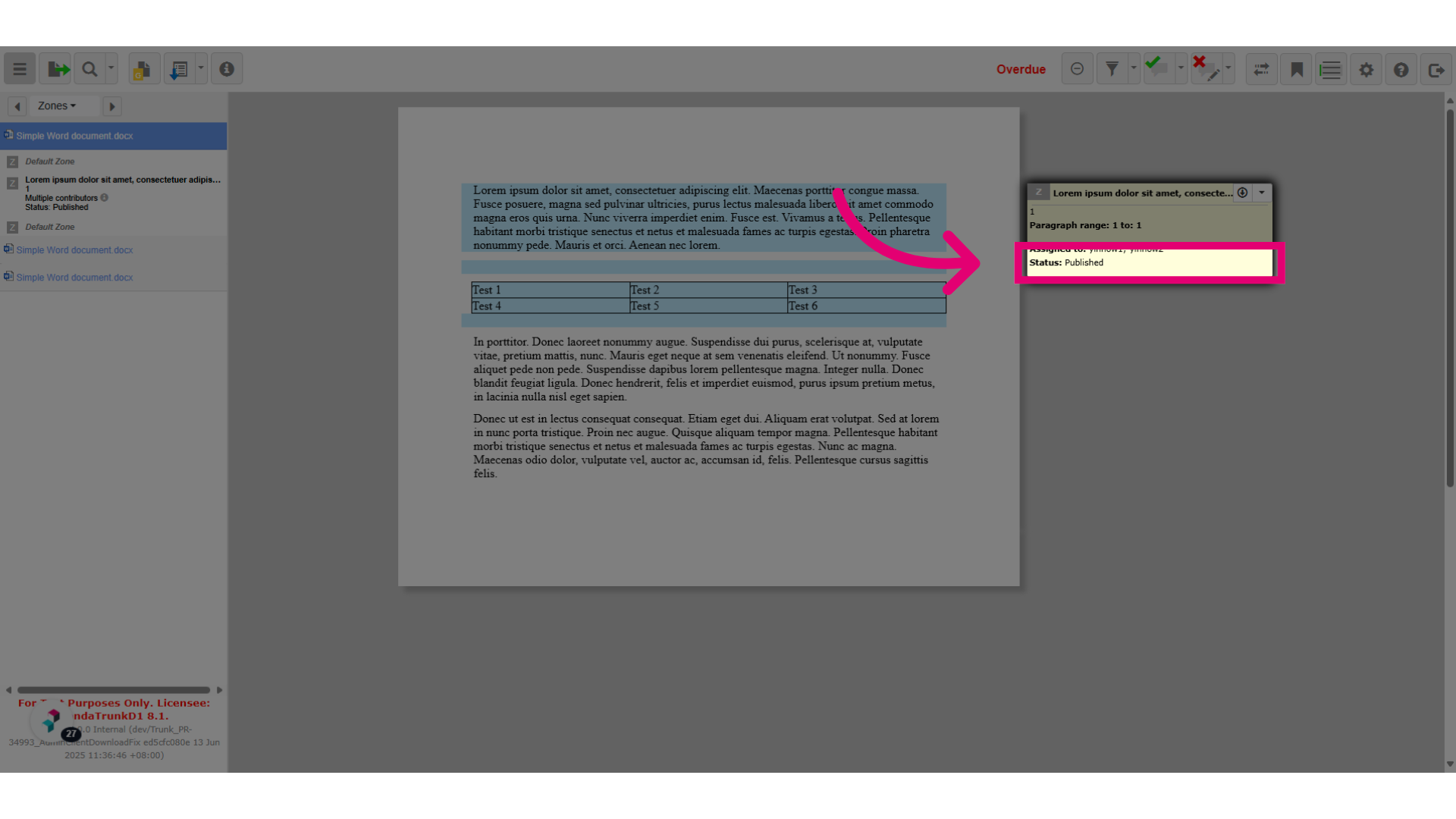
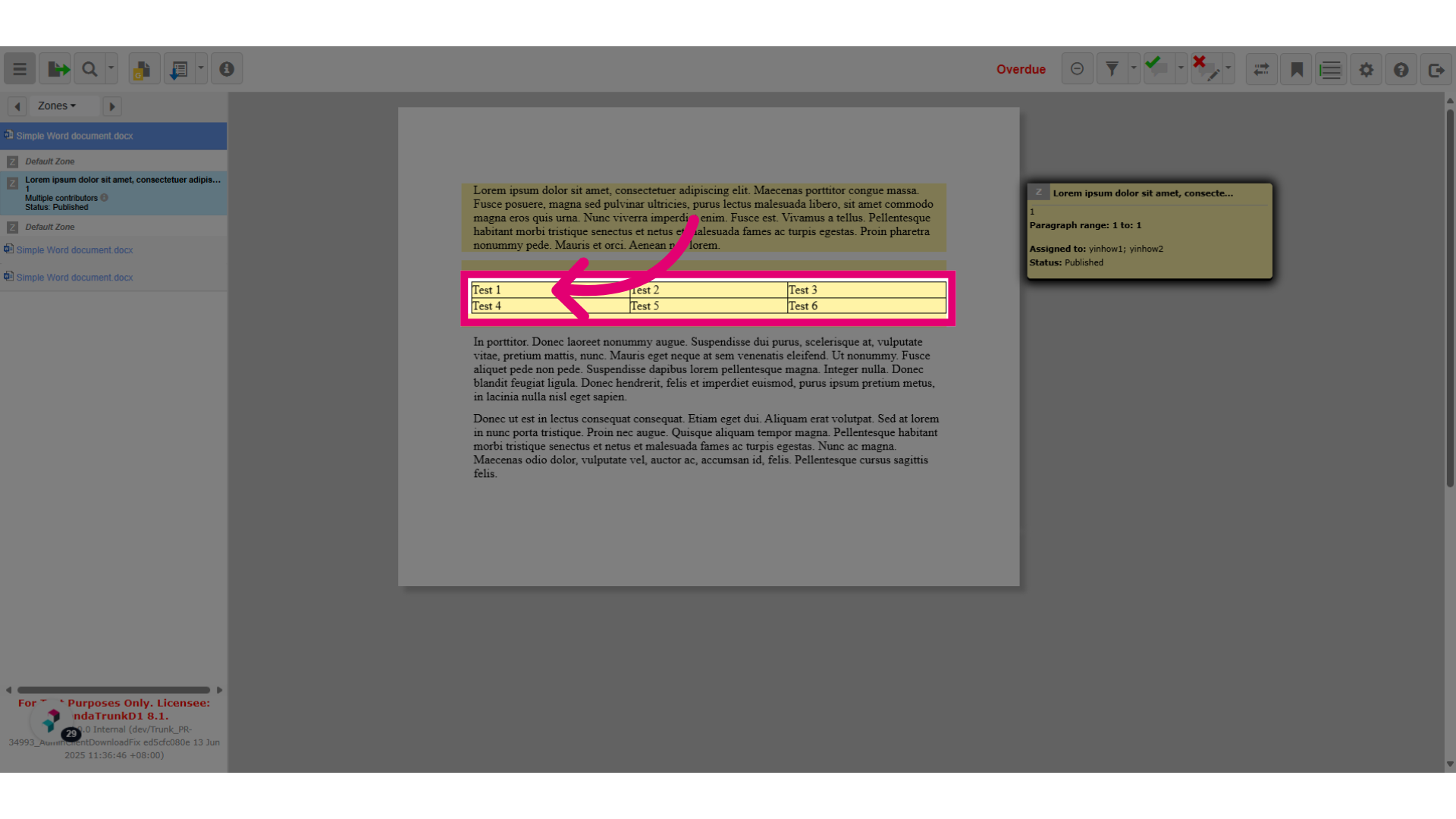
- The newly inserted table in Word Online is now available in Please Review.