New article
Recently updated
Using Veeva Vault security checking

Who is this article for?
Users who want to understand the Veeva Vault security checking settings.
No elevated permissions are required.
In Veeva Vault, Document Sharing Settings control who can view, edit, or collaborate on documents, ensuring compliance, security, and efficient teamwork.
1. Veeva security checking
1.1 Video
1.2. Steps
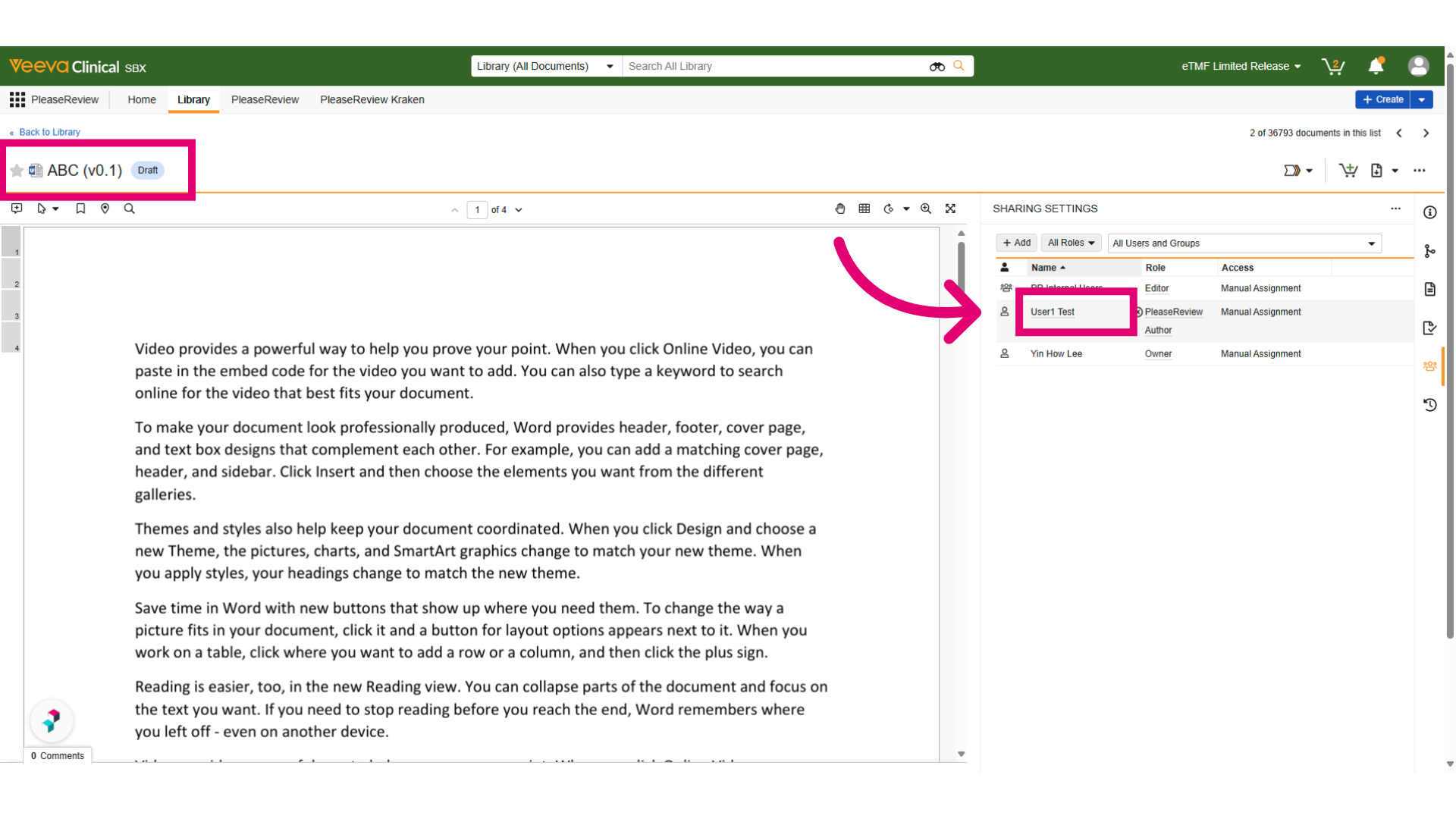
- Before showcasing the Security Checking feature, there are some prerequisite steps. a user has been added to the Document Sharing Settings, granting them the necessary permissions to access the document.
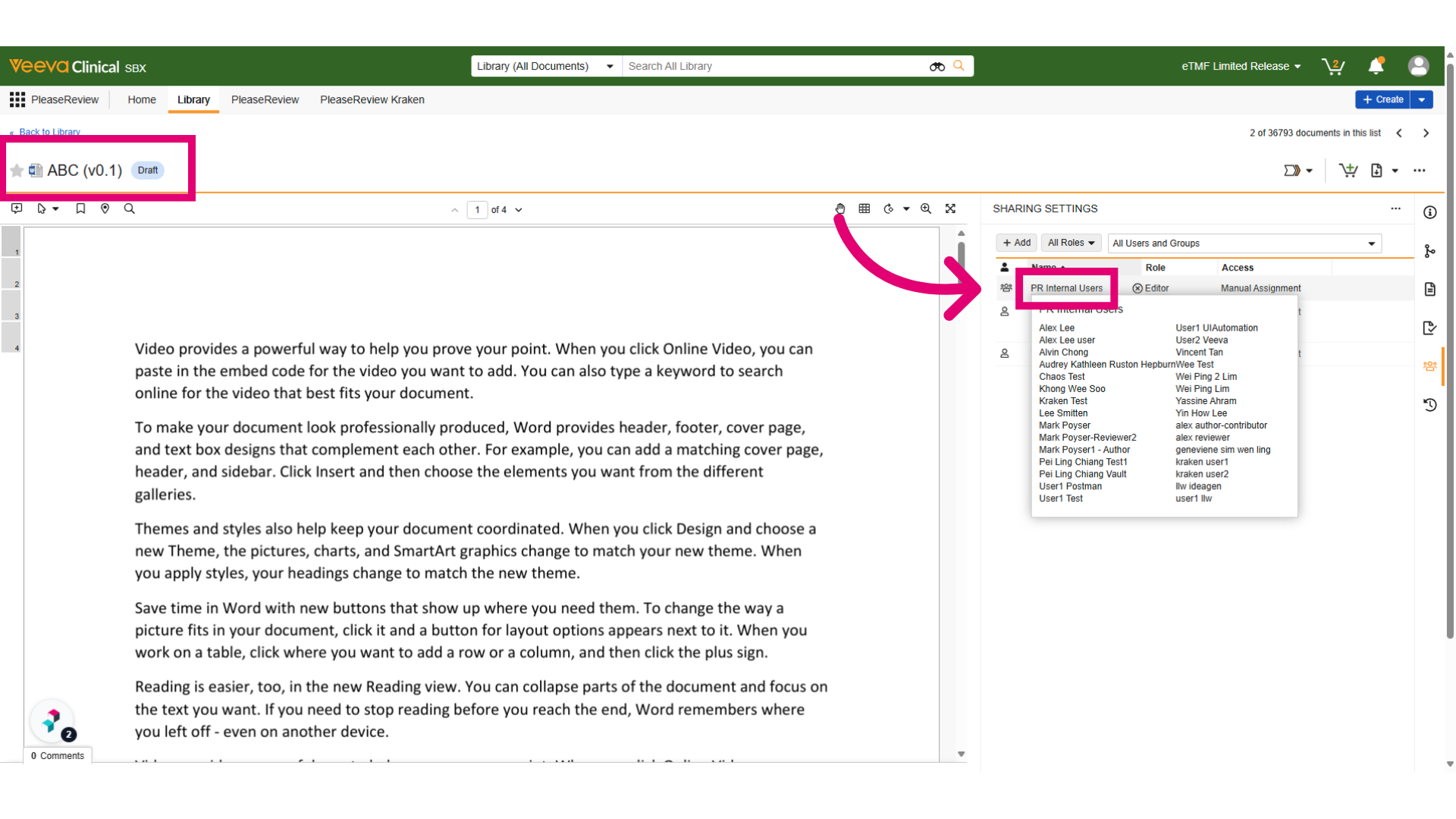
- As you can see, a different user is not listed in the Document Sharing Settings, so they do not have access to the document.
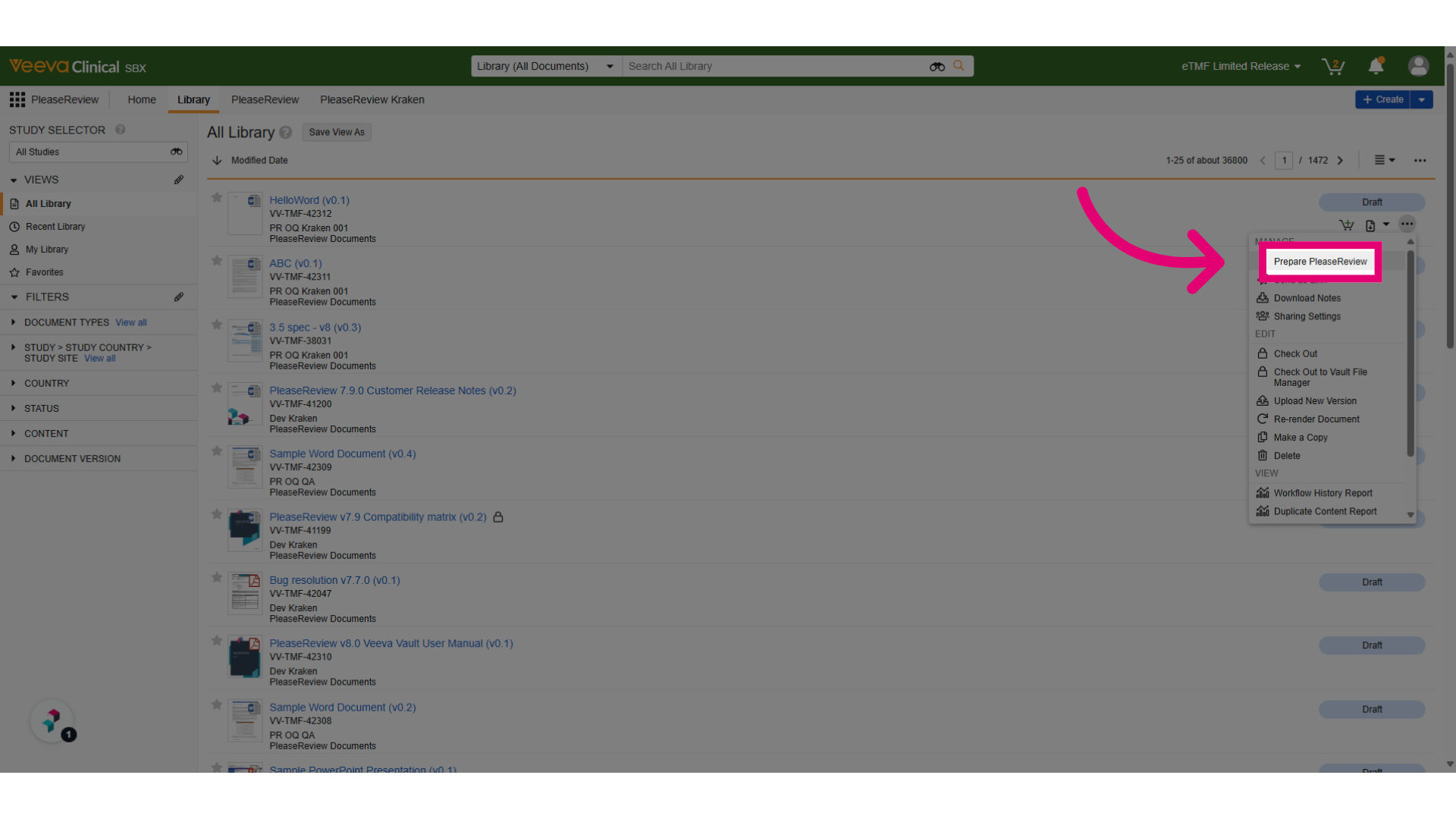
- Create a review in Veeva Vault and add the users as participants. Then, click "Prepare Please Review".
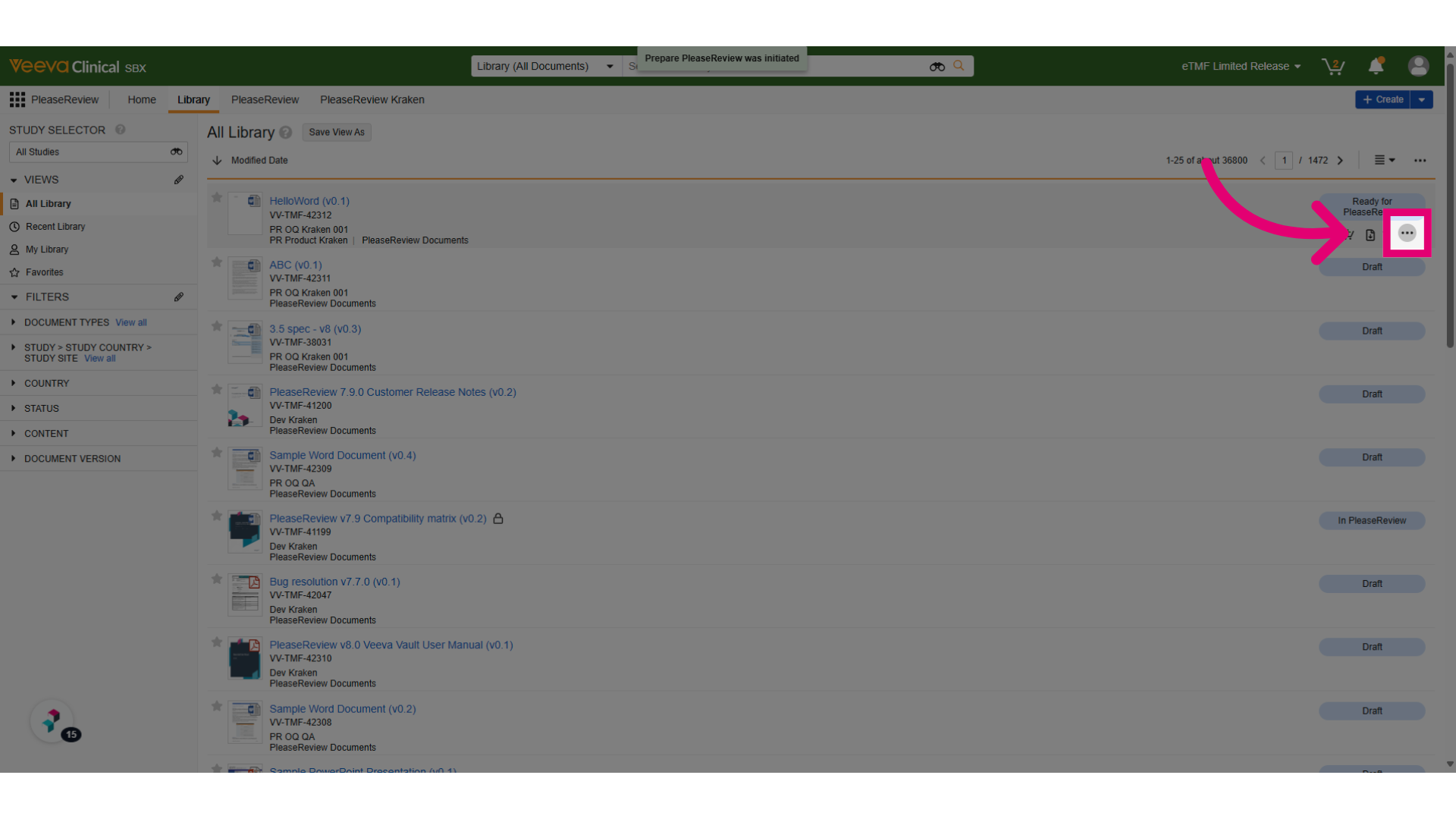
- Click the menu icon to create a review using this document.
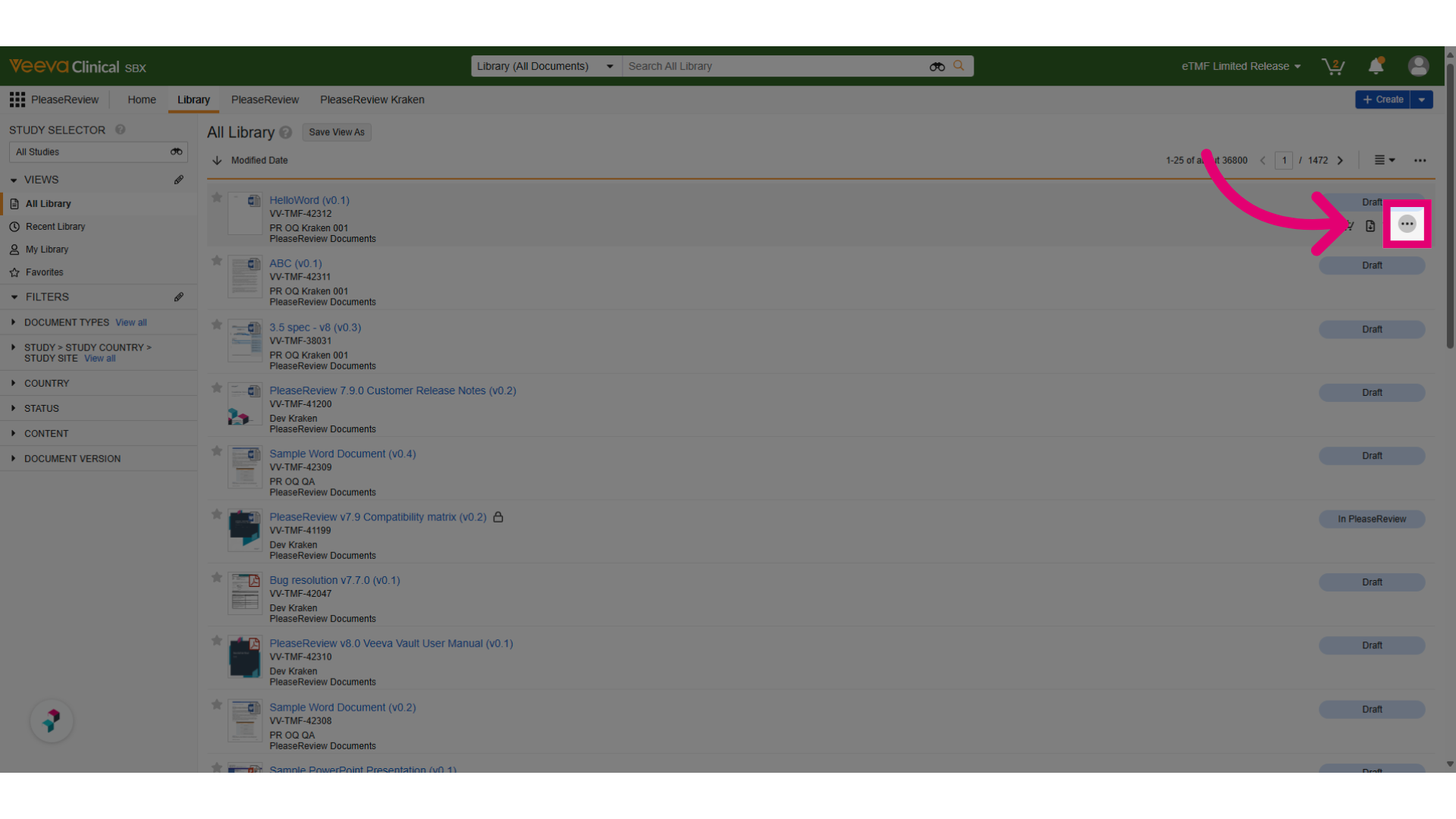
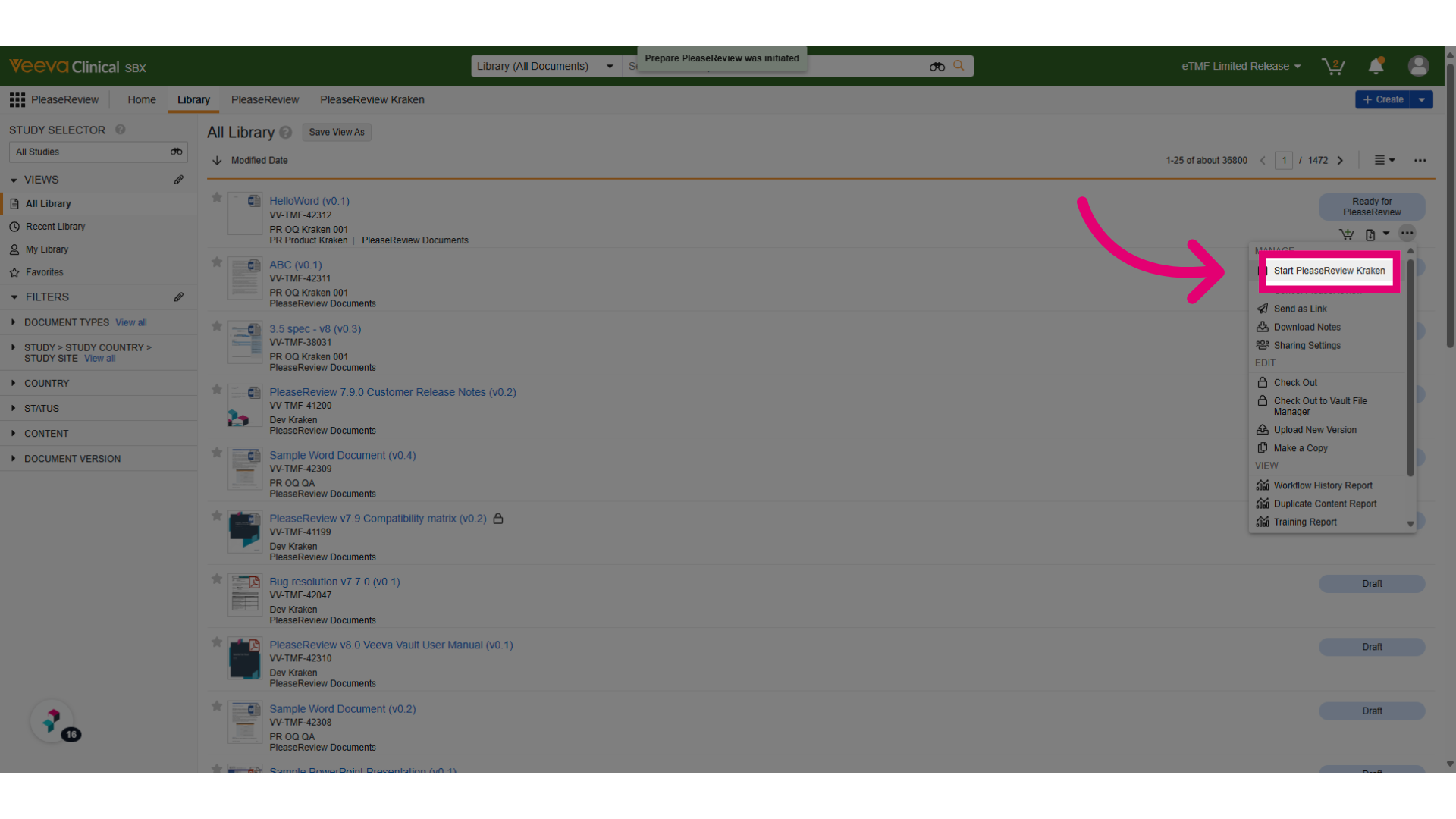
- Click this to start preparing a review.
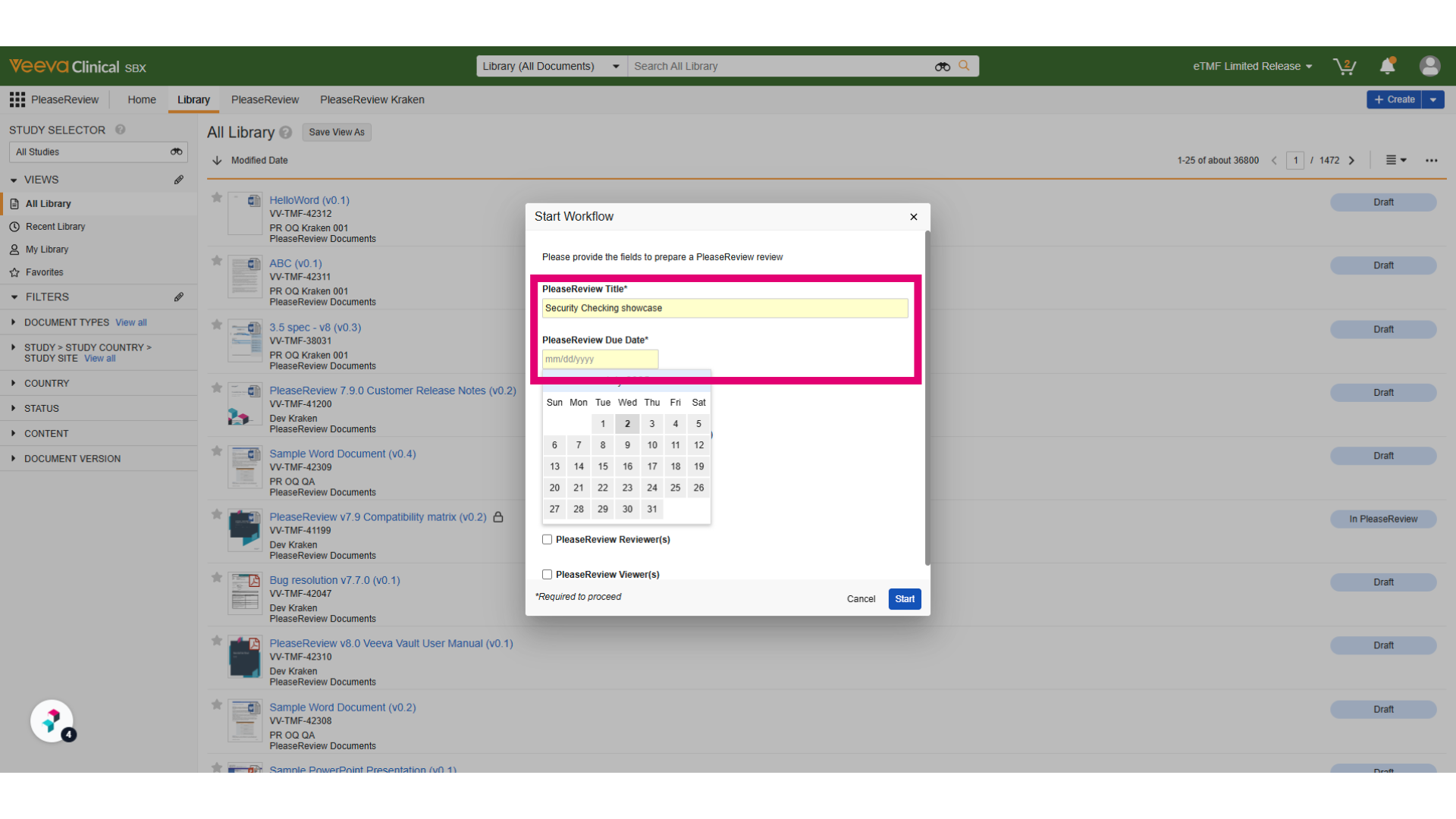
- Enter the review title and choose a due date.
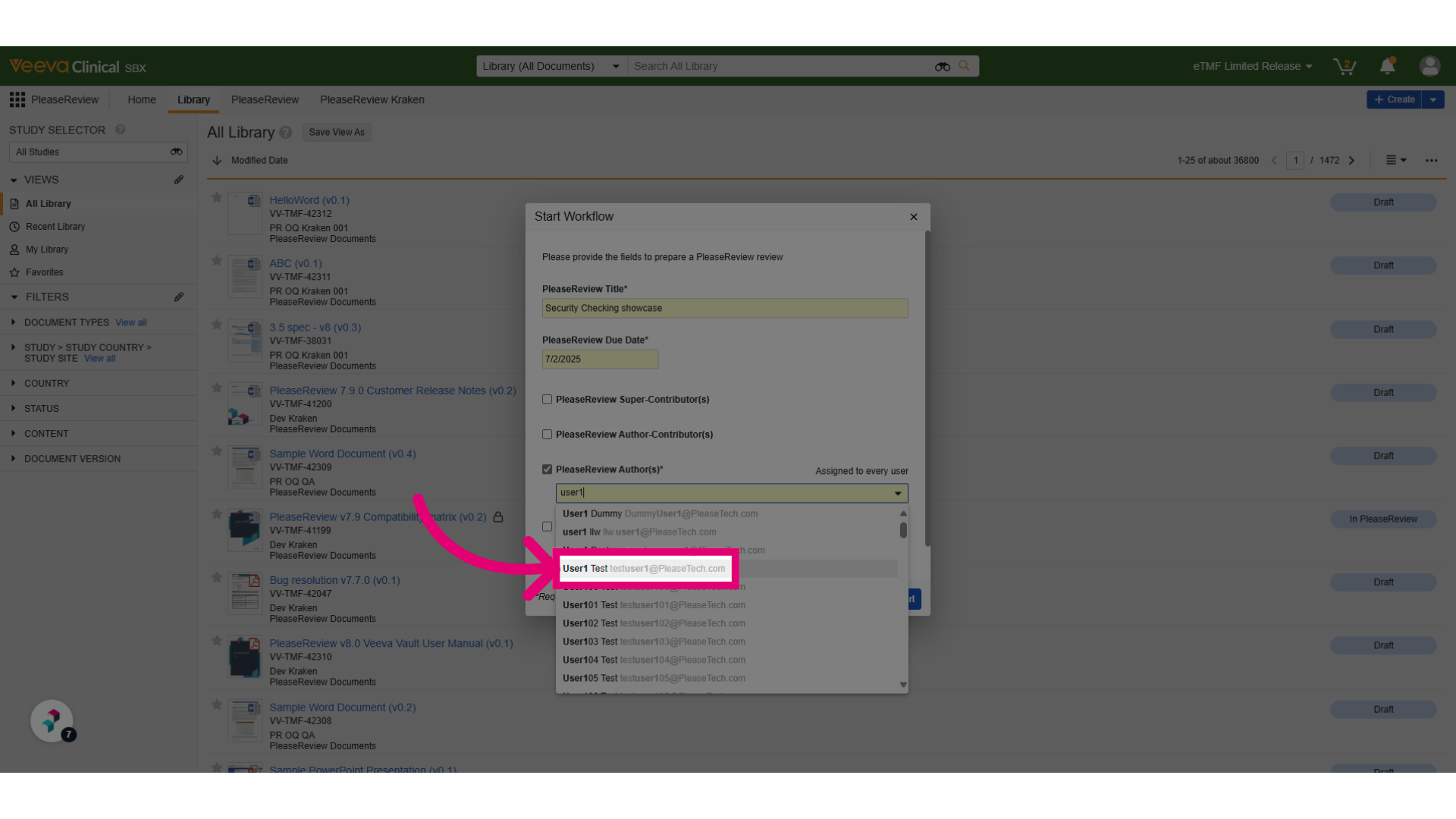
- Add the users to the review as a review participants.
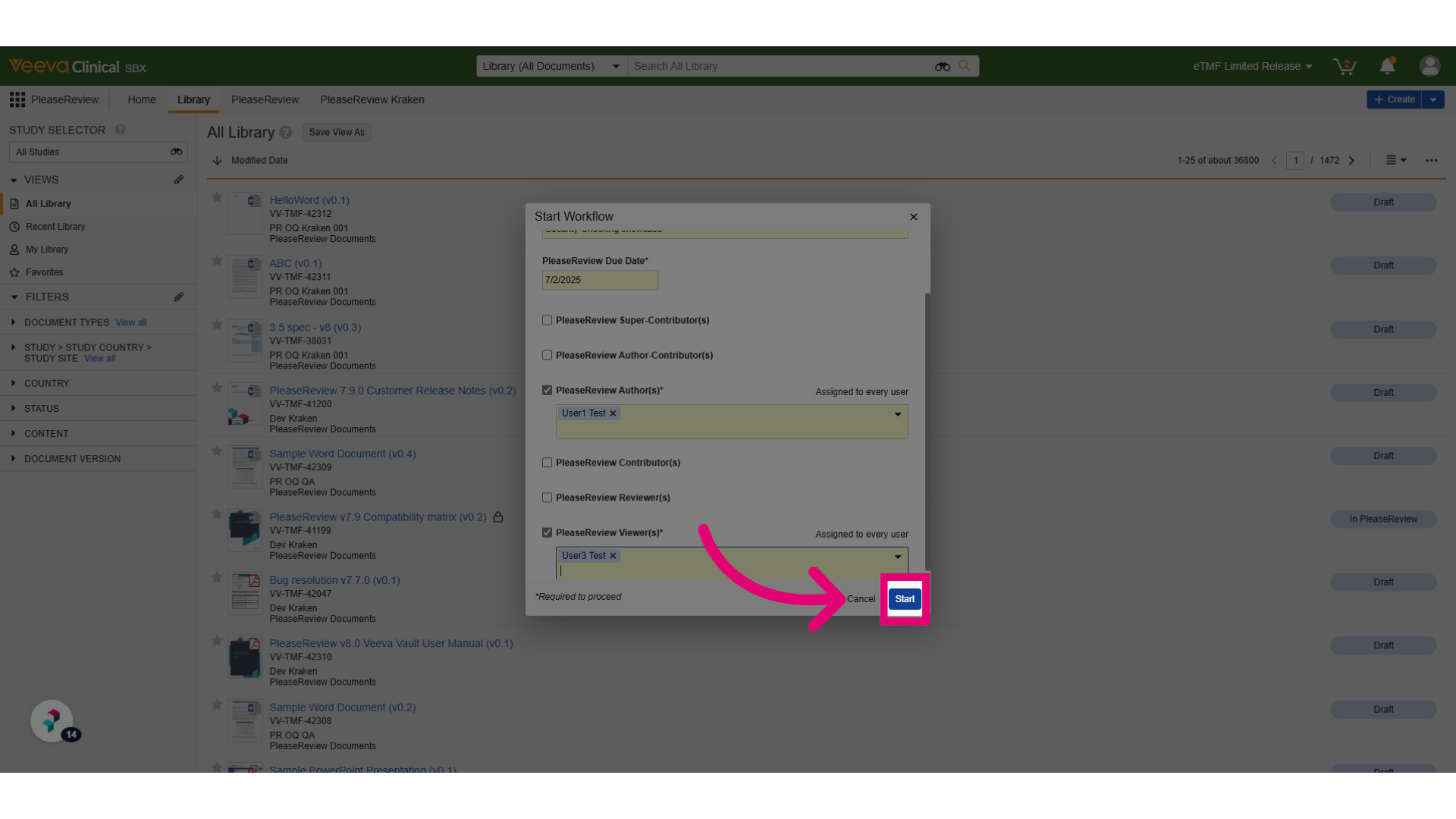
- Click Start to complete the review preparation.
- Click the menu icon.
- Click here to start the review process.
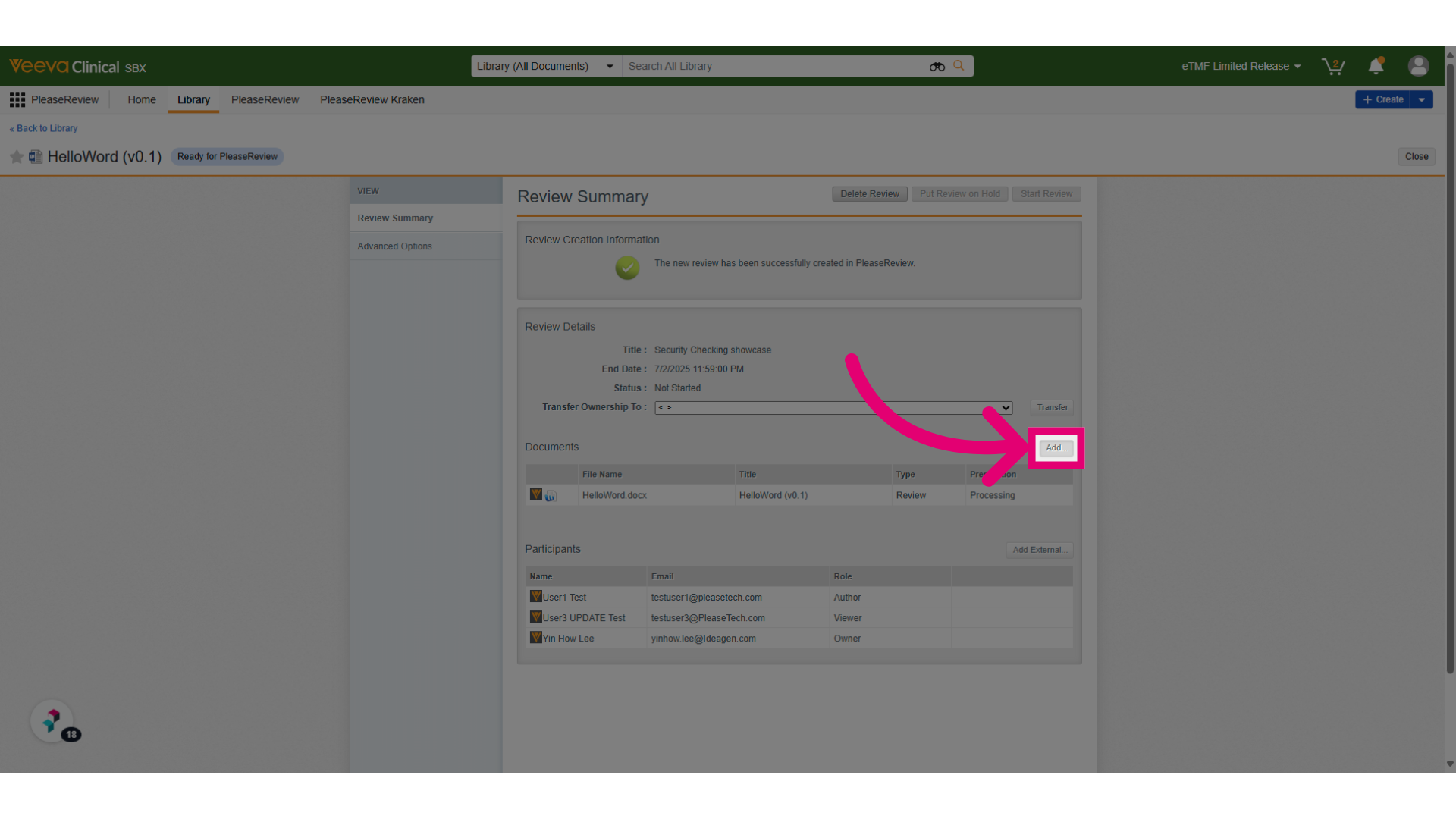
- Once the review is created, click Add.
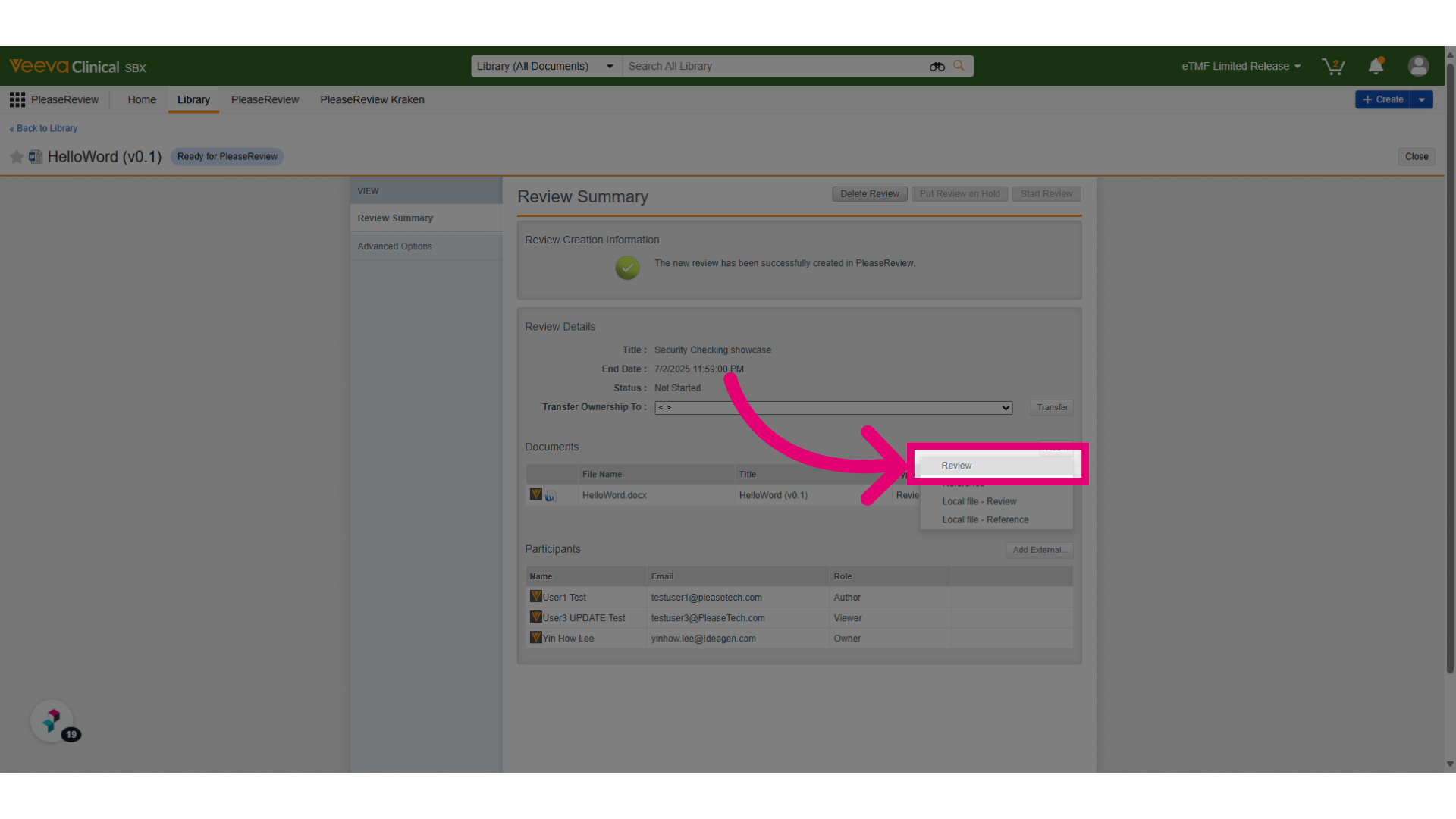
- Add additional document into the review.
- Now, one user has access to the document and the other does not due to the permissions we set earlier.
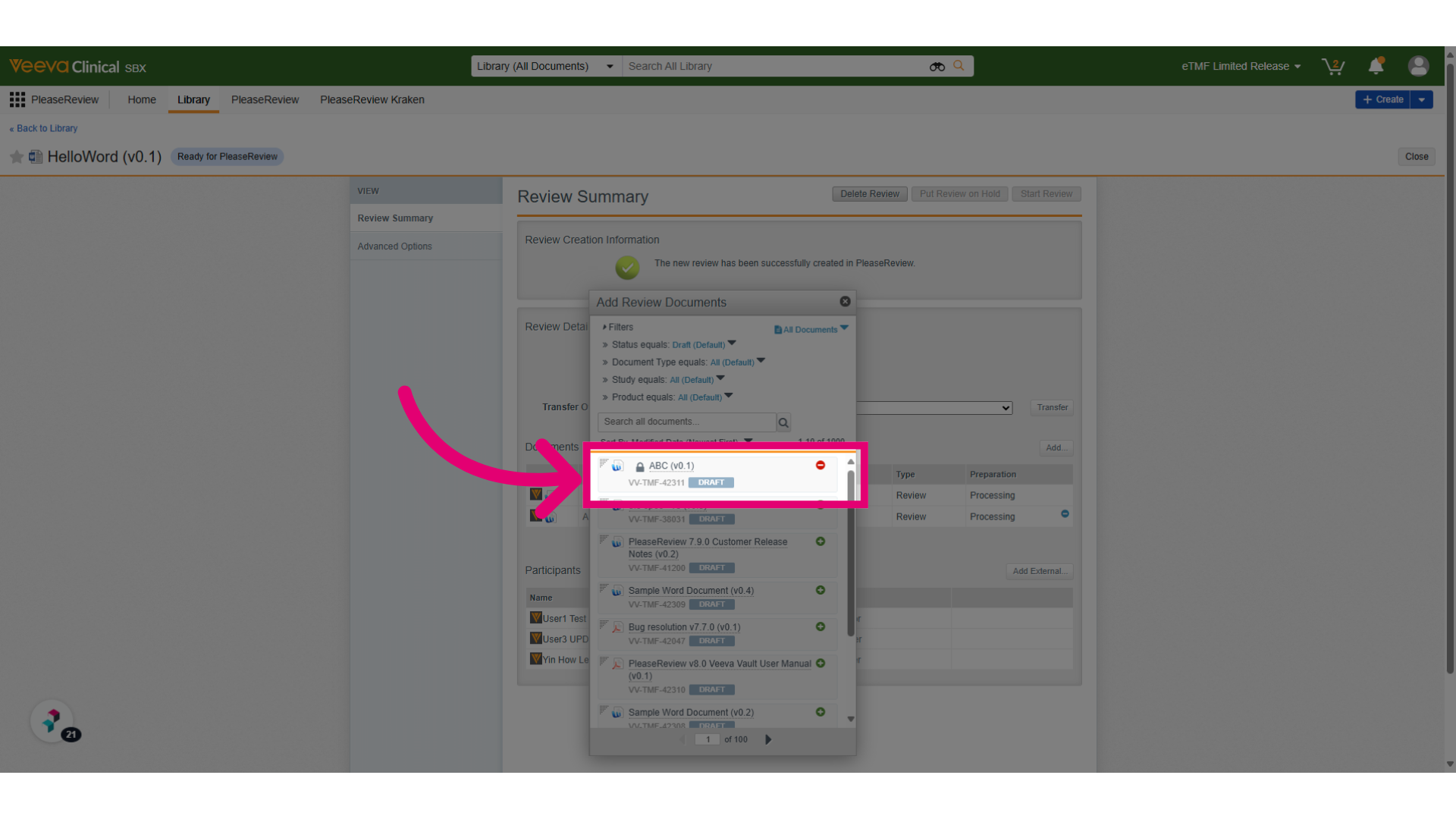
- Start the review once all documents are successfully prepared.
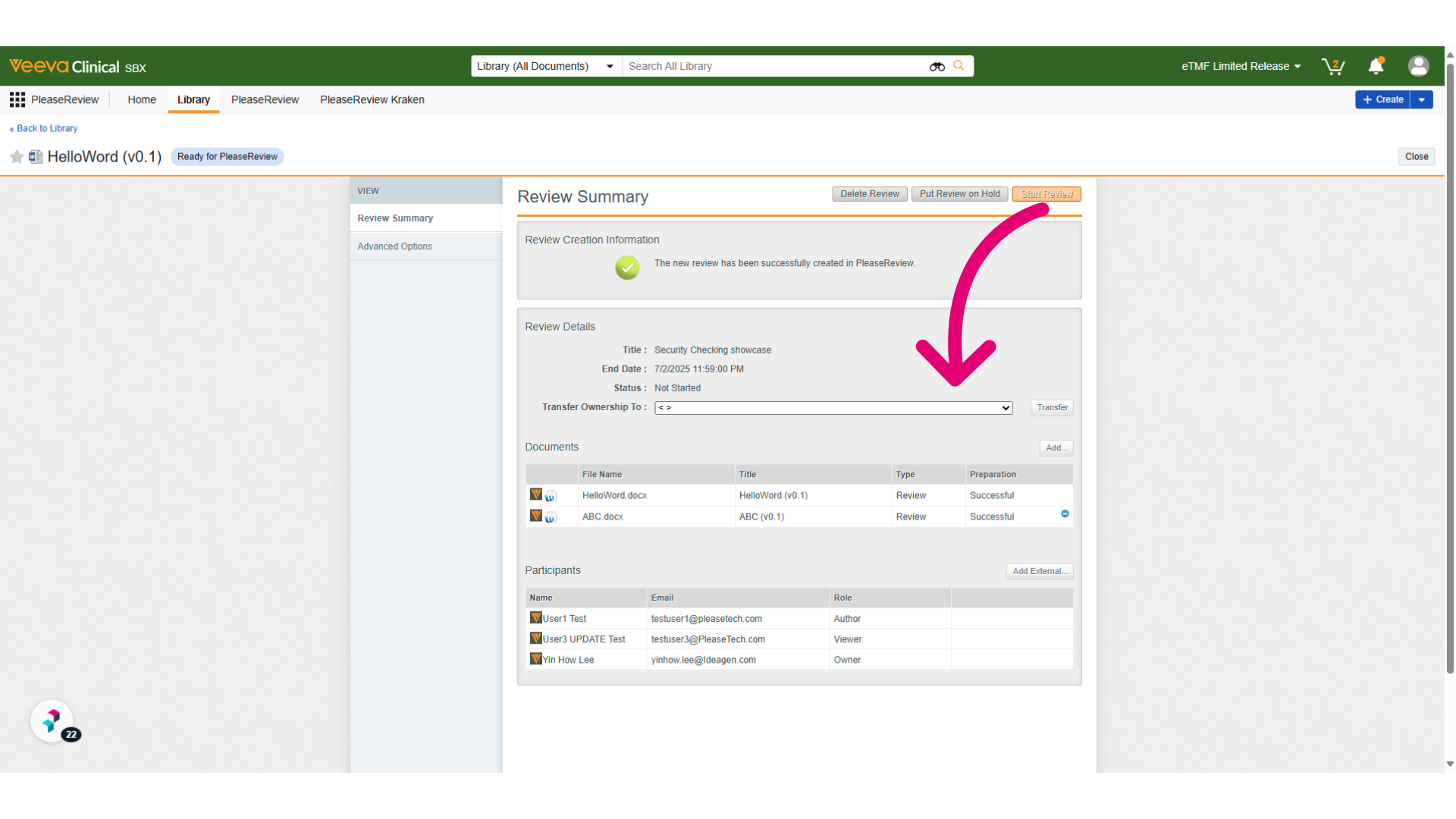
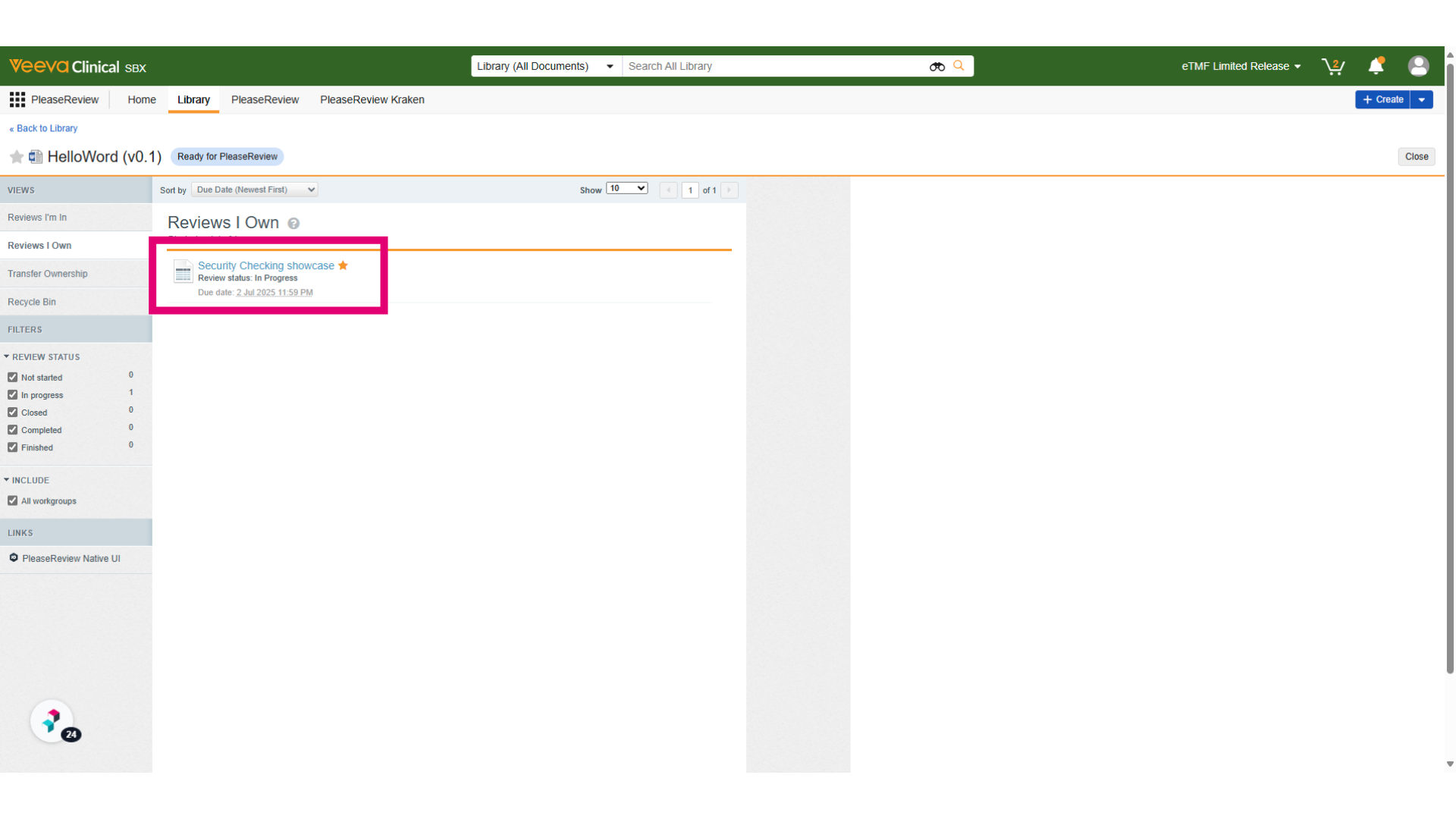
- Review started successfully and is now available under the Reviews I Own tab.
- Now, we’ll log in as the user with permissions to verify access to the review that was just created in Veeva Vault. Click on Control Panel to access the review details. Click on Control Panel to access the review details.
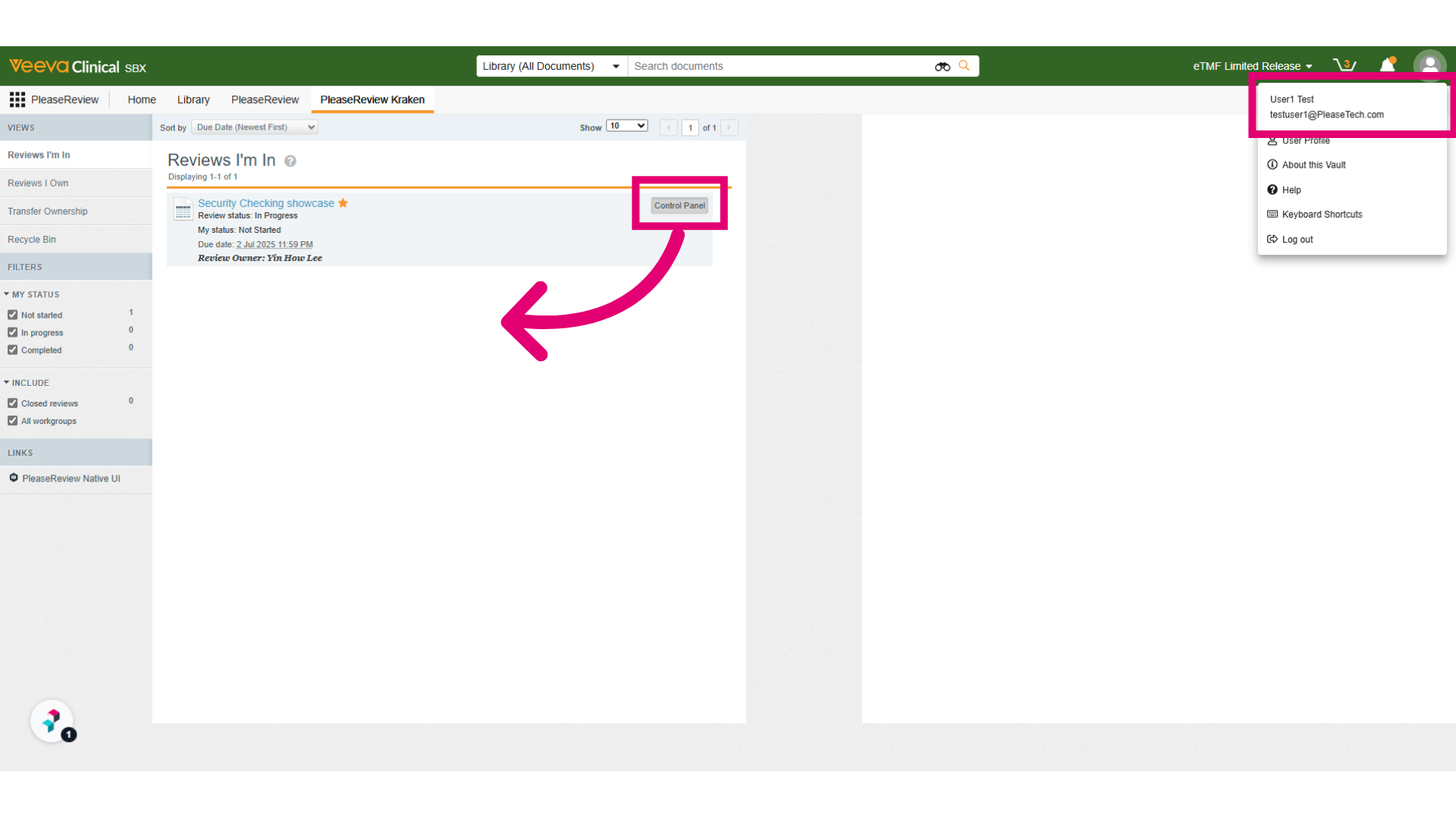
- This user is able to access the Review Control Panel.
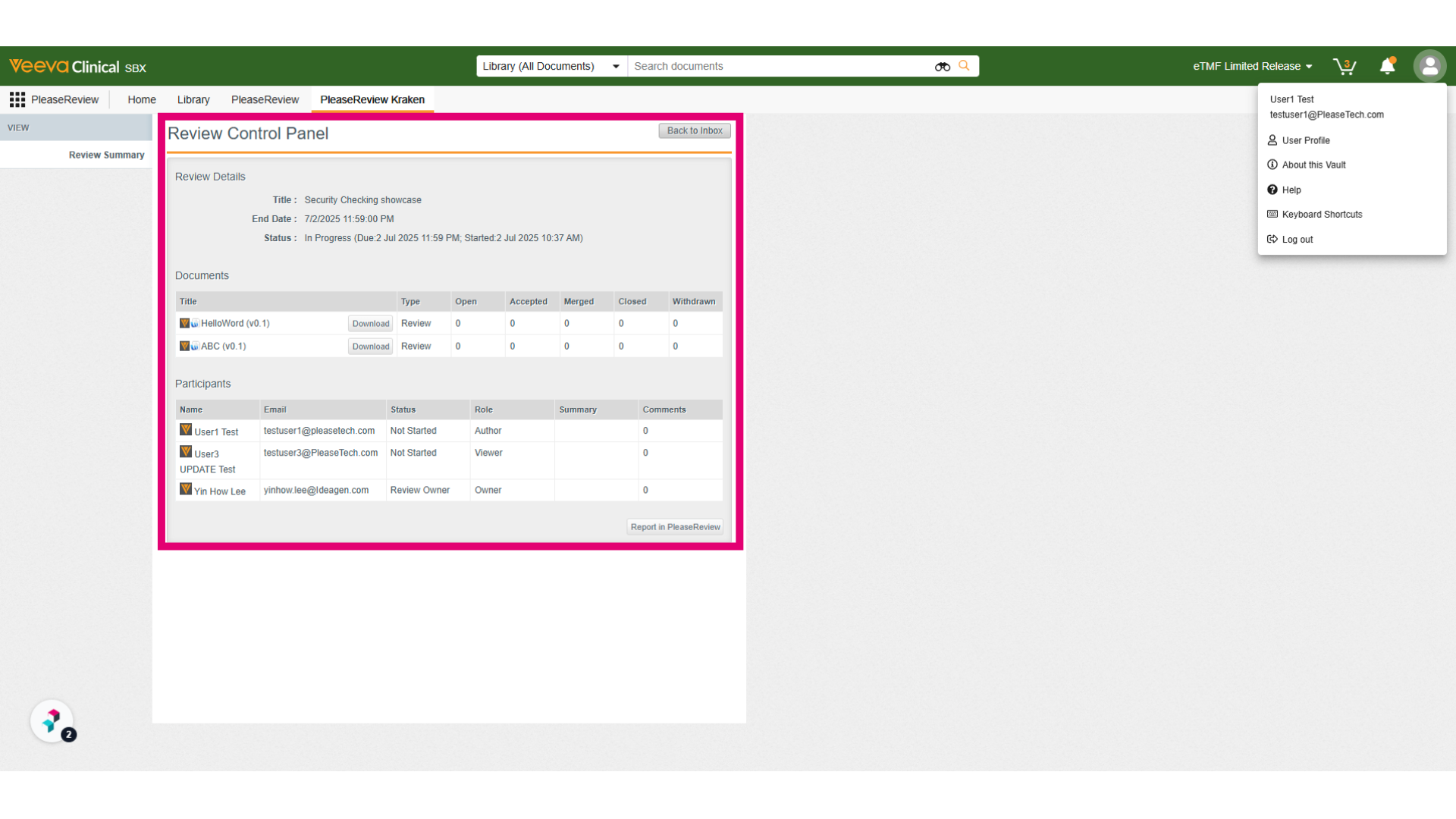
- Next, we’ll log in as the user with permissions to verify access to the review in Please Review Native.
- Click on Enter to enter the review.
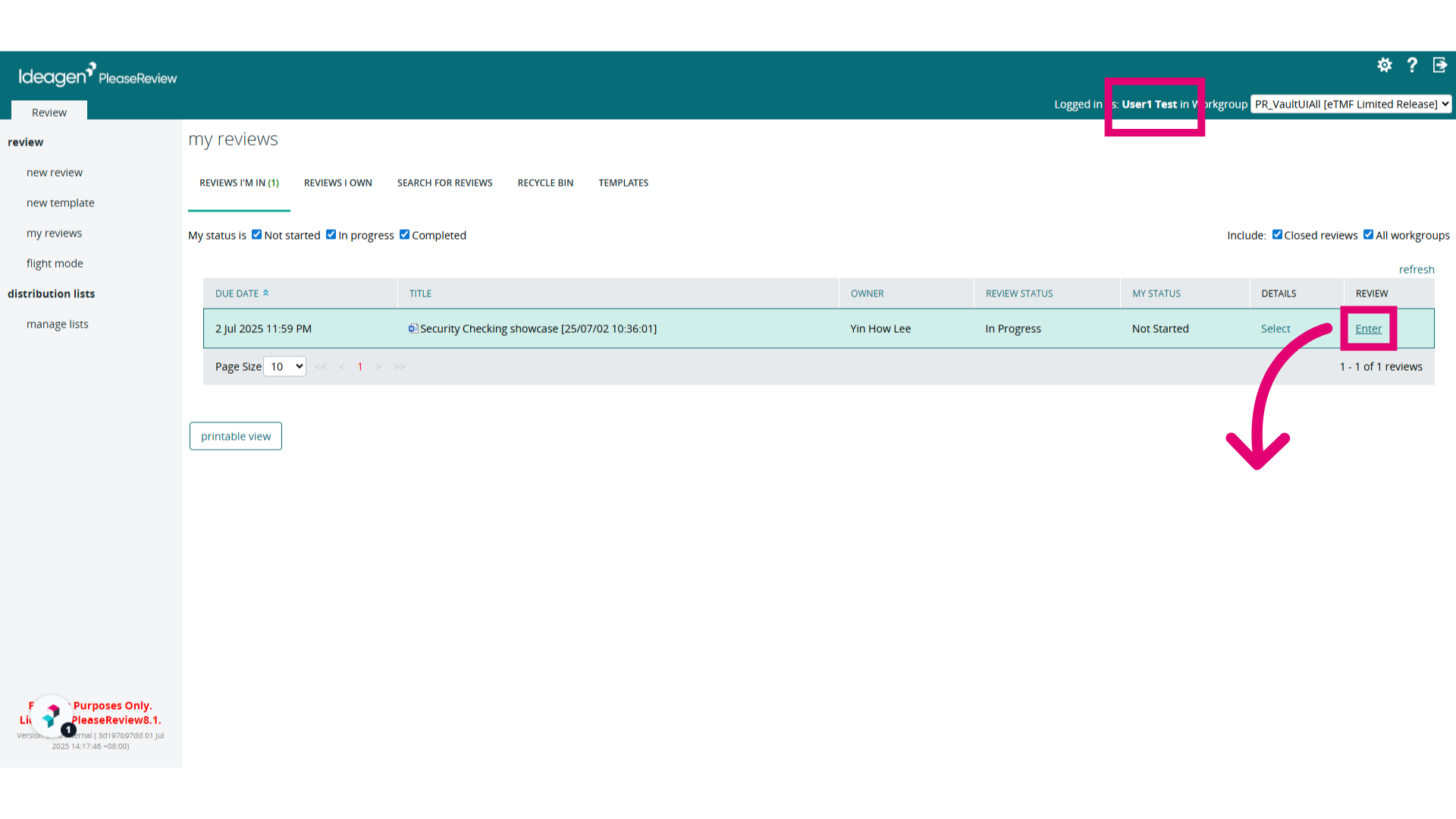
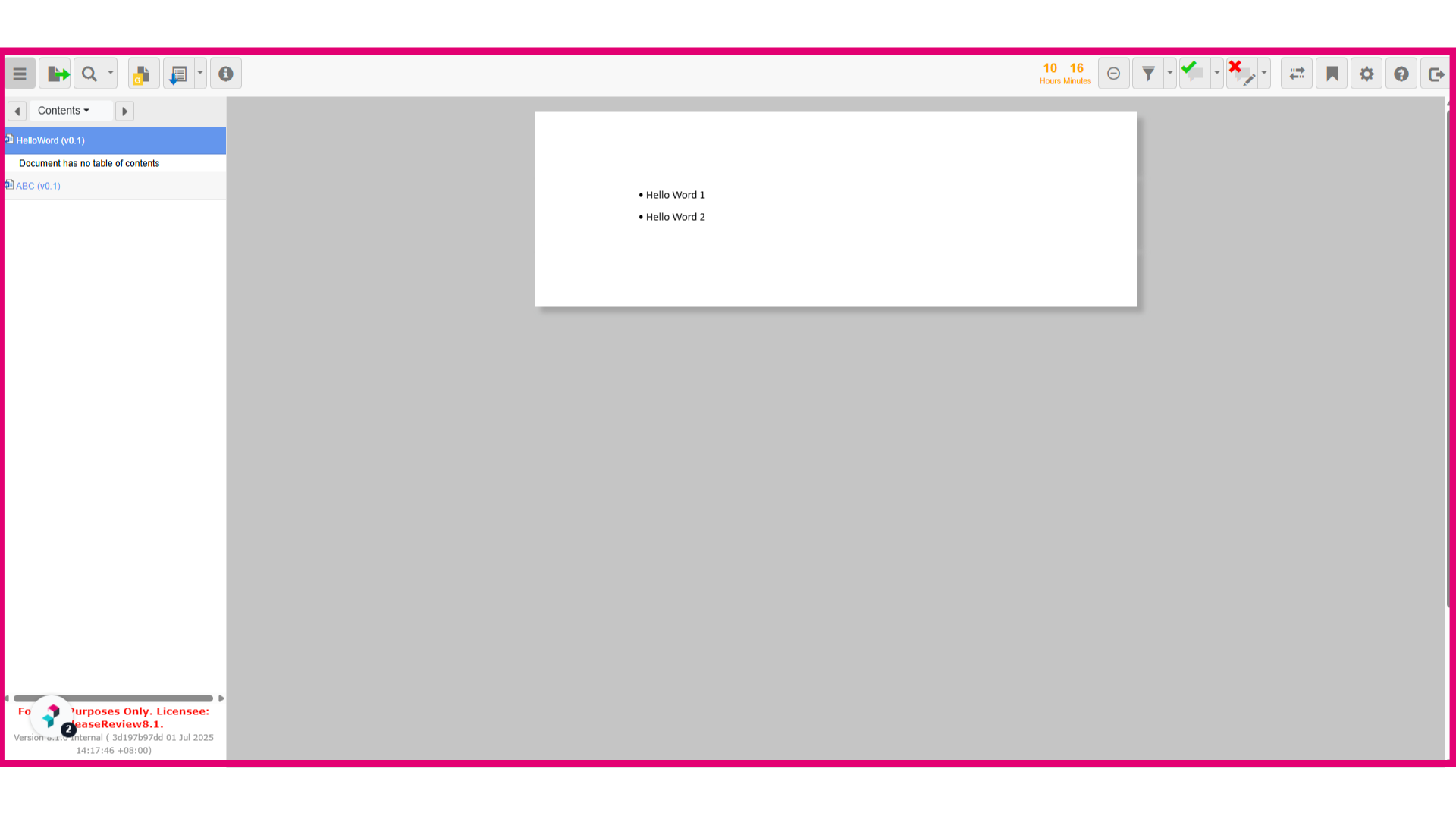
- As you can see the user is able to enter the review.
- Finally, we’ll log in as the user without permissions to verify access to the review that was just created in Veeva Vault. Click on Control Panel to access the review details.
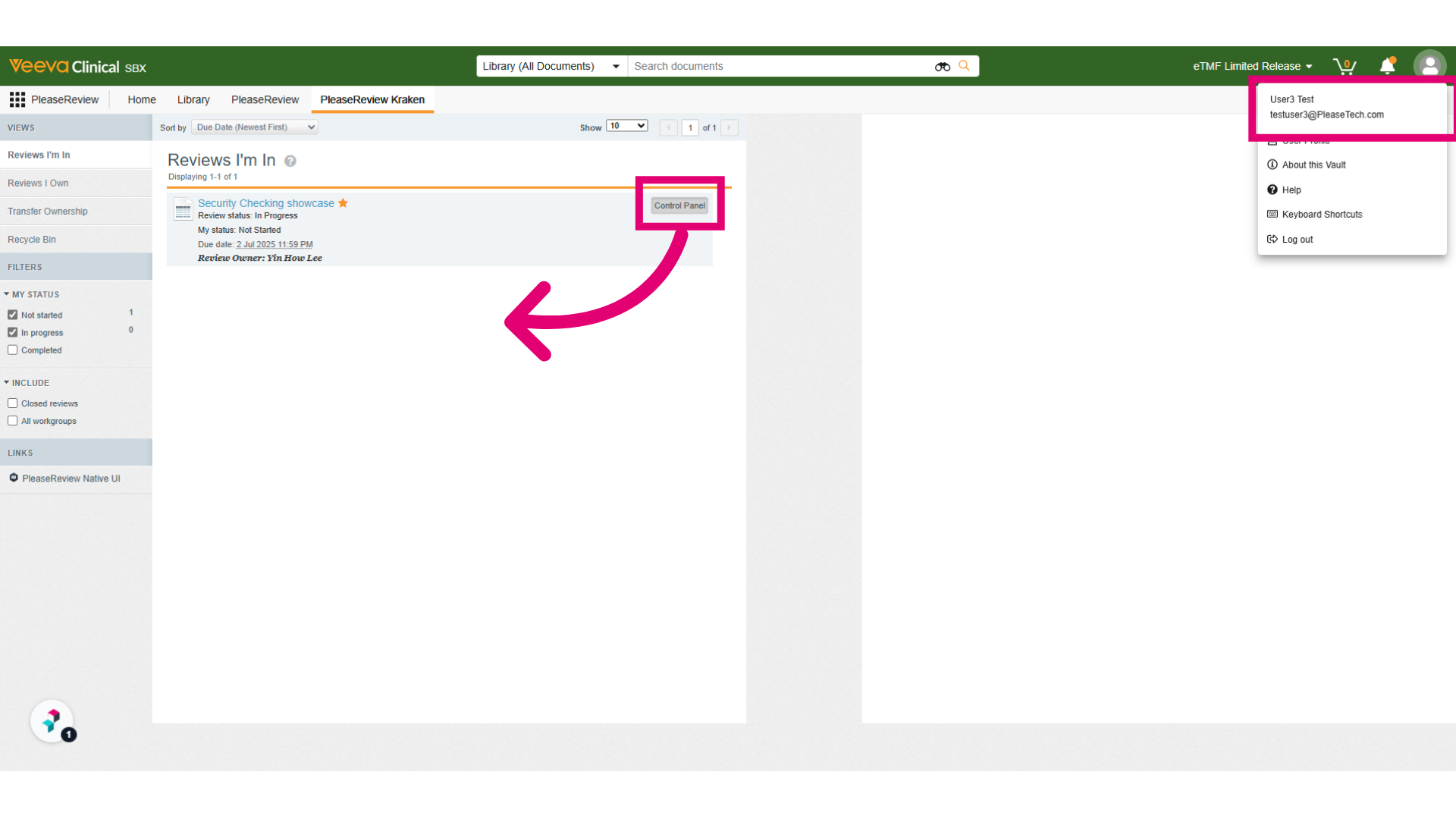
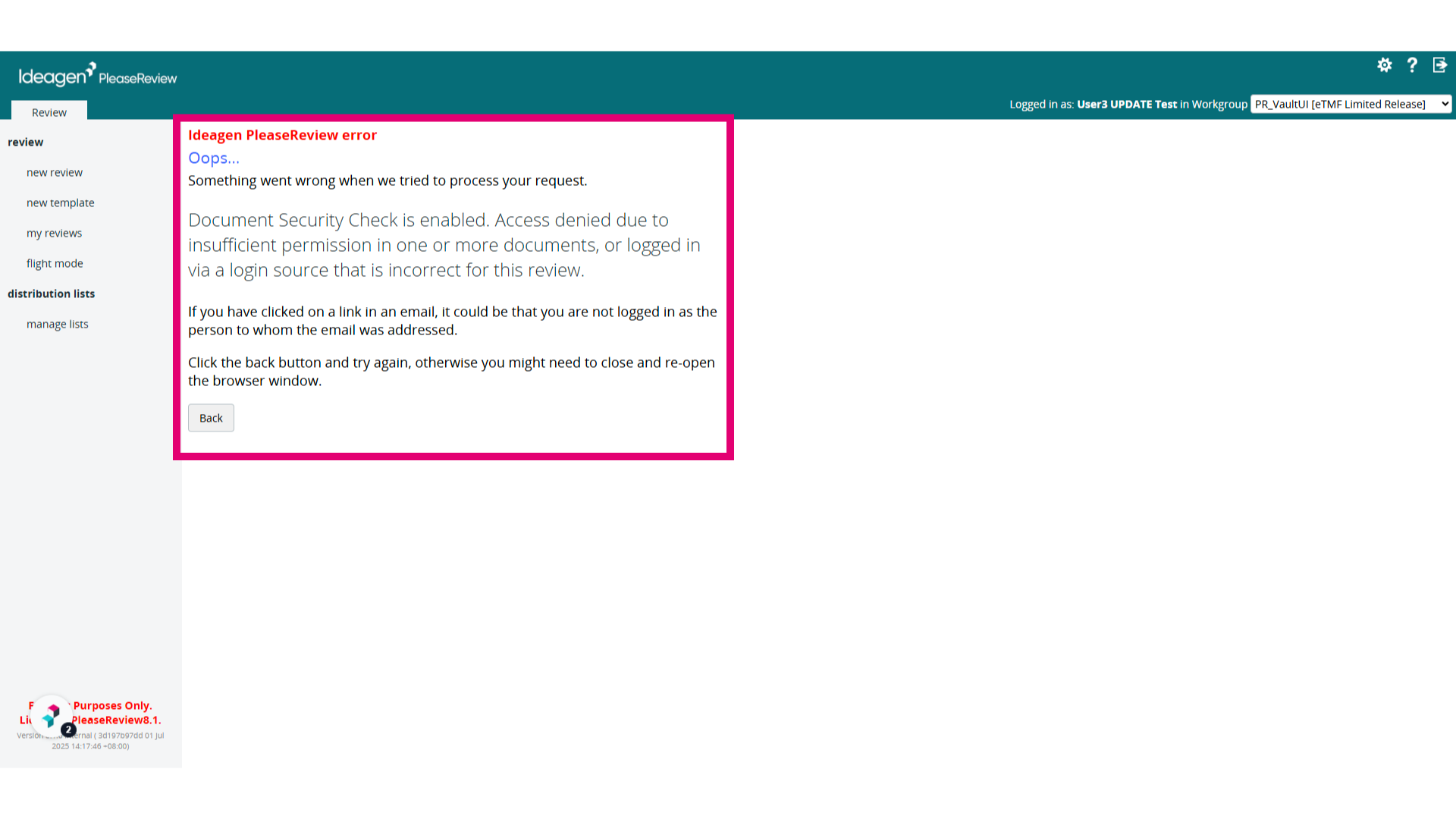
- The user is unable to access the Review Control Panel and gets a "Security Checking" error message.
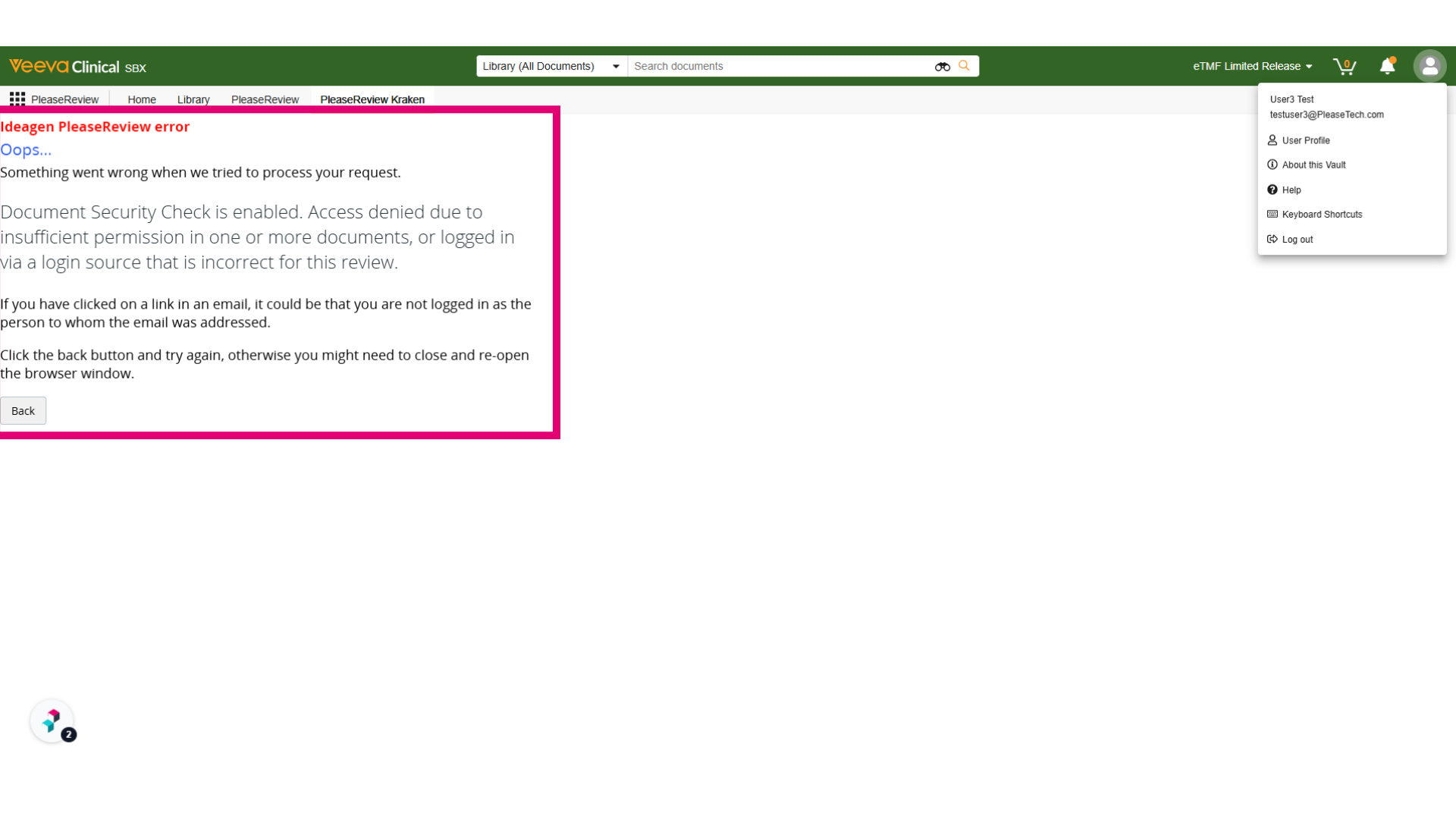
- The user also receives a Security Checking Error Message in Please Review Native when trying to enter the review.