New article
Recently updated
Creating a Review Template

Who is this article for?Users who want to learn how to create a Review Template.
No elevated permissions are required.
The following guide walks you through how to create a Review Template.
1. Creating a Review Template
1.1. Video
1.2. Steps
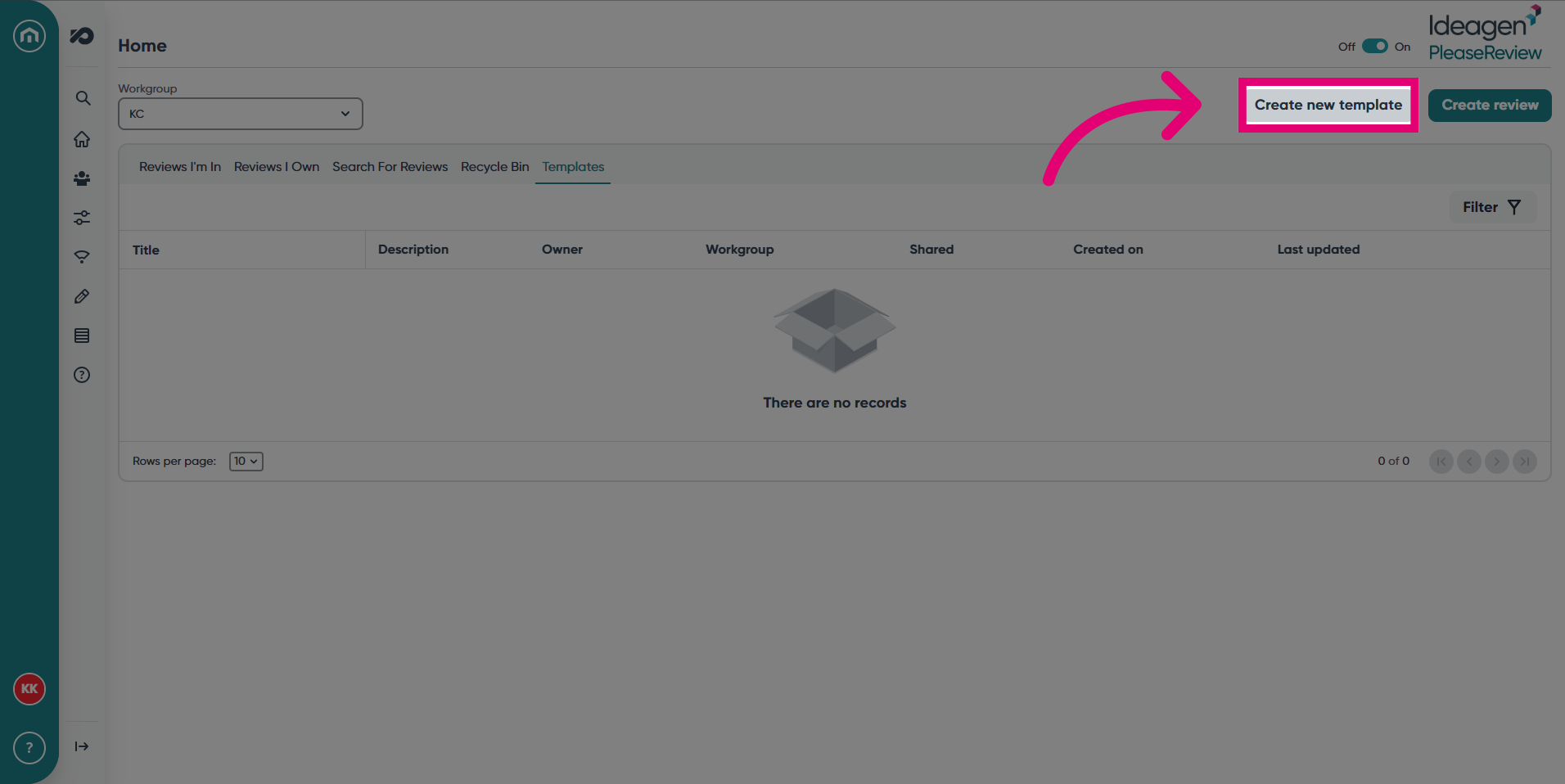
- In the Please Review review screen, click Create new template.
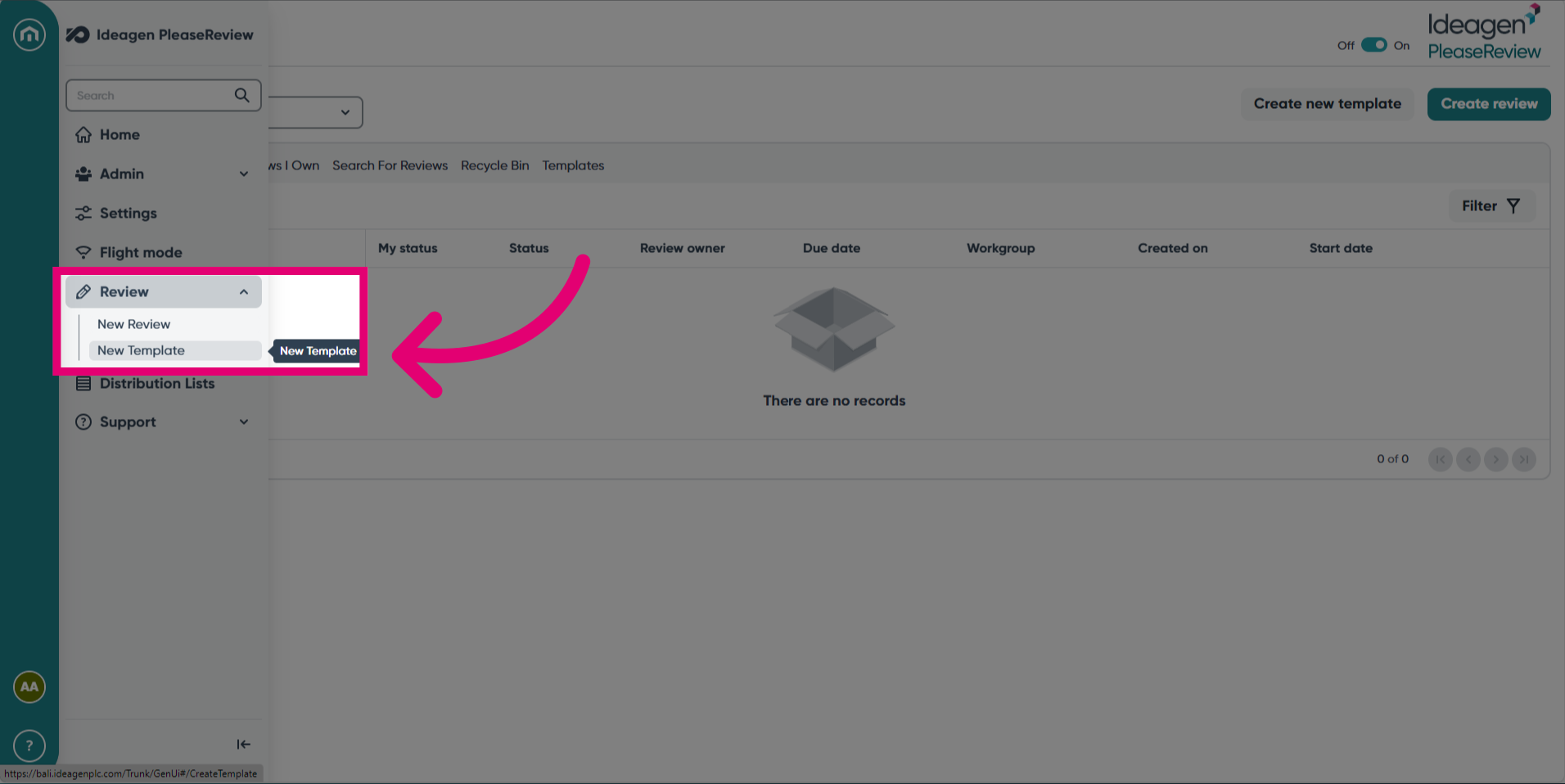
- Alternatively, expand the navigation bar, select the Review drop-down, then click New Template.
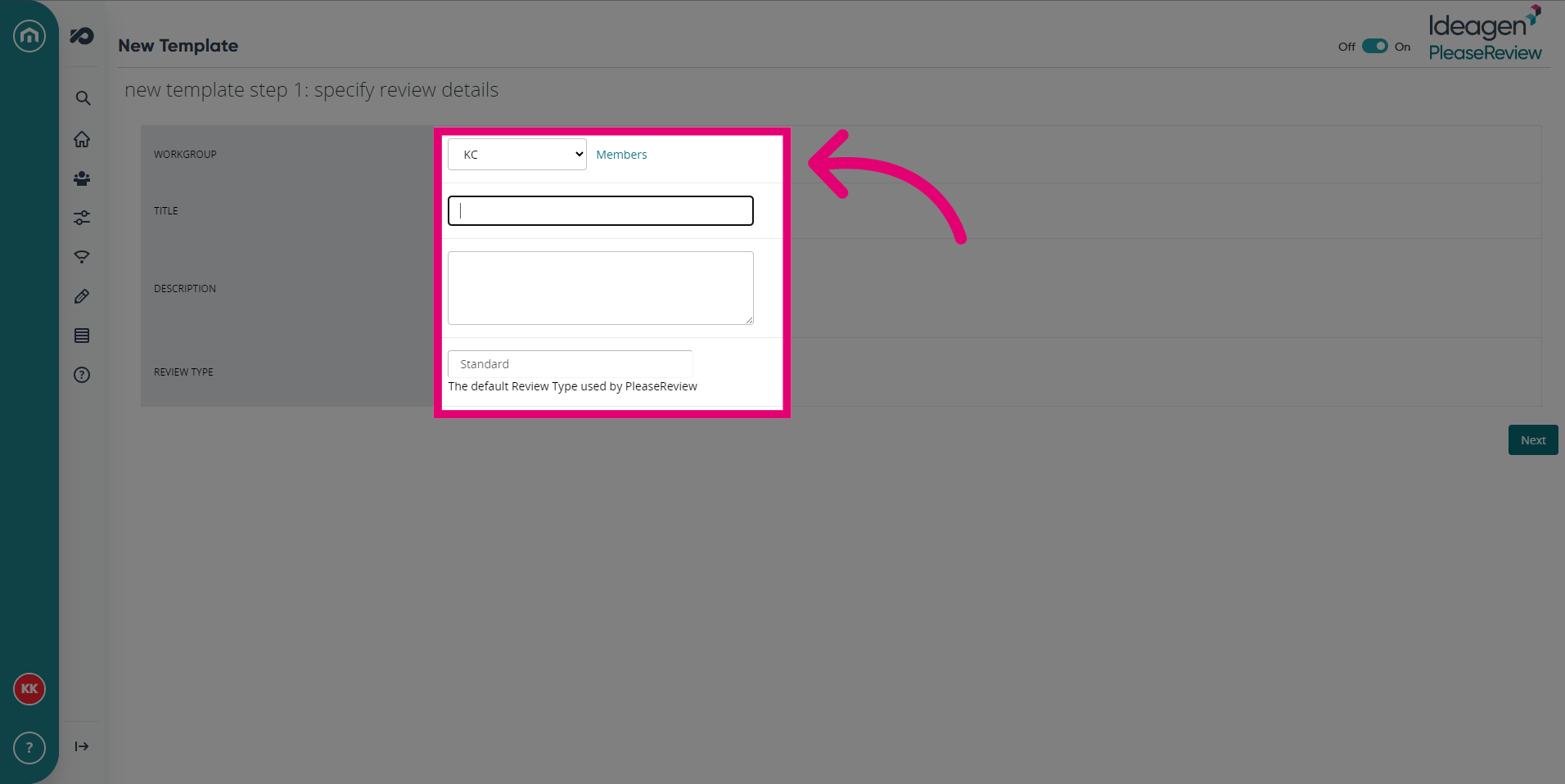
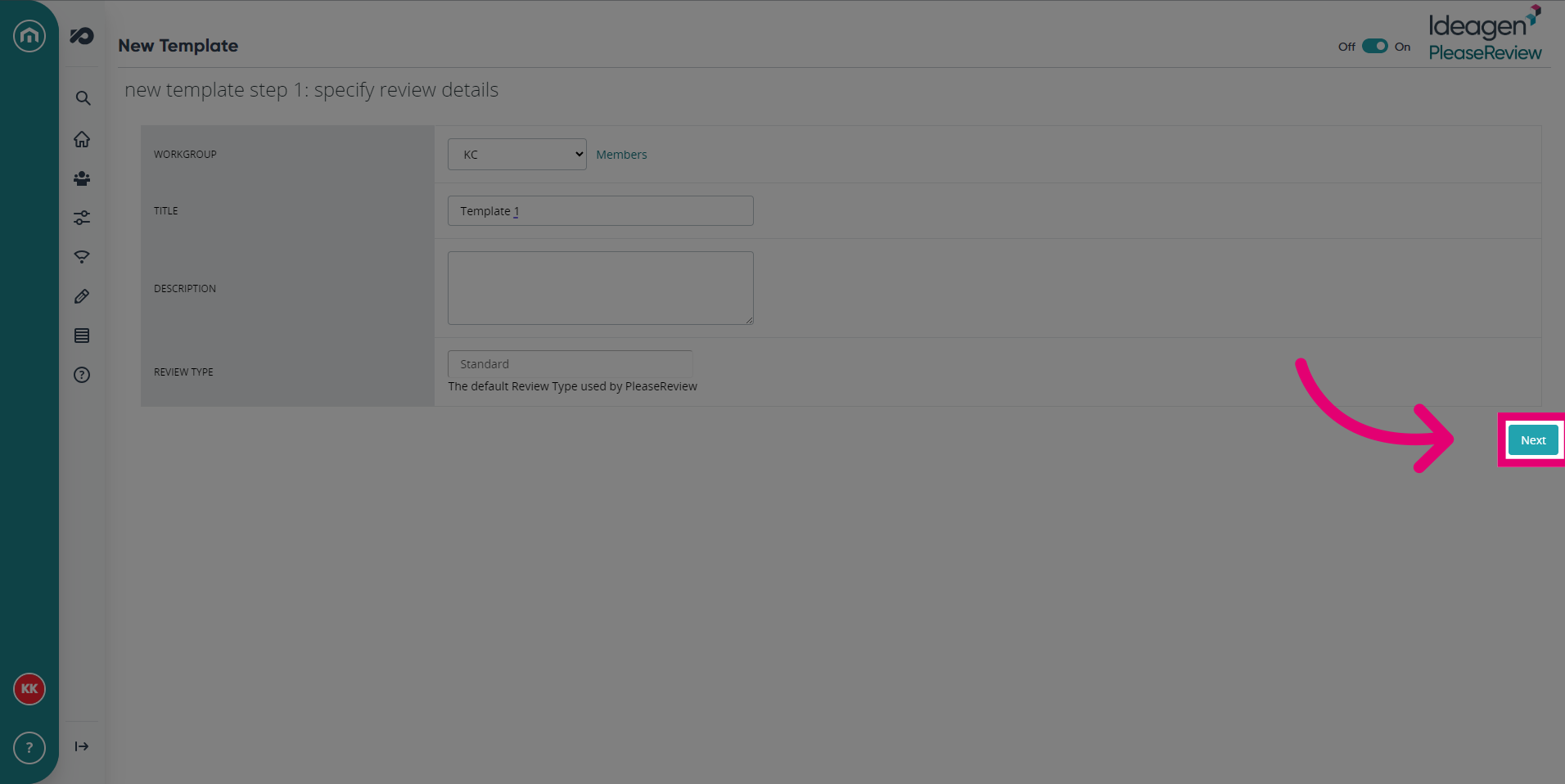
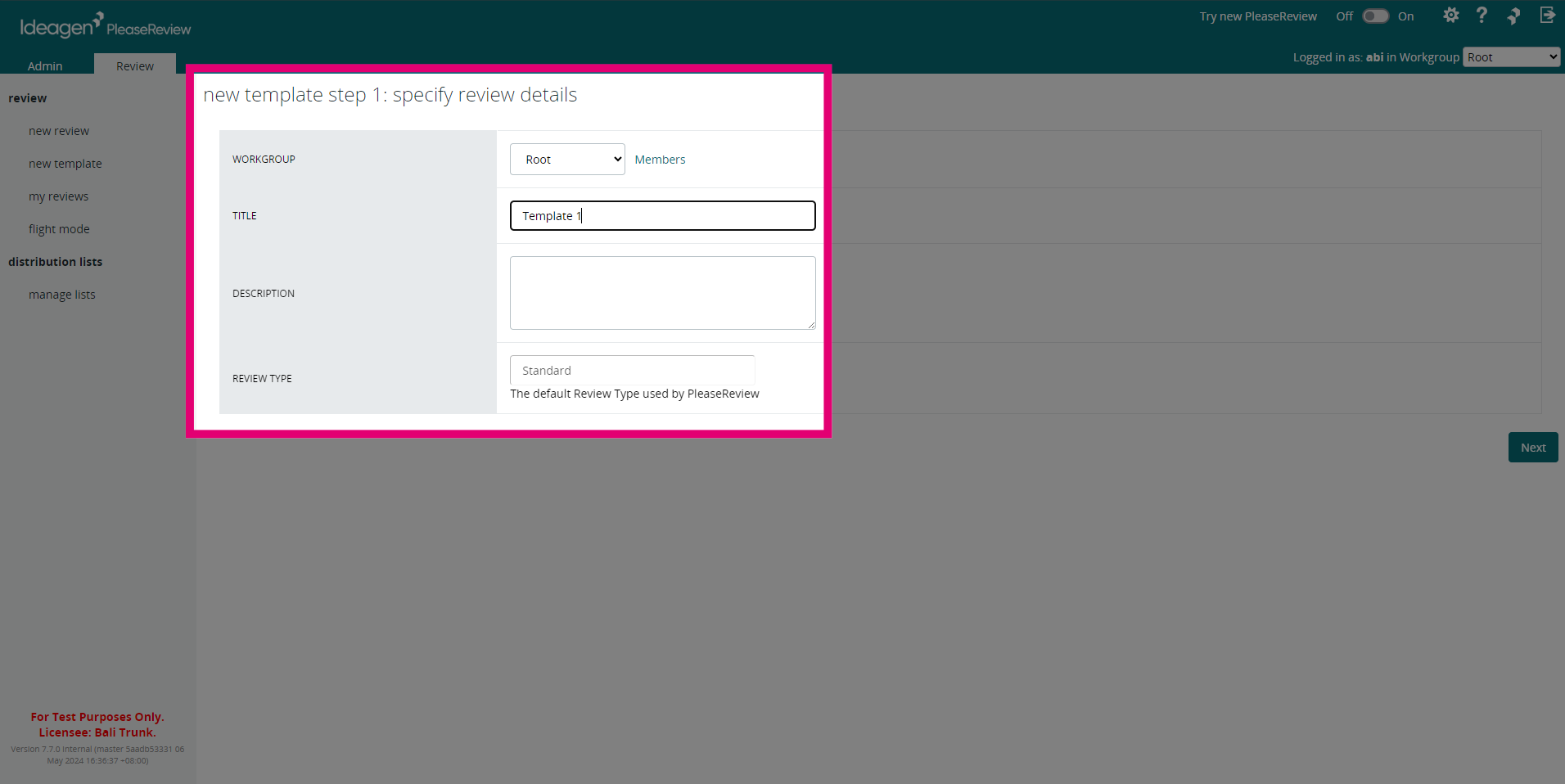
- Specify the review template details, such as Workgroup, Title, Description and Review Type.
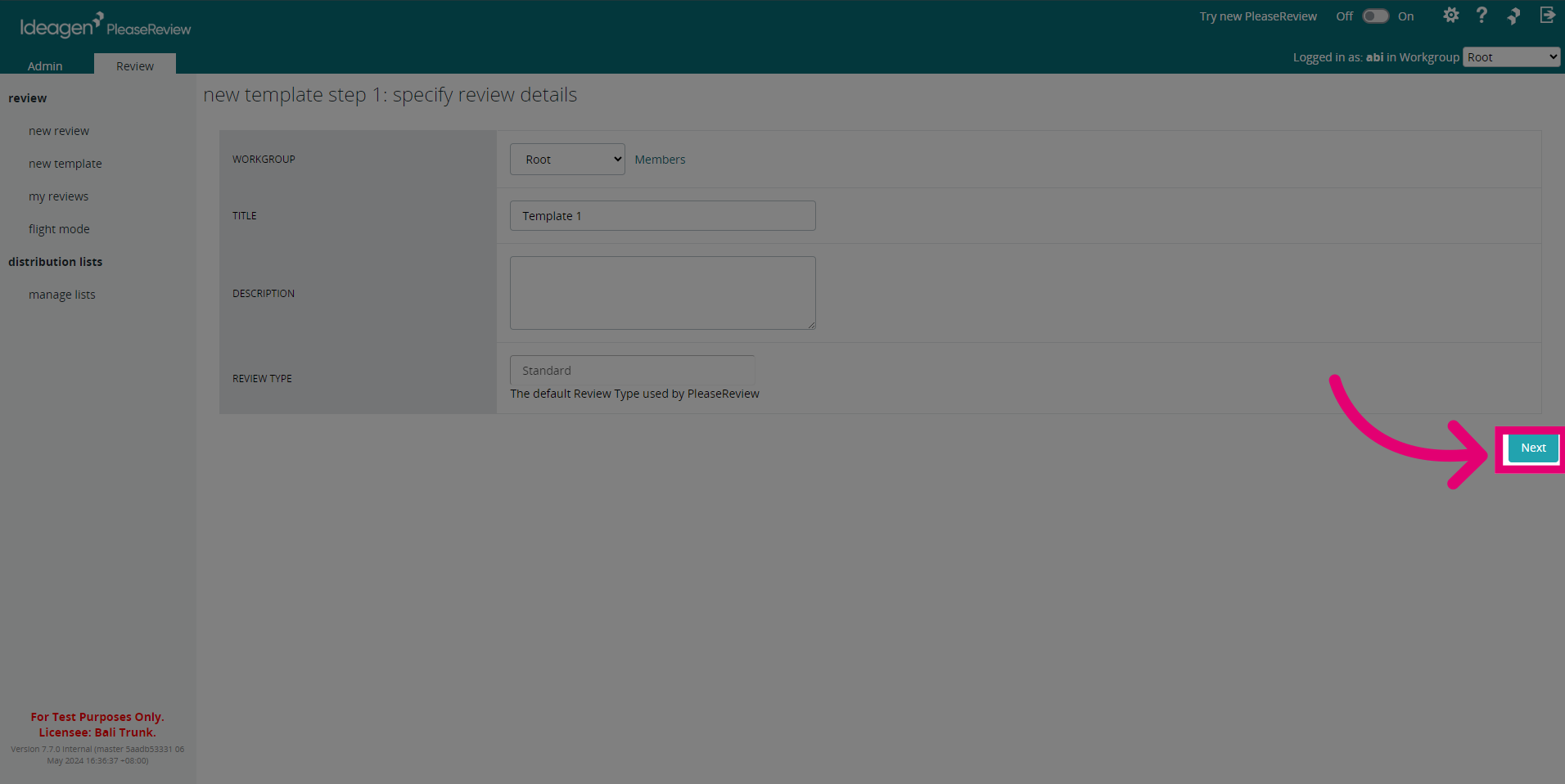
- Click Next to proceed.
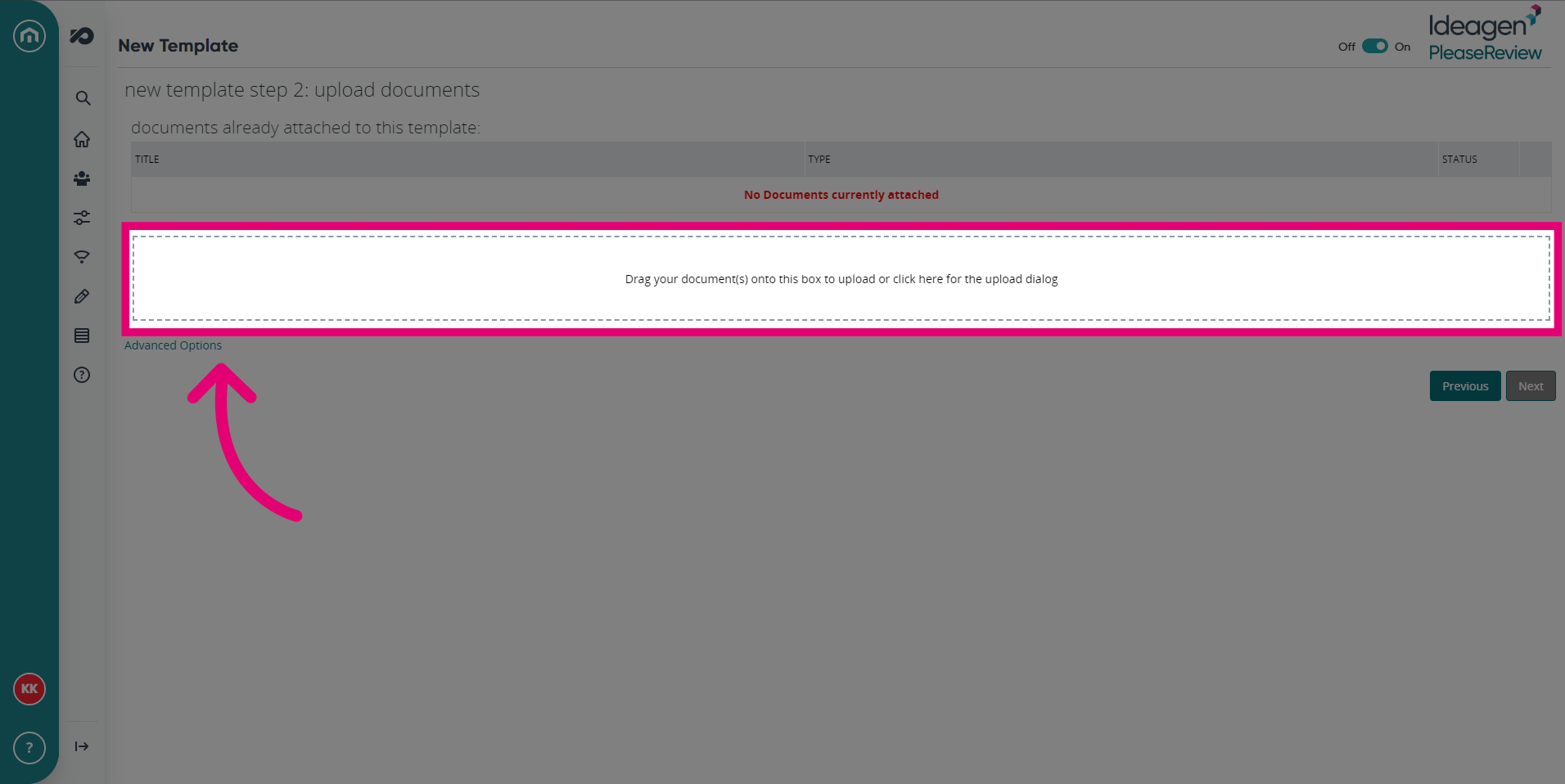
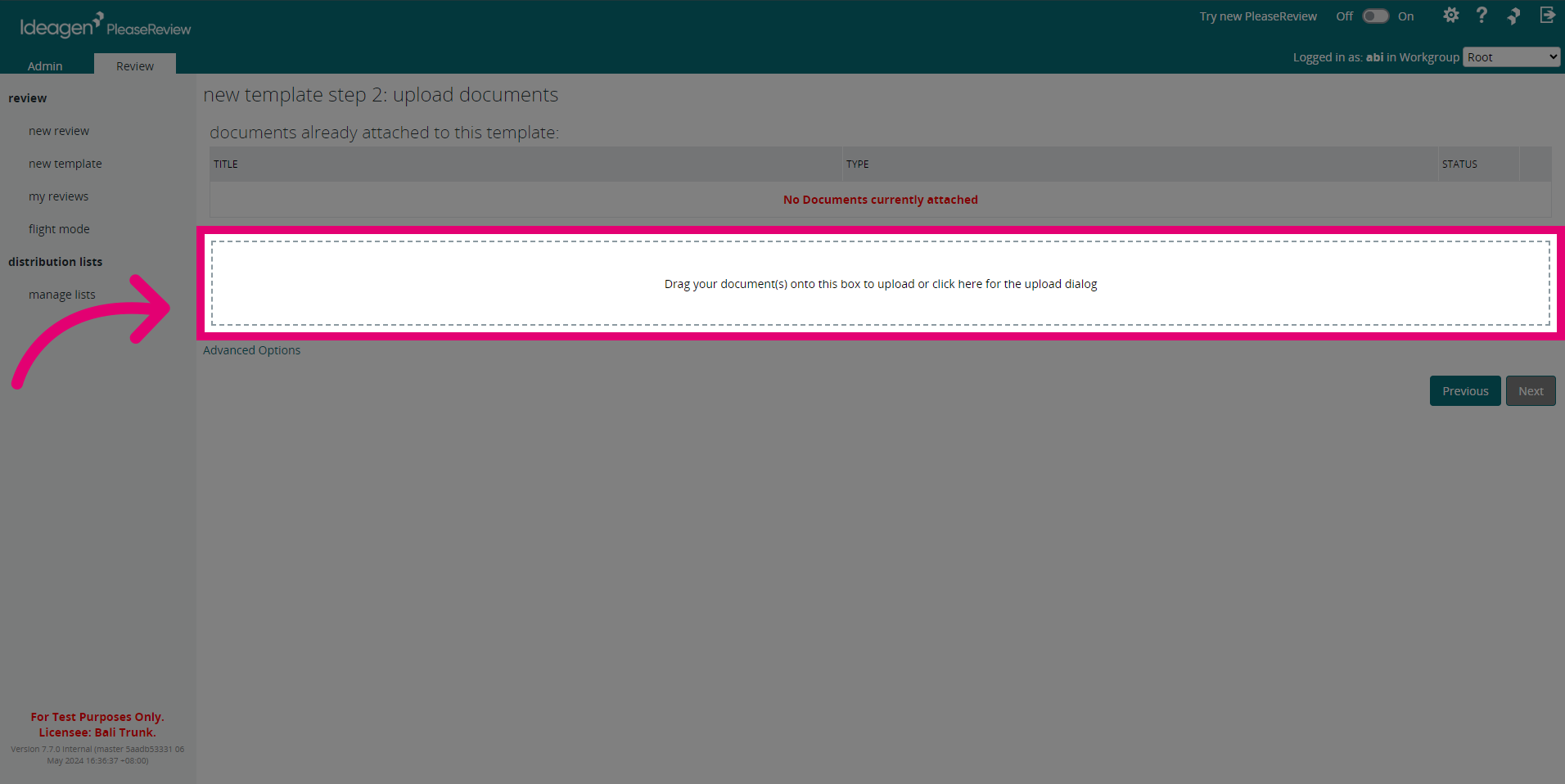
- Upload your document by dragging and dropping or clicking for the upload dialog.
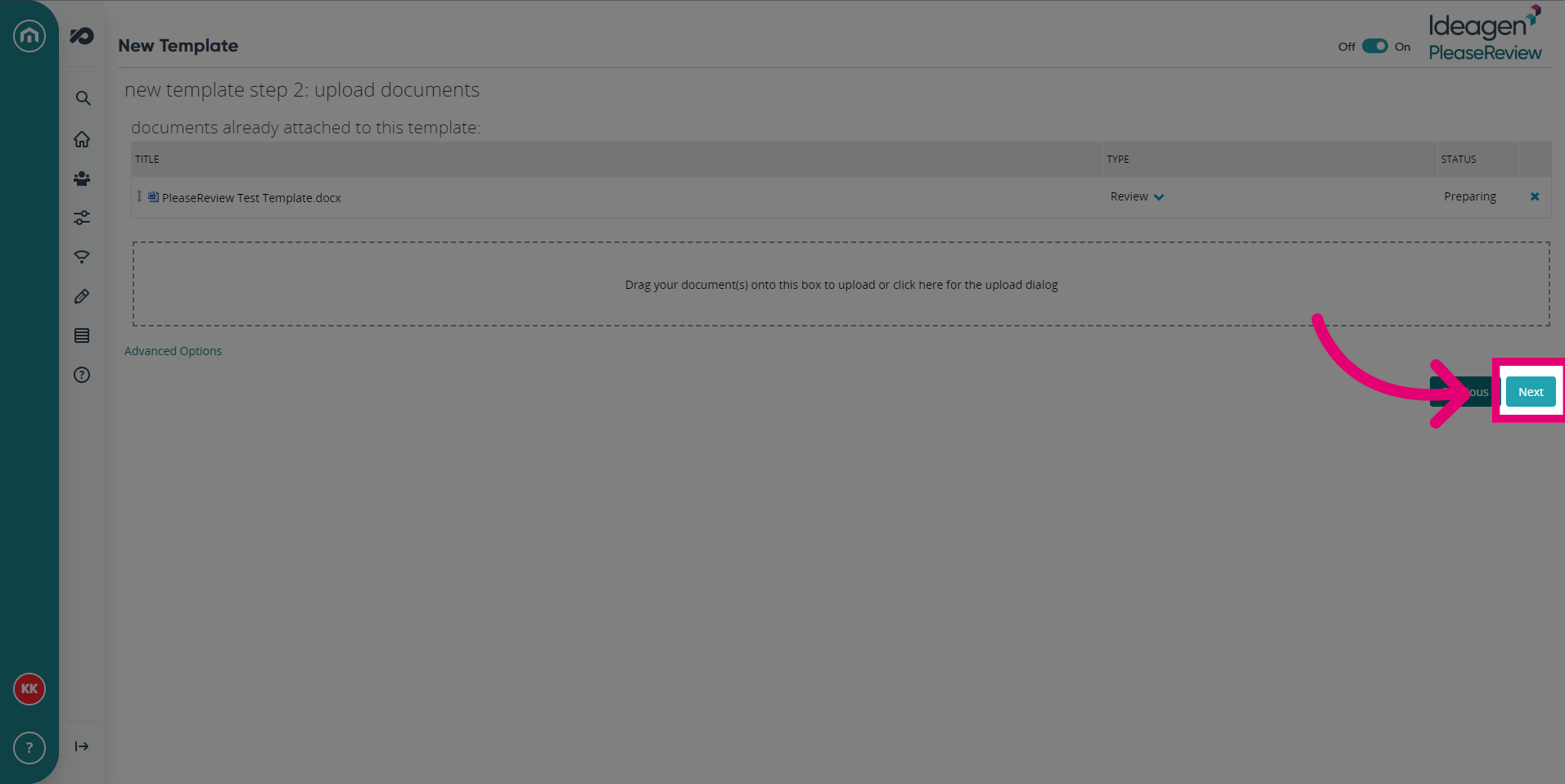
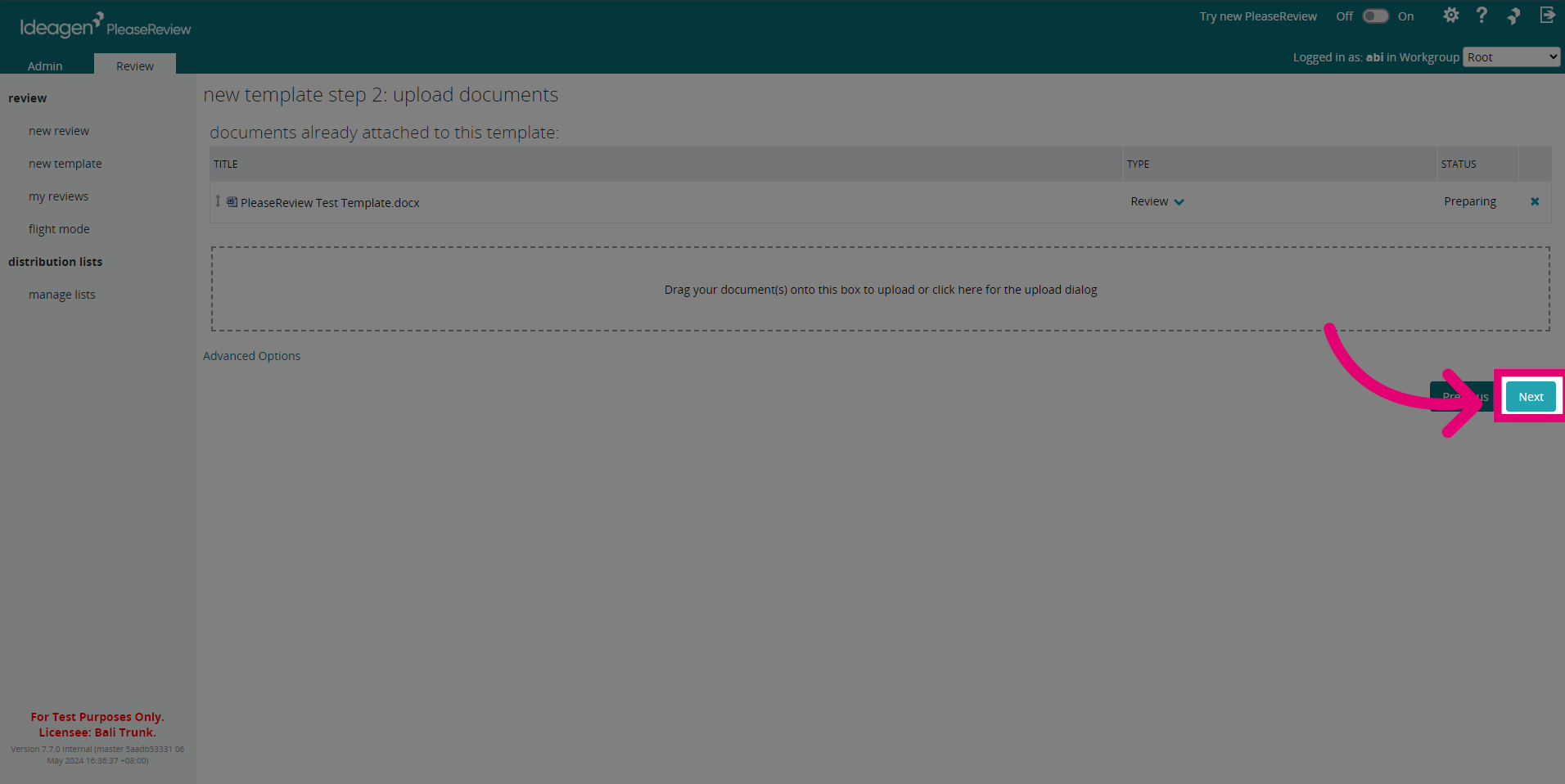
- Click Next to move onto the next step.
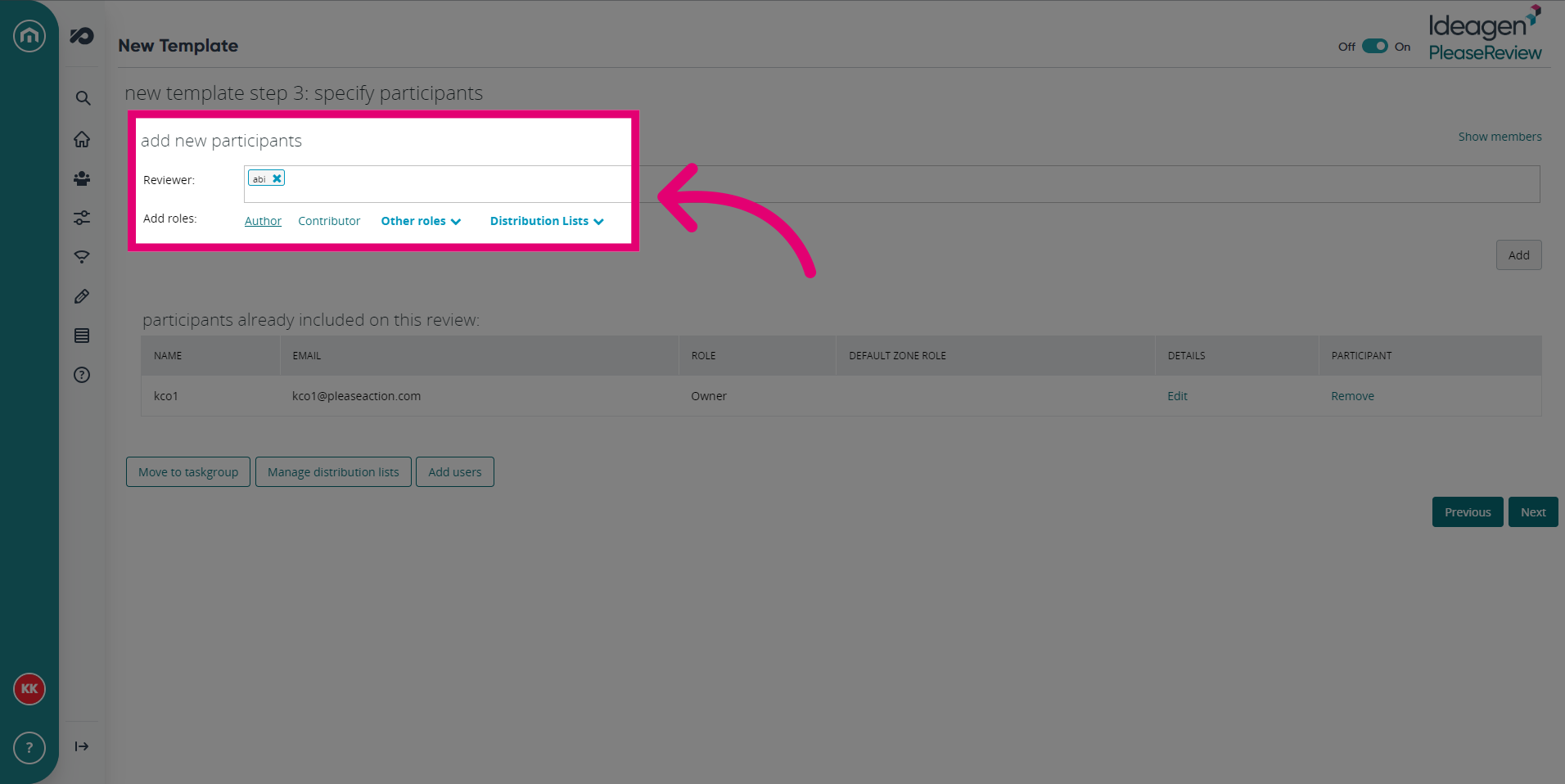
- Add participants to the new Template. You can add additional roles or Distribution Lists in this screen.
- Click Next.
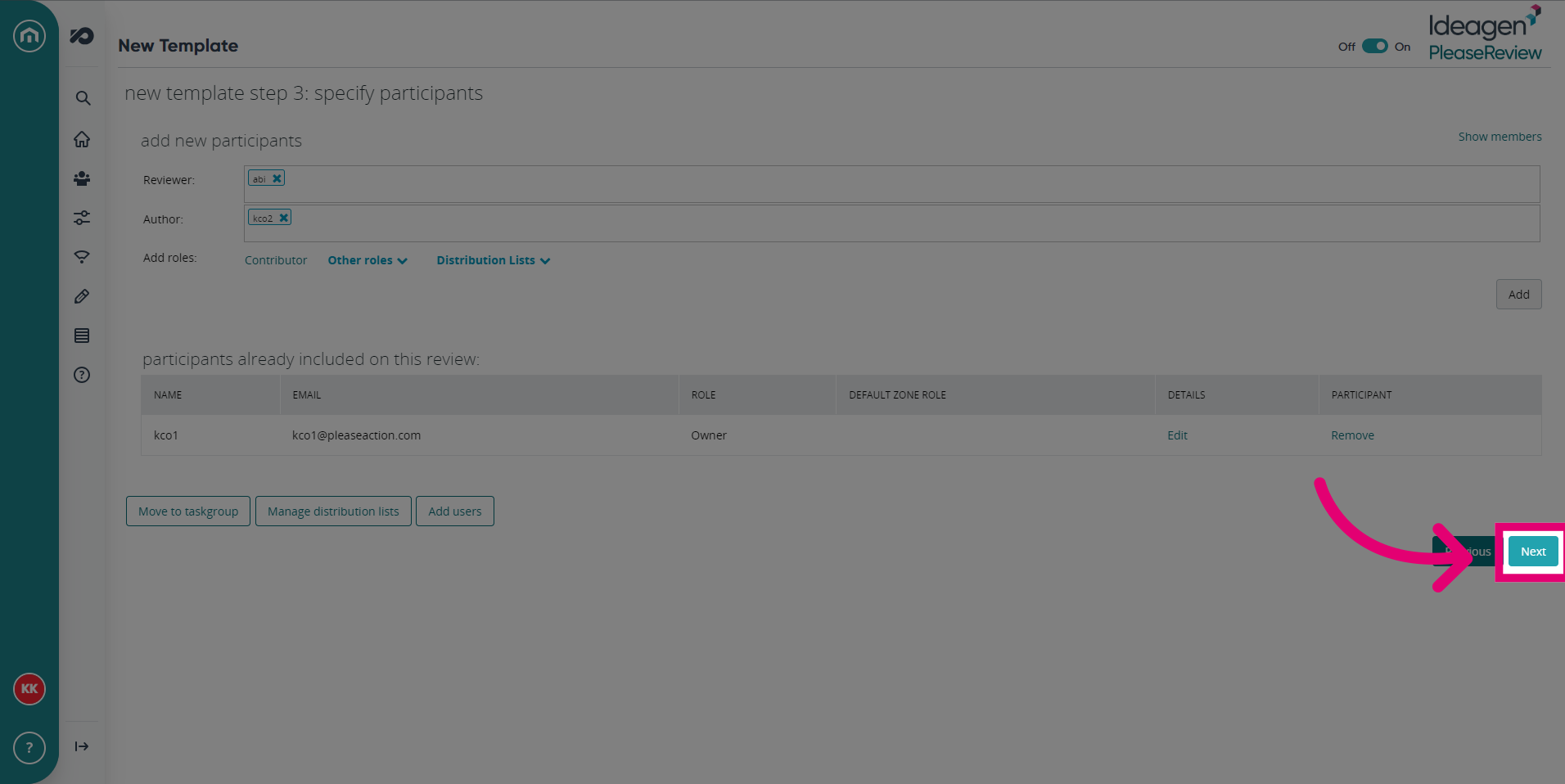
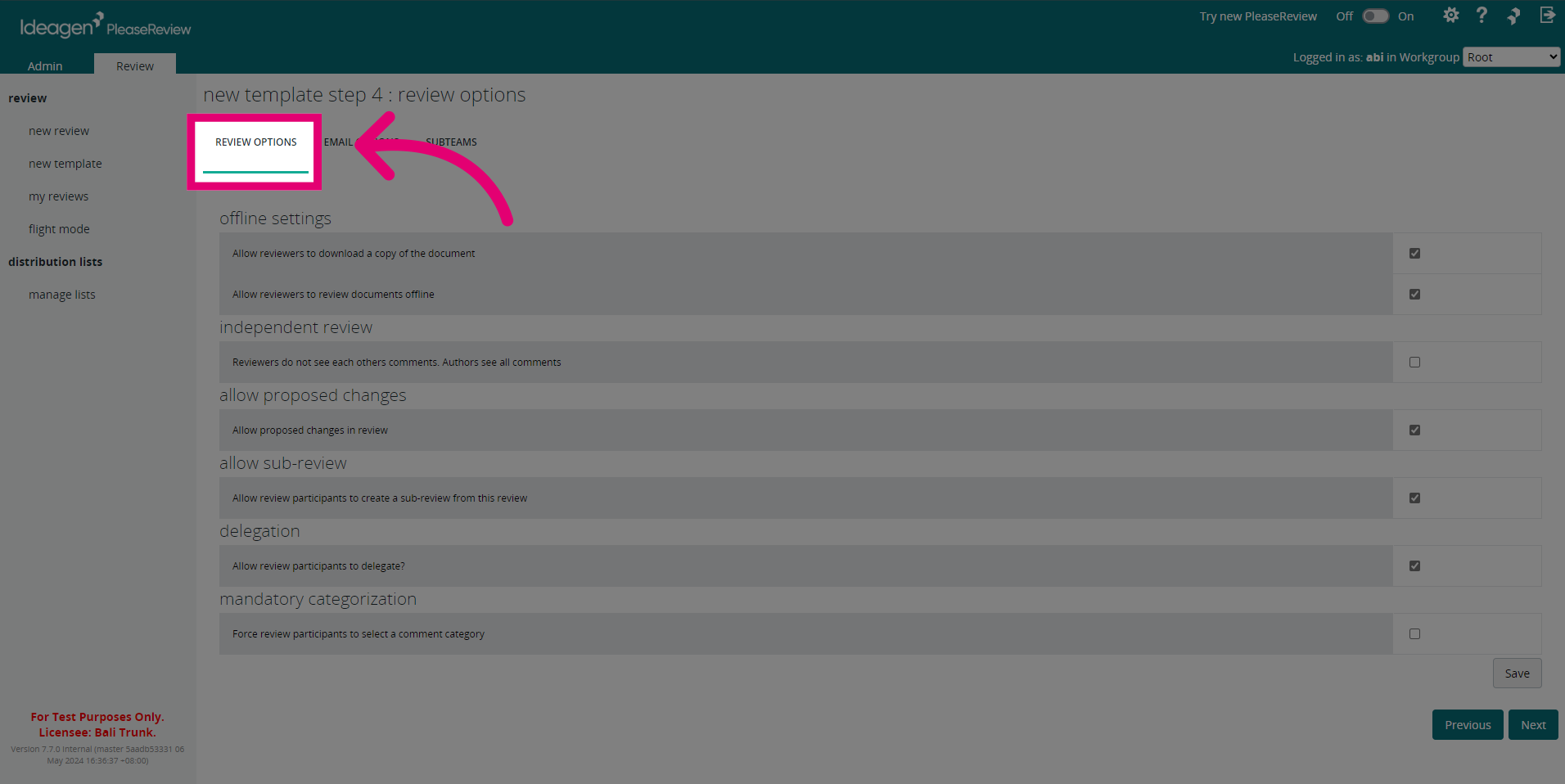
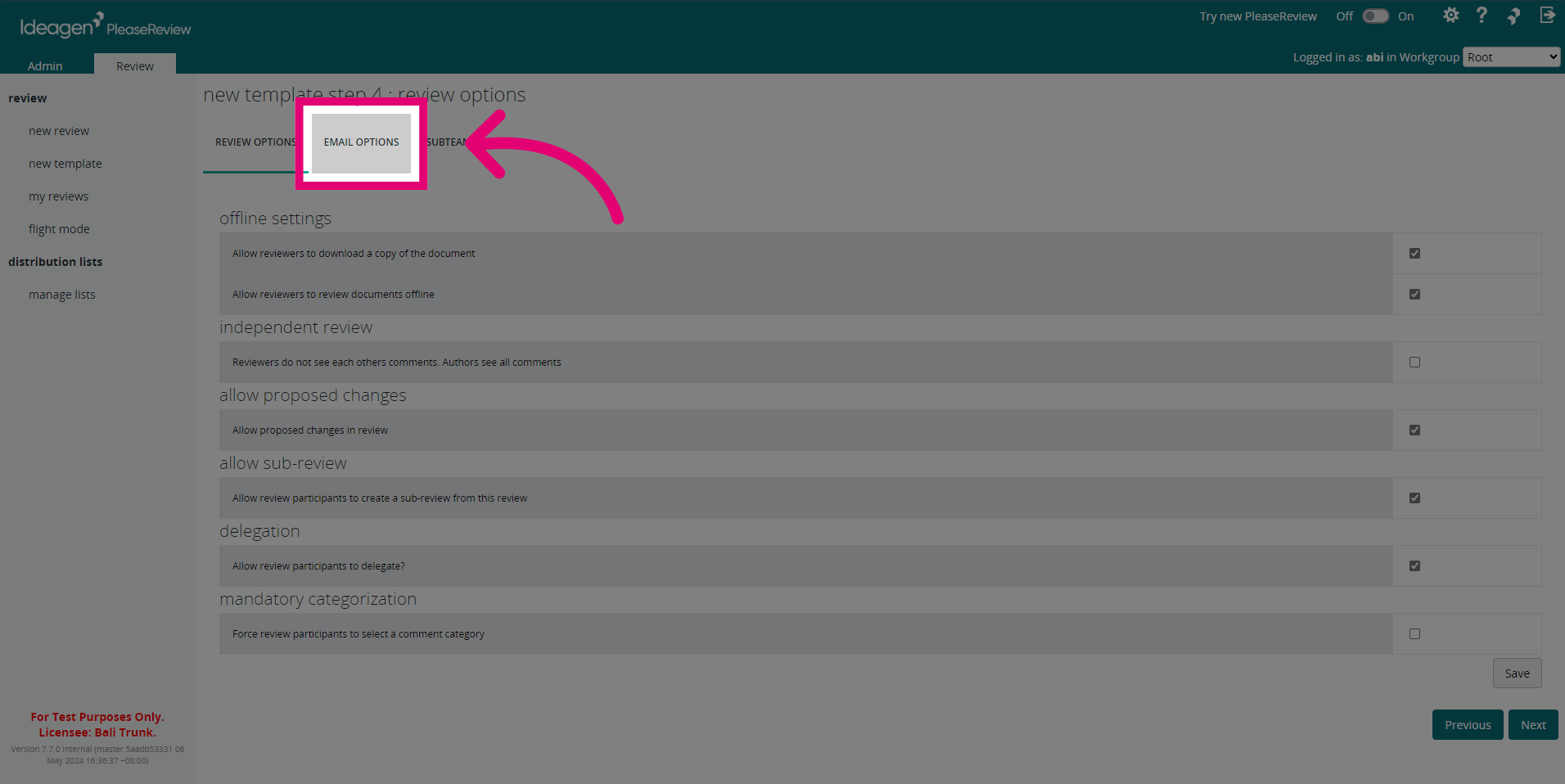
- Check the review and email options for the new Template. Click Save if you've adjusted any settings.
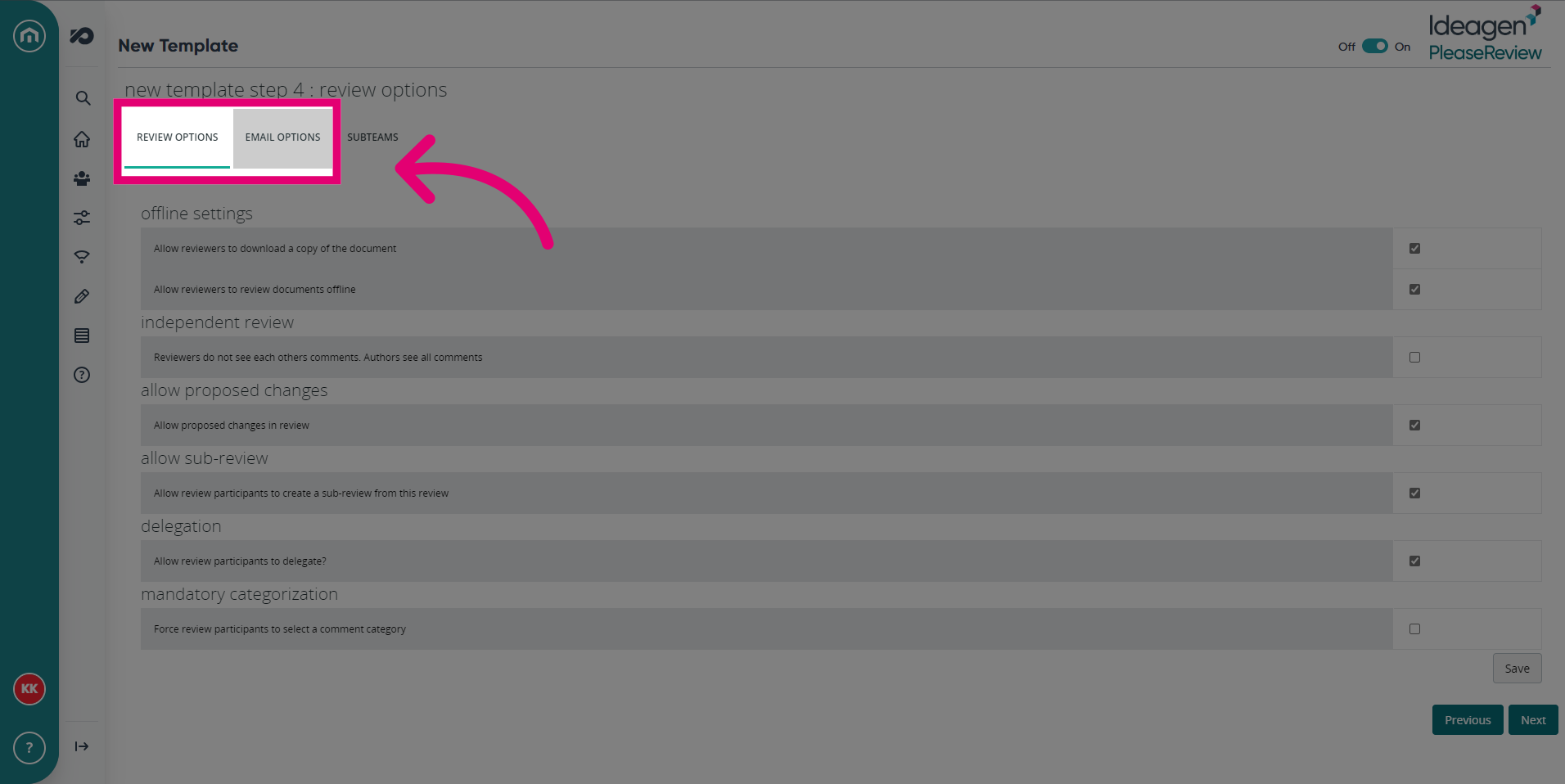
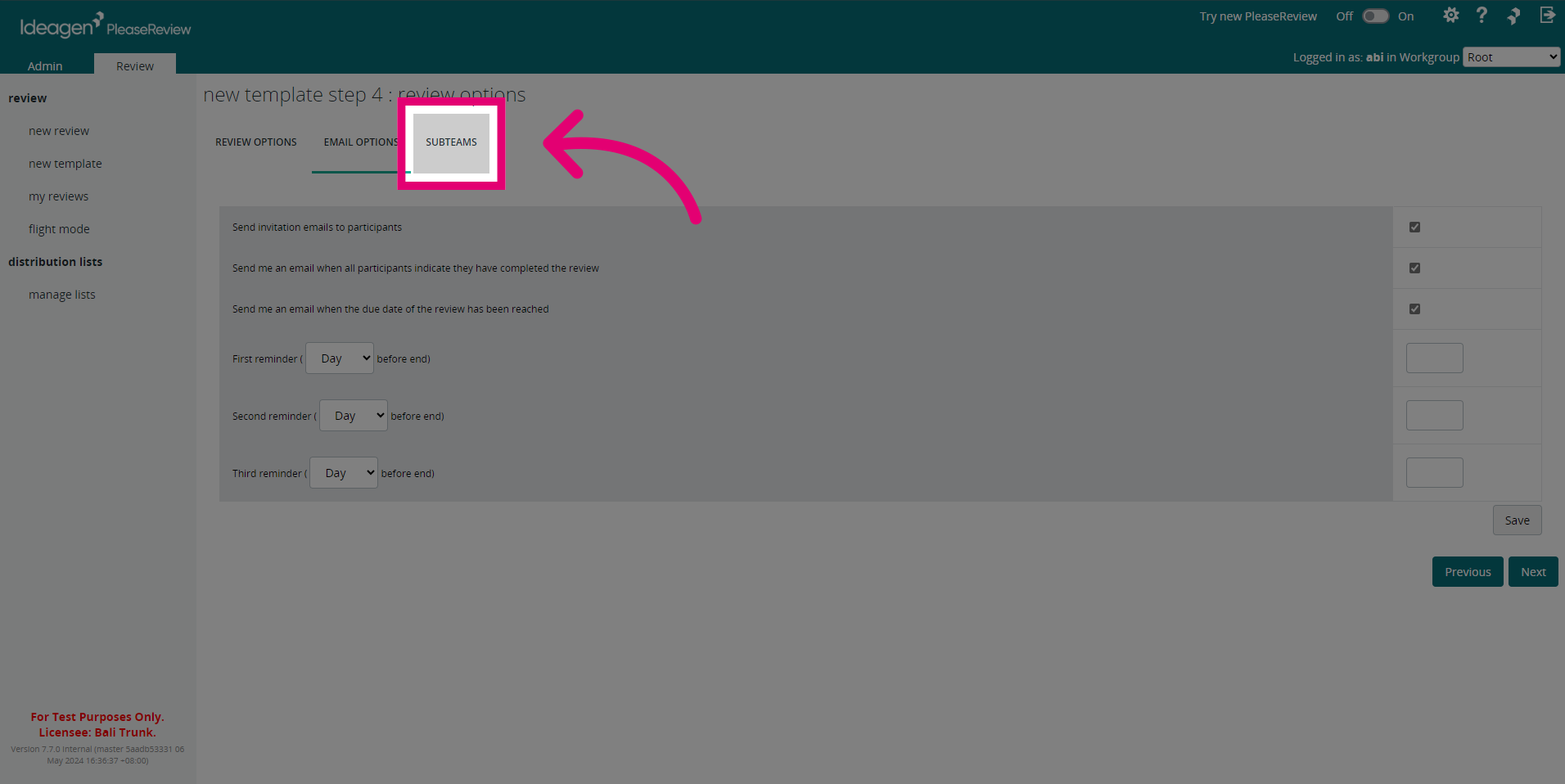
- Click on the Subteams option to adjust any settings for participants of the Template. Click Save if any have been changed.
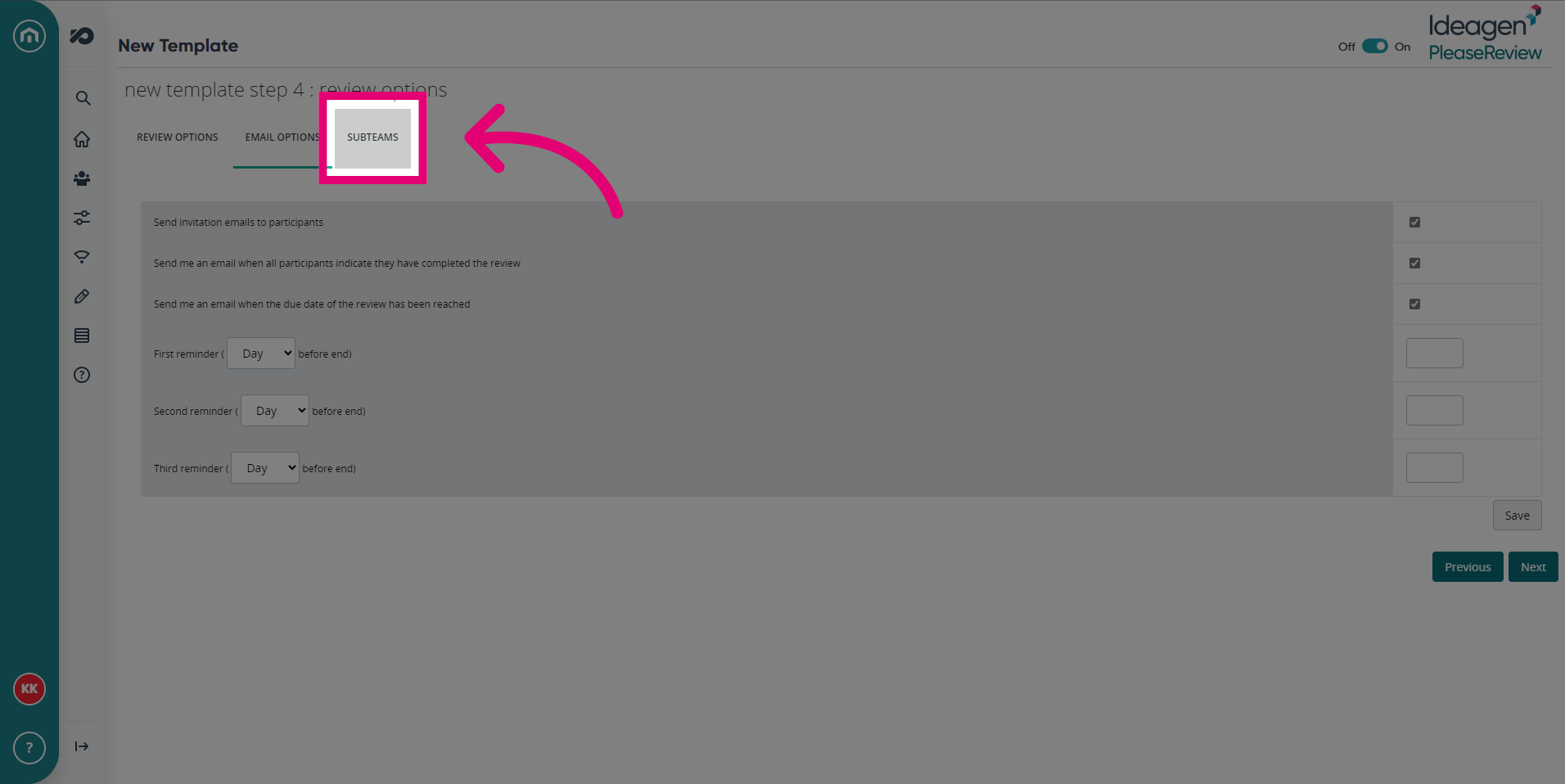
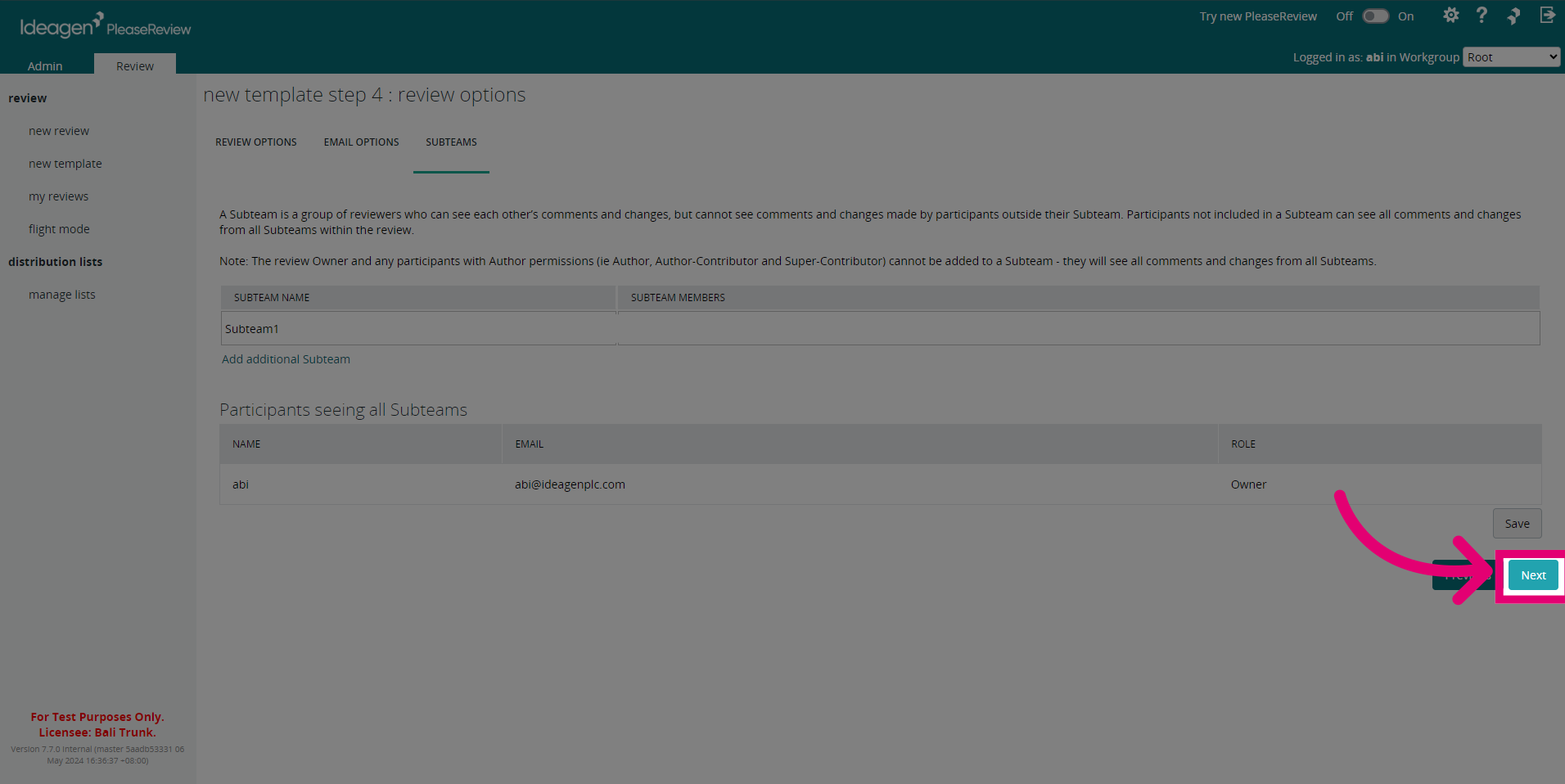
- Once you have checked all the Review Options, click Next.
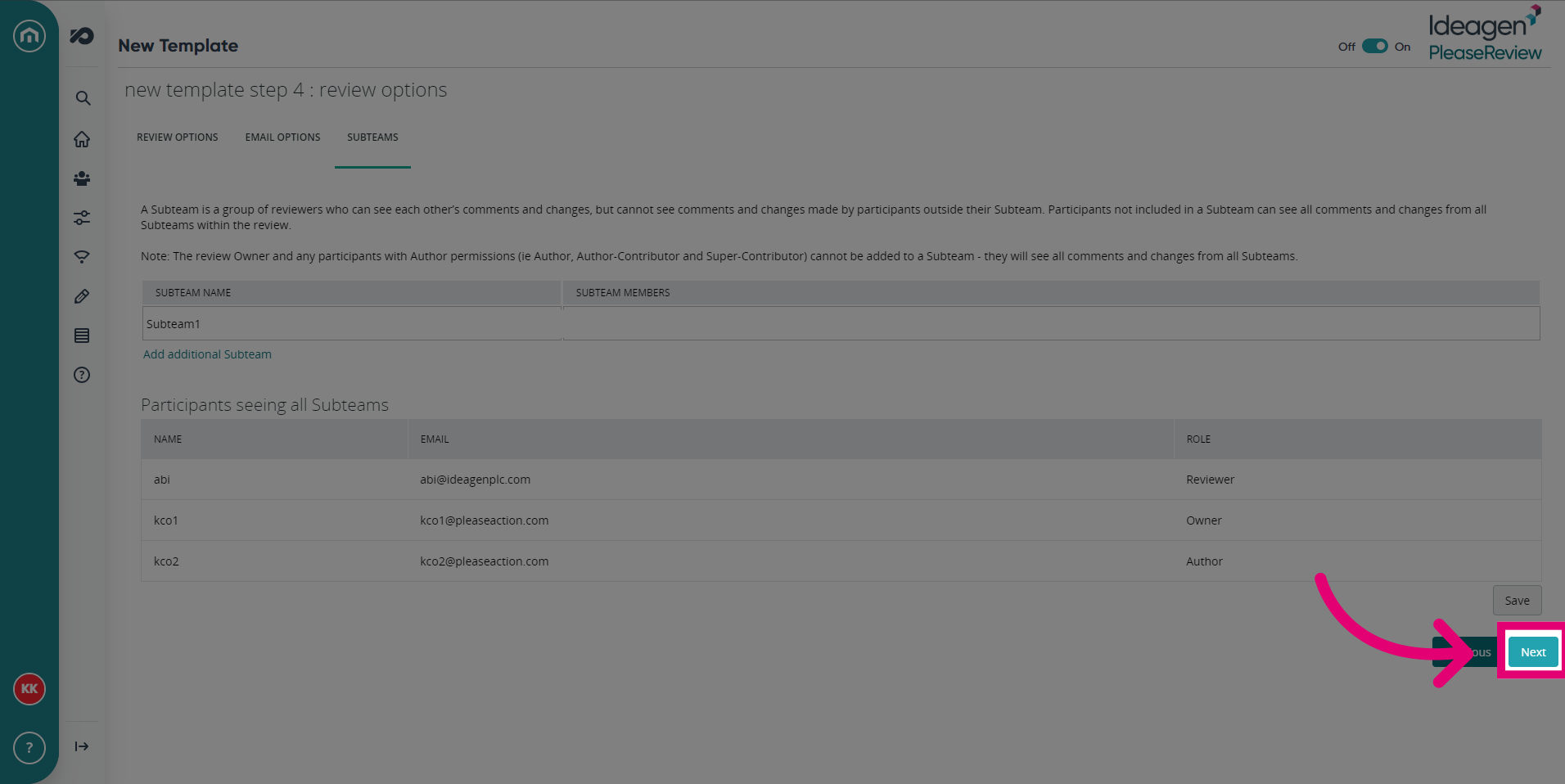
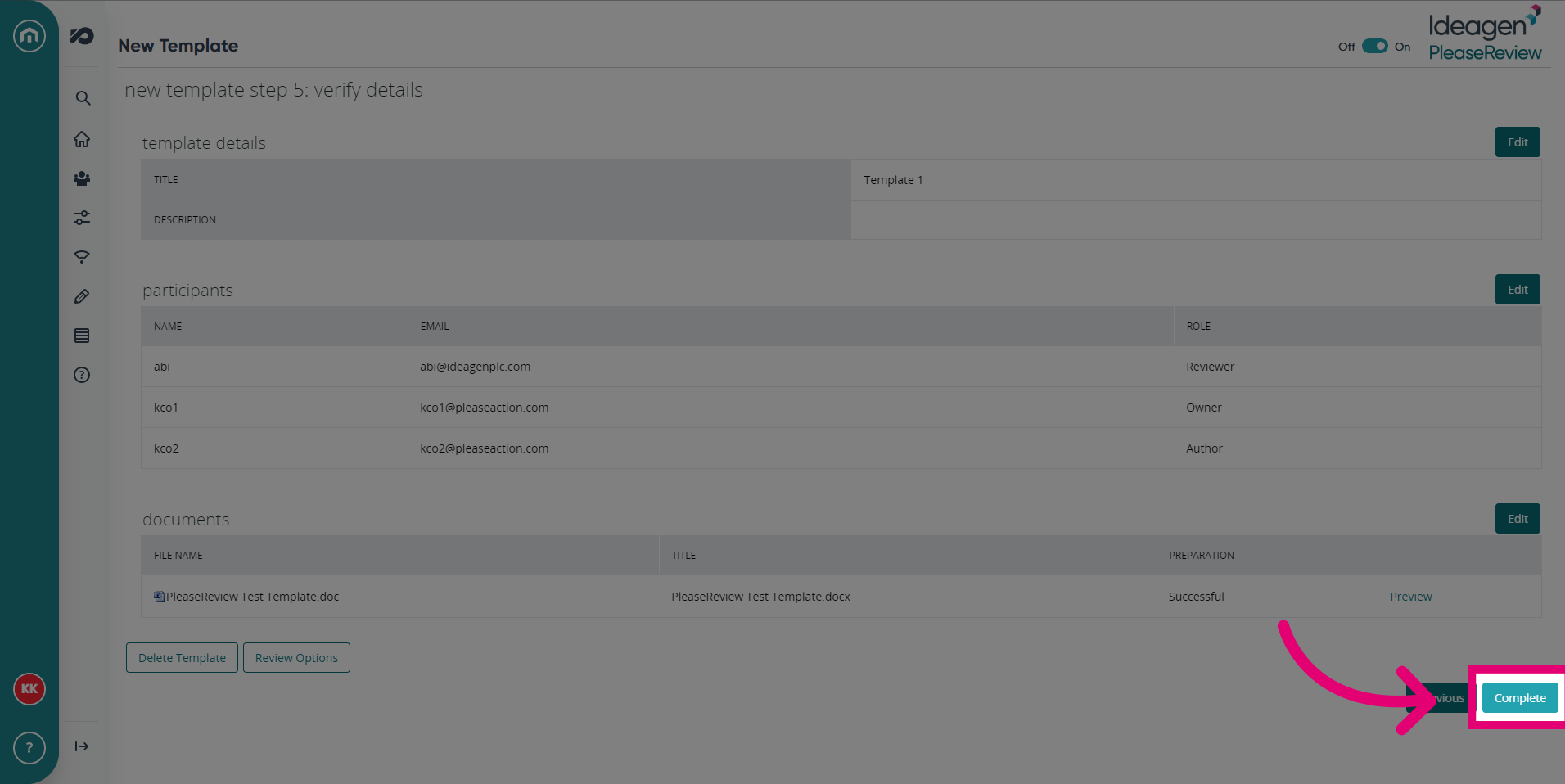
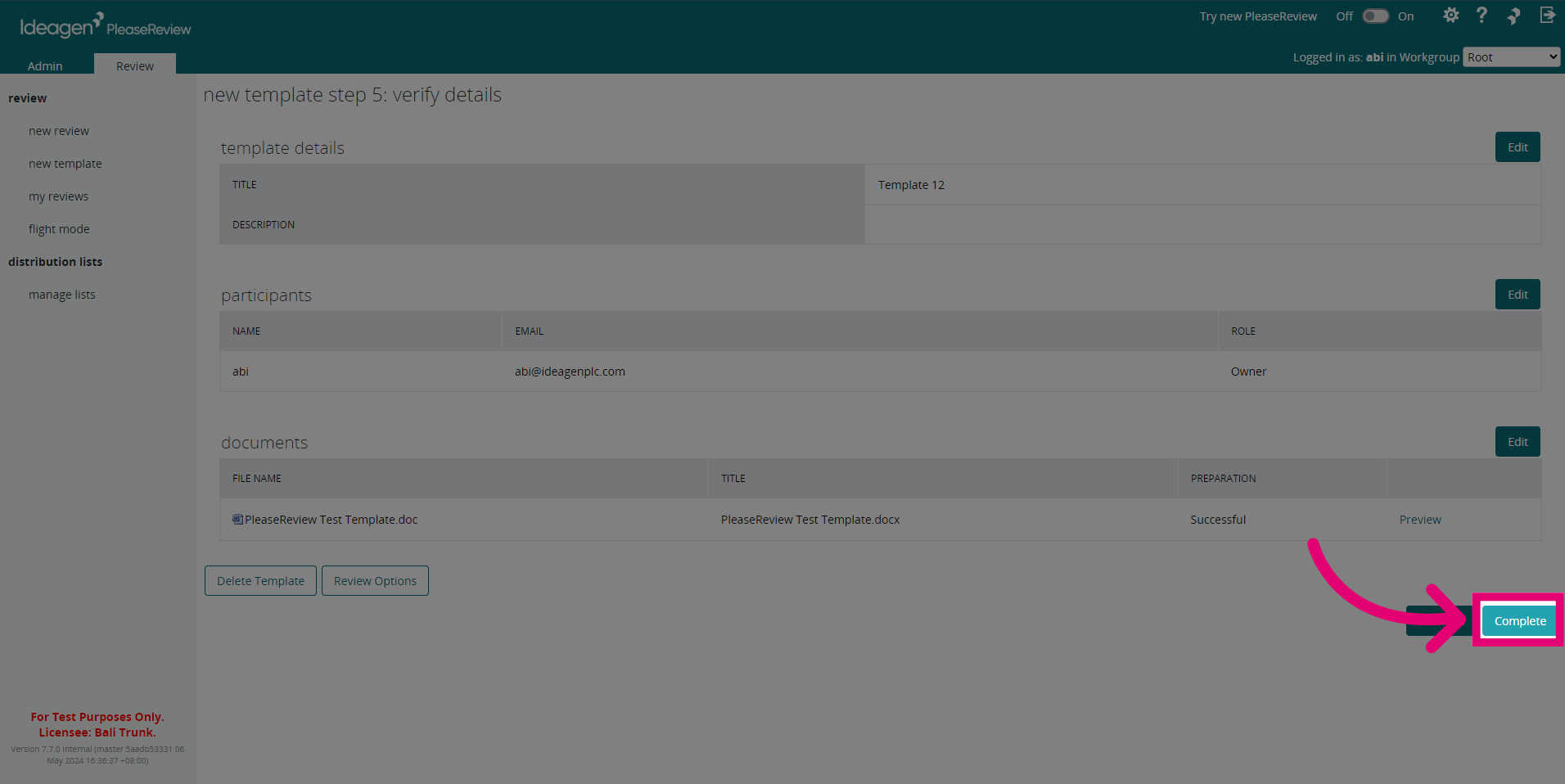
- Verify the details of the Template, click Complete.
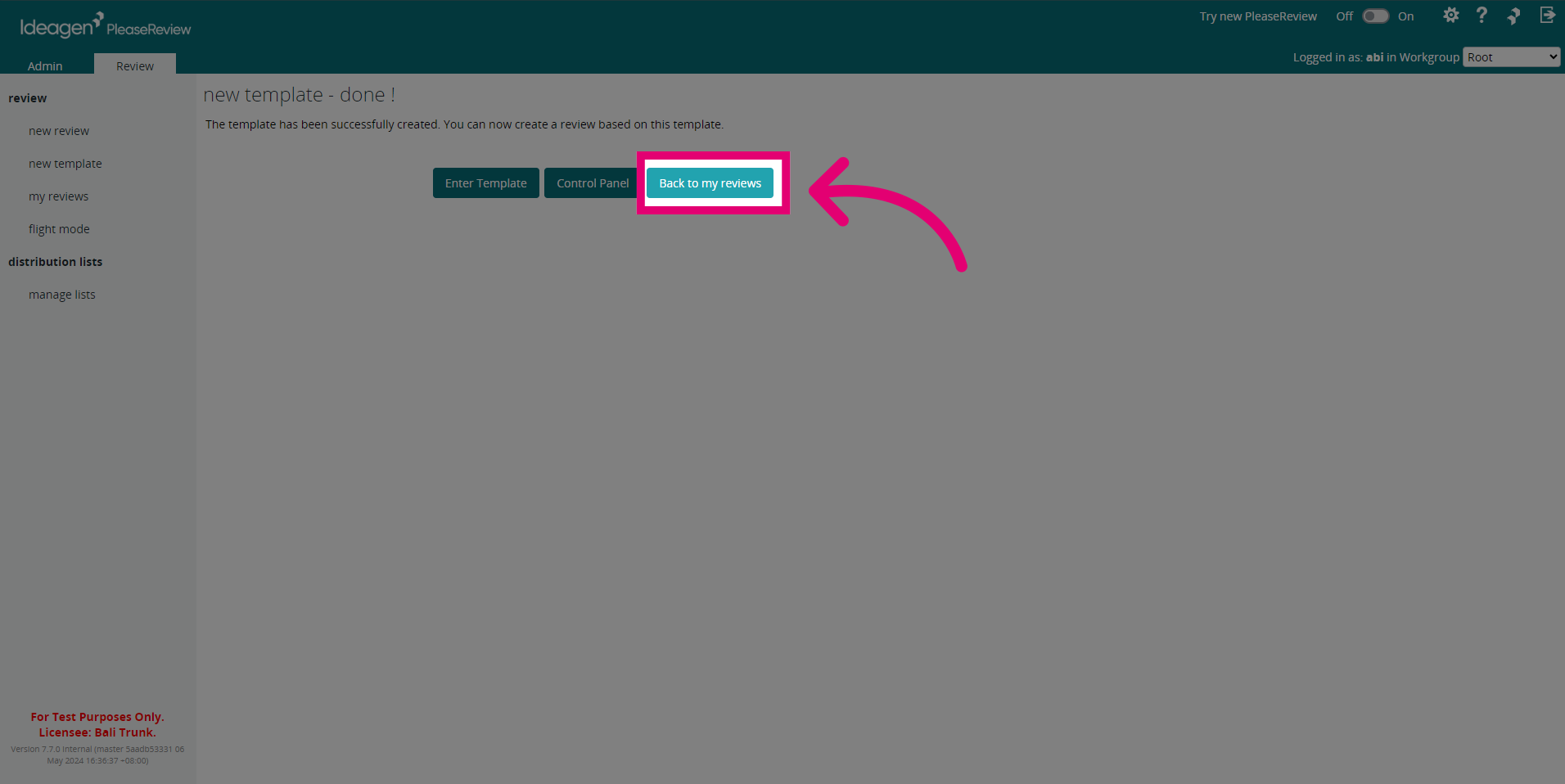
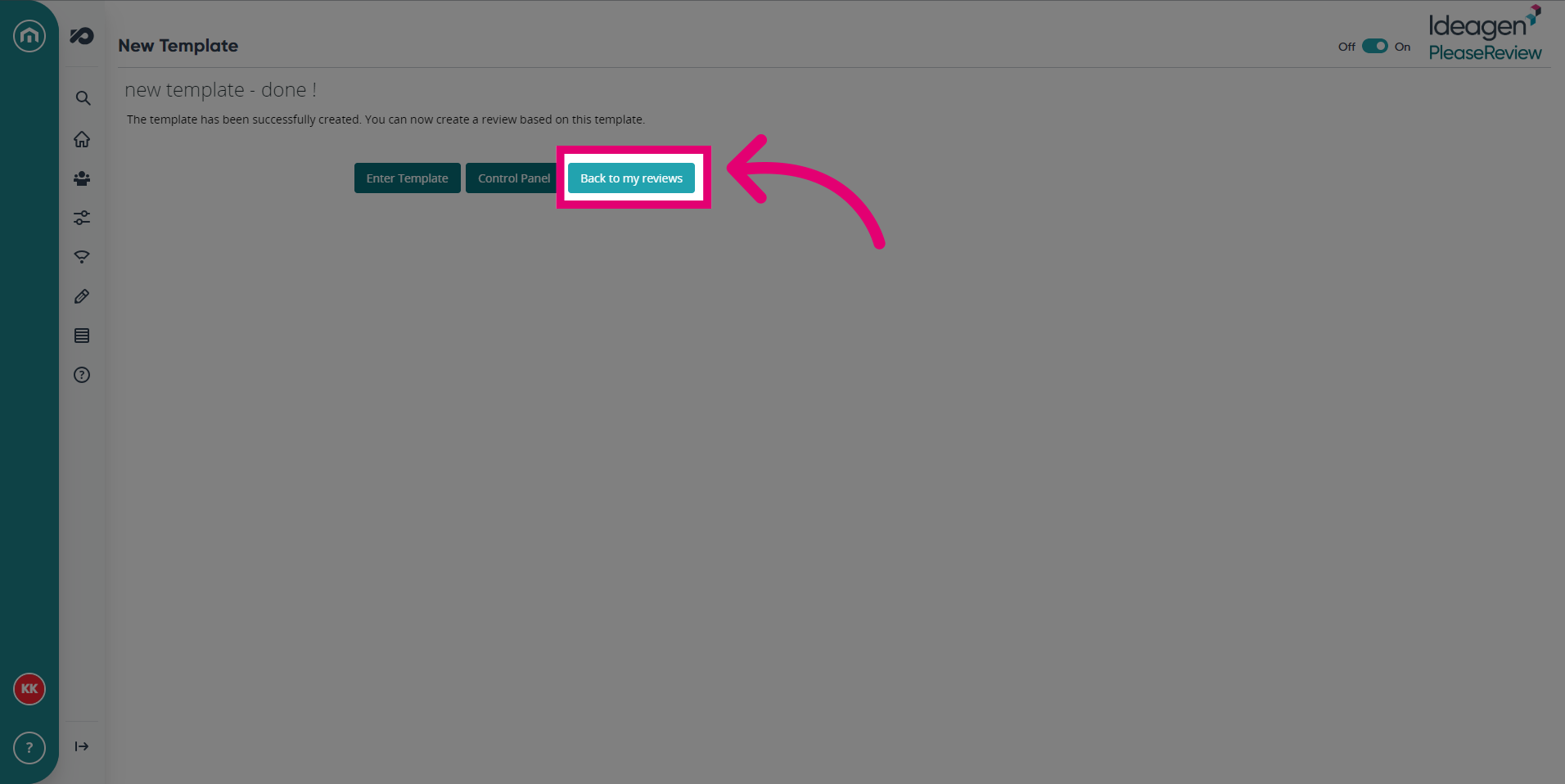
- Once the template is generated, you have the option to start a review using the created template. To return to the Review screen, simply click Back to my reviews.
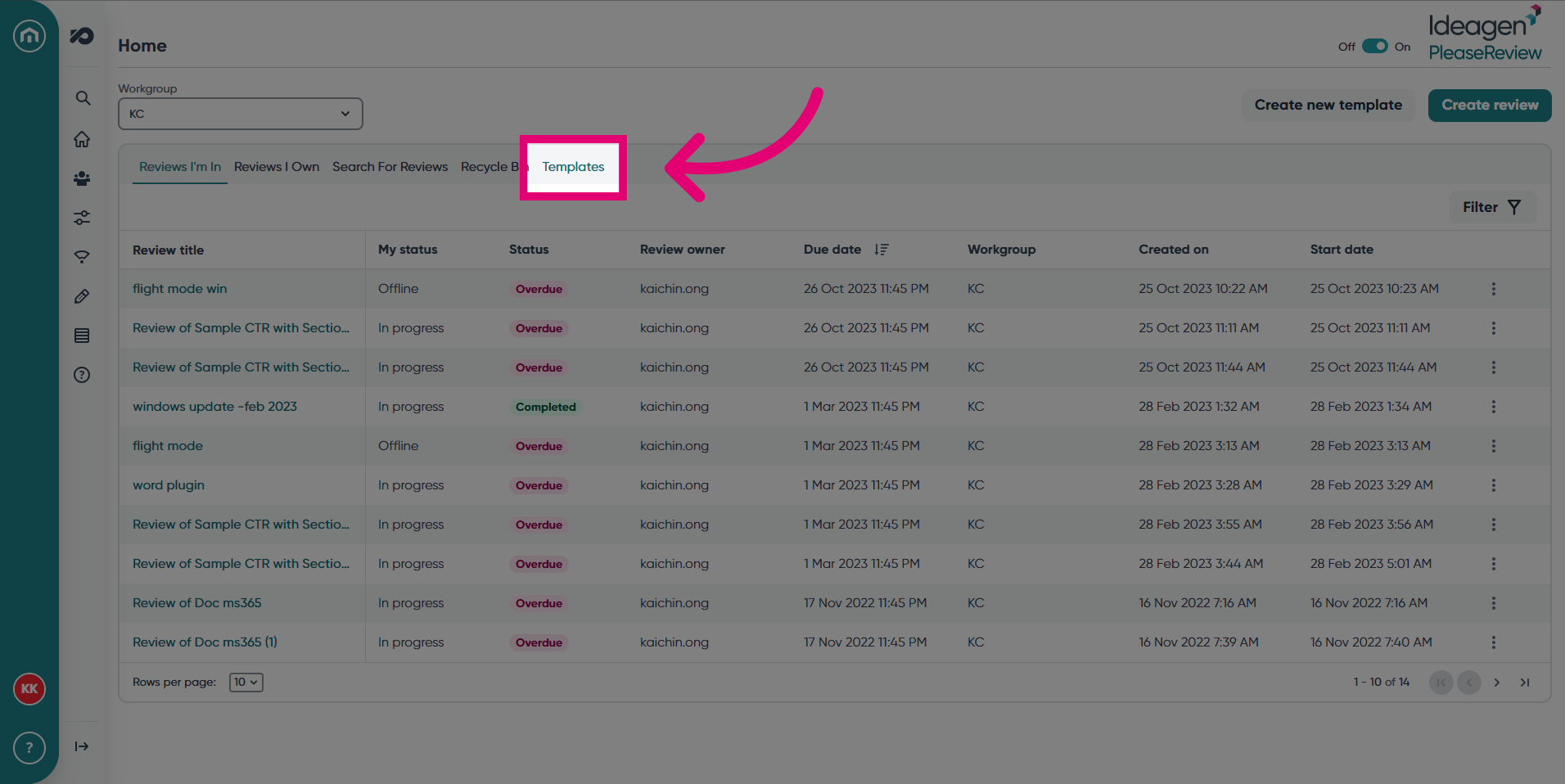
- To view your new template, click the Templates tab in the review screen.
1. Creating a Review Template
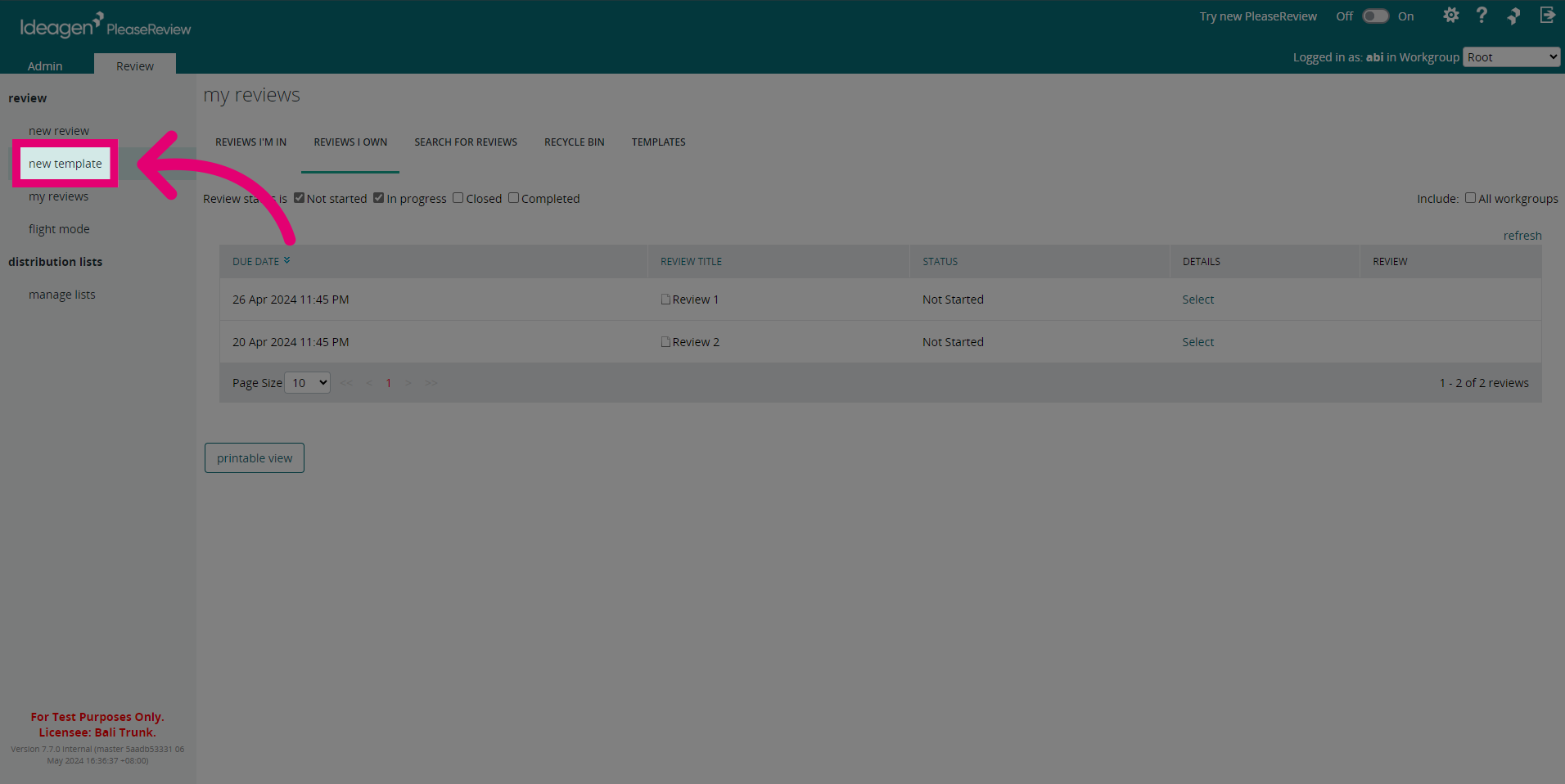
- Click new template in the Review tab on the left.
- Specify the Template details.
- Click Next to proceed.
- Drag and drop your documents into the box provided.
- Click Next to move onto the next step.
- Add participants to the Template. Additionally, you can add roles such as Author and Contributor.
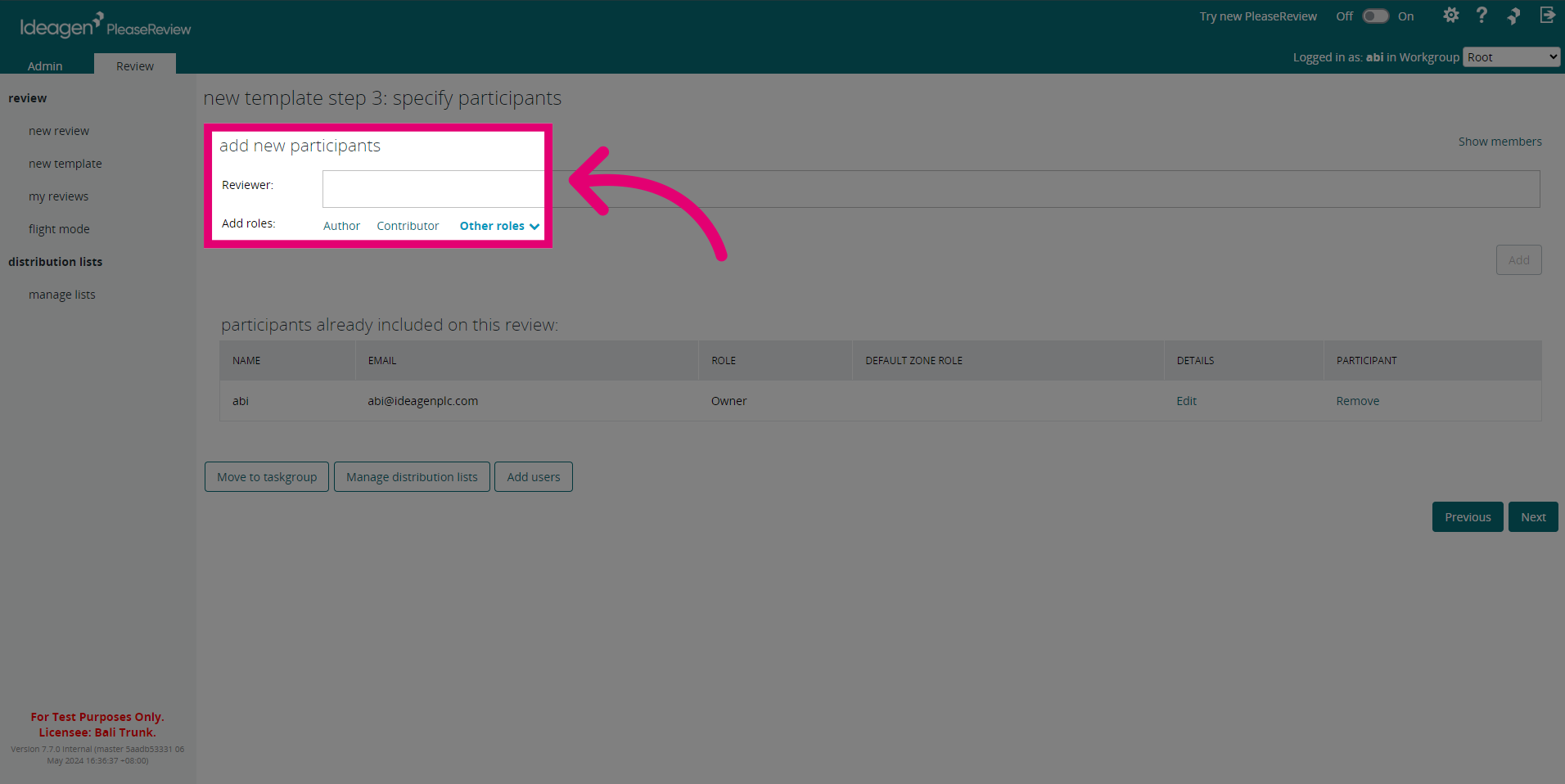
- Click Next.
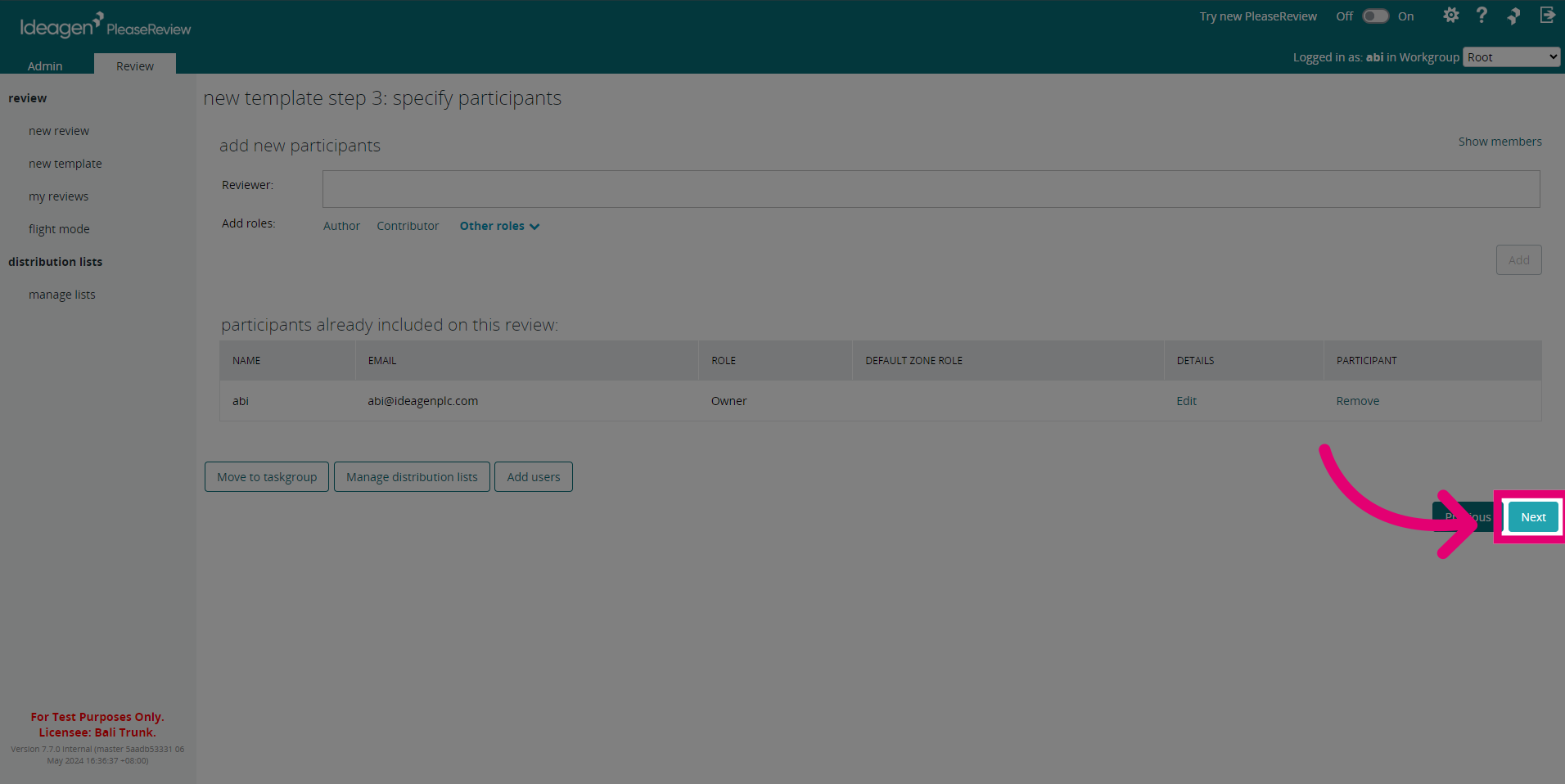
- Choose the Review Options for the Template. Then click Save if you've made any changes.
- Make any adjustments to Email Options in this screen. Then click Save.
- Adjust any Subteams options in this screen, then click Save to save your changes.
- Click Next.
- Click Complete once you've reviewed the Template details.
- To return to the Review screen, click Back to my reviews.