


New article
Recently updated
Configuring filter and user settings

Who is this article for?Users using the review toolbar.
Review Authors with permissions can adjust user settings.
The following article will show how to use the custom filter and user settings in the review environment toolbar. It will also explain the download and reporting button.
Note that you can't change your name using this. This can only be updated by those with admin permission over a workgroup you are in, or a sysadmin user on the PR instance.
1. Configuring user settings
1.1. Video
1.2. Steps
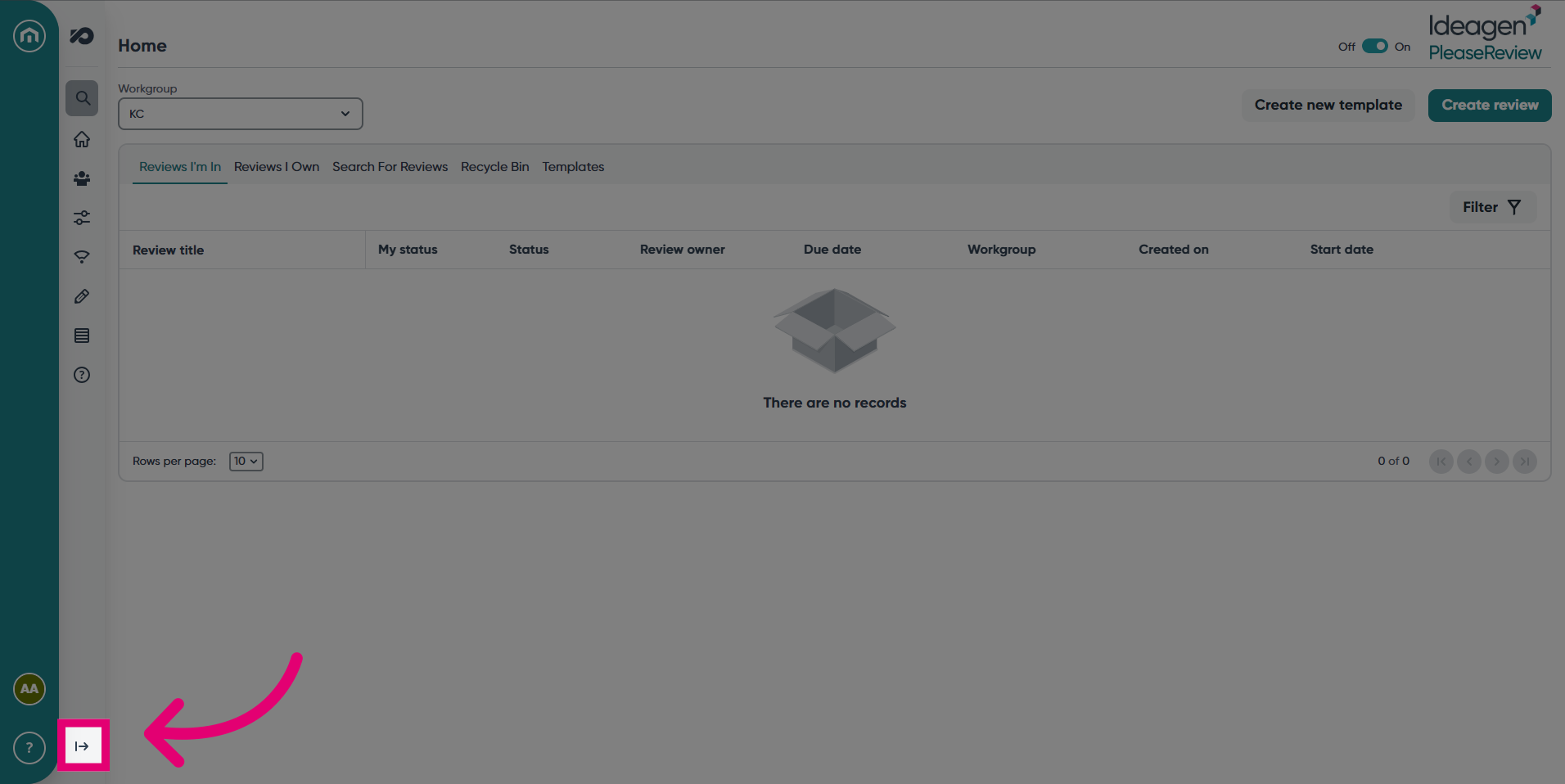
- Expand the navigation bar.
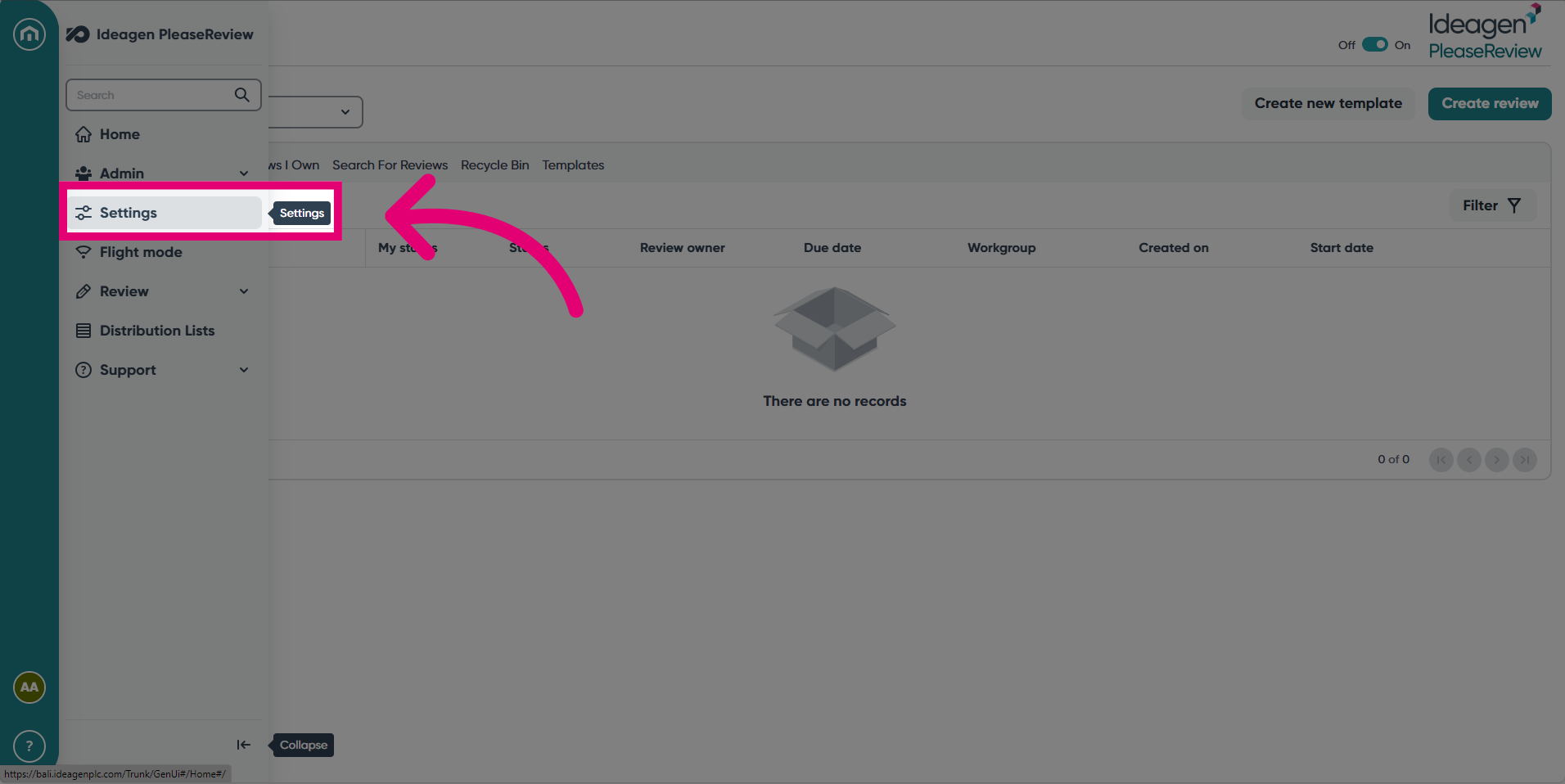
- Click the Settings tab.
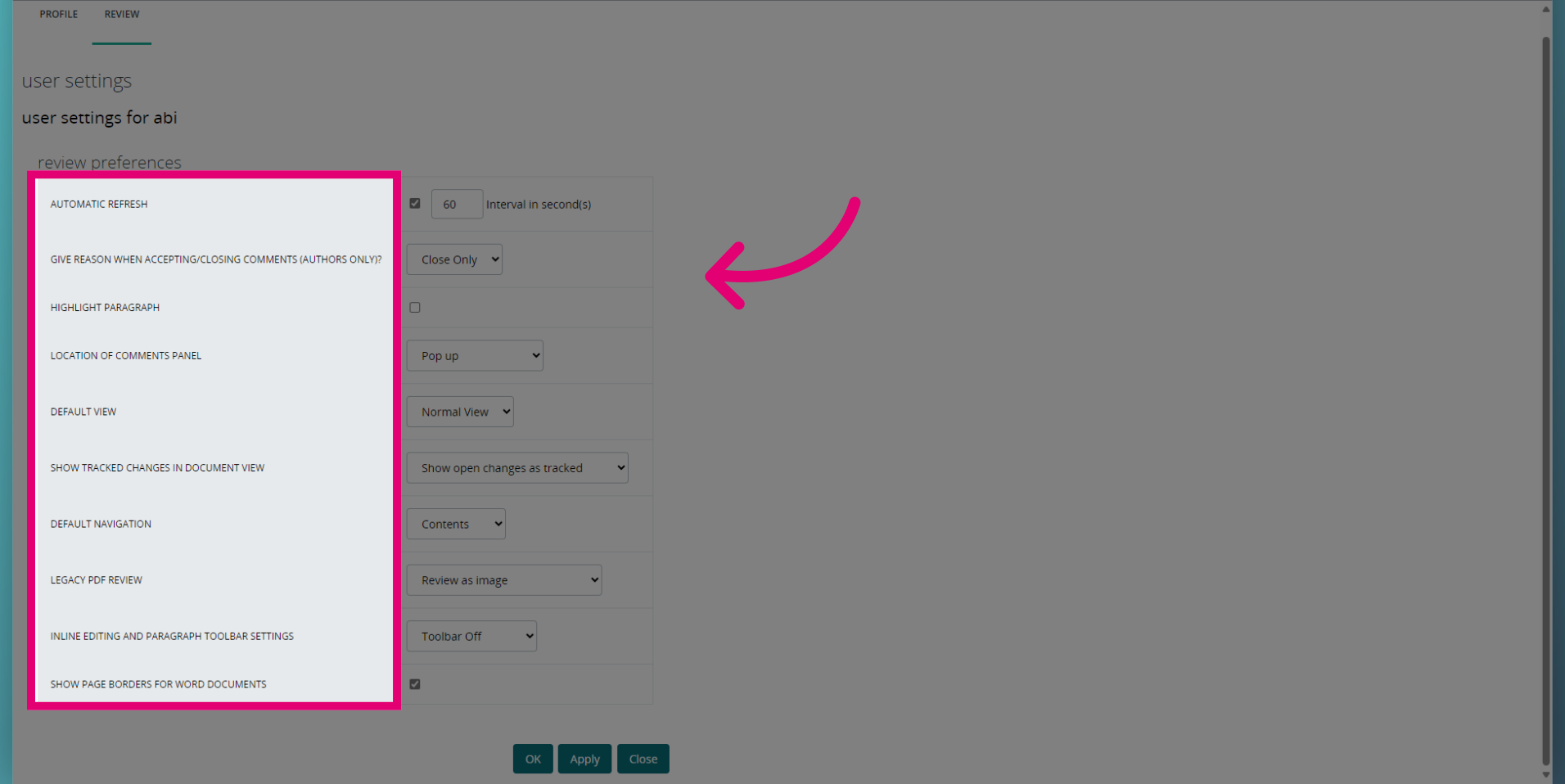
- Adjust any review User Settings such as Default View, Navigation and Automatic Refresh. Click Apply once you've finished.
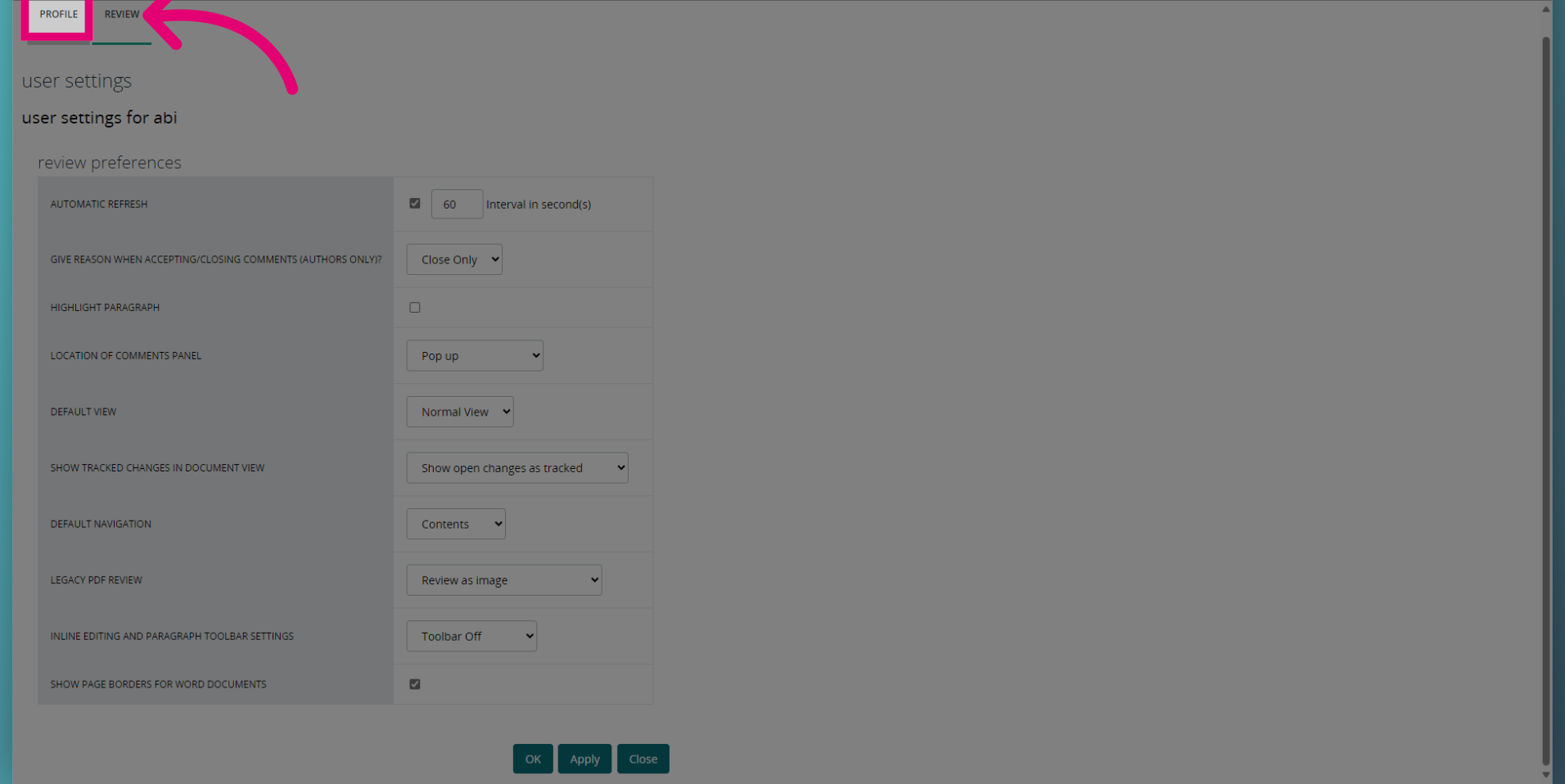
- Click Profile to review user profile settings.
- You can adjust things like your Username, language and reset your password in this screen. Click Apply once you've finished.
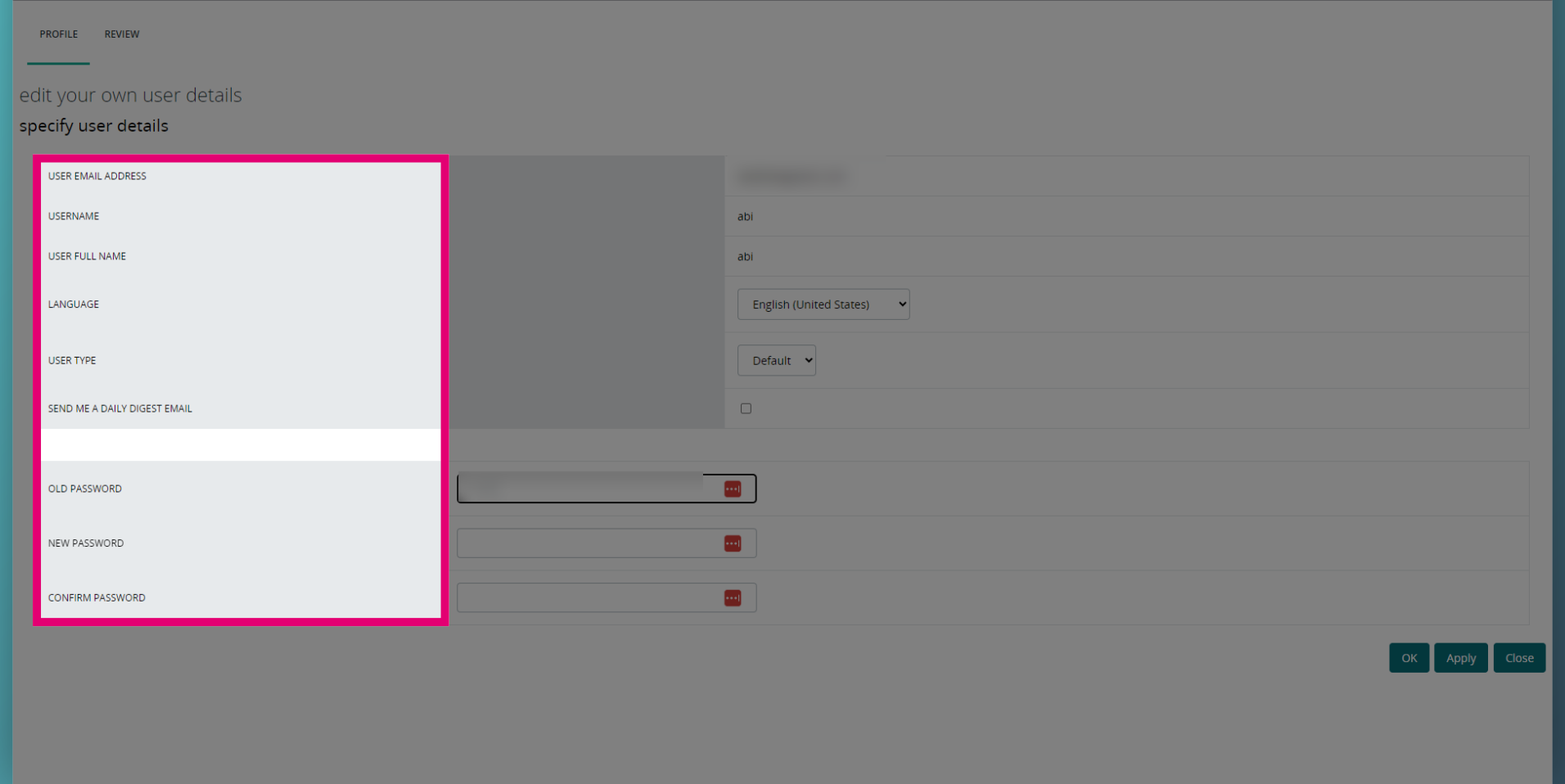
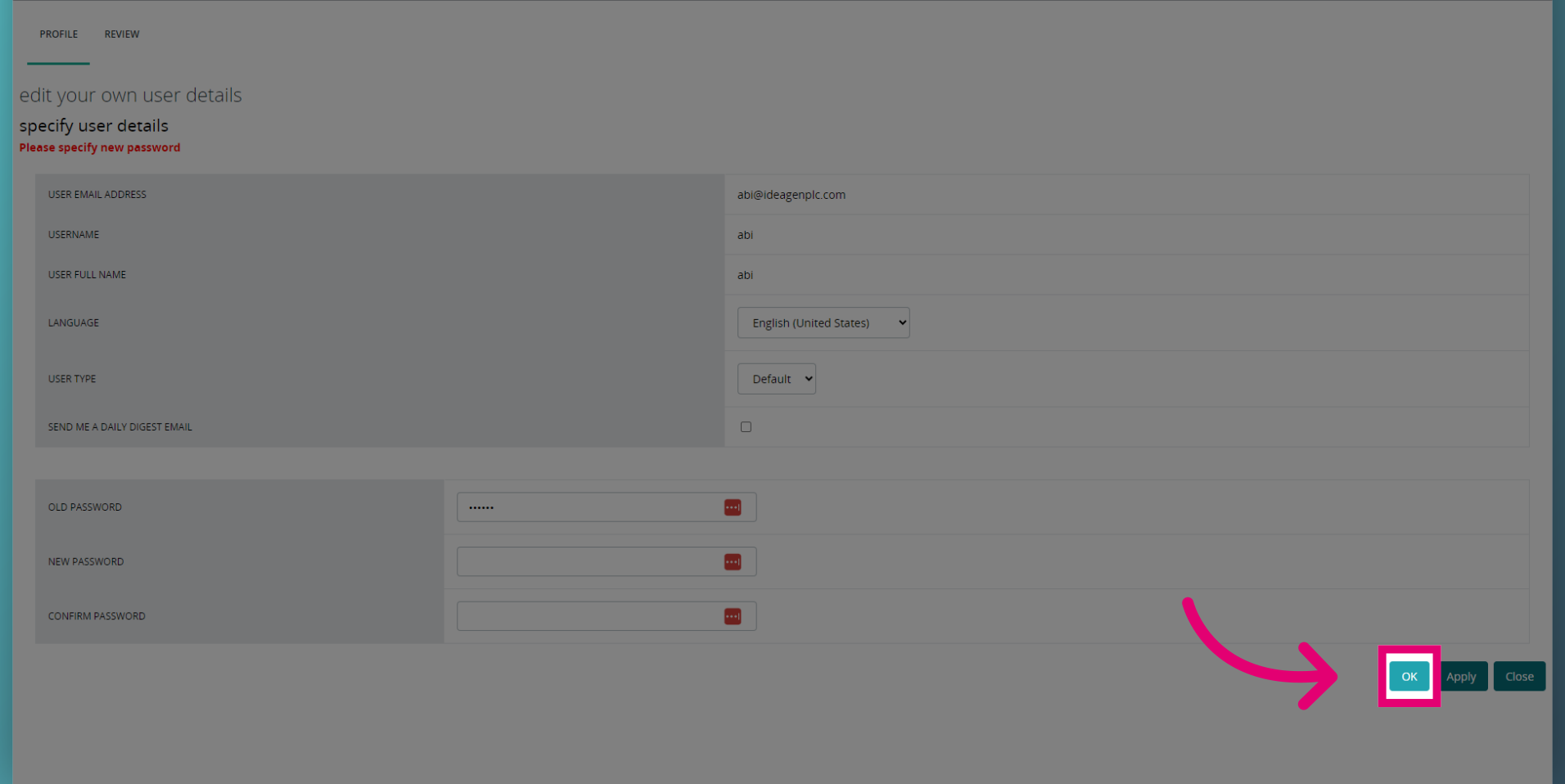
- Click OK once you've adjusted all your user details in both screens.
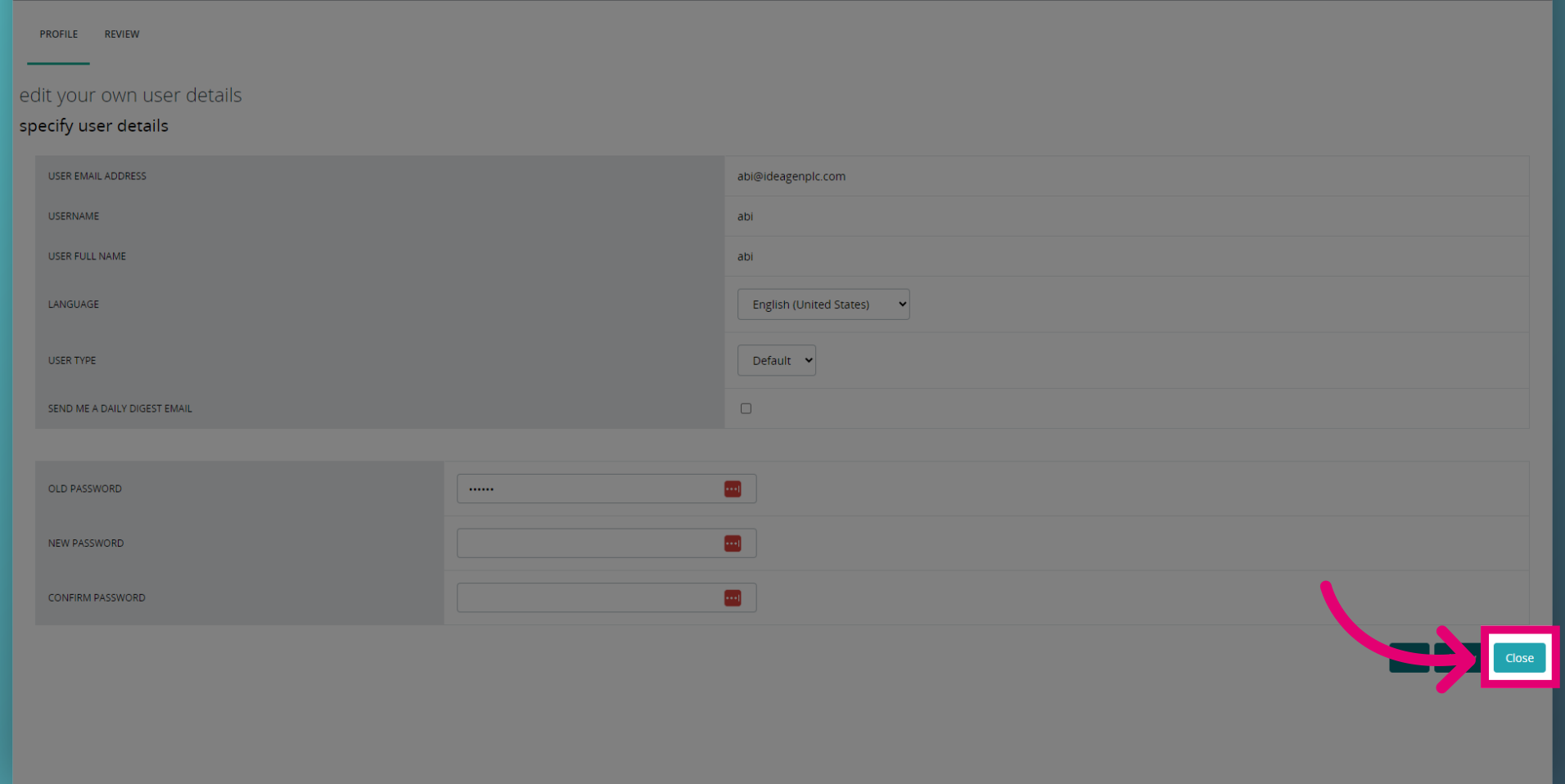
- Finally, click Close to return to the Home screen.
1. Custom filter
Custom filter allows you to display a customised selection of comments in a review.
Drop-down reveals the last five times the user entered the review.
Selecting the custom filter option opens a new window which allows you to select which comments are displayed.
Once applied, the comments shown in the review pane and the navigation pane will reflect the customized selection. The icon colour also changes to green to indicate a filter is applied.
2. Review user settings
The Please Review review interface provides a different set of user settings to those provided on the Please Review home screen and in the classic review interface. These settings are specific to the review environment and allow you to change your personal preferences, your default Workgroup, and your password (if permitted):
| User setting | Description |
|---|---|
| Default navigation | The default view of the navigation pane. |
| Give reason when accepting/closing comments? | This option is only relevant to Authors. Never - Authors can accept/close comments with one click. Close only - Authors are only prompted for a reason when closing comments and changes. Always - Authors are always prompted for a reason when accepting or closing comments and changes. |
| Display headers and footers in Word review | Defines the default view for Word documents. When checked, the document displays with headers and footers. |
3. Download and reporting (Download with comments)
On the review page selecting the Download and reporting button allows you to download the document with comments.
Download with comments opens a list of documents in the review available to download. Participants can download the document with comments (Word, Excel, PDF, plain text, and XML files (including source code file) only).
Note: This option will only be available if the review Owner has enabled it as part of the review set up.