


New article
Recently updated
Creating and Managing Distribution Lists

Who is this article for?Users managing distribution lists.
Workgroup Administrators can manage & create shared distribution lists.
A distribution list in Please Review refers to a feature that allows users to create a predefined group of reviewers who will participate in the document review process. Rather than manually selecting individual reviewers each time a document needs to be reviewed, the distribution list enables users to assign the review task to a group of people all at once.
1. Creating and Managing Distribution Lists
1.1. Video
1.2. Steps
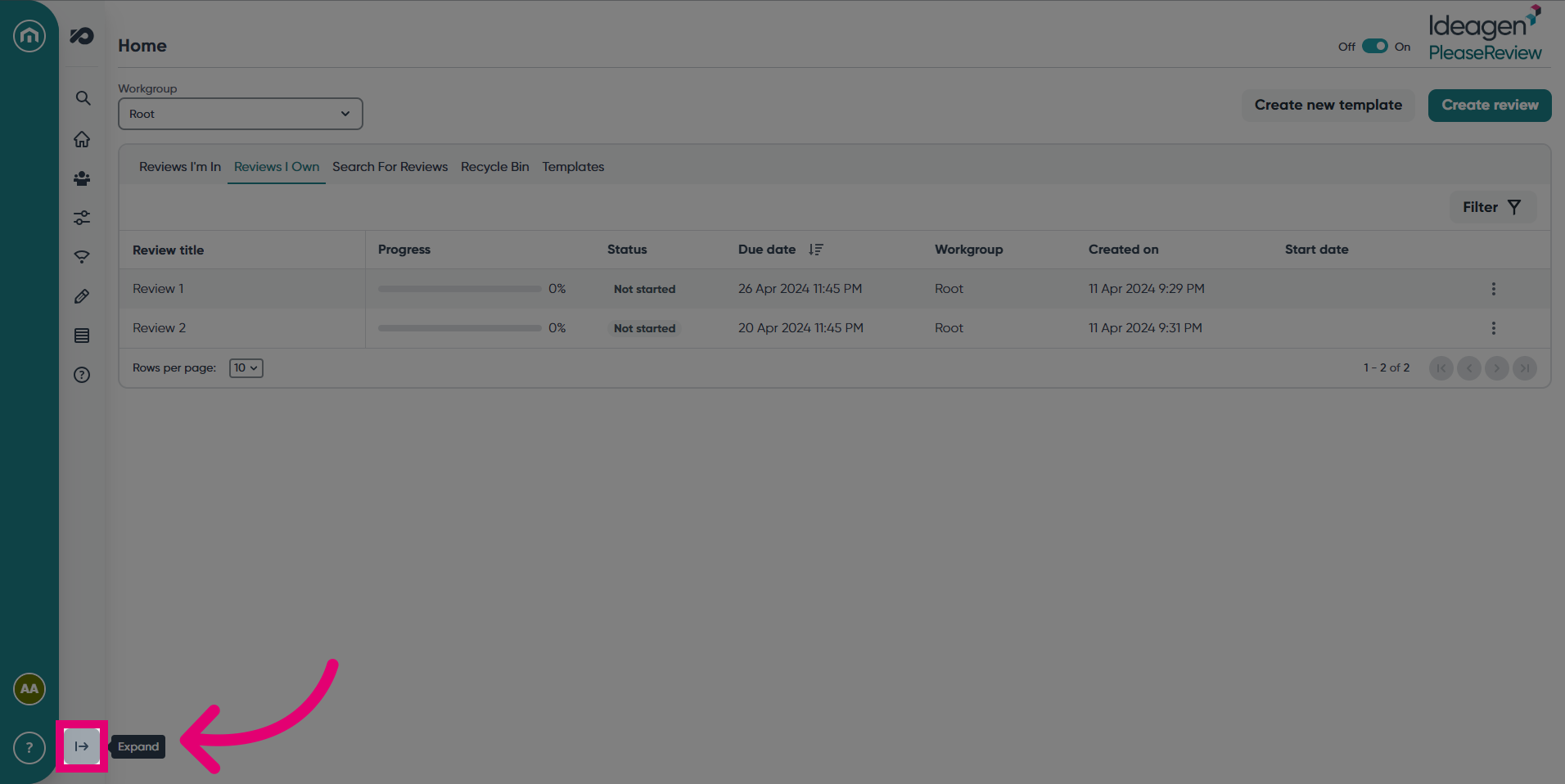
- Expand the navigation bar.
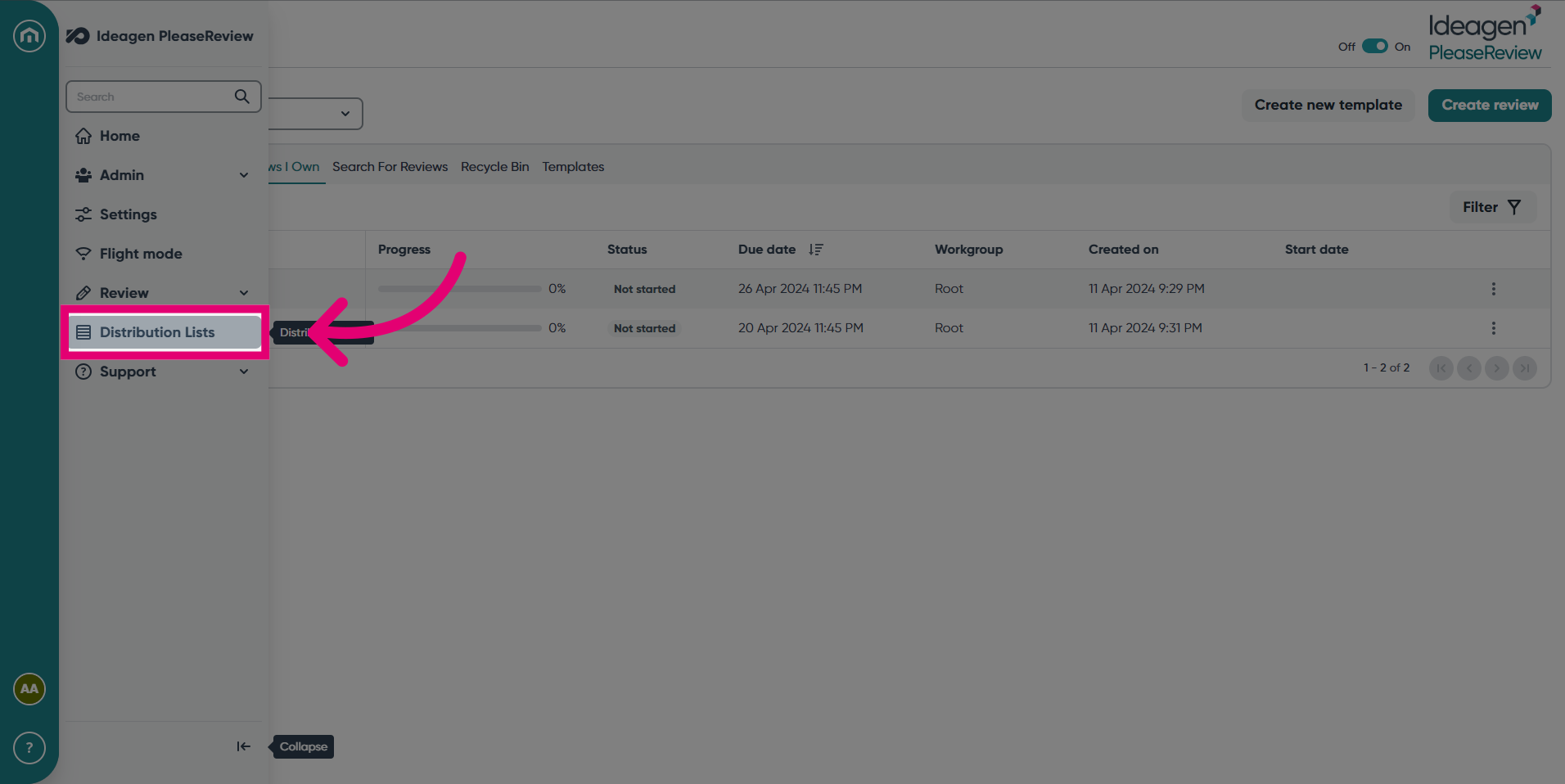
- Click Distribution Lists.
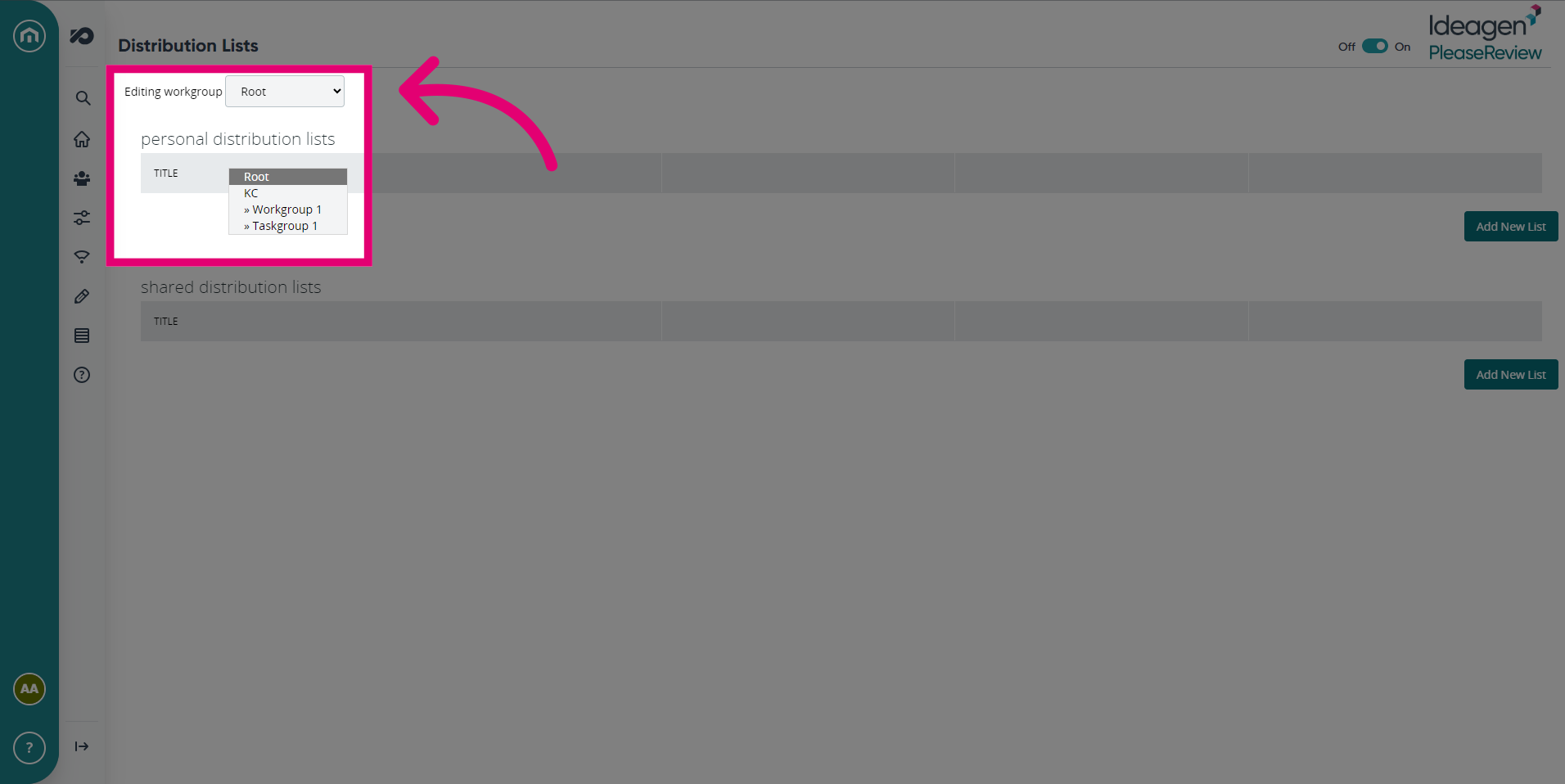
- Click the Workgroup you want to edit from the drop-down menu.
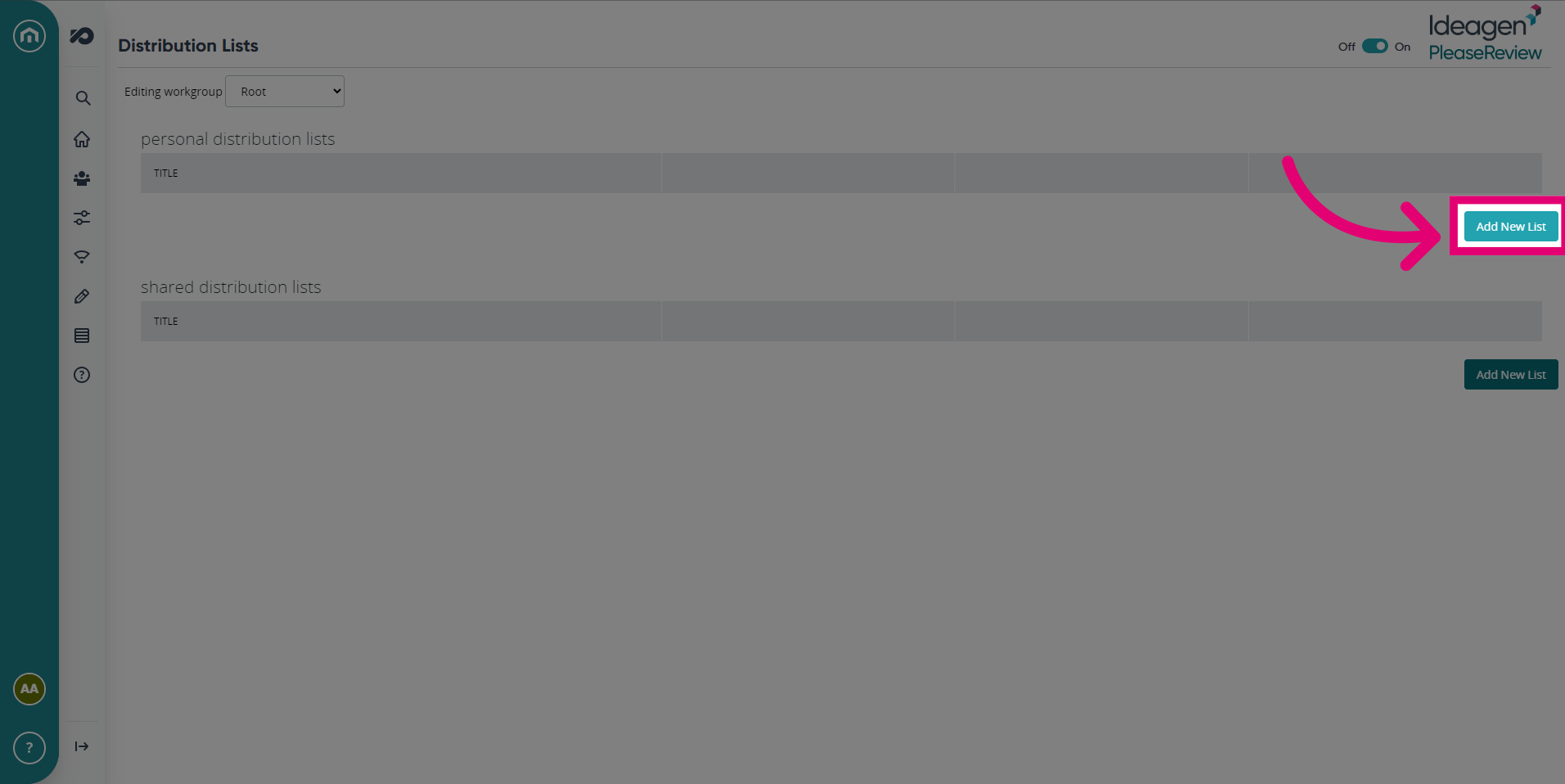
- To add a personal distribution list, click Add New List.
- Name the distribution list.
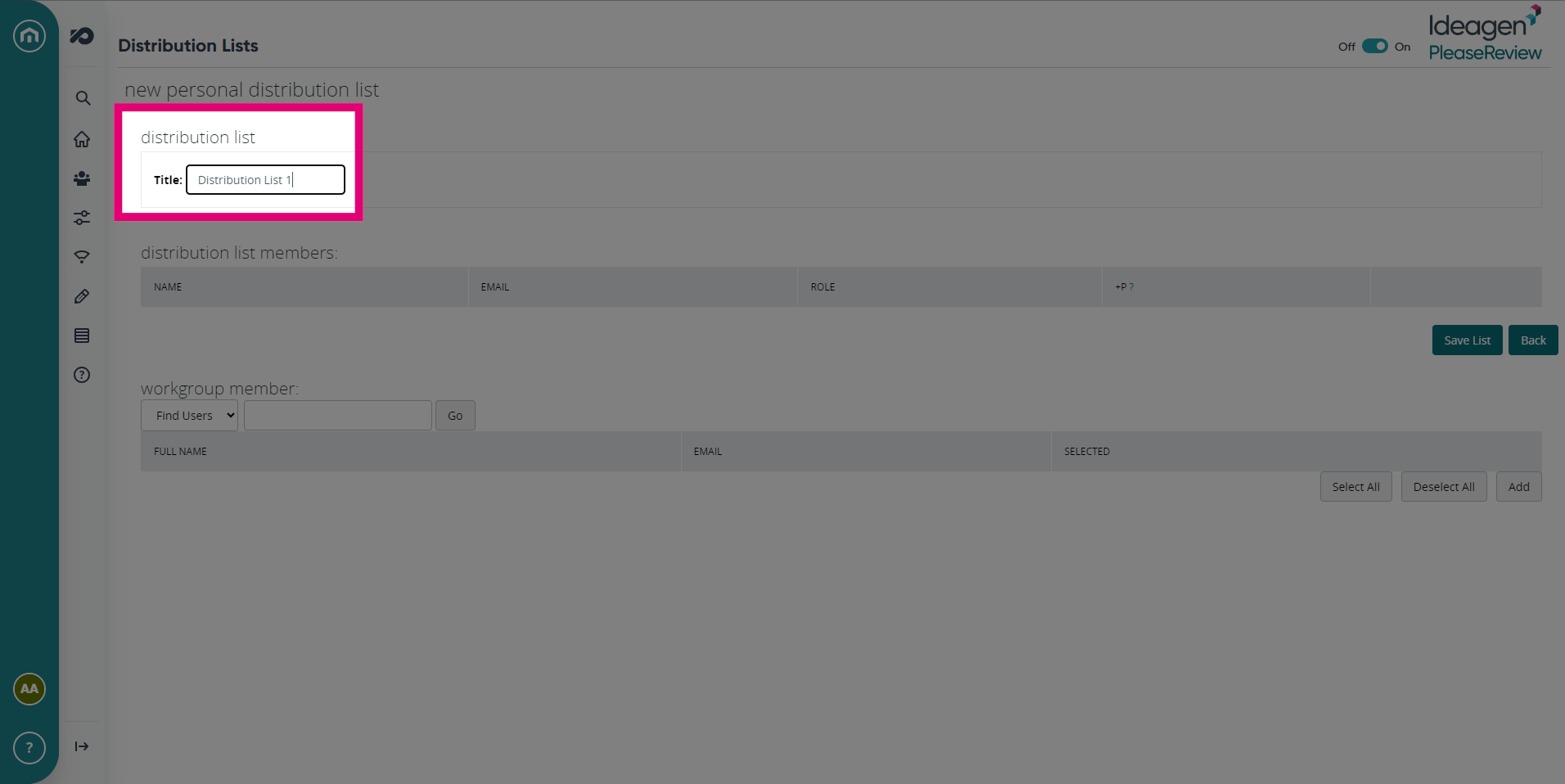
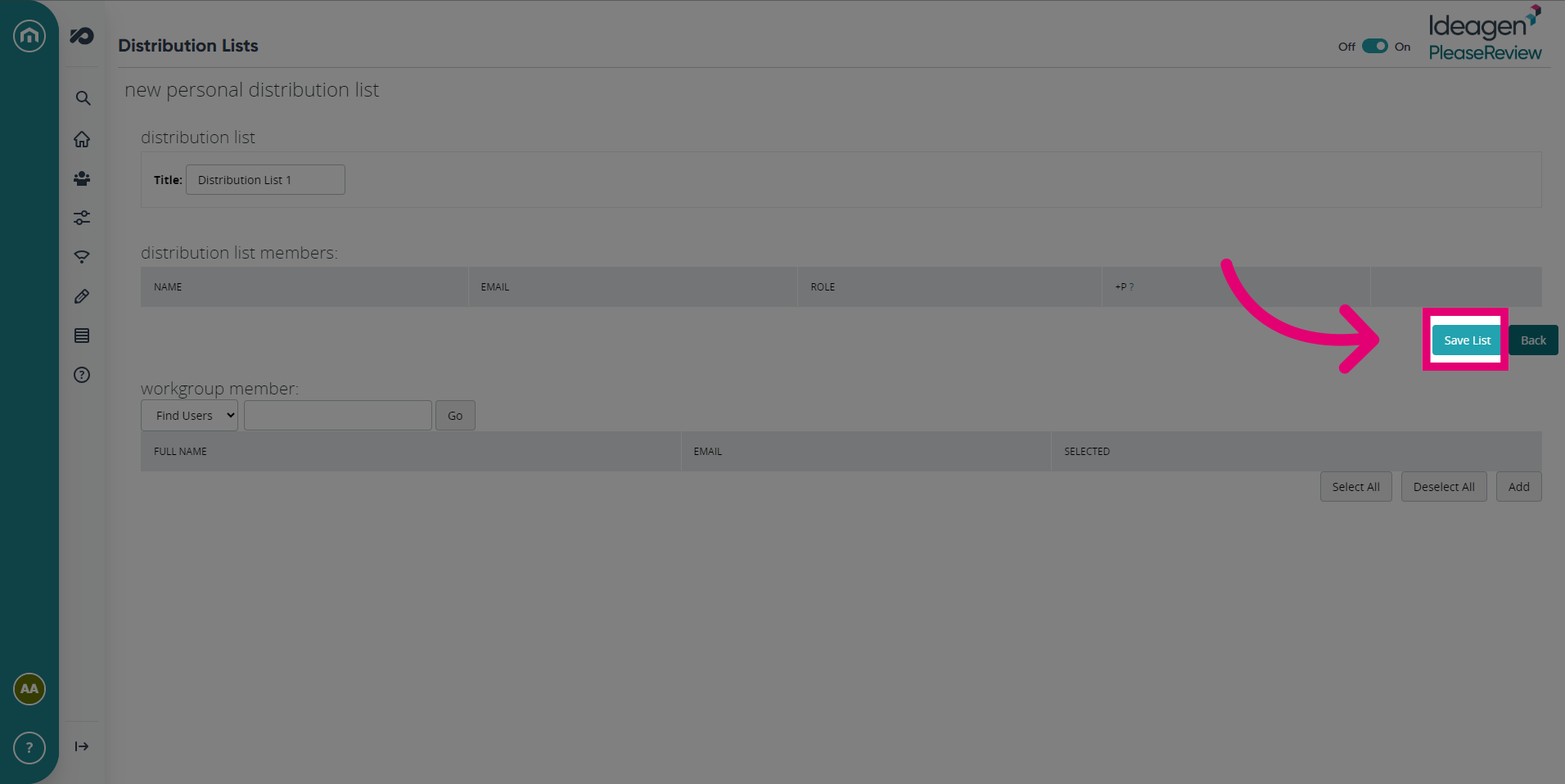
- Save the changes made to the distribution list.
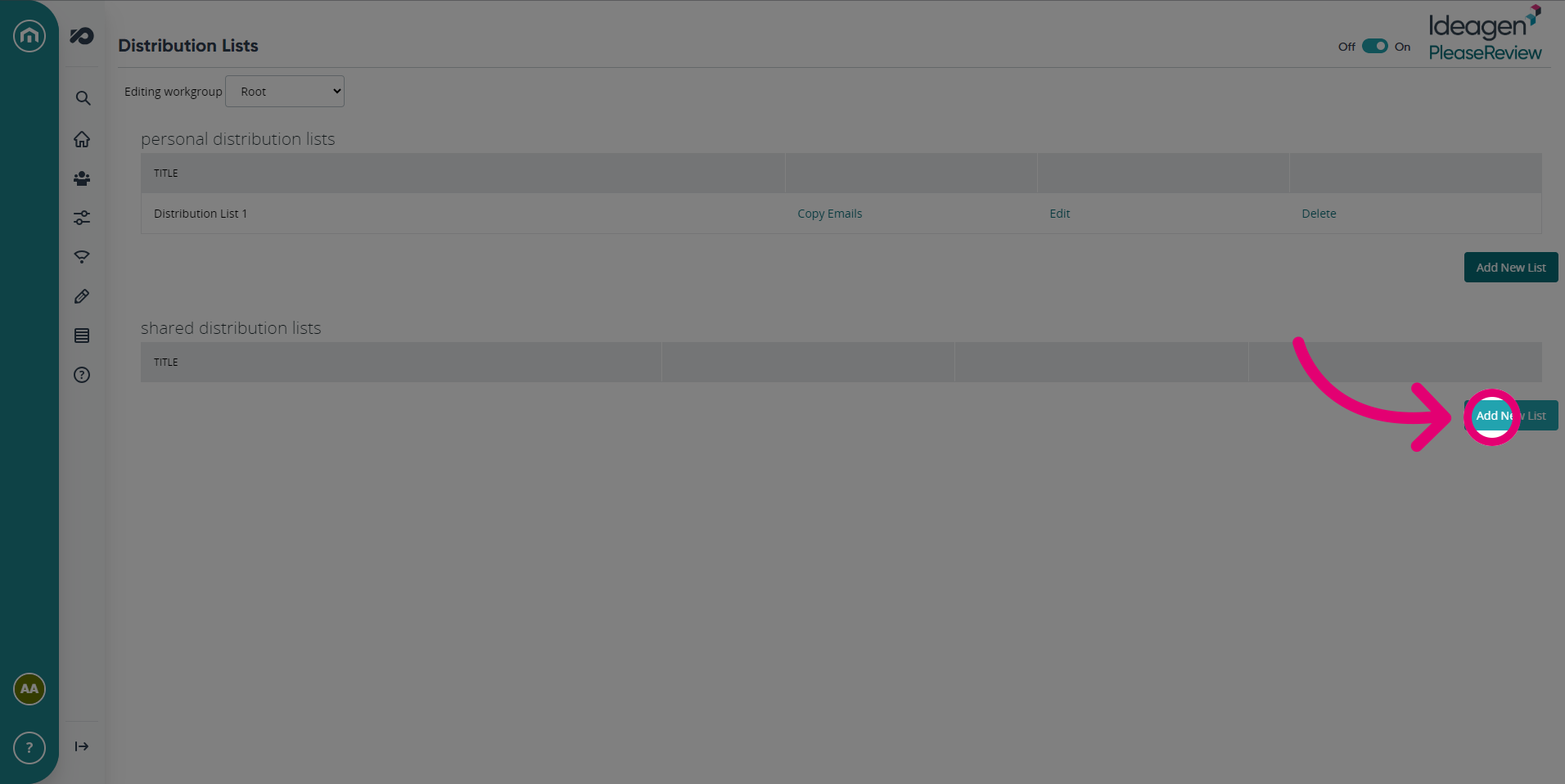
- To add a shared distribution lists, click Add New List.
- Name the distribution list.
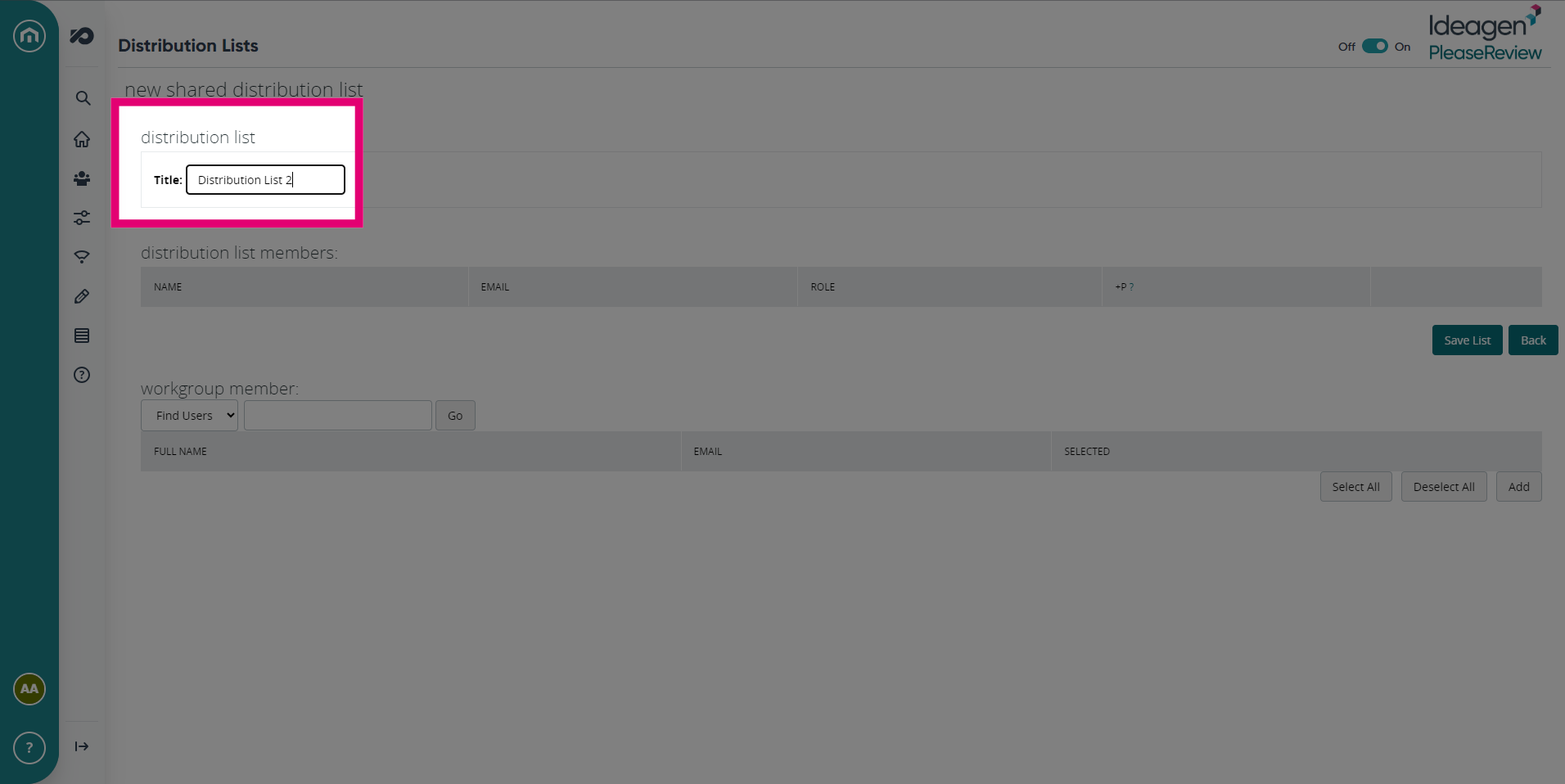
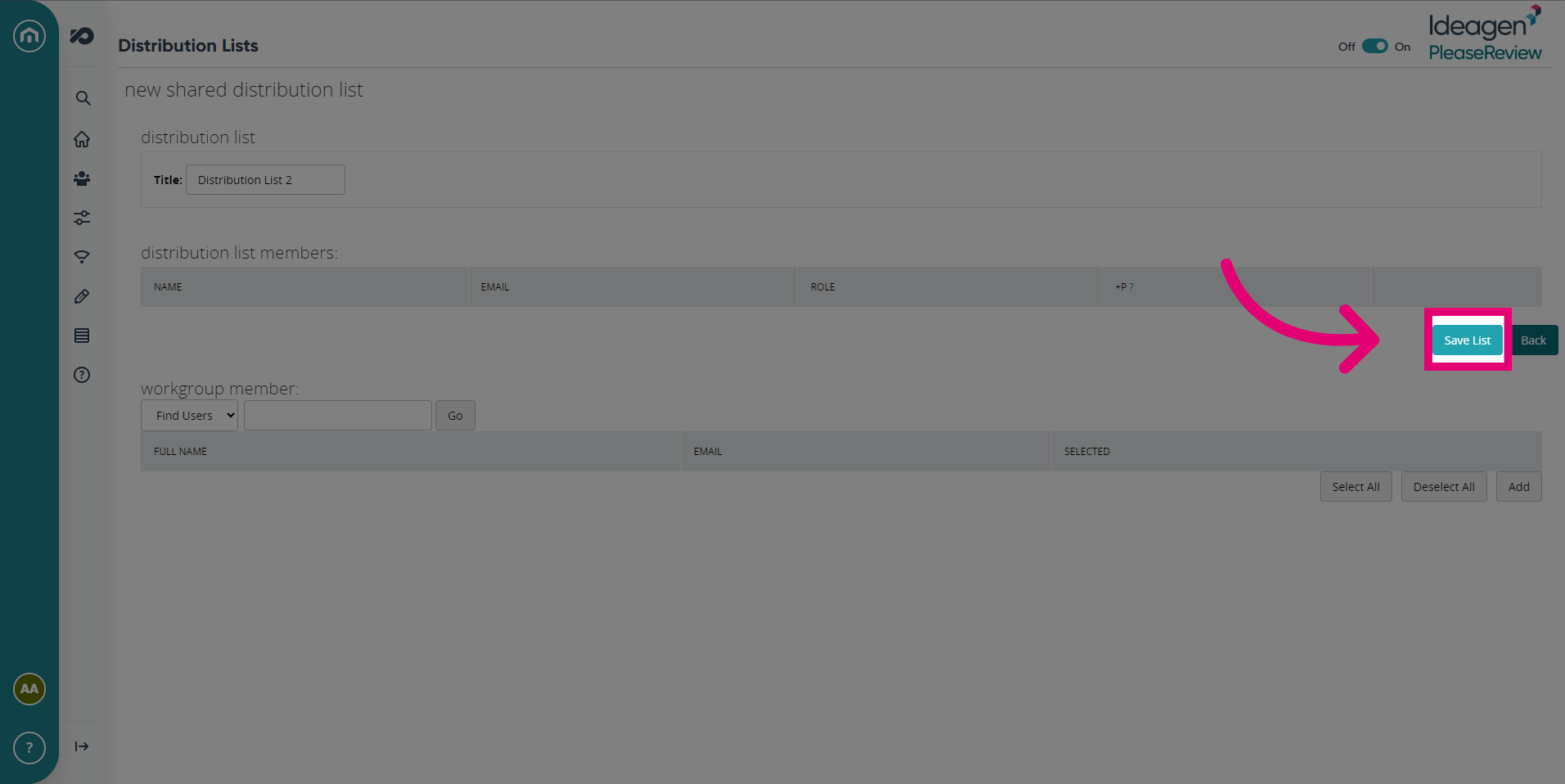
- Click Save List.
- Creating Distribution Lists
- Managing Distribution Lists
- Add Participants from Existing Distribution Lists
- Further Reading
Creating Distribution Lists
Inside distribution lists, you should see the existing participants in the review. It is possible to use this list to create and/or maintain existing distribution lists.
Selecting the ‘Manage distribution lists’ link will open a new pop-up window:
You can overwrite an existing distribution list (only personal lists unless you are a Workgroup Administrator). This replaces all the users on the existing list with the current review participants with their associated role or create a new distribution list. This creates a new distribution list of the current review participants with their associated role.
Managing Distribution Lists
Review Owners can manage personal distribution lists as do users with a Workgroup role of Delegator. Shared distribution lists are created and managed by Workgroup Administrators.
- Select ‘manage lists’ under ‘distributions lists’ from the left-hand menu when not in a review:
- Select ‘Add New List’ then enter the list title.
- You can then search for users. Select the participants to be included on the list, and their default list roles. Then click ‘Add’.
- Once you have all the required participants with their appropriate roles shown in the top half of the screen under ‘distribution list members’, select ‘Save List’.
- Once the list is saved it will appear under personal distribution lists. Selecting ‘Edit’ will permit you to edit the list and selecting ‘Delete’ will delete the list.
Add Participants from Existing Distribution Lists
If you have any distribution lists set up, they are available to you in the drop-down:
After selecting a distribution list, the users on that list are added to the relevant role. Once added, you can change their role, or remove them from the review.
- You can add participants from several distribution lists.
- If a user has a Workgroup role of Delegator you can allow the user to add one or more additional participants into a review whilst remaining active in the review themselves. This is separate from the standard ‘simple delegation’ which does not require any specific privileges. To enable this, click ‘Edit’ and check the ‘+P’ checkbox. This column is not visible unless delegation is enabled.