


New article
Recently updated
Navigating the Review Screen

Who is this article for?Users navigating the home screen.
System Administrators will assign users with login credentials.
This article explains how to navigate the review screen and review status descriptions. It doesn't explain how to create a review or how to add review roles. Please see Further Reading for more information on these topics.
1. Navigating the Review Screen
1.1 Video
1.2 Steps
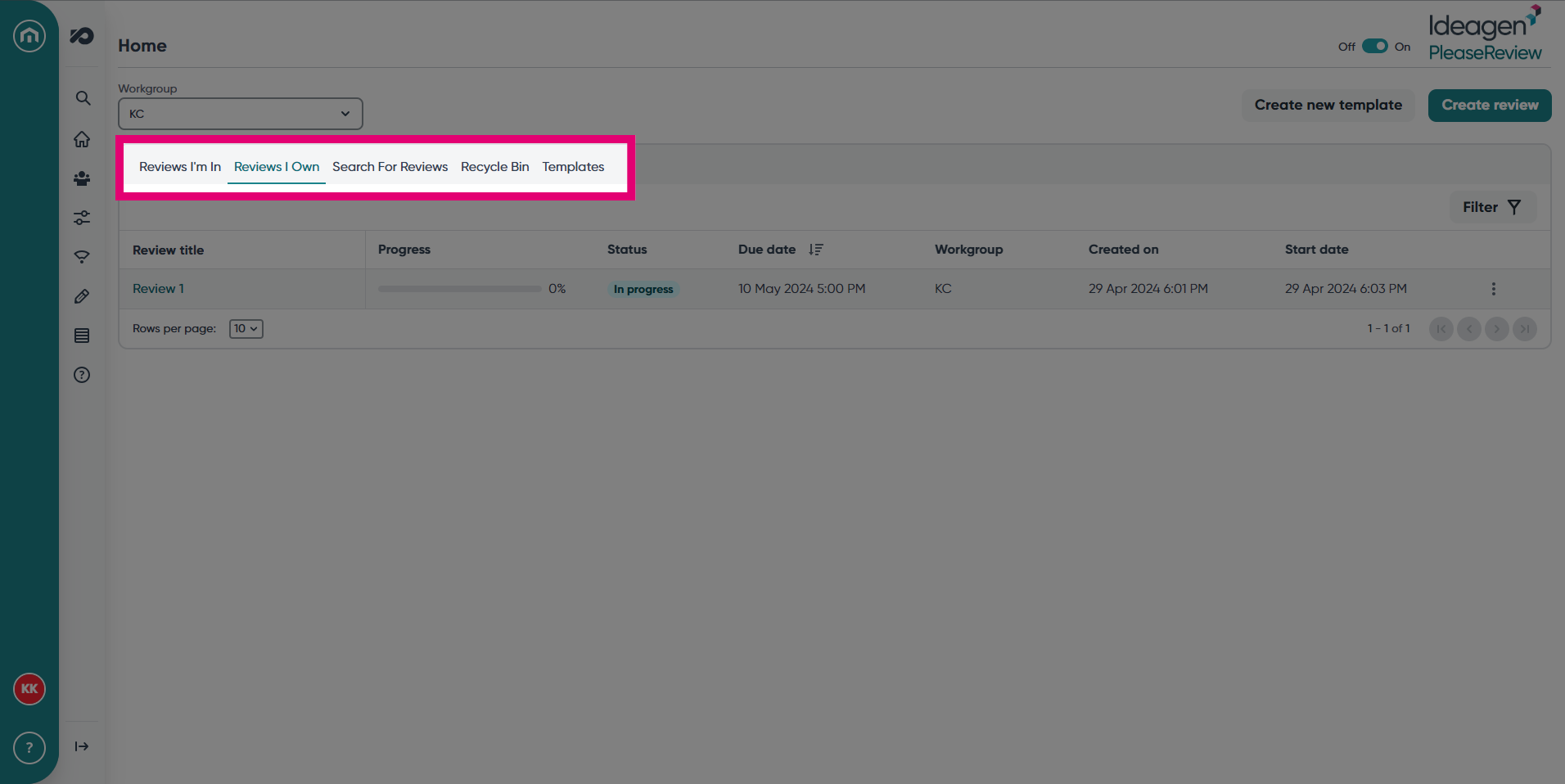
- The Review screen has five options: Reviews I'm in, Reviews I Own, Search for Reviews, Recycle Bin and Templates.
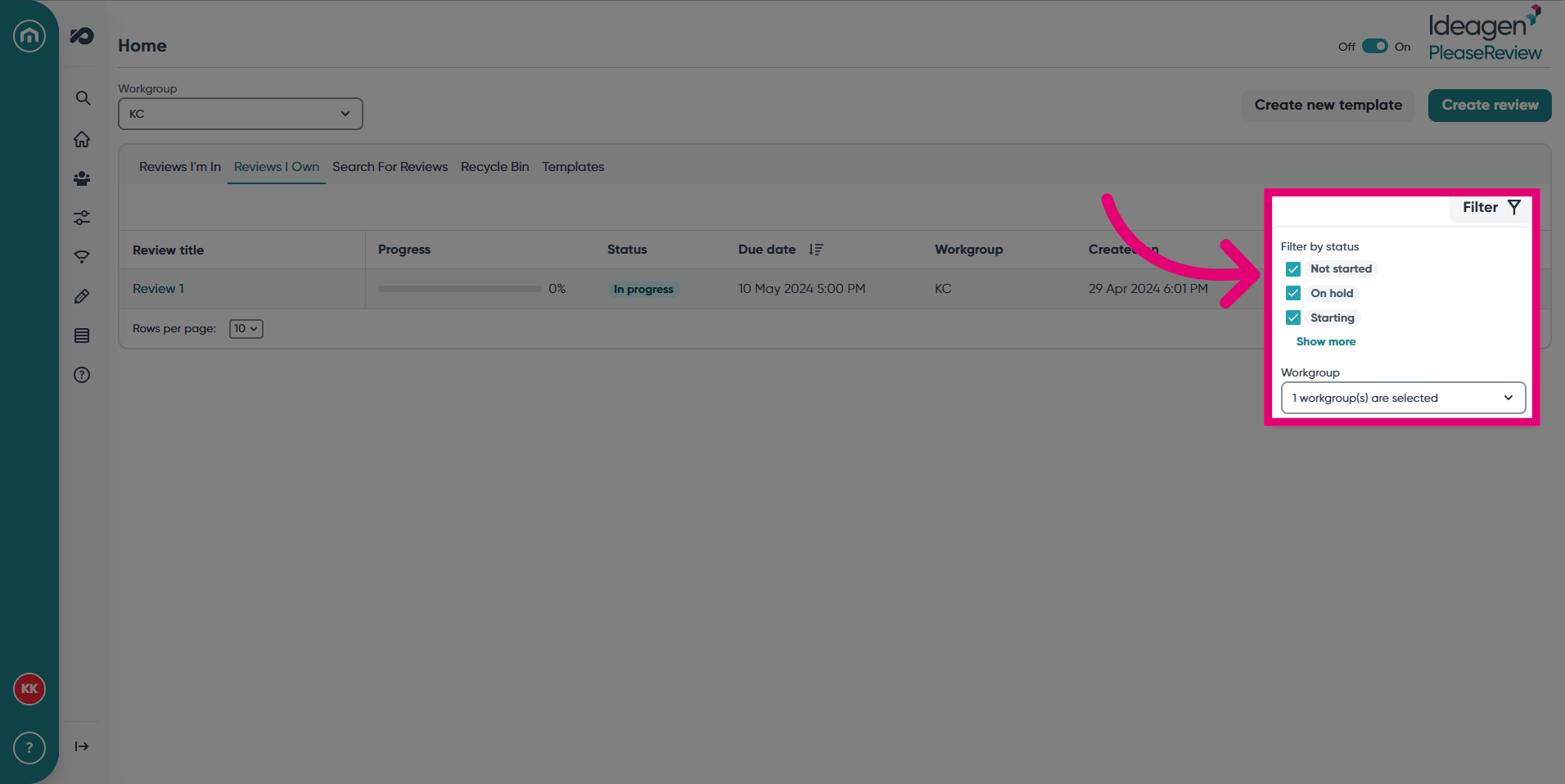
- To refine your search, click Filter. Then, you can filter by Status and Workgroup. This is applicable for all tabs.
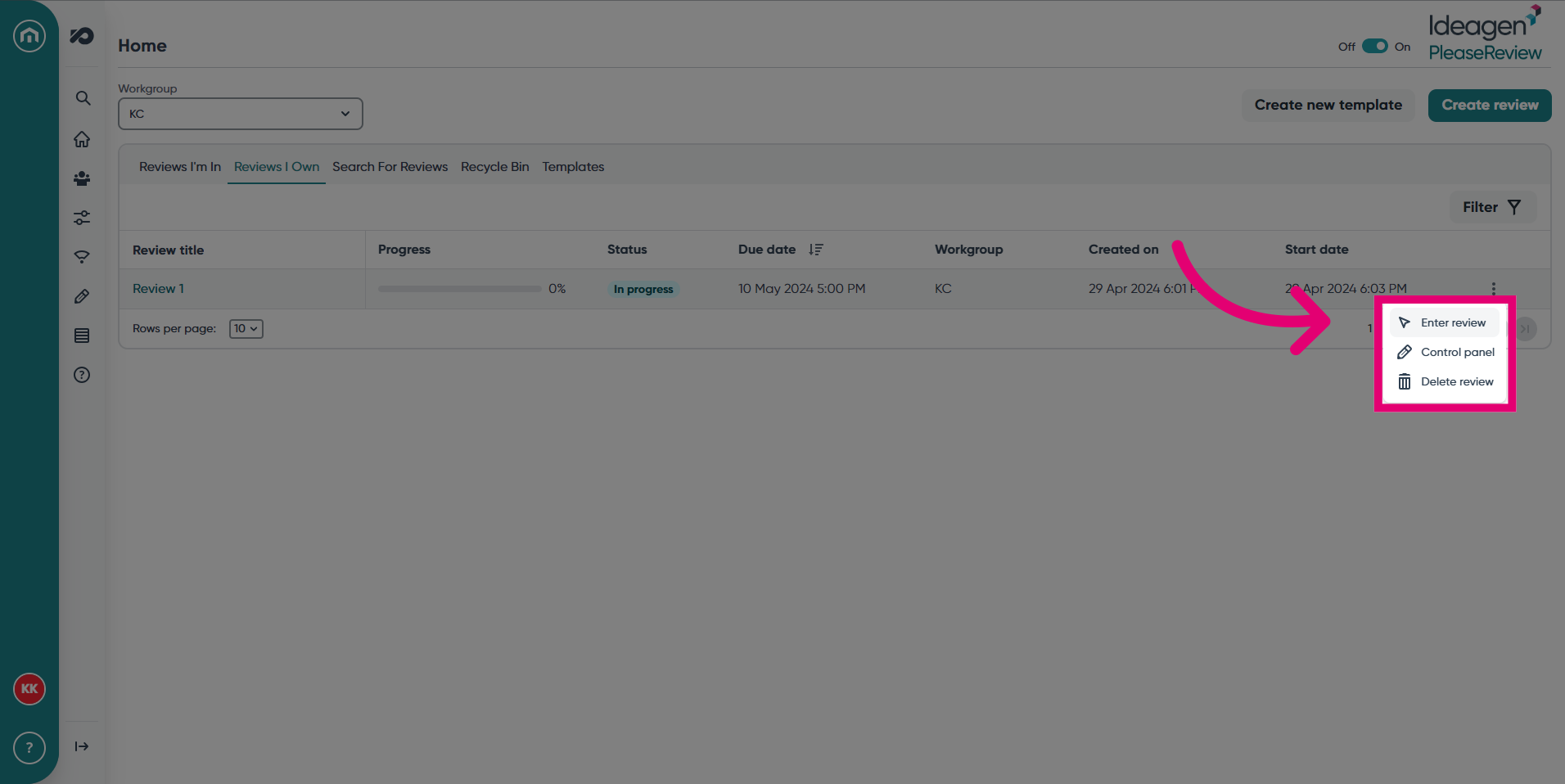
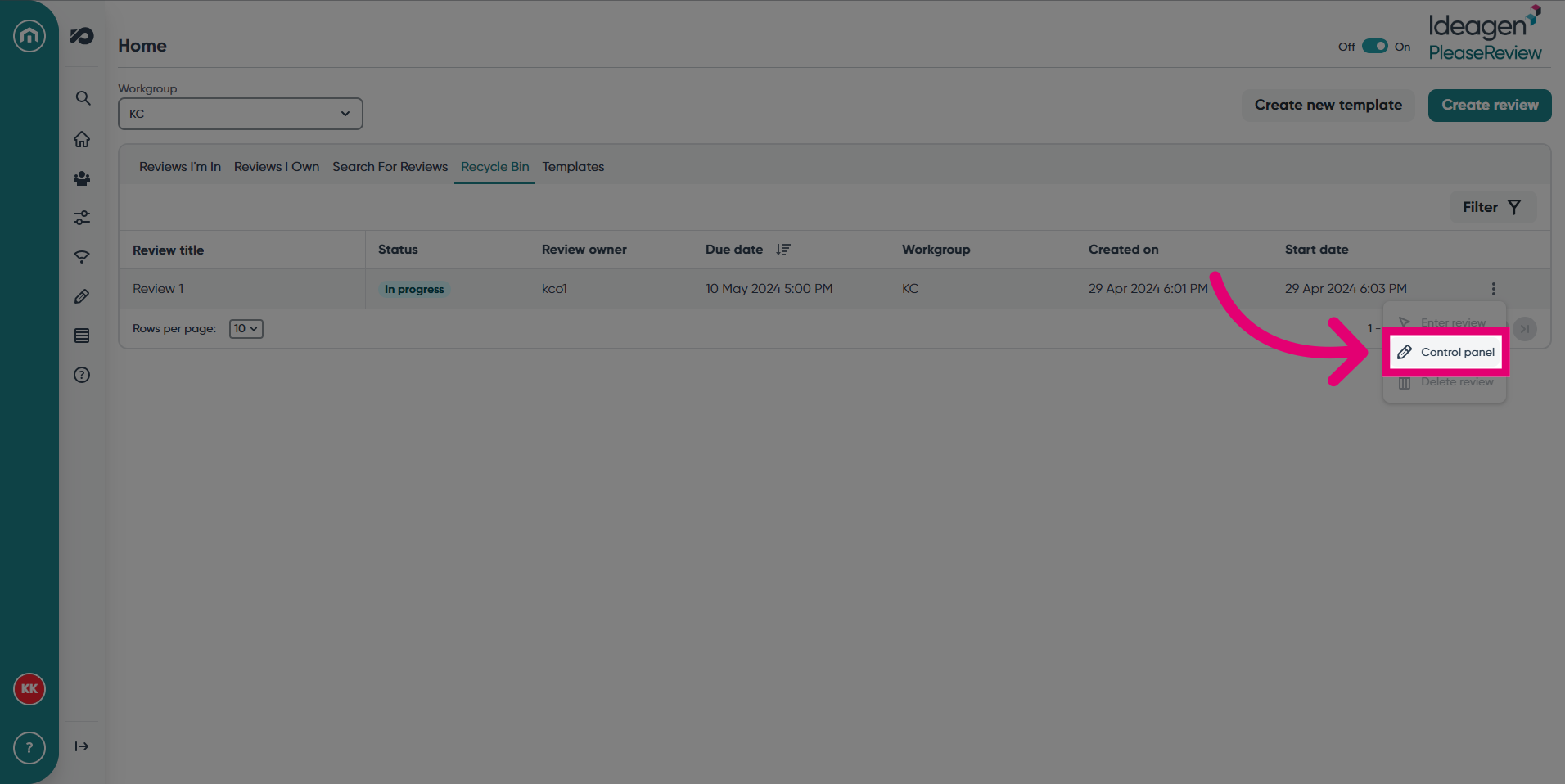
- Use the ellipsis button next to your chosen review to reveal the following options: Enter Review, Control Panel and Delete Review. Please bear in mind, if you do not have permissions for these options, they will appear greyed out. This is how you access these options for all tabs.
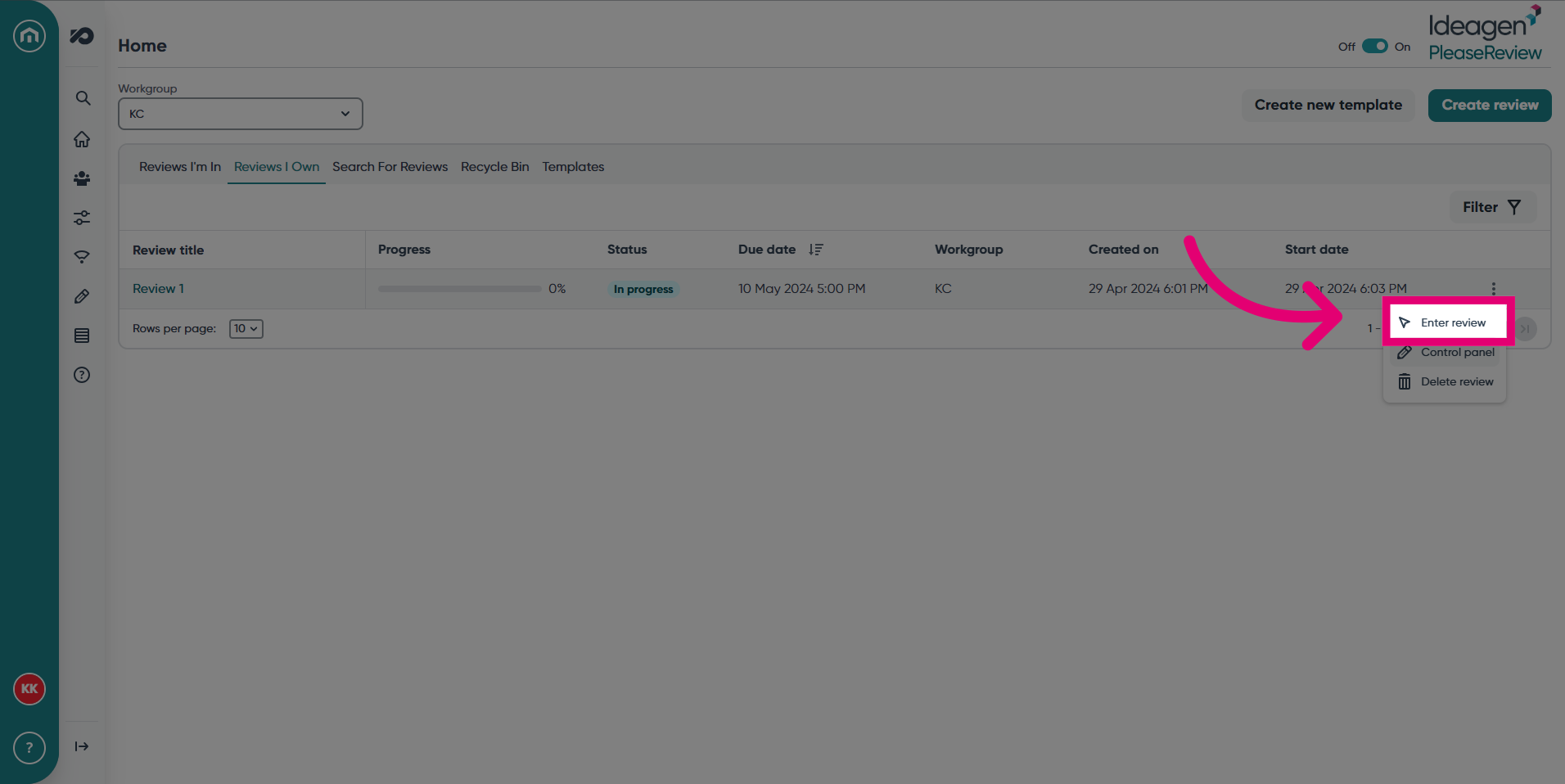
- Click Enter review to open the review document.
- Click Control Panel to access the review status and options.
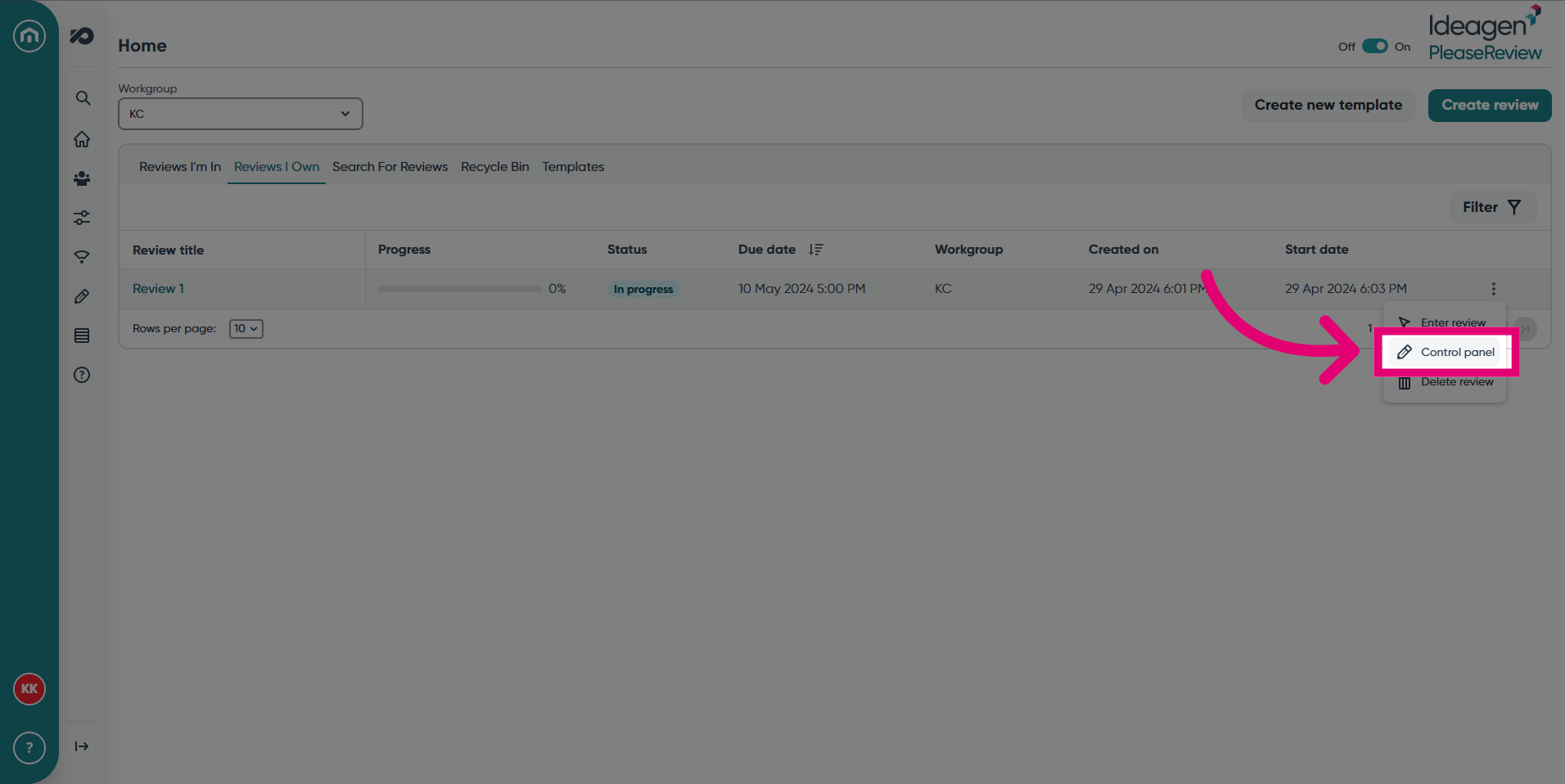
- The options in the Control Panel will vary depending on what tab you are in and the level of permissions you have.
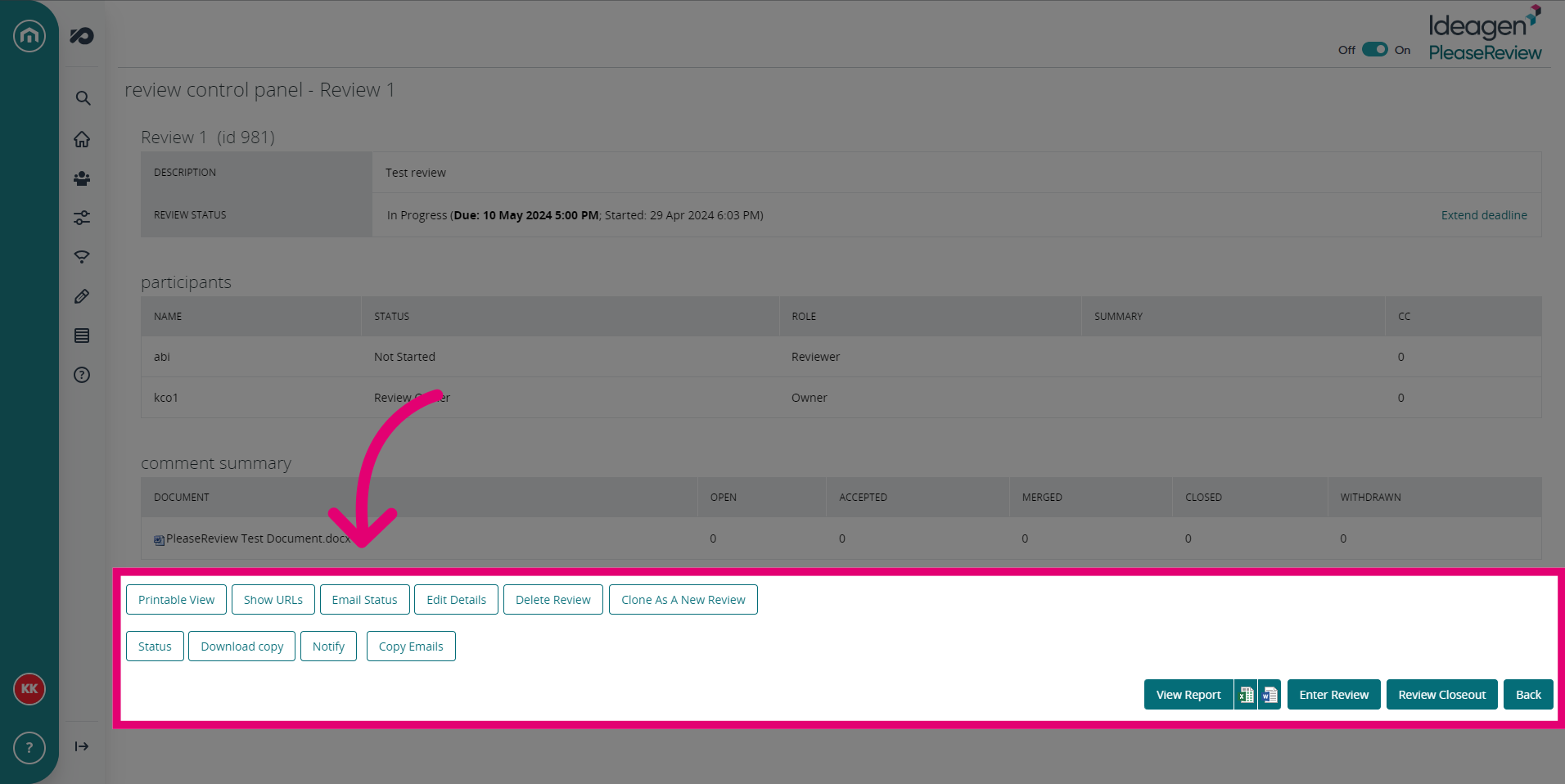
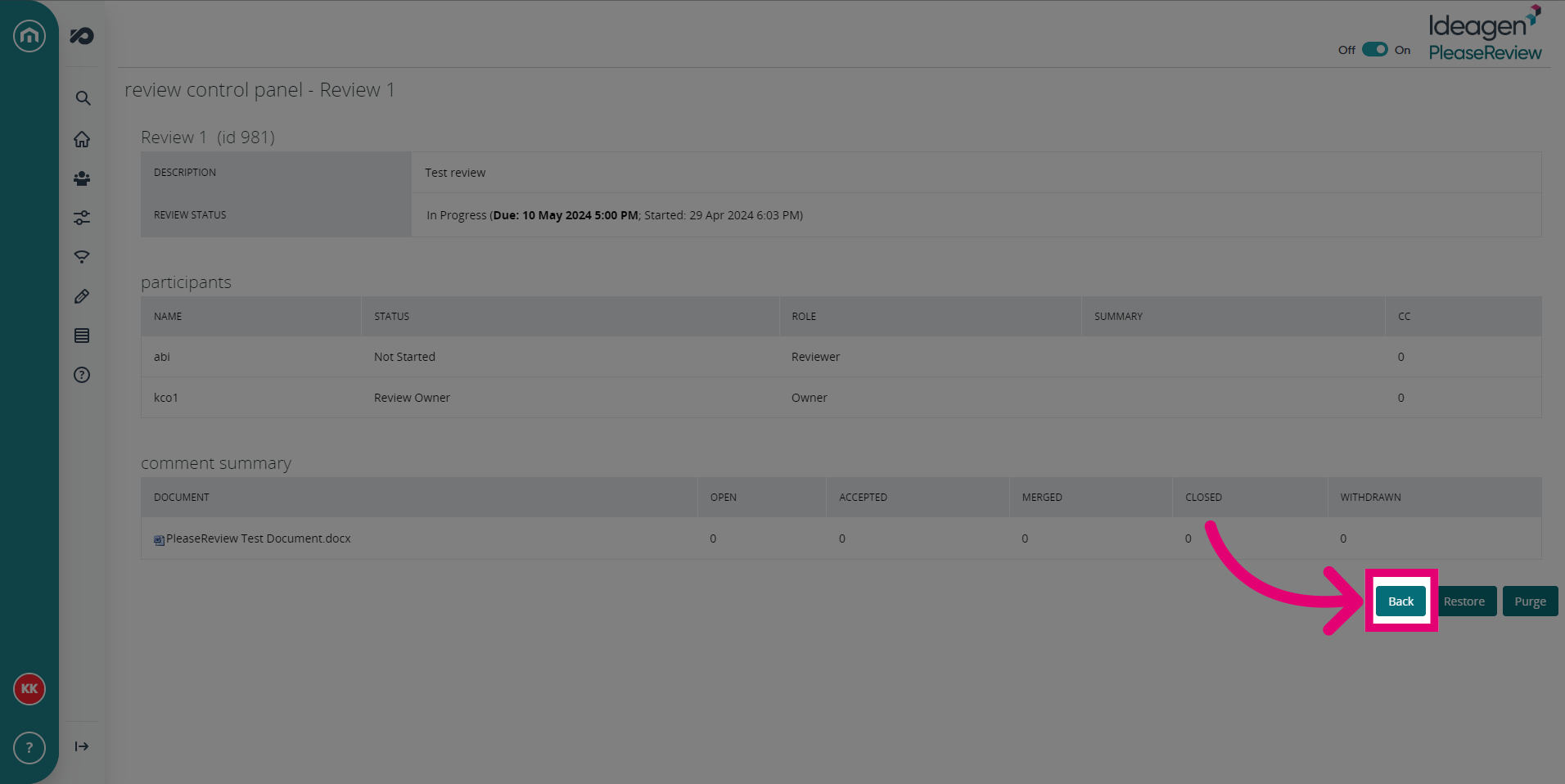
- To return to the review screen, click Back.
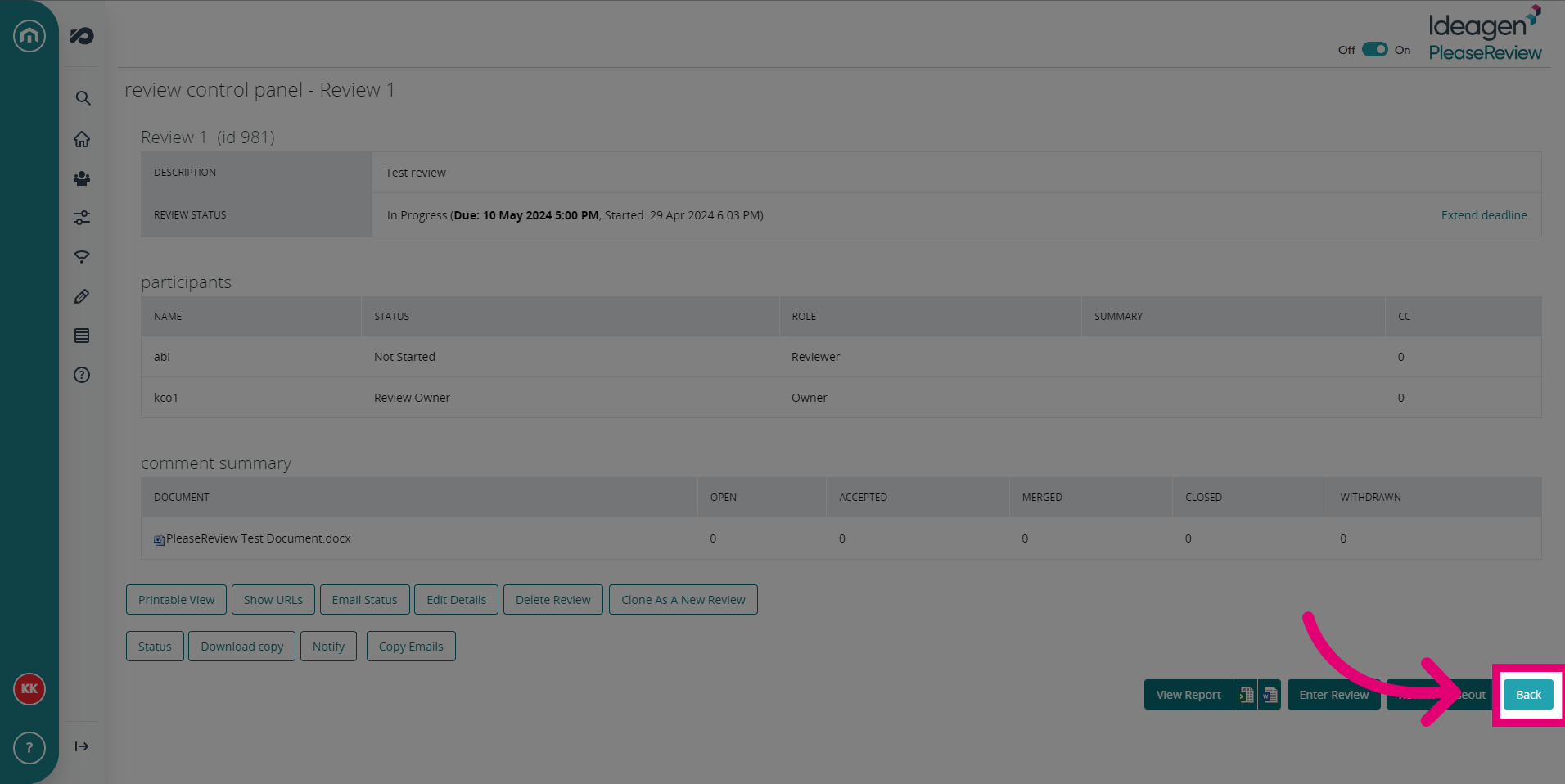
- The final option in the ellipsis menu is to Delete a review. This will move it into the Recycle Bin tab.
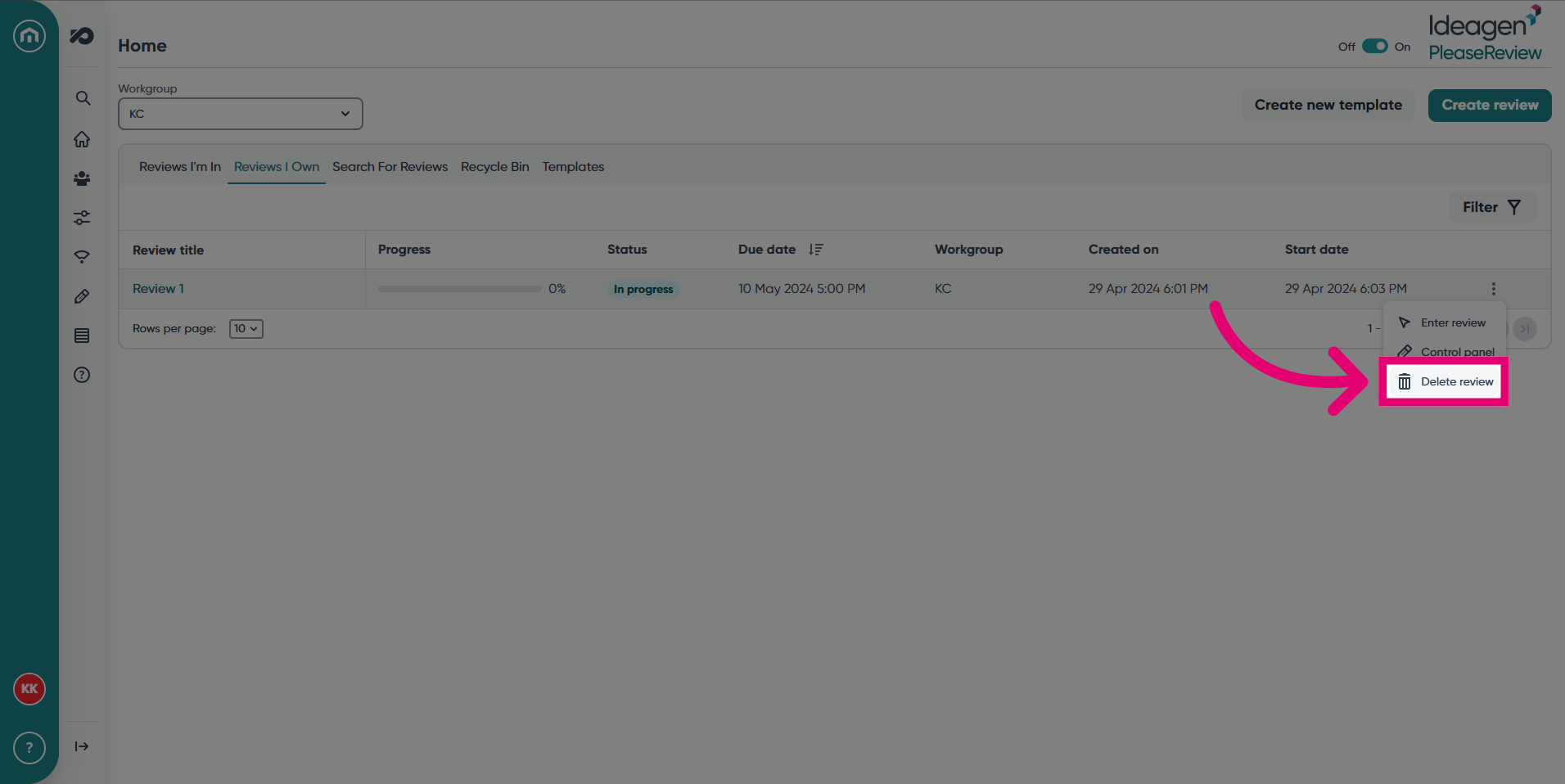
- Confirm deletion of a review by clicking Yes.
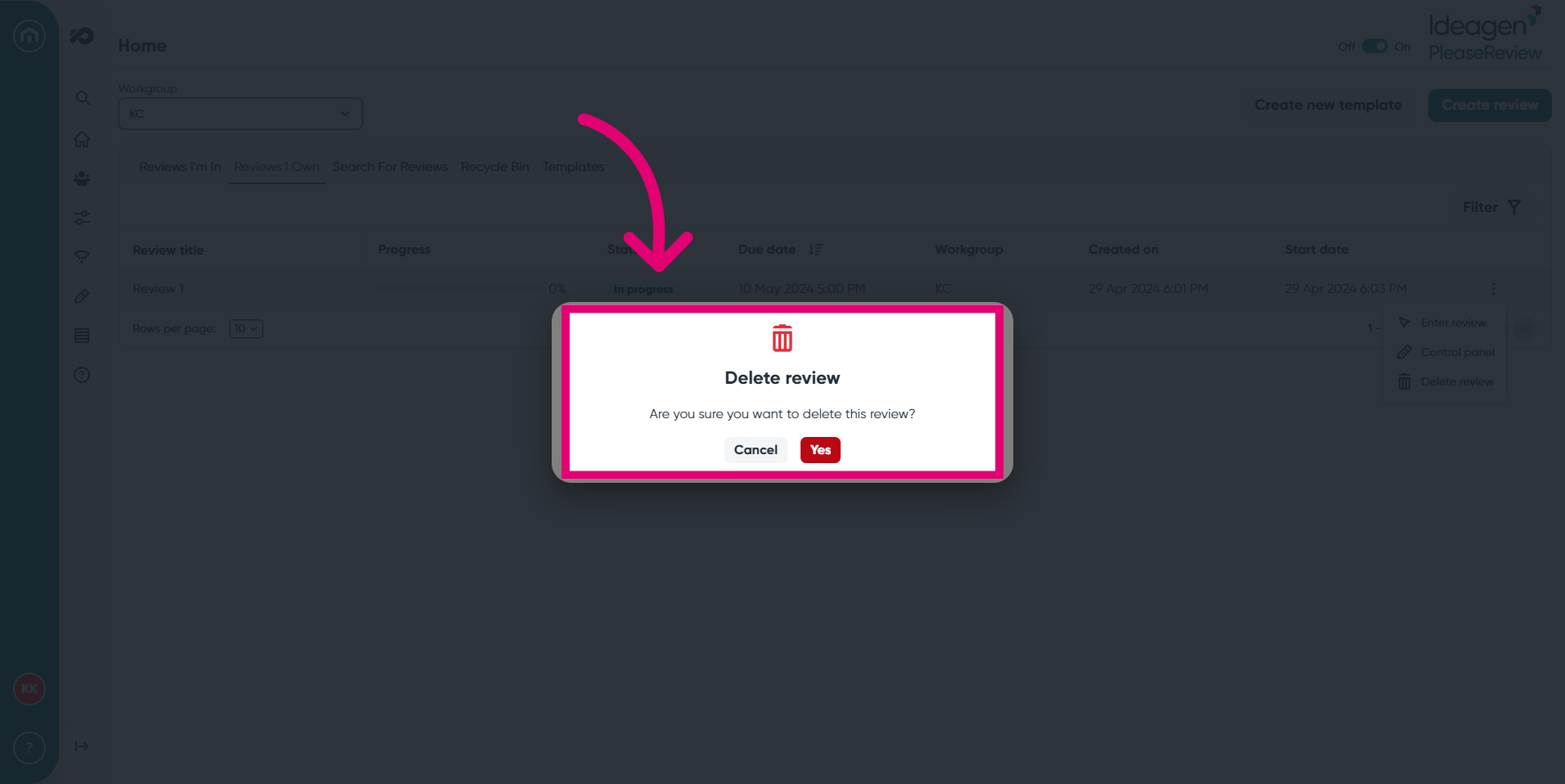
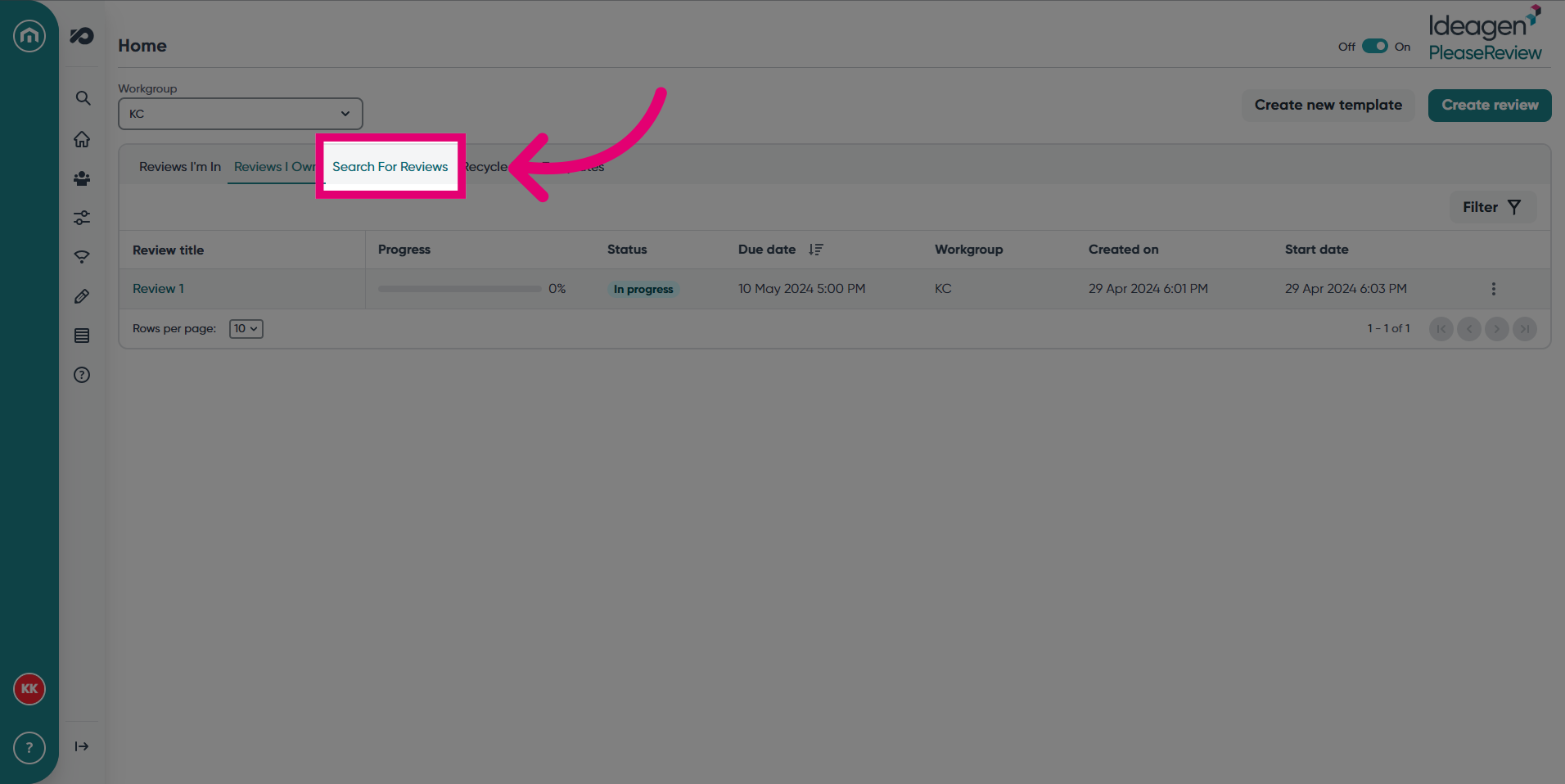
- To find a specific review, click on the Search for Reviews tab.
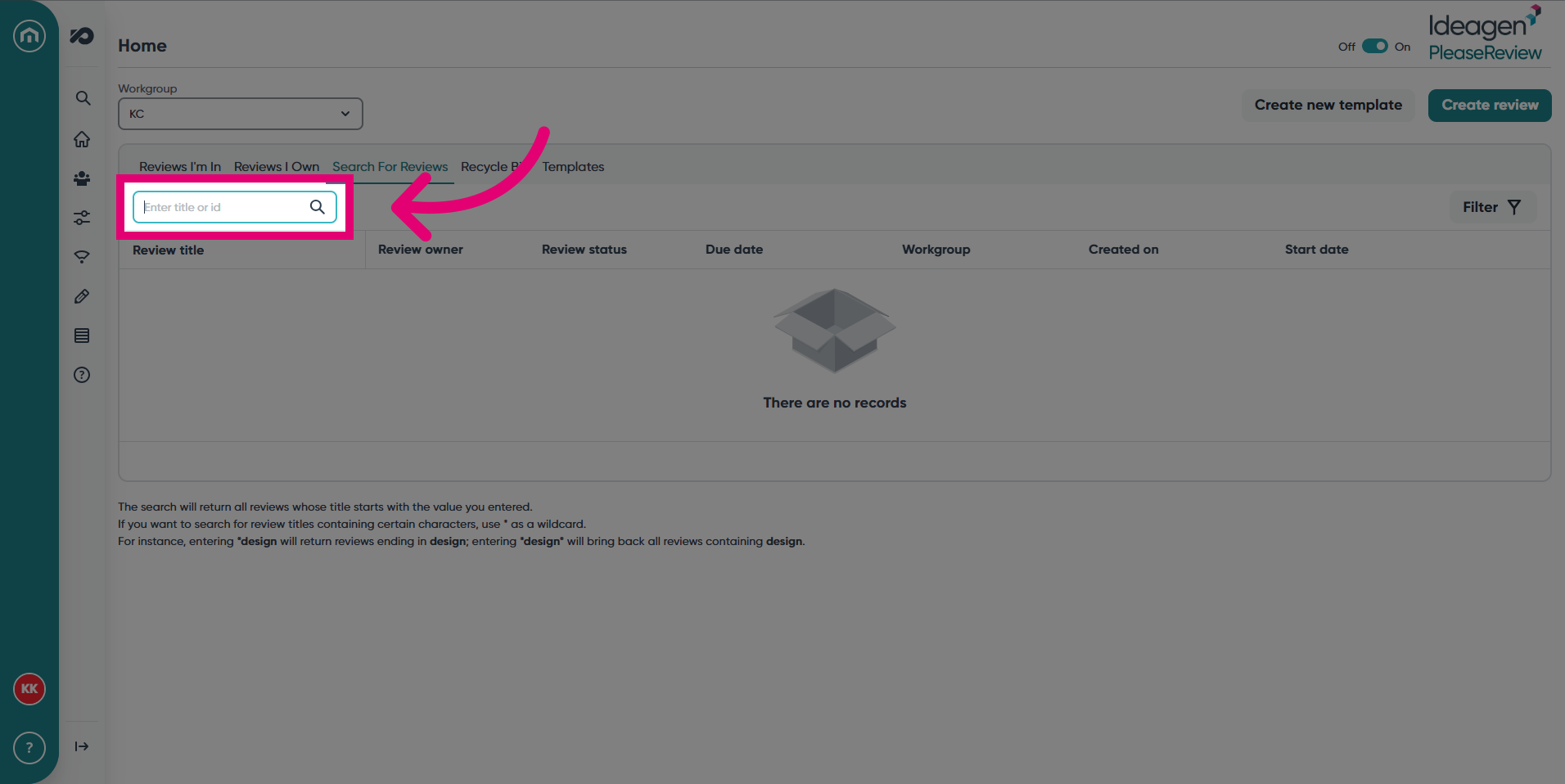
- Input the review title or ID, then press enter or the magnifying glass to search.
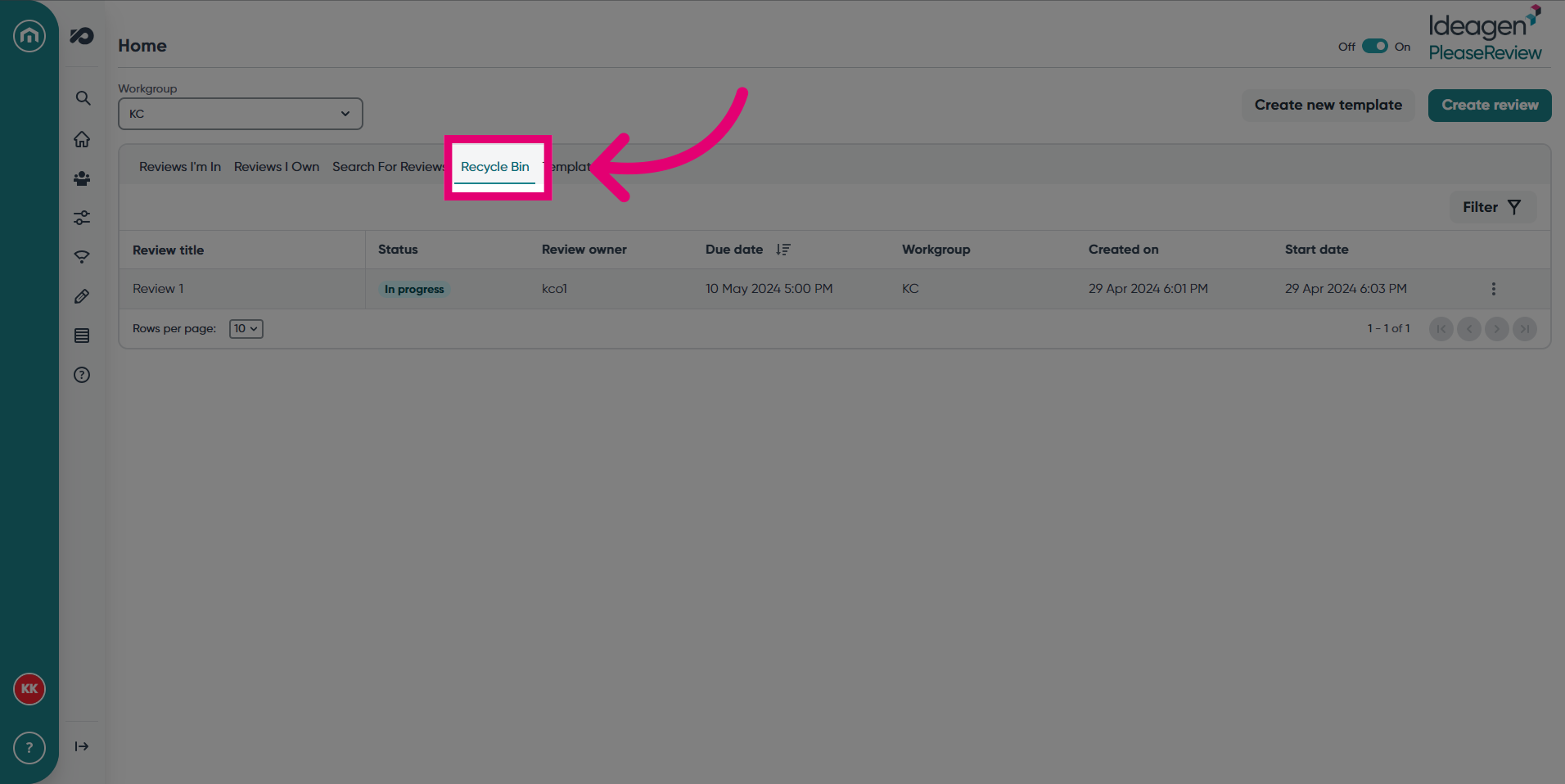
- Access the Recycle Bin for deleted reviews.
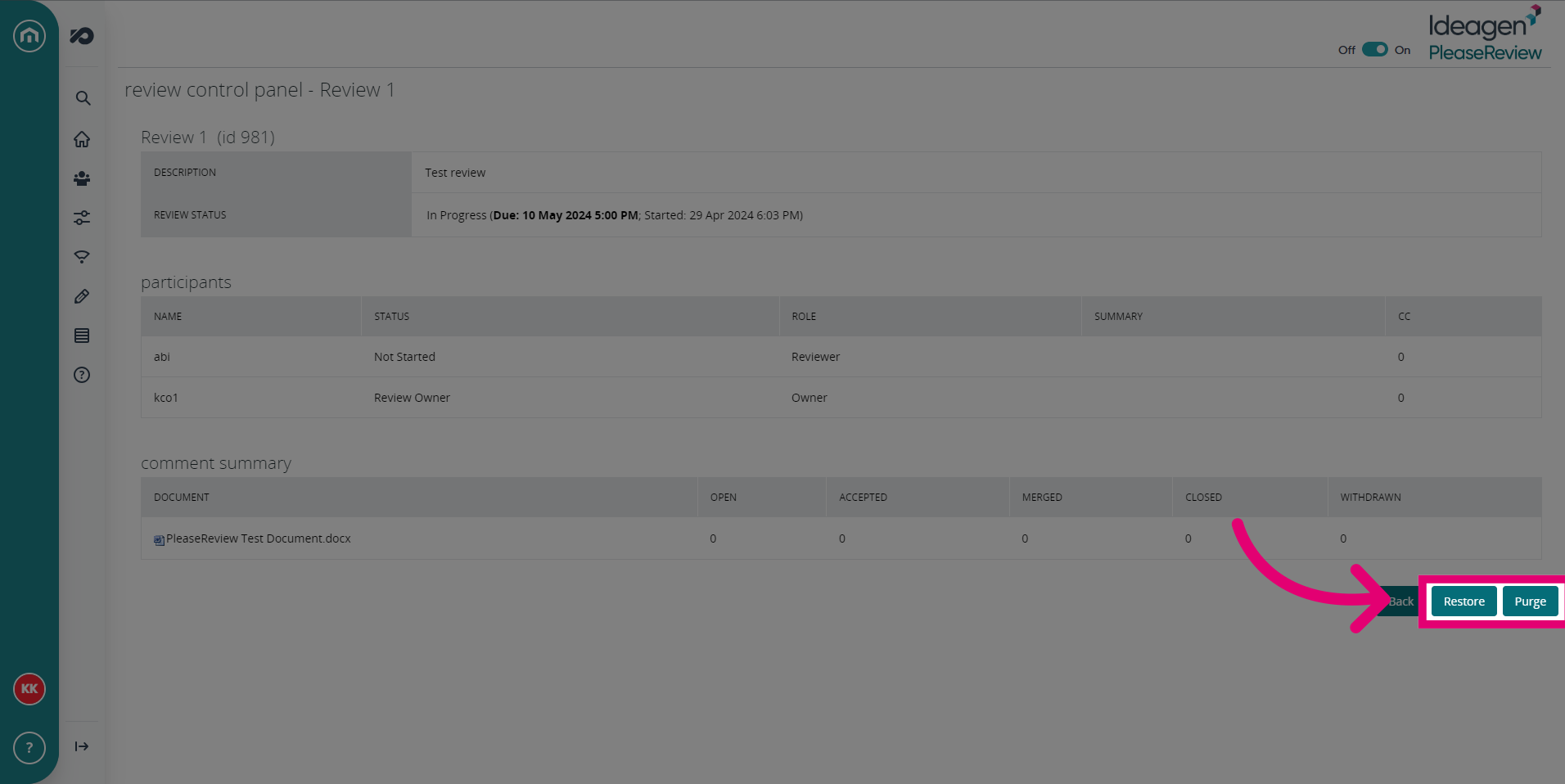
- The Control Panel for this tab has a few different options.
- There are two options in the Recycle Bin Control Panel. Restore, which will return the review to Reviews I Own and Purge, which will permanently delete the review.
- Click Back to return to the review screen.
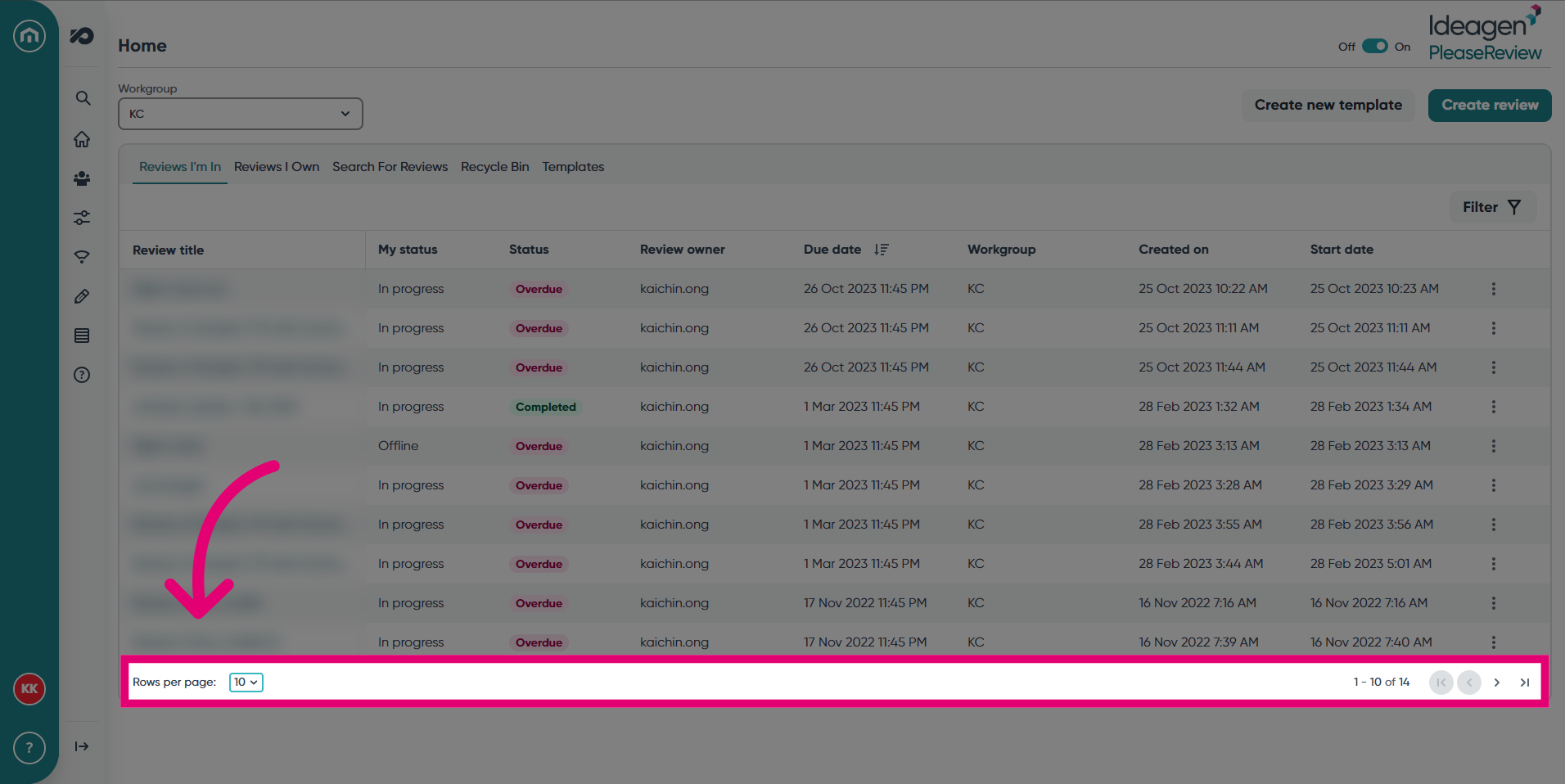
- To access more reviews, increase the Rows per page or click on the arrow button at the bottom of any of the tabs.
2. Further Reading
1. Navigating Reviews
You can filter your list of reviews by review status using the check boxes. You can also sort your list of reviews by clicking the relevant column heading once to sort the list in ascending order, or twice to sort the list in descending order. The arrows indicate which column the list is currently sorted by, and the direction (ascending and descending respectively).
2. Review Status
The 'Review Status' gives an indication of the review stage:
The table below outlines the review statuses available:
| Review Status | Description |
|---|---|
|
Not started |
The Review Owner has not completed the review set-up and the review has not started. |
|
On Hold |
The review has been placed On Hold by the Review Owner and no one can access the review. |
|
In progress |
The review is in progress and visible to all participants. |
|
Overdue |
The review is in progress but has passed its due date. |
|
Closed |
The review is closed. Participants can access the review as read-only but cannot add comments or propose changes. Review Owners/Authors can continue to accept/close comments. |
|
Completed |
The review is complete and read-only to everyone. Once completed, reviews remain with this status until deleted. |
3. My Status
The ‘Reviews I’m in’ tab displays your personal status in the review.:
|
My Status |
Description |
|---|---|
| Not started |
You have not entered the review yet. |
|
In progress |
You have entered the review, but not completed. |
|
Completed |
You have indicated that you have finished the review. |
|
Offline |
Reviews that you have downloaded to review offline. |
4. Searching for Reviews
The ‘Search for reviews’ tab allows you to search for a specific review:
The search will return all reviews where the review title starts with the text you entered.
Note: If you want to search for review titles containing certain characters use ‘*’ as a wildcard. For example, entering ‘*design’ will return reviews ending in design; entering ‘*design*’ will return all reviews containing the word design.
- You will only be able to search for reviews in which you are a participant.
- The ‘Deleted reviews’ option will locate those reviews which are in the recycle bin (if enabled). It will not locate reviews which have been permanently deleted.
5. Recycle Bin
The recycle bin (if available) will list deleted reviews. Deleted reviews will remain in the recycle bin for a system defined period before being automatically and permanently deleted.
Using ‘Select’ allows you to either purge or restore the review. Purge will delete the review permanently whilst restore will return it to ‘Reviews I own’.
Note: If you purge a review, it will be deleted permanently, and this action cannot be undone.
6. Further Reading